> ## Documentation Index
> Fetch the complete documentation index at: https://docs.gameball.co/llms.txt
> Use this file to discover all available pages before exploring further.
# How Do I Configure Gameball Dashboard Language Settings?
> Learn how to change the language of your Gameball dashboard.
## Plan Availability
| Platform | Support |
| ------------------- | ------------------------- |
| Shopify (All plans) | Supported (All languages) |
| Salla (All plans) | Supported (All languages) |
| Integration | Support |
| ------------------ | ------------------------- |
| Custom (All plans) | Supported (All languages) |
***
## Overview
Gameball currently supports nine languages on the dashboard to enable clients to use their local language while setting up their player experience. You can choose between the following languages:
Default dashboard language.
Full right-to-left support.
Complete French localization.
Full Japanese localization.
Complete Spanish localization.
Complete Italian localization.
Brazilian Portuguese localization.
European Portuguese localization.
Complete German localization.
***
## Changing the Dashboard Language
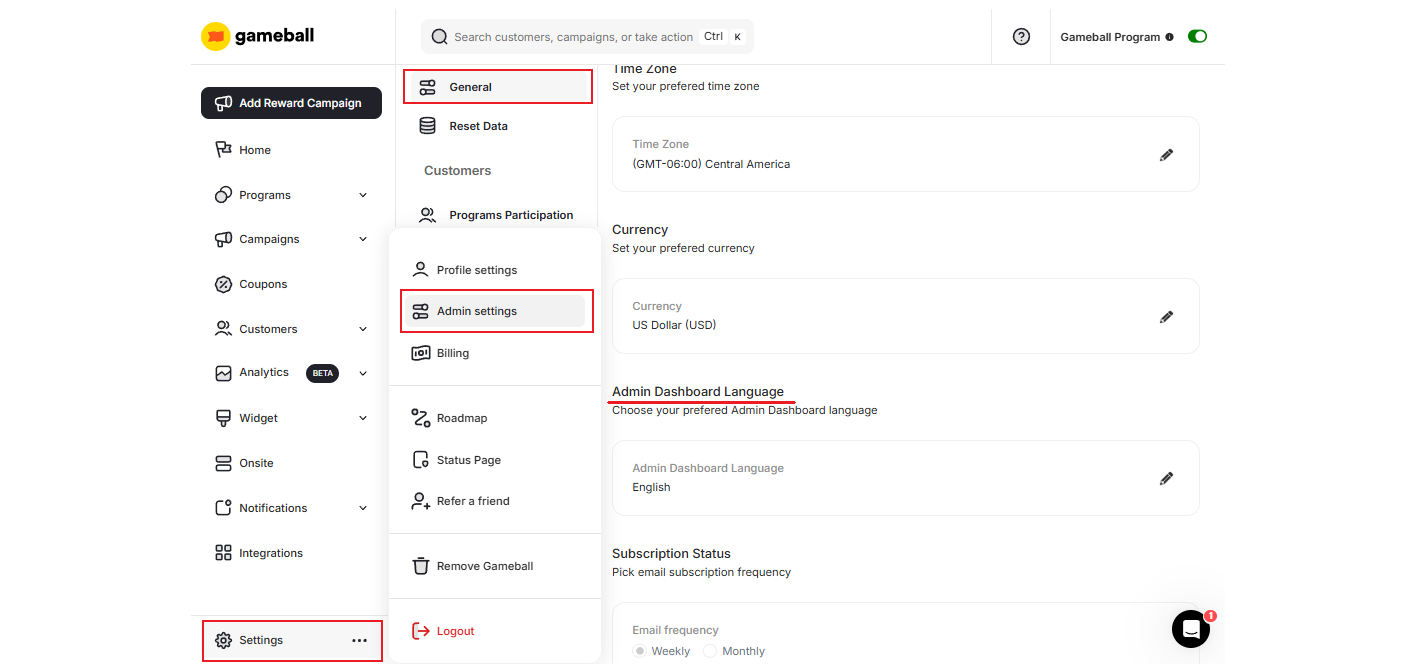
By default, your dashboard language is English (EN). You can easily change that by following these steps:
Access your account at the Gameball Admin Dashboard.
Go to **Settings** > **Admin Settings** > **General**.
In the **Admin Dashboard Language**, click on the **Edit** icon.
Choose your preferred language from the dropdown menu, then click **Save**.
Watch your dashboard change its previous language to the selected language.
 We are currently working on localizing our dashboard to more languages. If you would like to suggest a new language, please email us at [support@gameball.co](mailto:support@gameball.co).
***
## Related Articles
Configure the language of the player-facing widget on your platform.
Match your platform timezone with Gameball data timestamps.
Match your platform currency with the Gameball currency display.
Configure customer profile attributes for deeper segmentation insights.
We are currently working on localizing our dashboard to more languages. If you would like to suggest a new language, please email us at [support@gameball.co](mailto:support@gameball.co).
***
## Related Articles
Configure the language of the player-facing widget on your platform.
Match your platform timezone with Gameball data timestamps.
Match your platform currency with the Gameball currency display.
Configure customer profile attributes for deeper segmentation insights.