> ## Documentation Index
> Fetch the complete documentation index at: https://docs.gameball.co/llms.txt
> Use this file to discover all available pages before exploring further.
# How Do I Configure My Firebase Account for Mobile Push Notifications?
> Learn how to use Firebase for push notifications on your mobile app.
## Plan Availability
| Plan | Available |
| ---- | --------- |
| Pro | Yes |
| Guru | Yes |
| Plan | Available |
| ---------- | --------- |
| Growth | Yes |
| Enterprise | Yes |
| Plan | Available |
| ------------ | --------- |
| Pro (Silver) | Yes |
| Guru (Gold) | Yes |
***
## Overview
In today's mobile-centric world, delivering timely and relevant push notifications is crucial for engaging users and enhancing their app experience. Firebase, Google's powerful mobile and web application development platform, provides robust tools for managing push notifications.
This article walks you through the steps to configure your Firebase account for push notifications within the Gameball Admin Dashboard.
***
## Getting Started with Firebase Configuration
To ensure seamless integration and functionality for push notifications in your mobile app, follow these steps to set up Firebase:
Navigate to your Gameball Admin Dashboard > **Settings** > **Admin Settings**.
Locate the **Integration** section then go to **Mobile Integration**.
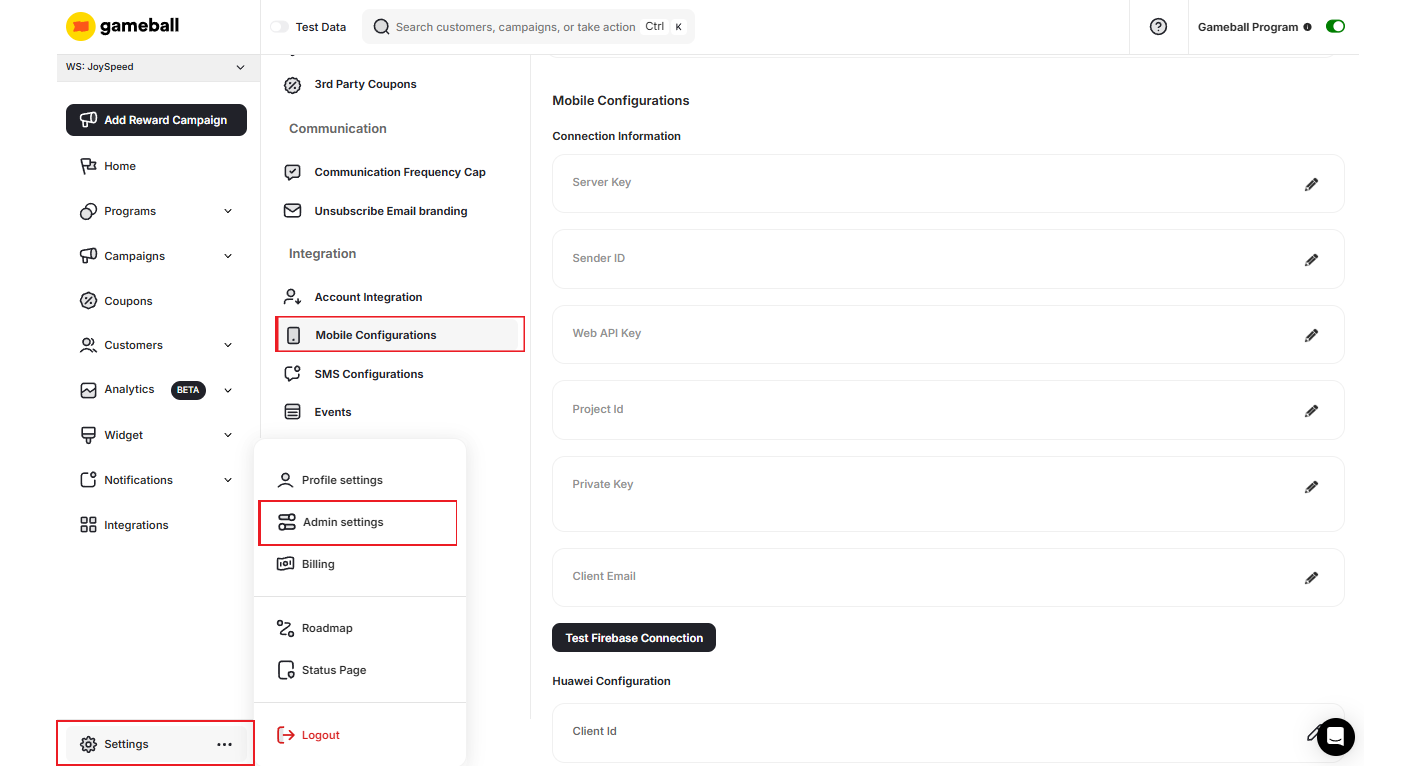 In the Account Integration page, scroll down to the Firebase Settings section. You will need to input the following information from your Firebase account:
This key is essential for sending messages to your app.
**Where to Find It:** Firebase Console > Your app > Project Settings > Cloud Messaging > Project credentials > Server key
In the Account Integration page, scroll down to the Firebase Settings section. You will need to input the following information from your Firebase account:
This key is essential for sending messages to your app.
**Where to Find It:** Firebase Console > Your app > Project Settings > Cloud Messaging > Project credentials > Server key
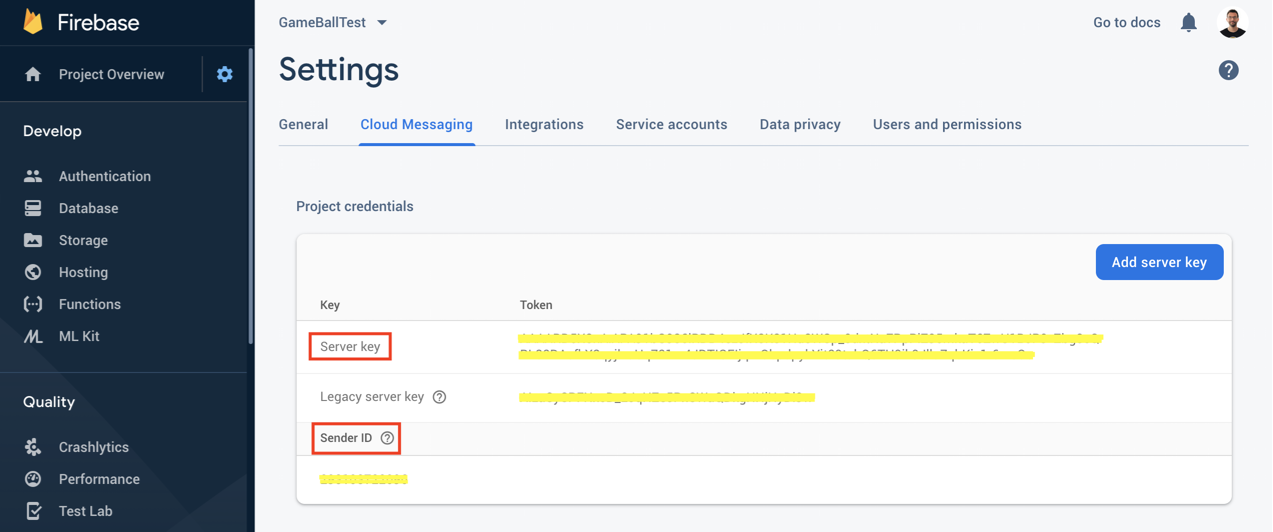
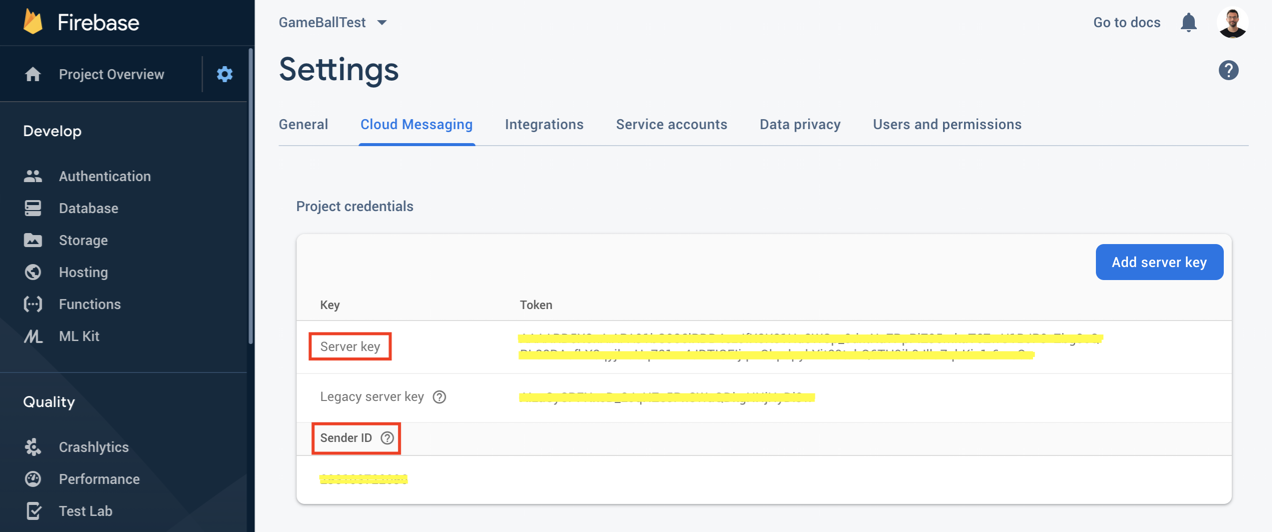 This ID is used for both server keys and legacy server key tokens.
**Where to Find It:** Firebase Console > Your app > Project Settings > Cloud Messaging > Sender ID
This ID is used for both server keys and legacy server key tokens.
**Where to Find It:** Firebase Console > Your app > Project Settings > Cloud Messaging > Sender ID
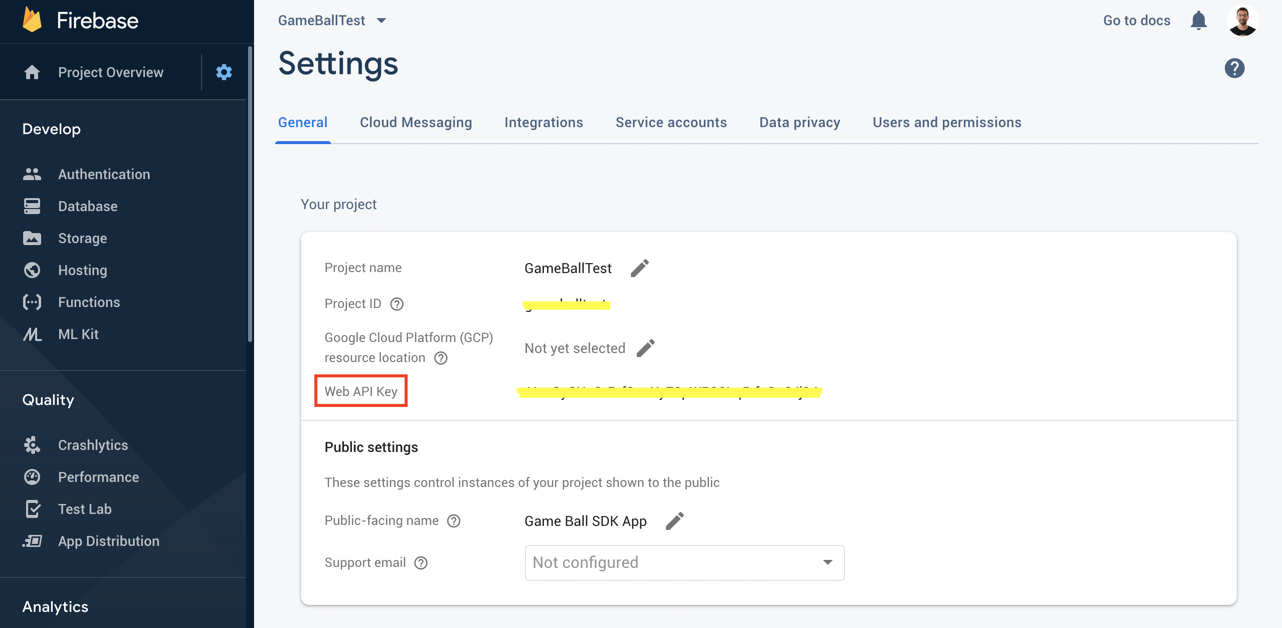
 This key is used for authentication and access to Firebase services.
**Where to Find It:** Firebase Console > Your app > Project settings > General > Web API Key
This key is used for authentication and access to Firebase services.
**Where to Find It:** Firebase Console > Your app > Project settings > General > Web API Key
 ***
## Migrating from Legacy FCM APIs to HTTP v1
Firebase recently updated their messaging system, requiring a [migration from the legacy FCM APIs to the newer **HTTPv1 API**](https://firebase.google.com/docs/cloud-messaging/migrate-v1). With this update, there are important changes to the way information is sent from Gameball to Firebase, particularly in how the data object is structured.
### Key Changes
With the new HTTPv1 API, any extra information that needs to be sent for notifications must be included in a **data object**.
* **Before (FCM API)**: The data object was formatted as a standard **JSON**.
* **After (HTTPv1 API)**: The data object must now be sent as **Key Value Pairs of String**, which needs to be parsed by you.
Here's a comparison of the data structure before and after the update:
**Before (FCM API format):**
```json theme={null}
{
"to": "/topics/news",
"notification": {
"title": "Breaking News",
"body": "Check out the Top Story.",
"click_action": "TOP_STORY_ACTIVITY"
},
"data": {
"story_id": "story_12345"
}
}
```
**After (HTTPv1 API format):**
```json theme={null}
{
"message": {
"notification": {
"title": "Breaking News",
"body": "New news story available."
},
"data": {
"isGb": "true"
},
"android": {
"notification": {
"click_action": "CLICK_ACTION"
}
},
"apns": {
"payload": {
"aps": {
"category": "CLICK_ACTION"
}
}
}
}
}
```
As seen in the "After" section, the `data` object is now sent as a **Key Value Pairs of String**, meaning the data values should be properly stringified.
```kotlin theme={null}
val isGB = message.data["isGB"].toBoolean()
val isGB = message.data["isGB"] as Boolean
```
If you need to send additional information along with the notification from Gameball, ensure that the data is converted to a JSON string before it is passed to Firebase. Failing to do so may result in errors or failed notifications.
With Firebase configured, you're ready to enhance user engagement through push notifications. The next step is to set up Firebase for mobile friends referral links in Gameball. This will allow you to leverage push notifications for referrals, driving growth and user acquisition.
***
## Related Articles
Configure your Firebase account on Gameball for mobile friends referral links.
Step-by-step guide to migrate your FCM configuration to the new HTTP v1 API.
***
## Migrating from Legacy FCM APIs to HTTP v1
Firebase recently updated their messaging system, requiring a [migration from the legacy FCM APIs to the newer **HTTPv1 API**](https://firebase.google.com/docs/cloud-messaging/migrate-v1). With this update, there are important changes to the way information is sent from Gameball to Firebase, particularly in how the data object is structured.
### Key Changes
With the new HTTPv1 API, any extra information that needs to be sent for notifications must be included in a **data object**.
* **Before (FCM API)**: The data object was formatted as a standard **JSON**.
* **After (HTTPv1 API)**: The data object must now be sent as **Key Value Pairs of String**, which needs to be parsed by you.
Here's a comparison of the data structure before and after the update:
**Before (FCM API format):**
```json theme={null}
{
"to": "/topics/news",
"notification": {
"title": "Breaking News",
"body": "Check out the Top Story.",
"click_action": "TOP_STORY_ACTIVITY"
},
"data": {
"story_id": "story_12345"
}
}
```
**After (HTTPv1 API format):**
```json theme={null}
{
"message": {
"notification": {
"title": "Breaking News",
"body": "New news story available."
},
"data": {
"isGb": "true"
},
"android": {
"notification": {
"click_action": "CLICK_ACTION"
}
},
"apns": {
"payload": {
"aps": {
"category": "CLICK_ACTION"
}
}
}
}
}
```
As seen in the "After" section, the `data` object is now sent as a **Key Value Pairs of String**, meaning the data values should be properly stringified.
```kotlin theme={null}
val isGB = message.data["isGB"].toBoolean()
val isGB = message.data["isGB"] as Boolean
```
If you need to send additional information along with the notification from Gameball, ensure that the data is converted to a JSON string before it is passed to Firebase. Failing to do so may result in errors or failed notifications.
With Firebase configured, you're ready to enhance user engagement through push notifications. The next step is to set up Firebase for mobile friends referral links in Gameball. This will allow you to leverage push notifications for referrals, driving growth and user acquisition.
***
## Related Articles
Configure your Firebase account on Gameball for mobile friends referral links.
Step-by-step guide to migrate your FCM configuration to the new HTTP v1 API.