> ## Documentation Index
> Fetch the complete documentation index at: https://docs.gameball.co/llms.txt
> Use this file to discover all available pages before exploring further.
# How Do I Create and Send Events to Gameball?
> Configure and add the events you send to Gameball automatically through your Admin Settings.
## Plan Availability
| Platform | Plan |
| -------- | ---- |
| Shopify | Guru |
| Salla | Guru |
| Integration | Plan |
| ----------- | ---- |
| Custom | All |
***
## Overview
Events are the actions performed by your customers on your platform. Your platform should fire signals to Gameball when important events occur. In other words, Gameball should be notified when customers perform certain actions or sequences of actions on your platform. [Learn more](https://developer.gameball.co/rest-api/events)
To configure these events on the **Gameball dashboard**, go to **Settings > Admin Settings > Integrations: Events**.
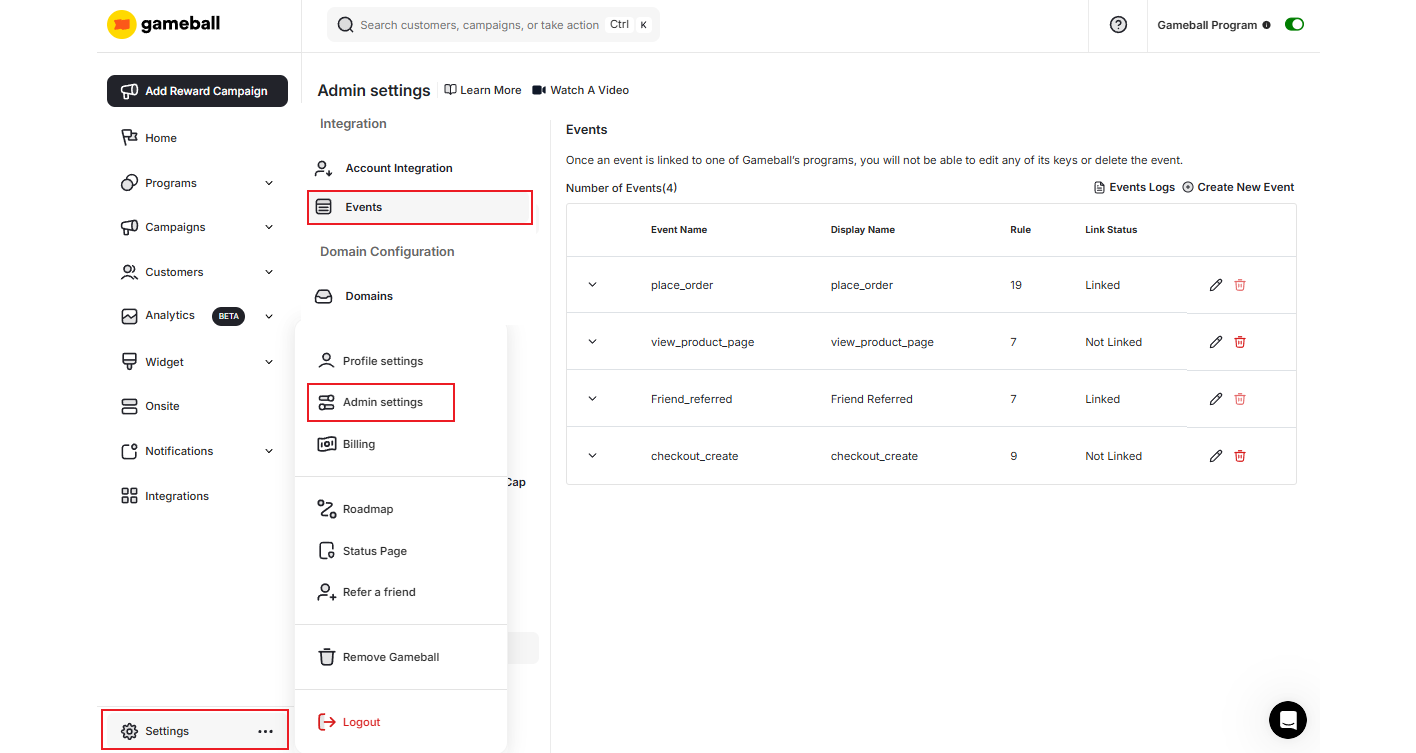 On the events page, you can find all events sent to Gameball and their details.
***
## Adding Events
Once an event is sent from your platform to Gameball, it automatically appears on the events page. You can edit or delete the event as long as it is not linked to any Gameball configurations. Once an event is linked to a campaign, you will not be able to edit it or delete it unless you unlink it.
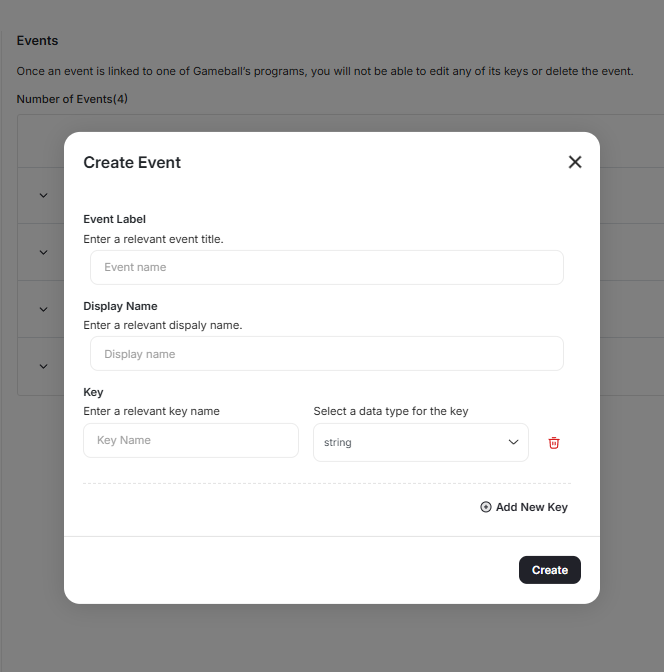
You can configure and edit event details before linking an event on the Gameball dashboard. Here is a brief description of each field:
The event name as sent from your platform.
A relevant event name as chosen by you for display in the dashboard.
Includes two variables: the key name and the data type for the key.
On the events page, you can find all events sent to Gameball and their details.
***
## Adding Events
Once an event is sent from your platform to Gameball, it automatically appears on the events page. You can edit or delete the event as long as it is not linked to any Gameball configurations. Once an event is linked to a campaign, you will not be able to edit it or delete it unless you unlink it.
You can configure and edit event details before linking an event on the Gameball dashboard. Here is a brief description of each field:
The event name as sent from your platform.
A relevant event name as chosen by you for display in the dashboard.
Includes two variables: the key name and the data type for the key.
 ***
## Enable and Disable Internal Events
***
## Enable and Disable Internal Events
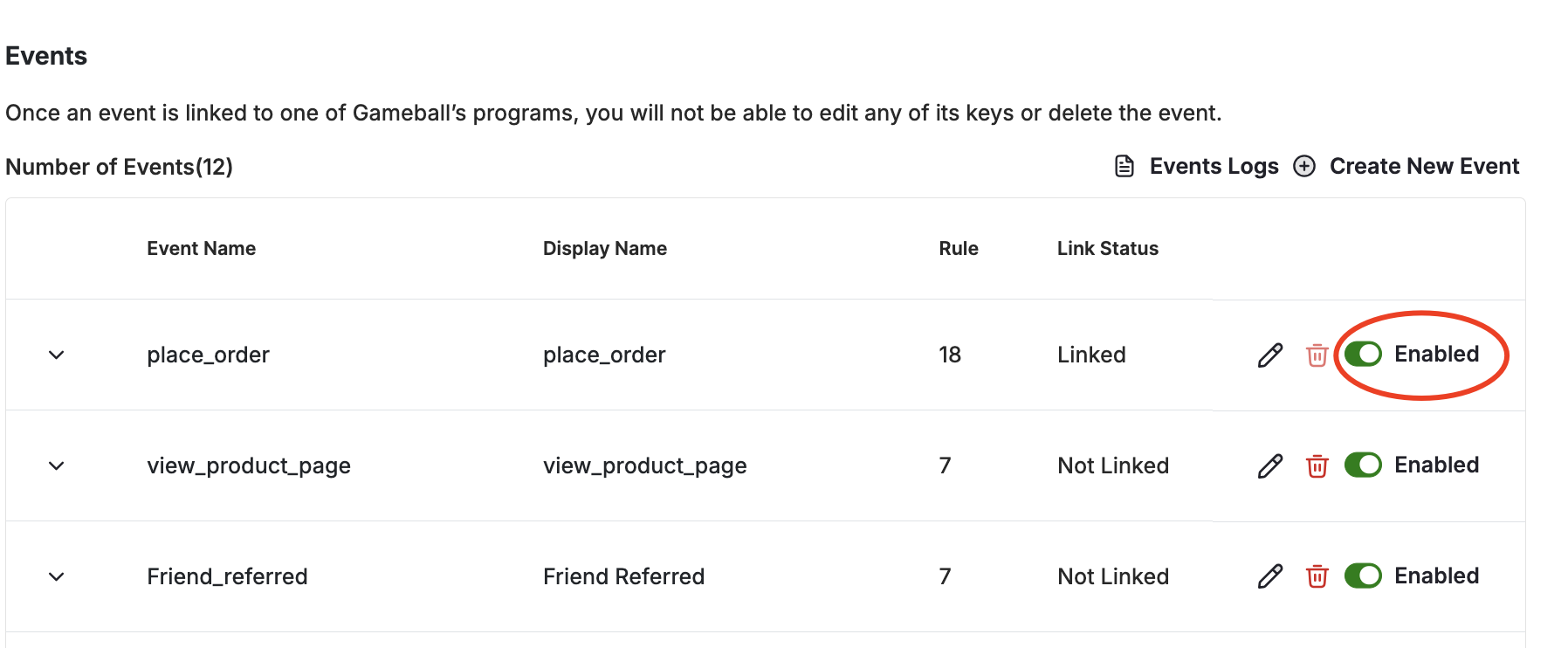 You have the ability to **enable or disable the internal events** that Gameball automatically fires (such as `place_order`, `view_product`, `order_refunded`, `add_to_cart`, etc.).
### Why This Matters
This gives you **complete control** over the events you track and process, allowing you to:
* Eliminate unnecessary or duplicate events.
* Customize your tracking to fit your business logic.
* Decide which events should (or shouldn't) be fired to your system.
### Key Details
A dedicated settings page lists all auto-fired Gameball events with toggles to enable or disable them individually.
Changes apply in real time — once an event is disabled, it stops being fired immediately.
When disabled, the event will no longer be sent to your system or used in internal Gameball flows unless you manually fire it.
Only Admins, Workspace Owners, or Workspace Admins can control event toggles. If custom roles are enabled, this action is assignable.
***
## Remarks
The [event and rules](/product-documentation/understanding-your-customers/customer-profile/customer-events) stored for each event must be synced across your mobile and web integrations to provide your customers with a consistent experience.
You can only edit the display name for events linked to configurations on your Gameball dashboard. To make more changes, you must unlink your event from any configurations.
You can test the events your platform is sending to Gameball through the **Events Log**. [Read more on Events Log](/product-documentation/admin-settings/events-log)
***
## Related Articles
Learn how customer events are tracked and stored in Gameball.
Understand how the event-based rule engine works for challenges.
Monitor live events being sent from your platform to Gameball.
A step-by-step guide to configuring and using events on Shopify.
You have the ability to **enable or disable the internal events** that Gameball automatically fires (such as `place_order`, `view_product`, `order_refunded`, `add_to_cart`, etc.).
### Why This Matters
This gives you **complete control** over the events you track and process, allowing you to:
* Eliminate unnecessary or duplicate events.
* Customize your tracking to fit your business logic.
* Decide which events should (or shouldn't) be fired to your system.
### Key Details
A dedicated settings page lists all auto-fired Gameball events with toggles to enable or disable them individually.
Changes apply in real time — once an event is disabled, it stops being fired immediately.
When disabled, the event will no longer be sent to your system or used in internal Gameball flows unless you manually fire it.
Only Admins, Workspace Owners, or Workspace Admins can control event toggles. If custom roles are enabled, this action is assignable.
***
## Remarks
The [event and rules](/product-documentation/understanding-your-customers/customer-profile/customer-events) stored for each event must be synced across your mobile and web integrations to provide your customers with a consistent experience.
You can only edit the display name for events linked to configurations on your Gameball dashboard. To make more changes, you must unlink your event from any configurations.
You can test the events your platform is sending to Gameball through the **Events Log**. [Read more on Events Log](/product-documentation/admin-settings/events-log)
***
## Related Articles
Learn how customer events are tracked and stored in Gameball.
Understand how the event-based rule engine works for challenges.
Monitor live events being sent from your platform to Gameball.
A step-by-step guide to configuring and using events on Shopify.