> ## Documentation Index
> Fetch the complete documentation index at: https://docs.gameball.co/llms.txt
> Use this file to discover all available pages before exploring further.
# What Is the Events Log?
> View the events you are sending to Gameball through the event log section on the Gameball dashboard.
## Platform Availability
| Feature | Available |
| ---------- | --------- |
| Events Log | All plans |
| Feature | Available |
| ---------- | --------- |
| Events Log | All plans |
| Feature | Available |
| ---------- | --------- |
| Events Log | All plans |
While integrating and setting up your Gameball experience, you can check your events log for the events your platform is sending to Gameball.
***
## Accessing the Events Log
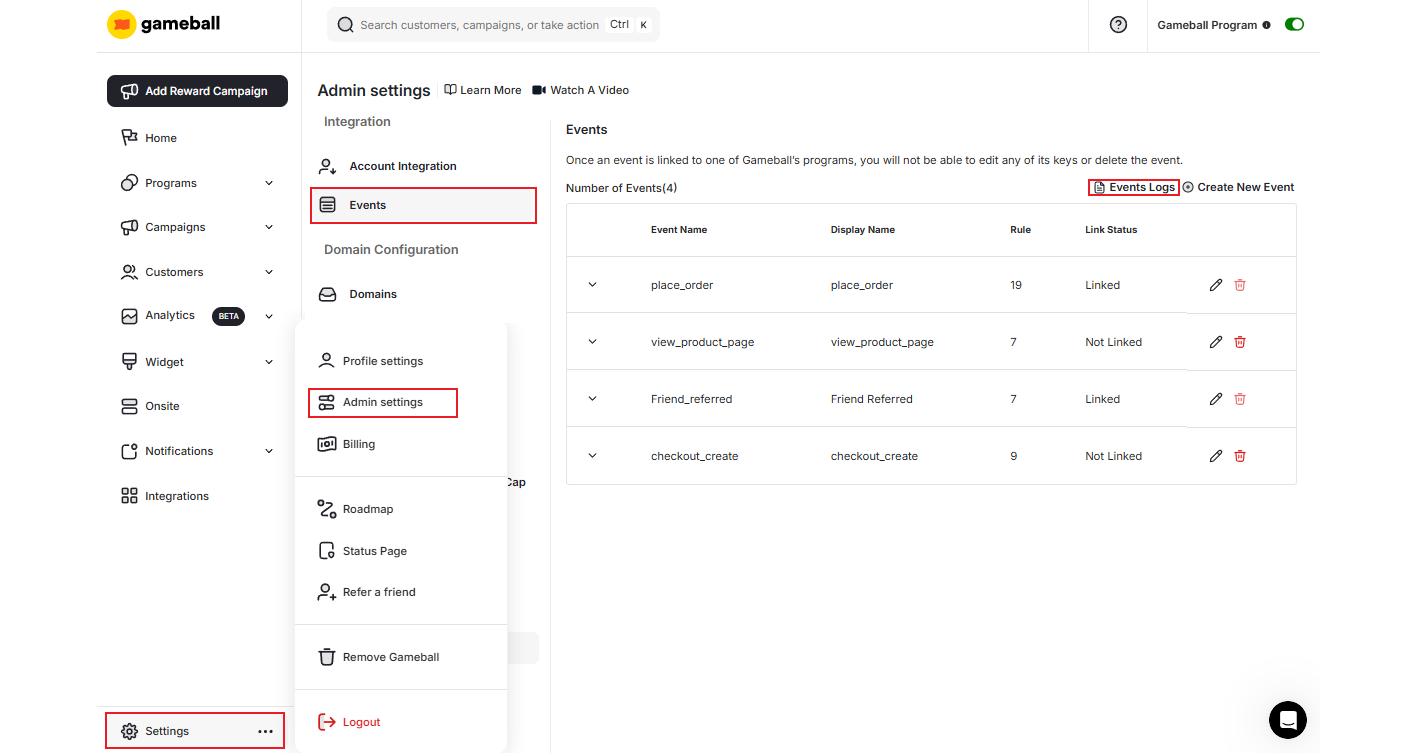
On your Gameball dashboard, go to **Settings > Admin Settings > Events**. On the top right of the events page, click on **Events Logs**.
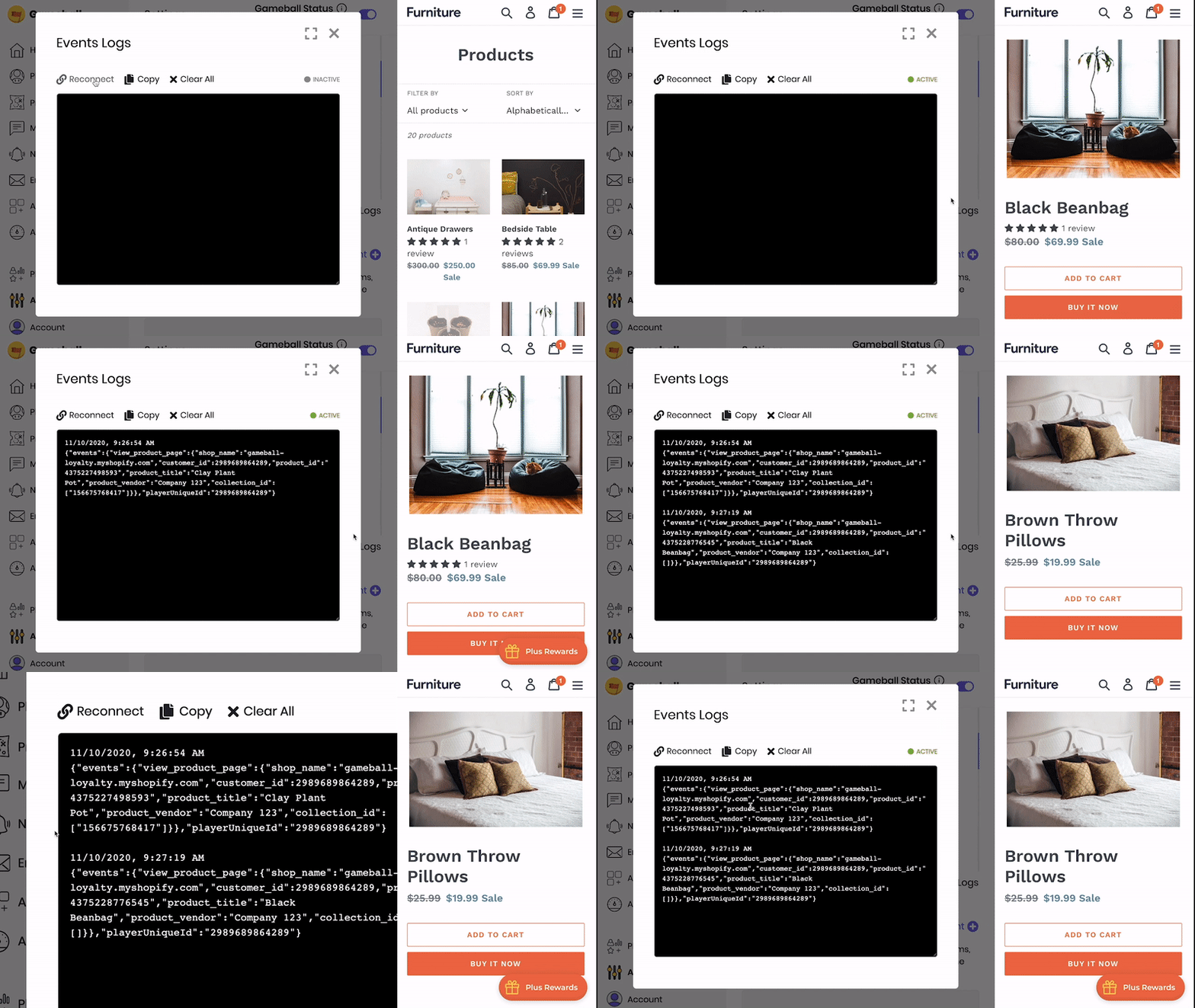
 A small popup window opens where you can instantly see all live events your platform is sending to Gameball.
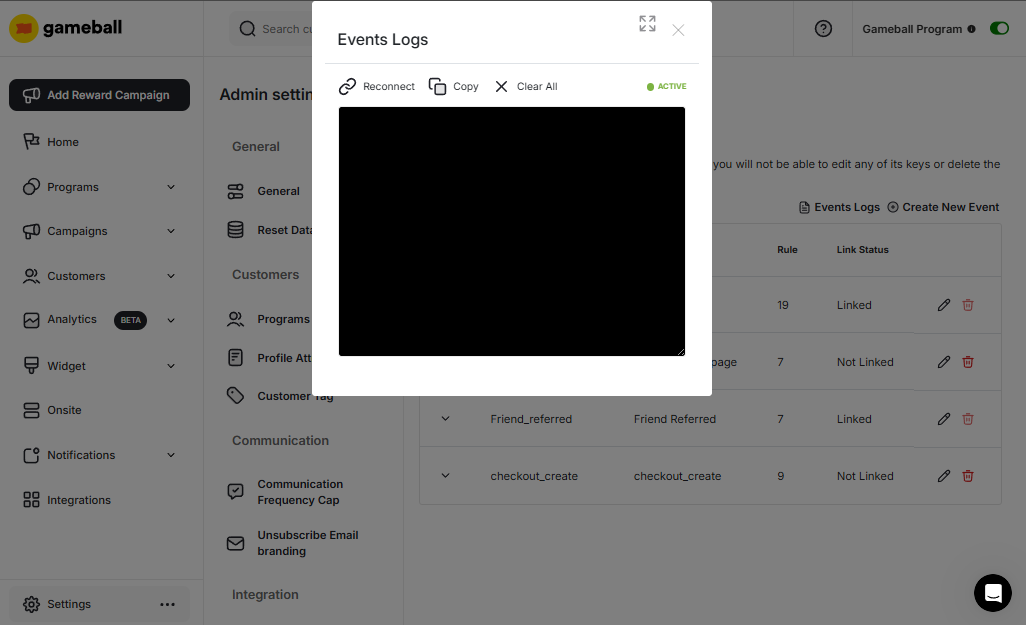
 In the **Event Logs** window, you can find the following commands:
Refreshes connection in case of a connection error.
Copies all events shown in the window.
Clears your events log history.
In the **Event Logs** window, you can find the following commands:
Refreshes connection in case of a connection error.
Copies all events shown in the window.
Clears your events log history.
 ***
## Connection Status
The **ACTIVE** or **INACTIVE** alert shows the status of your connection. Click **Reconnect** to refresh your connection when set to **INACTIVE**.
Check [Six Events you can Create on your E-Commerce Website](/product-documentation/guides-strategies-faqs/supportive-guides/ecommerce-events) to learn more about the events recommended for integration by Gameball.
***
## Related Articles
Understand the events associated with your customers' activity.
Learn how the event rule engine powers challenge-based rewards.
A practical guide to configuring and using events on Shopify.
***
## Connection Status
The **ACTIVE** or **INACTIVE** alert shows the status of your connection. Click **Reconnect** to refresh your connection when set to **INACTIVE**.
Check [Six Events you can Create on your E-Commerce Website](/product-documentation/guides-strategies-faqs/supportive-guides/ecommerce-events) to learn more about the events recommended for integration by Gameball.
***
## Related Articles
Understand the events associated with your customers' activity.
Learn how the event rule engine powers challenge-based rewards.
A practical guide to configuring and using events on Shopify.