> ## Documentation Index
> Fetch the complete documentation index at: https://docs.gameball.co/llms.txt
> Use this file to discover all available pages before exploring further.
# How Do I Manage My Gameball Customer Attributes?
> Get deeper insights on how to configure your customer profile attribute and target customers based on your segmentation.
## Plan Availability
| Feature | Available |
| ------------------ | --------- |
| Profile Attributes | Guru |
| Feature | Available |
| ------------------ | --------- |
| Profile Attributes | All plans |
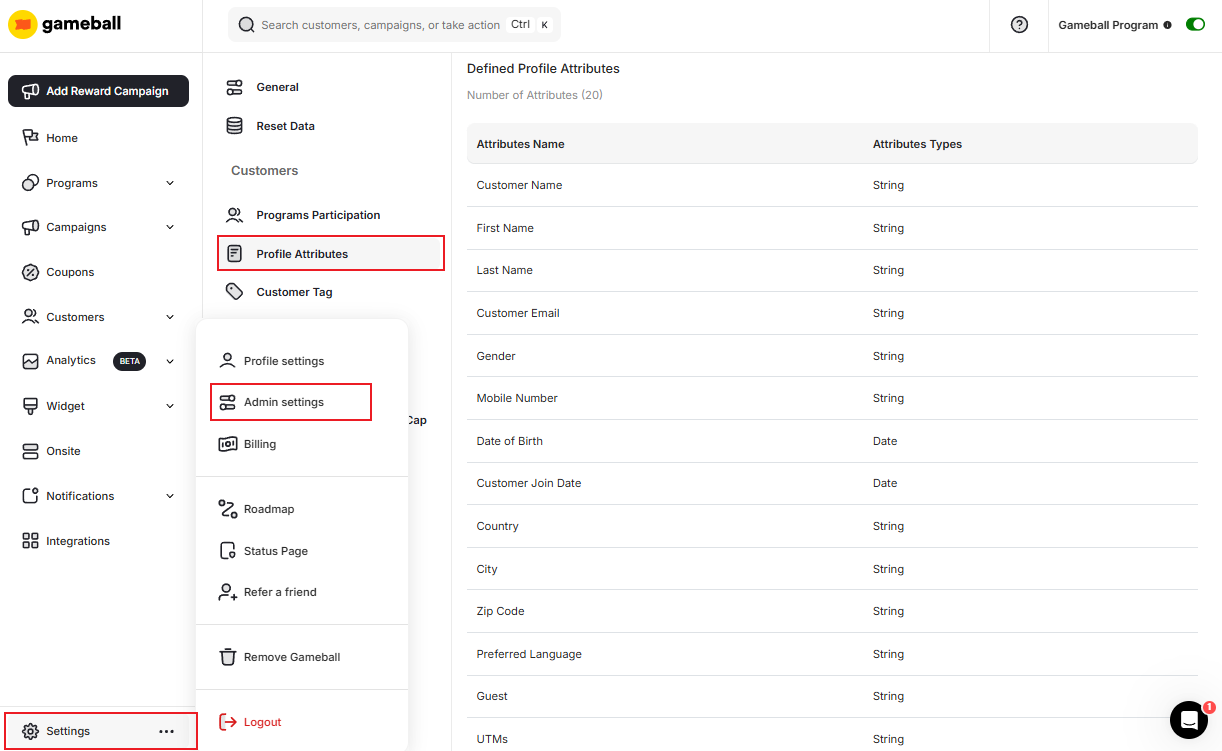
You can access the **Player Profile Attributes** settings section in **Gameball Admin Dashboard** through **Settings > Admin Settings > Profile Attributes**.
 Read more about [Customer Profile Attributes](/product-documentation/understanding-your-customers/customer-profile/customer-profile-attributes).
***
## Default Attributes
On this settings page, you will be able to see Gameball's default attributes. These **cannot be edited or deleted**:
| Attribute | Attribute |
| ------------------ | ---------------------- |
| Name | UTMs |
| First Name | Devices |
| Last Name | Total Amount Spent |
| Email | Last Order Date |
| Gender | Total Orders Count |
| Mobile Number | Average Order Value |
| Date of Birth | Channel |
| Join Date | Gameball Creation Date |
| Country | — |
| City | — |
| Zip Code | — |
| Preferred Language | — |
***
## Add or Delete Custom Customer Profile Attributes
You can add or delete a custom attribute by scrolling down to the custom profile attributes section, then create an attribute by adding its name and a data type from the following options:
Use for numeric values such as order counts, spending thresholds, or custom scoring metrics.
Use for text-based values such as customer preferences, referral codes, or custom labels.
Use for true/false flags such as whether a customer has completed onboarding or opted into a program.
Use for date-based values such as contract start dates, last activity dates, or custom milestones.
Read more about [Customer Profile Attributes](/product-documentation/understanding-your-customers/customer-profile/customer-profile-attributes).
***
## Default Attributes
On this settings page, you will be able to see Gameball's default attributes. These **cannot be edited or deleted**:
| Attribute | Attribute |
| ------------------ | ---------------------- |
| Name | UTMs |
| First Name | Devices |
| Last Name | Total Amount Spent |
| Email | Last Order Date |
| Gender | Total Orders Count |
| Mobile Number | Average Order Value |
| Date of Birth | Channel |
| Join Date | Gameball Creation Date |
| Country | — |
| City | — |
| Zip Code | — |
| Preferred Language | — |
***
## Add or Delete Custom Customer Profile Attributes
You can add or delete a custom attribute by scrolling down to the custom profile attributes section, then create an attribute by adding its name and a data type from the following options:
Use for numeric values such as order counts, spending thresholds, or custom scoring metrics.
Use for text-based values such as customer preferences, referral codes, or custom labels.
Use for true/false flags such as whether a customer has completed onboarding or opted into a program.
Use for date-based values such as contract start dates, last activity dates, or custom milestones.
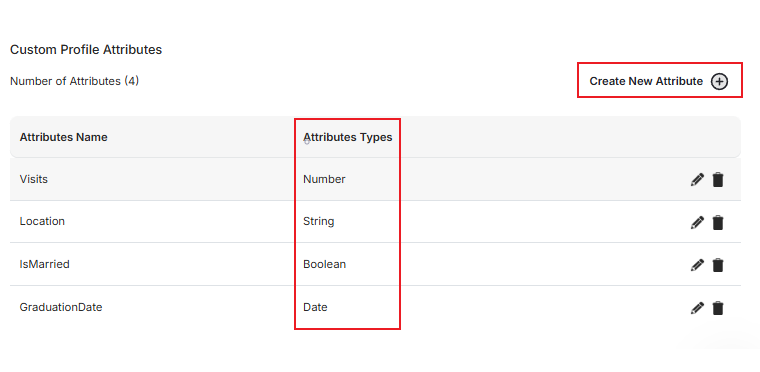 While using a custom attribute in the web/mobile integration, you should use the exact same name used when defining the attribute in the settings.
***
## Related Articles
Understand all available customer profile attributes and how they work in Gameball.
Learn how to organize and segment your customers using tags.
While using a custom attribute in the web/mobile integration, you should use the exact same name used when defining the attribute in the settings.
***
## Related Articles
Understand all available customer profile attributes and how they work in Gameball.
Learn how to organize and segment your customers using tags.