> ## Documentation Index
> Fetch the complete documentation index at: https://docs.gameball.co/llms.txt
> Use this file to discover all available pages before exploring further.
# How Do I Request Coupon Creation from My Couponing Engine?
> Allow Gameball to request creation of coupon from your couponing engine through few configuration steps.
## Overview
You can reward customers with points for every achievement they complete through your customized loyalty program. These points can then be redeemed in the form of coupons to be used later on new orders. Gameball allows you to choose the type of reward coupons customers can receive and enjoy. [Learn more](/product-documentation/programs/loyalty-points-redeem/launch-and-configure-your-redeem-pointing-system)
For a coupon to be created by Gameball, there must first be a backend connection between Gameball and your couponing engine to keep track of your coupons. This way, Gameball can ping your couponing engine to get the required information for a coupon creation like start date, expiry date, code, etc., and the created coupon can sync with real-time orders and be put into action.
If your platform is built using a third-party plugin such as Shopify, the couponing sync takes place automatically due to the existence of an already built-in couponing system. These internal coupon engines automatically manage your coupon creations without any effort from your side.
If your website is built in-house and you want to build your own coupon system, you will need to follow a few coupon configuration steps before you start rewarding customers with various types of coupons.
***
## How to Allow Gameball to Create Coupons
On your **Gameball Admin Dashboard**, on the left bar, choose **Settings > Admin Settings > Coupon Configurations** under **Coupons**.
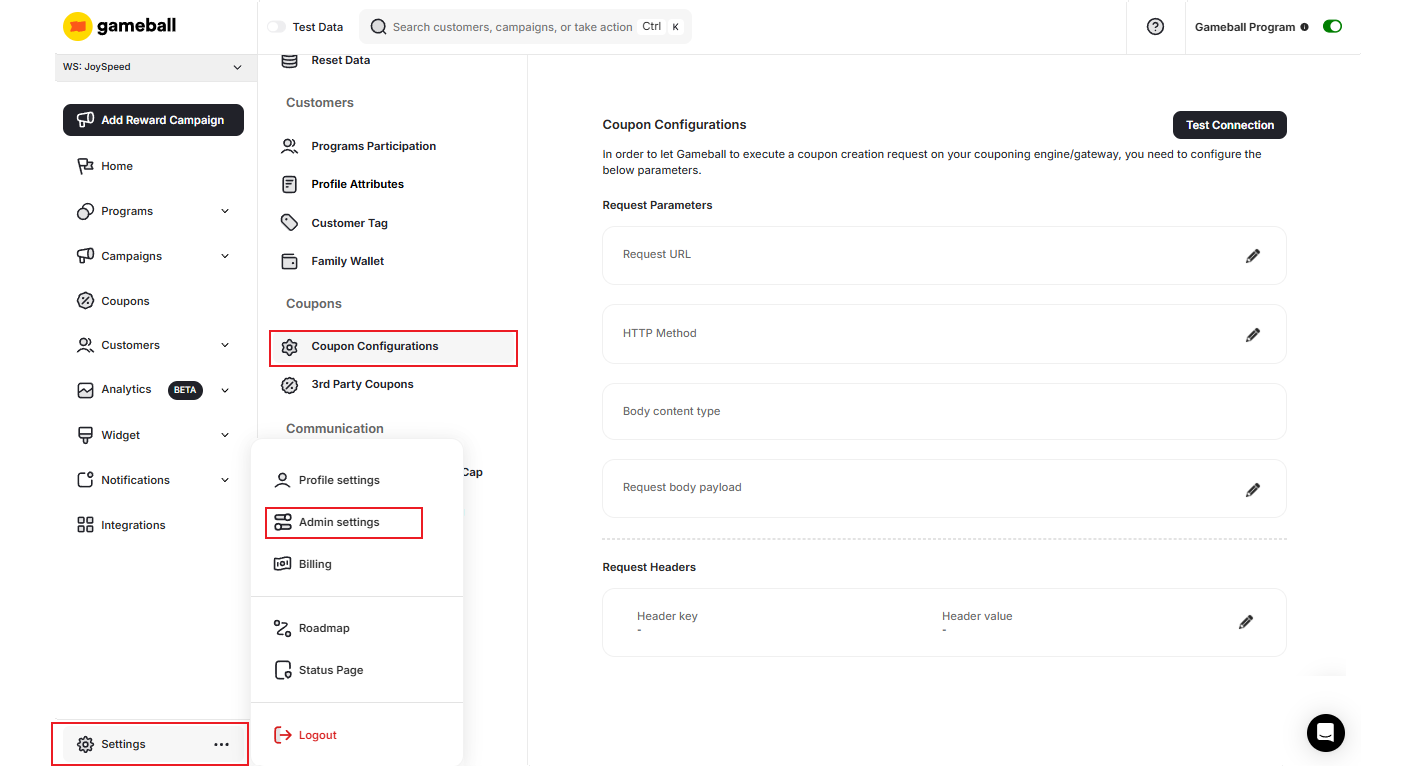 Fill in the following details to establish the backend connection between Gameball and your couponing engine:
Define the parameters that will be included in the coupon creation request sent to your engine.
Set up the required headers for authenticating and routing the API request to your engine.
Specify any query parameters required by your couponing engine's API.
[Follow this technical integration guide for further help.](https://developer.gameball.co/tutorials/redemption/coupons/your-engine)
Select the types of coupons that your gateway supports so Gameball knows which coupon formats to request.
***
## Related Articles
Learn how to upload and manage third-party coupon codes directly from your Gameball dashboard.
Fill in the following details to establish the backend connection between Gameball and your couponing engine:
Define the parameters that will be included in the coupon creation request sent to your engine.
Set up the required headers for authenticating and routing the API request to your engine.
Specify any query parameters required by your couponing engine's API.
[Follow this technical integration guide for further help.](https://developer.gameball.co/tutorials/redemption/coupons/your-engine)
Select the types of coupons that your gateway supports so Gameball knows which coupon formats to request.
***
## Related Articles
Learn how to upload and manage third-party coupon codes directly from your Gameball dashboard.