> ## Documentation Index
> Fetch the complete documentation index at: https://docs.gameball.co/llms.txt
> Use this file to discover all available pages before exploring further.
# How to Delete Your Data on Gameball?
> Learn how to permanently delete your customer data or full program data through the Gameball admin dashboard.
## Plan Availability
All Gameball customers can access the data deletion feature.
If you want to delete some or all data related to your loyalty program, Gameball allows you to do that through a few steps.
***
## Types of Data You Can Delete
Clears all per-customer activity while keeping every customer profile intact. This is useful for program relaunches or handing over a test environment without losing your customer base.
**What is cleared:**
* Points balances and redemptions
* Achievements
* Events and activities
* Orders and transactions
* Referrals
* Tags
* Segment memberships
**What is preserved:**
* Customer profiles (IDs, names, emails, phones, and custom attributes)
* All program definitions and workspace configuration
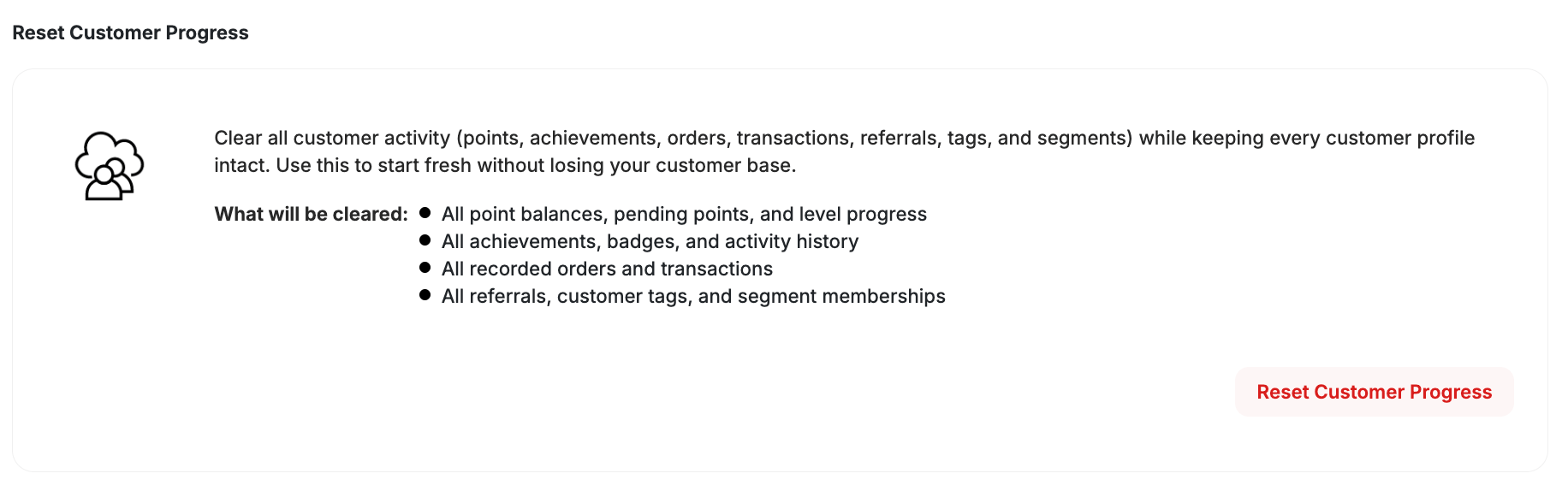 This action is permanent and cannot be undone.
Permanently deletes all customer data across both live and test environments. This includes:
* Customer profiles
* Points balances and redemptions
* Achievements
* Events and activities
* Orders and transactions
* Referrals
* Audit records
This action is permanent and cannot be undone. Before proceeding, consider backing up your data by exporting it as a CSV file. To learn more, read Step 2 of [importing customers' data](/product-documentation/guides-strategies-faqs/supportive-guides/import-customers-csv).
Permanently deletes all program definitions and all customer data.
**Program data removed:**
* All loyalty program configurations
* Earning and redemption rules
* VIP tier definitions
* Campaign setups
* Widget configurations
**Customer data removed:**
* Customer profiles, points, achievements, events, orders, transactions, referrals, and audit records
Once deleted, you will start the configuration wizard from the beginning with a fresh Gameball instance.
All data and configurations will be permanently removed and cannot be recovered.
***
## How to Delete Your Data
On **Gameball Admin Dashboard**, go to **Settings > Admin Settings > Delete Data**.
This action is permanent and cannot be undone.
Permanently deletes all customer data across both live and test environments. This includes:
* Customer profiles
* Points balances and redemptions
* Achievements
* Events and activities
* Orders and transactions
* Referrals
* Audit records
This action is permanent and cannot be undone. Before proceeding, consider backing up your data by exporting it as a CSV file. To learn more, read Step 2 of [importing customers' data](/product-documentation/guides-strategies-faqs/supportive-guides/import-customers-csv).
Permanently deletes all program definitions and all customer data.
**Program data removed:**
* All loyalty program configurations
* Earning and redemption rules
* VIP tier definitions
* Campaign setups
* Widget configurations
**Customer data removed:**
* Customer profiles, points, achievements, events, orders, transactions, referrals, and audit records
Once deleted, you will start the configuration wizard from the beginning with a fresh Gameball instance.
All data and configurations will be permanently removed and cannot be recovered.
***
## How to Delete Your Data
On **Gameball Admin Dashboard**, go to **Settings > Admin Settings > Delete Data**.
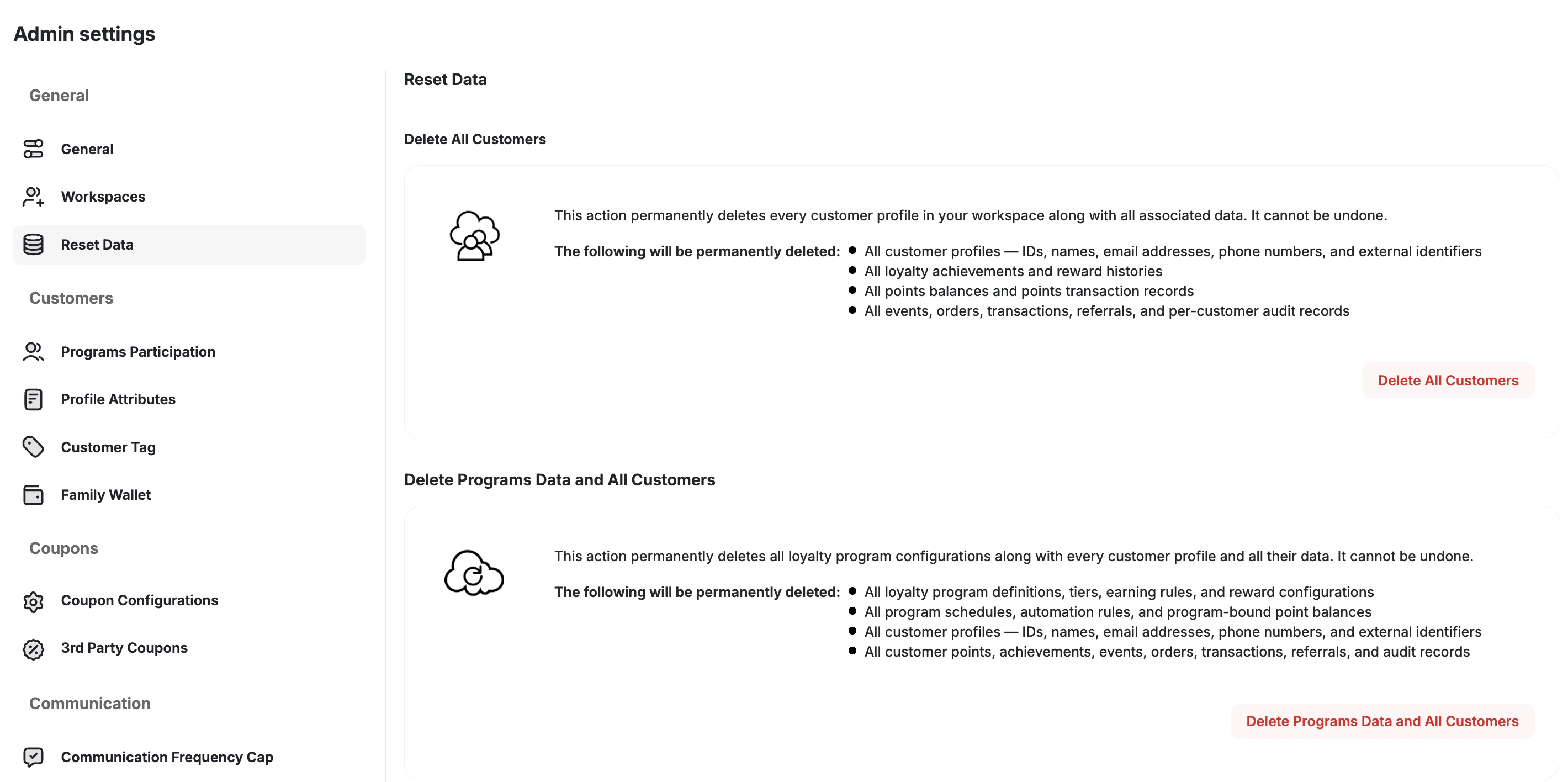 Click the relevant button — **Reset Customer Progress**, **Delete All Customers**, or **Delete Programs Data and All Customers**. Destructive actions are styled in red to indicate they are irreversible.
A two-step confirmation is required before Gameball proceeds:
1. Review the summary of everything that will be permanently removed.
2. Type your **workspace name** to confirm.
This action is restricted to super-admin and owner roles. A full audit log entry is recorded each time a deletion is triggered.
Click the relevant button — **Reset Customer Progress**, **Delete All Customers**, or **Delete Programs Data and All Customers**. Destructive actions are styled in red to indicate they are irreversible.
A two-step confirmation is required before Gameball proceeds:
1. Review the summary of everything that will be permanently removed.
2. Type your **workspace name** to confirm.
This action is restricted to super-admin and owner roles. A full audit log entry is recorded each time a deletion is triggered.