> ## Documentation Index
> Fetch the complete documentation index at: https://docs.gameball.co/llms.txt
> Use this file to discover all available pages before exploring further.
# What Is Third-Party Coupons Through the Gameball Dashboard?
> Learn how to upload, organize, and manage third-party coupon codes directly from your Gameball dashboard for seamless distribution.
## Plan Availability
| Platform | Plan |
| -------- | ------------------------------------------------------------ |
| All | Upon Request ([Contact Support](mailto:support@gameball.co)) |
Gameball allows you to upload and manage third-party coupon codes efficiently through the dashboard. This feature helps you deliver coupon codes to customers automatically and track their redemption without manual work.
***
## Prerequisites
Ensure you have the necessary permission levels to access this feature. Only users with the roles of **Workspace Owner**, **Admin**, or **Merchant/Branch Manager** can manage third-party coupons.
***
## Step-by-Step Instructions
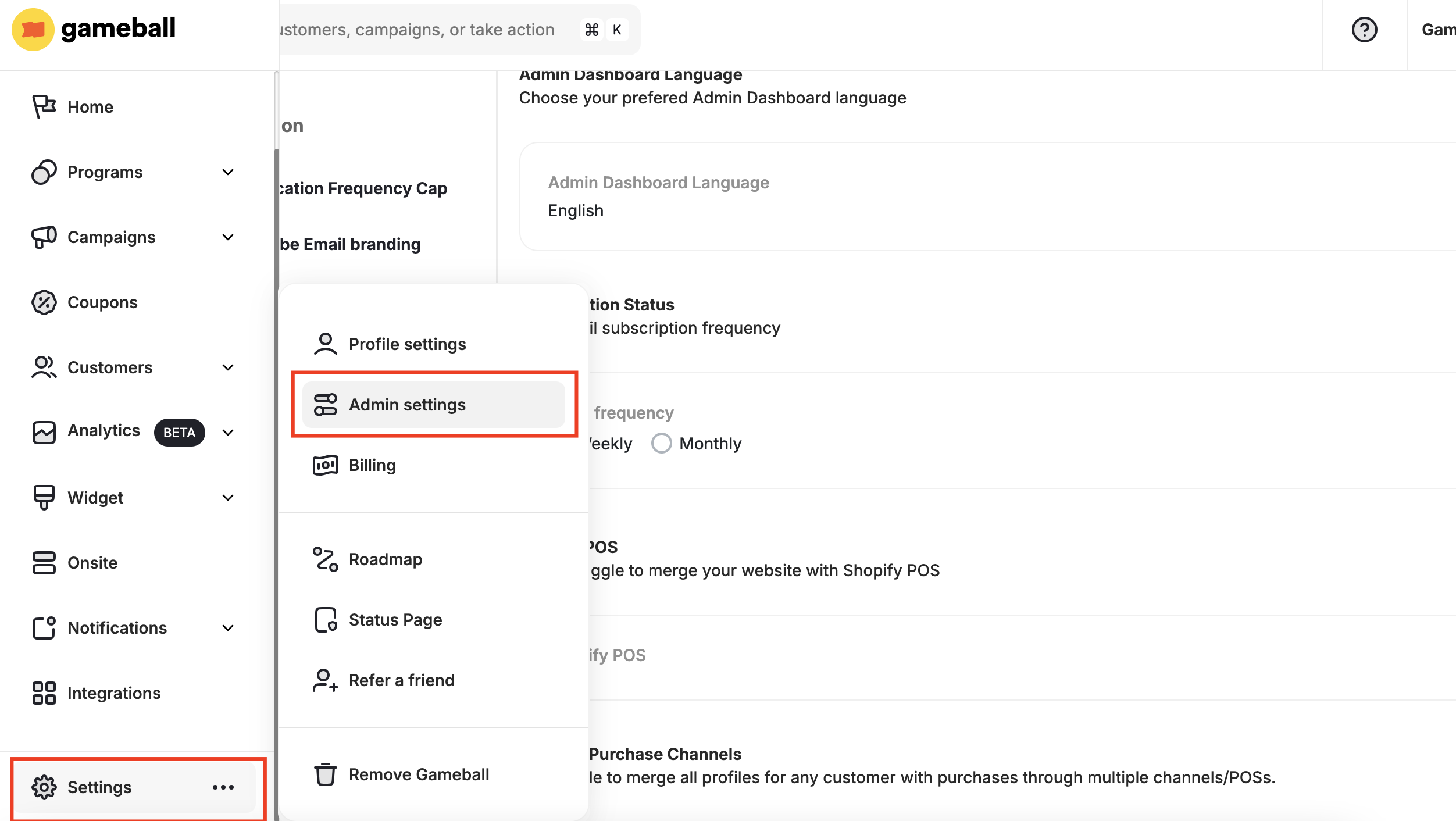
Go to your Gameball dashboard and click **Settings**, then navigate to the **Admin Settings** section.
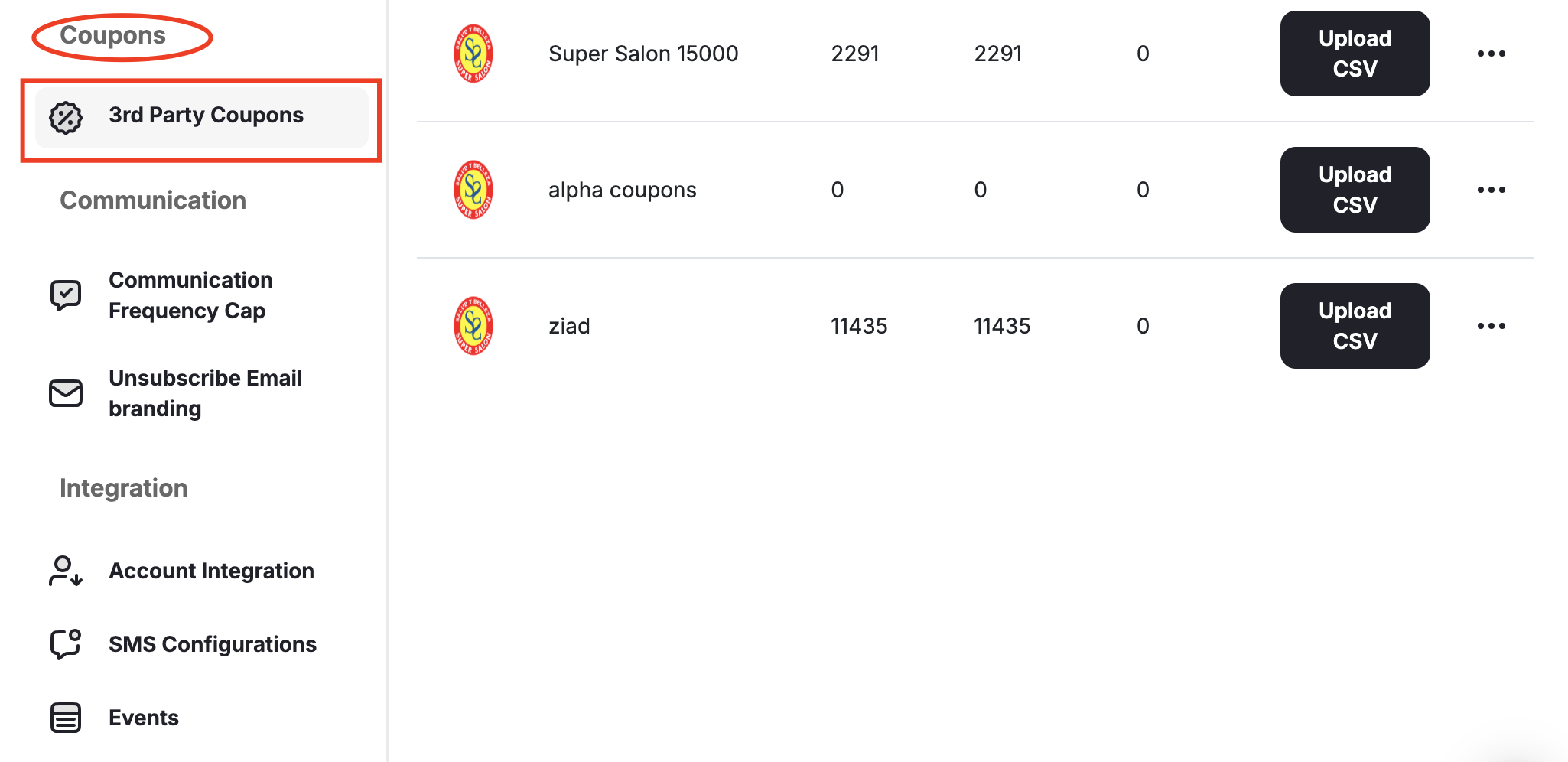
 Under the **Coupons** section, click on **3rd Party Coupons**.
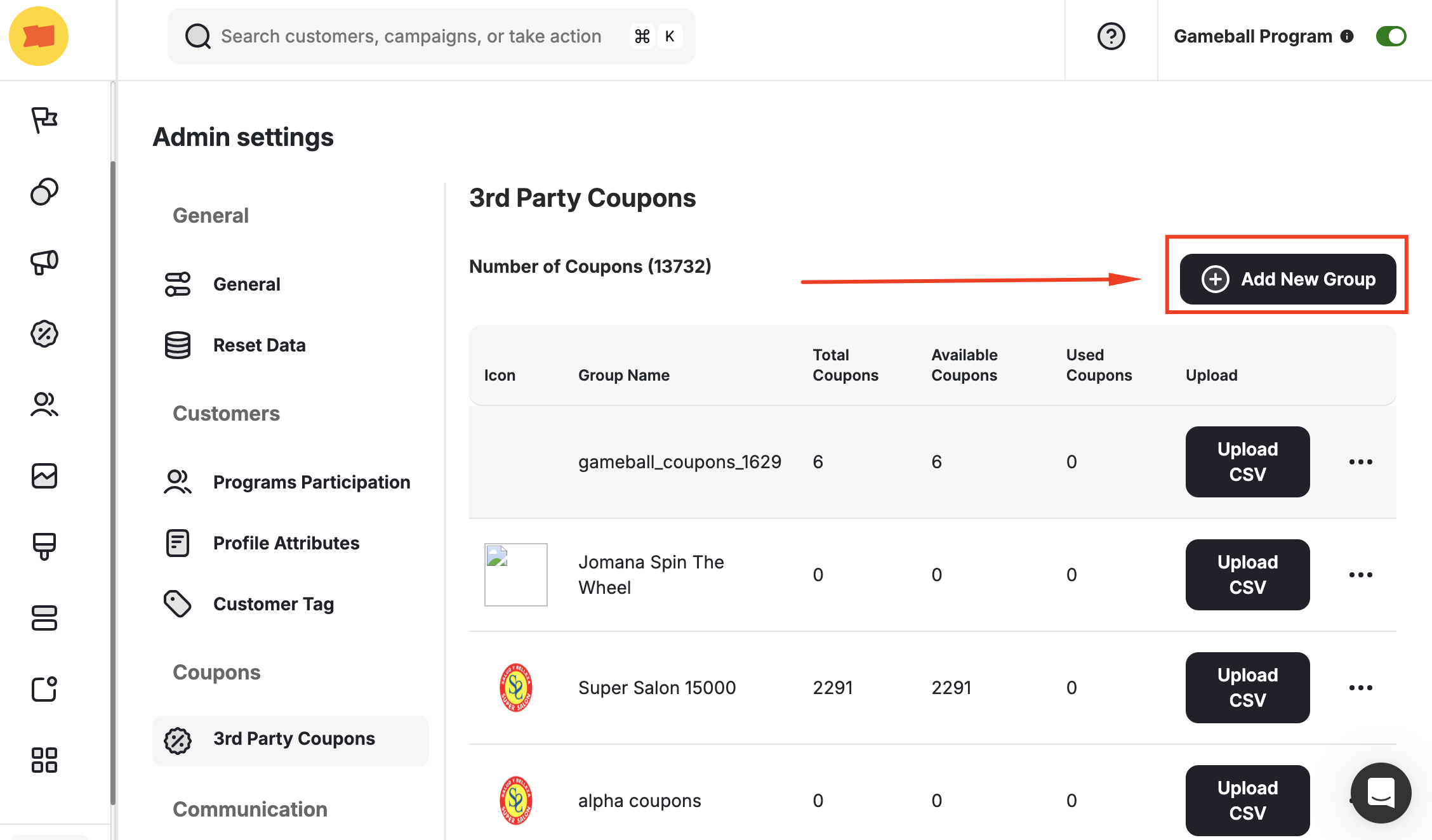
 To add a new coupon group, click **Add New Group**.
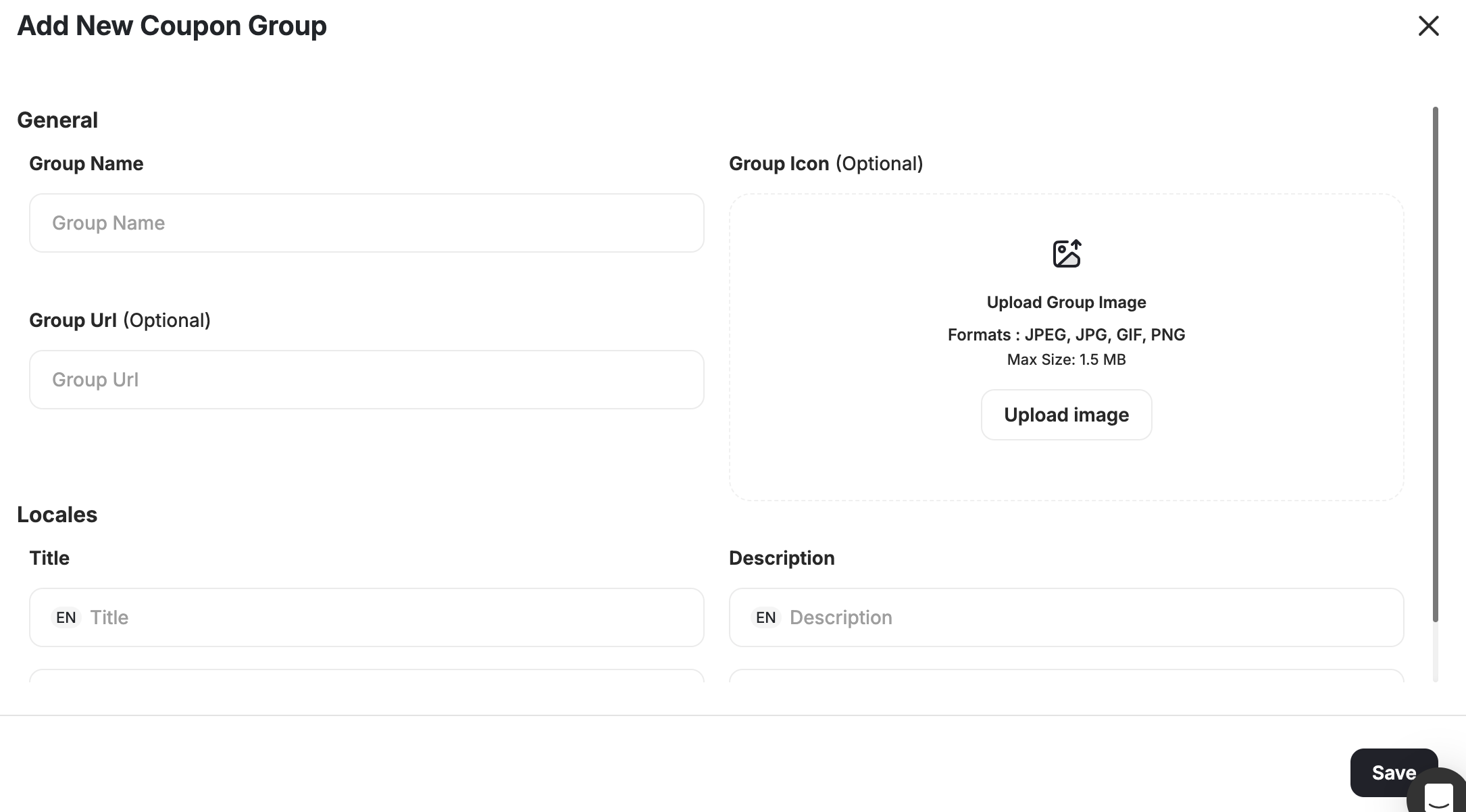
 Enter the following details and then click **Save**:
* **Name**
* **Group URL**
* **Title**
* **Description**
* Upload Image under **Group Icon**
Enter the following details and then click **Save**:
* **Name**
* **Group URL**
* **Title**
* **Description**
* Upload Image under **Group Icon**
 Once the coupon group is created, you can upload a CSV file that includes third-party coupon codes. Next to the new coupon group created, click **Upload CSV**.
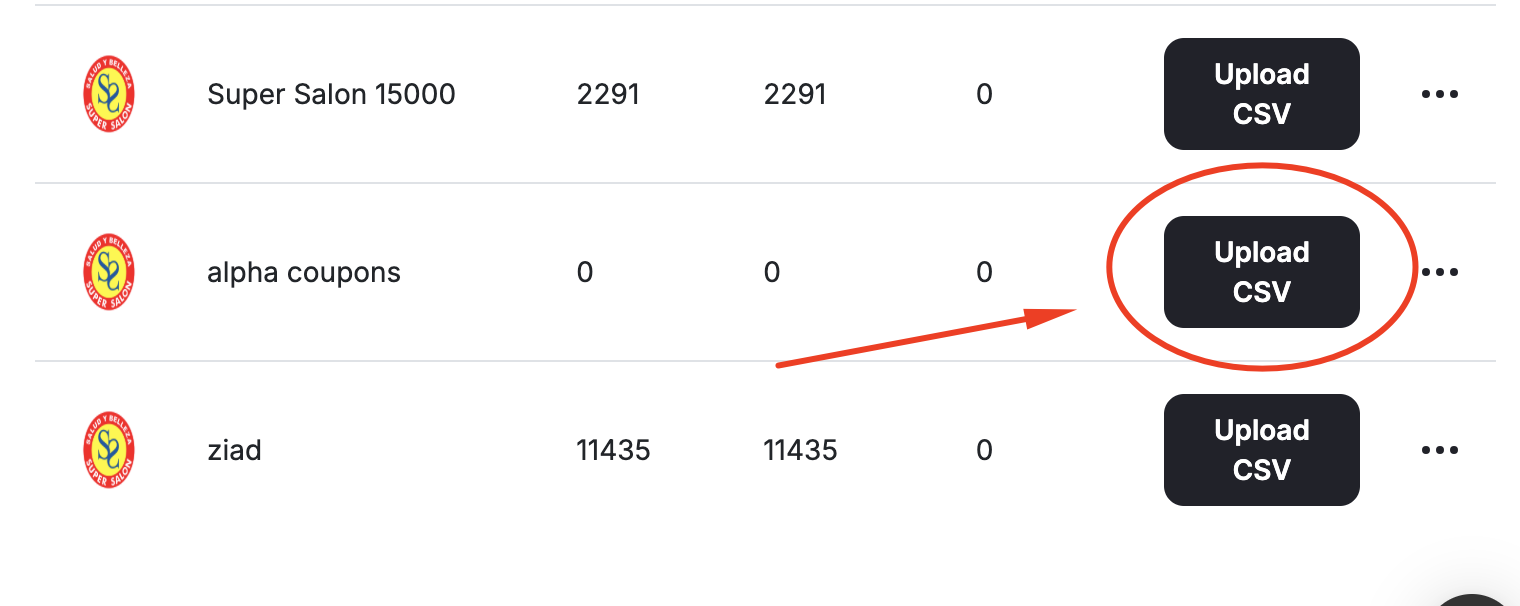 The CSV file must include the following columns:
| Column | Required |
| ------------------------------- | -------- |
| Coupon Code | Required |
| Start Date | Optional |
| Expiry Date | Optional |
| Expiry Window | Optional |
| Capping | Optional |
| Minimum Order Value | Optional |
| Combine with Product Discounts | Optional |
| Combine with Order Discounts | Optional |
| Combine with Shipping Discounts | Optional |
The system will validate your file for any missing or duplicate codes. You will receive an email notification confirming whether the upload was successful or not.
Go to the **Coupon Inventory** tab to view all uploaded third-party coupons. The table displays each coupon along with its status:
| Status | Meaning |
| --------- | --------------------------------------------------- |
| Available | The coupon has not yet been claimed by any customer |
| Used | The coupon has already been redeemed |
Gameball automatically marks a coupon as **Used** once it is claimed by a customer. You can track redemption statuses directly from the dashboard.
***
## Common Questions
The system will reject duplicates during validation and notify you via email.
No, once a coupon is used, it cannot be reassigned or reused.
Ensure your CSV file is correctly formatted to avoid upload issues. Only users with the appropriate permission levels can manage coupons.
***
## Related Articles
Configure Gameball to request coupons from your custom couponing engine.
The CSV file must include the following columns:
| Column | Required |
| ------------------------------- | -------- |
| Coupon Code | Required |
| Start Date | Optional |
| Expiry Date | Optional |
| Expiry Window | Optional |
| Capping | Optional |
| Minimum Order Value | Optional |
| Combine with Product Discounts | Optional |
| Combine with Order Discounts | Optional |
| Combine with Shipping Discounts | Optional |
The system will validate your file for any missing or duplicate codes. You will receive an email notification confirming whether the upload was successful or not.
Go to the **Coupon Inventory** tab to view all uploaded third-party coupons. The table displays each coupon along with its status:
| Status | Meaning |
| --------- | --------------------------------------------------- |
| Available | The coupon has not yet been claimed by any customer |
| Used | The coupon has already been redeemed |
Gameball automatically marks a coupon as **Used** once it is claimed by a customer. You can track redemption statuses directly from the dashboard.
***
## Common Questions
The system will reject duplicates during validation and notify you via email.
No, once a coupon is used, it cannot be reassigned or reused.
Ensure your CSV file is correctly formatted to avoid upload issues. Only users with the appropriate permission levels can manage coupons.
***
## Related Articles
Configure Gameball to request coupons from your custom couponing engine.