> ## Documentation Index
> Fetch the complete documentation index at: https://docs.gameball.co/llms.txt
> Use this file to discover all available pages before exploring further.
# How Do I Update Firebase Cloud Messaging (FCM) Configuration to HTTP v1 for Gameball Customers?
> Guide to help you update Firebase Cloud Messaging (FCM) Configuration to HTTP v1.
## Overview
To ensure continuous delivery of notifications to your mobile users, Gameball now requires an update to the Firebase Cloud Messaging (FCM) configuration, transitioning from the legacy API to the new HTTP v1 API. This article walks you through the steps needed to complete this migration.
***
## Migration Steps
Open your web browser and go to the Firebase Console. Log in using the Google account associated with your Firebase project.
In the Firebase Console, click on the **Settings (gear icon)** in the left sidebar. Select **Project Settings**, then go to the **Service Accounts** tab.
Click on **Generate New Private Key** to download a JSON file containing all necessary information for the migration.
**Sample FCM Private key JSON file:**
```json theme={null}
{
"type": "service_account",
"project_id": "fcm-test-*****",
"private_key_id": "*****4da92a*****031791732e*****",
"private_key": "-----BEGIN PRIVATE KEY-----\nMIIEvQIB*****ASCBKcwggSjAgEAAoIBAQCnZZw4akn8XO2J\nYS*****RhTCxF+KyTNmp7q0GnuoEZweGyla6t*****PxSnh\nfX5w1wxD7r1iGxJCG8******",
"client_email": "firebase-a*****est-7ce24.iam.gserviceaccount.com",
"client_id": "*****38150929365",
"auth_uri": "https://accounts.google.com/o/oauth2/auth",
"token_uri": "https://oauth2.googleapis.com/token",
"auth_provider_x509_cert_url": "https://www.googleapis.com/oauth2/v1/certs",
"client_x509_cert_url": "https://www.googleapis.com/robot/v1/metadata/x509/firebase-adminsdk-8j******.iam.gserviceaccount.com",
"universe_domain": "googleapis.com"
}
```
Access your Gameball dashboard using your credentials.
Navigate to your **Gameball Admin Dashboard > Settings > Admin Settings**. Locate the **Integration** then go to **Mobile Integration**.
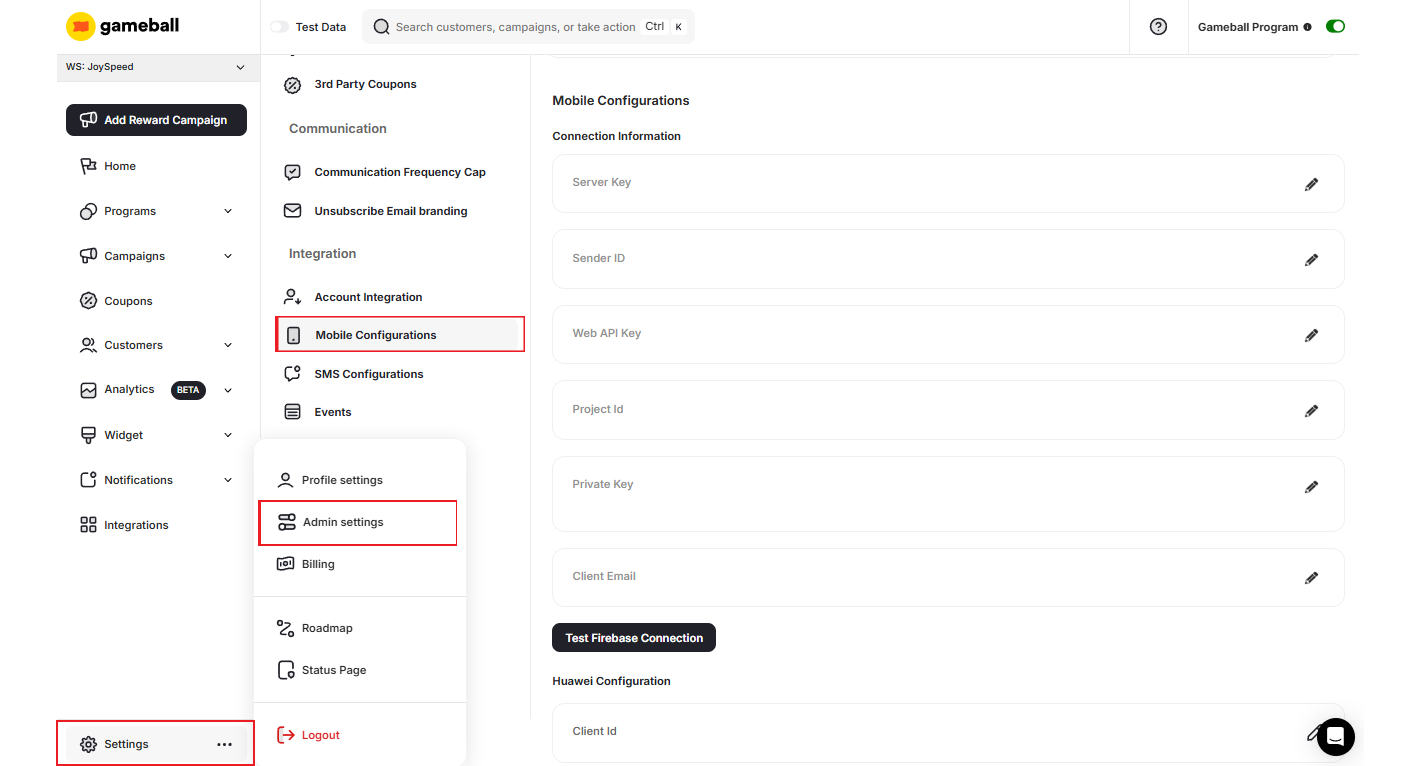 The old attributes such as **Sender ID**, **Web API Key**, and **Server Key** should be left unchanged.
Using the downloaded JSON file, fill in the following fields in the Gameball dashboard:
| Field | Source in JSON file |
| --------------- | -------------------------------------------------------------------------------------- |
| **projectId** | Copy the value of `project_id` |
| **privateKey** | Copy the entire value of `private_key` (including "BEGIN" and "END PRIVATE KEY" lines) |
| **clientEmail** | Copy the value of `client_email` |
The old attributes such as **Sender ID**, **Web API Key**, and **Server Key** should be left unchanged.
Using the downloaded JSON file, fill in the following fields in the Gameball dashboard:
| Field | Source in JSON file |
| --------------- | -------------------------------------------------------------------------------------- |
| **projectId** | Copy the value of `project_id` |
| **privateKey** | Copy the entire value of `private_key` (including "BEGIN" and "END PRIVATE KEY" lines) |
| **clientEmail** | Copy the value of `client_email` |
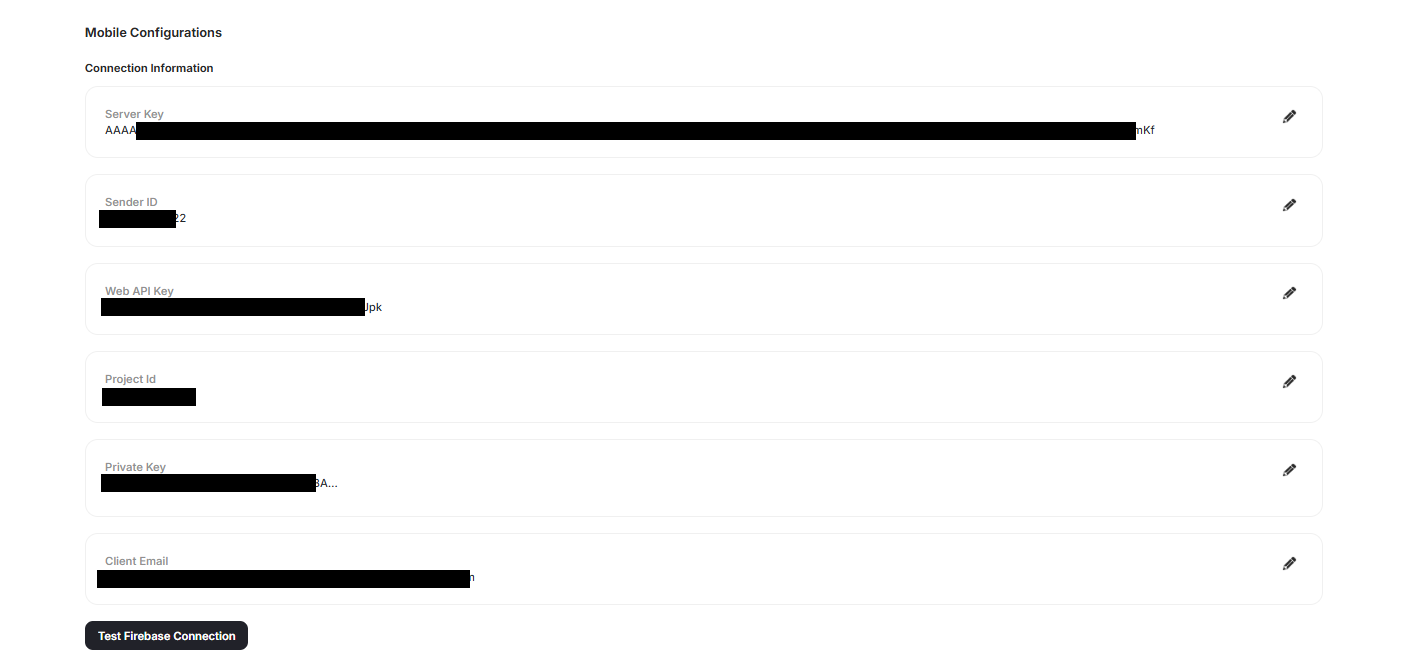 After entering all three fields, click **Save** to apply the changes.
By following these steps, you will ensure your notifications continue to work seamlessly with the new Firebase API requirements.
***
## Need Help?
If you have any questions or need further assistance, please contact our support team at [support@gameball.co](mailto:support@gameball.co).
***
## Related Articles
Set up Firebase Cloud Messaging for push notifications in Gameball.
After entering all three fields, click **Save** to apply the changes.
By following these steps, you will ensure your notifications continue to work seamlessly with the new Firebase API requirements.
***
## Need Help?
If you have any questions or need further assistance, please contact our support team at [support@gameball.co](mailto:support@gameball.co).
***
## Related Articles
Set up Firebase Cloud Messaging for push notifications in Gameball.