> ## Documentation Index
> Fetch the complete documentation index at: https://docs.gameball.co/llms.txt
> Use this file to discover all available pages before exploring further.
# How Do I Integrate Bloomreach with Gameball?
> Leverage customer engagement data from Gameball to power your email marketing campaigns in Bloomreach.
Gameball and Bloomreach integration allows you to leverage customer engagement data from Gameball to power your email marketing campaigns in Bloomreach. Follow this guide to seamlessly connect the two platforms and maximize the impact of your loyalty and marketing efforts.
## Why Integrate Bloomreach with Gameball?
By integrating Bloomreach with Gameball, you unlock the ability to target and segment customers based on their loyalty to your app. This powerful integration allows you to:
* **Segment contact lists** based on Gameball customer attributes (e.g., points balance, tier) and events created.
* **Send personalized emails** by including loyalty-related data, such as customer tier and reward points, in your email templates.
* **Track and trigger campaigns** based on specific customer events, such as coupons created, orders placed, and reward achievements.
***
## Data Import Scenarios
The integration between Gameball and Bloomreach ensures that your customer data is always up-to-date. Gameball's customer attributes will be imported into Bloomreach whenever a customer is created or performs any action.
**Trigger:** Upon customer creation or after any new action (e.g., achievement, transaction, points expiry).
Gameball's customer attributes will be imported and updated in Bloomreach automatically. The following data is synced:
| Category | Attributes |
| ------------- | ---------------------------------------------------------------------------------------------------------------------------------------------------------------------------------- |
| **Profile** | ID, Email, Join Date, Mobile Number, Birthday, Gender |
| **Points** | Points Balance, Pending Points, Earned Points, Redeemed Points, Expired Points |
| **Tiers** | Current Level Name, Current Level Order, Next Level, Next Level Threshold, Level Progress, Progress to Achieve Next Level |
| **Orders** | Last Order Awarded Points, Average Basket, Number of Transactions, Transactions Amount (Last Rolling Year), Total Net Amount, Unit per Transaction, Date of First/Last Transaction |
| **Referrals** | Referral Code, Referral Link |
| **Coupons** | Latest Created Coupon, Latest Used Coupon |
| **Segments** | Tags, Segments, RFM Segments |
| **Other** | Count of Rewarded Campaigns, Starting Store, Connecting Store, Store of First Transaction |
**Trigger:** Order placed by customer and received by Gameball.
Once an order is placed, the following order data is sent to Bloomreach:
| Attribute | Description |
| ----------------------- | --------------------------------- |
| Order ID | Unique order identifier |
| Order Date | Date the order was placed |
| Total Paid | Amount paid by the customer |
| Total Price | Full order price |
| Total Shipping | Shipping cost |
| Total Tax | Tax amount |
| Total Discount | Discount applied |
| Discount Codes | Codes used |
| Redeemed Amount | Points redeemed as currency |
| Rewarded Points | Points earned from order |
| Equivalent Points Value | Monetary value of rewarded points |
**Trigger:** Coupon created for the customer.
The following coupon details will be available on Bloomreach linked to the customer's data:
* Coupon Code
* Type
* Value
* Coupon Name
**Trigger:** Customer used a coupon while placing an order.
The following details will be available on Bloomreach:
* Coupon Code, Type, Value, Coupon Name
* Order ID, Order Quantity
* Channel (POS, Online, etc.)
**Trigger:** Customer achieved a reward campaign.
The following details will be available on Bloomreach:
* Internal Name, Name
* Reward (Points, Points & Score, Coupon Values)
* Coupon Type (if the reward was a coupon)
* Equivalent Value of Rewarded Points
* Achievement Date
**Trigger:** Customer redeemed their saved points.
Each `points_redeemed` event includes:
* Redeemed Points
* Redemption Amount
* Redemption Transaction ID (if available)
**Trigger:** Order received by Gameball.
A "Purchase" event is sent to Bloomreach for each line item with the following attributes:
* Order ID, Product Title, Unit Price, Vendor Name
* Product ID, Weight, Quantity, SKU
* Collections Array, Tags Array, Taxonomy Array
* Any extra attributes added to the object
**Trigger:** Customer removed from Gameball.
Once a customer is deleted from Gameball, the customer gets deleted from Bloomreach after **24 hours**.
You have the option to disable the deletion feature from Bloomreach.
***
## How to Configure Bloomreach on Gameball
Not publishing the widget could impact the integration process, so ensure it's live before proceeding.
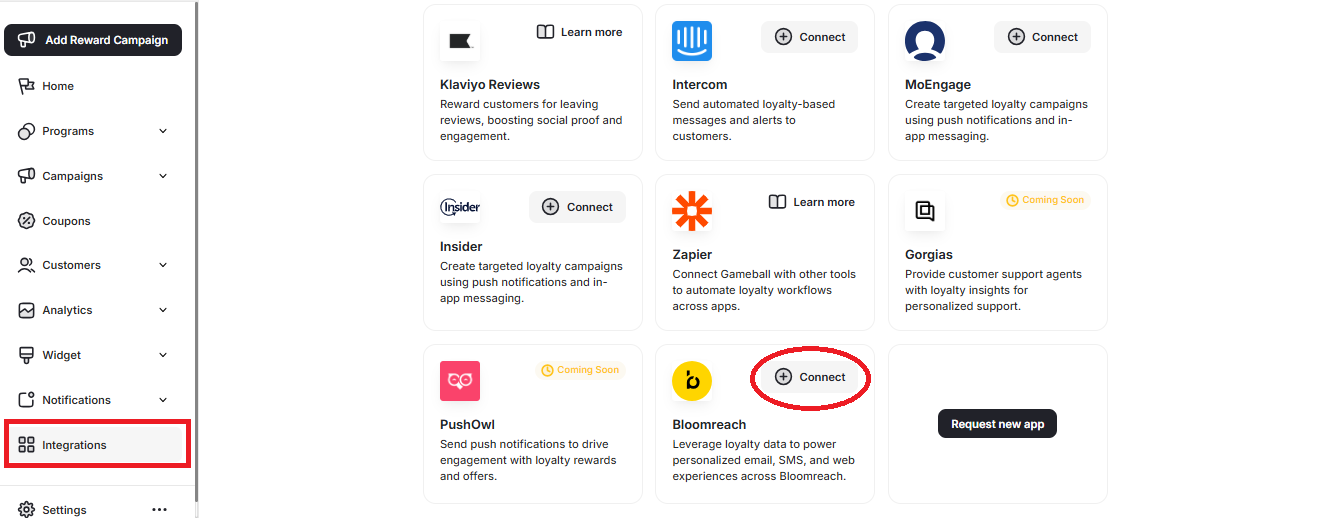
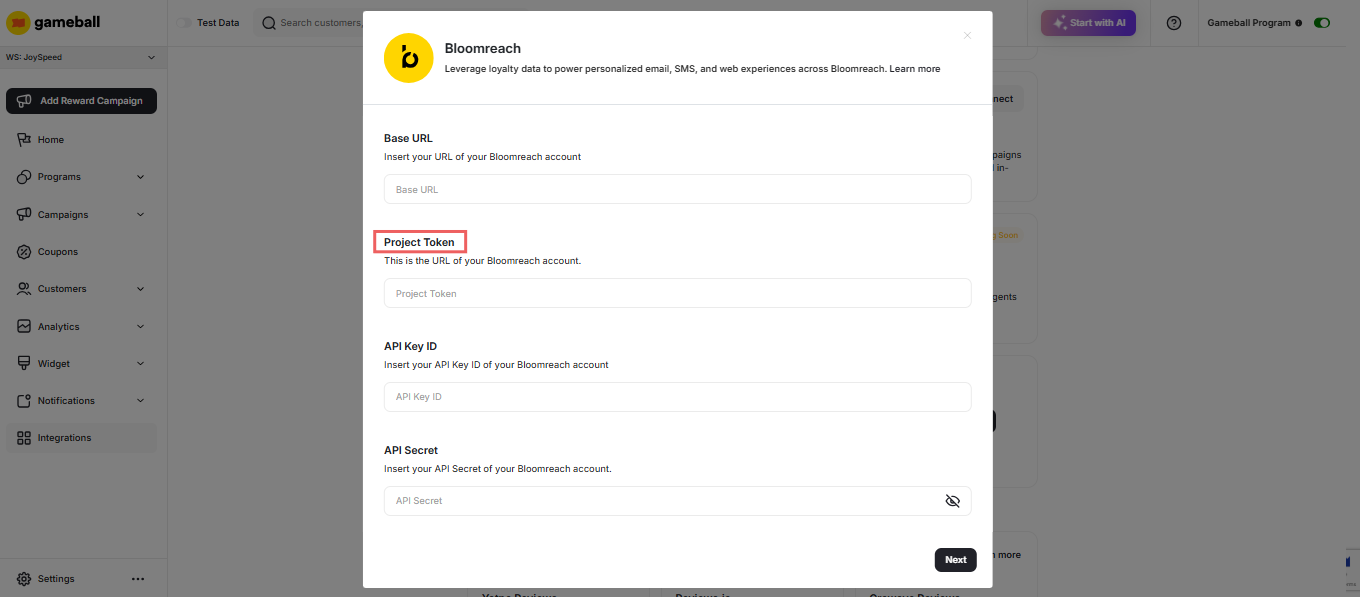
Navigate to **Integrations** in your **Gameball Admin Dashboard** menu. Scroll down to **Bloomreach** and click **Connect**.
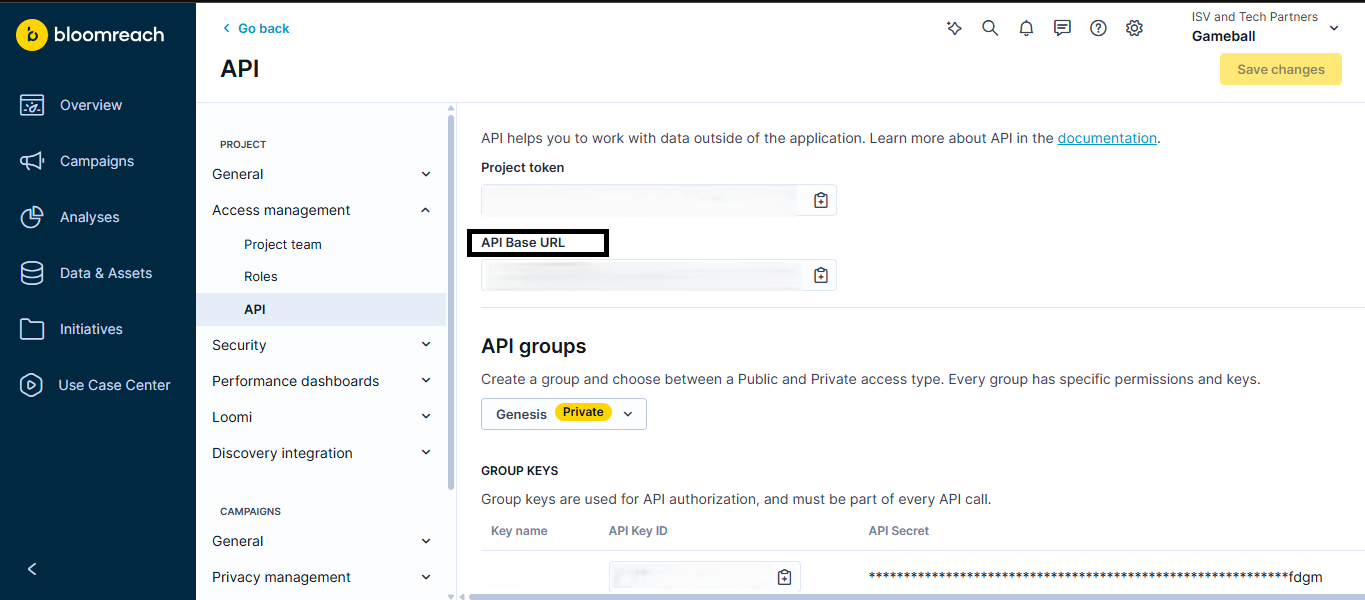
 1. In your **Bloomreach** account, go to **Settings > Project Settings > Access Management > API**.
2. Copy the **API Base URL**.
1. In your **Bloomreach** account, go to **Settings > Project Settings > Access Management > API**.
2. Copy the **API Base URL**.
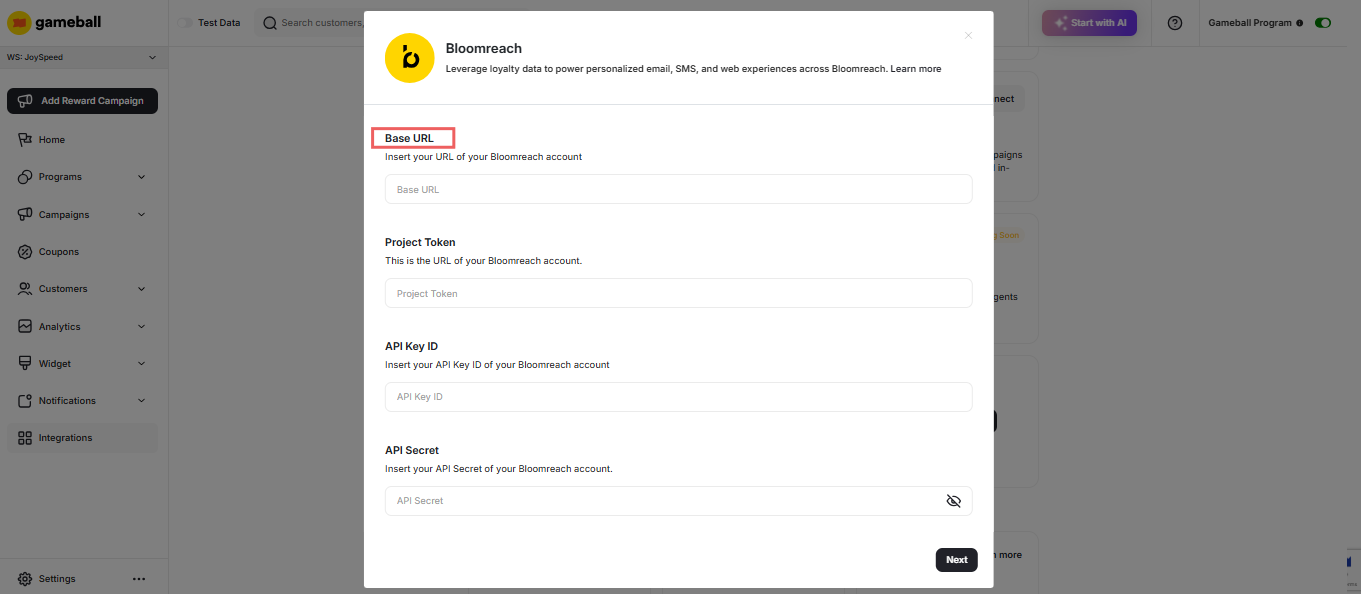
 3. Go back to your Gameball dashboard and paste the URL.
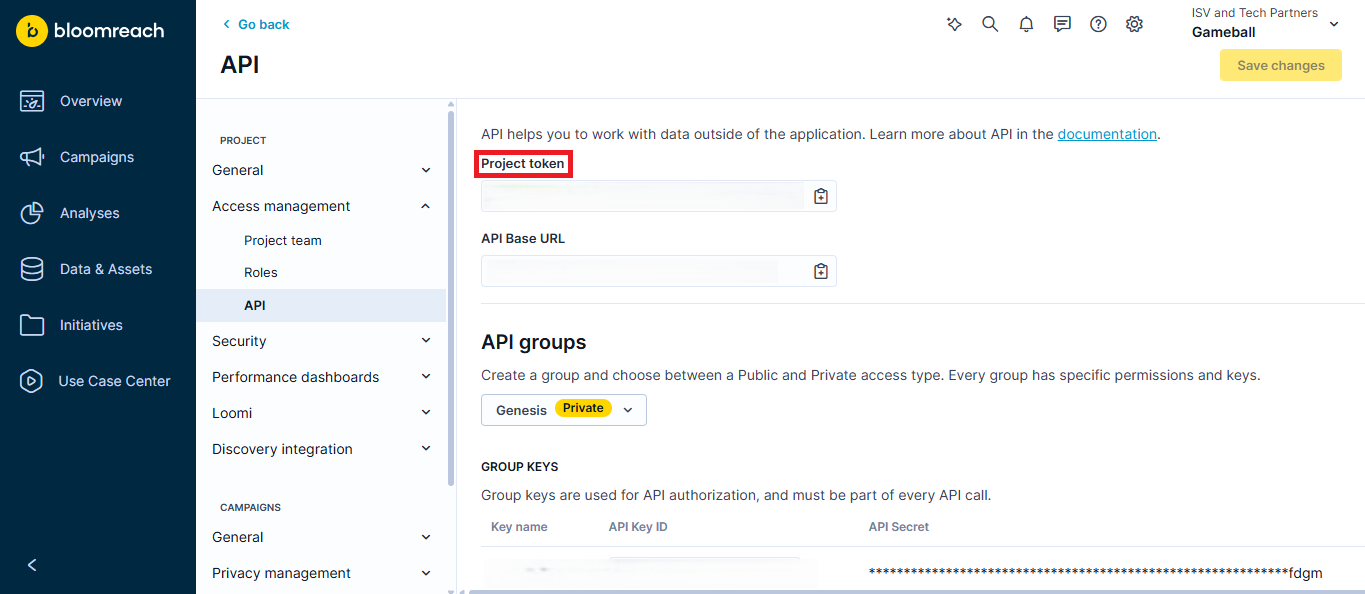
 1. In your **Bloomreach** account, go to **Settings > Project Settings > Access Management > API**.
2. Copy the **Project Token**.
1. In your **Bloomreach** account, go to **Settings > Project Settings > Access Management > API**.
2. Copy the **Project Token**.
 3. Go back to your Gameball dashboard and paste the Token.
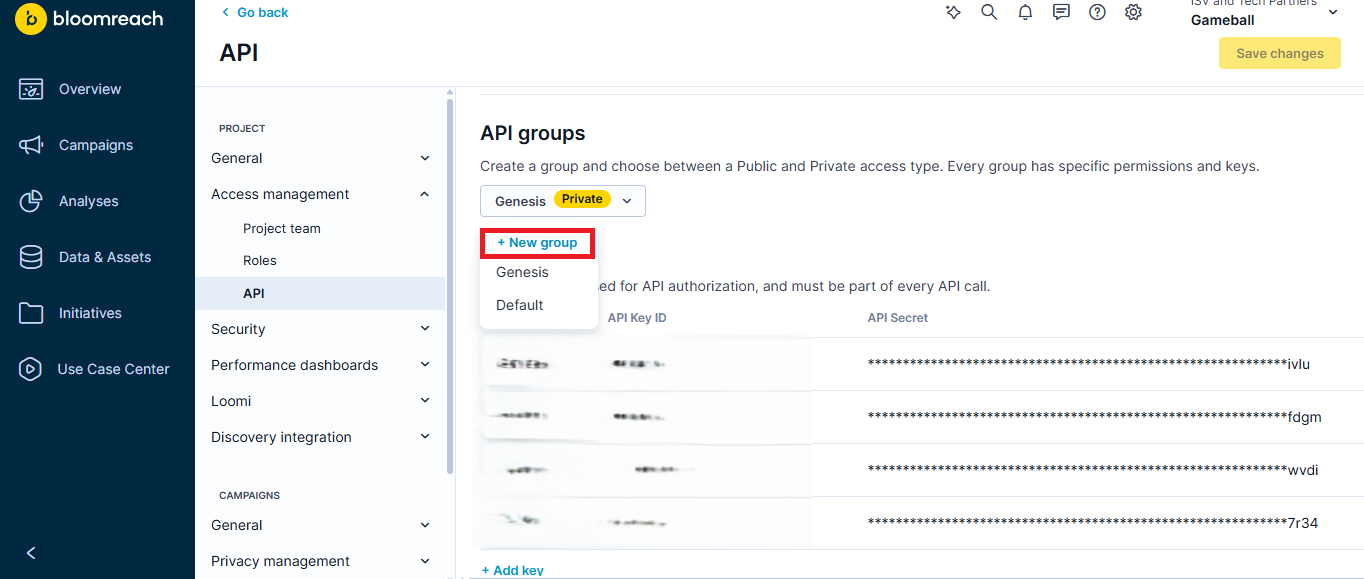
 1. In your **Bloomreach** account, go to **Settings > Project Settings > Access Management > API**.
2. Scroll down and click **New Group**.
1. In your **Bloomreach** account, go to **Settings > Project Settings > Access Management > API**.
2. Scroll down and click **New Group**.
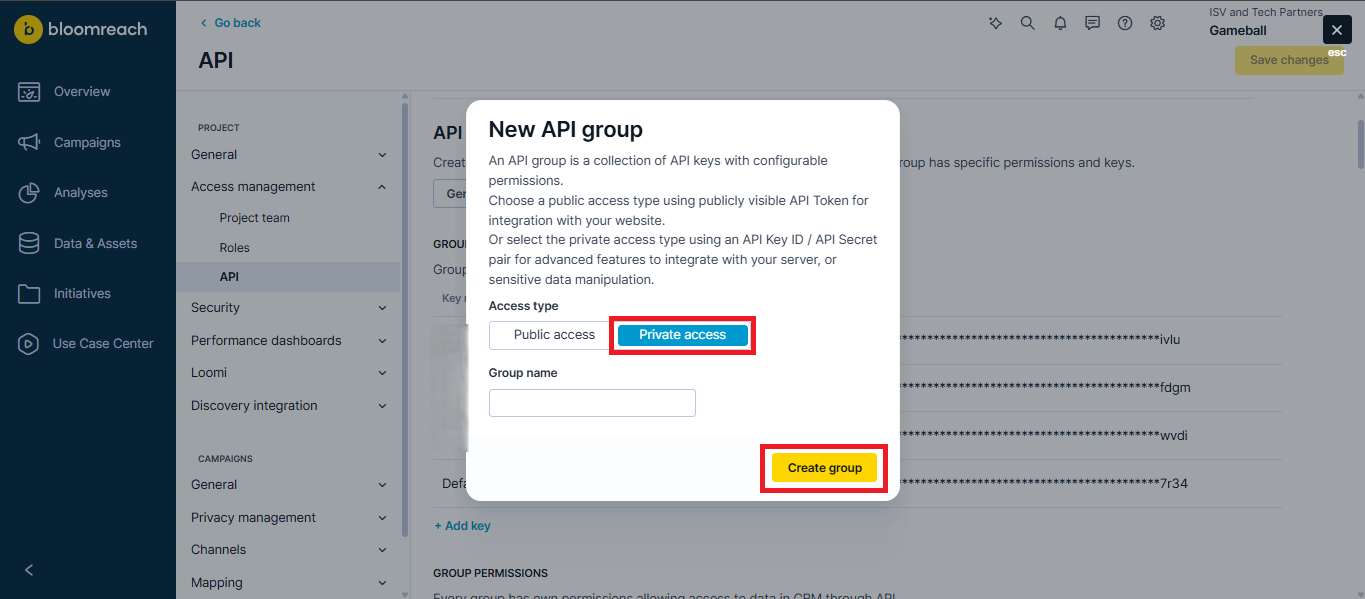
 3. Choose **Private Access**, add a group name, and click **Create Group**.
 4. Give permissions to the new API Group:
* **Customer Attributes:** Get and Set
4. Give permissions to the new API Group:
* **Customer Attributes:** Get and Set
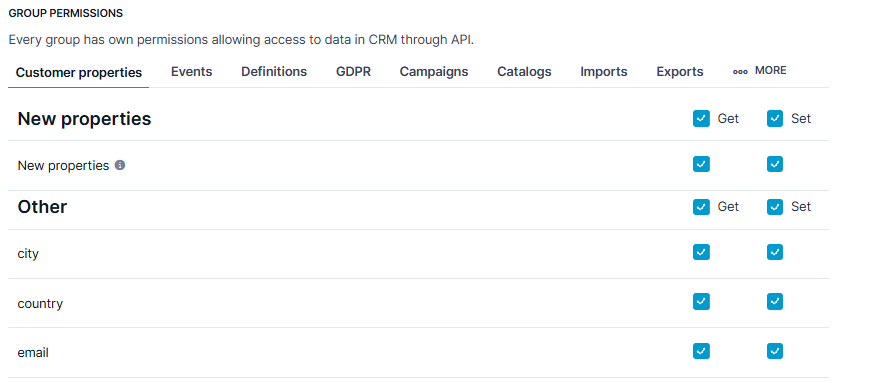 * **Events:** Set
 Not giving Get and Set permissions to the API Group may prevent the integration from functioning properly.
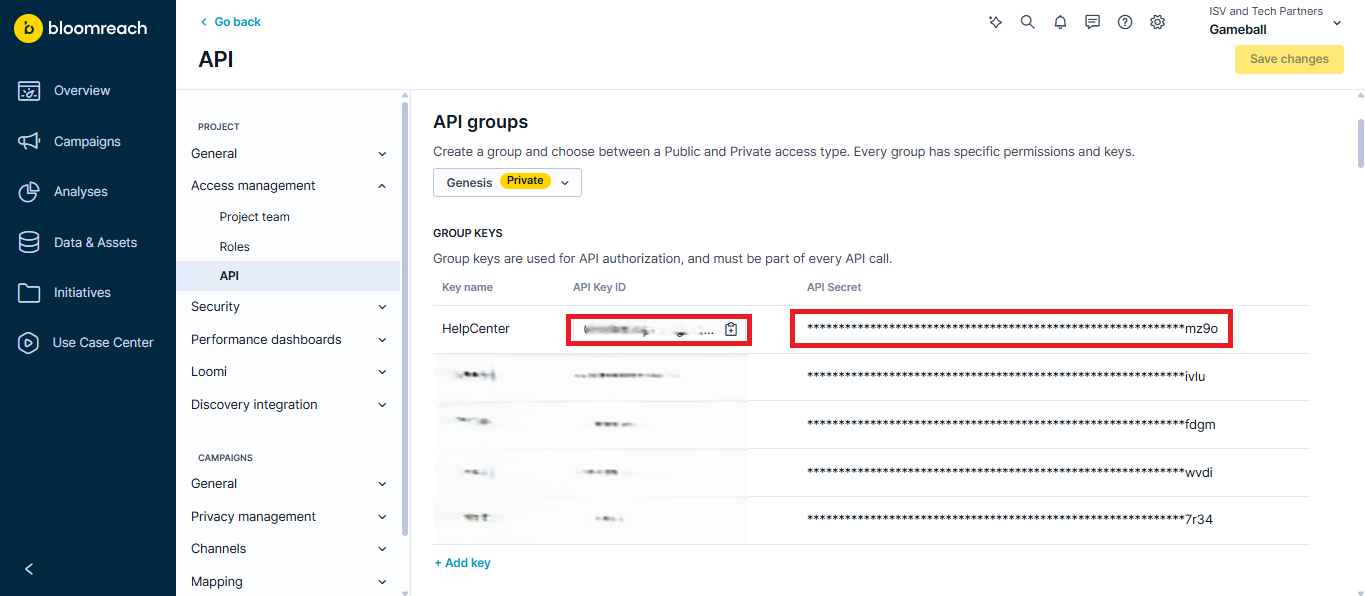
1. Choose the new group created from the last step.
2. Click **Add Key**.
3. Enter a key name.
Not giving Get and Set permissions to the API Group may prevent the integration from functioning properly.
1. Choose the new group created from the last step.
2. Click **Add Key**.
3. Enter a key name.
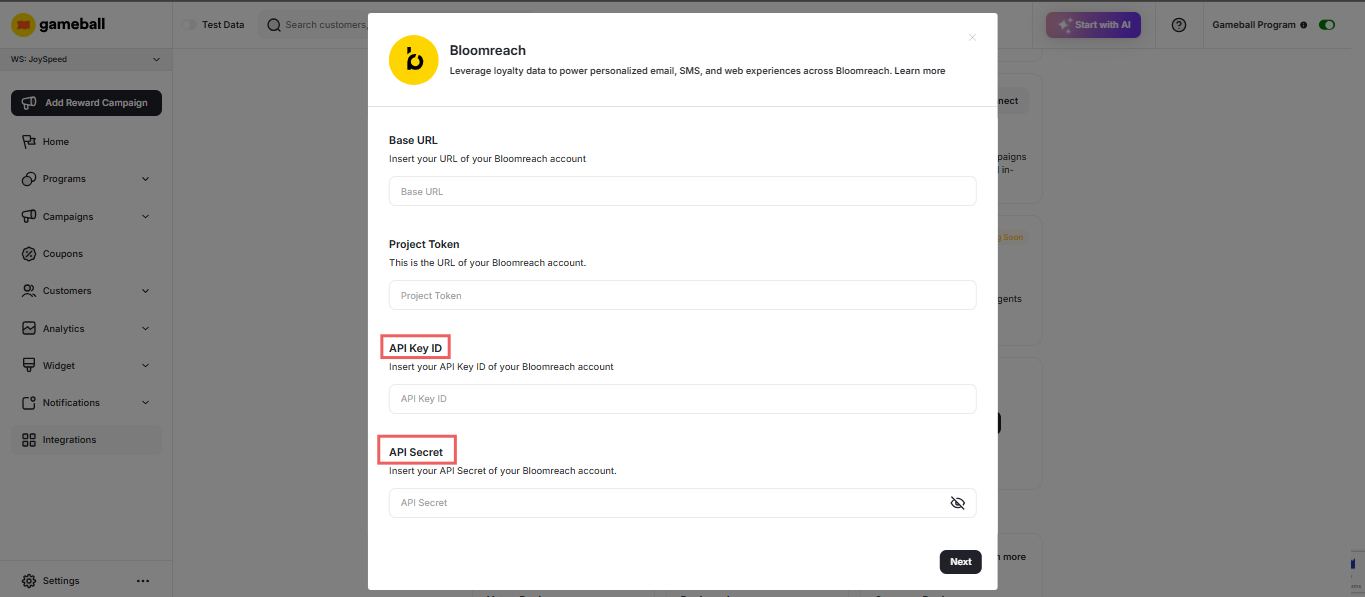
 1. Copy the **API Key ID** and **API Secret**.
 2. Paste both keys in Gameball accordingly.
 Gameball tracks various customer events (e.g., points earned, redeemed, tiers achieved). Map these events to Bloomreach to use them in your campaigns.
1. In the Gameball Dashboard, go to **Integrations**.
2. Select **Bloomreach** from the list of available integrations.
3. Map the following events:
* Coupon Created
* Coupon Redeemed
* Reward Campaign Achieved
* Order Placed
4. Confirm the event mappings and save.
Syncing customer data ensures Bloomreach receives real-time updates about customer actions.
1. In the Gameball Dashboard, navigate to **Integrations > Bloomreach**.
2. Enable the **Customer Sync** toggle.
3. Choose the customer attributes to sync (Customer ID, Date of Birth, Join Date, Tier Name, Wallet Points, Pending Points, Tier Progress, Tier ID, Completed Reward Campaigns, Referral Code, Referral Link, Tags and Segments).
4. Save your settings.
In Bloomreach, go to **Data and Assets > Customers** to find a table with all automatically synced Gameball customers.
Gameball tracks various customer events (e.g., points earned, redeemed, tiers achieved). Map these events to Bloomreach to use them in your campaigns.
1. In the Gameball Dashboard, go to **Integrations**.
2. Select **Bloomreach** from the list of available integrations.
3. Map the following events:
* Coupon Created
* Coupon Redeemed
* Reward Campaign Achieved
* Order Placed
4. Confirm the event mappings and save.
Syncing customer data ensures Bloomreach receives real-time updates about customer actions.
1. In the Gameball Dashboard, navigate to **Integrations > Bloomreach**.
2. Enable the **Customer Sync** toggle.
3. Choose the customer attributes to sync (Customer ID, Date of Birth, Join Date, Tier Name, Wallet Points, Pending Points, Tier Progress, Tier ID, Completed Reward Campaigns, Referral Code, Referral Link, Tags and Segments).
4. Save your settings.
In Bloomreach, go to **Data and Assets > Customers** to find a table with all automatically synced Gameball customers.
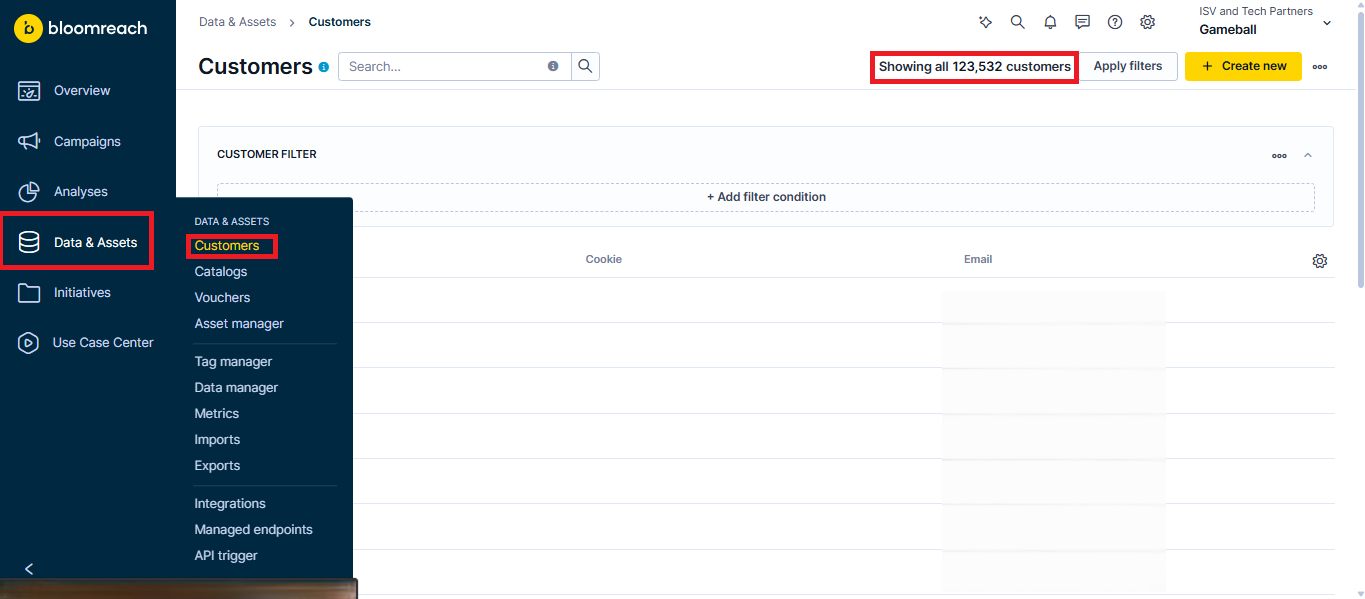 You will also see real-time Gameball events such as Coupon Created, Coupon Used, Reward Campaign Achieved, Order Placed, Order Cancelled, and Refund Created. Each event is synced in real-time, allowing you to send highly targeted campaigns and flows in Bloomreach.
***
Connect Gameball with thousands of apps via Zapier.
Explore all available Gameball integrations.
You will also see real-time Gameball events such as Coupon Created, Coupon Used, Reward Campaign Achieved, Order Placed, Order Cancelled, and Refund Created. Each event is synced in real-time, allowing you to send highly targeted campaigns and flows in Bloomreach.
***
Connect Gameball with thousands of apps via Zapier.
Explore all available Gameball integrations.