> ## Documentation Index
> Fetch the complete documentation index at: https://docs.gameball.co/llms.txt
> Use this file to discover all available pages before exploring further.
# How Do I Integrate Judge.me with Gameball?
> Create reward campaigns and rewards based on your customers' reviews that are done through your Judge.me app.
## Why Integrate Judge.me with Gameball?
This integration allows you to reward your customers based on their placed reviews, driving more reviews for your business and building trust with your customers.
To integrate Gameball with Judge.me, you must be on the **Awesome** plan on Judge.me.
***
## How to Configure Judge.me on Gameball
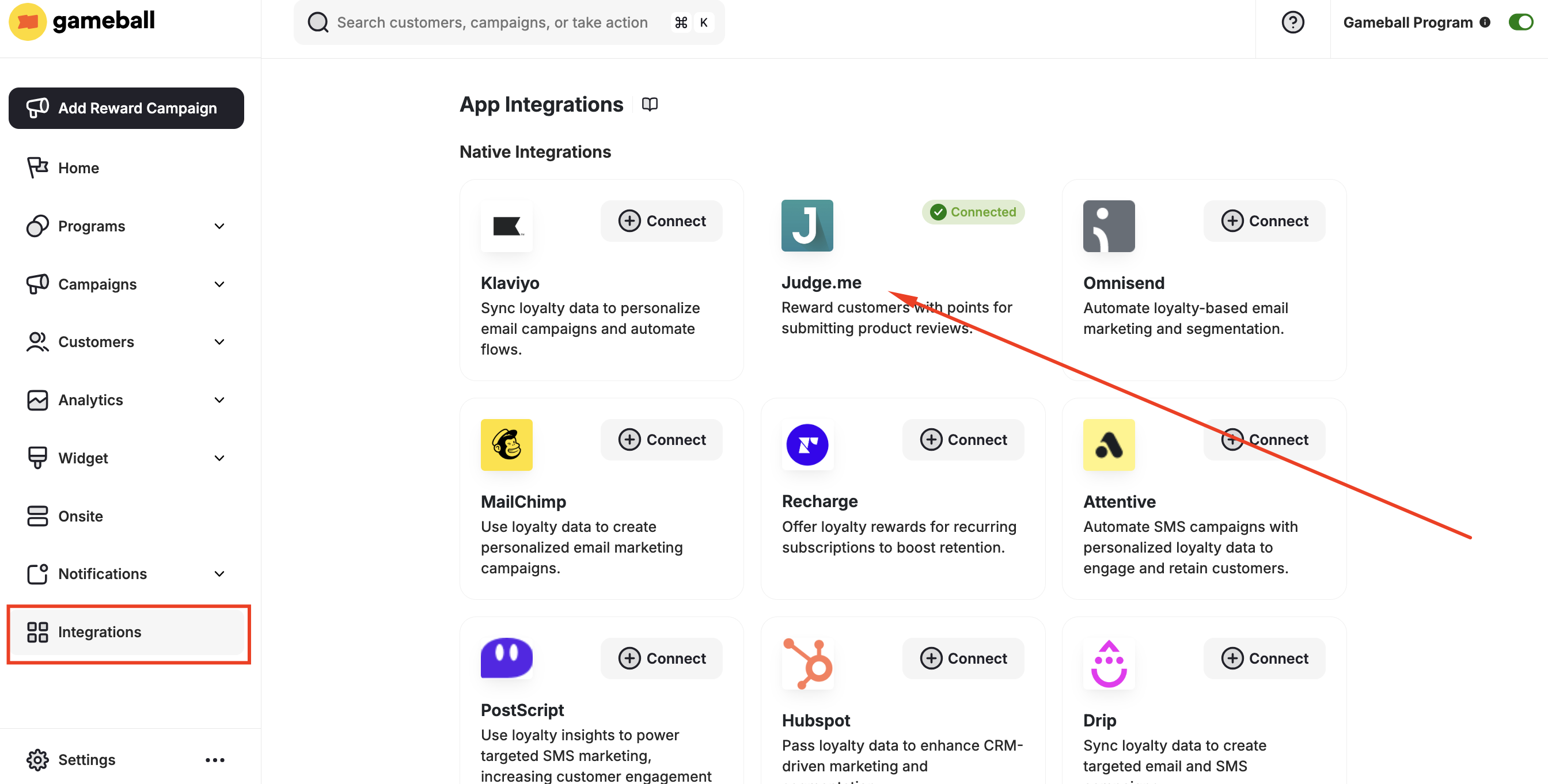
Go to **Integrations** on your **Gameball Admin Dashboard** and click **Connect** under **Judge.me**.
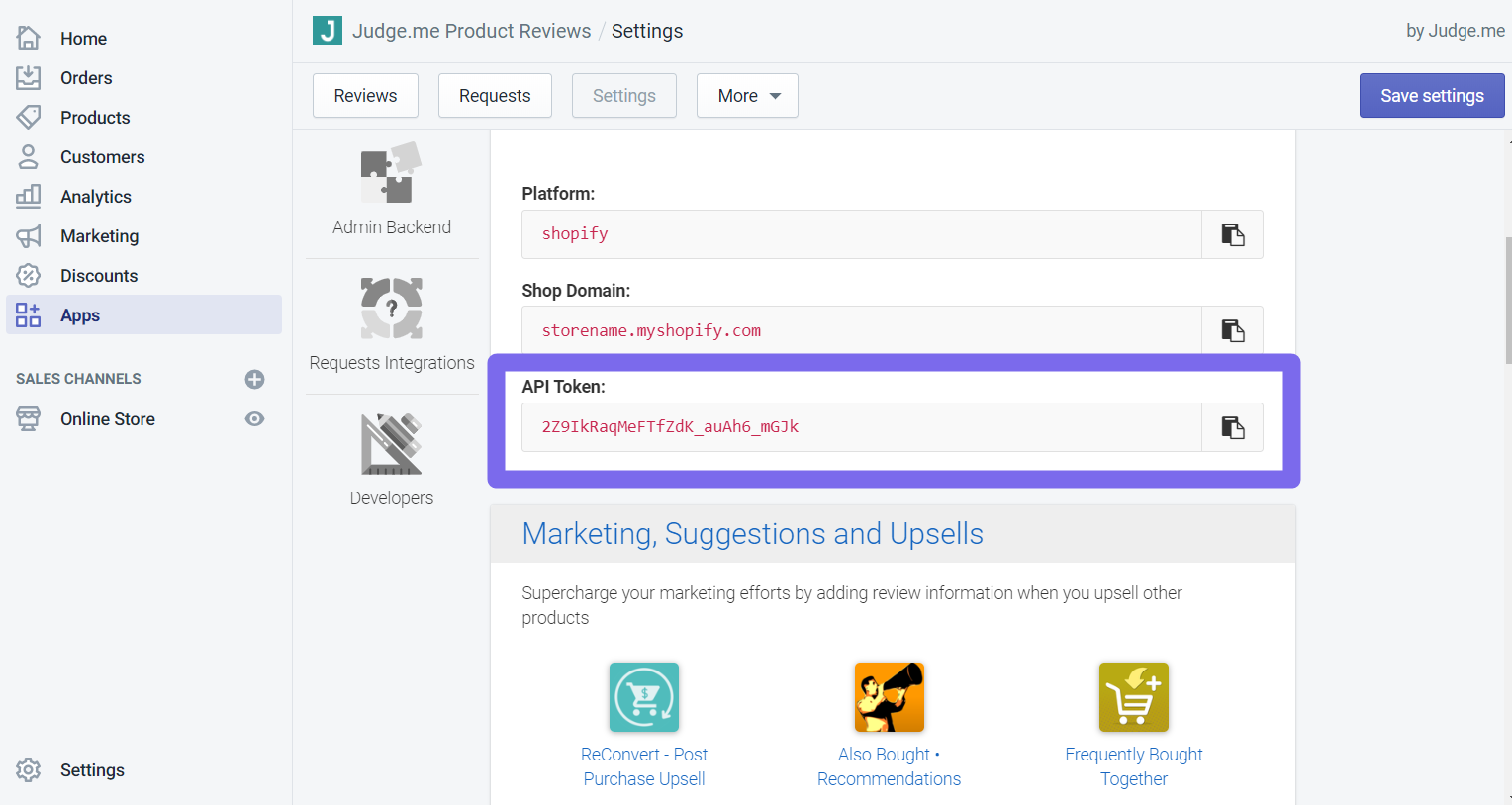
 1. Install Judge.me from the Shopify App Store.
2. In your Judge.me account, go to **Settings > Integrations**.
3. Copy the **API token**.
1. Install Judge.me from the Shopify App Store.
2. In your Judge.me account, go to **Settings > Integrations**.
3. Copy the **API token**.
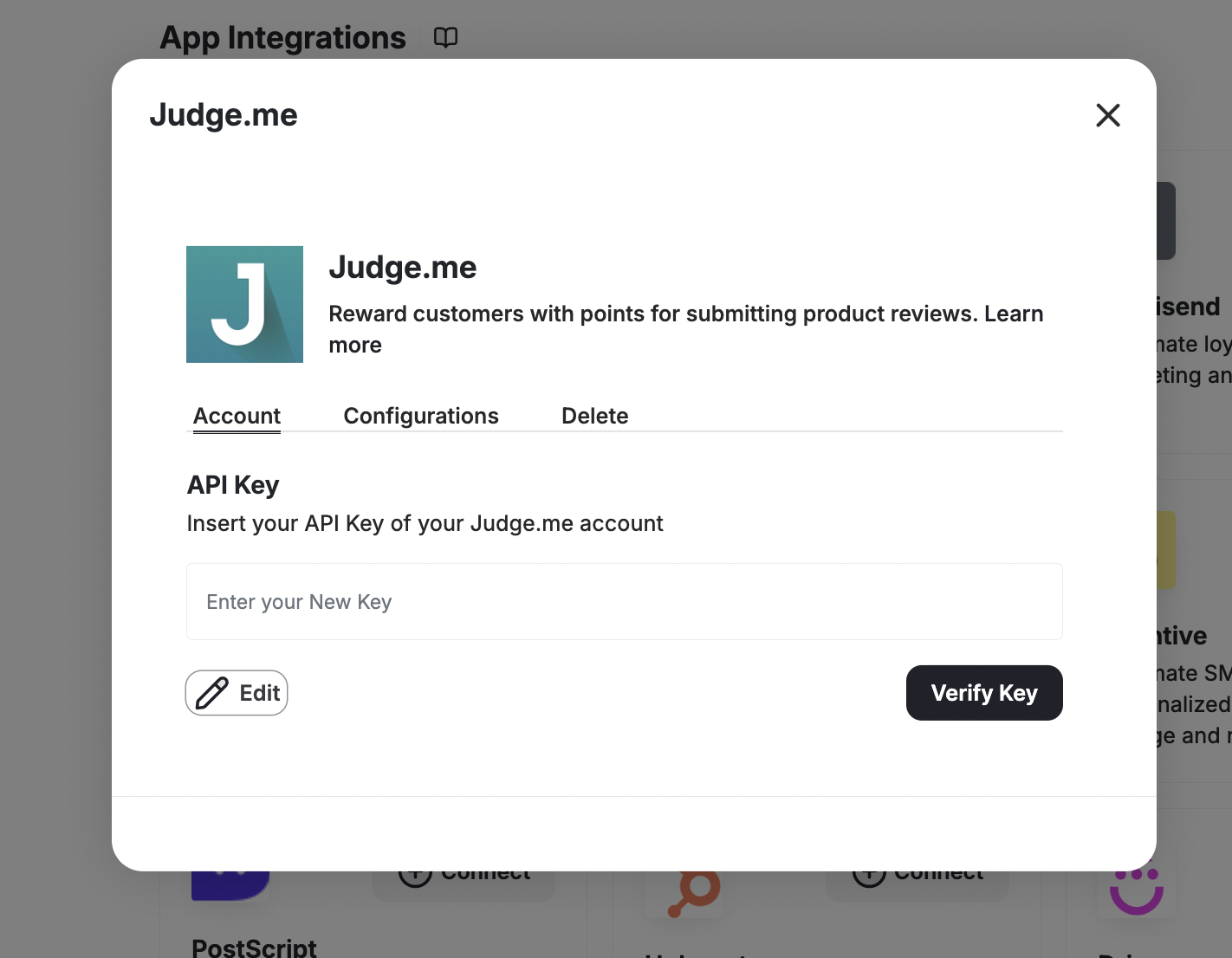
 Paste the API key into your Gameball account and click **Verify Key**.
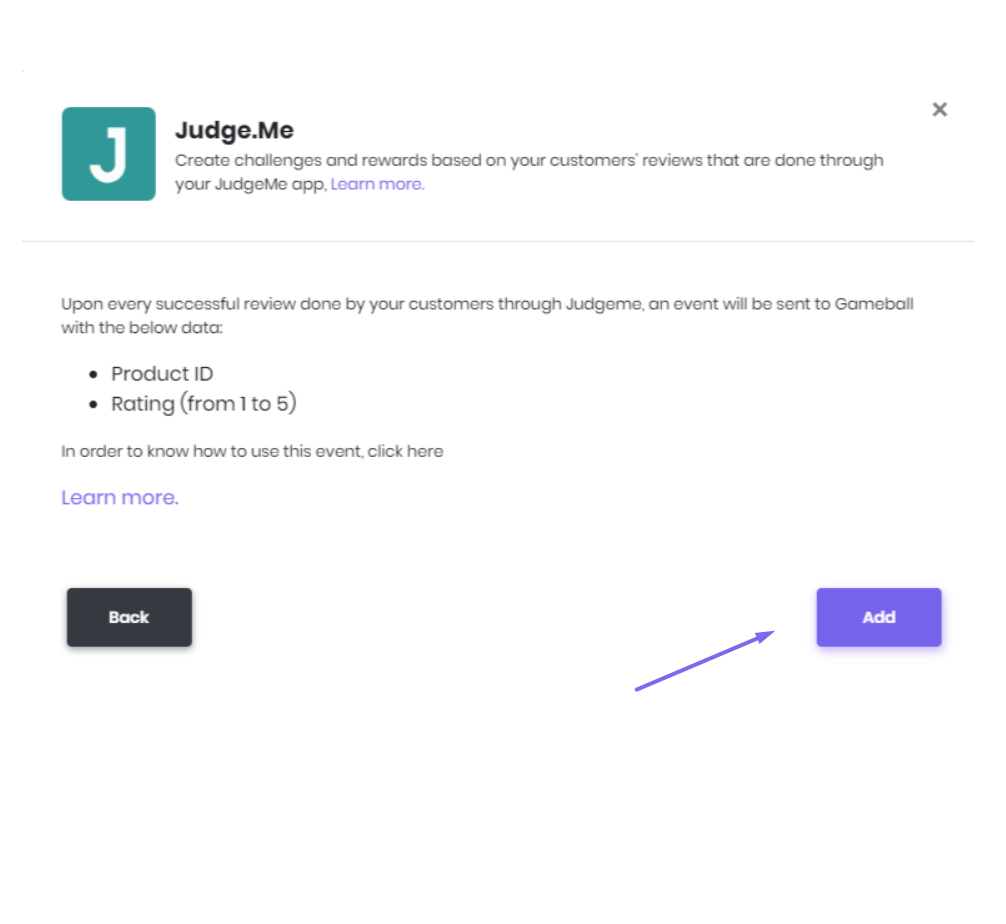
 Click **Add** to automatically add the review event in the customers' events section on your Gameball Admin Dashboard.
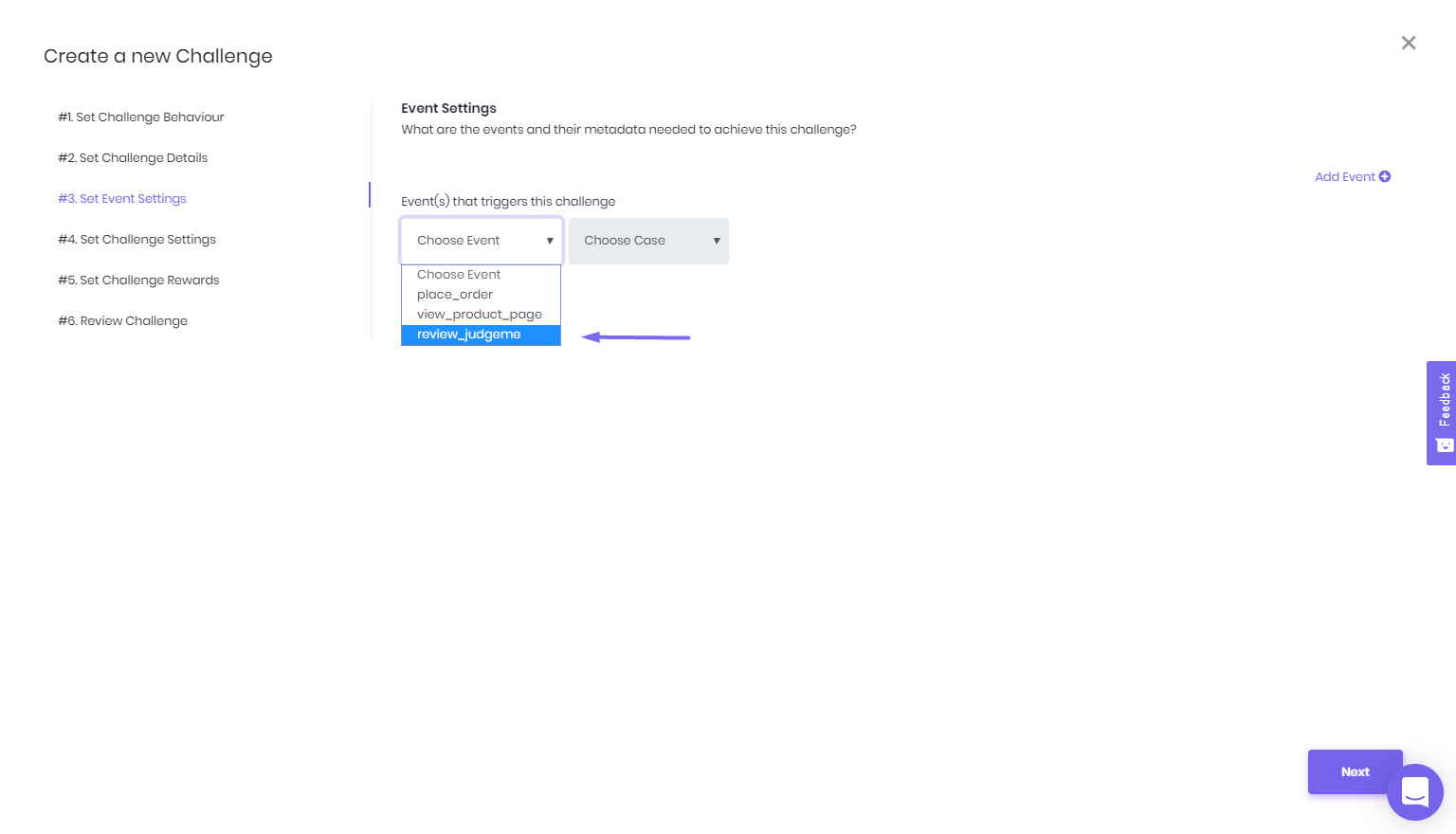
 Go to **Rewards > Reward Campaigns** and create the "review/judge me" campaign.
This event will have the following metadata: Product ID, Product Title, and Rating.
Go to **Rewards > Reward Campaigns** and create the "review/judge me" campaign.
This event will have the following metadata: Product ID, Product Title, and Rating.
 Learn more about how to [configure your reward campaign](/product-documentation/rewards-campaigns/start-from-scratch/create-action-based-reward-campaign).