> ## Documentation Index
> Fetch the complete documentation index at: https://docs.gameball.co/llms.txt
> Use this file to discover all available pages before exploring further.
# How Do I Integrate Klaviyo with Gameball?
> Keep your customers in sync across Gameball and Klaviyo, and target them effectively based on their loyalty data and events.
 | Platform | Plan |
| ---------- | ---- |
| Shopify | All |
| Self-serve | All |
Gameball and Klaviyo integration allows you to leverage customer engagement data from Gameball to power your email marketing campaigns in Klaviyo. Follow this guide to seamlessly connect the two platforms and maximize the impact of your loyalty and marketing efforts.
## Why Integrate Klaviyo with Gameball?
By integrating Klaviyo with Gameball, you unlock the ability to target and segment customers based on their loyalty to your app. This powerful integration allows you to:
* **Segment contact lists** based on Gameball customer attributes (e.g., points balance, tier) and events created.
* **Send personalized emails** by including loyalty-related data, such as customer tier and reward points, in your email templates.
* **Track and trigger campaigns** based on specific customer events, such as coupons created, orders placed, and reward achievements.
***
## How to Connect Klaviyo to Gameball
In your Gameball Admin Dashboard, navigate to **App Integrations** from the left-side menu. You will see a card for each available native integration.
| Platform | Plan |
| ---------- | ---- |
| Shopify | All |
| Self-serve | All |
Gameball and Klaviyo integration allows you to leverage customer engagement data from Gameball to power your email marketing campaigns in Klaviyo. Follow this guide to seamlessly connect the two platforms and maximize the impact of your loyalty and marketing efforts.
## Why Integrate Klaviyo with Gameball?
By integrating Klaviyo with Gameball, you unlock the ability to target and segment customers based on their loyalty to your app. This powerful integration allows you to:
* **Segment contact lists** based on Gameball customer attributes (e.g., points balance, tier) and events created.
* **Send personalized emails** by including loyalty-related data, such as customer tier and reward points, in your email templates.
* **Track and trigger campaigns** based on specific customer events, such as coupons created, orders placed, and reward achievements.
***
## How to Connect Klaviyo to Gameball
In your Gameball Admin Dashboard, navigate to **App Integrations** from the left-side menu. You will see a card for each available native integration.
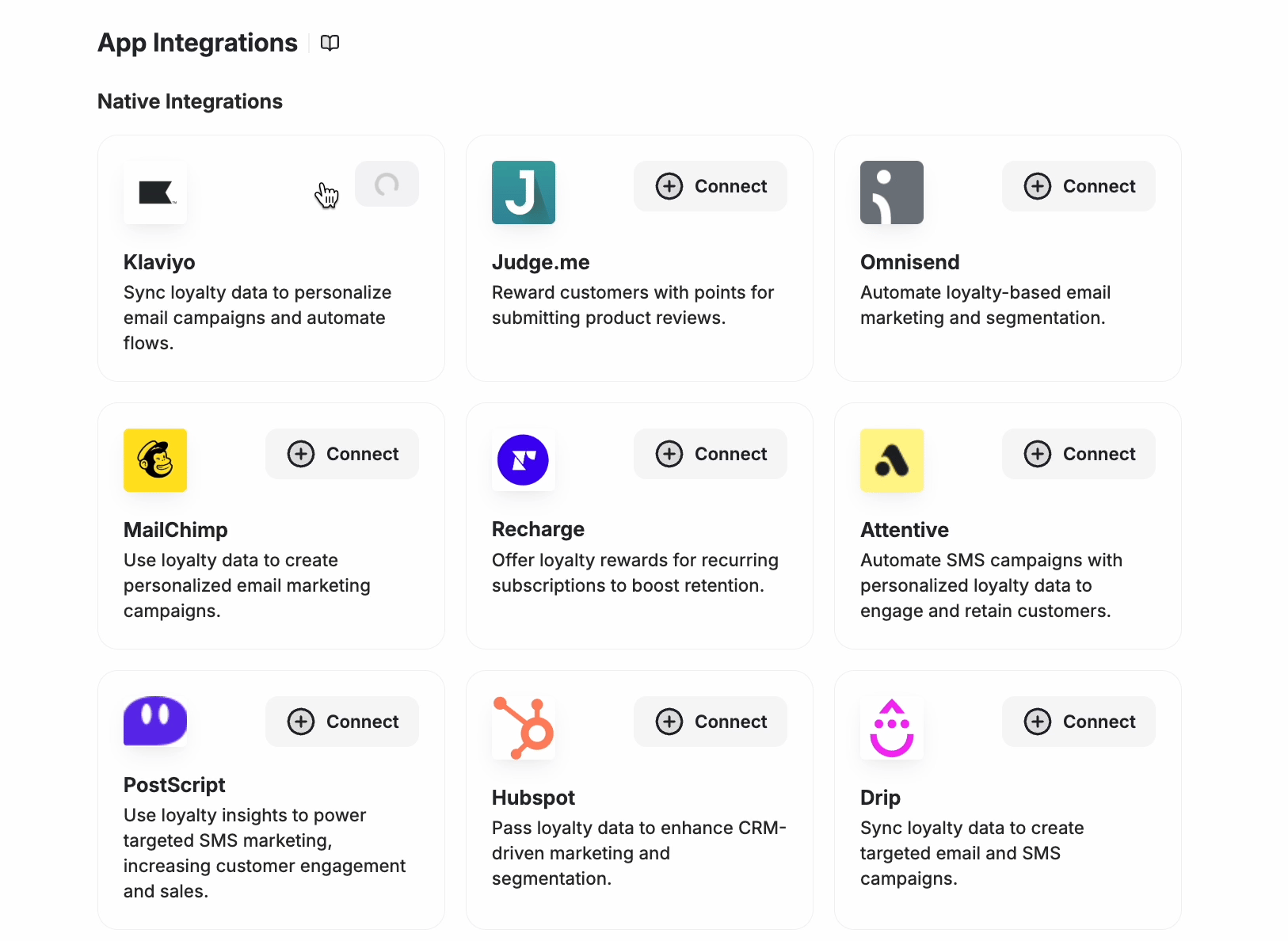 Find the **Klaviyo** card and click **Connect**. You will be redirected to a Klaviyo OAuth screen asking you to authorize the connection.
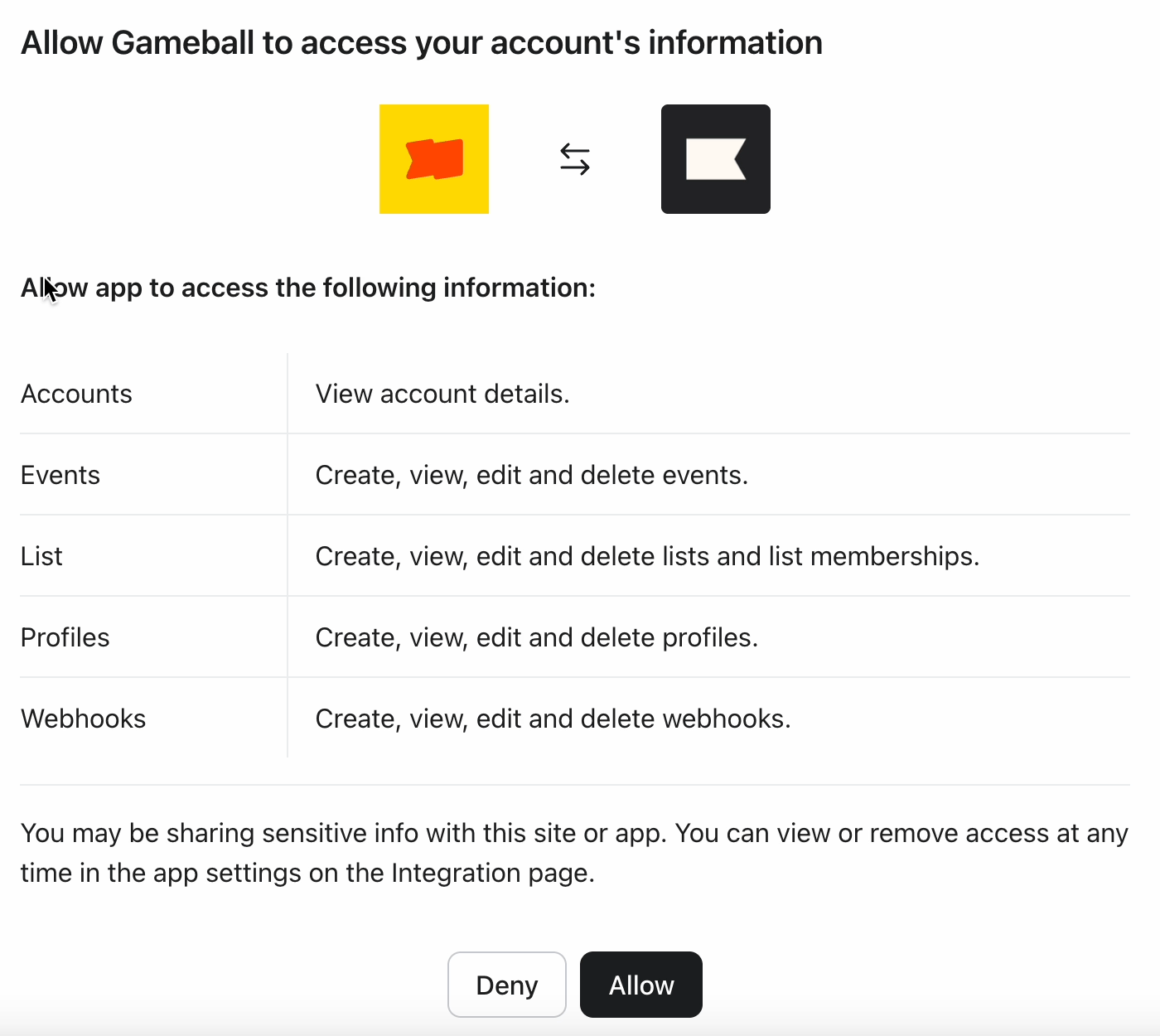 Gameball will request access to the following scopes in your Klaviyo account:
| Scope | Permission |
| ------------ | --------------------------------------------------------- |
| **Accounts** | View account details |
| **Events** | Create, view, edit, and delete events |
| **List** | Create, view, edit, and delete lists and list memberships |
| **Profiles** | Create, view, edit, and delete profiles |
| **Webhooks** | Create, view, edit, and delete webhooks |
Click **Allow** to grant Gameball access. You can revoke this access at any time from your Klaviyo app settings.
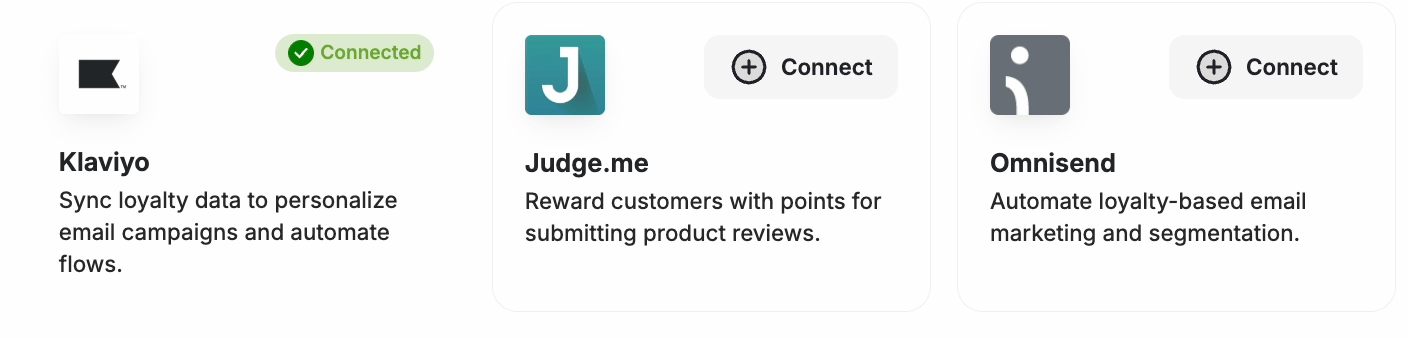
Once authorized, the Klaviyo card will display a **Connected** badge confirming the integration is active.
Gameball will request access to the following scopes in your Klaviyo account:
| Scope | Permission |
| ------------ | --------------------------------------------------------- |
| **Accounts** | View account details |
| **Events** | Create, view, edit, and delete events |
| **List** | Create, view, edit, and delete lists and list memberships |
| **Profiles** | Create, view, edit, and delete profiles |
| **Webhooks** | Create, view, edit, and delete webhooks |
Click **Allow** to grant Gameball access. You can revoke this access at any time from your Klaviyo app settings.
Once authorized, the Klaviyo card will display a **Connected** badge confirming the integration is active.
 ***
## Using Gameball Data in Klaviyo
### View Custom Properties
In Klaviyo, view Gameball customer attributes under **Profile > Information > Custom Properties** of a specific customer.
### Use Attributes in Campaigns
When creating a campaign in Klaviyo, insert Gameball attributes by selecting **Insert Property**.
***
## Using Gameball Data in Klaviyo
### View Custom Properties
In Klaviyo, view Gameball customer attributes under **Profile > Information > Custom Properties** of a specific customer.
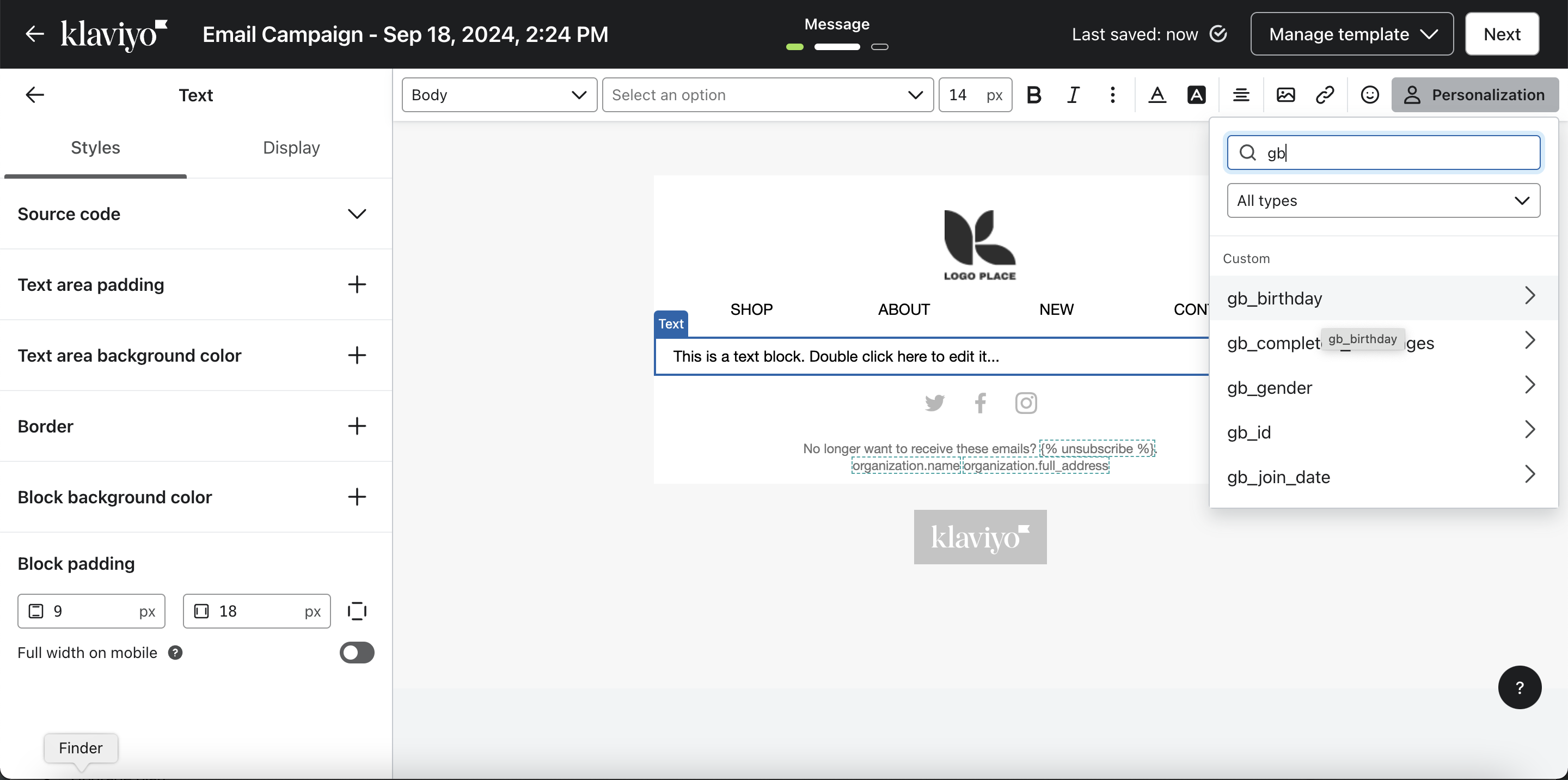
### Use Attributes in Campaigns
When creating a campaign in Klaviyo, insert Gameball attributes by selecting **Insert Property**.
 ### Trigger Flows Based on Events
You can trigger automated flows in Klaviyo based on real-time Gameball events such as Coupon Created, Coupon Redeemed, Reward Campaign Achieved, Order Placed, and Points Redeemed.
### Trigger Flows Based on Events
You can trigger automated flows in Klaviyo based on real-time Gameball events such as Coupon Created, Coupon Redeemed, Reward Campaign Achieved, Order Placed, and Points Redeemed.
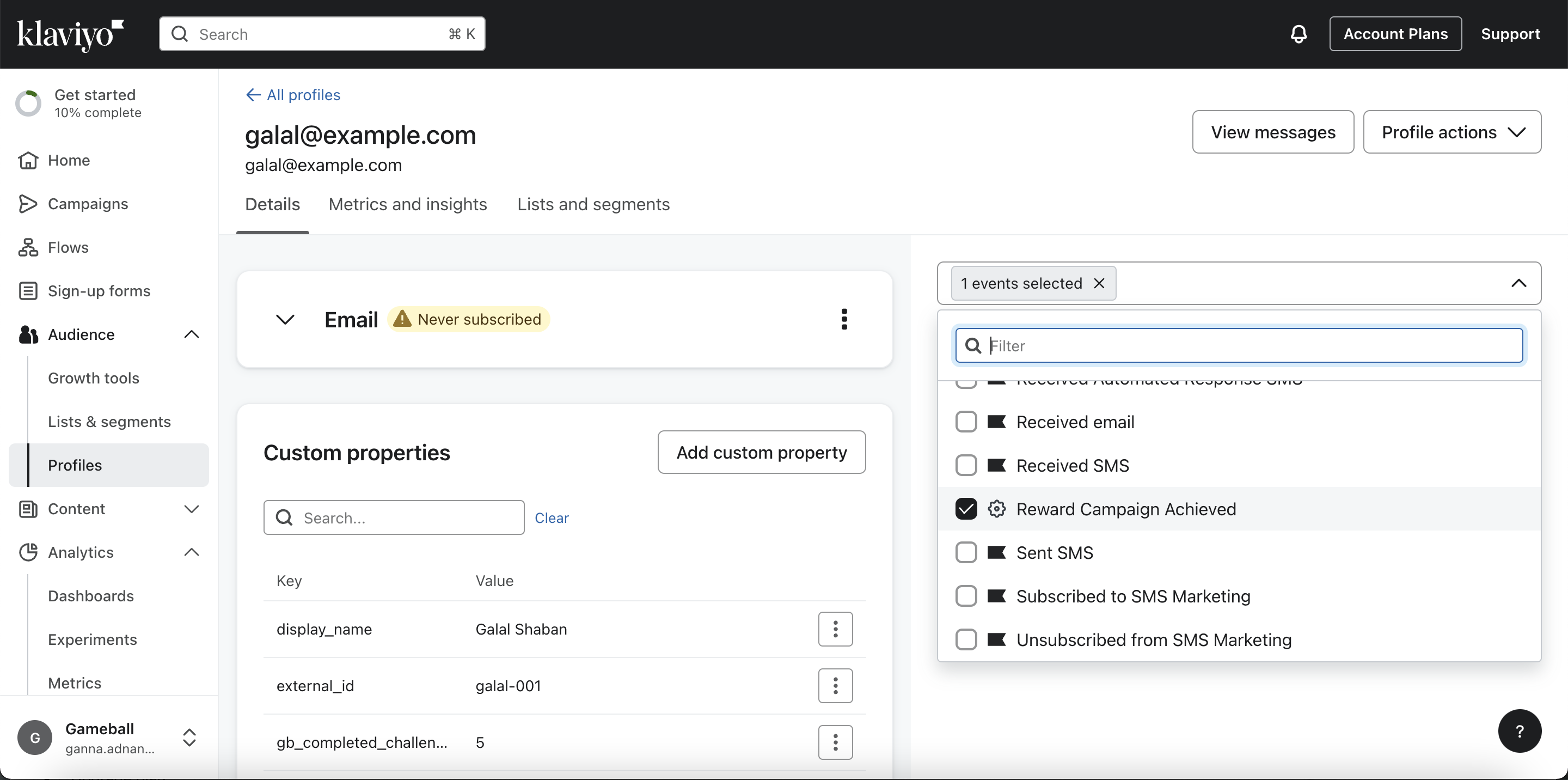 Each event is synced in real-time, allowing you to send highly targeted campaigns and flows in Klaviyo.
***
Integrate Gameball with MoEngage for engagement campaigns.
Explore all available Gameball integrations.
Each event is synced in real-time, allowing you to send highly targeted campaigns and flows in Klaviyo.
***
Integrate Gameball with MoEngage for engagement campaigns.
Explore all available Gameball integrations.