> ## Documentation Index
> Fetch the complete documentation index at: https://docs.gameball.co/llms.txt
> Use this file to discover all available pages before exploring further.
# How Do I Integrate Klaviyo Reviews with Gameball?
> Create campaigns and rewards based on your customers' reviews that are done through your Klaviyo Reviews app.
Integrating Klaviyo Reviews with Gameball allows you to automatically receive review events, enabling you to reward customers, send notifications, and create custom automation campaigns.
## Setup Requirements
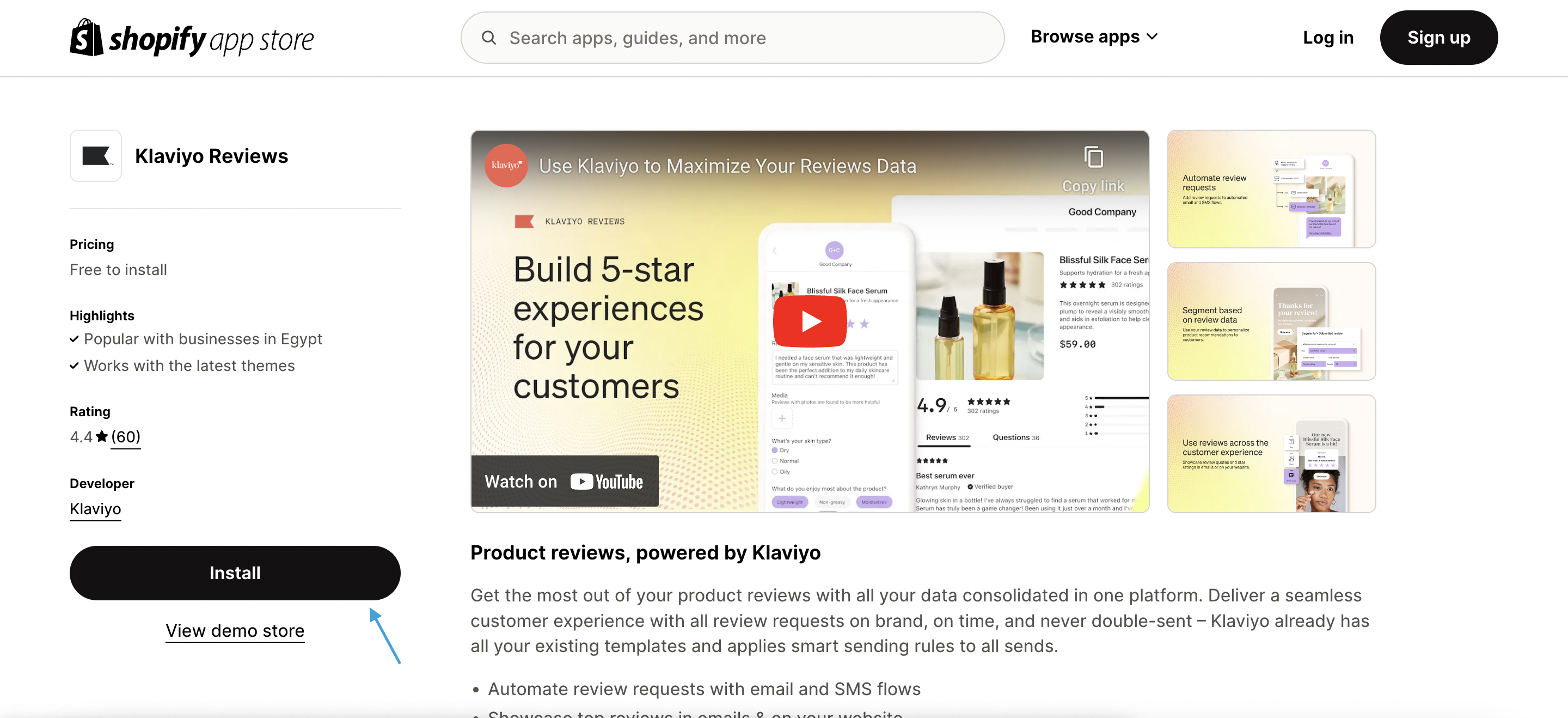
Ensure the Klaviyo Reviews app is installed in your store. [Learn More.](https://apps.shopify.com/klaviyo-reviews)
 ***
## Step-by-Step Integration
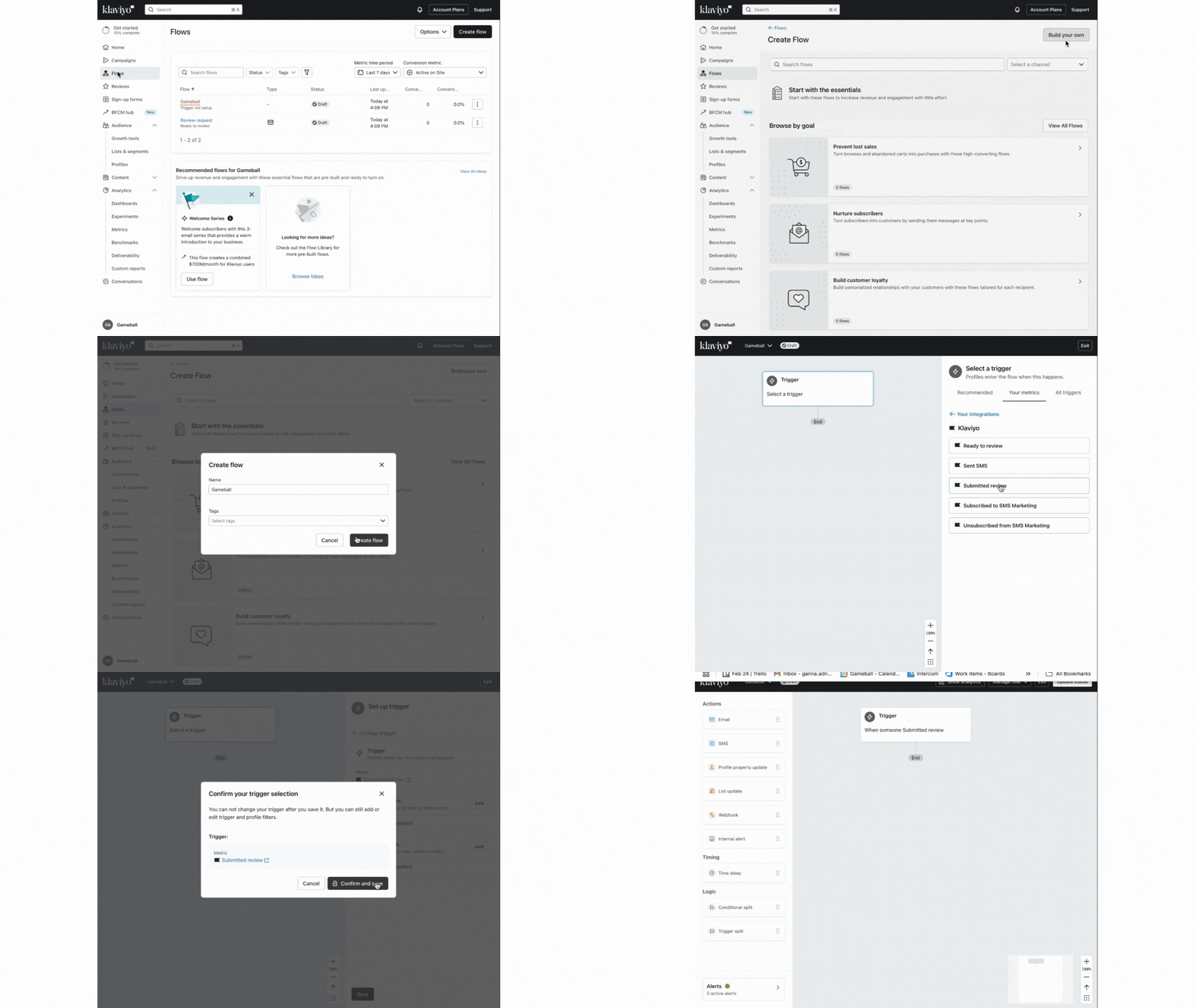
Log in to your Klaviyo account and select the **Flows** tab from the side menu.
Click **Create Flow**, choose **Build Your Own**, and enter a name for the flow when prompted.
1. Select **Metrics** as the trigger type.
2. Choose **Klaviyo** as the metric source.
3. Select **Submitted Review** as the event.
4. Click **Save**.
***
## Step-by-Step Integration
Log in to your Klaviyo account and select the **Flows** tab from the side menu.
Click **Create Flow**, choose **Build Your Own**, and enter a name for the flow when prompted.
1. Select **Metrics** as the trigger type.
2. Choose **Klaviyo** as the metric source.
3. Select **Submitted Review** as the event.
4. Click **Save**.
 To exclude store-level reviews, add a trigger filter:
1. Click **Add** on the Trigger Filters card.
2. Select **Add Trigger Filter**.
3. Set the field `is_store_review` to **false**.
4. Click **Save**.
To exclude store-level reviews, add a trigger filter:
1. Click **Add** on the Trigger Filters card.
2. Select **Add Trigger Filter**.
3. Set the field `is_store_review` to **false**.
4. Click **Save**.
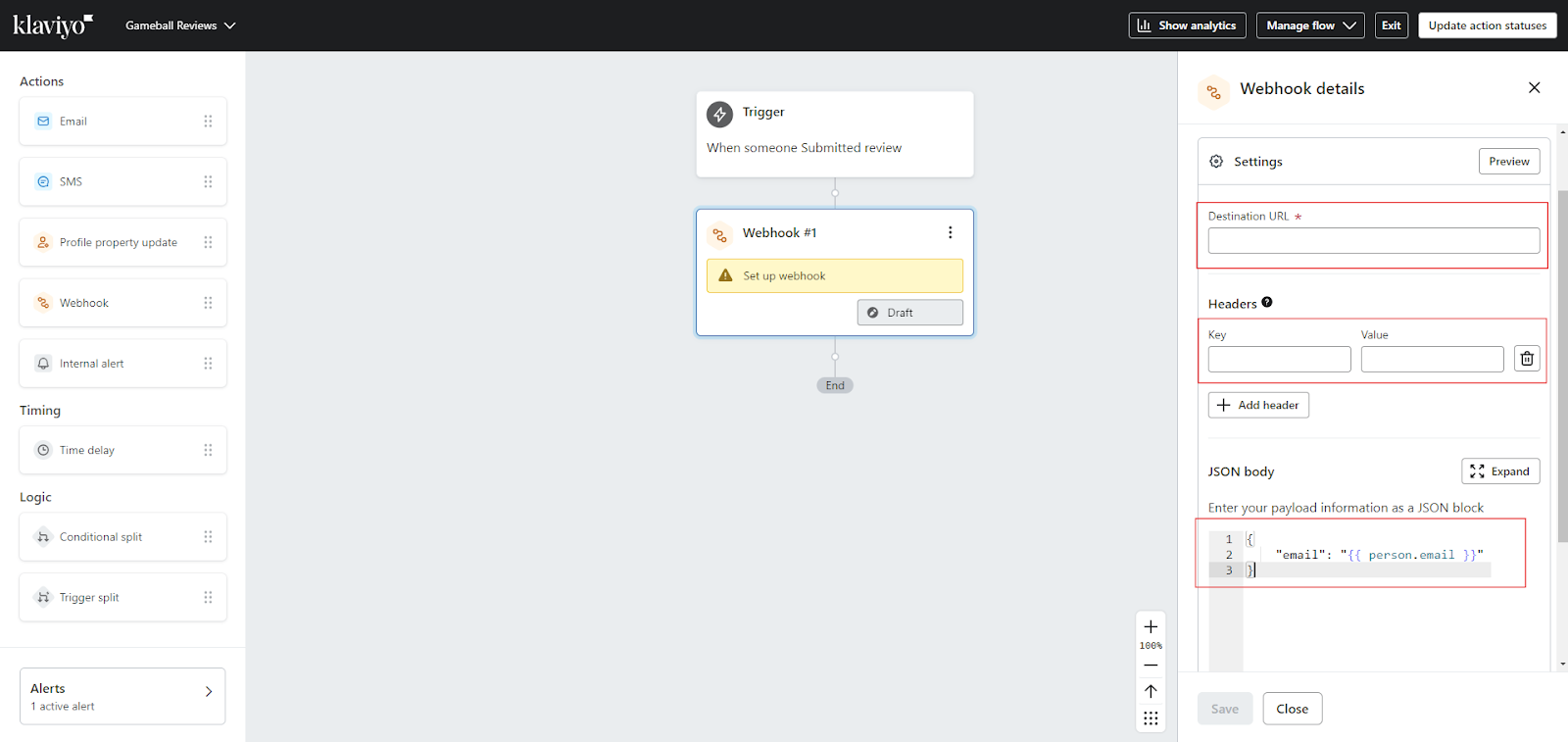
 Set up the webhook action to send review event data to Gameball:
1. Select **Webhook Action**.
2. Set the Destination URL to: `https://api.gameball.co/api/v3/integrations/event`
3. Add the following header:
* **ApiKey**: `#{{Gameball API Key}}`
4. Add the JSON body:
```json theme={null}
{
"playerUniqueId": "#{{ person.external_id|default:'' }}",
"events": {
"review_submitted": {
"rating": "#{{ event.review_rating|default:'' }}",
"productId": "#{{ event.structured_product.id|default:'' }}",
"productTitle": "#{{ event.structured_product.product_name|default:'' }}",
"hasMedia": "#{{ event.review_has_media|default:'' }}"
}
}
}
```
5. Click **Save**.
Set up the webhook action to send review event data to Gameball:
1. Select **Webhook Action**.
2. Set the Destination URL to: `https://api.gameball.co/api/v3/integrations/event`
3. Add the following header:
* **ApiKey**: `#{{Gameball API Key}}`
4. Add the JSON body:
```json theme={null}
{
"playerUniqueId": "#{{ person.external_id|default:'' }}",
"events": {
"review_submitted": {
"rating": "#{{ event.review_rating|default:'' }}",
"productId": "#{{ event.structured_product.id|default:'' }}",
"productTitle": "#{{ event.structured_product.product_name|default:'' }}",
"hasMedia": "#{{ event.review_has_media|default:'' }}"
}
}
}
```
5. Click **Save**.
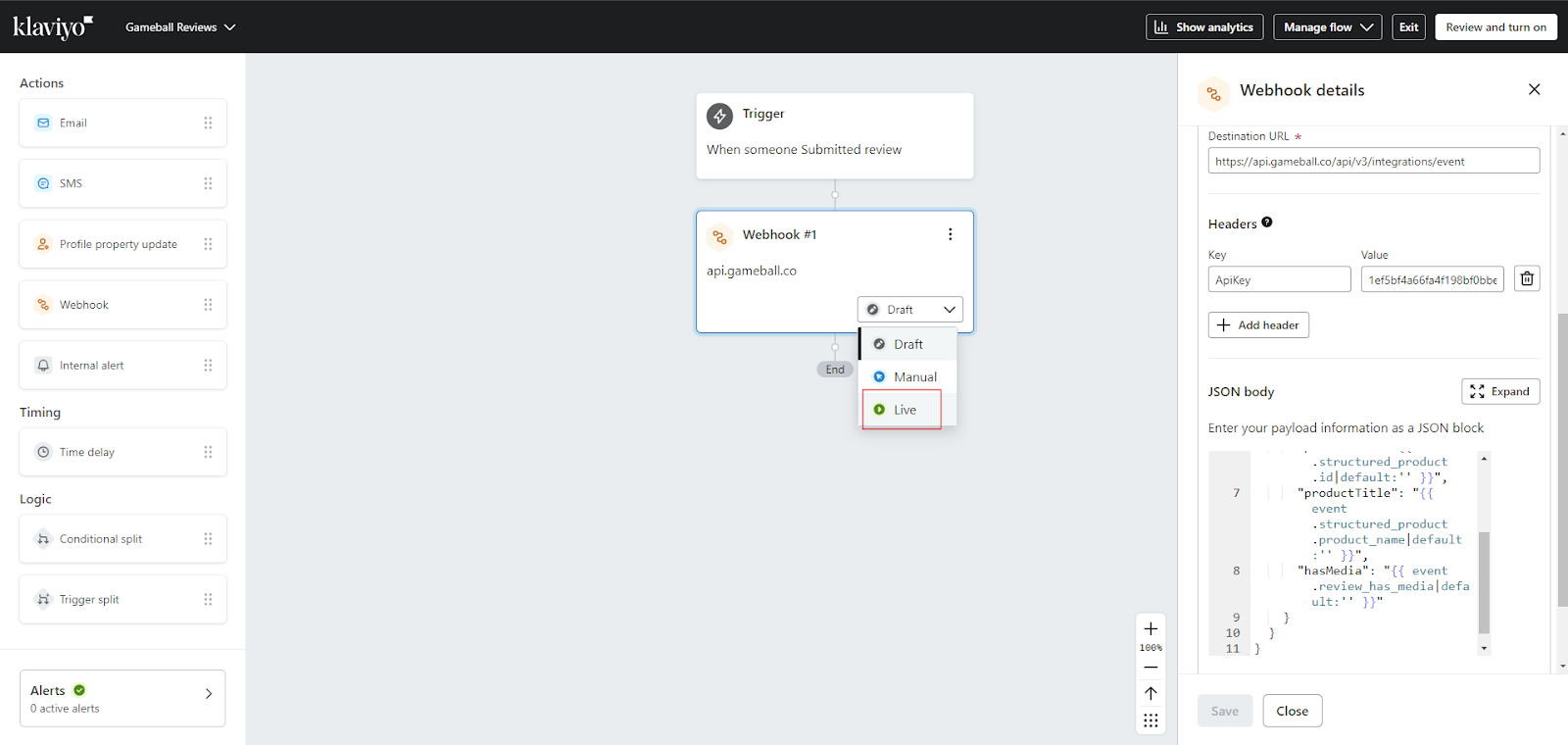
 After completing the setup, switch the flow to **Live** to start receiving events.
 ***
## Gameball Use Cases
With this integration, you can enhance your customer engagement by:
* **Reward Customers for Reviews** - Use Reward Campaigns to automatically grant points, discounts, or other incentives when customers leave a review. [Learn More](/product-documentation/rewards-campaigns/start-from-scratch/create-action-based-reward-campaign).
* **Automated Follow-Up Messaging** - Create Communication Campaigns that send targeted emails or notifications in response to customer reviews. [Learn More](/product-documentation/communication-campaigns/create-and-configure-email-campaigns).
* **Review-Triggered Automations** - Incorporate review events as triggers in Automation Campaigns to personalize customer journeys. [Learn More](/product-documentation/automation-campaigns/how-to-create-an-automation-campaign).
***
Set up the main Klaviyo integration with Gameball.
Reward customers for Judge.me reviews.
***
## Gameball Use Cases
With this integration, you can enhance your customer engagement by:
* **Reward Customers for Reviews** - Use Reward Campaigns to automatically grant points, discounts, or other incentives when customers leave a review. [Learn More](/product-documentation/rewards-campaigns/start-from-scratch/create-action-based-reward-campaign).
* **Automated Follow-Up Messaging** - Create Communication Campaigns that send targeted emails or notifications in response to customer reviews. [Learn More](/product-documentation/communication-campaigns/create-and-configure-email-campaigns).
* **Review-Triggered Automations** - Incorporate review events as triggers in Automation Campaigns to personalize customer journeys. [Learn More](/product-documentation/automation-campaigns/how-to-create-an-automation-campaign).
***
Set up the main Klaviyo integration with Gameball.
Reward customers for Judge.me reviews.