> ## Documentation Index
> Fetch the complete documentation index at: https://docs.gameball.co/llms.txt
> Use this file to discover all available pages before exploring further.
# How Do I Integrate Omnisend with Gameball?
> Keep your customers in sync across Gameball and Omnisend, and target them based on your loyalty data.
## Why Integrate Omnisend with Gameball?
This integration allows you to target and segment your customers based on how loyal they are to your app. With this integration, you can:
* **Segment your contact lists** based on Gameball customer attributes.
* **Trigger automations** based on Gameball customer attributes.
* **Send personalized emails** by including Gameball customer information in email templates, such as the customer's current tier.
***
## How to Configure Omnisend on Gameball
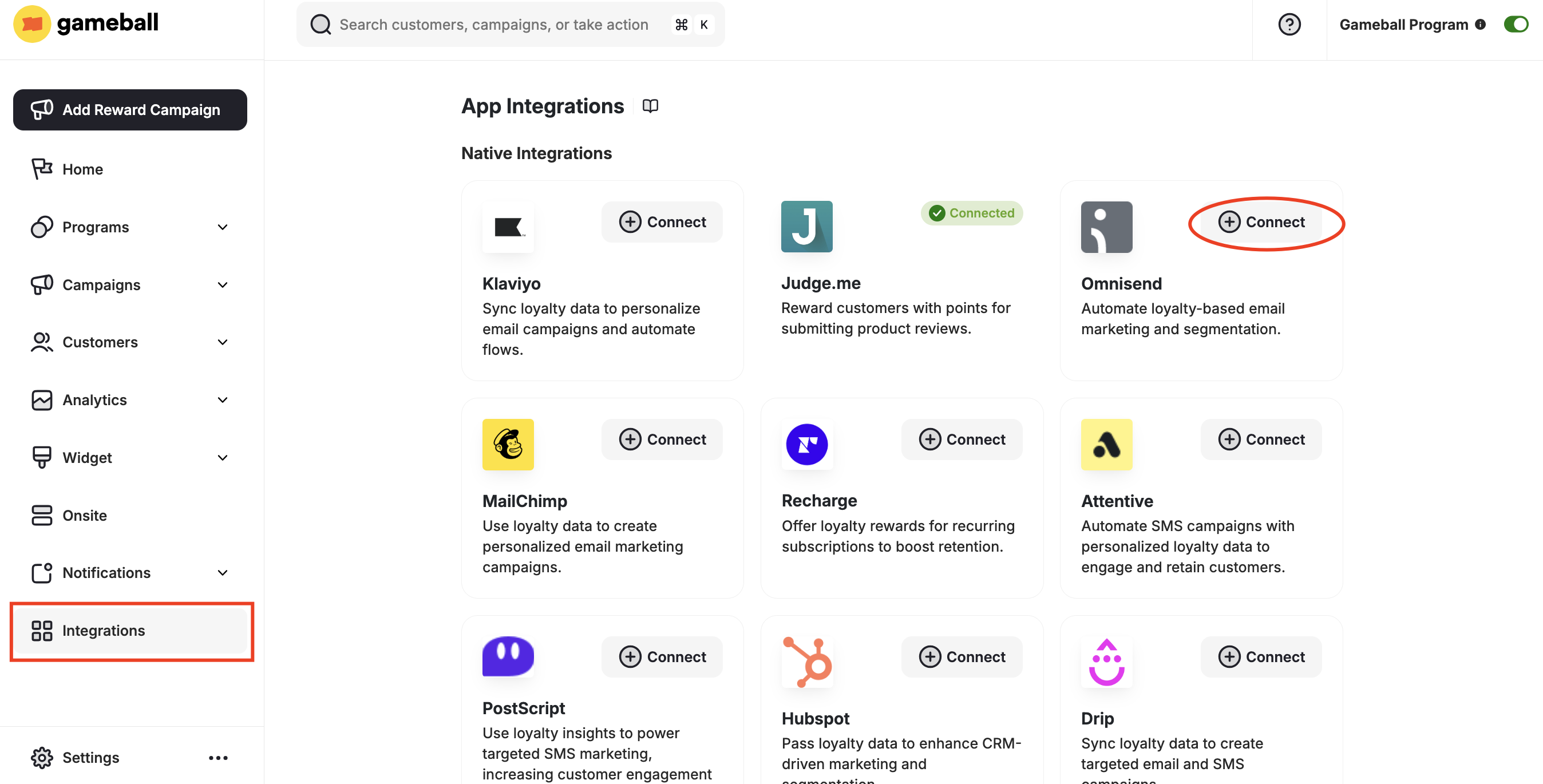
Go to **Integrations** on your **Gameball Admin Dashboard** and click **Connect** under **Omnisend**.
 1. Install Omnisend from the Shopify App Store.
2. In your Omnisend account, go to **Store Settings > Integrations & APIs**.
3. Copy the **API Key**.
1. Install Omnisend from the Shopify App Store.
2. In your Omnisend account, go to **Store Settings > Integrations & APIs**.
3. Copy the **API Key**.
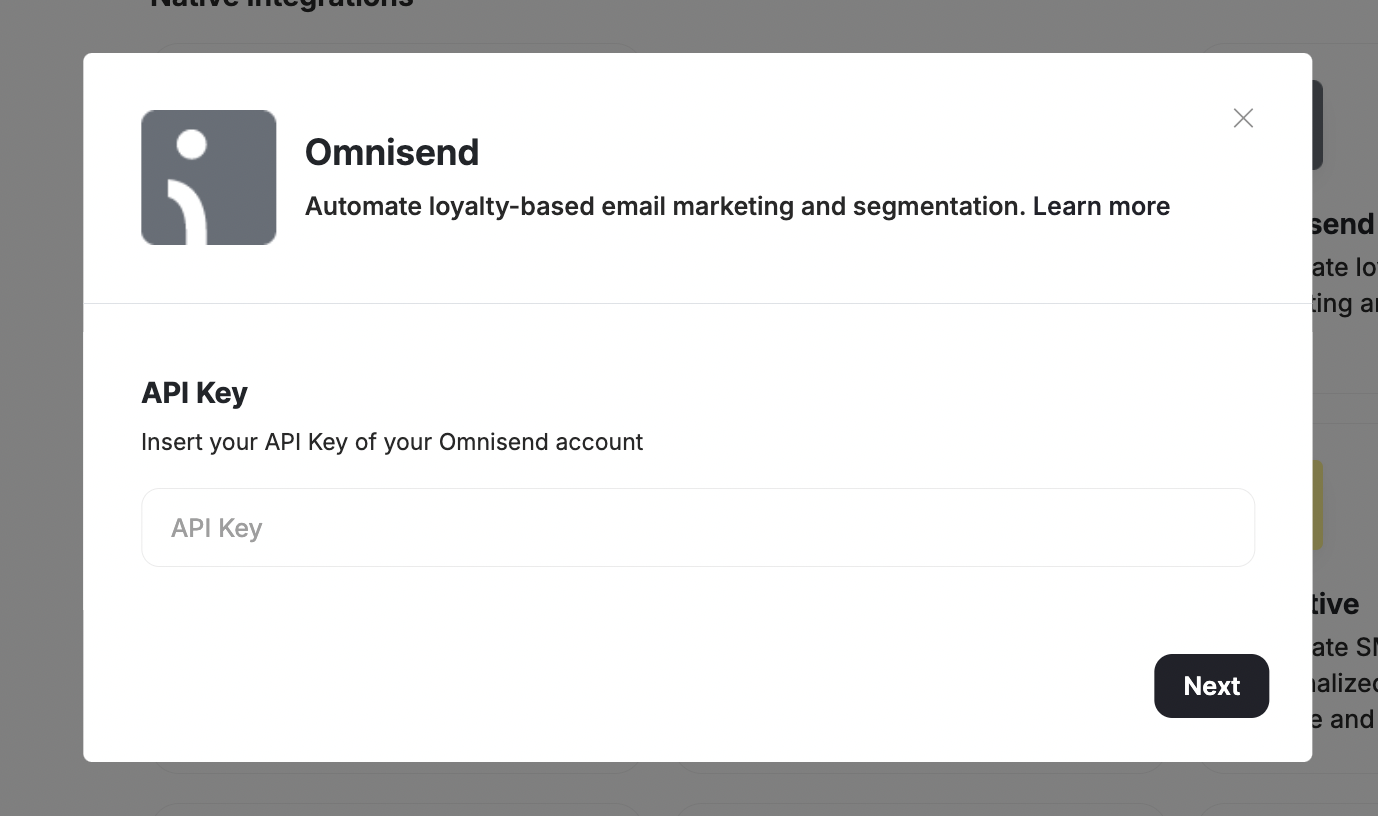
 Paste the API key into your Gameball account and click **Next**.
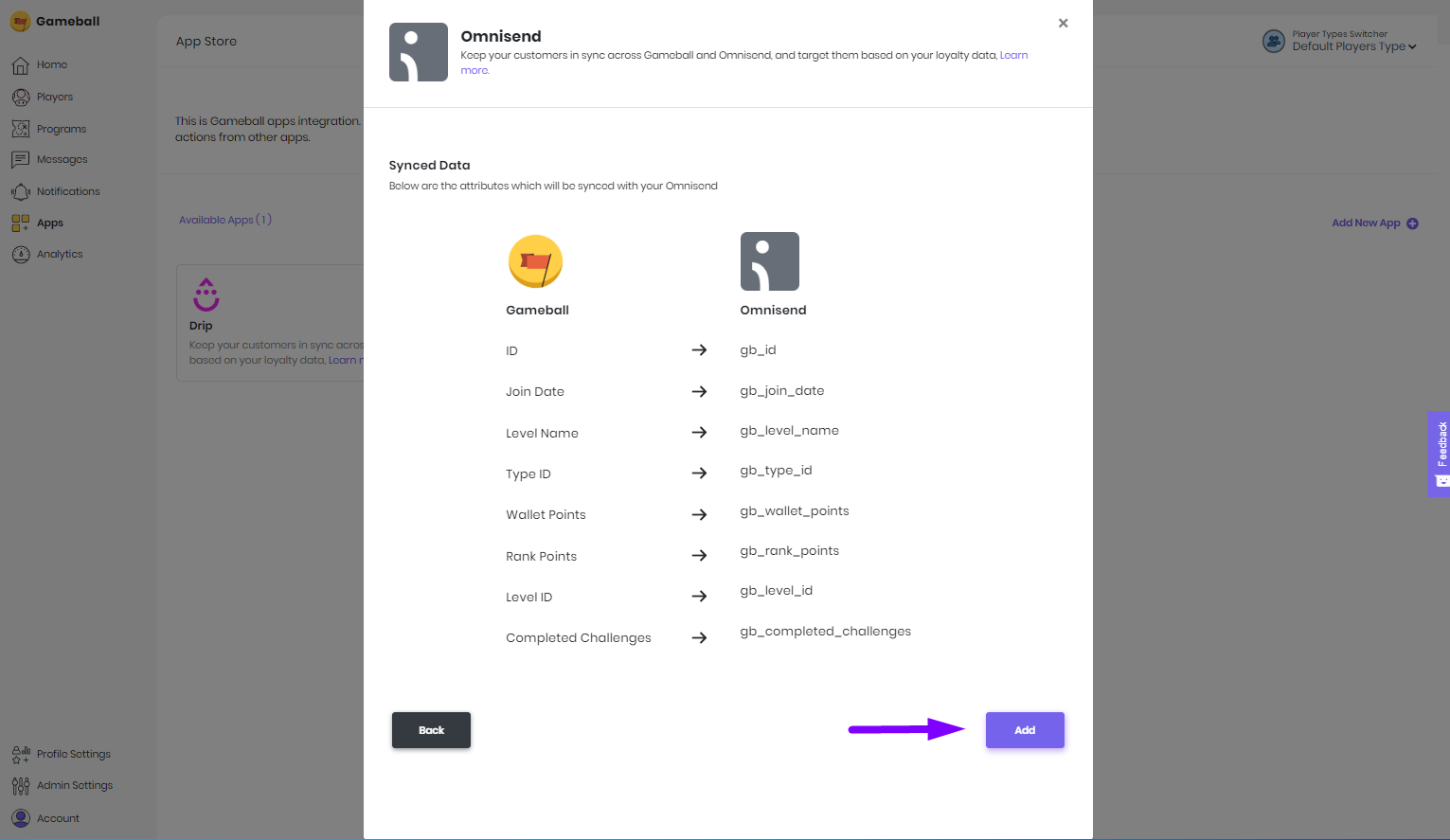
 Click **Add** so the list of customer attributes will be automatically added to your Omnisend account.
Make sure you use these attributes with the notation provided on your Gameball Admin Dashboard, as described below.
Click **Add** so the list of customer attributes will be automatically added to your Omnisend account.
Make sure you use these attributes with the notation provided on your Gameball Admin Dashboard, as described below.
 ***
## Using Gameball Data in Omnisend
### Check Custom Properties
Go to your Omnisend account to check customer contact details, including Gameball customer profile attributes.
***
## Using Gameball Data in Omnisend
### Check Custom Properties
Go to your Omnisend account to check customer contact details, including Gameball customer profile attributes.
 ### Send Personalized Emails
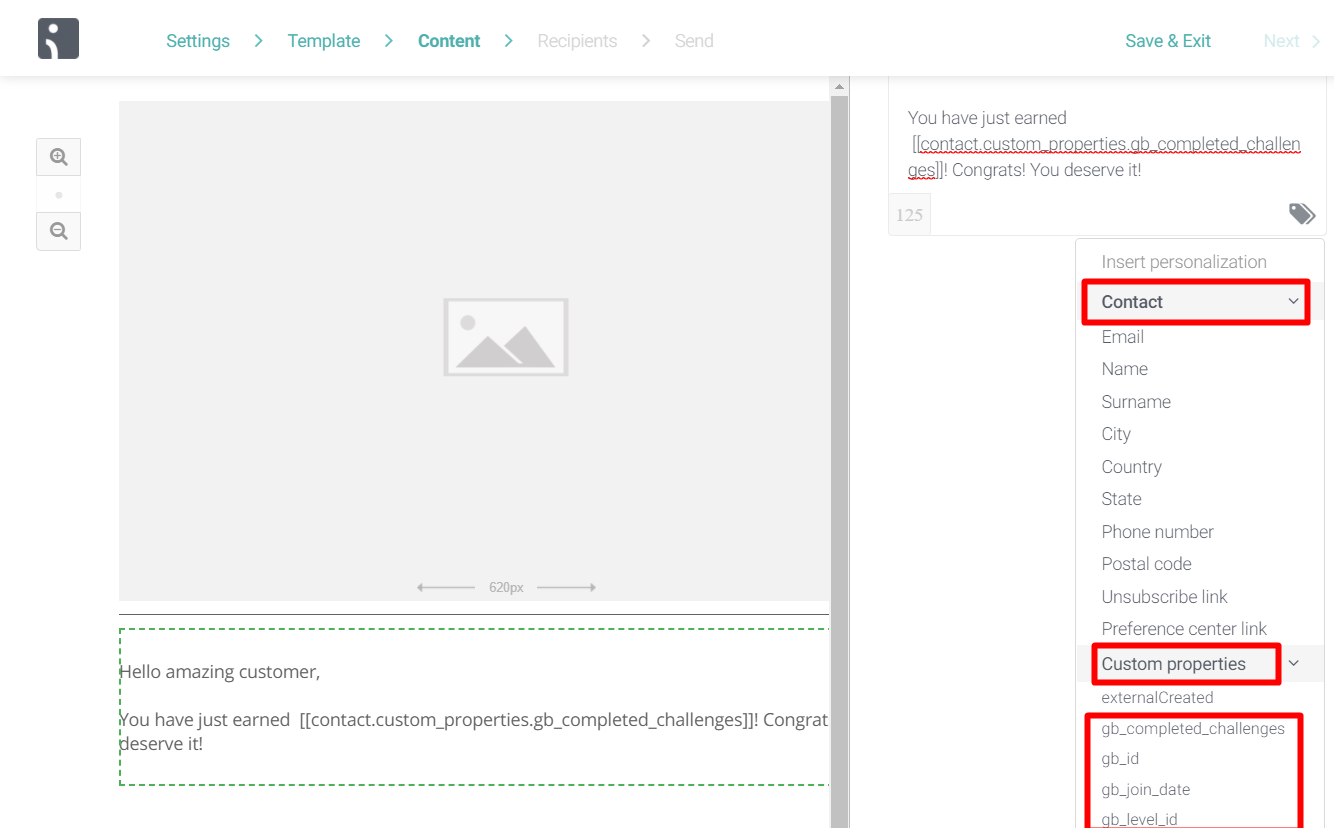
Use Gameball custom attributes by clicking **Insert Personalization > Contact > Custom Properties** and choosing a Gameball custom property.
### Send Personalized Emails
Use Gameball custom attributes by clicking **Insert Personalization > Contact > Custom Properties** and choosing a Gameball custom property.