> ## Documentation Index
> Fetch the complete documentation index at: https://docs.gameball.co/llms.txt
> Use this file to discover all available pages before exploring further.
# How Do I Integrate Zapier with Gameball?
> Connect Gameball with other apps on Zapier to create Zaps where you can send events or exchange customer data with Gameball.
If you are using Zapier on your platform for workflows or automation, use Gameball to engage and reward your customers with a few simple clicks.
## Why Integrate Zapier with Gameball?
Using Gameball with Zapier allows you to send events to Gameball in order to reward your customers for completing and performing certain actions on hundreds of other platforms, like subscribing to a newsletter, clicking on a link inside an email, and much more!
Before you log in to your Zapier account and start connecting other apps to Gameball, make sure to create and configure these events through the Gameball dashboard. To learn more about recommended events and how to configure them, check this [article](/product-documentation/guides-strategies-faqs/supportive-guides/ecommerce-events).
***
## Quick Start Example
Here's how to connect Judge.me to Gameball, where Judge.me sends an event to Gameball every time a new review is written so that Gameball can reward your customers for writing reviews.
Log in to your **Zapier Dashboard** and search for Judge.me and Gameball to connect them.
Make sure you use Gameball V1.1.
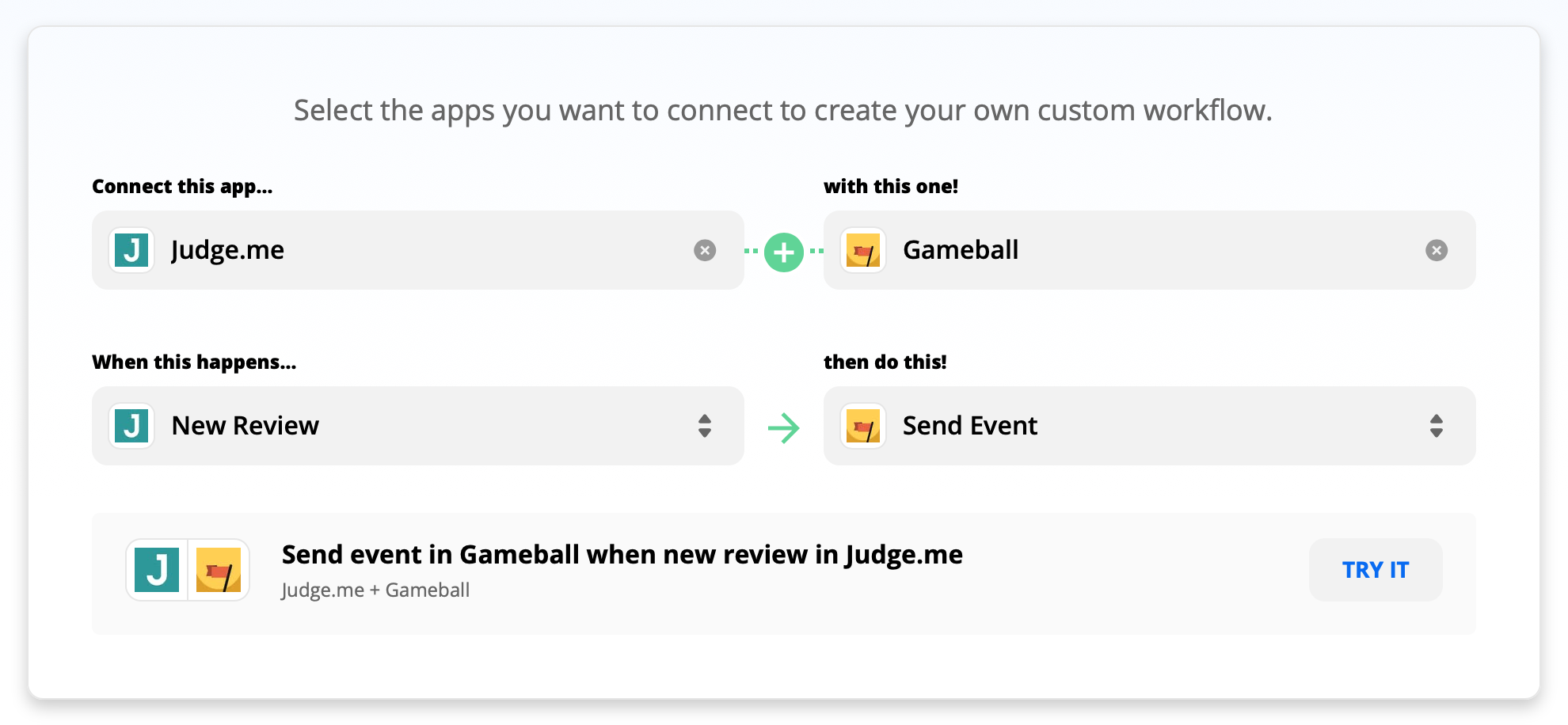
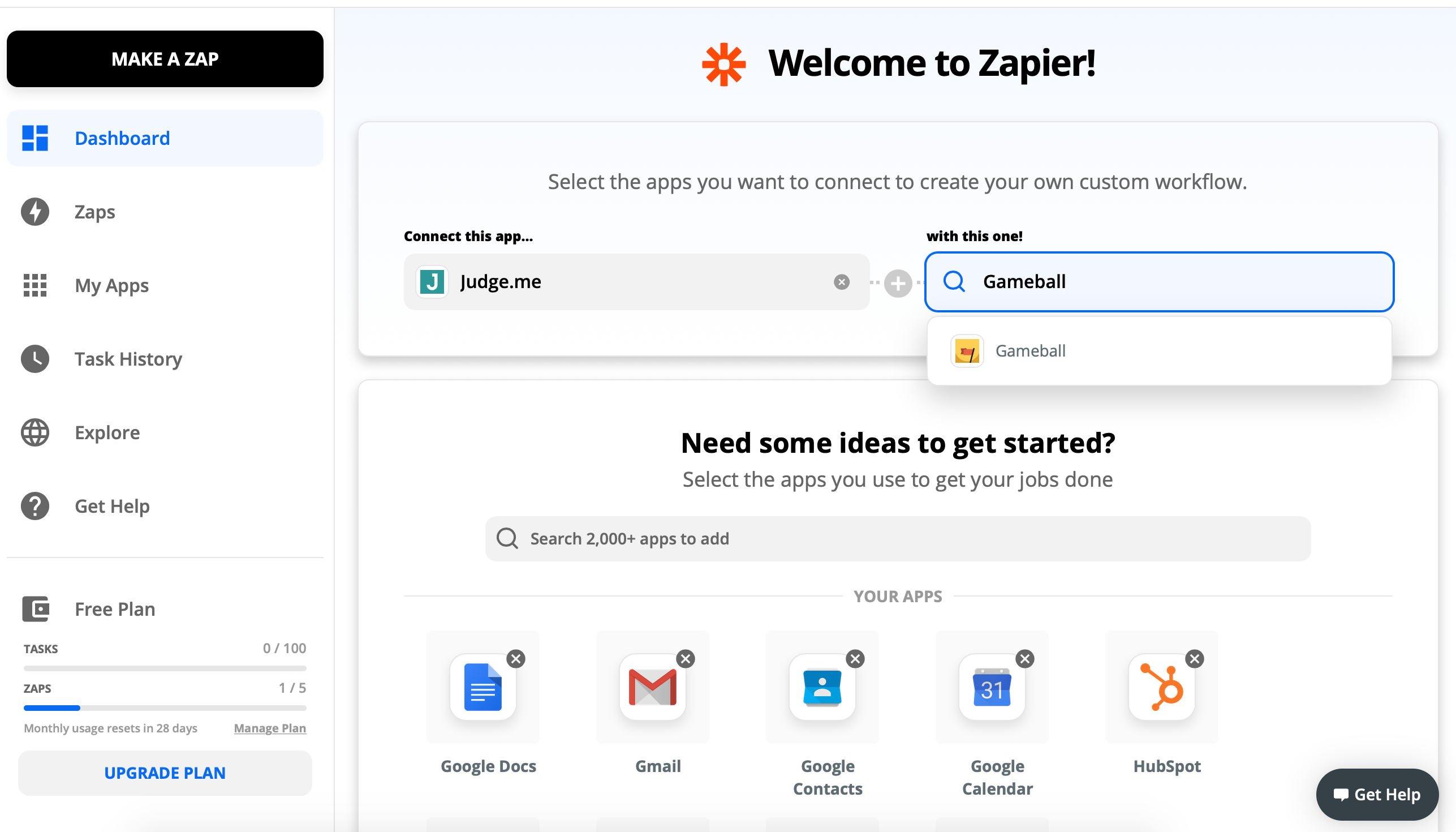 Select the **trigger New Review** on Judge.me and **Send Event** action on Gameball.
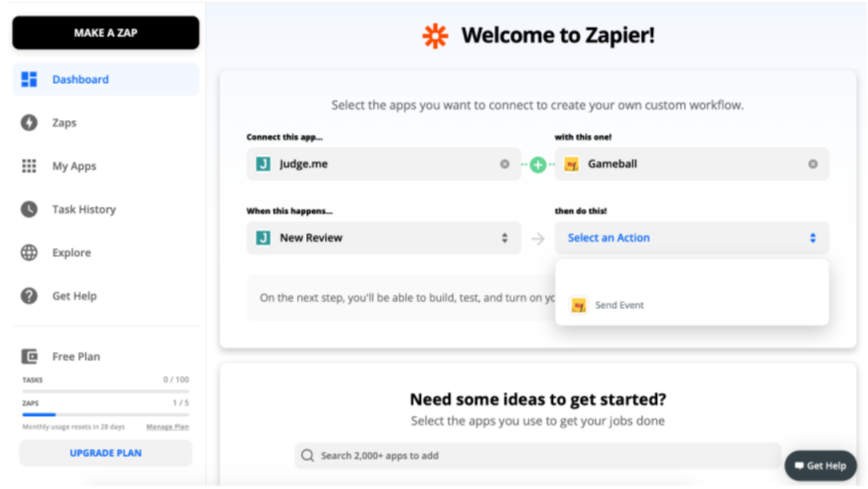 You have now successfully connected Judge.me with Gameball. Your customers will be rewarded according to your Gameball configuration.
 Enjoy connecting more apps to Gameball to reward your customers or to keep data synced.
***
Explore Gameball templates and use cases on Zapier.
Step-by-step guide to connect Gameball with any app on Zapier.
Enjoy connecting more apps to Gameball to reward your customers or to keep data synced.
***
Explore Gameball templates and use cases on Zapier.
Step-by-step guide to connect Gameball with any app on Zapier.