> ## Documentation Index
> Fetch the complete documentation index at: https://docs.gameball.co/llms.txt
> Use this file to discover all available pages before exploring further.
# How Do I Connect Gameball with Apps on Zapier?
> Step by step guide to creating a connection between Gameball and any other app on Zapier.
Learn how to use Zapier to let Gameball reward your players after completing actions on other apps like subscribing, submitting a survey, reactivating an account, completing payments, and more.
A Zap consists of a trigger and an action. Gameball works as an action. Read more on [Gameball on Zapier](/product-documentation/apps-integrations/zapier-integration).
 ***
## How to Create a Zapier Connection
1. Go to [zapier.com](http://zapier.com).
2. In the left box, search for any app you want to set as the [trigger app](/product-documentation/apps-integrations/zapier/connecting-gameball-to-zapier).
In this guide, we will use **SurveyMonkey** as the trigger app to reward players upon survey form submission. You must be on a paid plan on SurveyMonkey to use this feature.
***
## How to Create a Zapier Connection
1. Go to [zapier.com](http://zapier.com).
2. In the left box, search for any app you want to set as the [trigger app](/product-documentation/apps-integrations/zapier/connecting-gameball-to-zapier).
In this guide, we will use **SurveyMonkey** as the trigger app to reward players upon survey form submission. You must be on a paid plan on SurveyMonkey to use this feature.
 3. Search for **Gameball** in the right box.
 4. Select a trigger, then choose **Send Event** as the Gameball action.
 5. Click **Try it**.
A **trigger** is any event that starts a Zap. Read more on [triggers](https://zapier.com/help/create/basics/set-up-your-zap-trigger) on Zapier.
In this use case, make sure your players submit their email addresses in the survey. The email address submitted must match the one stored at Gameball.
5. Click **Try it**.
A **trigger** is any event that starts a Zap. Read more on [triggers](https://zapier.com/help/create/basics/set-up-your-zap-trigger) on Zapier.
In this use case, make sure your players submit their email addresses in the survey. The email address submitted must match the one stored at Gameball.
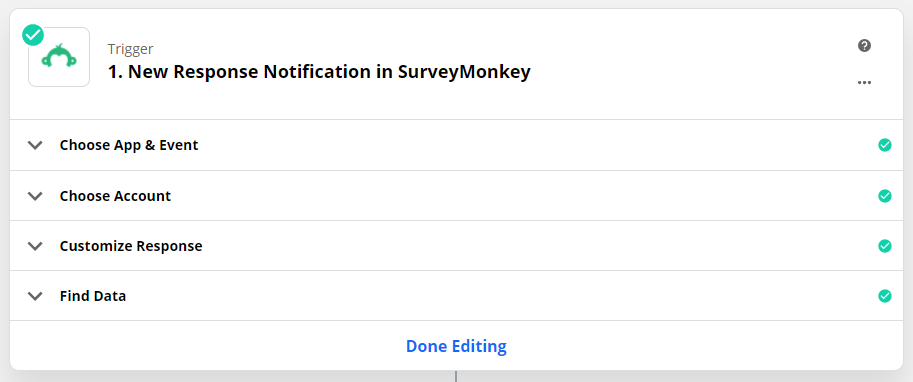
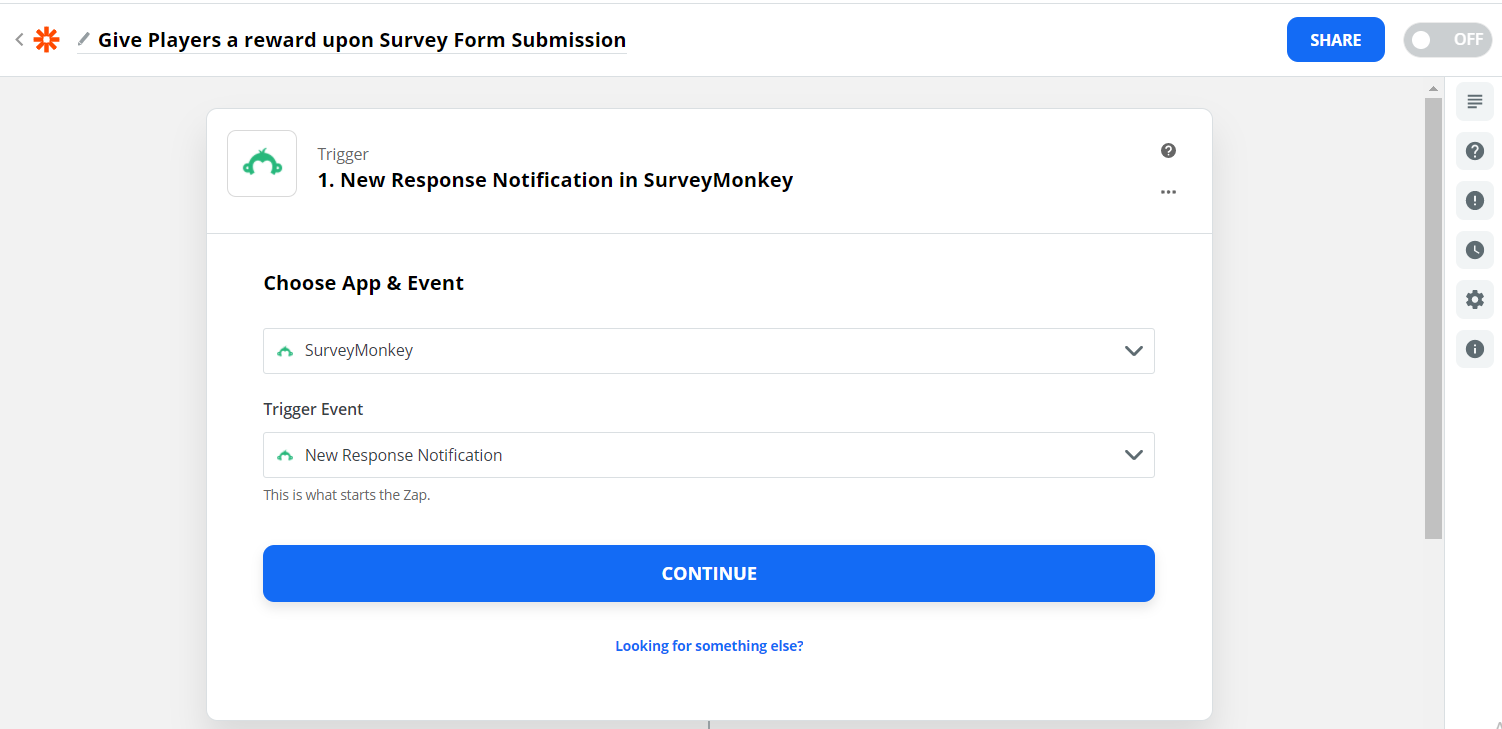
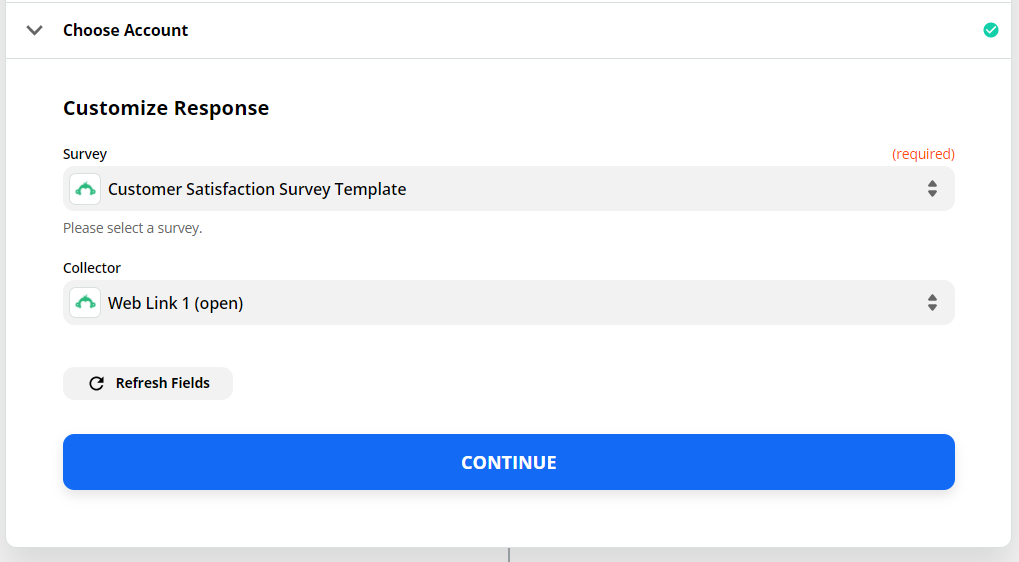 **A. Choose App and Event** - Select SurveyMonkey and "New Response Notification" as the trigger event.
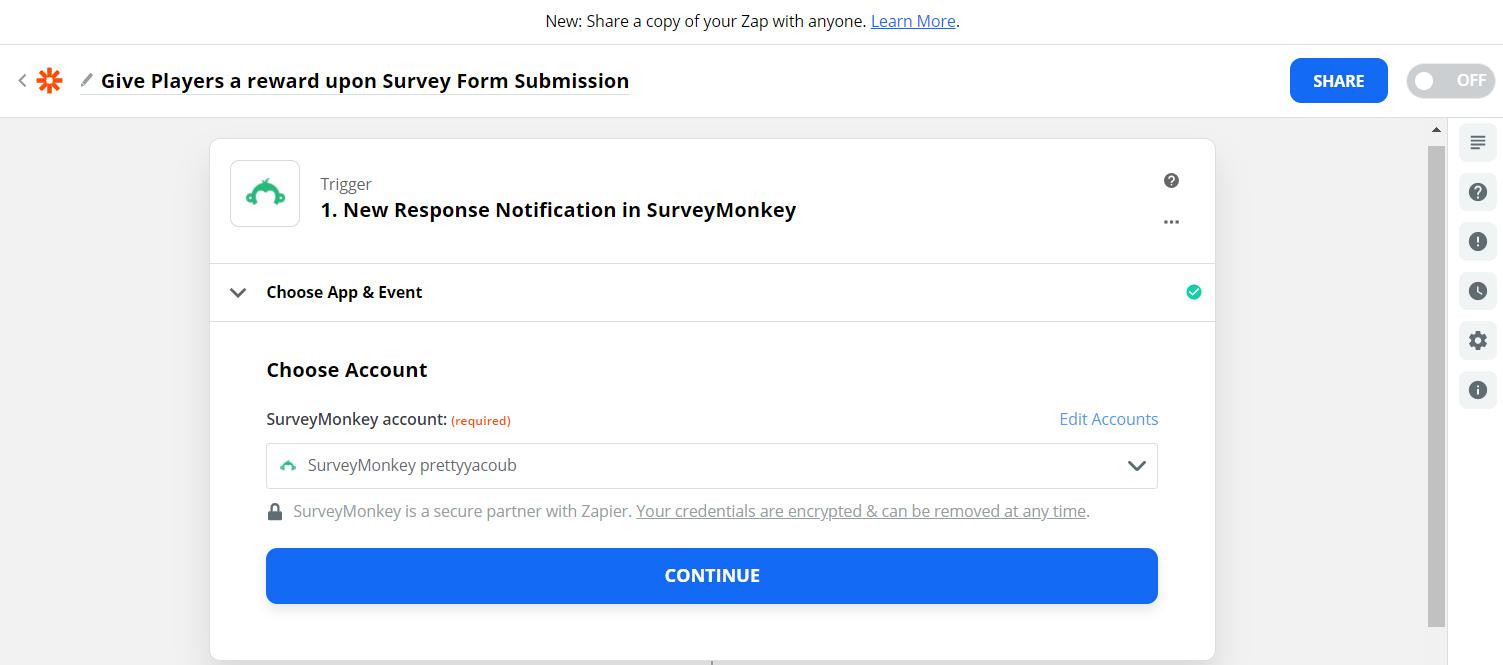
 **B. Choose Account** - Select the SurveyMonkey account you are expecting campaigns through.
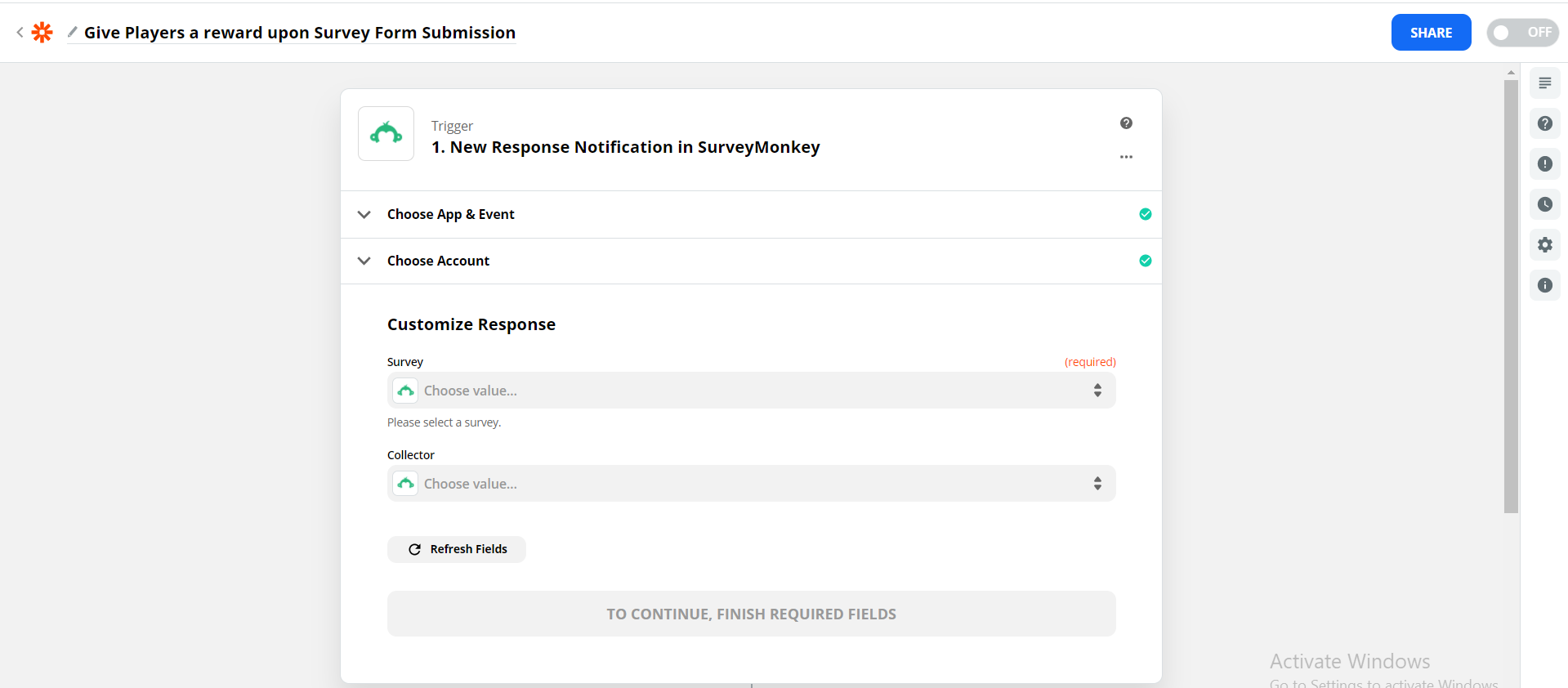
 **C. Customize Response** - Choose the name of the survey you're expecting the response to.
 **D. Choose Collector** - Choose the collector you're expecting this response on.
A collector on SurveyMonkey is a shorthand for describing the way responses are being collected.
**D. Choose Collector** - Choose the collector you're expecting this response on.
A collector on SurveyMonkey is a shorthand for describing the way responses are being collected.
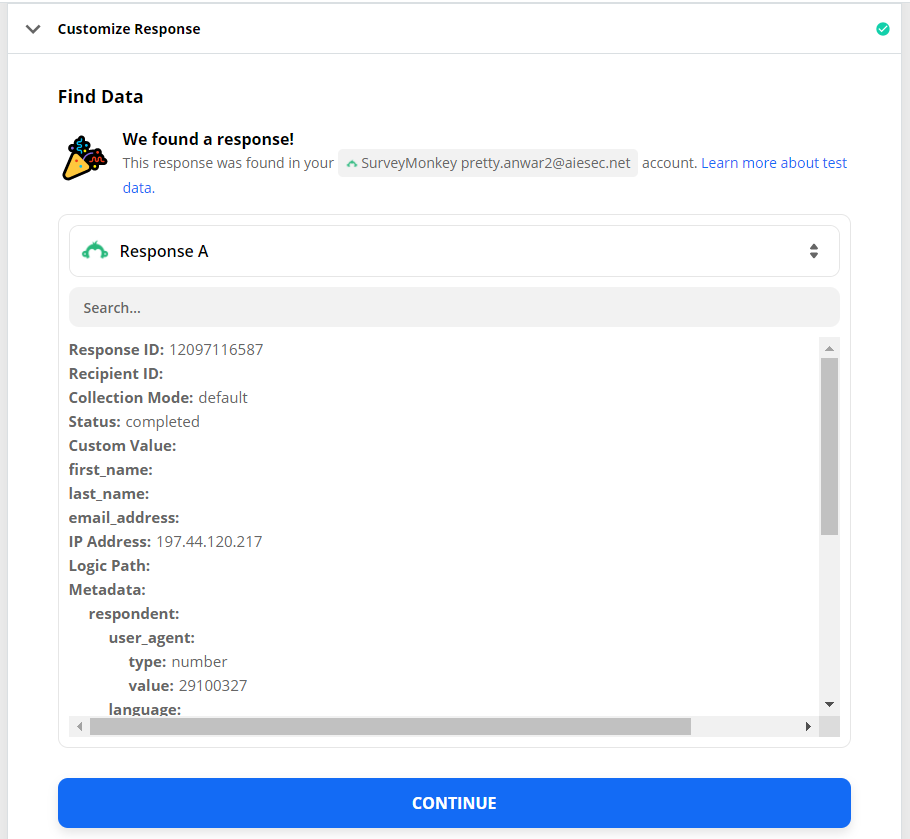
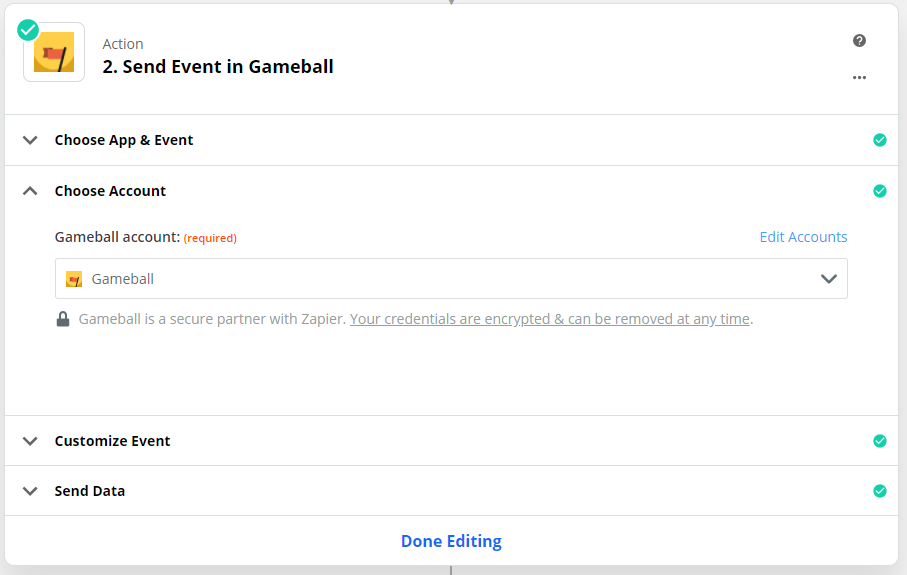 **E. Test Trigger** - Click "Test trigger" to make sure your trigger is working fine before customizing your Zap.
 An **action** is a job your Zap does once your trigger event occurs. Read more on [actions](https://zapier.com/help/create/basics/set-up-your-zap-action) on Zapier.
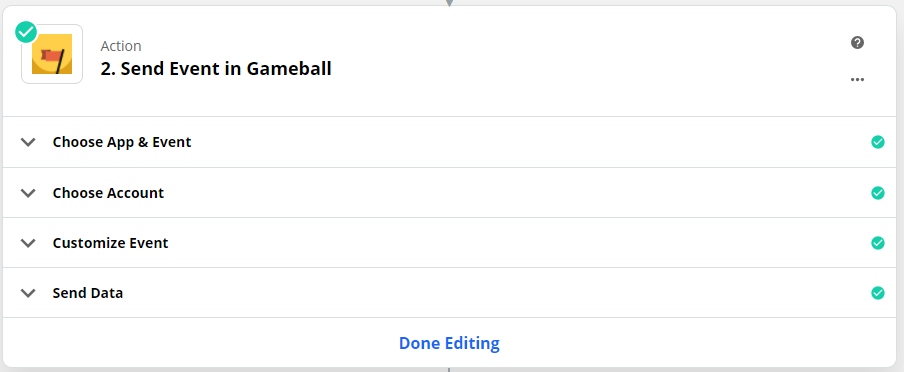
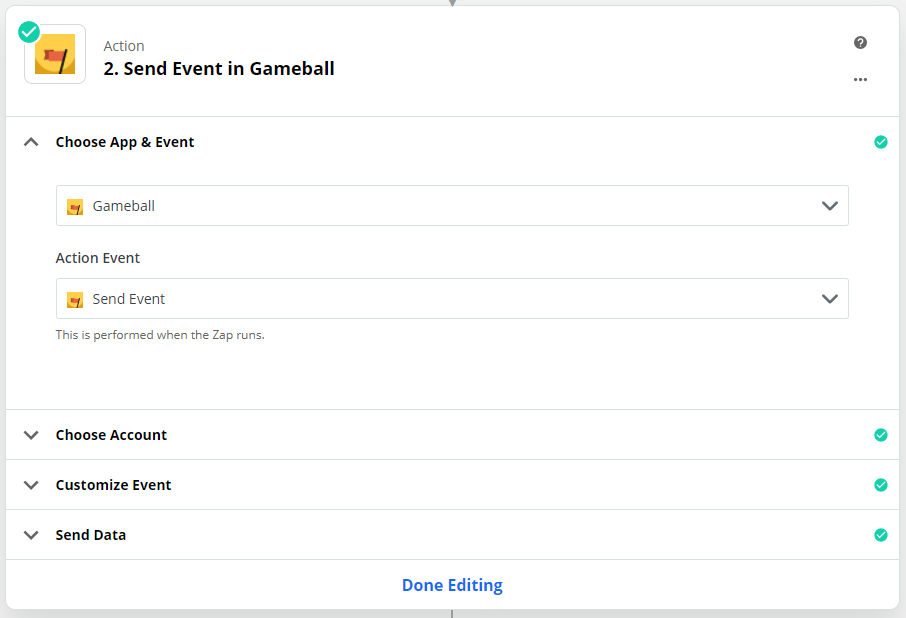
 **A. Choose App & Event** - Choose Gameball as the app and "Send Event" as the action.
 **B. Choose Gameball Account**
You might need to add your API key. Learn [where to find your Gameball API key](/product-documentation/admin-settings/get-api-keys).
**B. Choose Gameball Account**
You might need to add your API key. Learn [where to find your Gameball API key](/product-documentation/admin-settings/get-api-keys).
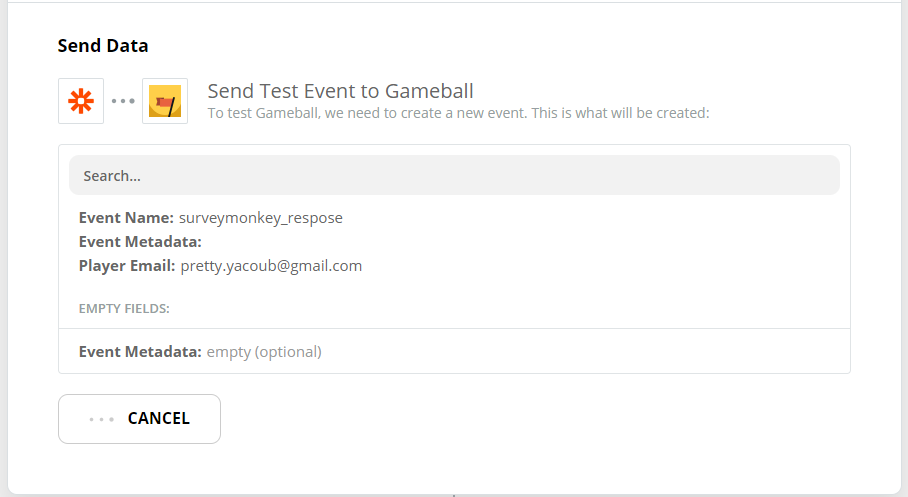
 **C. Customize Event** - Add the event name, event metadata (if needed), and player email.
Make sure you add the name in this format: `appname_eventname`. Leave metadata empty if not needed. Add the player email to choose the player you want to reward.
If you enter an email for a player that is not already created on Gameball, the player will be created automatically.
**D. Send Data** - Click **Test & Review** or **Test & Continue**.
**C. Customize Event** - Add the event name, event metadata (if needed), and player email.
Make sure you add the name in this format: `appname_eventname`. Leave metadata empty if not needed. Add the player email to choose the player you want to reward.
If you enter an email for a player that is not already created on Gameball, the player will be created automatically.
**D. Send Data** - Click **Test & Review** or **Test & Continue**.
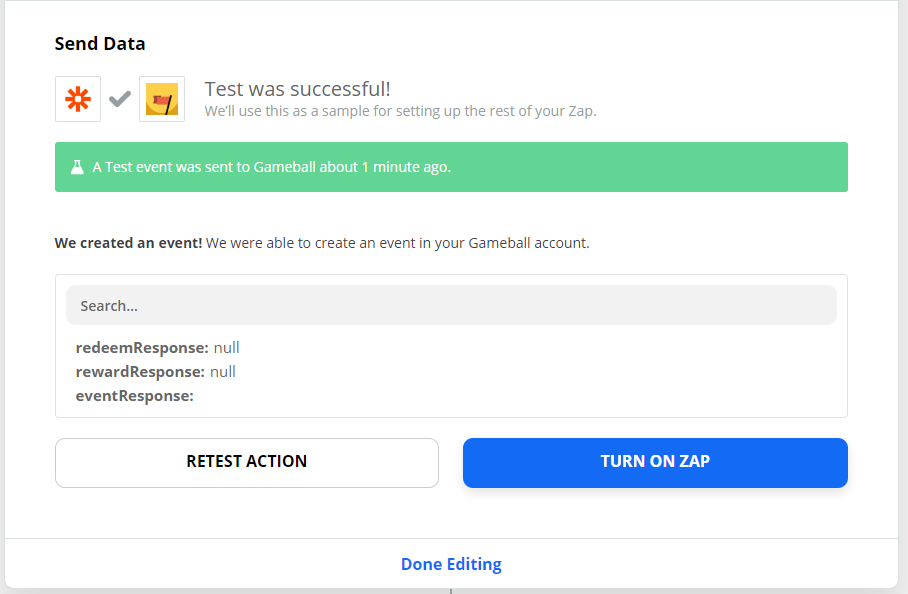
 Without testing the connection between the two apps and solving all errors, the trigger event will not be sent to Gameball, and you will not be able to reward your players even if they complete the required action.
Finally, click **Turn on Zap**.
Without testing the connection between the two apps and solving all errors, the trigger event will not be sent to Gameball, and you will not be able to reward your players even if they complete the required action.
Finally, click **Turn on Zap**.
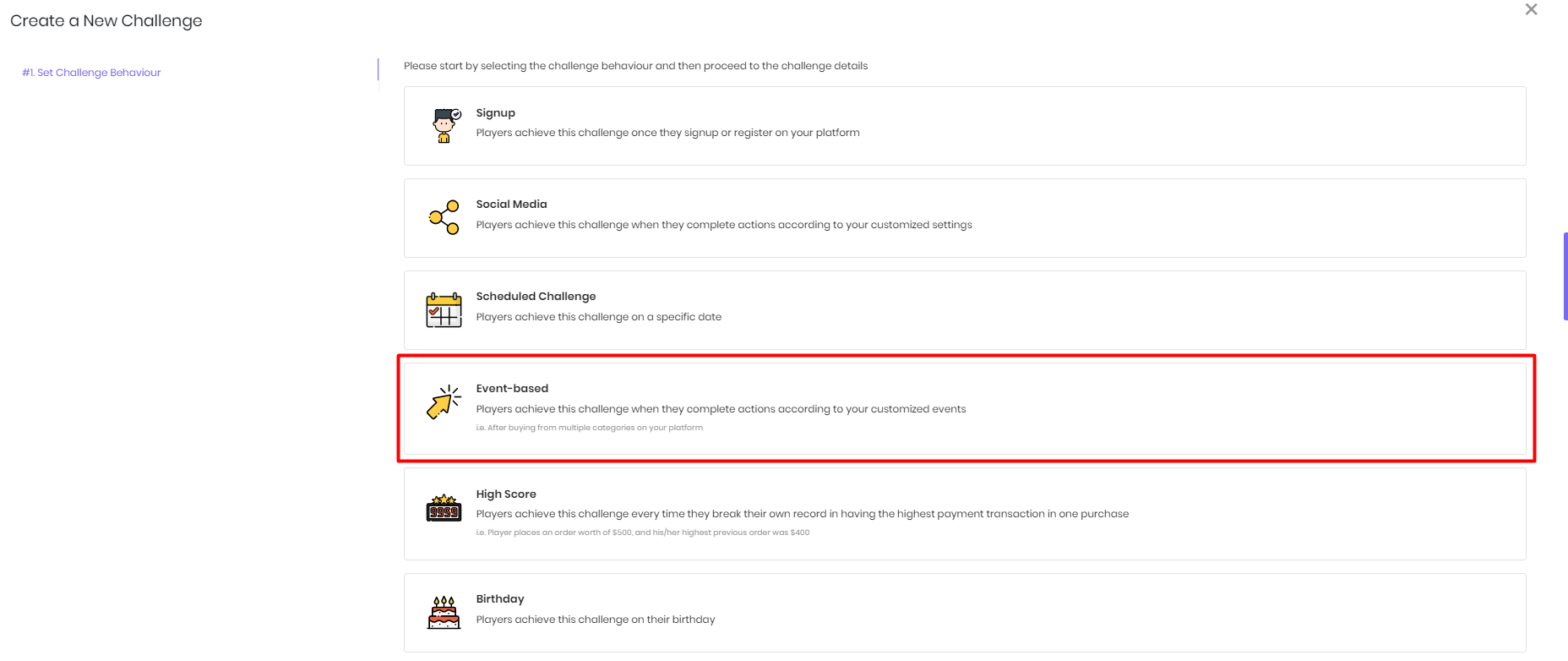
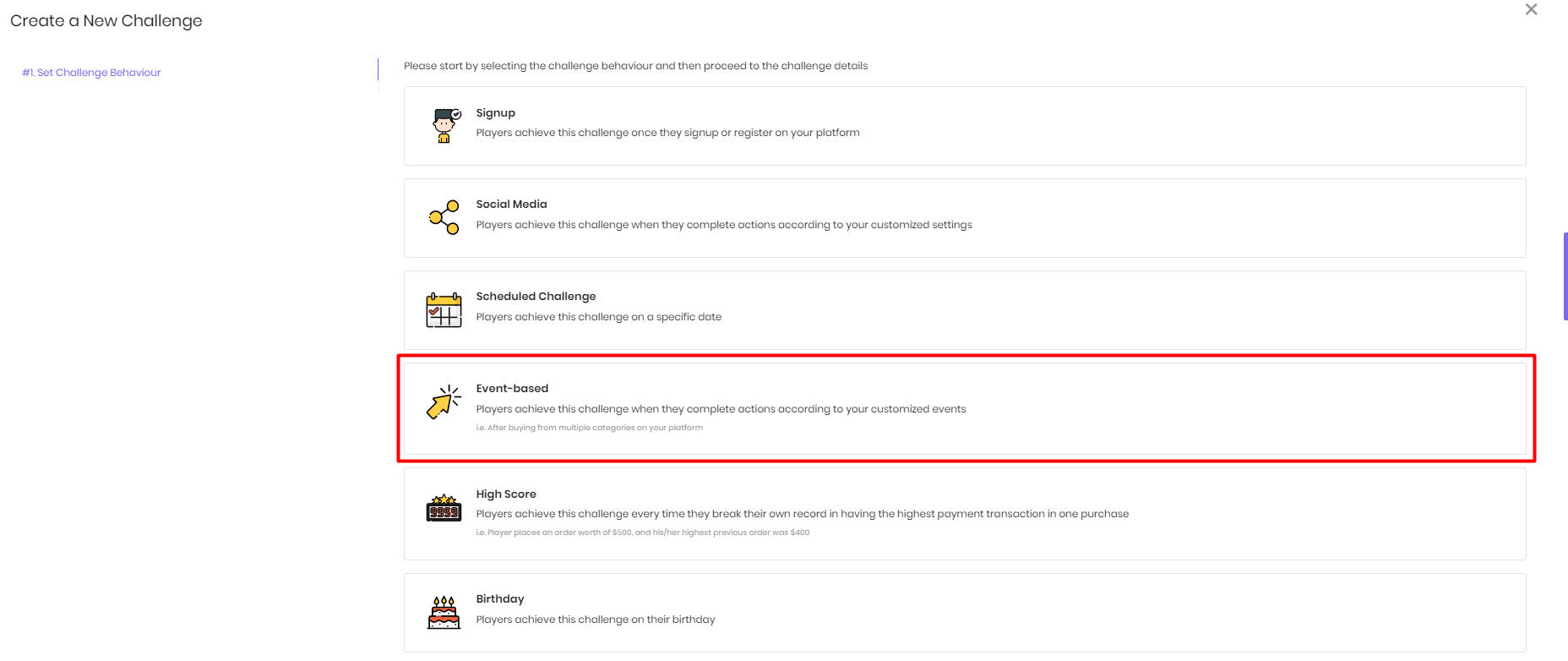
 Log in to your **Gameball Admin Dashboard**, go to **Programs > Challenges**, and click **Add New Challenge**.
**A. Set Challenge Type** - Choose **Event-based** as the challenge type and click **Next**.
Log in to your **Gameball Admin Dashboard**, go to **Programs > Challenges**, and click **Add New Challenge**.
**A. Set Challenge Type** - Choose **Event-based** as the challenge type and click **Next**.
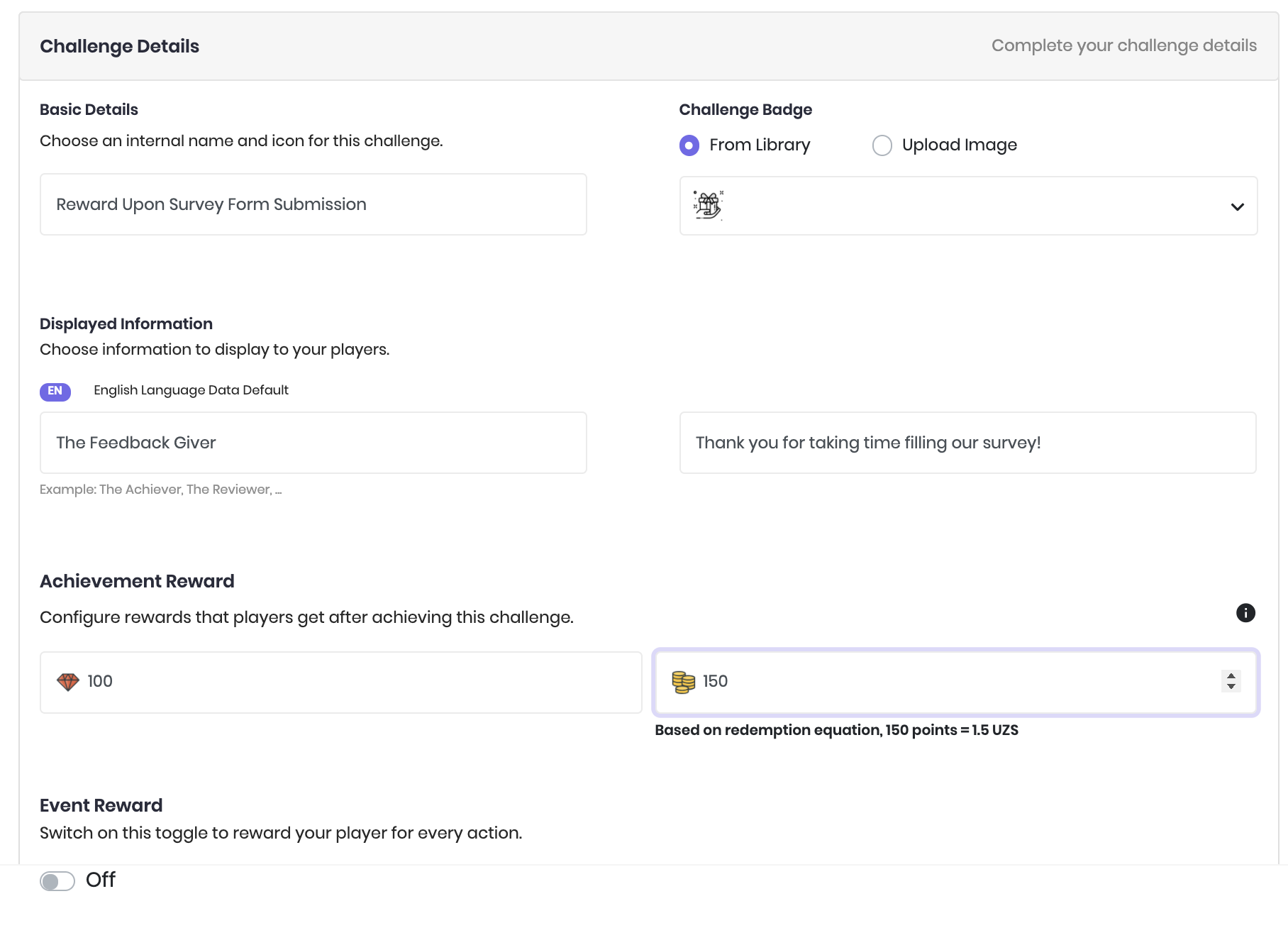
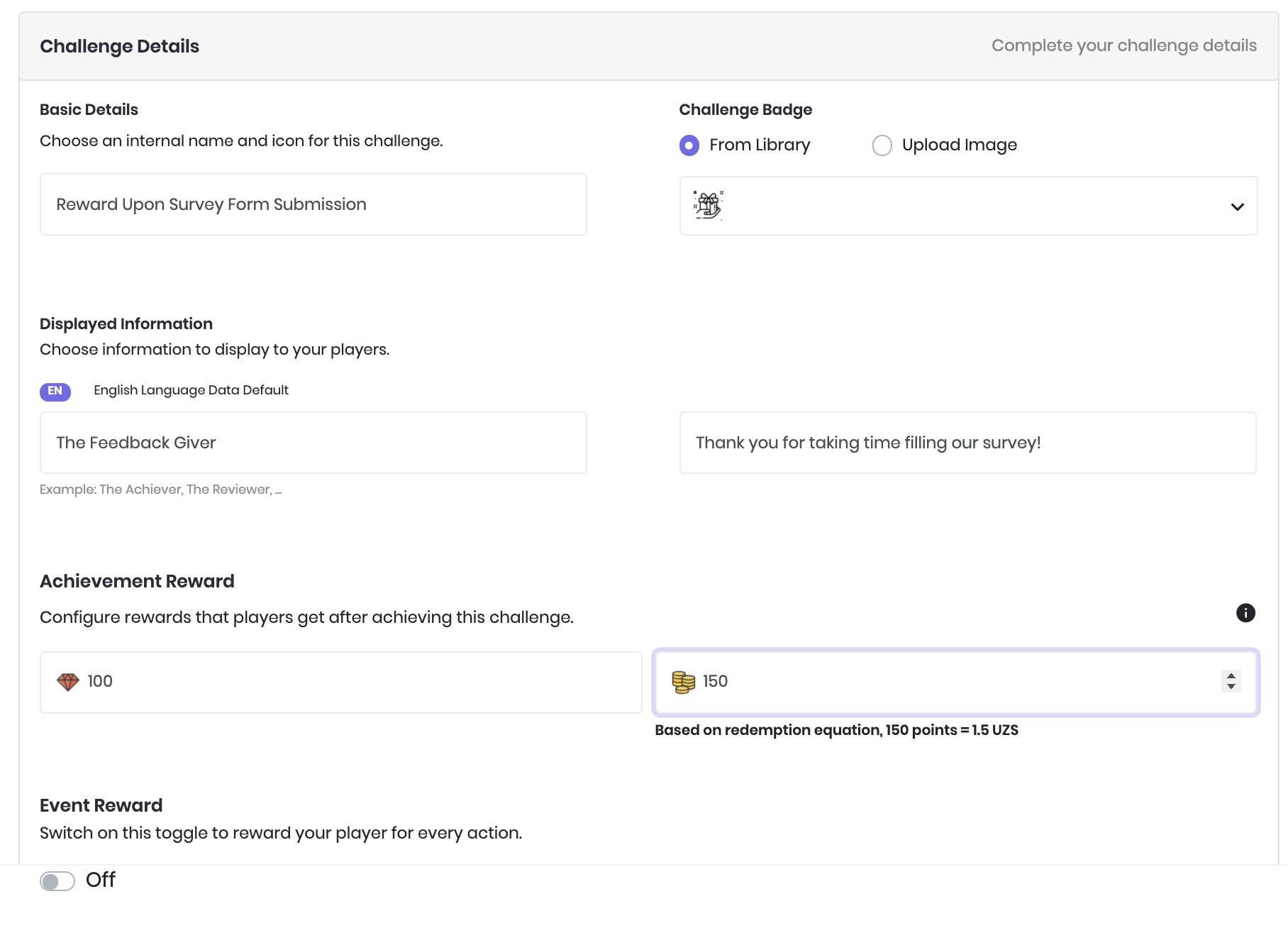
 **B. Set Challenge Details and Rewards** - Set the challenge details (internal name, displayed badge, displayed information) and choose the reward size (points and score).
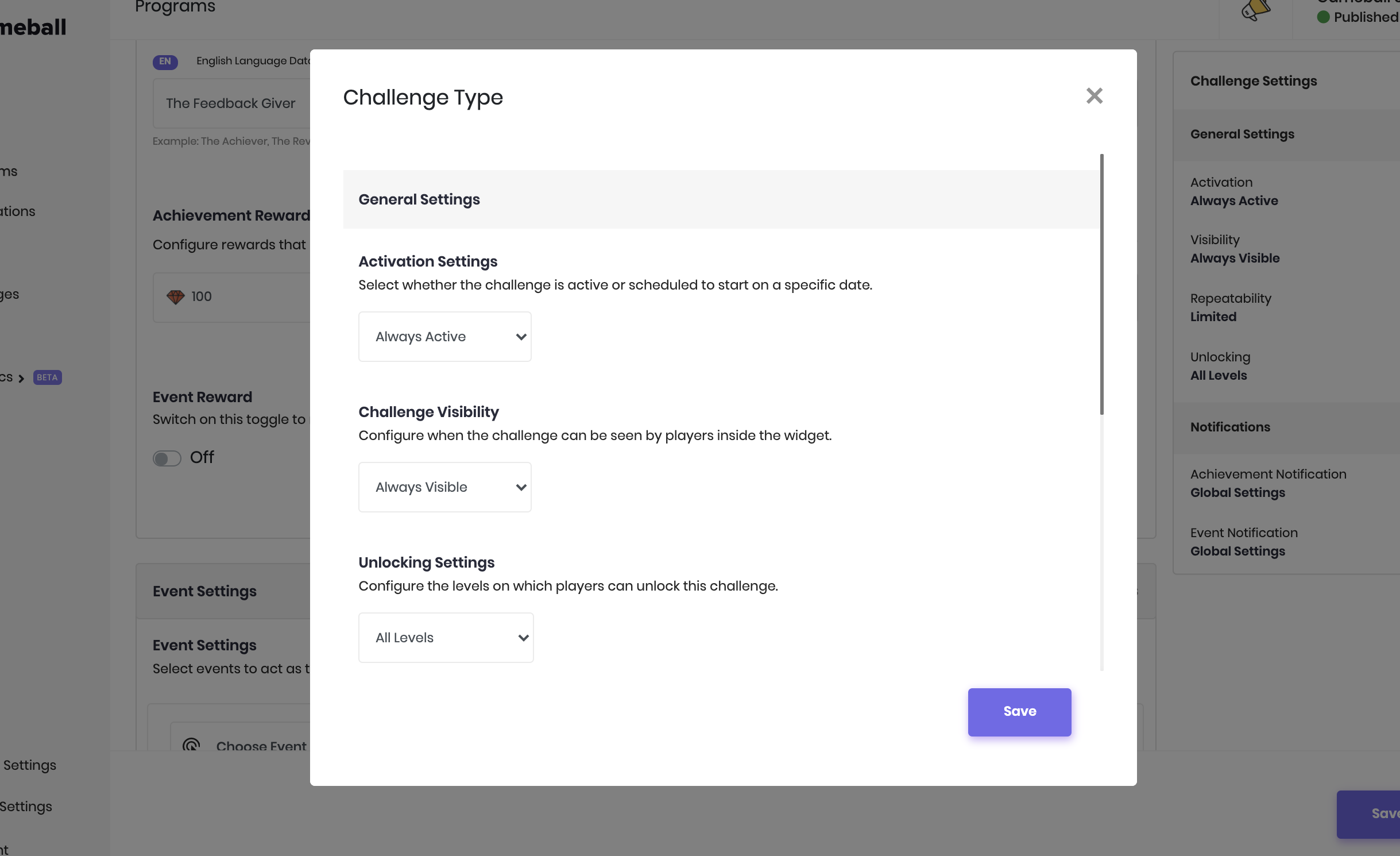
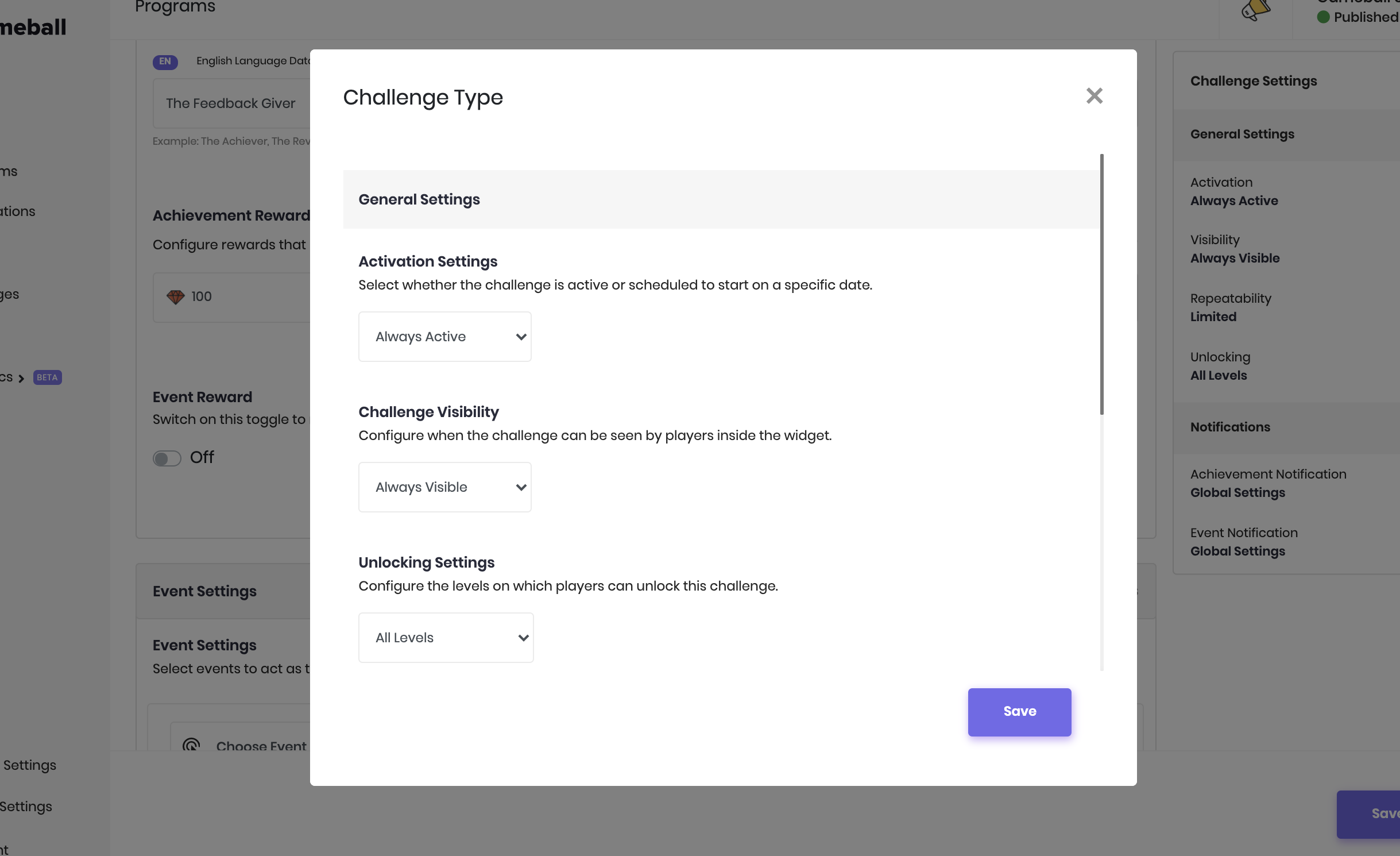
 **C. Set Challenge Settings** - Click the **Edit Icon** next to **Challenge Settings** to configure activation, visibility, unlocking, repeatability, and notification settings.
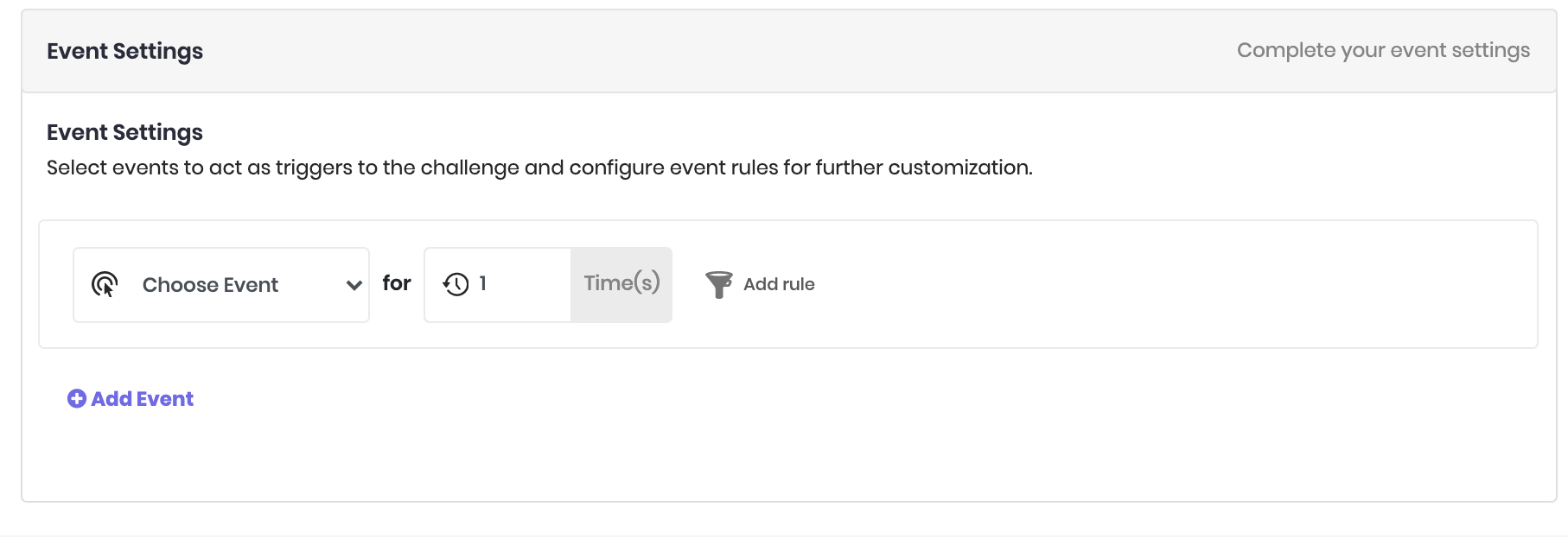
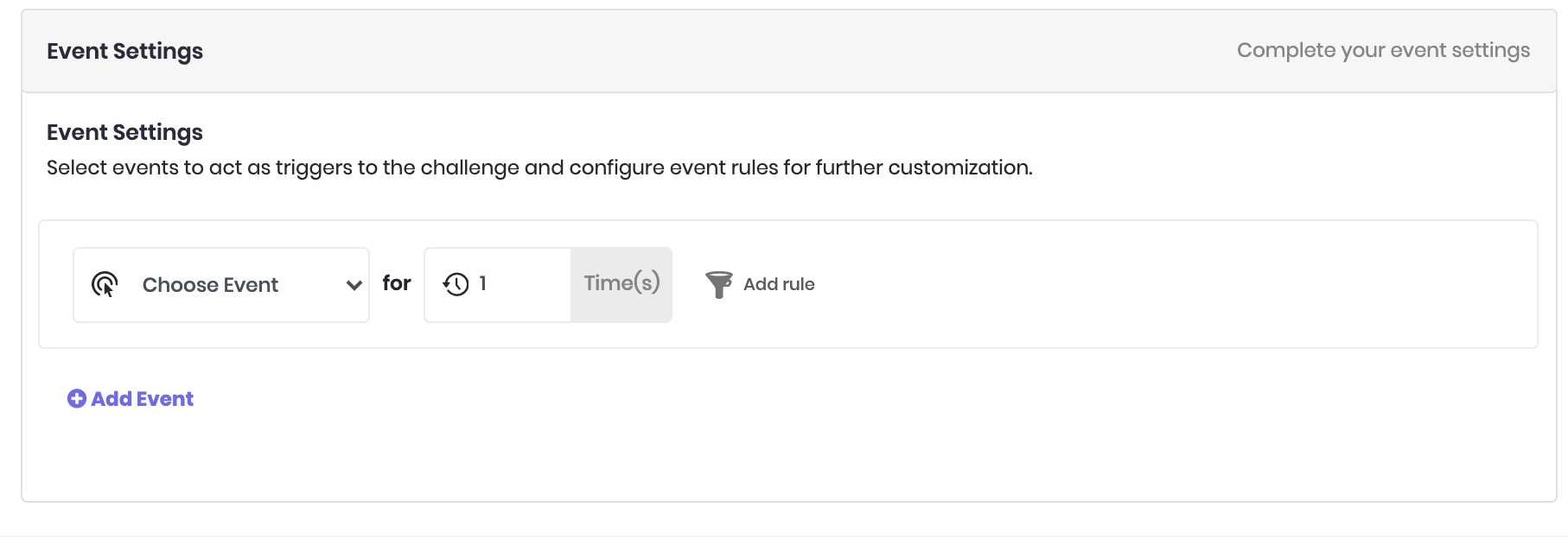
 **D. Set Event Settings** - From the event list, choose the corresponding **Event Name** you added during the "Customize Event" step. Make sure the number of times to complete is **one**.
 Review the configured steps, make edits if needed, then click **Save**. Your players will start earning this challenge upon survey form submission!
***
Explore Gameball templates and use cases on Zapier.
Review the configured steps, make edits if needed, then click **Save**. Your players will start earning this challenge upon survey form submission!
***
Explore Gameball templates and use cases on Zapier.