> ## Documentation Index
> Fetch the complete documentation index at: https://docs.gameball.co/llms.txt
> Use this file to discover all available pages before exploring further.
# How Do I Boost Sales and Upselling?
> Discover and understand the automation templates designed to boost your sales and upselling your customers
Upselling and cross-selling are powerful strategies to increase revenue by encouraging customers to purchase additional or complementary products. This article covers the **Boost Sales and Upselling** automation templates.
***
## Promote Product Cross-Sell
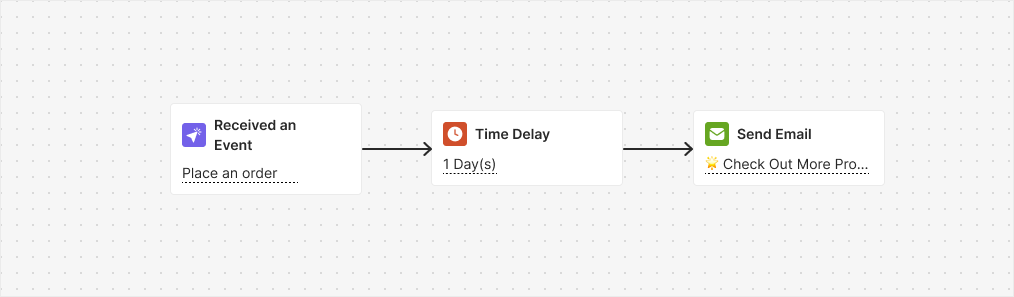
Capitalize on recent purchases by suggesting complementary products to customers. When a customer buys Product X, this automation starts. After a day, an email is sent suggesting related products they might like based on their purchase. This personalized approach improves their shopping experience and can boost sales by showing them items they are interested in.
 ### Trigger
Placed Order (Filter: Product X)
### Instructions
* Be sure to include the product ID of the item you are waiting for the customer to purchase in the trigger.
* Adjust the email content to mention both the purchased product (the same product specified in the trigger) and the additional product you want to cross-sell.
***
## Promote Collection Cross-Sell
Encourage customers who recently bought from a specific collection to explore a complementary collection. When a customer buys from Collection X, the next day an email recommends a complementary collection. After three days, if they have not made a purchase, a 20% discount valid for seven days is offered that applies only to the complementary collection.
### Trigger
Placed Order (Filter: Product X)
### Instructions
* Be sure to include the product ID of the item you are waiting for the customer to purchase in the trigger.
* Adjust the email content to mention both the purchased product (the same product specified in the trigger) and the additional product you want to cross-sell.
***
## Promote Collection Cross-Sell
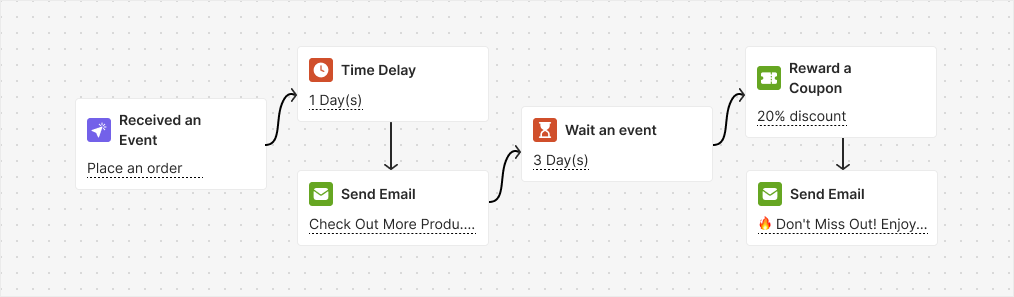
Encourage customers who recently bought from a specific collection to explore a complementary collection. When a customer buys from Collection X, the next day an email recommends a complementary collection. After three days, if they have not made a purchase, a 20% discount valid for seven days is offered that applies only to the complementary collection.
 ### Trigger
Placed Order (Filter: Collection X)
### Instructions
* Be sure to include the collection ID of the collection you are awaiting the customer to purchase in the trigger.
* Edit the add coupon block to ensure the reward applies only to specific collections. Select the complementary collection as the purchase.
* Adjust the email content to reference both the purchased collection (the same collection specified in the trigger) and the additional collection you want to cross-sell.
***
## Increase Average Order Value (AOV)
Encourage customers to increase their order value with tiered discounts based on their purchase amount. This automation triggers on a specific date to offer different discounts to each customer based on their average order value (AOV). If your AOV is less than \$500, you will receive a 10% discount.
### Trigger
Placed Order (Filter: Collection X)
### Instructions
* Be sure to include the collection ID of the collection you are awaiting the customer to purchase in the trigger.
* Edit the add coupon block to ensure the reward applies only to specific collections. Select the complementary collection as the purchase.
* Adjust the email content to reference both the purchased collection (the same collection specified in the trigger) and the additional collection you want to cross-sell.
***
## Increase Average Order Value (AOV)
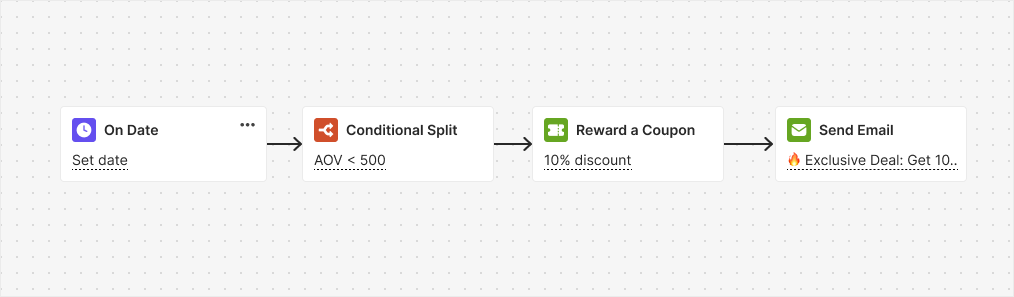
Encourage customers to increase their order value with tiered discounts based on their purchase amount. This automation triggers on a specific date to offer different discounts to each customer based on their average order value (AOV). If your AOV is less than \$500, you will receive a 10% discount.
 ### Trigger
OnDate
### Instructions
Select the date from the trigger block, and you are good to go!
***
## Promote New Arrivals
Promote new arrivals to customers and encourage purchases from specific collections. On a specific date, this automation sends an email to the user promoting new arrivals. It then waits 7 days for the customer to place an order. If no order is made during this period, a follow-up email is sent.
### Trigger
OnDate
### Instructions
Select the date from the trigger block, and you are good to go!
***
## Promote New Arrivals
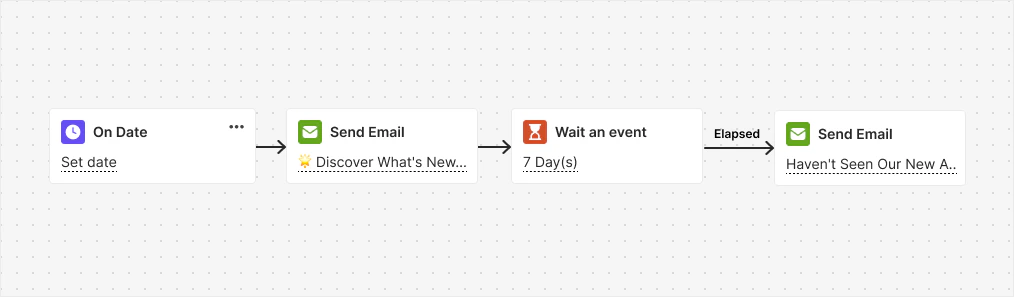
Promote new arrivals to customers and encourage purchases from specific collections. On a specific date, this automation sends an email to the user promoting new arrivals. It then waits 7 days for the customer to place an order. If no order is made during this period, a follow-up email is sent.
 ### Trigger
OnDate
### Instructions
* Select the date from the trigger block.
* Ensure to include the collection ID of the new arrivals in the Wait for Event block.
***
## Related Articles
Step-by-step guide to building and launching automation campaigns.
Overview of all available ready-to-use automation templates.
### Trigger
OnDate
### Instructions
* Select the date from the trigger block.
* Ensure to include the collection ID of the new arrivals in the Wait for Event block.
***
## Related Articles
Step-by-step guide to building and launching automation campaigns.
Overview of all available ready-to-use automation templates.