> ## Documentation Index
> Fetch the complete documentation index at: https://docs.gameball.co/llms.txt
> Use this file to discover all available pages before exploring further.
# How Do I Create and Configure Mobile Push Campaigns?
> A Step-by-Step guide to create and configure a Mobile Push Notification Communication Campaign with Gameball.
Mobile push notifications serve as a powerful tool for engaging users and driving key actions within your mobile application. With Gameball's Mobile Push Communication Campaign feature, you can deliver targeted messages directly to their customers' devices, even when they're not actively using the app.
**Prerequisites:** Firebase Integration is required to send push notifications.
***
## Understanding Mobile Push Notifications
Mobile push notifications are brief, timely messages that appear on users' mobile device screens, allowing businesses to communicate with their audience in real-time. Unlike other forms of communication, mobile push notifications are highly visible and are less likely to be overlooked by users.
Here are some **ideas** for campaigns that you can send out:
Prompt loyal customers to share their referral link and earn rewards for bringing in new users.
Encourage customers to follow, share, or interact with your brand on social platforms.
Greet new customers with a push notification offering a welcome reward to boost early engagement.
Ask customers to subscribe to your newsletter for exclusive updates and offers.
***
## Configuring a Mobile Push Communication Campaign
To set up a Mobile Push communication campaign from scratch in Gameball, follow these steps:
Navigate to the **Gameball Dashboard**.
Click on **Campaigns**.
Choose **Communication Campaigns**, then click on the **Create Campaign** button.
From the **Start from Scratch** section, choose **Mobile Push**.
***
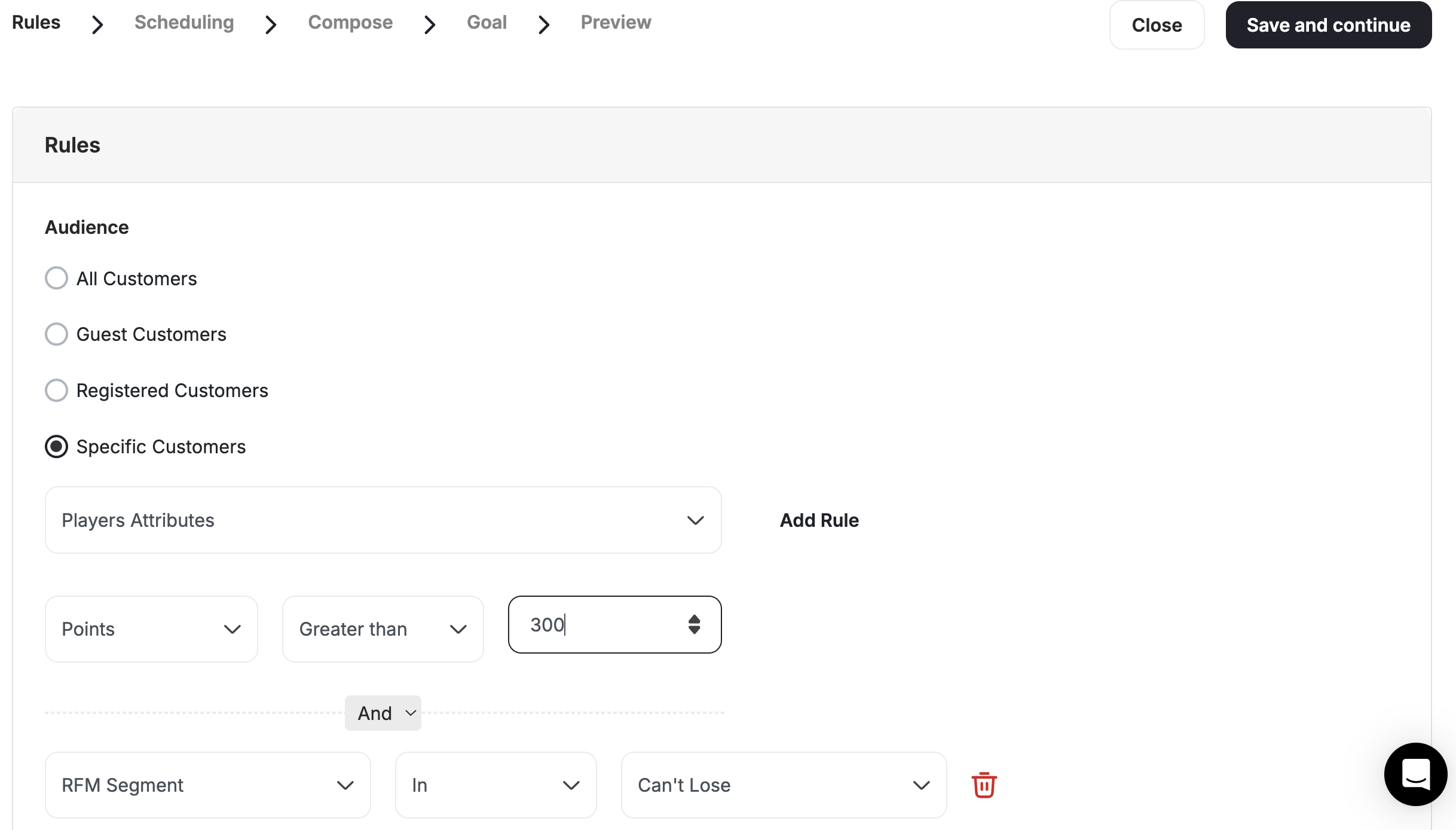
### Step 1: Rules
In the **Audience** section, choose who will receive this mobile push:
* **All Customers** (Registered & Unregistered)
* **Guest customers** (Unregistered Customer)
* **Registered Customers** (Customers with Accounts)
* **Specific Customers** based on:
* Segments
* RFM Segments
* Tags
* Customer Attributes
* Combination for Segments, Tags, or Customers Attributes
 Define what **Triggers** sending this mobile push to your audience. You can choose between:
* **Scheduled Based:** All your audience will receive this mobile push at a scheduled time. You can decide between:
* **One-time:** Mobile Push will be sent only once
* **Recurring:** Mobile Push will be sent more than once
* **Action Based:** All of your audience will receive this mobile push once they complete a specific action. All you have to do is select the event from the drop-down and add its filters.
Click **Save and Continue**.
***
### Step 2: Scheduling
Now let's set the timing for sending the push notification, based on the trigger that you chose in the previous step.
Choose one of these options:
* **Now**: The mobile push will be sent once the campaign is set live
* **Later**: The mobile push will be sent on the Start Date that you choose
Set up the following:
* **Start Date:** The date that we will start sending the mobile push
* **Repetition:** The number of times that the mobile push should be sent, and the duration between each one.
* **End Date:** The date when we should stop sending the mobile push. You can choose:
* **Never**: the mobile push will always be sent out
* **Till**: A certain date that the mobile push will stop being sent out after.
* **Configure frequency:** Specify how often customers will receive the mobile push:
* An unlimited number of messages per customer (Default)
* Limit the Number of messages per customer (Choose the Maximum number)
Set up the following:
* **Start Date:** The date that we will start sending the mobile push
* **End Date:** The date when we should stop sending the mobile push. You can choose:
* **Never**: the mobile push will always be sent out
* **Till**: A certain date that the mobile push will stop being sent out after.
* **Configure frequency:** Specify how often customers will receive the mobile push:
* **Default**: Each customer will keep receiving messages without any capping until the end of the campaign
* **Custom**: Choose the number of times the mobile push should be sent out, the duration between each mobile push, and the maximum number of times the mobile push should be sent.
Click **Save and Continue**.
***
### Step 3: Compose
Customize the content and design of the communication campaign, including the message title and body text.
Craft a compelling message that grabs users' attention and encourages action, such as promoting new collections, products, sales, or promo codes.
Click **Save and Continue**.
***
### Step 4: Goal
Define the goal of the communication campaign, such as increasing product views, driving conversions, or boosting engagement.
Set event triggers and timeframes to monitor user actions in response to the communication campaign.
Click **Save and Continue**.
***
### Step 5: Preview
Review and edit the configured settings to ensure alignment with campaign objectives and user preferences.
Send a test message to preview the communication campaign before sending it to users.
Lastly, click **Set live**.
***
## Viewing and Managing Communication Campaigns
* Access the Communication Campaign section in the Gameball Dashboard to view all configured campaigns, including mobile push.
* Monitor key metrics such as triggers, audience, state, number of sent campaigns, clicks, and goal achievement percentage.
***
## Tracking User Interaction and Performance
* Gain insights into user interaction with communication campaigns by **selecting a specific campaign** and viewing details.
* Identify users who received the notification and track their engagement, including clicks and goal achievements.
***
## Deactivating or Deleting Communication Campaigns
* From the Communication Campaign section in the Gameball Dashboard, select the desired communication campaign.
* Choose to **deactivate/activate** or **delete** the campaign from the options menu.
***
Set up email campaigns to reach customers with personalized messages.
Set up web message campaigns to engage customers during their platform journey.
Set up SMS campaigns for fast, high-visibility mobile communications.
Define what **Triggers** sending this mobile push to your audience. You can choose between:
* **Scheduled Based:** All your audience will receive this mobile push at a scheduled time. You can decide between:
* **One-time:** Mobile Push will be sent only once
* **Recurring:** Mobile Push will be sent more than once
* **Action Based:** All of your audience will receive this mobile push once they complete a specific action. All you have to do is select the event from the drop-down and add its filters.
Click **Save and Continue**.
***
### Step 2: Scheduling
Now let's set the timing for sending the push notification, based on the trigger that you chose in the previous step.
Choose one of these options:
* **Now**: The mobile push will be sent once the campaign is set live
* **Later**: The mobile push will be sent on the Start Date that you choose
Set up the following:
* **Start Date:** The date that we will start sending the mobile push
* **Repetition:** The number of times that the mobile push should be sent, and the duration between each one.
* **End Date:** The date when we should stop sending the mobile push. You can choose:
* **Never**: the mobile push will always be sent out
* **Till**: A certain date that the mobile push will stop being sent out after.
* **Configure frequency:** Specify how often customers will receive the mobile push:
* An unlimited number of messages per customer (Default)
* Limit the Number of messages per customer (Choose the Maximum number)
Set up the following:
* **Start Date:** The date that we will start sending the mobile push
* **End Date:** The date when we should stop sending the mobile push. You can choose:
* **Never**: the mobile push will always be sent out
* **Till**: A certain date that the mobile push will stop being sent out after.
* **Configure frequency:** Specify how often customers will receive the mobile push:
* **Default**: Each customer will keep receiving messages without any capping until the end of the campaign
* **Custom**: Choose the number of times the mobile push should be sent out, the duration between each mobile push, and the maximum number of times the mobile push should be sent.
Click **Save and Continue**.
***
### Step 3: Compose
Customize the content and design of the communication campaign, including the message title and body text.
Craft a compelling message that grabs users' attention and encourages action, such as promoting new collections, products, sales, or promo codes.
Click **Save and Continue**.
***
### Step 4: Goal
Define the goal of the communication campaign, such as increasing product views, driving conversions, or boosting engagement.
Set event triggers and timeframes to monitor user actions in response to the communication campaign.
Click **Save and Continue**.
***
### Step 5: Preview
Review and edit the configured settings to ensure alignment with campaign objectives and user preferences.
Send a test message to preview the communication campaign before sending it to users.
Lastly, click **Set live**.
***
## Viewing and Managing Communication Campaigns
* Access the Communication Campaign section in the Gameball Dashboard to view all configured campaigns, including mobile push.
* Monitor key metrics such as triggers, audience, state, number of sent campaigns, clicks, and goal achievement percentage.
***
## Tracking User Interaction and Performance
* Gain insights into user interaction with communication campaigns by **selecting a specific campaign** and viewing details.
* Identify users who received the notification and track their engagement, including clicks and goal achievements.
***
## Deactivating or Deleting Communication Campaigns
* From the Communication Campaign section in the Gameball Dashboard, select the desired communication campaign.
* Choose to **deactivate/activate** or **delete** the campaign from the options menu.
***
Set up email campaigns to reach customers with personalized messages.
Set up web message campaigns to engage customers during their platform journey.
Set up SMS campaigns for fast, high-visibility mobile communications.