> ## Documentation Index
> Fetch the complete documentation index at: https://docs.gameball.co/llms.txt
> Use this file to discover all available pages before exploring further.
# What Are Dynamic Variables in Communication Campaigns?
> Learn how to effectively use the dynamic variable for relevant communication after a completed transactional action from your customers.
Through Gameball, you can always create any sort of communication campaign such as emails, Web messages, Mobile Push, or SMS. In these messages' content, you can always use variables to personalize the message and make it more relevant.
For example, you can use info such as customer name, tier, referral line, etc. These communication campaigns could be triggered by actions a customer does.
Now, with every transactional-related action a customer takes, you can use a new set of dynamic action-related variables in your message based on the type of event that took place. For example, if a customer just completed an order, a triggered message could be sent that includes details of the order like the price and order id.
***
## What to Use the Dynamic Variables For
By allowing event-triggered messages to dynamically incorporate event properties into their content. Whether you're sending an email, web message, push notification, or SMS, you can now use event-specific data as variables within the message body.
This update is particularly useful for **transactional messages**, ensuring that every communication is relevant, personalized, and **context-aware**.
***
## Use Cases
Send an **automated renewal thank you message** via email, push, or SMS, including **customer-specific details** like the **subscription plan name, ID, and the amount charged**.
Example: *"Hey \[Customer Name], your \[Gold Membership] subscription was renewed successfully for \[Amount] and your payment ID is \[Payment ID]. Enjoy our uninterrupted benefits!"*
For e-commerce stores, dynamically **insert tracking numbers, estimated delivery dates, and tracking links** in emails and SMS.
Example: *"Your order \[#Order ID] has been shipped! Track your package here: \[Tracking Link]. Expected delivery: \[Delivery Date]."*
***
## How to Set Up and Trigger Transactional Communication Campaigns Using Dynamic Variables
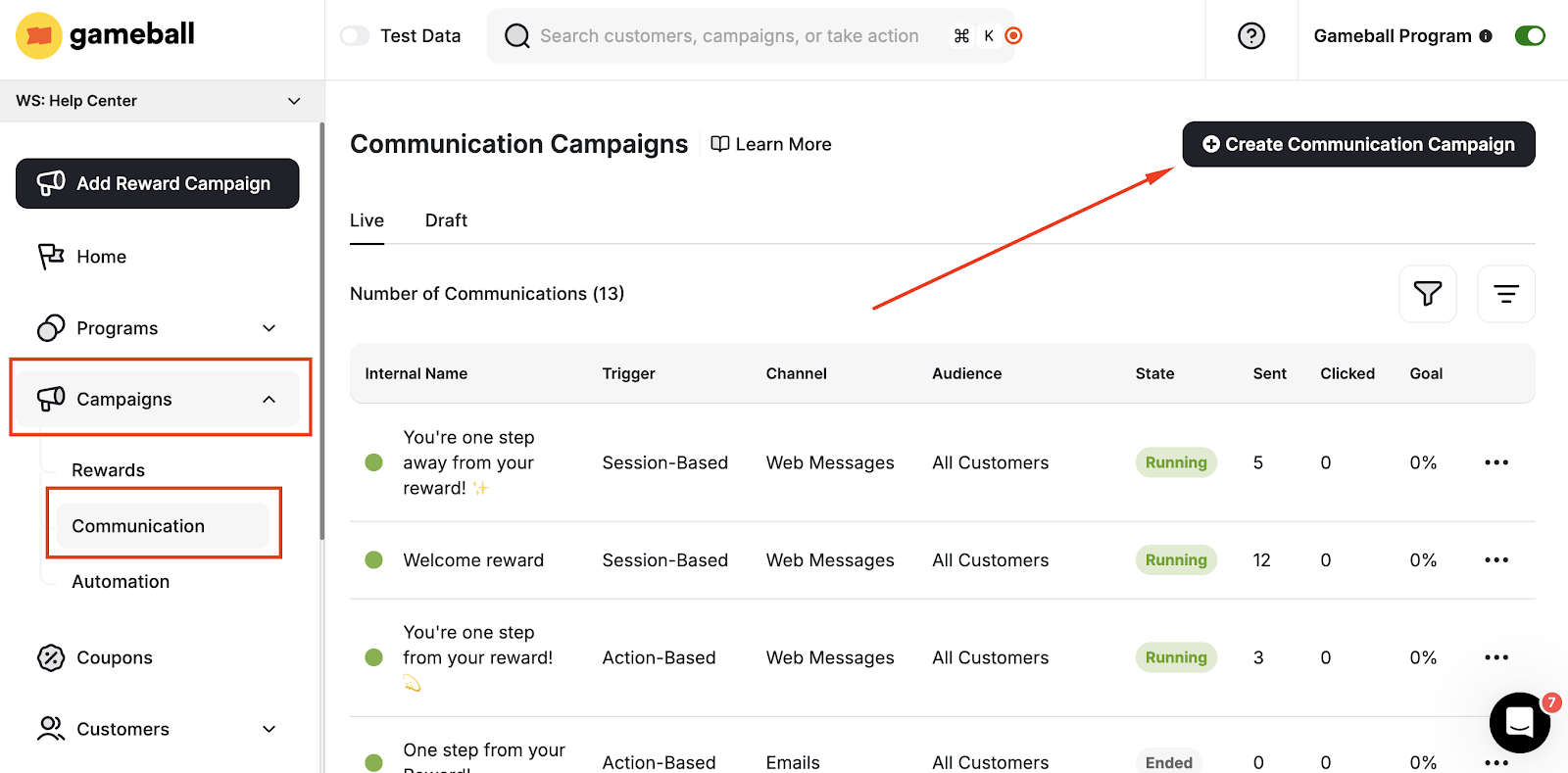
From the left bar, go to **Campaigns** then **Communication**, then click **Create Communication Campaign**.
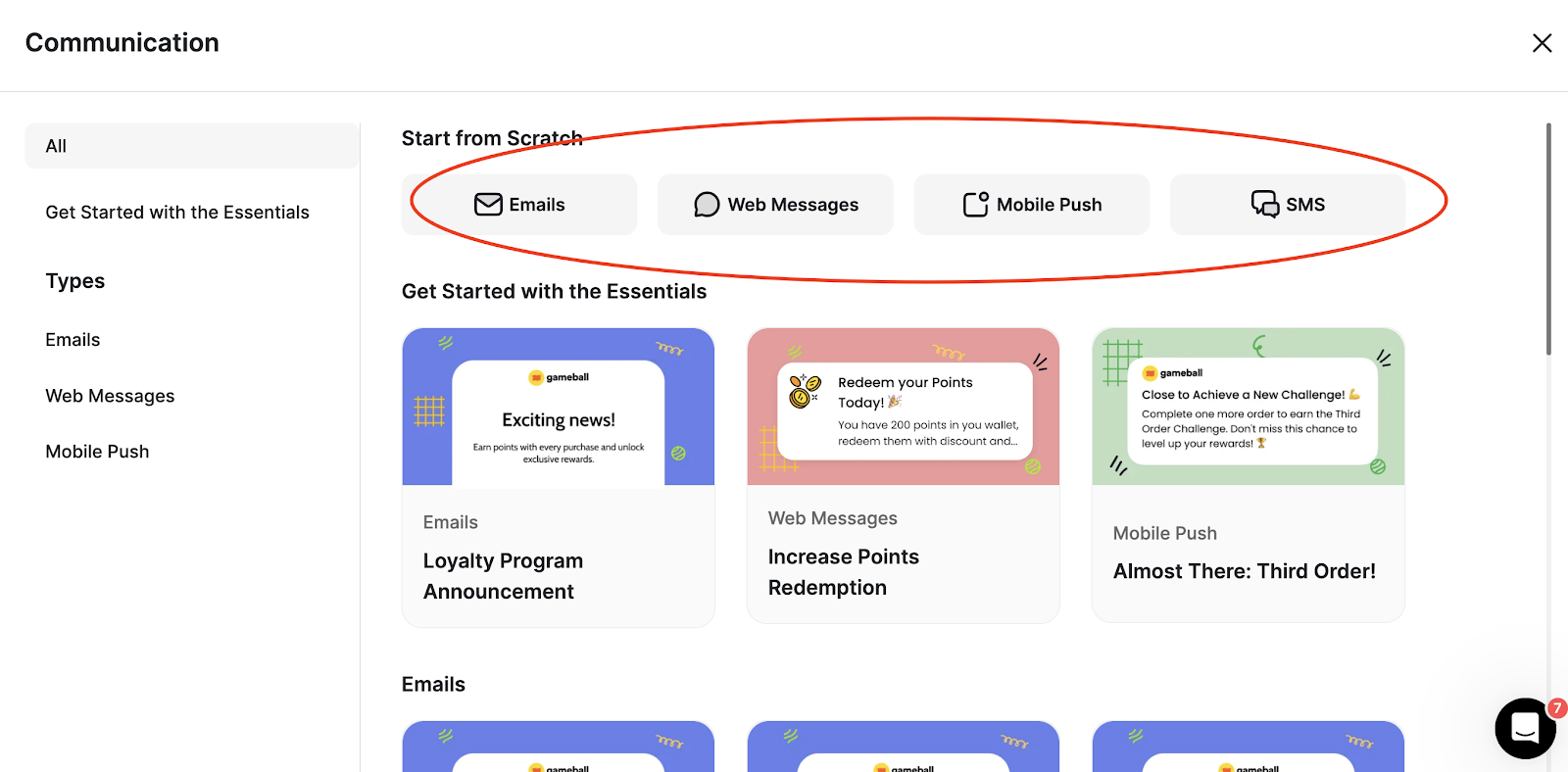
 Choose the type of campaign.
 Follow the normal configuration steps for creating a communication campaign.
Under **Triggers**, you must choose **Action based**.
Follow the normal configuration steps for creating a communication campaign.
Under **Triggers**, you must choose **Action based**.
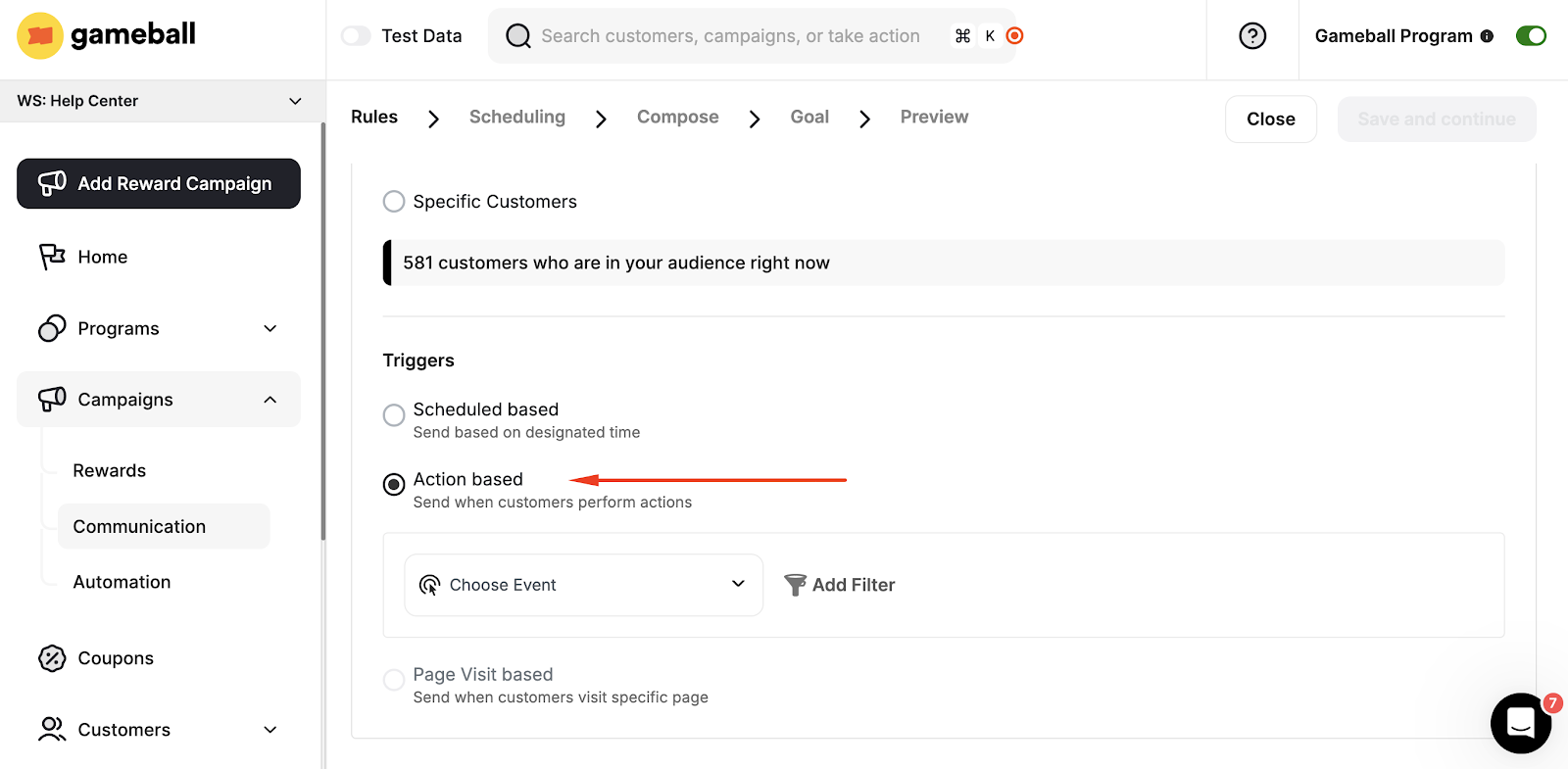 Choose the type of transactional action you want to set as a trigger for the message. You can choose actions.
Proceed with the scheduling step. Afterwards, you will move to the **Composing** part.
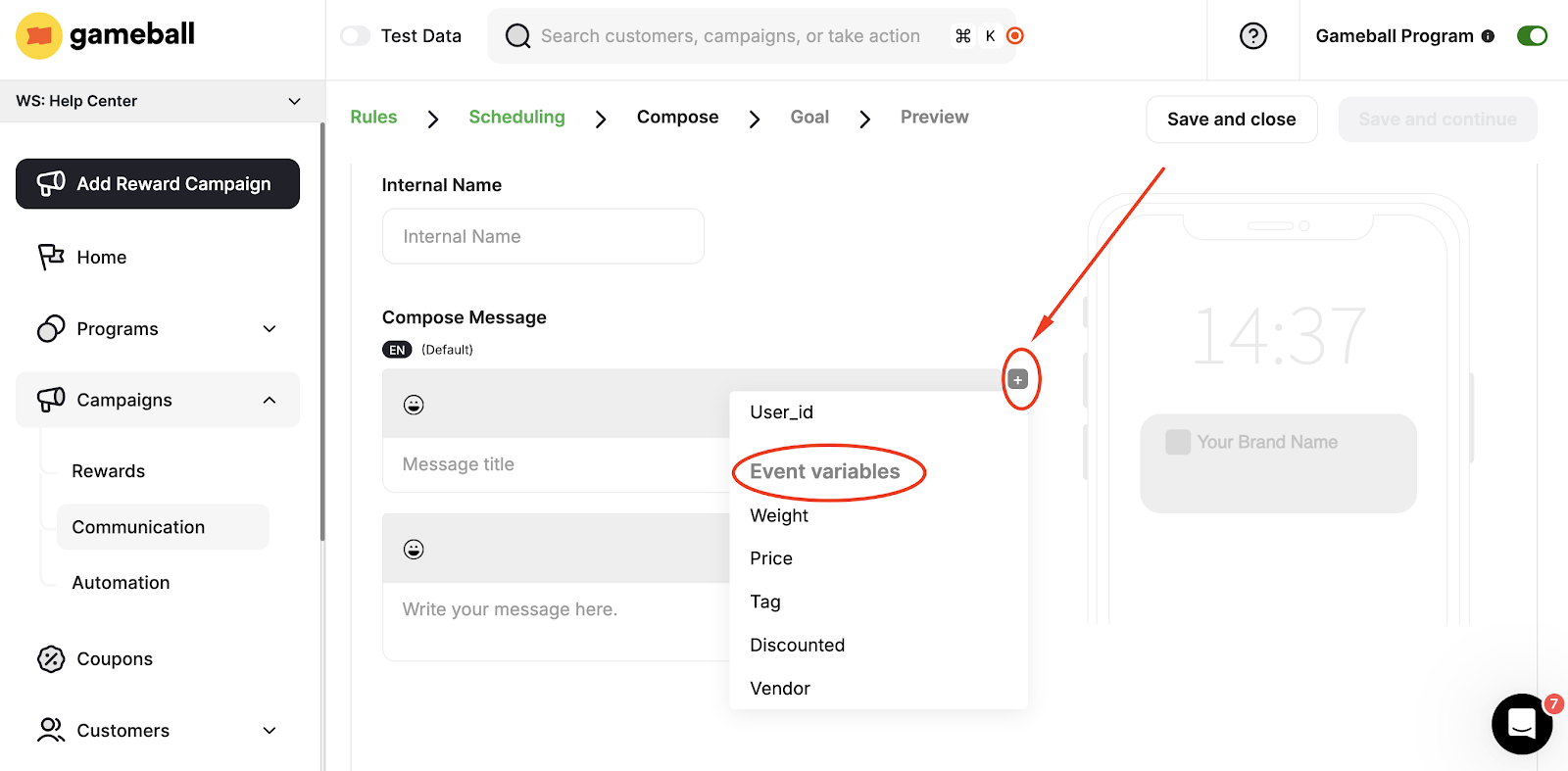
In the **Composing** part, while composing the **Head** and **Body** of your message, you can integrate some variables into the message.
To use the event-related **Dynamic Variables**, scroll down the list to find them under **Event Variables**.
Choose the type of transactional action you want to set as a trigger for the message. You can choose actions.
Proceed with the scheduling step. Afterwards, you will move to the **Composing** part.
In the **Composing** part, while composing the **Head** and **Body** of your message, you can integrate some variables into the message.
To use the event-related **Dynamic Variables**, scroll down the list to find them under **Event Variables**.
 ***
## How to Set Up and Trigger Transactional Email Campaigns Using Dynamic Variables
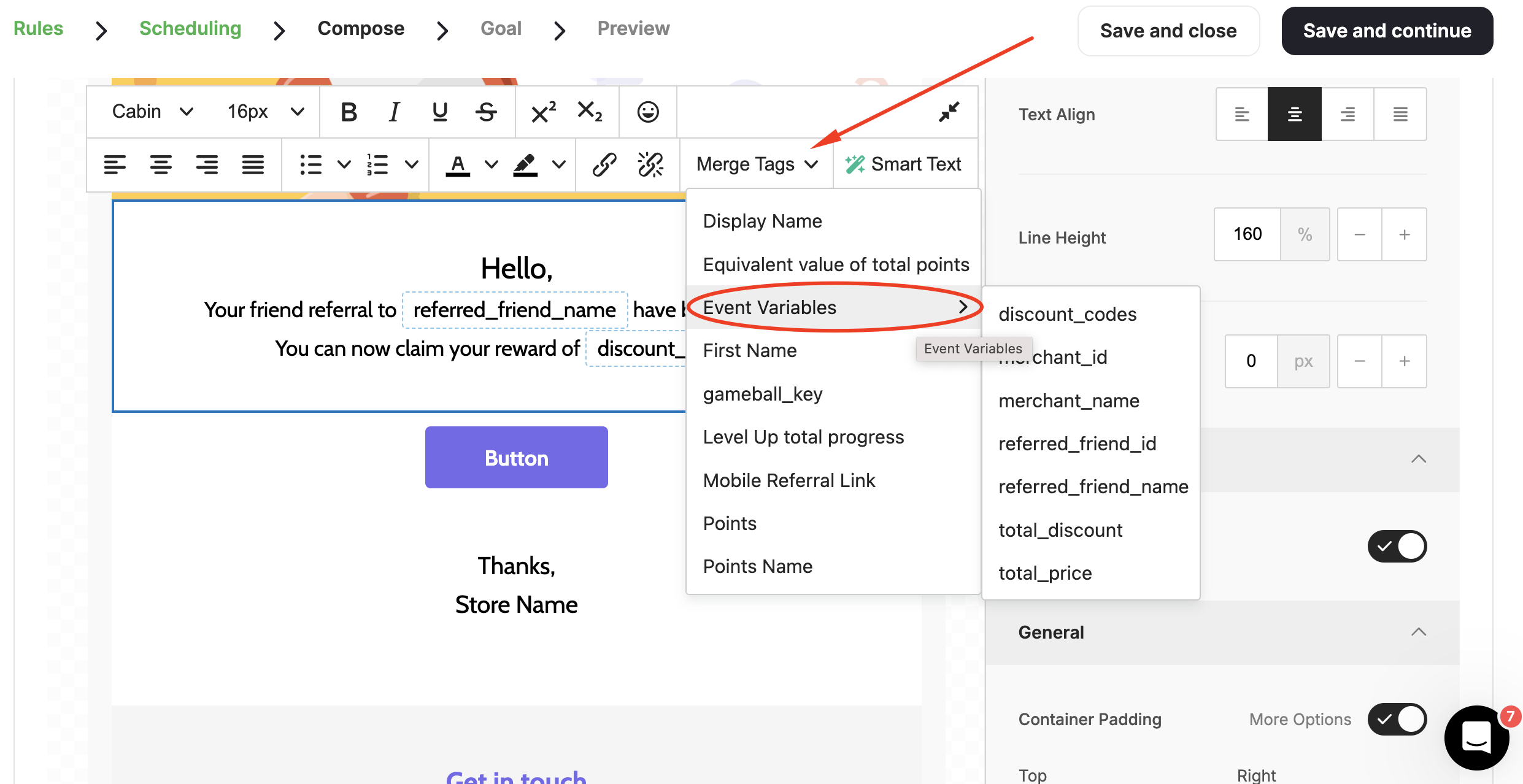
Emails usually have a slightly different configuration process. To create an email using dynamic variables, follow the first steps of creating an **action-based communication campaign**, then when you reach the step for writing the content or body of the email, click **Merge Tags** to use the event-related variables.
***
## How to Set Up and Trigger Transactional Email Campaigns Using Dynamic Variables
Emails usually have a slightly different configuration process. To create an email using dynamic variables, follow the first steps of creating an **action-based communication campaign**, then when you reach the step for writing the content or body of the email, click **Merge Tags** to use the event-related variables.
 ***
Learn how to build and configure email communication campaigns step by step.
Learn how to build and configure web message campaigns for real-time customer engagement.
***
Learn how to build and configure email communication campaigns step by step.
Learn how to build and configure web message campaigns for real-time customer engagement.