> ## Documentation Index
> Fetch the complete documentation index at: https://docs.gameball.co/llms.txt
> Use this file to discover all available pages before exploring further.
# How to Segment Customers?
> Understand how to create and manage customer segments using Gameball's segmentation to personalize your campaigns and enhance targeting.
| Platform | Plan |
| -------------------- | ---------------------------------------------- |
| Shopify | Starter (create up to 3 Segments), Pro, & Guru |
| Salla | Pro, & Guru |
| Non-platform clients | Growth & Enterprise |
When creating segments with specific conditions and rules, you gain valuable insights into your customer base and their behavior. This allows you to plan more efficient, data-driven marketing strategies that improve overall performance.
***
## How to Create Segments
Creating a new segment is simple. Begin by identifying the criteria you want to target from your wide customer base. For instance, you can create a segment for female customers who have been active within the past 30 days and frequently visit a specific product category. Once these rules are configured, Gameball automatically identifies any customer who meets the criteria and adds them to the segment.
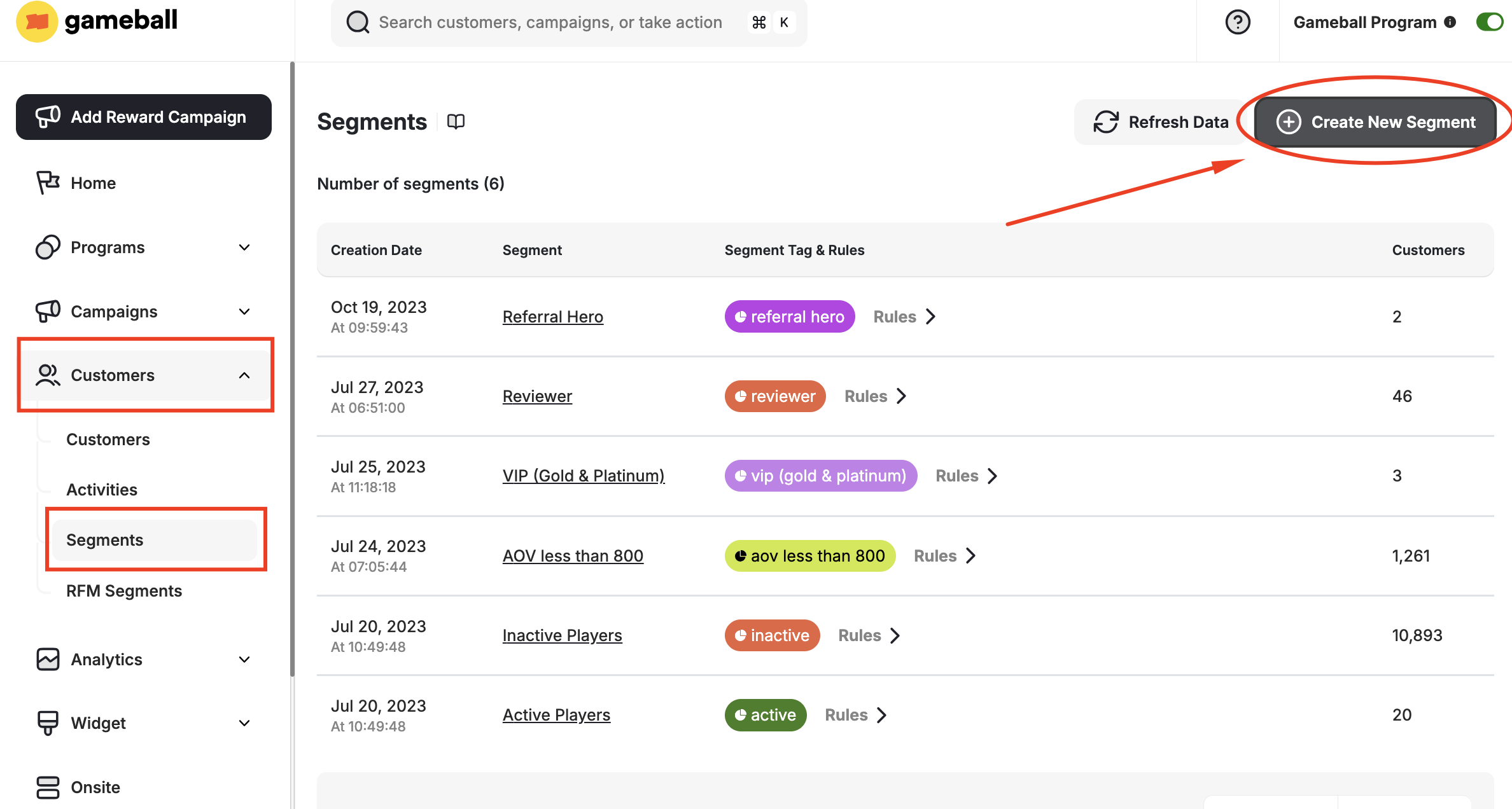
Go to the **Gameball dashboard**.
Navigate to **Customers** > **Segments** tab.
Click **Create New Segment**.
 Fill in the segment's general information:
* **Segment Name:** Use a descriptive name, e.g., *Engaged Customers*.
* **Segment Tag Name:** Provide a short label, e.g., *Engaged*.
* **Color:** Choose a color for the tag.
Fill in the segment's general information:
* **Segment Name:** Use a descriptive name, e.g., *Engaged Customers*.
* **Segment Tag Name:** Provide a short label, e.g., *Engaged*.
* **Color:** Choose a color for the tag.
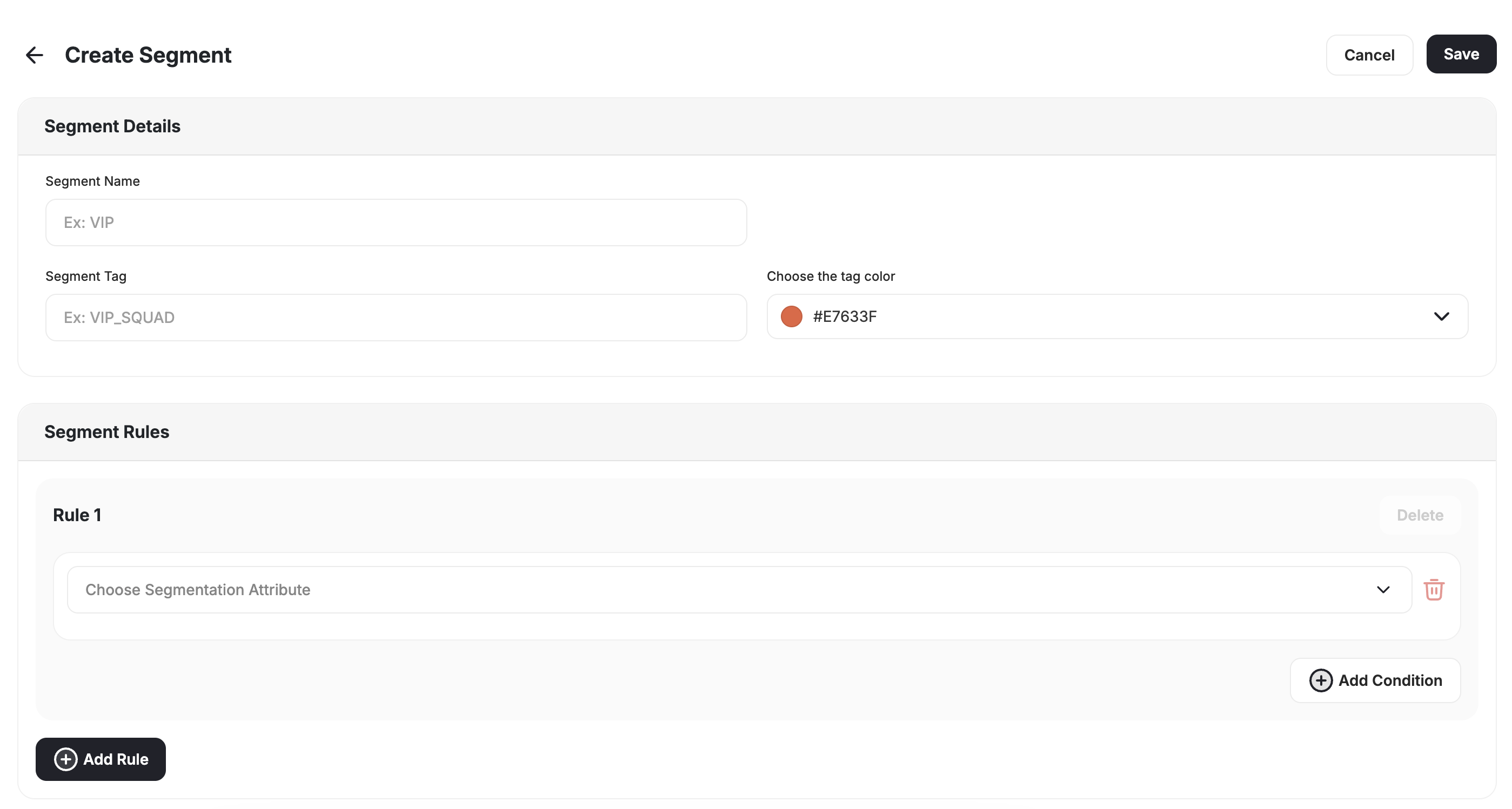 Proceed to add segmentation rules using the rule engine described below.
***
## How to Use the Segmentation Rule Engine
You can create a segment using a single or multiple conditions. Begin by creating the first rule.
When selecting **Customer Attribute**, choose the customer profile data that will determine segment membership.
Proceed to add segmentation rules using the rule engine described below.
***
## How to Use the Segmentation Rule Engine
You can create a segment using a single or multiple conditions. Begin by creating the first rule.
When selecting **Customer Attribute**, choose the customer profile data that will determine segment membership.
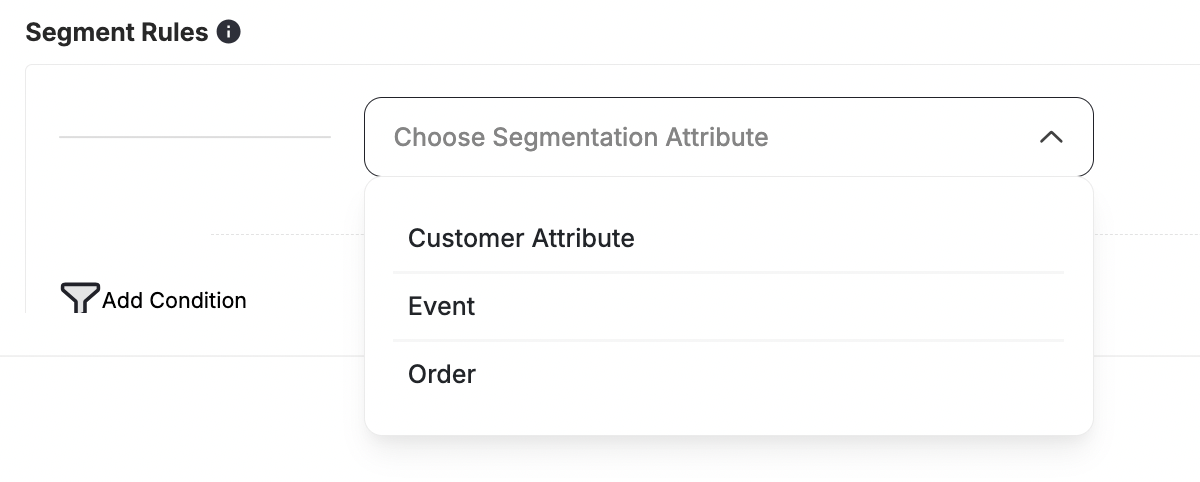 | Category | Attributes |
| -------------------- | --------------------------------------------------------------------------------------------------------------------------------------------------------- |
| **Customer Info** | Customer Email, Mobile Number, Gender, Date Of Birth, Customer Creation Date, Customer Join Date, Is Guest Customer, Is Referred, Country, City, Zip Code |
| **Engagement** | Score, Points, Tier, Channel, Merchant, Branch, Last Login Date |
| **Order Data** | Total Orders Count, Total Amount Spent, Last Order Date, Average Order Value |
| **Gameball Tracked** | Last Captured Order Date, Average Captured Order Value, Total Captured Orders, Total Captured Amount Spent |
| **Redemption** | Total Redeemed Amount, Total Redemptions, Last Redemption Date, Last Coupon Usage, Last Gameball Coupon Usage |
| **Referral** | Total Referrals, Last Referral Date |
| **Communication** | Last Message Sent Date, Last Email Sent Date |
| **UTM Tracking** | UTM Campaign, UTM Source, UTM Medium, UTM Content, UTM Term |
| **Device Info** | Device, Browser, Operating System |
| **Product Data** | Product ID, SKU, Category, Collection, Product Title, Quantity Purchased (per product), Price (per line item) |
| **Spending** | Total Spent, Orders Count |
After choosing the attribute, define its metadata values accordingly.
1. "Total captured orders" is calculated via Gameball, which counts the number of orders sent via the Order API. However, "total amount spent" relies on you sending the total orders of every customer via the API. Choose the correct attribute based on whether you need data from your side or data counted by Gameball.
2. All attributes automatically calculated and maintained by Gameball are visually prefixed with **"Gameball"** so you can recognize them amongst your custom attributes sent through API.
Events represent actions customers perform on your platform.
To create an event-based segment rule:
1. Select the relevant **Customer Event**.
2. Define the **event metadata**.
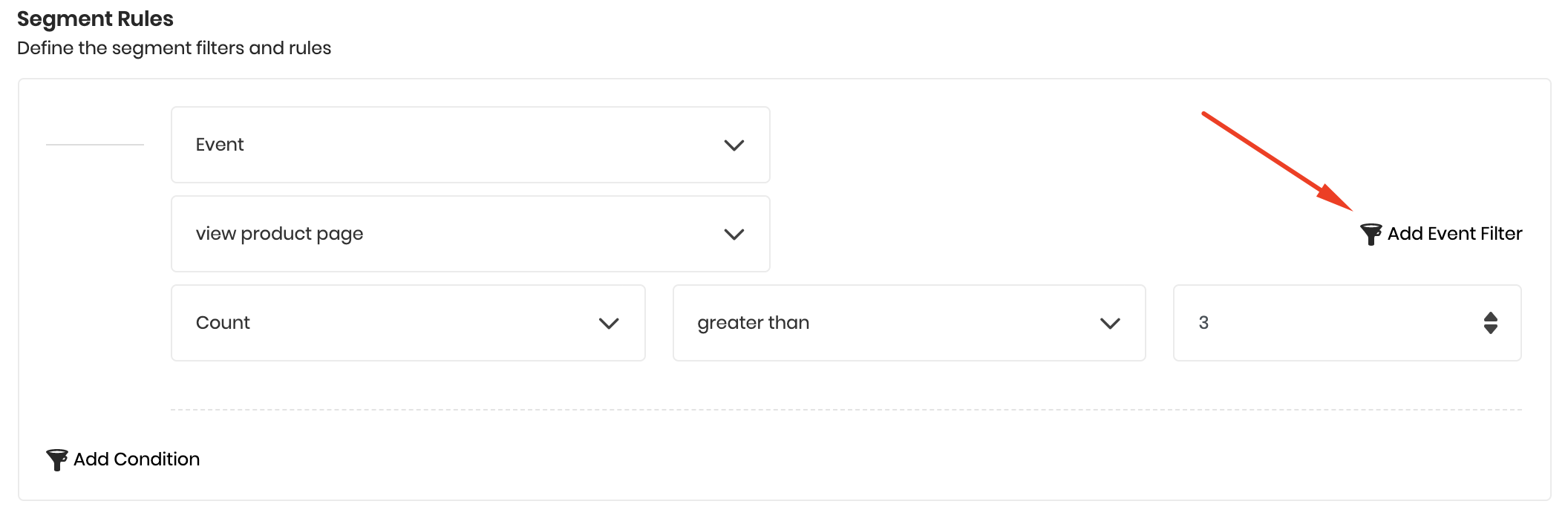
For example, if the event is "viewing a product," you can filter it to include customers who viewed a product in the *Accessories* category at least three times.
You can also:
* Click **Add Event Filter** to add more metadata filters to a single event.
* Click **Add Condition** to include multiple conditions under the same rule.
| Category | Attributes |
| -------------------- | --------------------------------------------------------------------------------------------------------------------------------------------------------- |
| **Customer Info** | Customer Email, Mobile Number, Gender, Date Of Birth, Customer Creation Date, Customer Join Date, Is Guest Customer, Is Referred, Country, City, Zip Code |
| **Engagement** | Score, Points, Tier, Channel, Merchant, Branch, Last Login Date |
| **Order Data** | Total Orders Count, Total Amount Spent, Last Order Date, Average Order Value |
| **Gameball Tracked** | Last Captured Order Date, Average Captured Order Value, Total Captured Orders, Total Captured Amount Spent |
| **Redemption** | Total Redeemed Amount, Total Redemptions, Last Redemption Date, Last Coupon Usage, Last Gameball Coupon Usage |
| **Referral** | Total Referrals, Last Referral Date |
| **Communication** | Last Message Sent Date, Last Email Sent Date |
| **UTM Tracking** | UTM Campaign, UTM Source, UTM Medium, UTM Content, UTM Term |
| **Device Info** | Device, Browser, Operating System |
| **Product Data** | Product ID, SKU, Category, Collection, Product Title, Quantity Purchased (per product), Price (per line item) |
| **Spending** | Total Spent, Orders Count |
After choosing the attribute, define its metadata values accordingly.
1. "Total captured orders" is calculated via Gameball, which counts the number of orders sent via the Order API. However, "total amount spent" relies on you sending the total orders of every customer via the API. Choose the correct attribute based on whether you need data from your side or data counted by Gameball.
2. All attributes automatically calculated and maintained by Gameball are visually prefixed with **"Gameball"** so you can recognize them amongst your custom attributes sent through API.
Events represent actions customers perform on your platform.
To create an event-based segment rule:
1. Select the relevant **Customer Event**.
2. Define the **event metadata**.
For example, if the event is "viewing a product," you can filter it to include customers who viewed a product in the *Accessories* category at least three times.
You can also:
* Click **Add Event Filter** to add more metadata filters to a single event.
* Click **Add Condition** to include multiple conditions under the same rule.
 You can create customer segments based on **actual order data**, providing more accurate, real-time customer targeting.
Available order data includes:
* Count
* First Occurrence
* Last Occurrence
* Total Order Value (excluding fully refunded orders)
* Order Date Range
* Average Order Value
* Specific Order Value Ranges
Fully refunded orders are excluded by default from the calculations.
***
## Common Questions
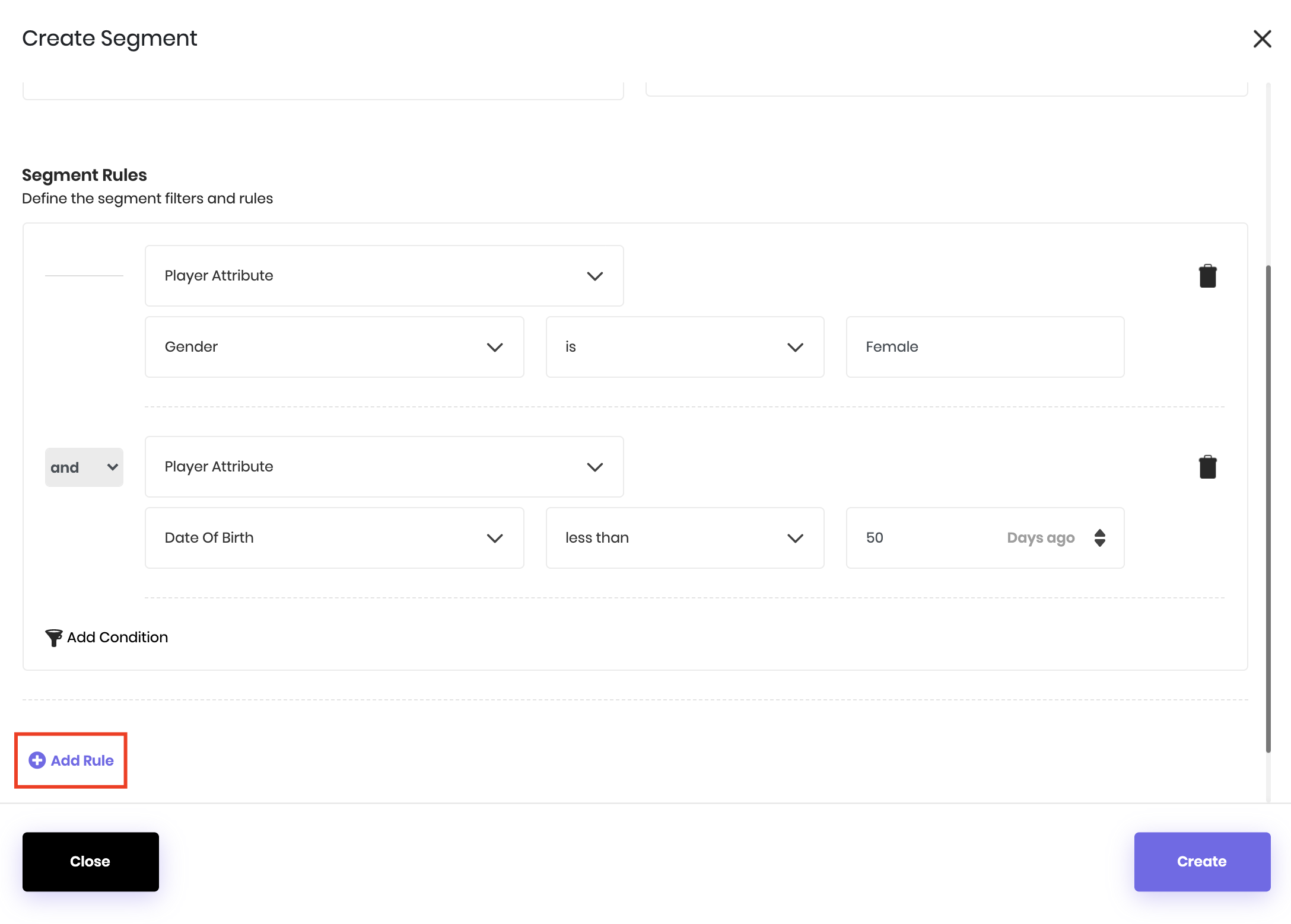
Yes. You can combine both customer profile attributes and behavior-based events in one segment. For example:
* Female customers
* Under 50 years old
* Recently active on your platform
* Made at least one purchase or added an item to the cart within the past month
This allows for precise targeting using detailed, multi-criteria rules.
After adding the first rule:
1. Click **Add Rule**.
2. Choose the correlation type between rules:
* **AND:** Customers must meet all rules.
* **OR:** Customers must meet at least one rule.
3. Repeat the rule setup process for each additional rule.
You can create customer segments based on **actual order data**, providing more accurate, real-time customer targeting.
Available order data includes:
* Count
* First Occurrence
* Last Occurrence
* Total Order Value (excluding fully refunded orders)
* Order Date Range
* Average Order Value
* Specific Order Value Ranges
Fully refunded orders are excluded by default from the calculations.
***
## Common Questions
Yes. You can combine both customer profile attributes and behavior-based events in one segment. For example:
* Female customers
* Under 50 years old
* Recently active on your platform
* Made at least one purchase or added an item to the cart within the past month
This allows for precise targeting using detailed, multi-criteria rules.
After adding the first rule:
1. Click **Add Rule**.
2. Choose the correlation type between rules:
* **AND:** Customers must meet all rules.
* **OR:** Customers must meet at least one rule.
3. Repeat the rule setup process for each additional rule.
 You can add **unlimited rules** to a segment — there is no cap on the number of conditions.
A single operator (AND or OR) applies uniformly across all rules in a segment. You cannot mix AND and OR within the same segment, and nested groupings with brackets (e.g., `(A AND B) OR C`) are not currently supported.
To view details about an existing segment:
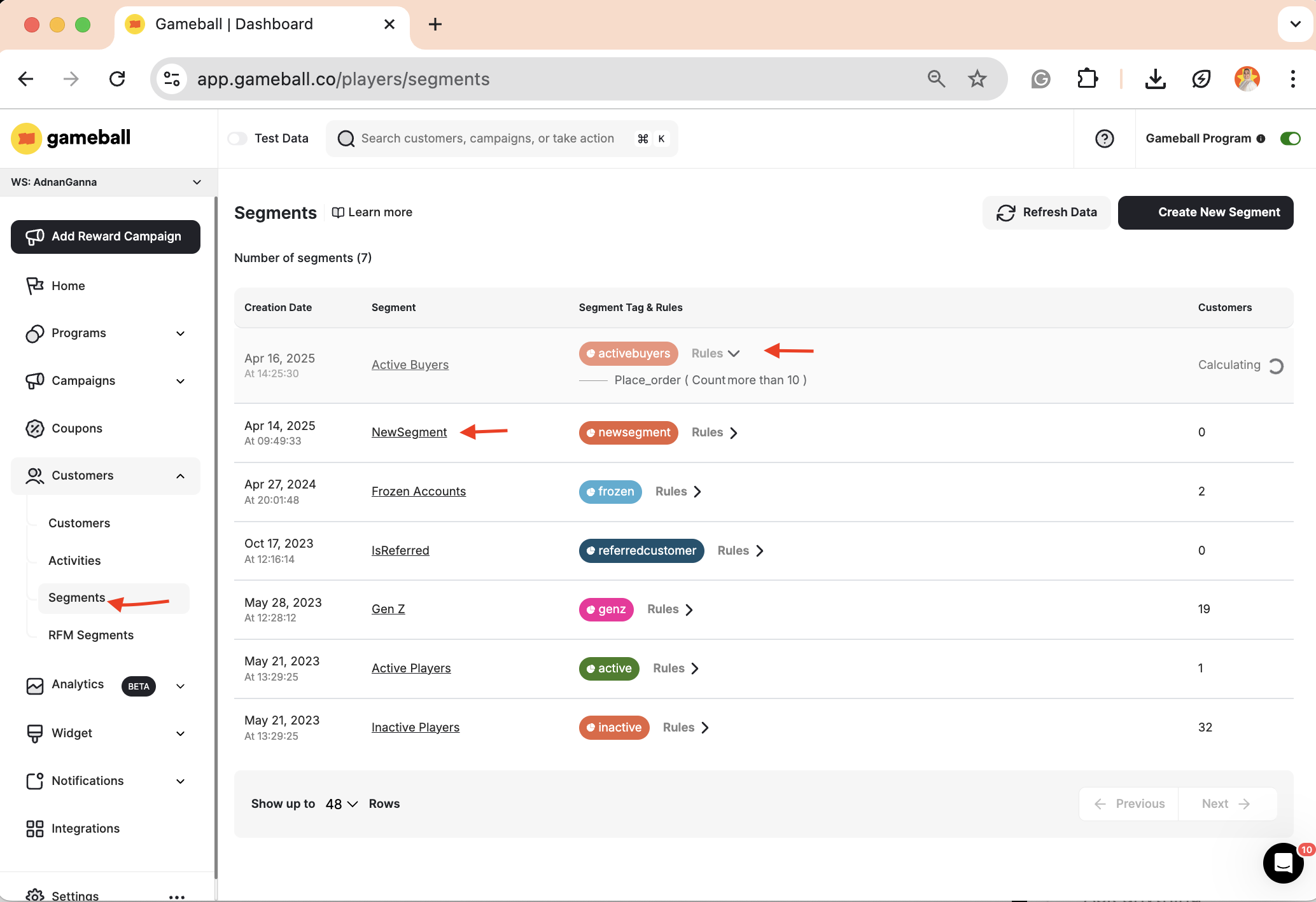
1. Go to the **Segments** tab on the Gameball dashboard.
2. Scroll to the list of created segments.
3. Click on the name of the segment you want to explore.
You will be directed to the segment details page, which includes:
* The rules that define the segment
* The number and types of communication campaigns sent to customers in the segment
* A chart displaying how many customers joined the segment per day
* A full list of customers in the segment
You can add **unlimited rules** to a segment — there is no cap on the number of conditions.
A single operator (AND or OR) applies uniformly across all rules in a segment. You cannot mix AND and OR within the same segment, and nested groupings with brackets (e.g., `(A AND B) OR C`) are not currently supported.
To view details about an existing segment:
1. Go to the **Segments** tab on the Gameball dashboard.
2. Scroll to the list of created segments.
3. Click on the name of the segment you want to explore.
You will be directed to the segment details page, which includes:
* The rules that define the segment
* The number and types of communication campaigns sent to customers in the segment
* A chart displaying how many customers joined the segment per day
* A full list of customers in the segment
 Date-based attributes like **Customer Creation Date** support **After** and **Before** operators, but not a single "between" operator.
To define a date range, combine two rules using **AND** logic:
* Rule 1: `Customer Creation Date` **After** `31/12/2024`
* Rule 2: `Customer Creation Date` **Before** `01/01/2026`
This returns all customers whose creation date falls within the year 2025.
Quick filters by year, quarter, or month are not currently available. Use the After + Before combination to achieve the same result.
**Advanced Filters**
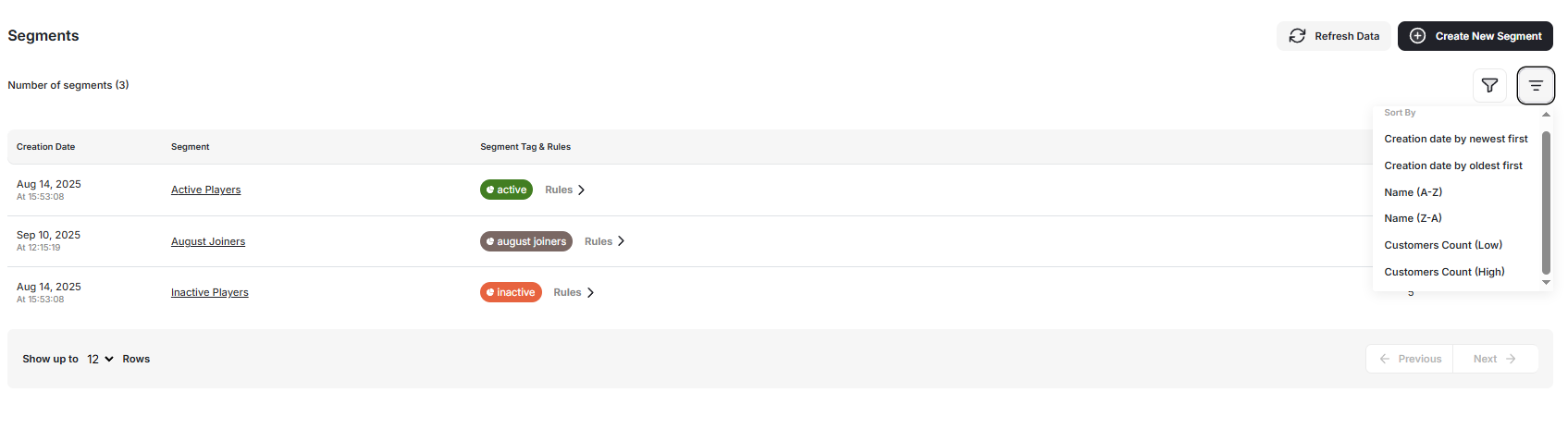
A **Filter** option is available in the Segments table header, allowing you to refine your segment list using:
* **Status / Tag** (e.g., active, inactive, draft)
* **Creation Date** (date range selection)
* **Customer Count Range**
Multiple filters can be applied together and updated instantly. A **Clear Filters** control restores the full segment list with one click.
Date-based attributes like **Customer Creation Date** support **After** and **Before** operators, but not a single "between" operator.
To define a date range, combine two rules using **AND** logic:
* Rule 1: `Customer Creation Date` **After** `31/12/2024`
* Rule 2: `Customer Creation Date` **Before** `01/01/2026`
This returns all customers whose creation date falls within the year 2025.
Quick filters by year, quarter, or month are not currently available. Use the After + Before combination to achieve the same result.
**Advanced Filters**
A **Filter** option is available in the Segments table header, allowing you to refine your segment list using:
* **Status / Tag** (e.g., active, inactive, draft)
* **Creation Date** (date range selection)
* **Customer Count Range**
Multiple filters can be applied together and updated instantly. A **Clear Filters** control restores the full segment list with one click.
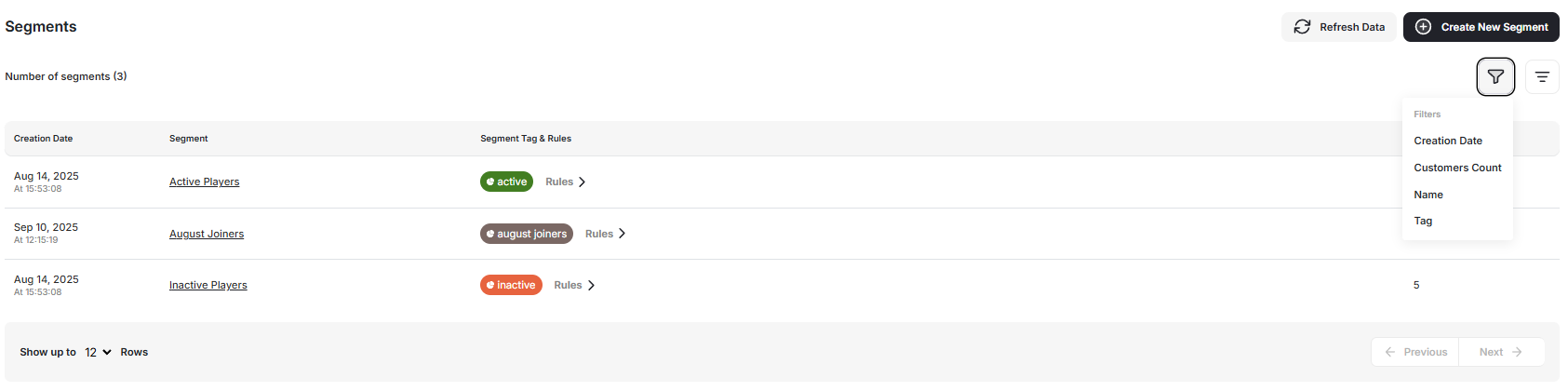 **Table Sorting**
You can sort segments directly from the table by selecting column headers:
| Column | Sort Options |
| ------------------ | ------------------------- |
| **Segment Name** | A-Z / Z-A |
| **Creation Date** | Newest / Oldest |
| **Customer Count** | High to Low / Low to High |
The chosen sorting order remains active until manually reset.
**Table Sorting**
You can sort segments directly from the table by selecting column headers:
| Column | Sort Options |
| ------------------ | ------------------------- |
| **Segment Name** | A-Z / Z-A |
| **Creation Date** | Newest / Oldest |
| **Customer Count** | High to Low / Low to High |
The chosen sorting order remains active until manually reset.