> ## Documentation Index
> Fetch the complete documentation index at: https://docs.gameball.co/llms.txt
> Use this file to discover all available pages before exploring further.
# What Is Segmentation?
> Use dynamic segmentation to automatically group and target customers based on their behavior and profile attributes.
| Platform | Plan |
| -------------------- | -------------------------- |
| Shopify | Free, Starter, Pro, & Guru |
| Salla | Starter, Pro, & Guru |
| Non-platform clients | Growth & Enterprise |
Customer segmentation enables you to target specific groups of customers for personalized communication, reward campaigns, and more. With Gameball, segmentation is dynamic and automatic, saving you the time and effort of manually grouping customers and keeping your segments up to date.
***
## The Problem Segmentation Solves
Have you ever wanted to create a challenge, send a message, or apply a redemption rule that only applies to a specific group of customers — but could not figure out how to isolate and target them accurately? Even when you managed to identify these customers, applying manual tags became time-consuming and inaccurate, especially since customers' behavior changes frequently. By the time you have tagged a customer, they may no longer belong to the intended group.
To solve this challenge, Gameball introduced **Customer Segmentation** — a feature that creates dynamic lists of customers who automatically qualify based on the criteria you set.
***
## How Customer Segmentation Works
Customer segmentation automatically groups your customers based on their behavior and profile data. Unlike manual tags, segments are dynamic: customers are added or removed in real time based on whether they meet the defined conditions.
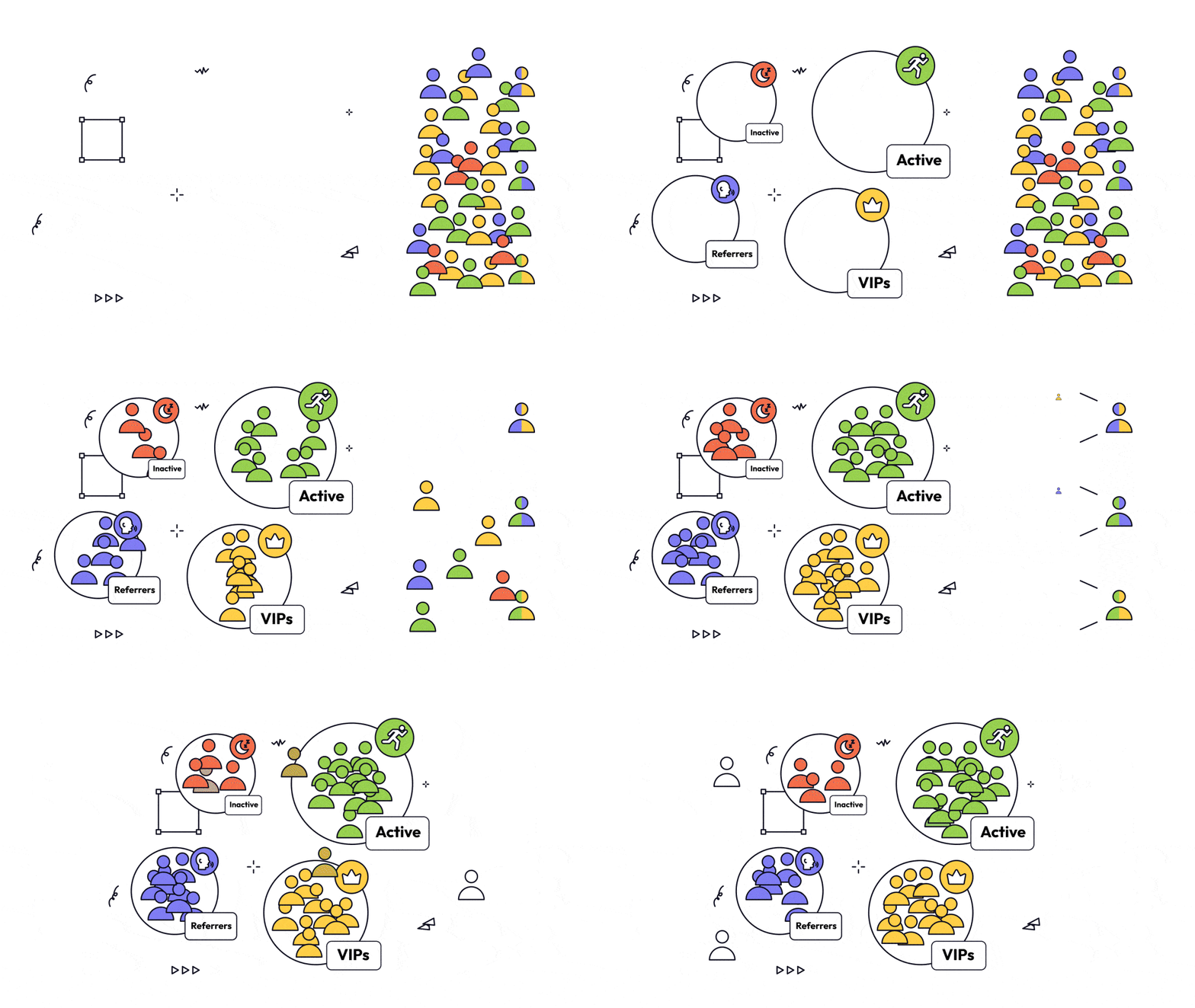 When a customer meets all the conditions of a segment, they are automatically added to it. If their data changes and no longer matches those conditions, they are automatically removed.
***
## Why Segment Customers?
Segmentation helps you gain valuable insights and execute targeted marketing strategies. With Gameball, you can:
* Gain deeper insights into customer behavior.
* Build dynamic, data-driven, and personalized marketing strategies.
* Target specific customer groups across various Gameball features.
Reward only specific segments with tailored challenges and incentives.
Apply rules like free shipping to customers within certain segments.
Launch targeted campaigns or send messages to selected segments.
***
## Existing Segments vs. Custom Segments
Gameball provides two built-in segments that help you monitor essential customer behaviors:
* Last login: within the last 30 days
* OR last order date: within the last 30 days
* **Color:** Green
* **Segment Tag:** Active
* Last login: more than 60 days ago OR login is empty
* Last order date: more than 90 days ago
* **Color:** Orange
* **Segment Tag:** Inactive
In addition, you can create, edit, or delete your own segments based on your business needs.
***
## How to Create Segments
Go to the **Gameball Admin Dashboard**.
Navigate to **Customers** > **Segments**.
Click **Create New Segment**.
Define the conditions for your segment. For example:
* Female customers
* Active in the past 30 days
* Frequently visit a specific product category
Once the segment is saved, Gameball automatically identifies and groups customers who meet all of these criteria.
When a customer meets all the conditions of a segment, they are automatically added to it. If their data changes and no longer matches those conditions, they are automatically removed.
***
## Why Segment Customers?
Segmentation helps you gain valuable insights and execute targeted marketing strategies. With Gameball, you can:
* Gain deeper insights into customer behavior.
* Build dynamic, data-driven, and personalized marketing strategies.
* Target specific customer groups across various Gameball features.
Reward only specific segments with tailored challenges and incentives.
Apply rules like free shipping to customers within certain segments.
Launch targeted campaigns or send messages to selected segments.
***
## Existing Segments vs. Custom Segments
Gameball provides two built-in segments that help you monitor essential customer behaviors:
* Last login: within the last 30 days
* OR last order date: within the last 30 days
* **Color:** Green
* **Segment Tag:** Active
* Last login: more than 60 days ago OR login is empty
* Last order date: more than 90 days ago
* **Color:** Orange
* **Segment Tag:** Inactive
In addition, you can create, edit, or delete your own segments based on your business needs.
***
## How to Create Segments
Go to the **Gameball Admin Dashboard**.
Navigate to **Customers** > **Segments**.
Click **Create New Segment**.
Define the conditions for your segment. For example:
* Female customers
* Active in the past 30 days
* Frequently visit a specific product category
Once the segment is saved, Gameball automatically identifies and groups customers who meet all of these criteria.
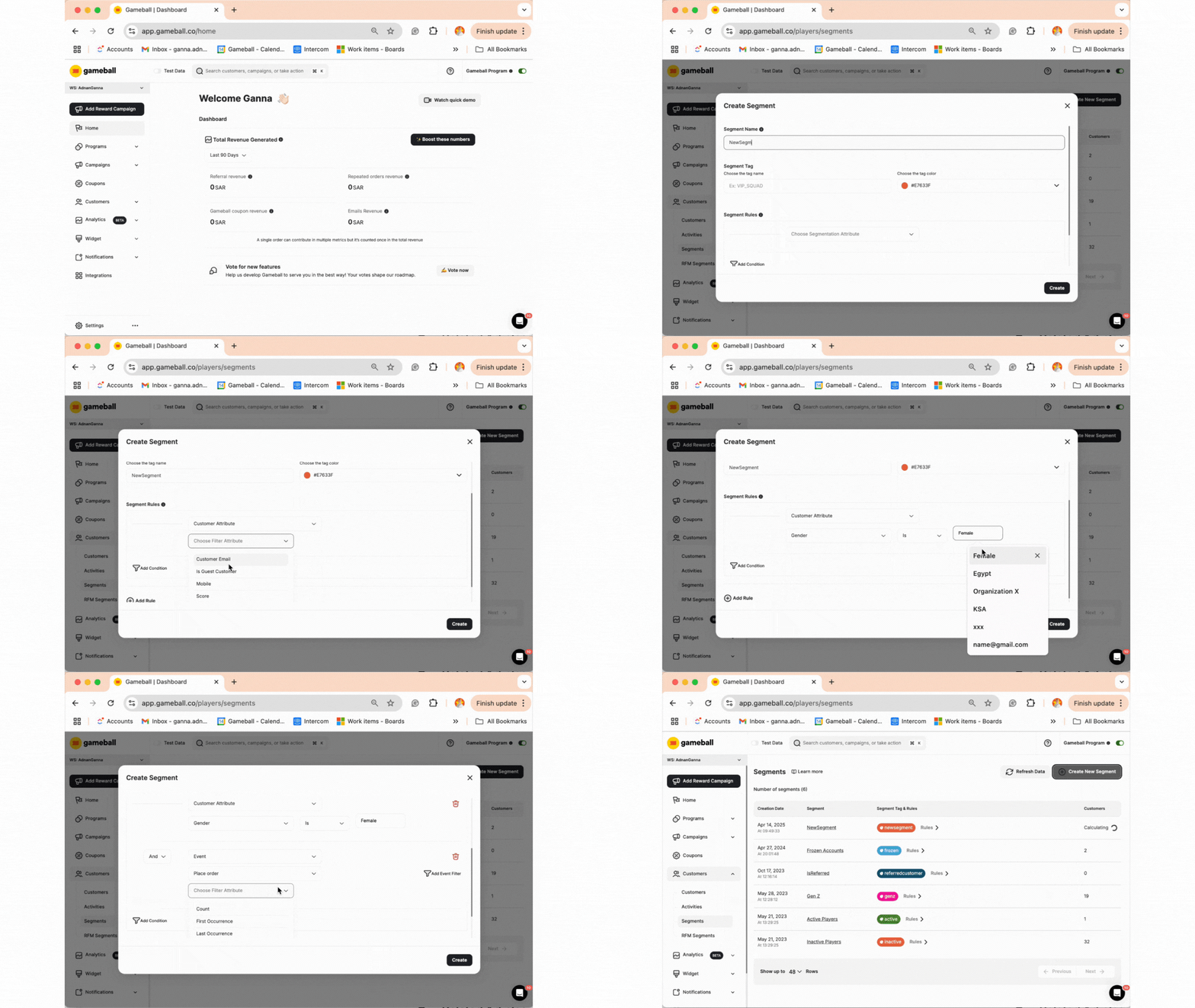 For more details on how to use the segmentation engine and understand the available operators, refer to [How to Segment Customers](/product-documentation/customer-segmentation/how-to-segment-customers).
***
## Segment Usage in Automations
Each segment shows which automation campaigns use it as a trigger — specifically whether it's used as an **Entered Segment** or **Exited Segment** trigger — along with each automation's live status.
This gives you full visibility before making changes, so you can avoid accidentally breaking active automations when editing or deleting a segment.
For more details on how to use the segmentation engine and understand the available operators, refer to [How to Segment Customers](/product-documentation/customer-segmentation/how-to-segment-customers).
***
## Segment Usage in Automations
Each segment shows which automation campaigns use it as a trigger — specifically whether it's used as an **Entered Segment** or **Exited Segment** trigger — along with each automation's live status.
This gives you full visibility before making changes, so you can avoid accidentally breaking active automations when editing or deleting a segment.
 If a segment is used by one or more active automations, you'll see them listed directly on the segment's page. Review these dependencies before making any structural changes to your segment conditions.
***
## Common Questions
Yes, segments can be used with challenges, messages, and redemption rules.
Yes, customers are added and removed dynamically in real time.
Yes, you can modify or delete both system-generated and custom segments at any time.
Tags are added manually and stay fixed. Segments are dynamic — Gameball constantly checks if customers meet the conditions and updates the list automatically.
It means the segment updates in real time. Customers can enter or leave a segment at any time based on their current data.
Gameball instantly scans your customer base and updates segments the moment you create or change the rules.
***
## Related Articles
Learn how to create and manage customer segments using the segmentation engine.
Explore practical use cases for customer segmentation combined with other Gameball features.
Understand RFM analysis and how Gameball automatically segments customers.
If a segment is used by one or more active automations, you'll see them listed directly on the segment's page. Review these dependencies before making any structural changes to your segment conditions.
***
## Common Questions
Yes, segments can be used with challenges, messages, and redemption rules.
Yes, customers are added and removed dynamically in real time.
Yes, you can modify or delete both system-generated and custom segments at any time.
Tags are added manually and stay fixed. Segments are dynamic — Gameball constantly checks if customers meet the conditions and updates the list automatically.
It means the segment updates in real time. Customers can enter or leave a segment at any time based on their current data.
Gameball instantly scans your customer base and updates segments the moment you create or change the rules.
***
## Related Articles
Learn how to create and manage customer segments using the segmentation engine.
Explore practical use cases for customer segmentation combined with other Gameball features.
Understand RFM analysis and how Gameball automatically segments customers.