> ## Documentation Index
> Fetch the complete documentation index at: https://docs.gameball.co/llms.txt
> Use this file to discover all available pages before exploring further.
# What Is the Gameball Customer Widget?
> Learn about what your customer will see, interact with, and achieve through Gameball Customer Widget.
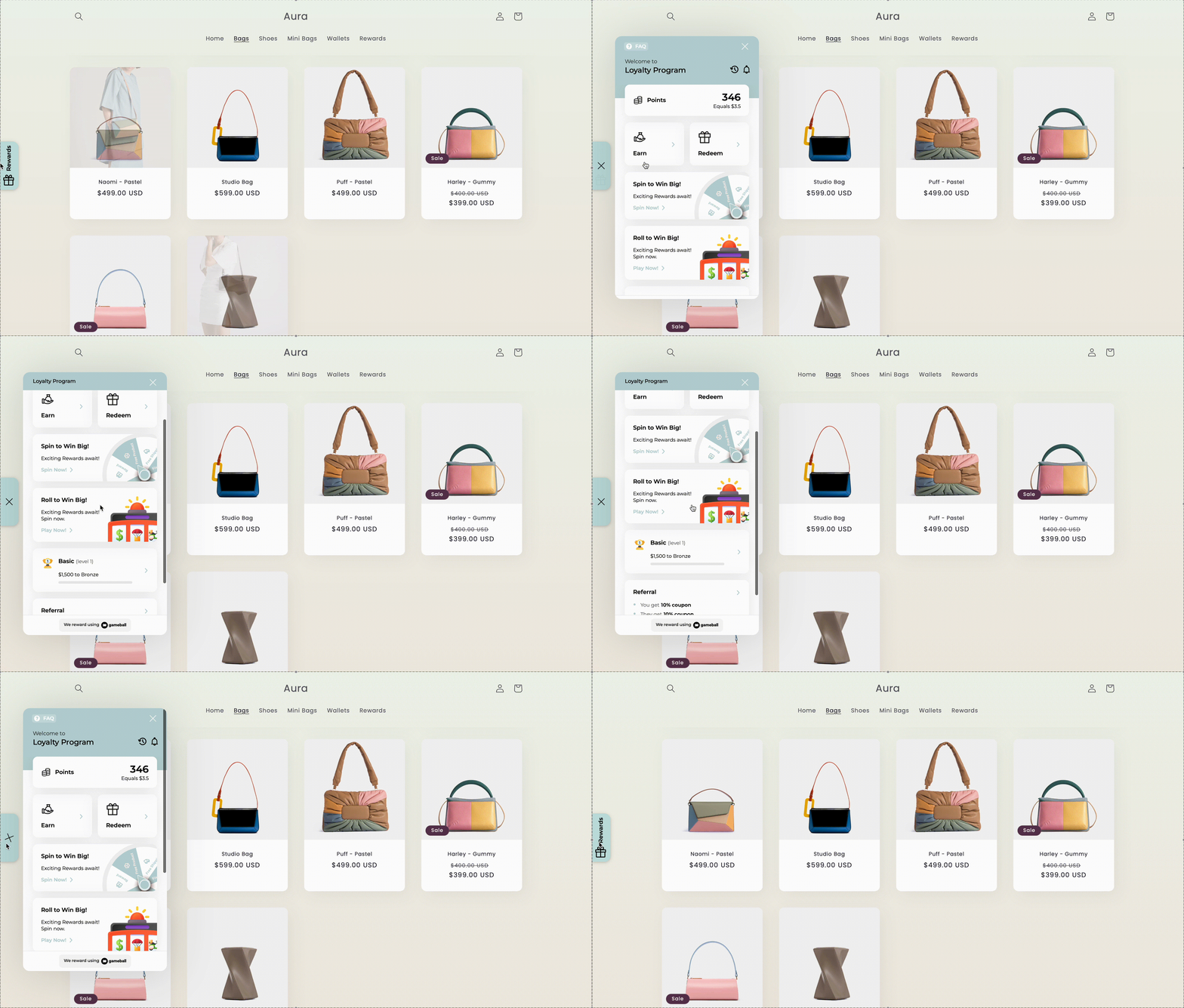
The **Gameball Customer Widget** is the main interface displayed to your customers during their time on your platform. This interface encourages customer engagement and interaction by allowing them to:
* Track their progress
* View the required actions to complete challenges
* Receive more rewards
Explore how the Gameball widget appears in a live store environment by visiting our [demo shop](https://gameball-loyalty.myshopify.com/).
 ***
## Explore the Gameball Widget Features
Learn about the different sections and features your customers can access directly through the Gameball widget.
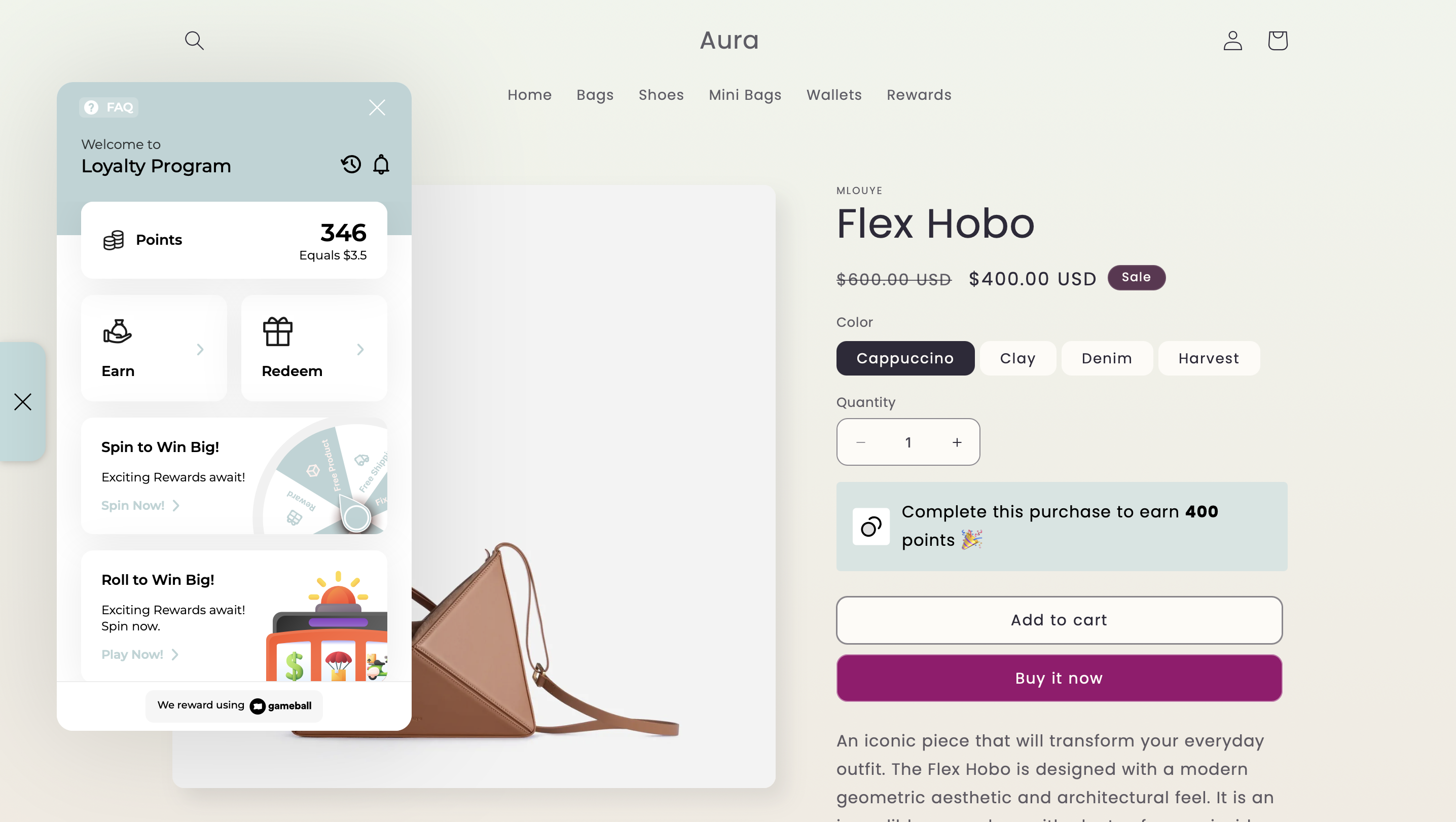
The Gameball widget provides your customers with a centralized space to track their progress, redeem rewards, engage with your loyalty program, and more. Here's an overview of each section they will find inside the widget:
This section displays the customer's current points balance and its equivalent monetary value.
If a customer has **pending points** — points earned but not yet activated — they appear alongside the balance with a clock icon. The pending points display is conditional: it only appears when the customer actually has pending points and is hidden when there are none.
Customers can explore how to earn more rewards. This tab includes:
1. **Cashback Section**: Shows how customers earn points through purchases.
2. **Badges Section**: Displays all active non-game reward campaigns — such as action-based or time-based challenges — along with progress indicators and completion status for each. Game campaigns (e.g., Spin the Wheel) are **not** shown here; they appear exclusively in the **Play & Win** tab.
Play & Win is a widget section that displays all active game campaigns in one place. It helps customers quickly discover games and clearly separates games from standard earning actions. The section appears automatically when at least one game is active and disappears when no games are available.
Here, customers can exchange their collected points for different types of discount coupons or other available rewards. Each coupon displays its source — whether it was issued through a reward campaign, a game, an automation, a VIP tier reward, or a referral — so customers always know where their rewards came from.
This tab shows the customer's current level, the upcoming levels they can unlock, and the benefits and rewards associated with each level.
Gameball's referral feature allows customers to refer your platform to their friends. Once a referred friend signs up, the referring customer receives rewards. The more friends they refer, the bigger the rewards they can earn.
Customers can view the full history of their points activity, including how and when they earned or redeemed points.
You can use a **deep link** to open the Gameball widget directly in the **Customer History** section.
**Deep Link Identifier:** `#gameball-history`
**Use Case:** Include the link in your message campaigns:
"Check your latest rewards here: [YourWebsite.com#gameball-history](http://YourWebsite.com#gameball-history)"
A log of real-time updates related to the customer's progress, such as earning a badge or reaching a new level.
If any game campaigns are activated, such as Spin the Wheel, they will appear as interactive sections within the widget for the customer to engage with.
***
## How Will Gameball Customer Widget Be Displayed on Your Platform?
***
## Explore the Gameball Widget Features
Learn about the different sections and features your customers can access directly through the Gameball widget.
The Gameball widget provides your customers with a centralized space to track their progress, redeem rewards, engage with your loyalty program, and more. Here's an overview of each section they will find inside the widget:
This section displays the customer's current points balance and its equivalent monetary value.
If a customer has **pending points** — points earned but not yet activated — they appear alongside the balance with a clock icon. The pending points display is conditional: it only appears when the customer actually has pending points and is hidden when there are none.
Customers can explore how to earn more rewards. This tab includes:
1. **Cashback Section**: Shows how customers earn points through purchases.
2. **Badges Section**: Displays all active non-game reward campaigns — such as action-based or time-based challenges — along with progress indicators and completion status for each. Game campaigns (e.g., Spin the Wheel) are **not** shown here; they appear exclusively in the **Play & Win** tab.
Play & Win is a widget section that displays all active game campaigns in one place. It helps customers quickly discover games and clearly separates games from standard earning actions. The section appears automatically when at least one game is active and disappears when no games are available.
Here, customers can exchange their collected points for different types of discount coupons or other available rewards. Each coupon displays its source — whether it was issued through a reward campaign, a game, an automation, a VIP tier reward, or a referral — so customers always know where their rewards came from.
This tab shows the customer's current level, the upcoming levels they can unlock, and the benefits and rewards associated with each level.
Gameball's referral feature allows customers to refer your platform to their friends. Once a referred friend signs up, the referring customer receives rewards. The more friends they refer, the bigger the rewards they can earn.
Customers can view the full history of their points activity, including how and when they earned or redeemed points.
You can use a **deep link** to open the Gameball widget directly in the **Customer History** section.
**Deep Link Identifier:** `#gameball-history`
**Use Case:** Include the link in your message campaigns:
"Check your latest rewards here: [YourWebsite.com#gameball-history](http://YourWebsite.com#gameball-history)"
A log of real-time updates related to the customer's progress, such as earning a badge or reaching a new level.
If any game campaigns are activated, such as Spin the Wheel, they will appear as interactive sections within the widget for the customer to engage with.
***
## How Will Gameball Customer Widget Be Displayed on Your Platform?
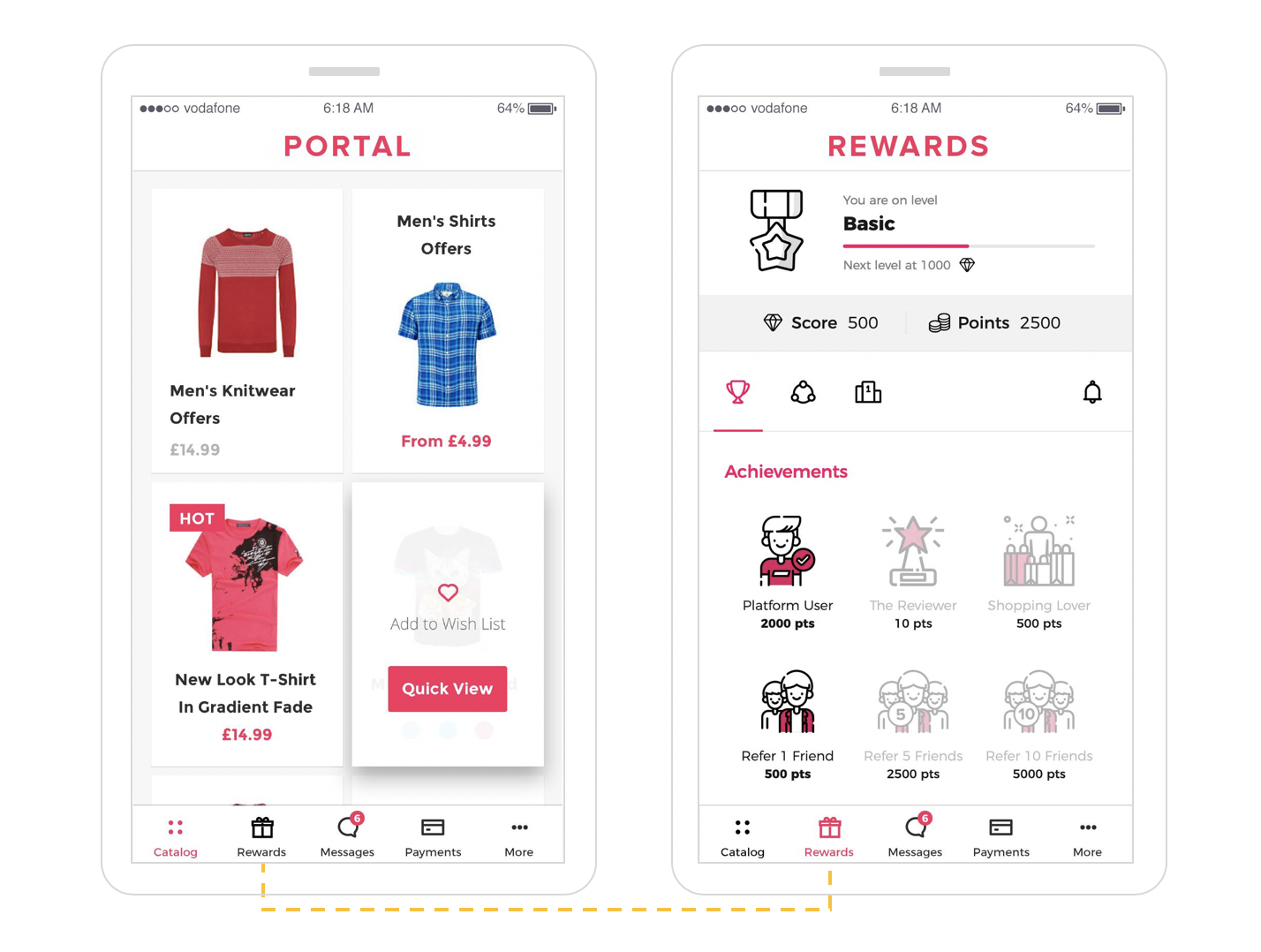
 Gameball's customer profile can be integrated into your mobile app in two ways:
**A. As a new tab in your app**
Gameball's customer profile can be integrated into your mobile app in two ways:
**A. As a new tab in your app**
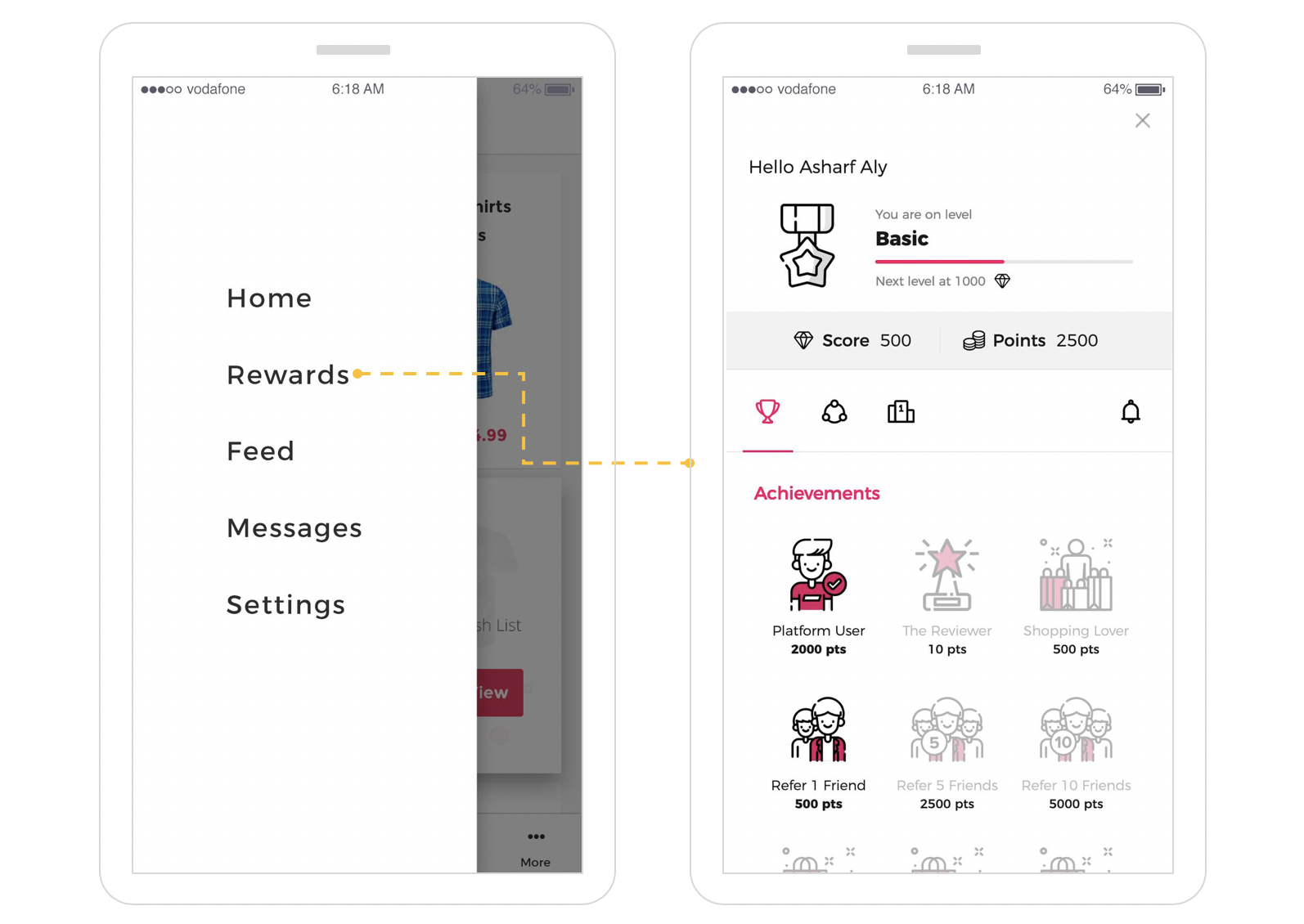
 **B. As an overlay accessed by any button in the app**
 ***
## What's Next?
Control which tabs appear in your widget and in what order they are displayed.
Adjust colors, fonts, icons, and identity to align the widget with your platform's look and feel.
Set a default language and add additional languages to serve a multilingual audience.
***
## What's Next?
Control which tabs appear in your widget and in what order they are displayed.
Adjust colors, fonts, icons, and identity to align the widget with your platform's look and feel.
Set a default language and add additional languages to serve a multilingual audience.