> ## Documentation Index
> Fetch the complete documentation index at: https://docs.gameball.co/llms.txt
> Use this file to discover all available pages before exploring further.
# How Do I Control Gameball Leaderboard on Widget?
> Learn about how Gameball's leaderboard work, and how you can hide it.
## Plan Availability
| **Platform** | **Plan** |
| ------------ | ---------------------------------- |
| Shopify | Add-on for Pro / Available on Guru |
| Non-Platform | Add-on (Contact Support) |
| Salla | Add-on for Pro / Available on Guru |
Leaderboards can be a great tool to create a competitive environment and encourage your customers to be more active. However, leaderboards could also be demotivating if deployed within the wrong crowd. Gameball gives you the option to use it or to completely remove it when it is not convenient.
***
## How Does Gameball Leaderboard Work?
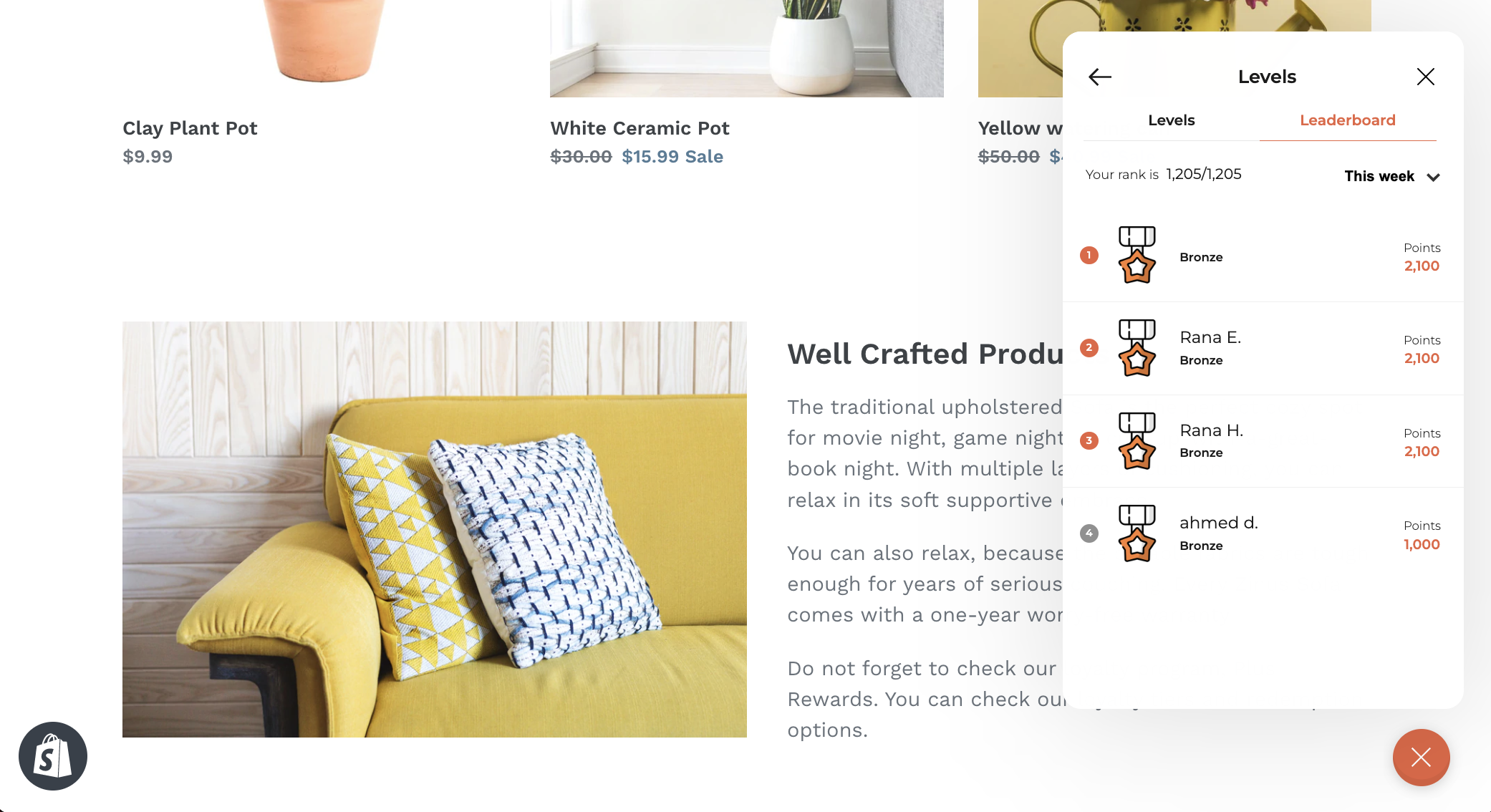
The leaderboard lets the customer track their progress and compare it to all your other customers.
The customer will be ranked based on their progress according to the [method of Tiering up](/product-documentation/programs/vip-tiers/tier-settings/tiering-up-methods) that you have configured in the Tier program. For example, if you chose "Amount Spent" to be the tiering up method, the customer will be ranked based on the amount they spent in comparison to other customers' spending.
To view the leaderboard, the customer needs to click on the **Progress bar** or the **Tier** found on the home section of the widget, then switch to the **Leaderboard tab**. The customer will then see their rank amongst other customers.
 ***
## How Can a Customer Know Their Exact Rank?
Customers can see their rank in comparison to the rest of the customers in the text above the customer list.
***
## How Can a Customer Know Their Exact Rank?
Customers can see their rank in comparison to the rest of the customers in the text above the customer list.
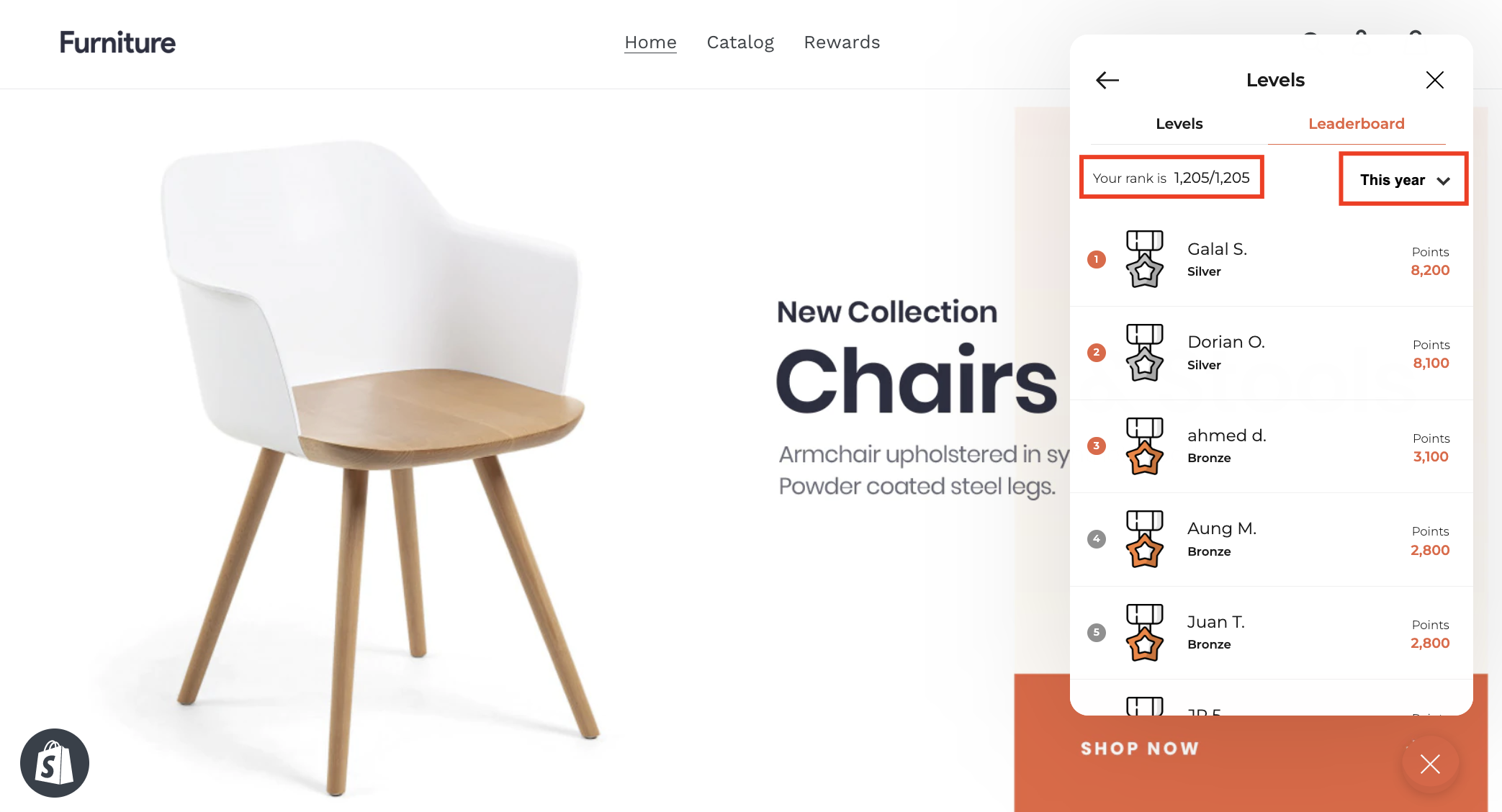 They can also filter the rank list according to:
* Today
* Yesterday
* This week
* Last week
* This month
* Last month
* This year
* All-time
***
## How to Show or Hide the Gameball Leaderboard from the Widget
On the **Gameball Admin Dashboard**, go to **Widget > General: Visibility**.
Under the **Leaderboard Tab**, check **Show** or **Hide** based on your objective.
They can also filter the rank list according to:
* Today
* Yesterday
* This week
* Last week
* This month
* Last month
* This year
* All-time
***
## How to Show or Hide the Gameball Leaderboard from the Widget
On the **Gameball Admin Dashboard**, go to **Widget > General: Visibility**.
Under the **Leaderboard Tab**, check **Show** or **Hide** based on your objective.
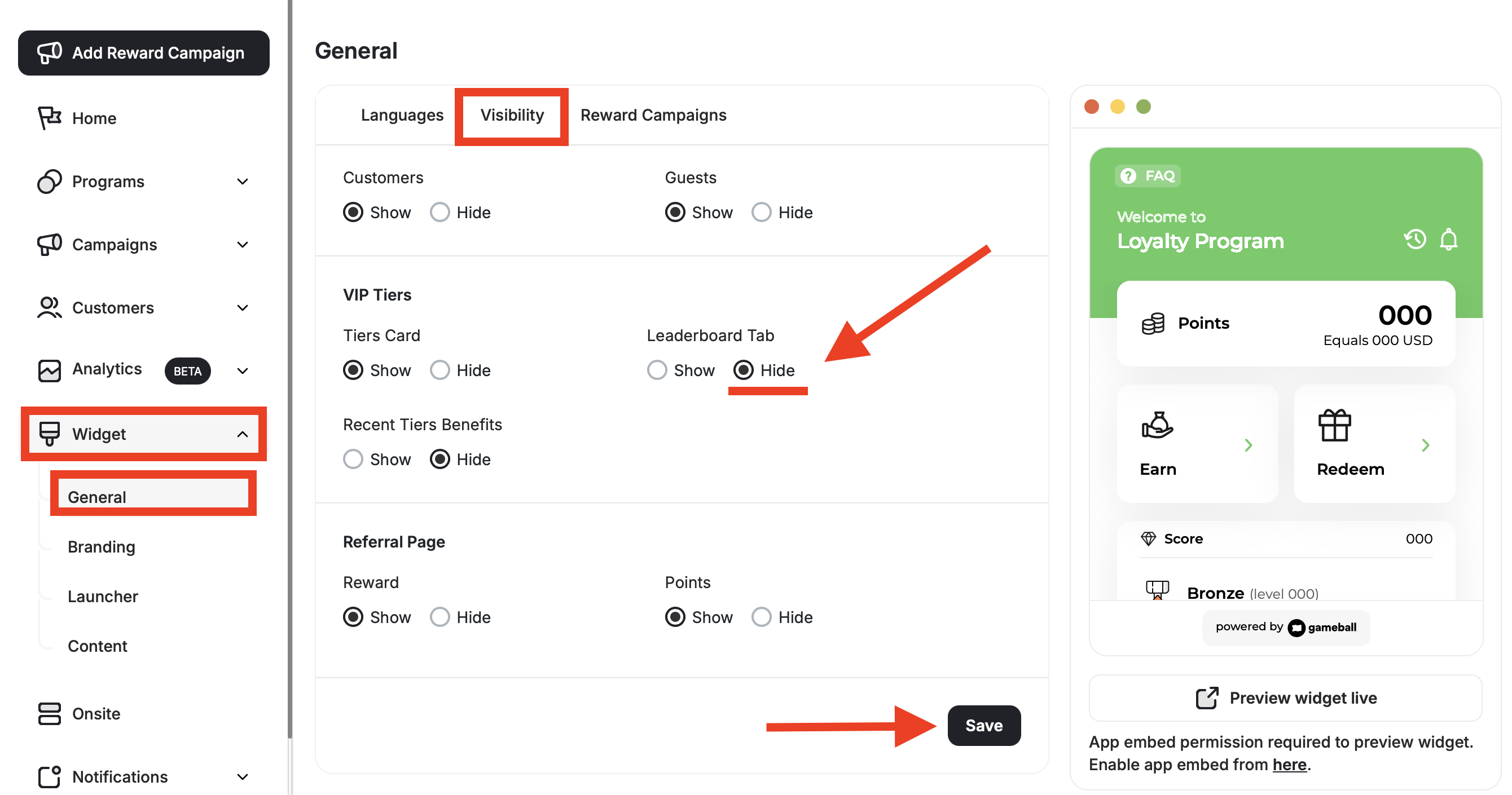 Click **Save**, then refresh your website. You will find that the leaderboard tab has been completely removed (or restored).
***
## Related Articles
Control the shape, position, icon, and visibility of your loyalty launcher button.
Control which tabs appear in your widget and in what order they are displayed.
Click **Save**, then refresh your website. You will find that the leaderboard tab has been completely removed (or restored).
***
## Related Articles
Control the shape, position, icon, and visibility of your loyalty launcher button.
Control which tabs appear in your widget and in what order they are displayed.