> ## Documentation Index
> Fetch the complete documentation index at: https://docs.gameball.co/llms.txt
> Use this file to discover all available pages before exploring further.
# How Do I Control Gameball Widget Visibility on My Platform?
> Learn about the three different stages that help you control the presence of Gameball widget on your platform.
There are different ways to control your customer's interaction with the widget, starting from entirely eliminating the widget to only hiding the button.
Here are the three different stages through which you can control the Gameball widget:
***
## Stage 1: Publish and Unpublish Gameball Loyalty Experience
By toggling the switch at the top right of any page on the **Gameball Admin Dashboard**, you will be able to activate or deactivate the Gameball loyalty experience.
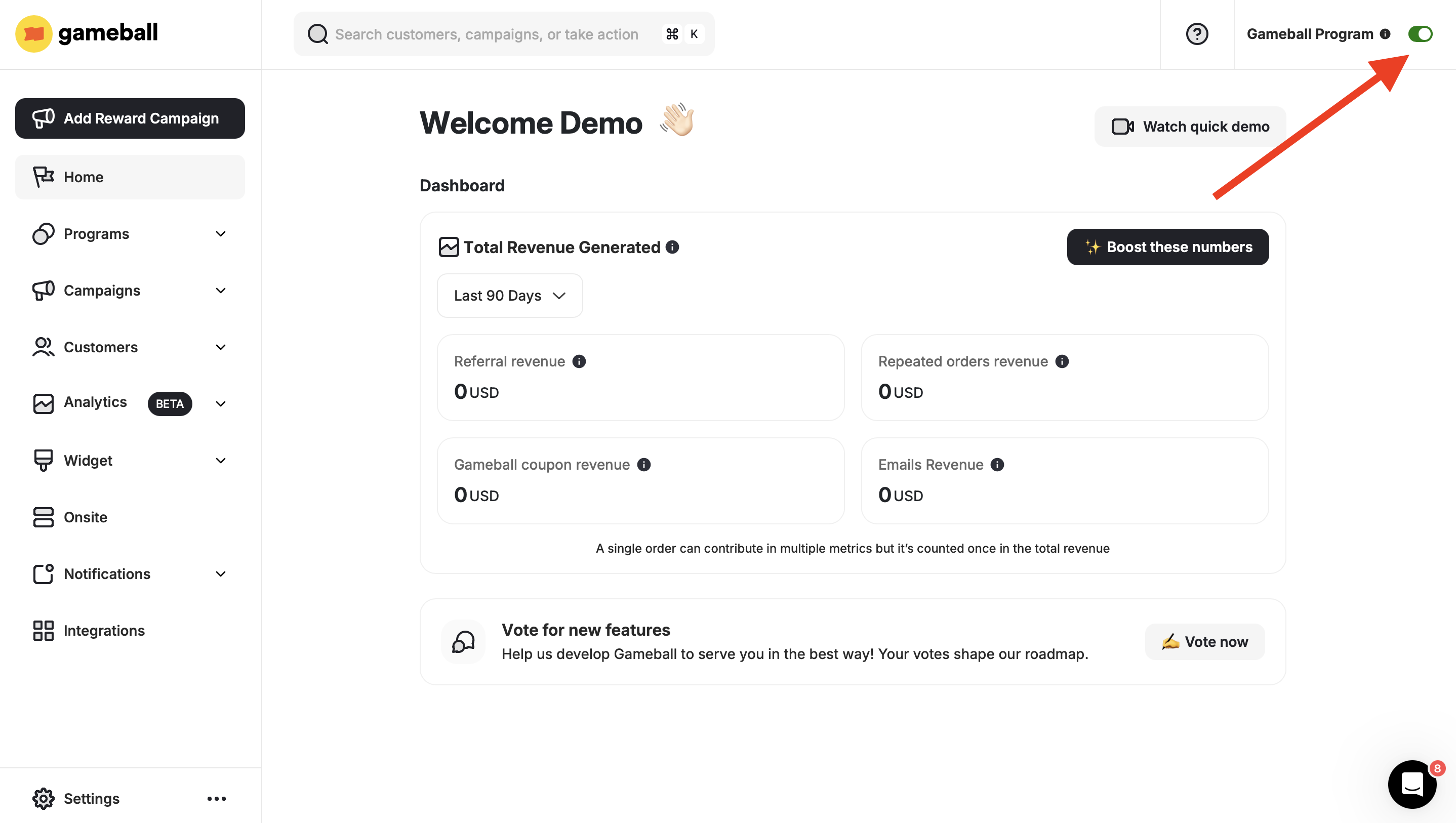 Once toggling to unpublish, your customers will no longer find the Gameball widget on your platform. Any actions like purchases done by your customers during the time Gameball is inactive will still reflect on Gameball; however, your customers will not be rewarded for their activity.
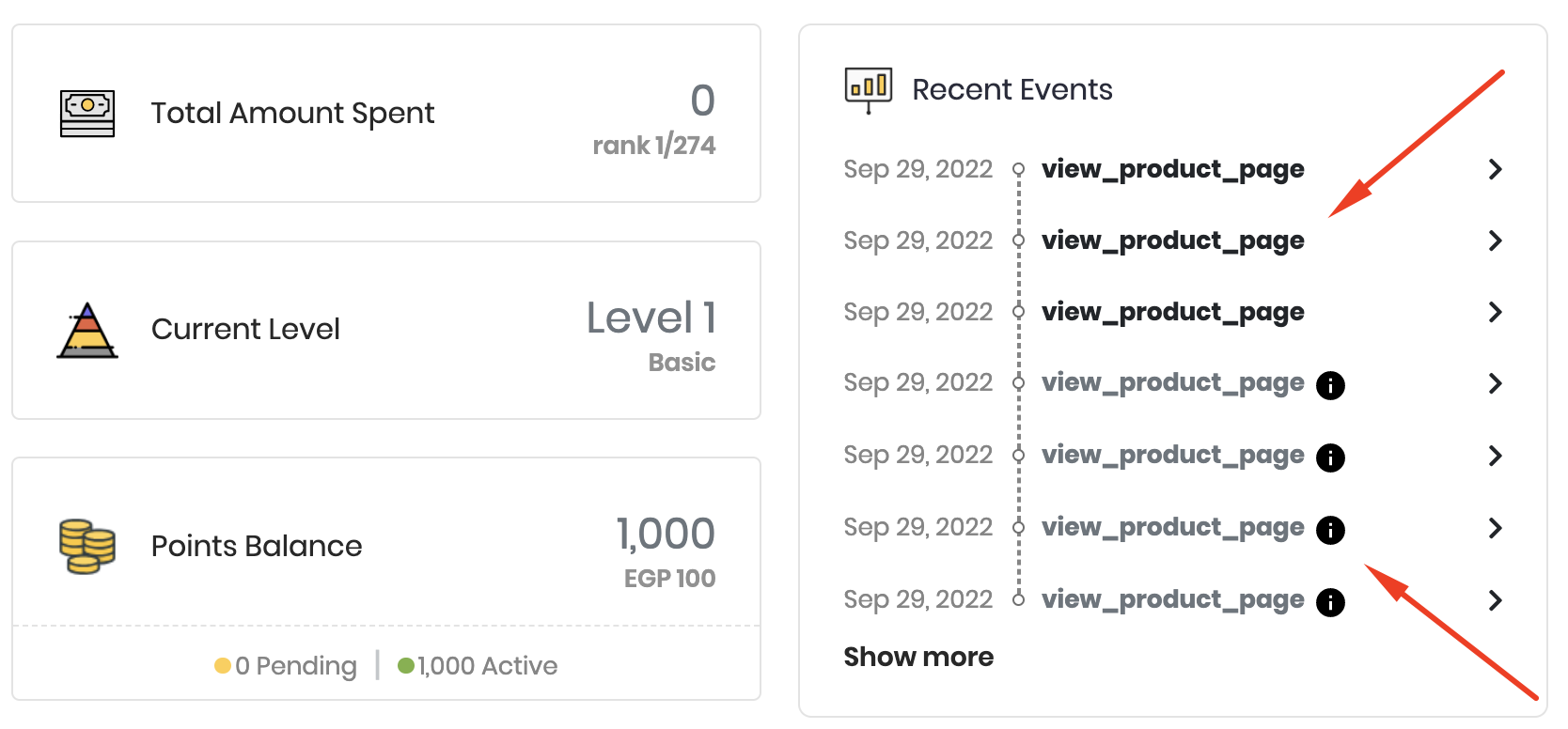 When the Gameball program is switched to unpublished, any customer event will still reflect on their profile on the dashboard; however, they will appear dimmed as these actions will have no consequence.
Once you switch it back on, the widget will appear again on your platform, and your customers will start getting rewarded again.
### What happens when you deactivate the program by switching off the toggle?
When you disable Gameball:
* Your loyalty program will **not** be visible to your customers.
* Your customers will **not** earn rewards.
* Your customers will **not** receive any messages, notifications, or emails.
* Your customers' actions will be added to Gameball.
* Your customers will be able to use coupons they had already claimed before disabling the program.
- Gameball will still be receiving any actions when the toggle is deactivated. **However**, no changes will take place as a result of these player actions.
- Publishing Gameball means that your customers will be able to see the Gameball widget (if the widget is not hidden), and they will start getting rewards based on the designed loyalty experience.
***
## Stage 2: Hiding and Unhiding Gameball Widget
You can completely hide Gameball's widget without deactivating the loyalty program, which means your customers will still be rewarded for their interaction; however, they will not be able to track their progress or find anything related to the configured loyalty program.
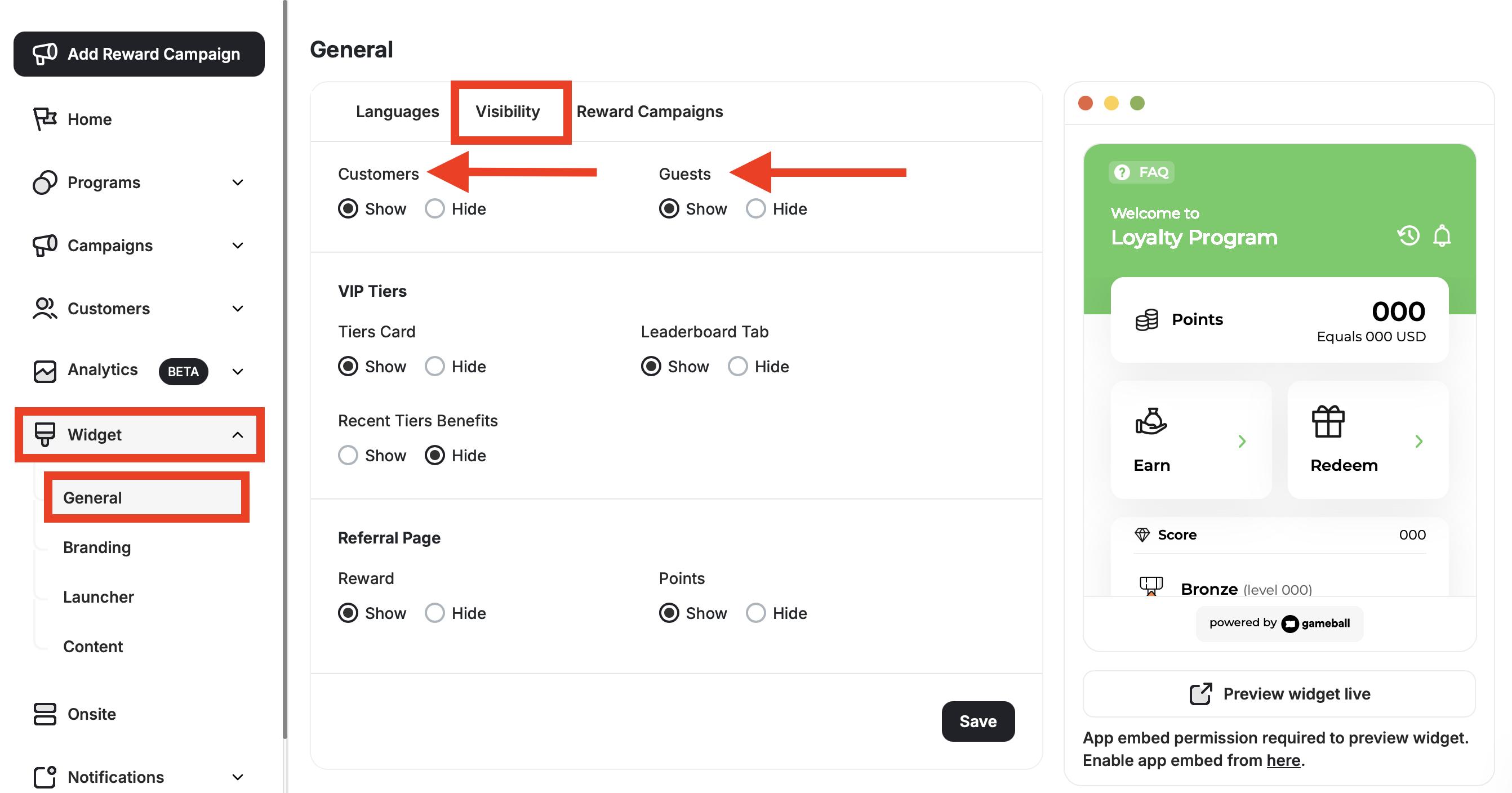
In the **Gameball Admin Dashboard**, click **Widget > General: Visibility**.
Choose whether to display or hide the Gameball widget by checking **Show** or **Hide** under **Customer** and **Guests**.
Click **Save** to apply your changes.
When the Gameball program is switched to unpublished, any customer event will still reflect on their profile on the dashboard; however, they will appear dimmed as these actions will have no consequence.
Once you switch it back on, the widget will appear again on your platform, and your customers will start getting rewarded again.
### What happens when you deactivate the program by switching off the toggle?
When you disable Gameball:
* Your loyalty program will **not** be visible to your customers.
* Your customers will **not** earn rewards.
* Your customers will **not** receive any messages, notifications, or emails.
* Your customers' actions will be added to Gameball.
* Your customers will be able to use coupons they had already claimed before disabling the program.
- Gameball will still be receiving any actions when the toggle is deactivated. **However**, no changes will take place as a result of these player actions.
- Publishing Gameball means that your customers will be able to see the Gameball widget (if the widget is not hidden), and they will start getting rewards based on the designed loyalty experience.
***
## Stage 2: Hiding and Unhiding Gameball Widget
You can completely hide Gameball's widget without deactivating the loyalty program, which means your customers will still be rewarded for their interaction; however, they will not be able to track their progress or find anything related to the configured loyalty program.
In the **Gameball Admin Dashboard**, click **Widget > General: Visibility**.
Choose whether to display or hide the Gameball widget by checking **Show** or **Hide** under **Customer** and **Guests**.
Click **Save** to apply your changes.
 ***
## Stage 3: Hiding and Unhiding Gameball Widget Button
Lastly, you can choose between hiding or displaying the Gameball launch button on your platform. If there is no space for the Gameball launch button on your platform, or none of Gameball's available buttons match your brand theme, you can simply hide it and let other inline buttons or any other interactive elements open the Gameball widget. Read more on [Enabling Opening Gameball Widget by Using Deeplinks](/product-documentation/customer-widget/player-profile-tabs/enable-opening-gameball-widget-through-inline-links-using-deeplinks).
In the **Gameball Admin Dashboard**, click **Widget > Launcher: Shape**.
Under **Launcher**, choose the **Hide** option to hide the Gameball launch button.
Click **Save** to apply your changes.
***
## Stage 3: Hiding and Unhiding Gameball Widget Button
Lastly, you can choose between hiding or displaying the Gameball launch button on your platform. If there is no space for the Gameball launch button on your platform, or none of Gameball's available buttons match your brand theme, you can simply hide it and let other inline buttons or any other interactive elements open the Gameball widget. Read more on [Enabling Opening Gameball Widget by Using Deeplinks](/product-documentation/customer-widget/player-profile-tabs/enable-opening-gameball-widget-through-inline-links-using-deeplinks).
In the **Gameball Admin Dashboard**, click **Widget > Launcher: Shape**.
Under **Launcher**, choose the **Hide** option to hide the Gameball launch button.
Click **Save** to apply your changes.
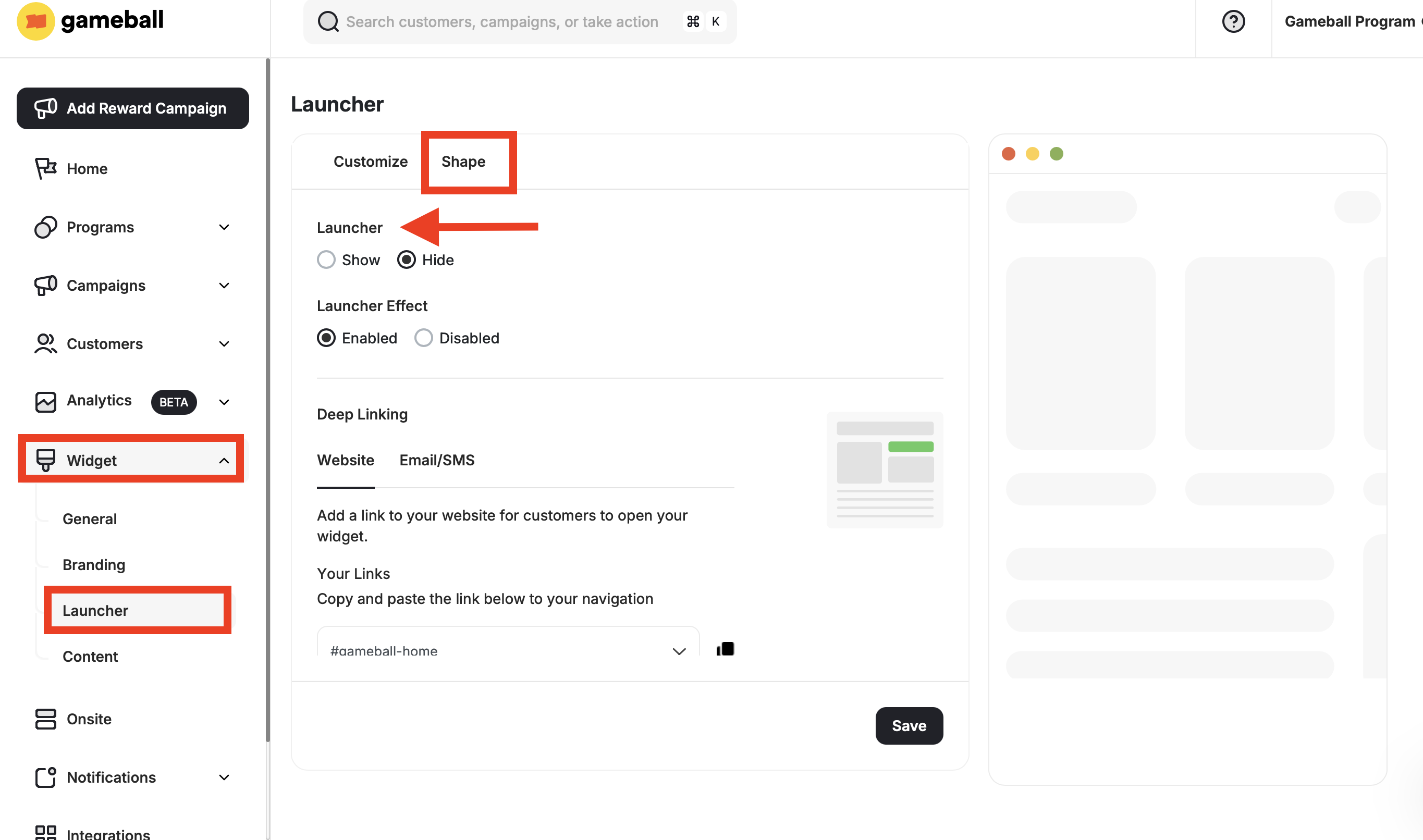 Now, the Gameball button will no longer appear on your platform, so make sure to use our [Deep Links](/product-documentation/customer-widget/player-profile-tabs/enable-opening-gameball-widget-through-inline-links-using-deeplinks) if you still want your customers to access the widget from a different place on your platform.
***
## Related Articles
Adjust colors, fonts, and identity to align the widget with your platform's look and feel.
Control the shape, position, icon, and visibility of your loyalty launcher button.
Now, the Gameball button will no longer appear on your platform, so make sure to use our [Deep Links](/product-documentation/customer-widget/player-profile-tabs/enable-opening-gameball-widget-through-inline-links-using-deeplinks) if you still want your customers to access the widget from a different place on your platform.
***
## Related Articles
Adjust colors, fonts, and identity to align the widget with your platform's look and feel.
Control the shape, position, icon, and visibility of your loyalty launcher button.