> ## Documentation Index
> Fetch the complete documentation index at: https://docs.gameball.co/llms.txt
> Use this file to discover all available pages before exploring further.
# How Do I Customize My Gameball Customer Widget to Match My Brand?
> Learn how to customize Gameball customer profile widget style and colors to match your website/app branding.
## Plan Availability
| Feature | Plan |
| --------------------------------------- | --------- |
| Basic customization | All plans |
| Theme, Font, Points/Score names & icons | Pro, Guru |
| Guest widget image | Pro, Guru |
| Feature | Plan |
| --------------------------------------- | ------------------ |
| Basic customization | Growth, Enterprise |
| Theme, Font, Points/Score names & icons | Growth, Enterprise |
| Guest widget image | Growth, Enterprise |
When your loyalty widget feels out of place on your platform, customers may perceive it as intrusive or untrustworthy. That's why customizing the widget to align with your brand's identity is essential for increasing engagement and trust. Here are detailed steps for how to customize your entire widget to match your brand's theme.
***
## Colors
To brand your Gameball customer widget to match your website or app, go to the **Gameball Admin Dashboard** and navigate to **Widget > Branding: Colors**.
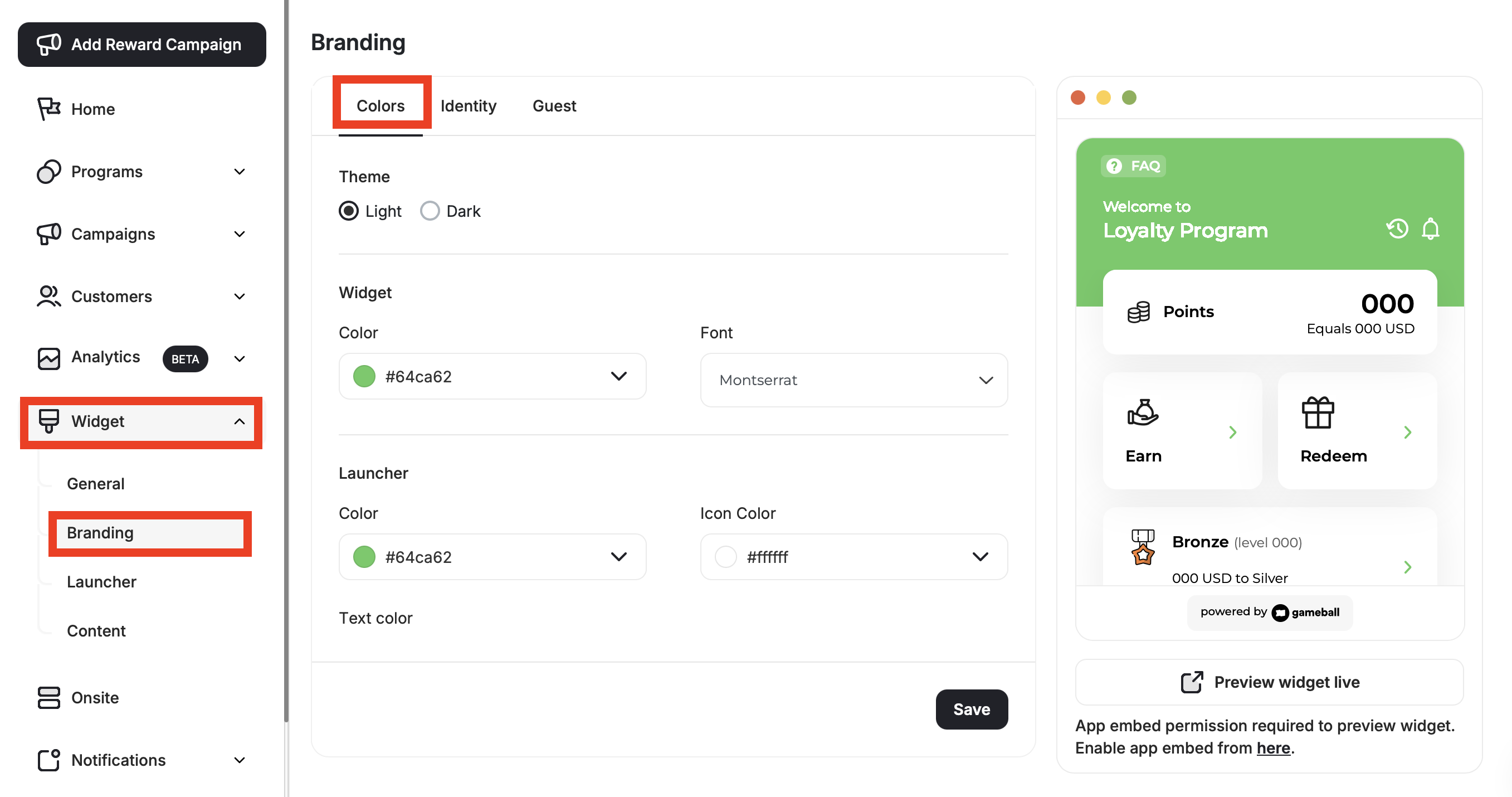 **Available on:** Shopify & Salla Pro/Guru | Non-platform Growth/Enterprise
Choose between two modes:
* **Light:** Light mode is the default mode unless set otherwise.
* **Dark:** The main layout color will change to black.
**Available on:** Shopify & Salla Pro/Guru | Non-platform Growth/Enterprise
Choose between two modes:
* **Light:** Light mode is the default mode unless set otherwise.
* **Dark:** The main layout color will change to black.
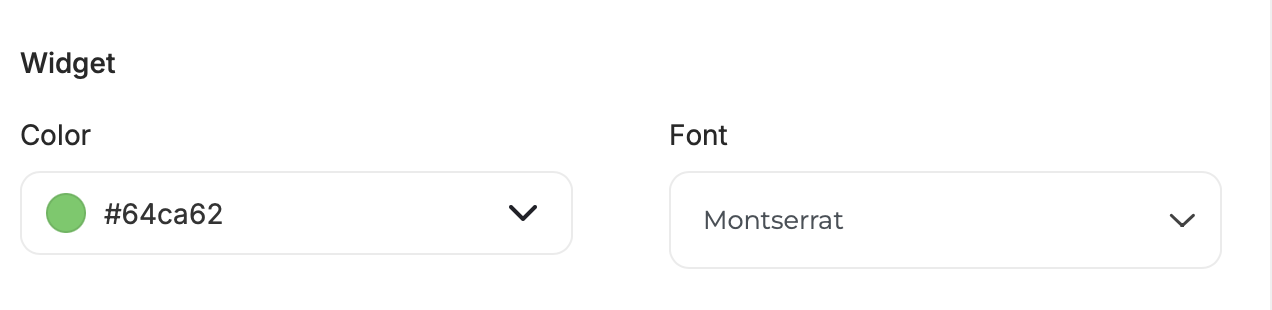
 This is the main color that will be applied to all tabs of the profile. You can easily choose the brand colors you use on your platform.
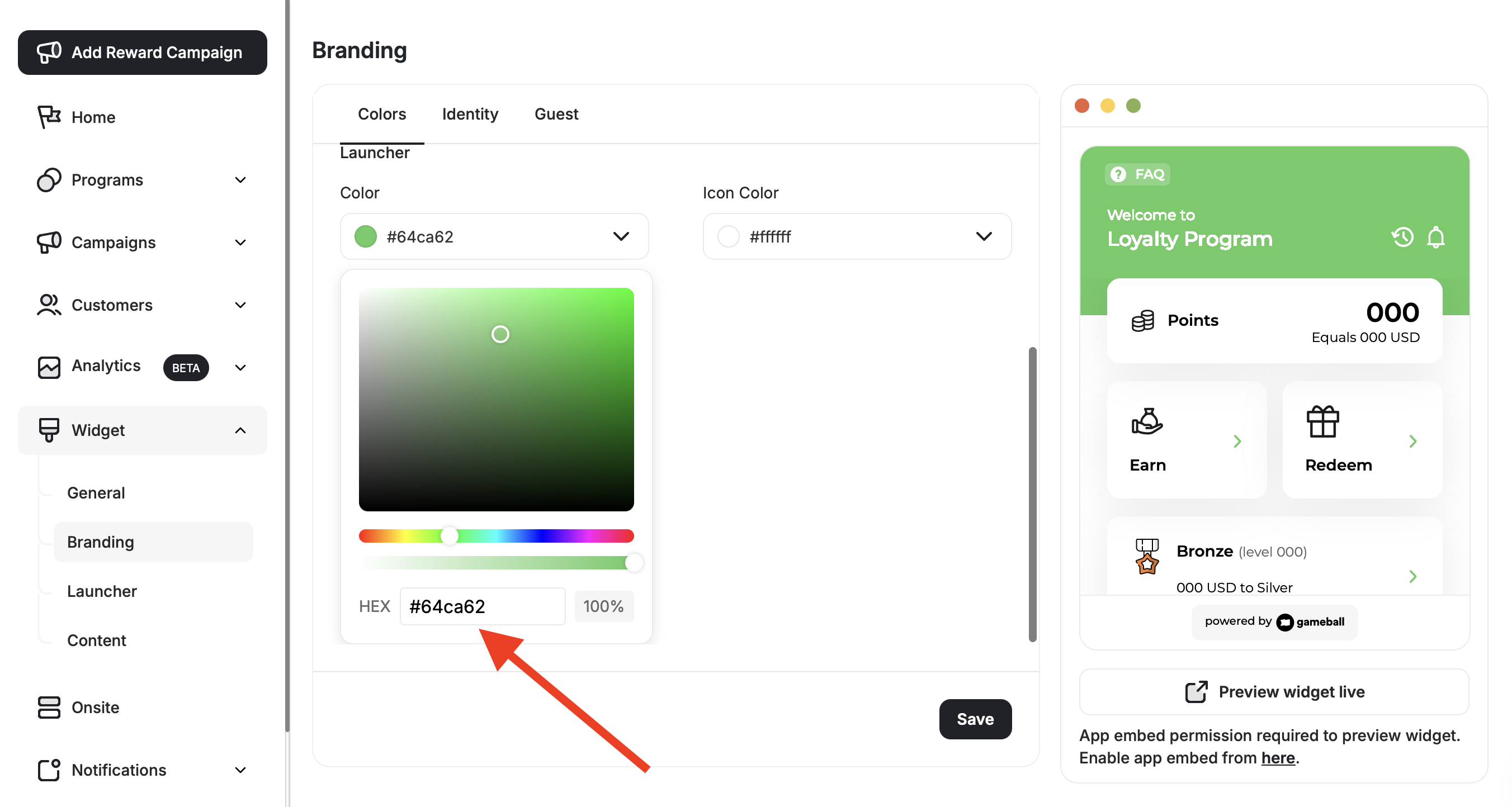
 Use the color palette to choose a color that matches your platform theme either by hovering over the palette with your cursor and then clicking on the closest color to your platform. Or for more accurate branding, type down your brand's color code, and click **Save**.
 **Available on:** Shopify & Salla Pro/Guru | Non-platform Growth/Enterprise
You can choose one of the following 7 fonts:
* Montserrat
* EB Garamont
* Roboto Slab
* Sansita Swashed
* Mali
* Work Sans
* Rubik
Available for **web only**.
**Available on:** Shopify & Salla Pro/Guru | Non-platform Growth/Enterprise
You can choose one of the following 7 fonts:
* Montserrat
* EB Garamont
* Roboto Slab
* Sansita Swashed
* Mali
* Work Sans
* Rubik
Available for **web only**.
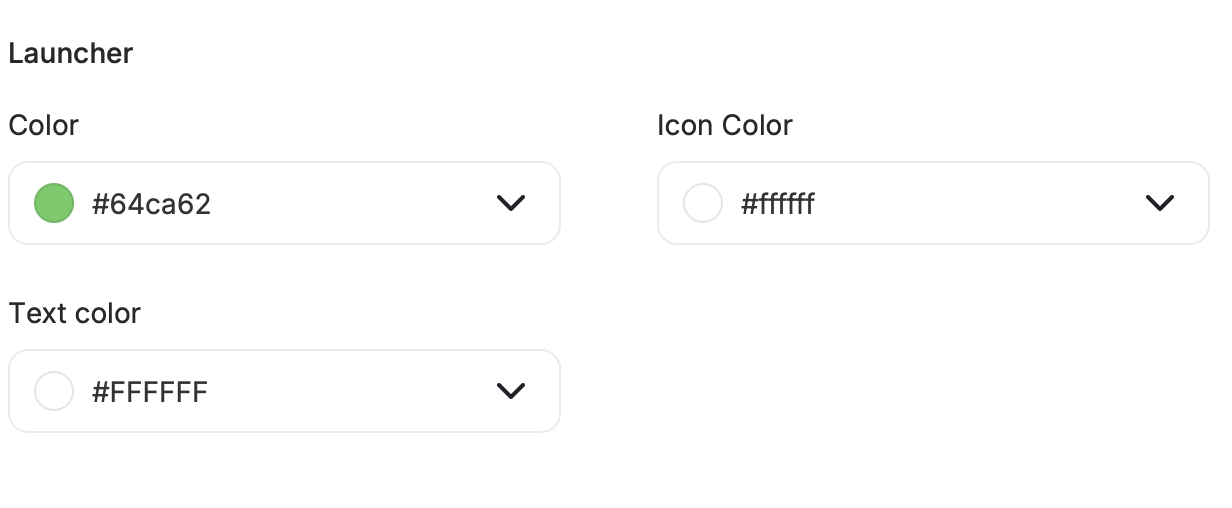 For web applications, you will have a launcher button that will be placed on your website to load/open the Gameball customer widget. You can control the colors of the button:
* **Launcher Main Color**
* **Icon Color**
* **Text Color**
***
## Identity
To give your loyalty assets unique names and icons, switch to the **Identity Tab**.
For web applications, you will have a launcher button that will be placed on your website to load/open the Gameball customer widget. You can control the colors of the button:
* **Launcher Main Color**
* **Icon Color**
* **Text Color**
***
## Identity
To give your loyalty assets unique names and icons, switch to the **Identity Tab**.
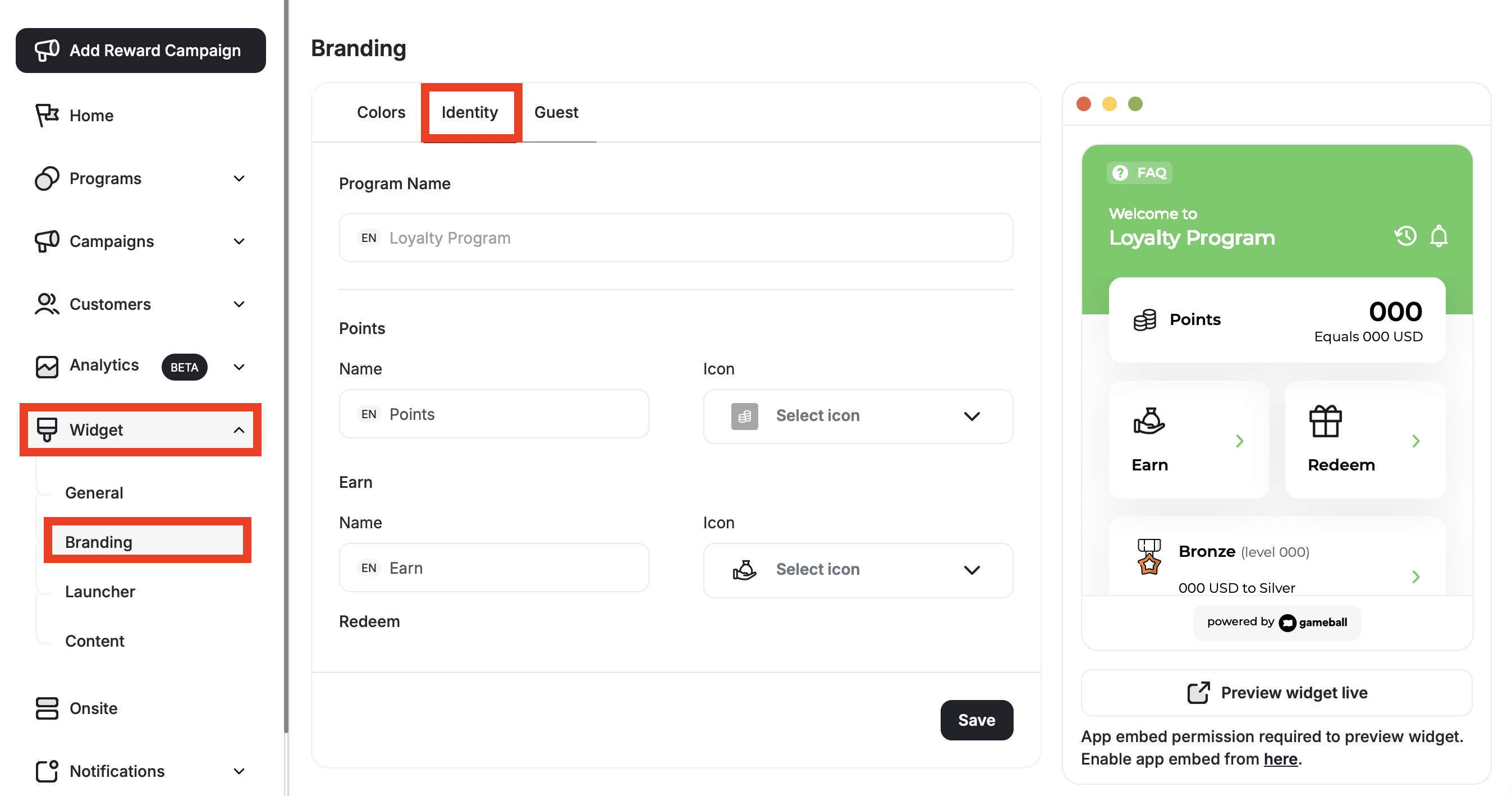 Give your loyalty program a name that goes well with your platform's identity. For example, if your platform sells flowers, then a good name for your rewards program could be "Lily Rewards."
 * **Program Name Examples:** Plus Rewards, Adventure Rewards, Fun Portal, etc.
**Available on:** Shopify & Salla Pro/Guru | Non-platform Growth/Enterprise
* **Program Name Examples:** Plus Rewards, Adventure Rewards, Fun Portal, etc.
**Available on:** Shopify & Salla Pro/Guru | Non-platform Growth/Enterprise
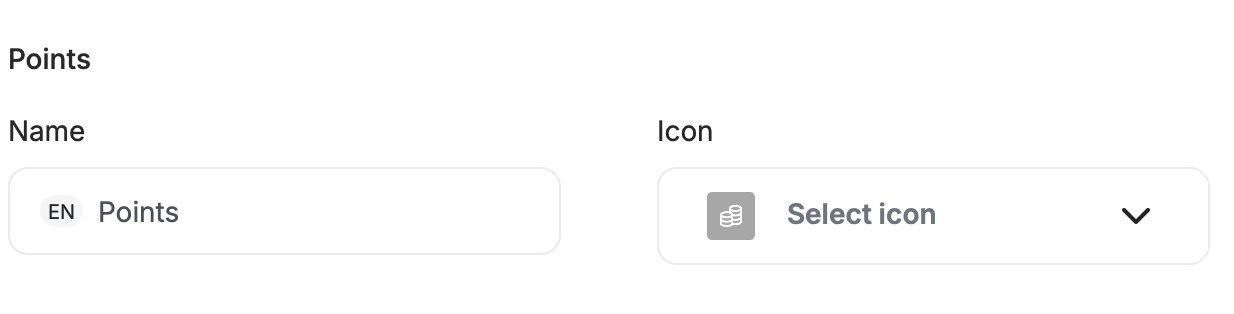 In case you are using score as the [Tiering-up method](/product-documentation/admin-settings/tiering-up-methods), you can also give the score a different name, just as you can do that to the points.
* **Points Name Examples:** Coins, Tokens, Credit, etc.
* **Score Name Examples:** Freebies, Rank, Gems, etc.
* **Earn Name Examples:** Win, Acquire, Save, etc.
* **Redeem Name Examples:** Spend, Exchange, etc.
**Available on:** Shopify & Salla Pro/Guru | Non-platform Growth/Enterprise
Choose icons from Gameball's icon library for:
* **Points Icon**
* **Score Icon**
In case you are using score as the [Tiering-up method](/product-documentation/admin-settings/tiering-up-methods), you can also give the score a different name, just as you can do that to the points.
* **Points Name Examples:** Coins, Tokens, Credit, etc.
* **Score Name Examples:** Freebies, Rank, Gems, etc.
* **Earn Name Examples:** Win, Acquire, Save, etc.
* **Redeem Name Examples:** Spend, Exchange, etc.
**Available on:** Shopify & Salla Pro/Guru | Non-platform Growth/Enterprise
Choose icons from Gameball's icon library for:
* **Points Icon**
* **Score Icon**
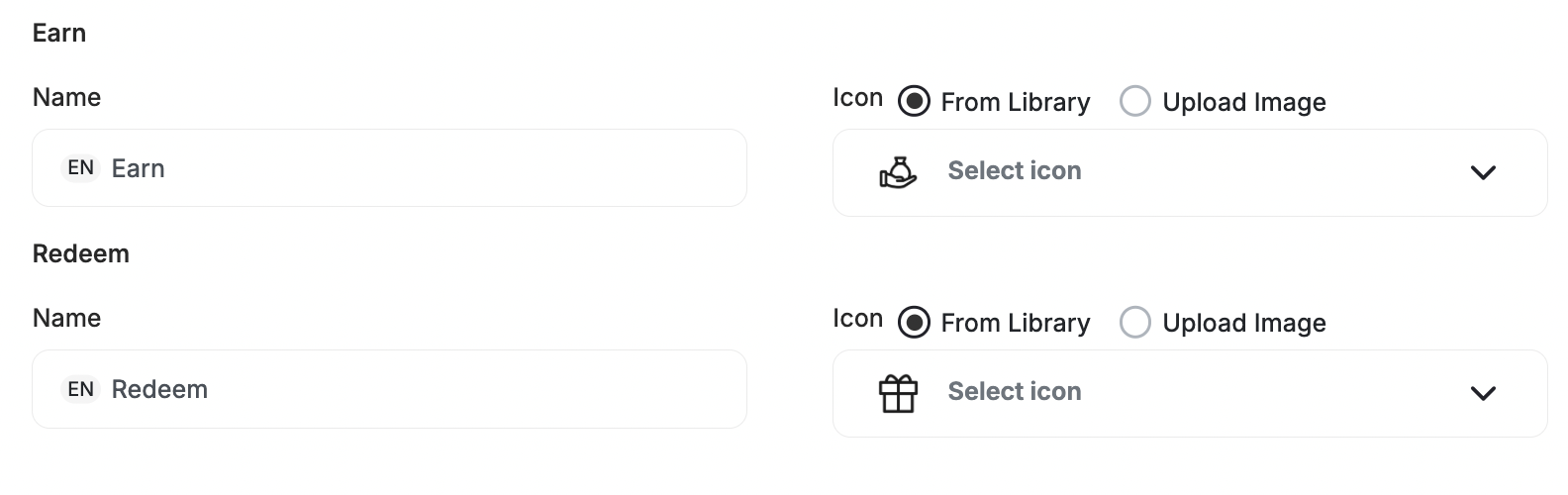
 Choose icons from Gameball's icon library or **upload your own icons** for:
* **Earn Icon**
* **Redeem Icon**
Choose icons from Gameball's icon library or **upload your own icons** for:
* **Earn Icon**
* **Redeem Icon**
 ***
## Guest Widget
**Available on:** Shopify & Salla Pro/Guru | Non-platform Growth/Enterprise
### Uploading an Image as a Widget Icon for Guests
One of the things that directly affect the branding is the main widget icon that shows on the guest landing page of the widget. You can choose an icon that represents your idea of loyalty without drifting from the platform's main theme.
To change the main guest widget icon, go to **Widget > Branding: Guests** in the **Gameball Admin Dashboard**.
***
## Guest Widget
**Available on:** Shopify & Salla Pro/Guru | Non-platform Growth/Enterprise
### Uploading an Image as a Widget Icon for Guests
One of the things that directly affect the branding is the main widget icon that shows on the guest landing page of the widget. You can choose an icon that represents your idea of loyalty without drifting from the platform's main theme.
To change the main guest widget icon, go to **Widget > Branding: Guests** in the **Gameball Admin Dashboard**.
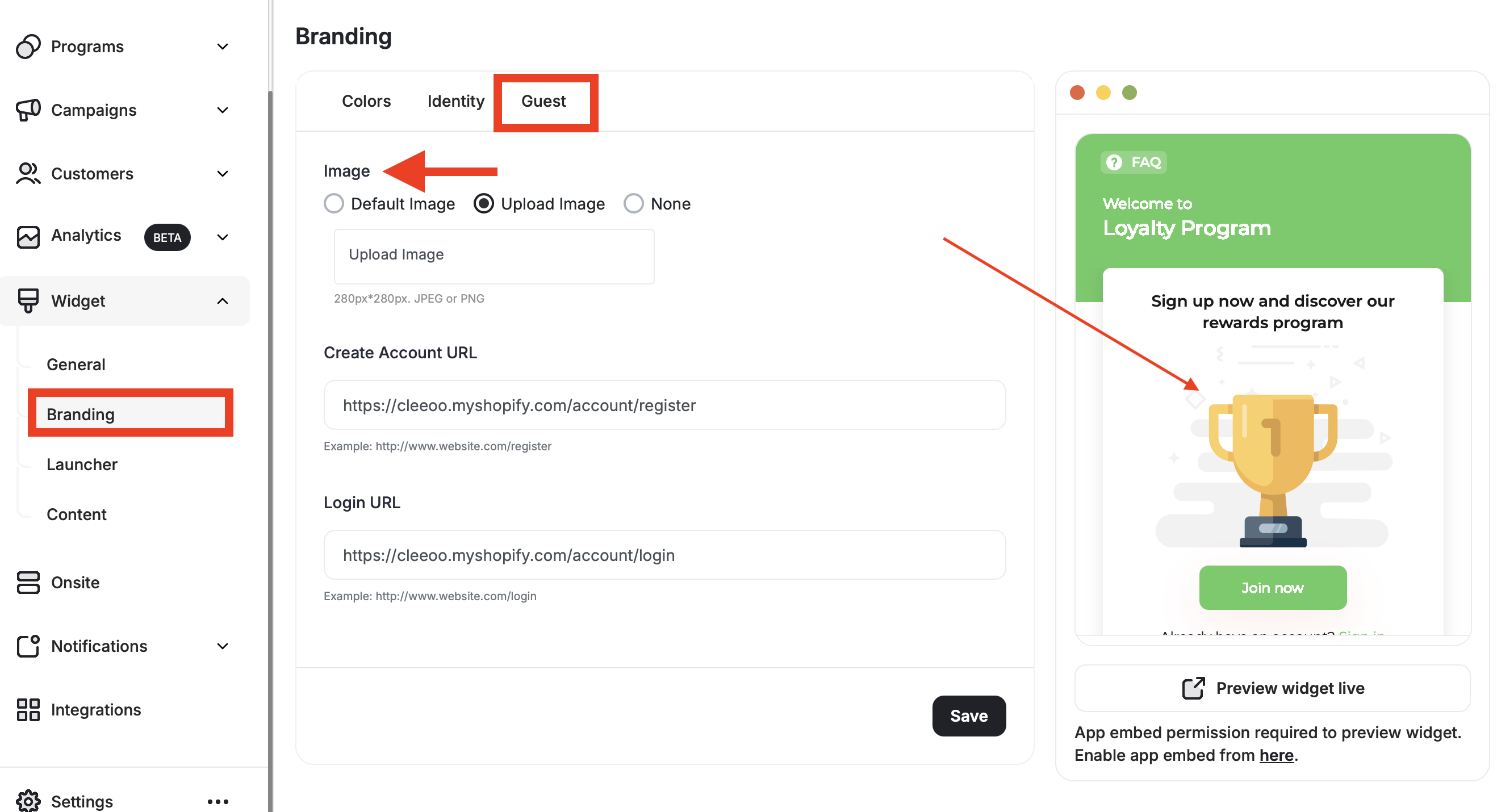 Under **Image**, choose between the following:
* **Default Image:** Leave Gameball's default icon as it is.
* **Upload Image:** Upload your own image from your own library to match your theme.
* **None:** Leave the guest widget without an icon.
When choosing **"Upload Image,"** the image size and type must be: 280px x 280px. JPEG or PNG.
### Create Account URL
Paste the website link where customers can create a new account.
### Login URL
Paste the website link where customers can log in.
Lastly, click **Save**.
***
## What's Next?
Control the shape, position, icon, and visibility of your loyalty launcher button.
Control which tabs appear in your widget and in what order they are displayed.
Configure the guest experience, including images, sign-up URLs, and login redirects.
Set a default language and add additional languages to serve a multilingual audience.
Under **Image**, choose between the following:
* **Default Image:** Leave Gameball's default icon as it is.
* **Upload Image:** Upload your own image from your own library to match your theme.
* **None:** Leave the guest widget without an icon.
When choosing **"Upload Image,"** the image size and type must be: 280px x 280px. JPEG or PNG.
### Create Account URL
Paste the website link where customers can create a new account.
### Login URL
Paste the website link where customers can log in.
Lastly, click **Save**.
***
## What's Next?
Control the shape, position, icon, and visibility of your loyalty launcher button.
Control which tabs appear in your widget and in what order they are displayed.
Configure the guest experience, including images, sign-up URLs, and login redirects.
Set a default language and add additional languages to serve a multilingual audience.