> ## Documentation Index
> Fetch the complete documentation index at: https://docs.gameball.co/llms.txt
> Use this file to discover all available pages before exploring further.
# How Do I Customize My Loyalty Launcher to Fit My Platform's Interface?
> Learn how to control and change your widget button so that it matches your brands's theme and feel.
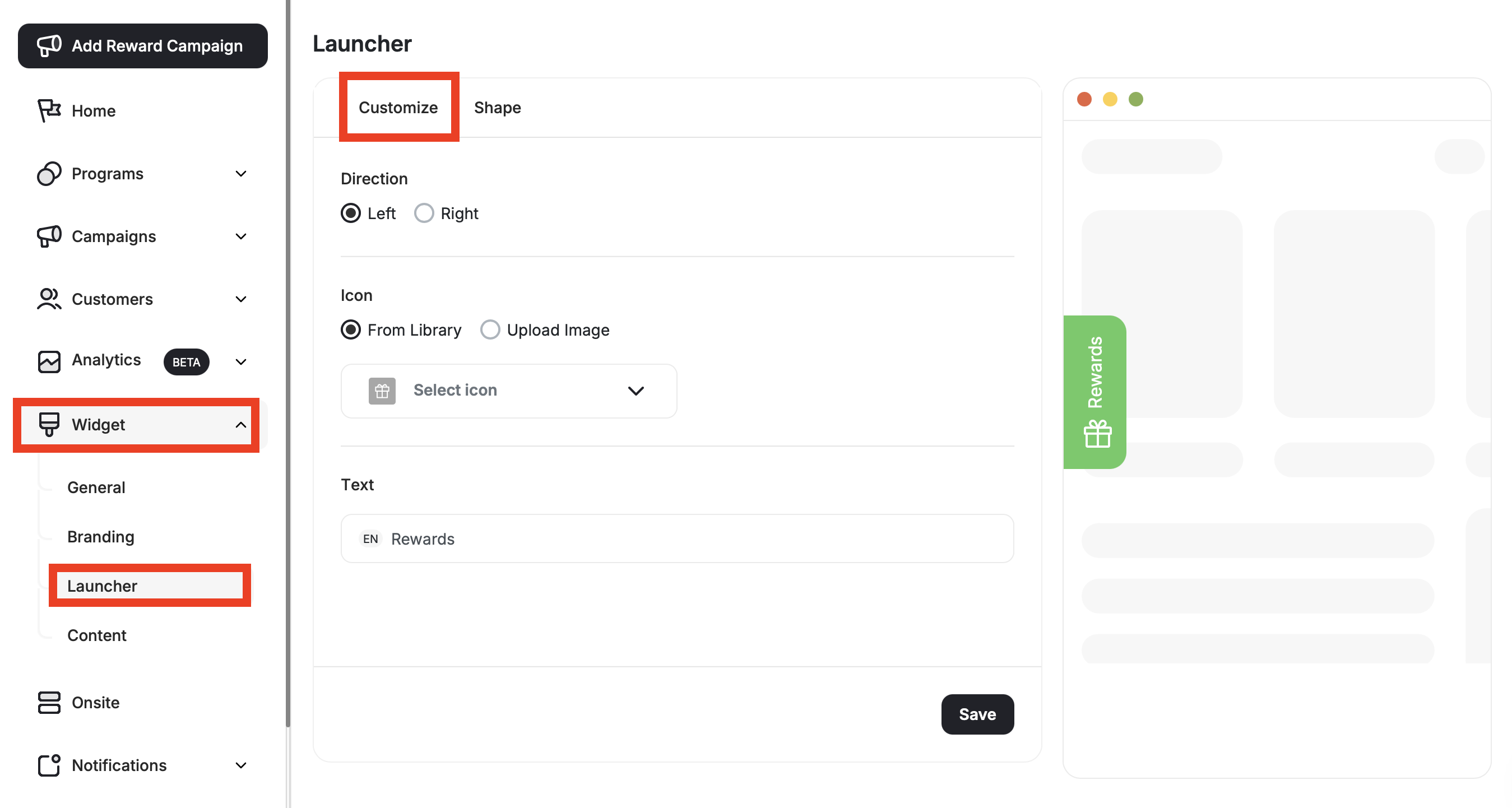
To customize your widget launcher/button, go to **Widget > Launcher: Customize** in the **Gameball Admin Dashboard**.
 ***
## Direction
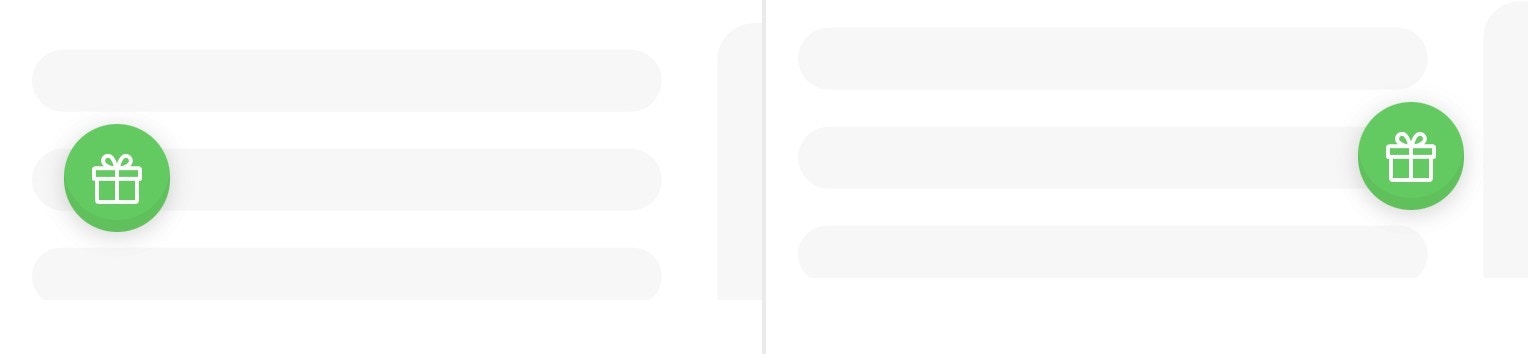
Start by controlling which area of the page the widget launcher button should be displayed on:
* **Left**
* **Right**
***
## Direction
Start by controlling which area of the page the widget launcher button should be displayed on:
* **Left**
* **Right**
 ***
## Launcher Customization Options
**Uploading an Image to Edit the Launcher Icon is available on:**
| Platform | Plan |
| -------------------- | ------------------ |
| Shopify | Pro, Guru |
| Salla | Pro, Guru |
| Non-platform clients | Growth, Enterprise |
***
## Launcher Customization Options
**Uploading an Image to Edit the Launcher Icon is available on:**
| Platform | Plan |
| -------------------- | ------------------ |
| Shopify | Pro, Guru |
| Salla | Pro, Guru |
| Non-platform clients | Growth, Enterprise |
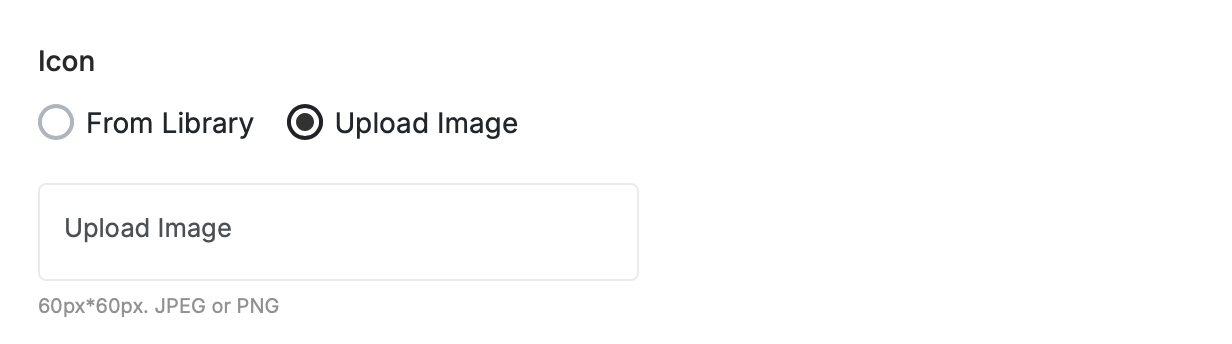 Choose between the following:
* **From Library:** Choose from Gameball's icons library.
* **Upload Image:** Upload your own image from your own library to match your theme.
When choosing **"Upload Image,"** the image size and type must be: 60px x 60px. JPEG or PNG.
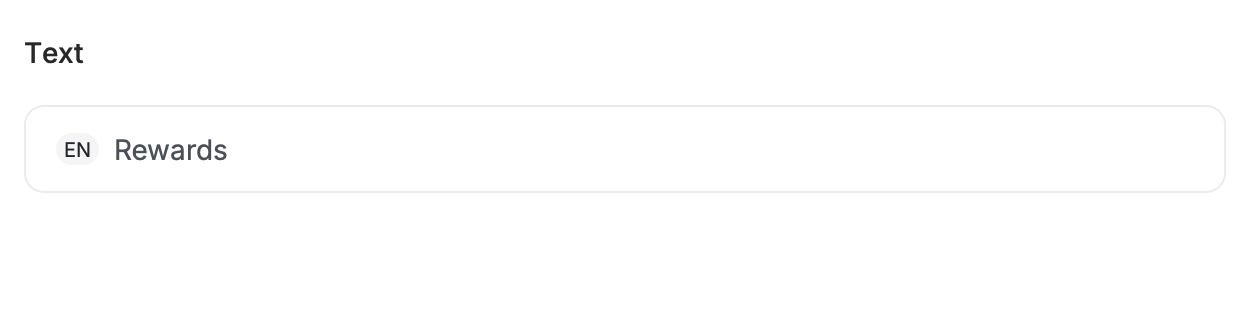
Type down a small text that would appear on the widget button. It could be something simple such as: "Rewards"
Choose between the following:
* **From Library:** Choose from Gameball's icons library.
* **Upload Image:** Upload your own image from your own library to match your theme.
When choosing **"Upload Image,"** the image size and type must be: 60px x 60px. JPEG or PNG.
Type down a small text that would appear on the widget button. It could be something simple such as: "Rewards"
 To customize launcher visibility and animation, go to **Widget > Launcher: Shape** in the **Gameball Admin Dashboard**.
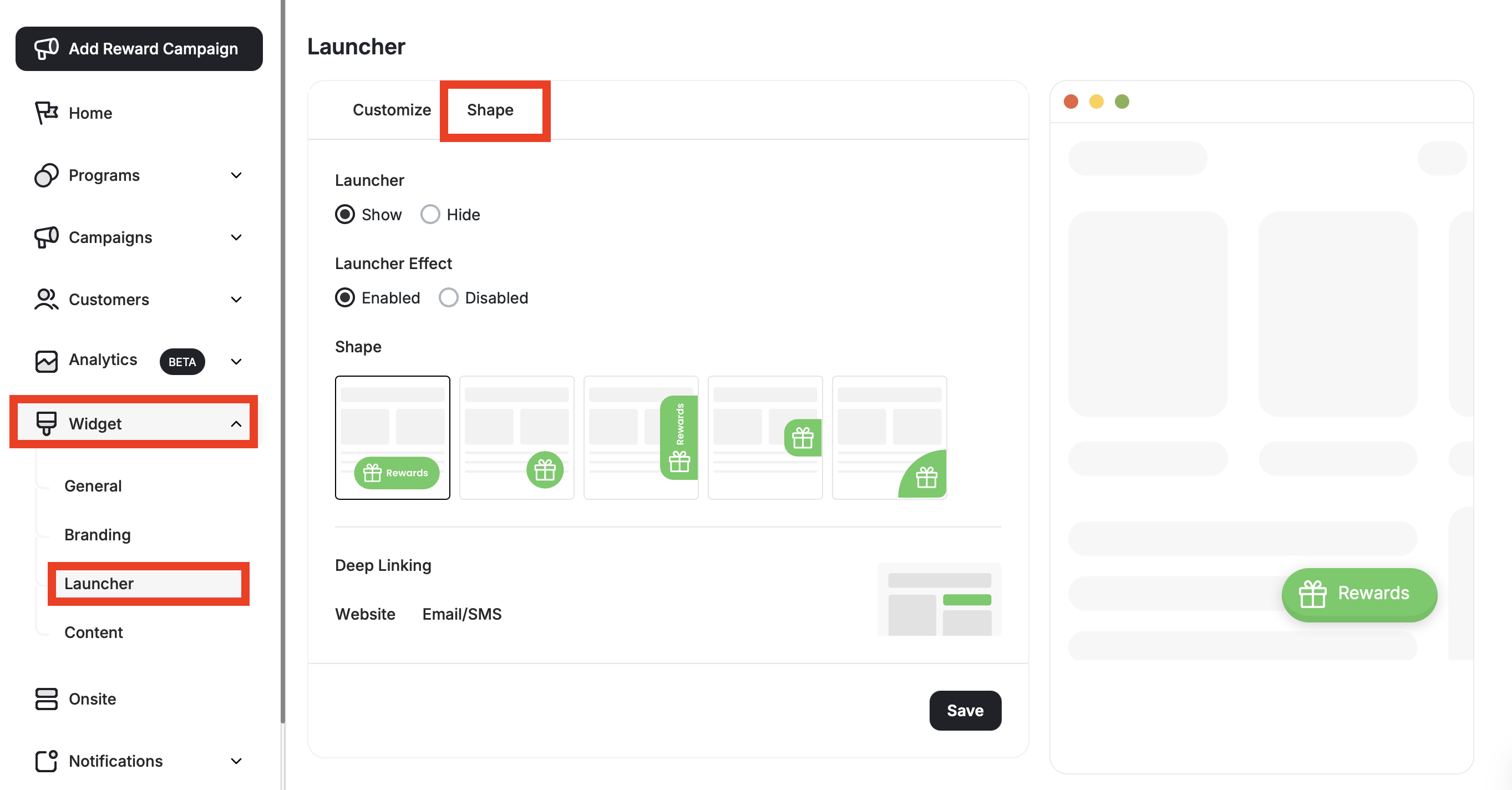 Under **Launcher**, choose between:
* **Show:** Ensures the button will be visible to all your players and visitors.
* **Hide:** Button will not be visible.
Under **Launcher Effect**, choose between:
* **Enabled:** Enables a wiggly-like effect to the widget to help customers notice it.
* **Disabled:** Disregards the animation.
Hiding the launcher does not deactivate the loyalty program.
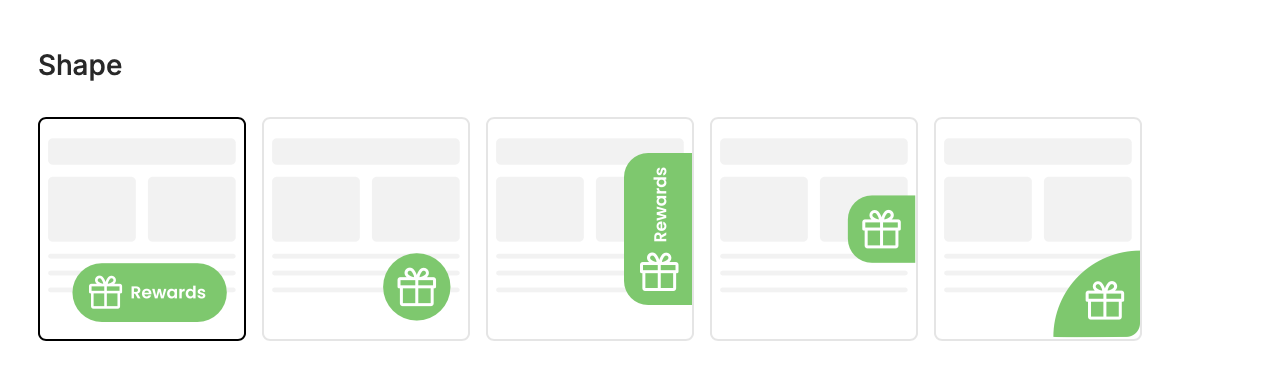
You can control the shape of the profile launcher button. Gameball offers multiple shapes to let you choose from based on your preference or what will be a better match with your website design:
* **Corner Curve**
* **Circle**
* **Center Tab**
* **Oval With Text:** In this case, you will need to add the text and its color.
* **Center Tab With Text:** In this case, you will need to add the text and its color.
Under **Launcher**, choose between:
* **Show:** Ensures the button will be visible to all your players and visitors.
* **Hide:** Button will not be visible.
Under **Launcher Effect**, choose between:
* **Enabled:** Enables a wiggly-like effect to the widget to help customers notice it.
* **Disabled:** Disregards the animation.
Hiding the launcher does not deactivate the loyalty program.
You can control the shape of the profile launcher button. Gameball offers multiple shapes to let you choose from based on your preference or what will be a better match with your website design:
* **Corner Curve**
* **Circle**
* **Center Tab**
* **Oval With Text:** In this case, you will need to add the text and its color.
* **Center Tab With Text:** In this case, you will need to add the text and its color.
 This will let your customers launch the Gameball customer widget through any button on your website. Learn more about this in [Enable Opening Gameball Widget Through Inline Links Using Deep-links](/product-documentation/customer-widget/player-profile-tabs/enable-opening-gameball-widget-through-inline-links-using-deeplinks).
***
## What's Next?
Control which tabs appear in your widget and in what order they are displayed.
Configure the guest experience, including images, sign-up URLs, and login redirects.
Set a default language and add additional languages to serve a multilingual audience.
This will let your customers launch the Gameball customer widget through any button on your website. Learn more about this in [Enable Opening Gameball Widget Through Inline Links Using Deep-links](/product-documentation/customer-widget/player-profile-tabs/enable-opening-gameball-widget-through-inline-links-using-deeplinks).
***
## What's Next?
Control which tabs appear in your widget and in what order they are displayed.
Configure the guest experience, including images, sign-up URLs, and login redirects.
Set a default language and add additional languages to serve a multilingual audience.