> ## Documentation Index
> Fetch the complete documentation index at: https://docs.gameball.co/llms.txt
> Use this file to discover all available pages before exploring further.
# How Do I Customize Tabs' Visibility and Order in Gameball Widget Settings?
> Configure the General Settings of the Gameball Widget: Control Tab Visibility and Reorder Reward Campaigns Badges
## Plan Availability
| **Platform** | **Plan** |
| ------------ | -------- |
| Shopify | All |
| Salla | All |
| Non-Platform | All |
You can customize the features displayed to your customers on the Gameball widget with ease. Follow these simple steps to access the General Settings of the Gameball Widget:
Log in to the **Gameball Admin Dashboard**.
From the side menu, navigate to **Widget**, then click on **General**.
 ***
## Widget Language
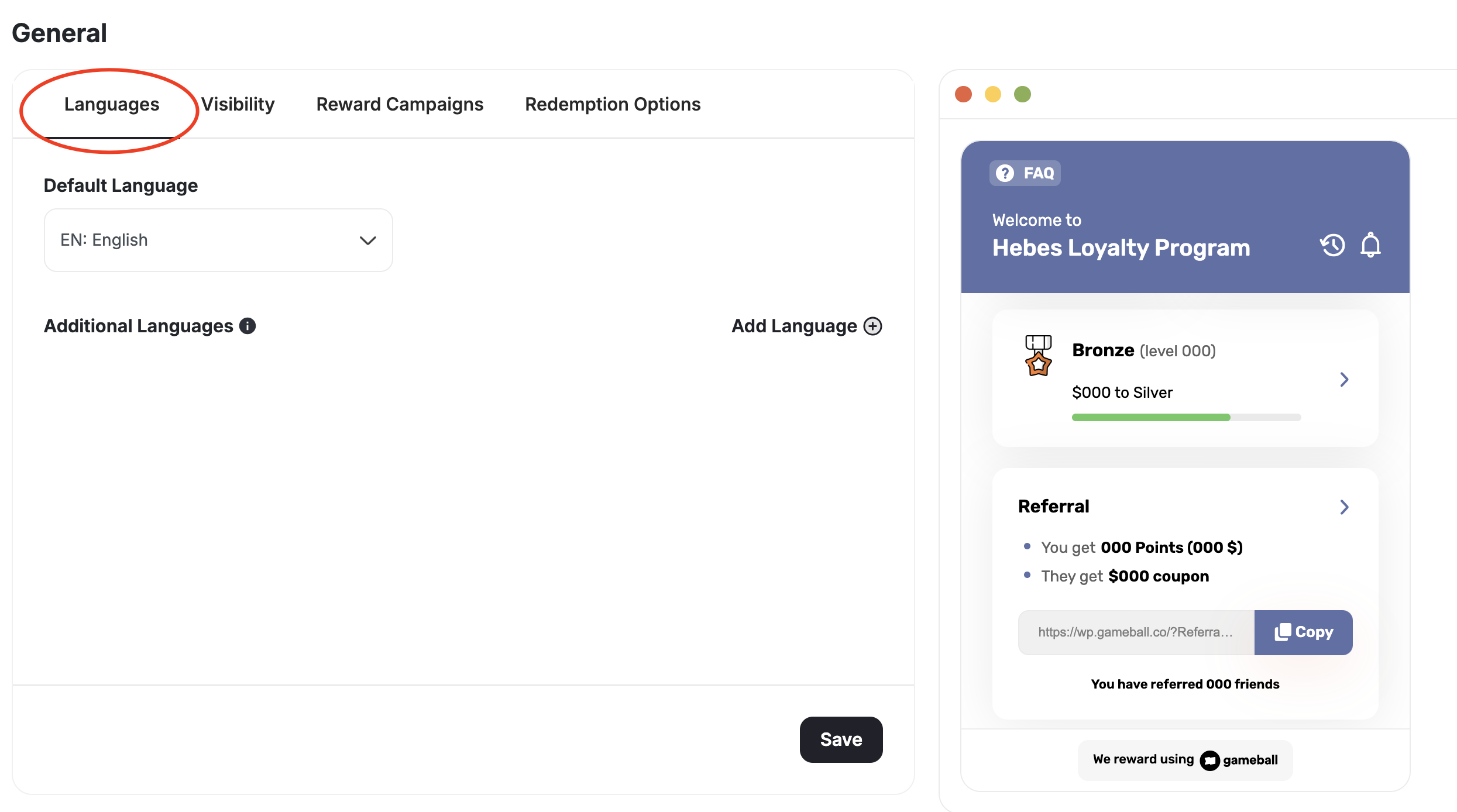
You can display your widget in multiple languages to match your customers' preferences. Check [the list of languages you can set](/product-documentation/customer-widget/start-configuring-profile/configure-customer-widget-language-on-your-platform).
***
## Widget Language
You can display your widget in multiple languages to match your customers' preferences. Check [the list of languages you can set](/product-documentation/customer-widget/start-configuring-profile/configure-customer-widget-language-on-your-platform).
 ***
## Visibility
Manage the overall visibility of the widget, including specific tabs and sections. Access these settings under the **Visibility** tab in the **General** section.
***
## Visibility
Manage the overall visibility of the widget, including specific tabs and sections. Access these settings under the **Visibility** tab in the **General** section.
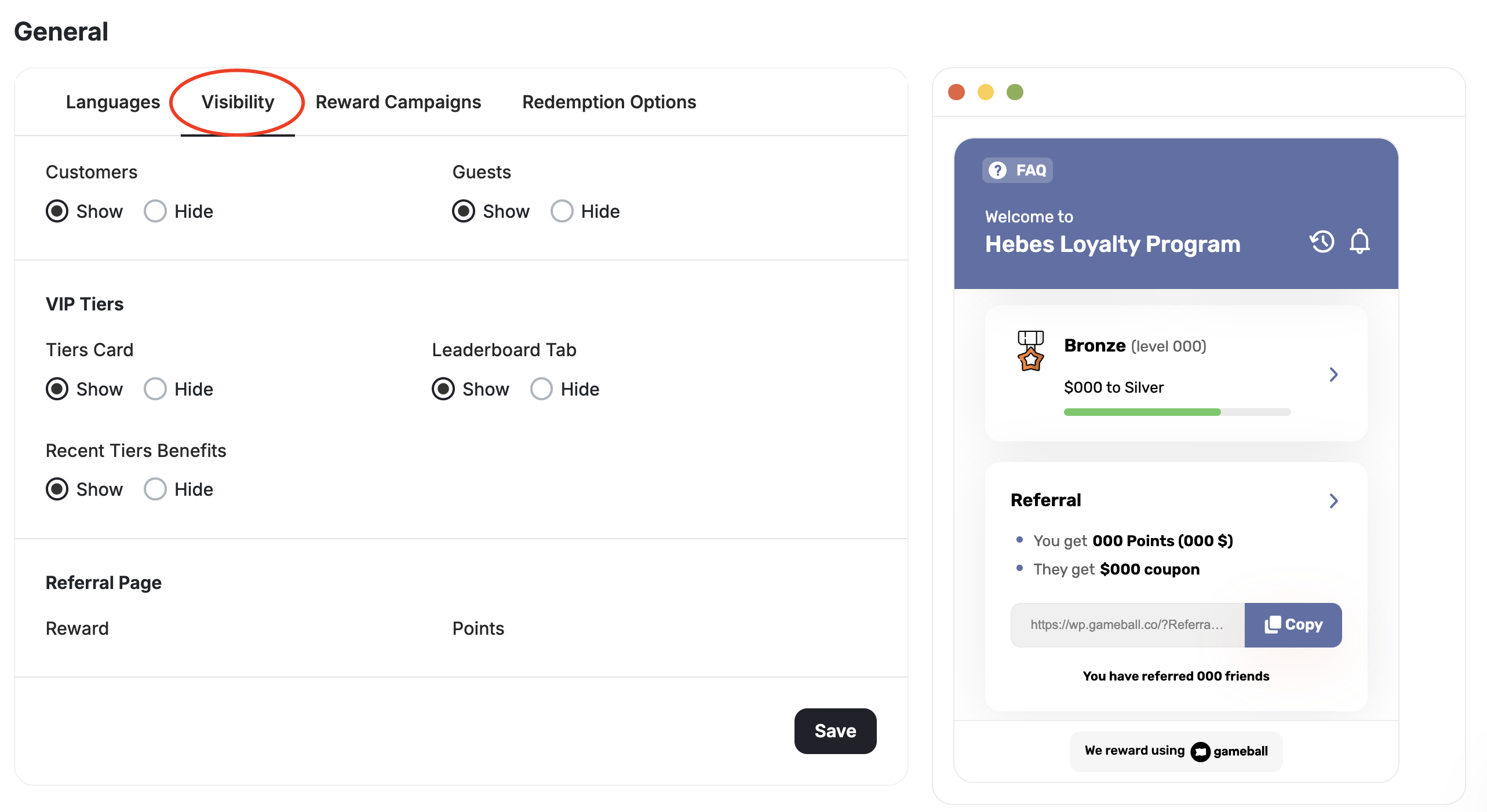 Determine who can see the Gameball customer widget, differentiating between Customers and Guests:
 * **Guests**: A visitor to your website who does not have an account or has not logged in.
* **Customers (User)**: A visitor who has created an account and is logged in.
These settings are only applicable in the web version of the Gameball customer profile.
| **Platform** | **Plan** |
| ------------ | ---------------------- |
| Shopify | Pro & Guru |
| Salla | Guru |
| Non-Platform | Add-on (Contact Sales) |
Choose to show or hide specific tabs:
* **Guests**: A visitor to your website who does not have an account or has not logged in.
* **Customers (User)**: A visitor who has created an account and is logged in.
These settings are only applicable in the web version of the Gameball customer profile.
| **Platform** | **Plan** |
| ------------ | ---------------------- |
| Shopify | Pro & Guru |
| Salla | Guru |
| Non-Platform | Add-on (Contact Sales) |
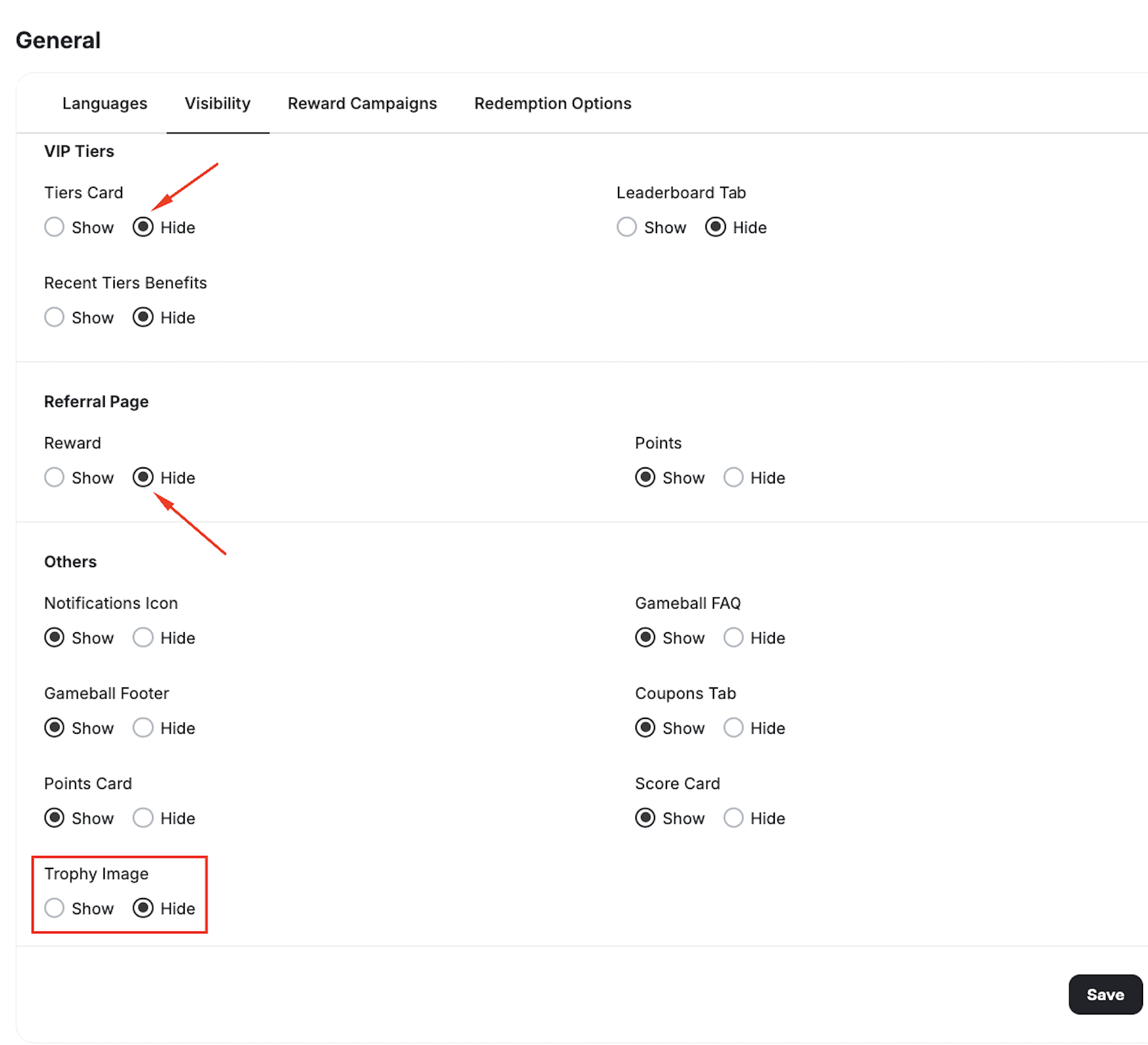
Choose to show or hide specific tabs:
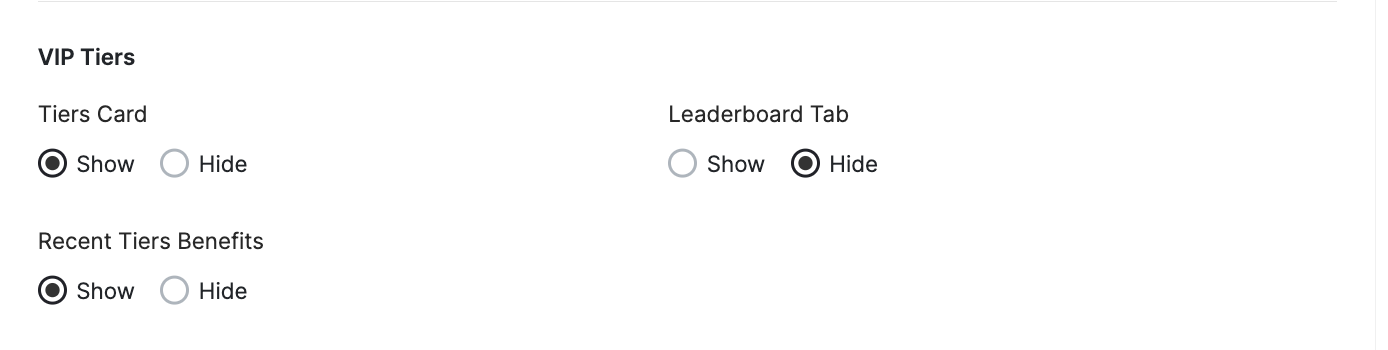 * **Tiers Card**: Displays the configured tiers and benefits.
* **Leaderboard Tab**: Shows the leaderboard.
* **Recent Tiers Benefits**: Displays the benefits of the previous tiers.
Control the visibility of the Play & Win section of the widget by deciding to show or hide it. This section includes all the active game campaigns you had set. Note that by hiding this section, game campaigns will act as if they do not exist for your customer, as they will not be able to access them.
* **Tiers Card**: Displays the configured tiers and benefits.
* **Leaderboard Tab**: Shows the leaderboard.
* **Recent Tiers Benefits**: Displays the benefits of the previous tiers.
Control the visibility of the Play & Win section of the widget by deciding to show or hide it. This section includes all the active game campaigns you had set. Note that by hiding this section, game campaigns will act as if they do not exist for your customer, as they will not be able to access them.
 The Play & Win section is also automatically hidden when there are no active game campaigns configured for the customer's current platform — web or mobile app. This means customers will never see an empty Play & Win section due to campaigns being set up for a different platform.
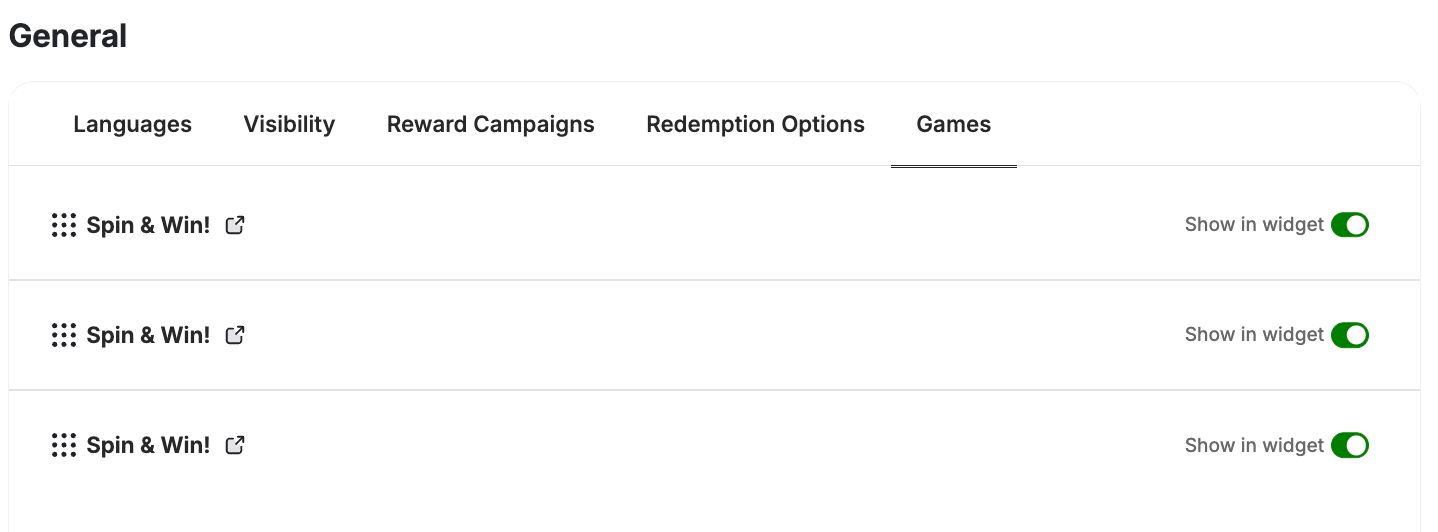
**Hiding individual game campaigns:** Go to **Widget > General > Games** to see all your active game campaigns, each with a **Show in widget** toggle. Turn the toggle off for any game you want to hide from the default widget — it stays fully active and launchable via the SDK or a deep link, so you can surface it in your own UI without it appearing in the widget. The Play & Win tab auto-hides when all games are turned off.
The Play & Win section is also automatically hidden when there are no active game campaigns configured for the customer's current platform — web or mobile app. This means customers will never see an empty Play & Win section due to campaigns being set up for a different platform.
**Hiding individual game campaigns:** Go to **Widget > General > Games** to see all your active game campaigns, each with a **Show in widget** toggle. Turn the toggle off for any game you want to hide from the default widget — it stays fully active and launchable via the SDK or a deep link, so you can surface it in your own UI without it appearing in the widget. The Play & Win tab auto-hides when all games are turned off.
 Choose to show or hide specific sections on **Referrals**:
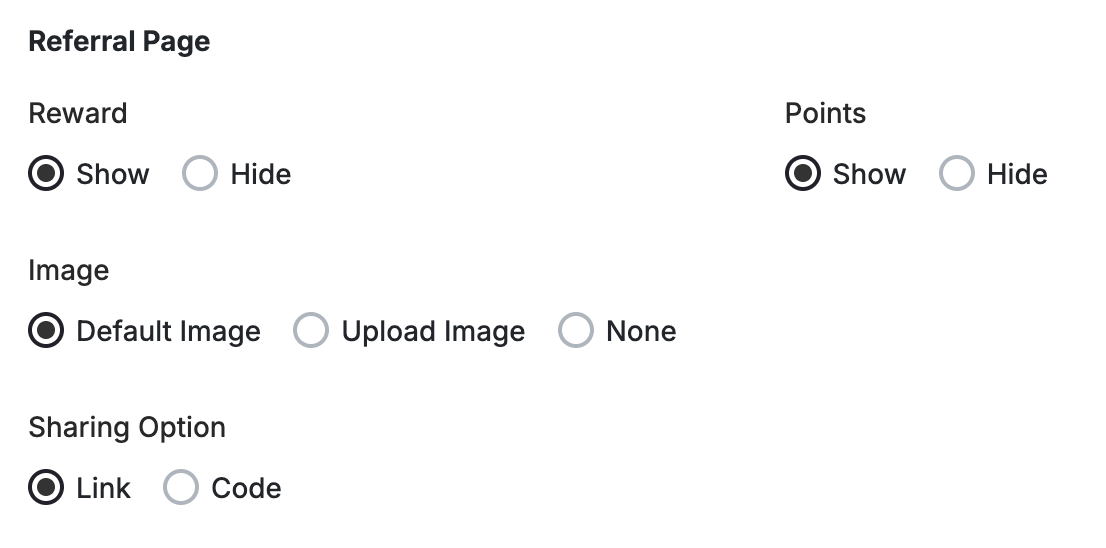 * **Rewards Section**: Choose to show or hide the rewards section on Referrals.
* **Points in Referrals Page**: Show or hide the points balance inside the referral page.
* **Referral Image:** Choose to go with the default referral image, upload your own image to match your brand theme, or to leave the referral section on the widget with no image.
* **Sharing Option**: Choose to display customers' unique link as a full link or rather just a code.
Example:
Link: [https://xxx.com/account/register?ReferralCode=Vg6945F76CkP1B](https://xxx.com/account/register?ReferralCode=Vg6945F76CkP1B)
Code: Vg6945F76CkP1B
* **Rewards Section**: Choose to show or hide the rewards section on Referrals.
* **Points in Referrals Page**: Show or hide the points balance inside the referral page.
* **Referral Image:** Choose to go with the default referral image, upload your own image to match your brand theme, or to leave the referral section on the widget with no image.
* **Sharing Option**: Choose to display customers' unique link as a full link or rather just a code.
Example:
Link: [https://xxx.com/account/register?ReferralCode=Vg6945F76CkP1B](https://xxx.com/account/register?ReferralCode=Vg6945F76CkP1B)
Code: Vg6945F76CkP1B
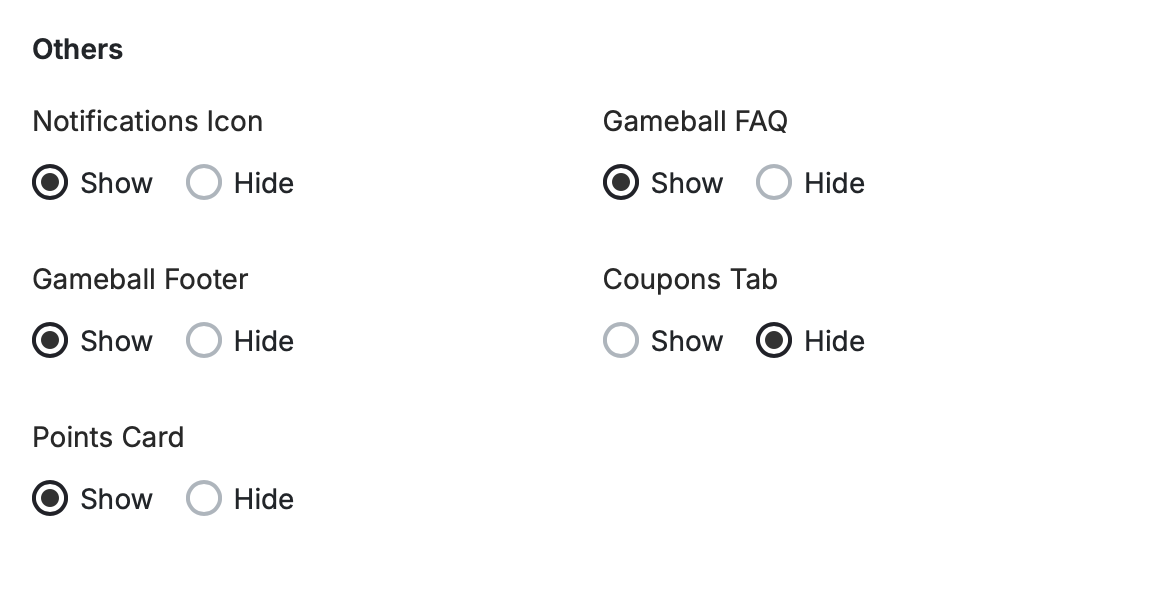 * **Notifications Icon**: Optional. Enable or disable the notifications tab as needed.
* **Gameball Footer**: Choose whether to display the Gameball logo at the bottom of the customer/guest widget.
The remove footer feature is only available on:
**Shopify:** **Starter, Pro,** and **Guru** plans.
**Salla: Pro** and **Guru** plans.
**Non-Platform:** All.
* **Gameball FAQ**: Show or hide the FAQ tab, which briefly explains your loyalty program to guests and customers.
* **Coupons Tab**: Show or hide the Coupons tab, which has the list of all the redeemed coupons from both the Redeem and the Referrals modules on the widget.
* **Points Card:** Show or hide the current customer's points balance.
* **Trophy Image:** Show or hide the big trophy image in the widget's home page.
Hiding of the trophy option will be shown only in case the Tier and Referral cards are set to hidden.
* **Notifications Icon**: Optional. Enable or disable the notifications tab as needed.
* **Gameball Footer**: Choose whether to display the Gameball logo at the bottom of the customer/guest widget.
The remove footer feature is only available on:
**Shopify:** **Starter, Pro,** and **Guru** plans.
**Salla: Pro** and **Guru** plans.
**Non-Platform:** All.
* **Gameball FAQ**: Show or hide the FAQ tab, which briefly explains your loyalty program to guests and customers.
* **Coupons Tab**: Show or hide the Coupons tab, which has the list of all the redeemed coupons from both the Redeem and the Referrals modules on the widget.
* **Points Card:** Show or hide the current customer's points balance.
* **Trophy Image:** Show or hide the big trophy image in the widget's home page.
Hiding of the trophy option will be shown only in case the Tier and Referral cards are set to hidden.
 ***
## Sort Reward Campaigns Badges on Widget
Organize the icons in the **Reward Campaigns** section of the widget by going to the **Reward Campaigns** tab.
***
## Sort Reward Campaigns Badges on Widget
Organize the icons in the **Reward Campaigns** section of the widget by going to the **Reward Campaigns** tab.
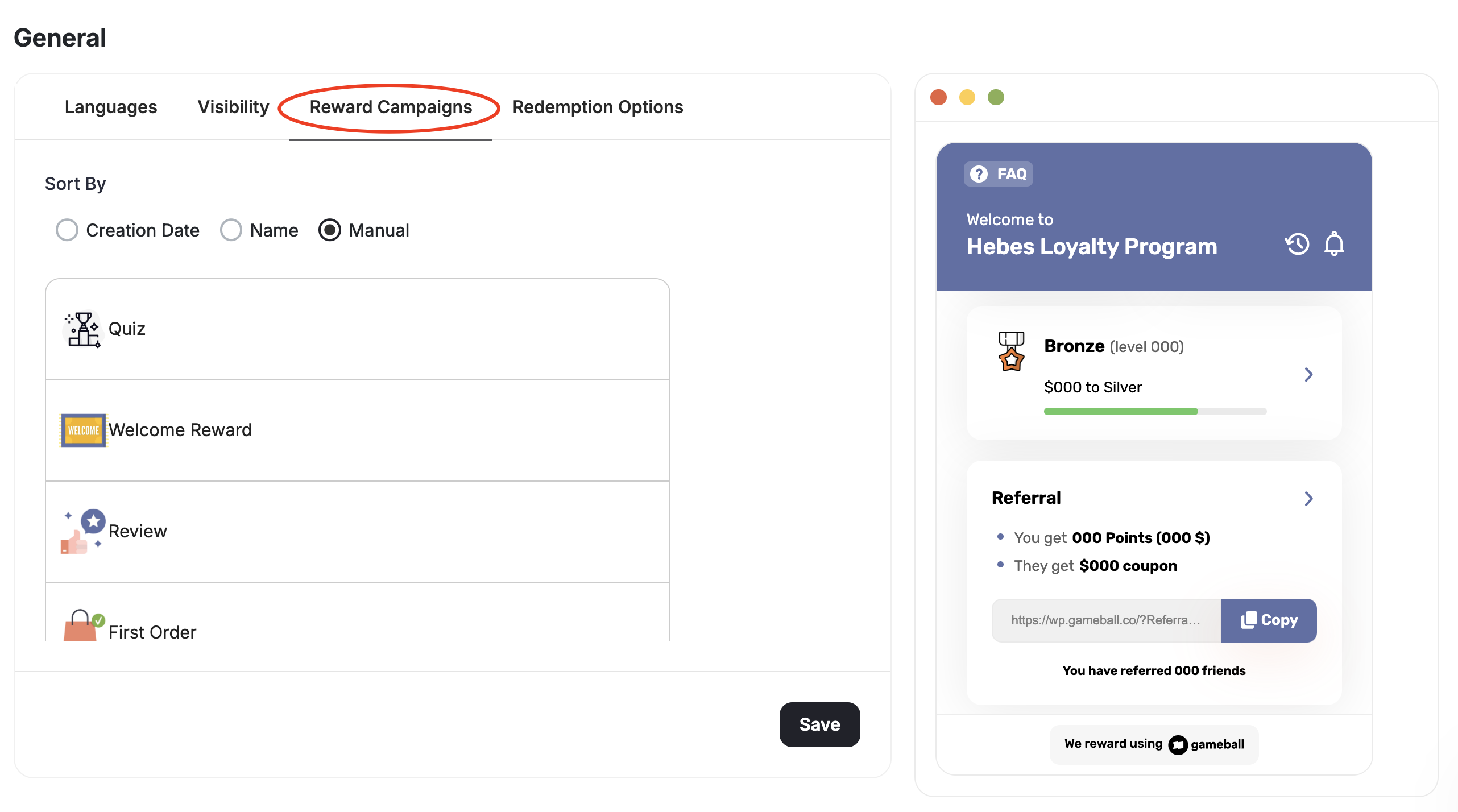 Select your preferred method for ordering reward campaigns:
* **Creation date**: Display reward campaigns based on the order of their creation.
* **Name**: Alphabetically from A to Z.
* **Manual**: Drag and drop reward campaigns to arrange them as you prefer.
***
## Redemption Options
Go to **Widget > General > Redemption Options** to control which redemption options appear in the widget and in what order.
Each option has a **Show in widget** toggle. It's on by default — turn it off to hide that option from the widget without disabling it. Hidden options remain fully callable via the API, so you can build a custom redemption flow in your own UI while keeping the default widget clean.
Select your preferred method for ordering reward campaigns:
* **Creation date**: Display reward campaigns based on the order of their creation.
* **Name**: Alphabetically from A to Z.
* **Manual**: Drag and drop reward campaigns to arrange them as you prefer.
***
## Redemption Options
Go to **Widget > General > Redemption Options** to control which redemption options appear in the widget and in what order.
Each option has a **Show in widget** toggle. It's on by default — turn it off to hide that option from the widget without disabling it. Hidden options remain fully callable via the API, so you can build a custom redemption flow in your own UI while keeping the default widget clean.
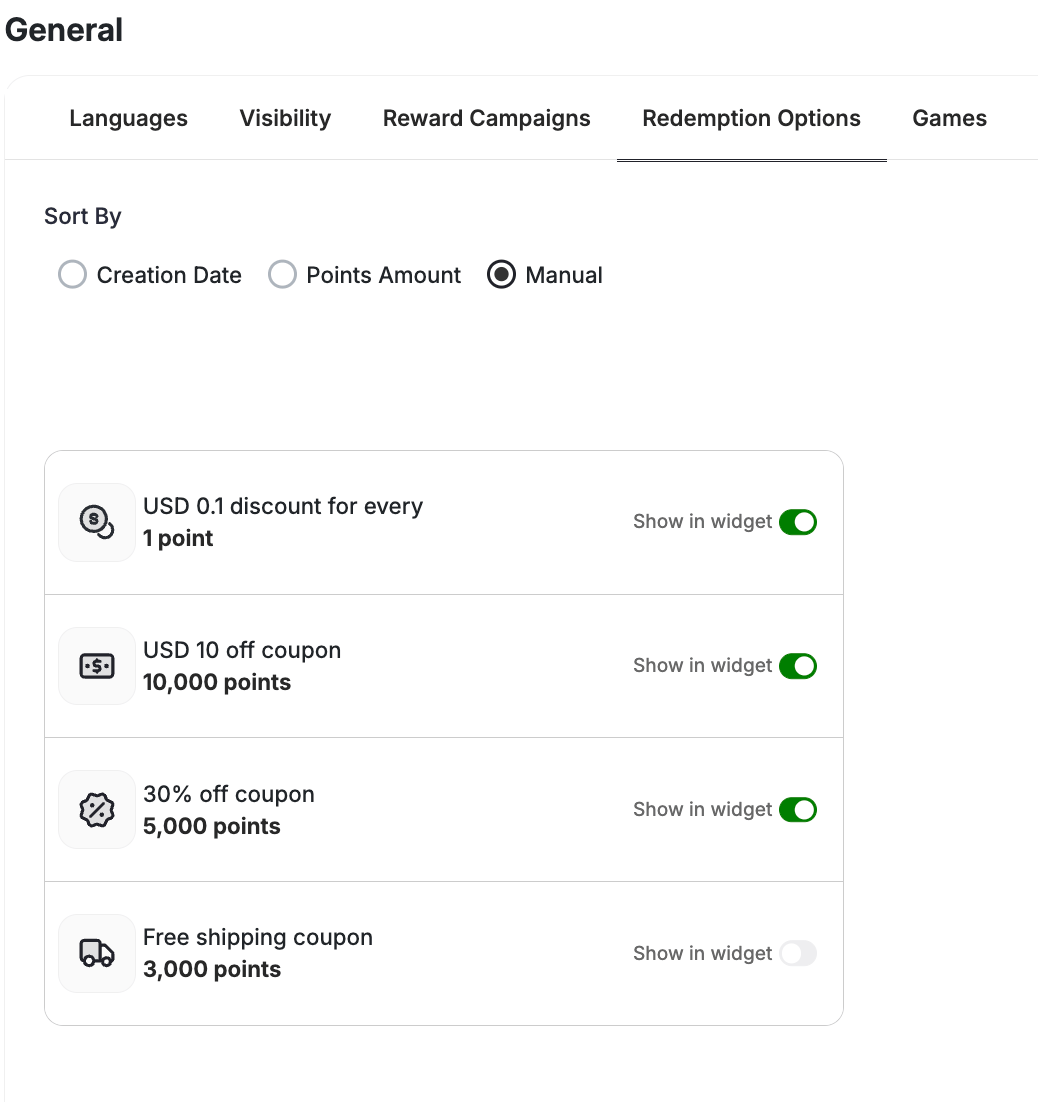 **Ordering:** Choose how redemption options are sorted in the widget:
* **Creation Date**: Displayed chronologically by setup date.
* **Points Amount**: Sorted from lowest to highest cost.
* **Manual**: Drag and drop to arrange them exactly as you like.
***
## Calendar Banner
Personalize the banner that appears in the widget for calendar campaigns. Navigate to **Widget > Content > Games** to configure the following:
**Ordering:** Choose how redemption options are sorted in the widget:
* **Creation Date**: Displayed chronologically by setup date.
* **Points Amount**: Sorted from lowest to highest cost.
* **Manual**: Drag and drop to arrange them exactly as you like.
***
## Calendar Banner
Personalize the banner that appears in the widget for calendar campaigns. Navigate to **Widget > Content > Games** to configure the following:
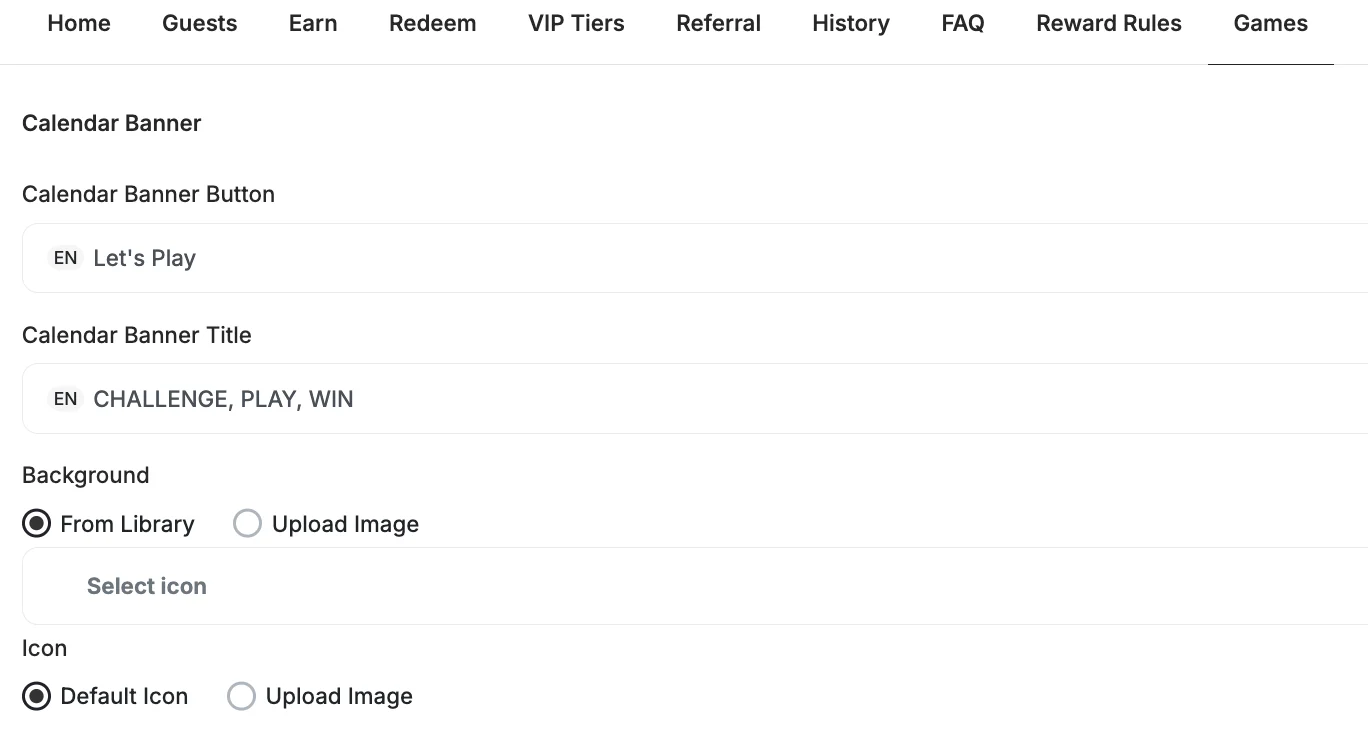 | Field | Description |
| -------------------------- | --------------------------------------------------- |
| **Calendar Banner Title** | The headline displayed on the banner |
| **Calendar Banner Button** | The CTA text customers click to enter the campaign |
| **Background** | Choose an image from the library or upload your own |
| **Icon** | Use the default icon or upload a custom image |
When multiple calendar campaigns run simultaneously, a selector appears so you can configure the banner for each campaign independently.
***
## Sort Play & Win Options on Widget
When you have multiple game campaigns customized, you will be able to control how they appear in the section as well as their order from the **Play & Win Options** tab under the General widget section in the dashboard.
| Field | Description |
| -------------------------- | --------------------------------------------------- |
| **Calendar Banner Title** | The headline displayed on the banner |
| **Calendar Banner Button** | The CTA text customers click to enter the campaign |
| **Background** | Choose an image from the library or upload your own |
| **Icon** | Use the default icon or upload a custom image |
When multiple calendar campaigns run simultaneously, a selector appears so you can configure the banner for each campaign independently.
***
## Sort Play & Win Options on Widget
When you have multiple game campaigns customized, you will be able to control how they appear in the section as well as their order from the **Play & Win Options** tab under the General widget section in the dashboard.
 * Drag and drop each game campaign card.
* Choose the style of each game campaign card. Choose between a square-shaped card or a rectangular-shaped card.
* Drag and drop each game campaign card.
* Choose the style of each game campaign card. Choose between a square-shaped card or a rectangular-shaped card.
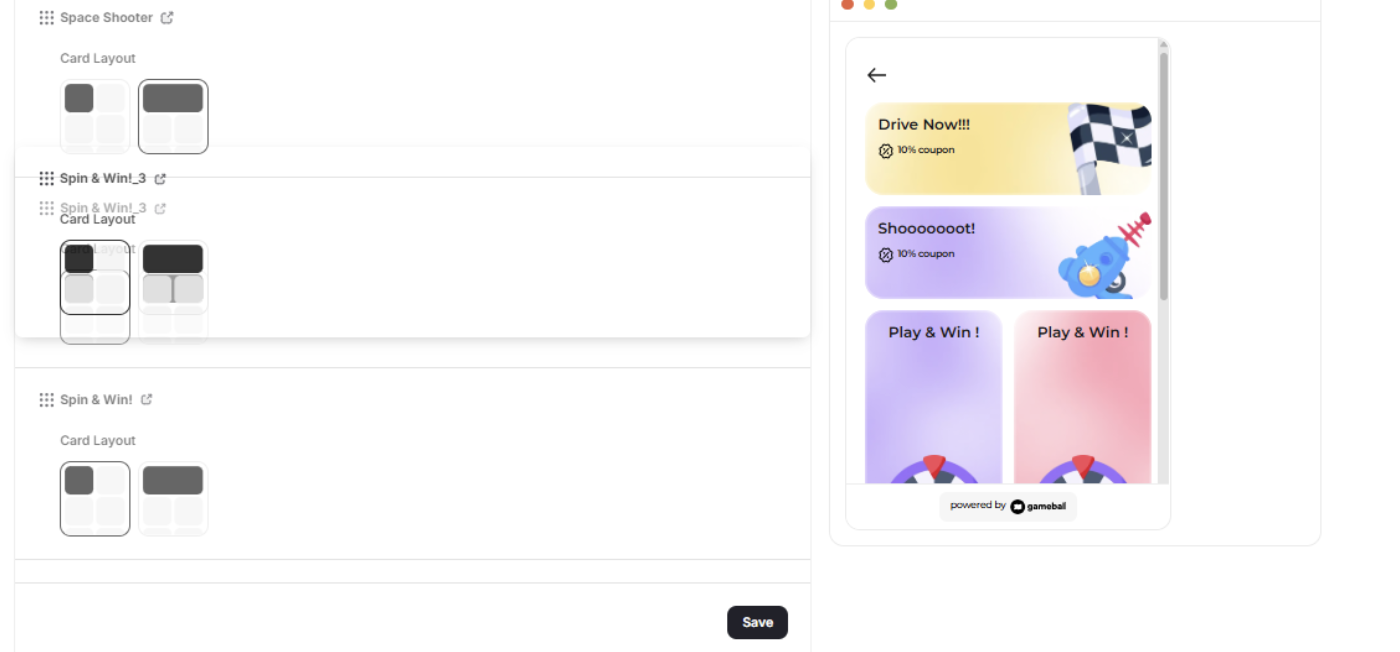 Remember to click **Save** when you are done with ordering.
***
## What's Next?
Configure the guest experience, including images, sign-up URLs, and login redirects.
Set a default language and add additional languages to serve a multilingual audience.
Adjust colors, fonts, icons, and identity to align the widget with your platform's look and feel.
Remember to click **Save** when you are done with ordering.
***
## What's Next?
Configure the guest experience, including images, sign-up URLs, and login redirects.
Set a default language and add additional languages to serve a multilingual audience.
Adjust colors, fonts, icons, and identity to align the widget with your platform's look and feel.