> ## Documentation Index
> Fetch the complete documentation index at: https://docs.gameball.co/llms.txt
> Use this file to discover all available pages before exploring further.
# How Do I Allow Huawei Users to Receive Push Notifications from My Program?
> Enable customers who use Huawei smartphones to receive notifications created on Gameball through few simple steps.
Knowing how Huawei requires its own setup if we want to connect with their systems, Gameball now enables you to setup this connection in few steps to enable **Huawei push notifications**.
***
## How Does It Work?
When sending notifications, the system will detect if a user has a **Huawei device** and send the push notification via **Huawei's push service (HMS - Huawei Mobile Services)** instead of Firebase (FCM).
If a customer has both **Google Play and Huawei services**, prioritize Firebase.
***
## Requirements for a Successful Setup
You must provide the following Huawei credentials in the Gameball dashboard:
| Credential | Description |
| ------------- | ---------------------------------------- |
| Client ID | Unique identifier for your Huawei app |
| Client Secret | Secret key used to authenticate with HMS |
***
## How to Get Your Huawei App Client ID and Secret
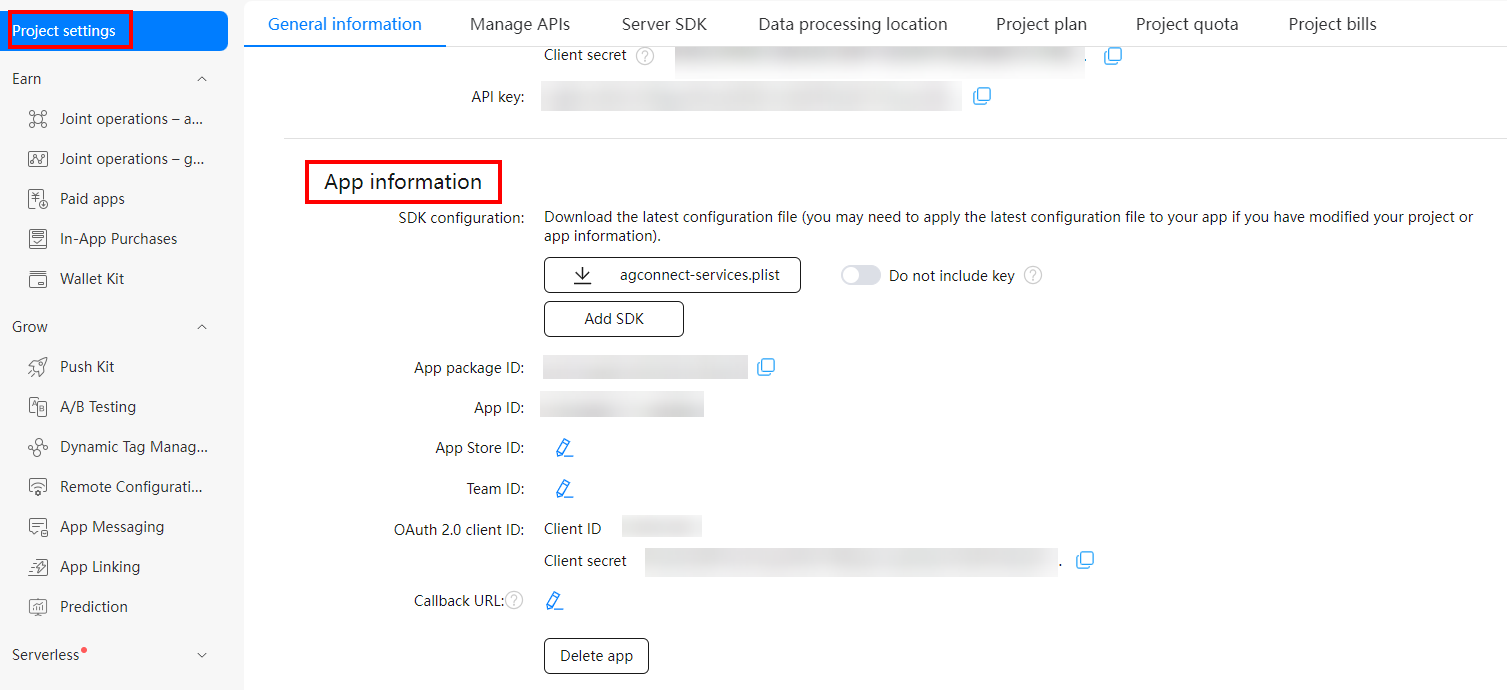
In the **App information** area displayed, view the app information, and you will find the Client ID and Client Secret.
 ***
## Configure Huawei Push Notifications on the Dashboard
On the Gameball Dashboard, go to **Settings > Admin Settings > Mobile Configuration**.
***
## Configure Huawei Push Notifications on the Dashboard
On the Gameball Dashboard, go to **Settings > Admin Settings > Mobile Configuration**.
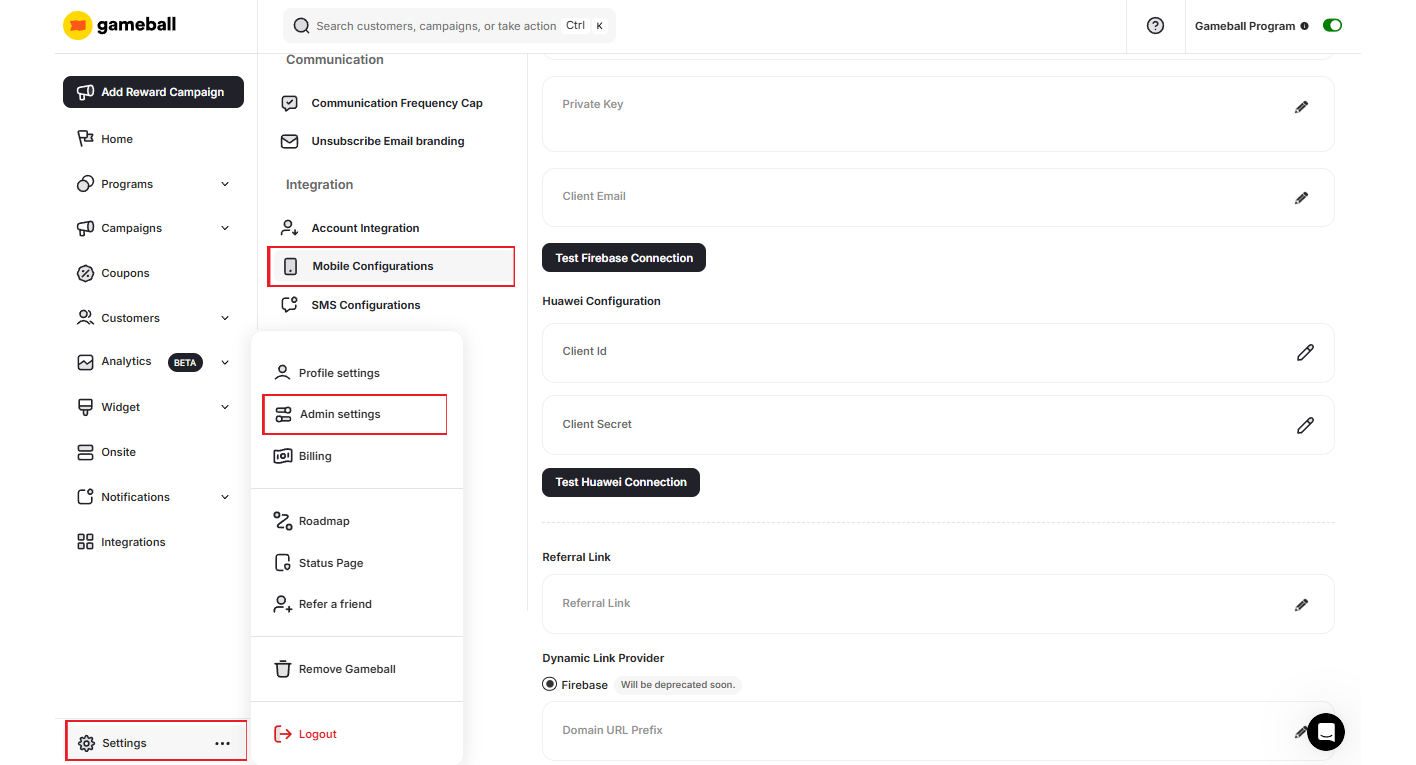 Scroll down to **Huawei Configuration** and click the edit icon next to **Client ID** to paste the retrieved ID, then do the same with **Client Secret**.
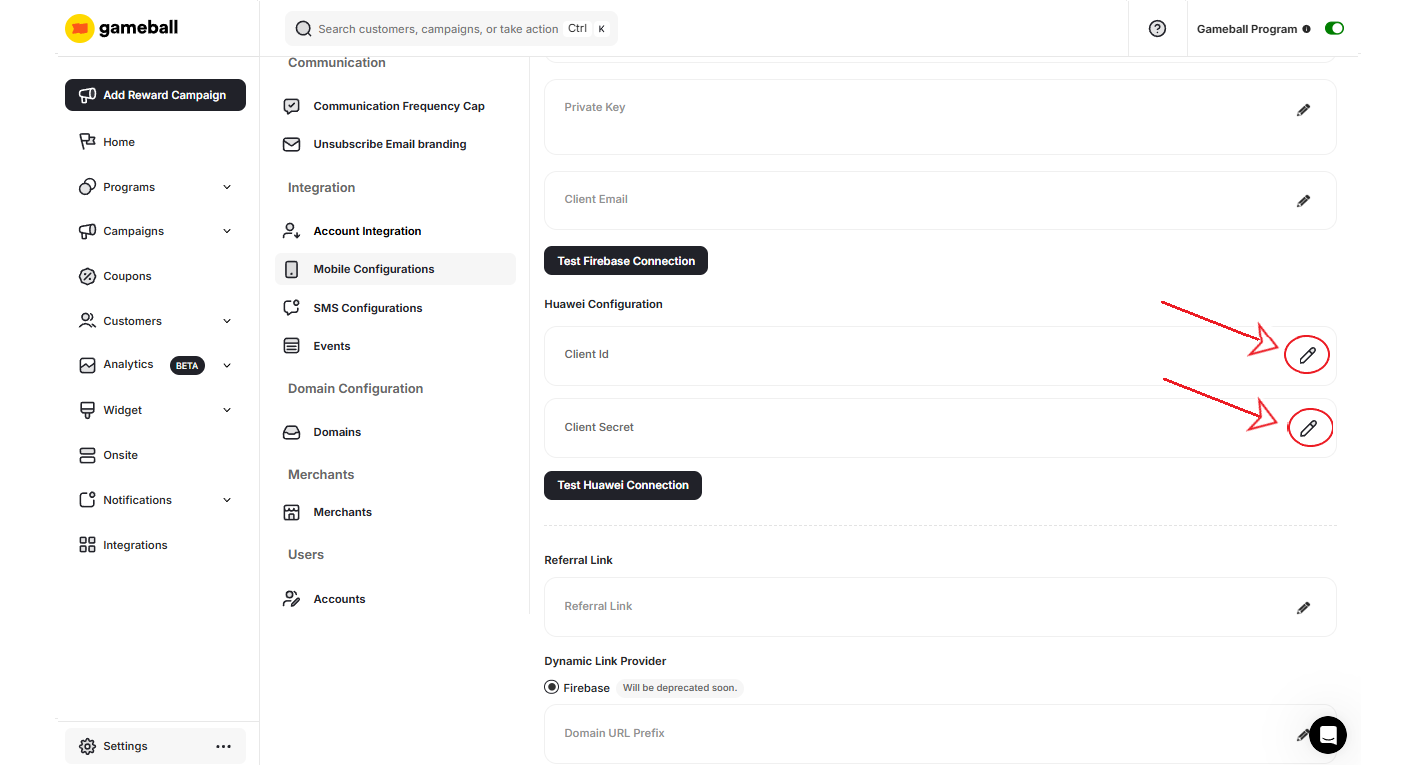 Click **Save** and use the test connection functionality to verify the setup is working correctly.
***
## Related Articles
Common questions about integrating Gameball with mobile and web platforms.
Learn how to enable the Gameball experience on your platform.
Click **Save** and use the test connection functionality to verify the setup is working correctly.
***
## Related Articles
Common questions about integrating Gameball with mobile and web platforms.
Learn how to enable the Gameball experience on your platform.