> ## Documentation Index
> Fetch the complete documentation index at: https://docs.gameball.co/llms.txt
> Use this file to discover all available pages before exploring further.
# How Do I Set My Gameball Communication Preferences?
> Change the frequency of your report email according to your preference.
If you have been a Gameball user for over a week, then you have probably received at least one report email with data about your progress during the last week. If you do not need that email sent to you at all, or you prefer it be sent to you less frequently, you can do that through short steps.
***
## What Is the Weekly Engagement Report Email?
Gameball sends you that report so that you can take a quick look at the overall progress of your configured loyalty program. Here is the information that you will find in the email:
| Section | What It Includes |
| -------------------------------- | ------------------------------------------------------------------------------------- |
| General Activities | Newly enrolled customers, overactive customers, and referred customers |
| Points Activities | Total points accumulated and total points redeemed by all customers |
| Programs Activities | Customers who tiered up, completed reward campaigns, referrals, and purchased rewards |
| Current Total Enrolled Customers | Total customers who joined the loyalty program, including inactive ones |
***
## How to Manage Your Communication Preferences
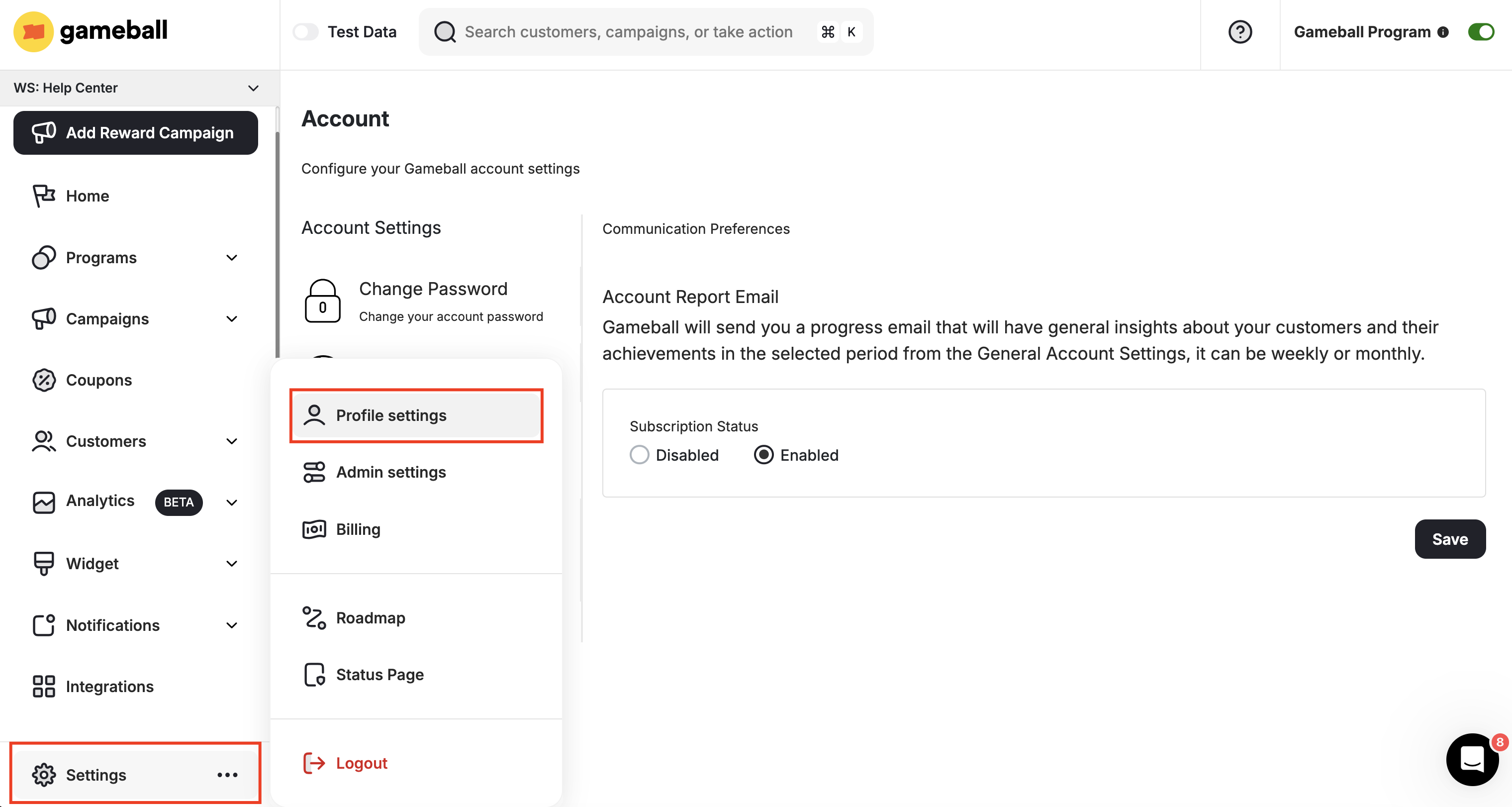
From the left bar, click **Settings**, then **Profile Settings**.
 Go to the **Communication Preferences** tab.
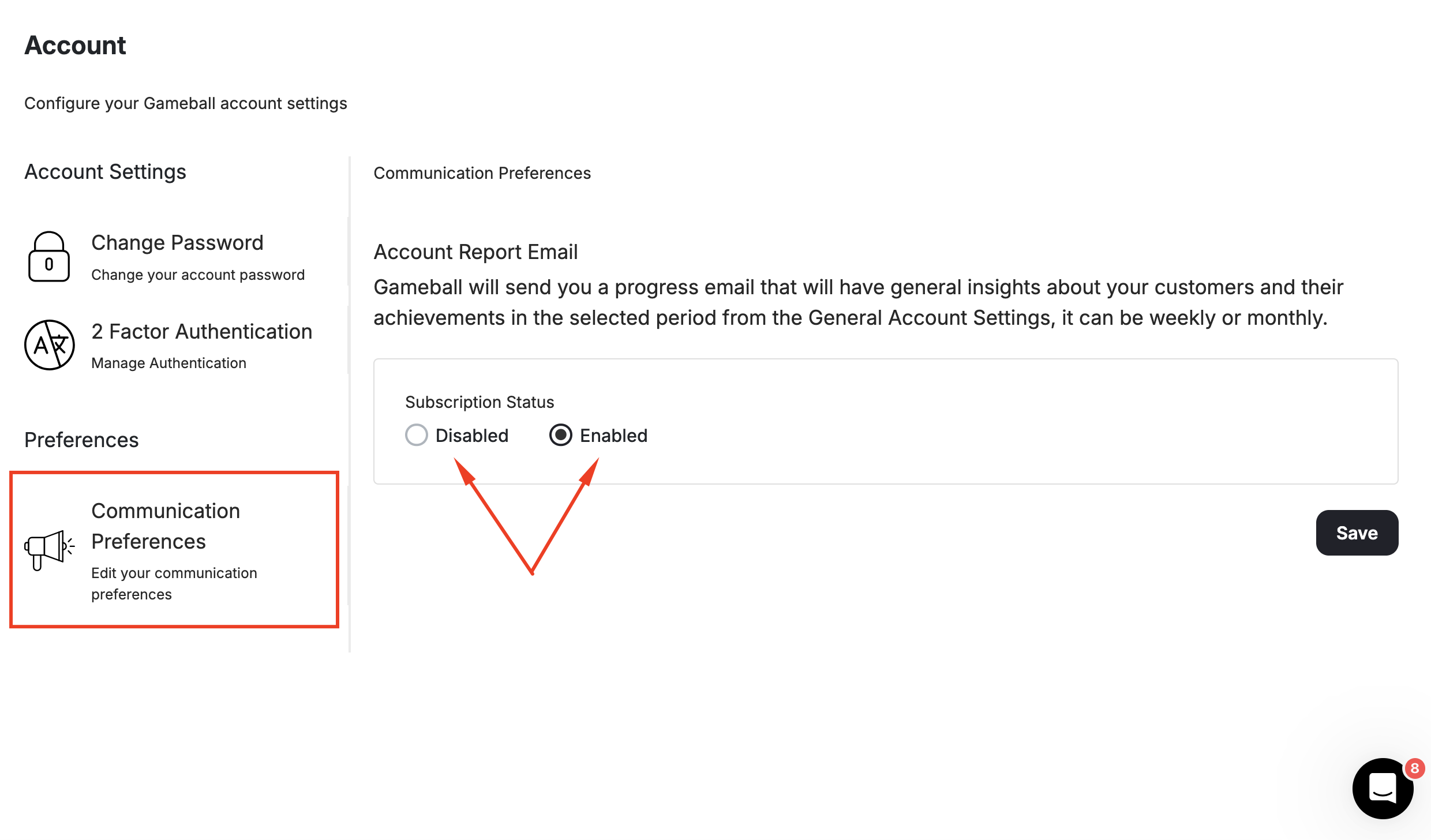 Under **Subscription Status**, choose between:
* **Disabled** — Stop receiving the weekly engagement report entirely.
* **Enabled** — Continue receiving the report.
***
## How to Change the Frequency of Engagement Emails
If you do not want to unsubscribe but would rather receive the report less frequently, go to **Settings > Admin Settings**, then **General**.
Under **Subscription Status**, choose between:
* **Disabled** — Stop receiving the weekly engagement report entirely.
* **Enabled** — Continue receiving the report.
***
## How to Change the Frequency of Engagement Emails
If you do not want to unsubscribe but would rather receive the report less frequently, go to **Settings > Admin Settings**, then **General**.
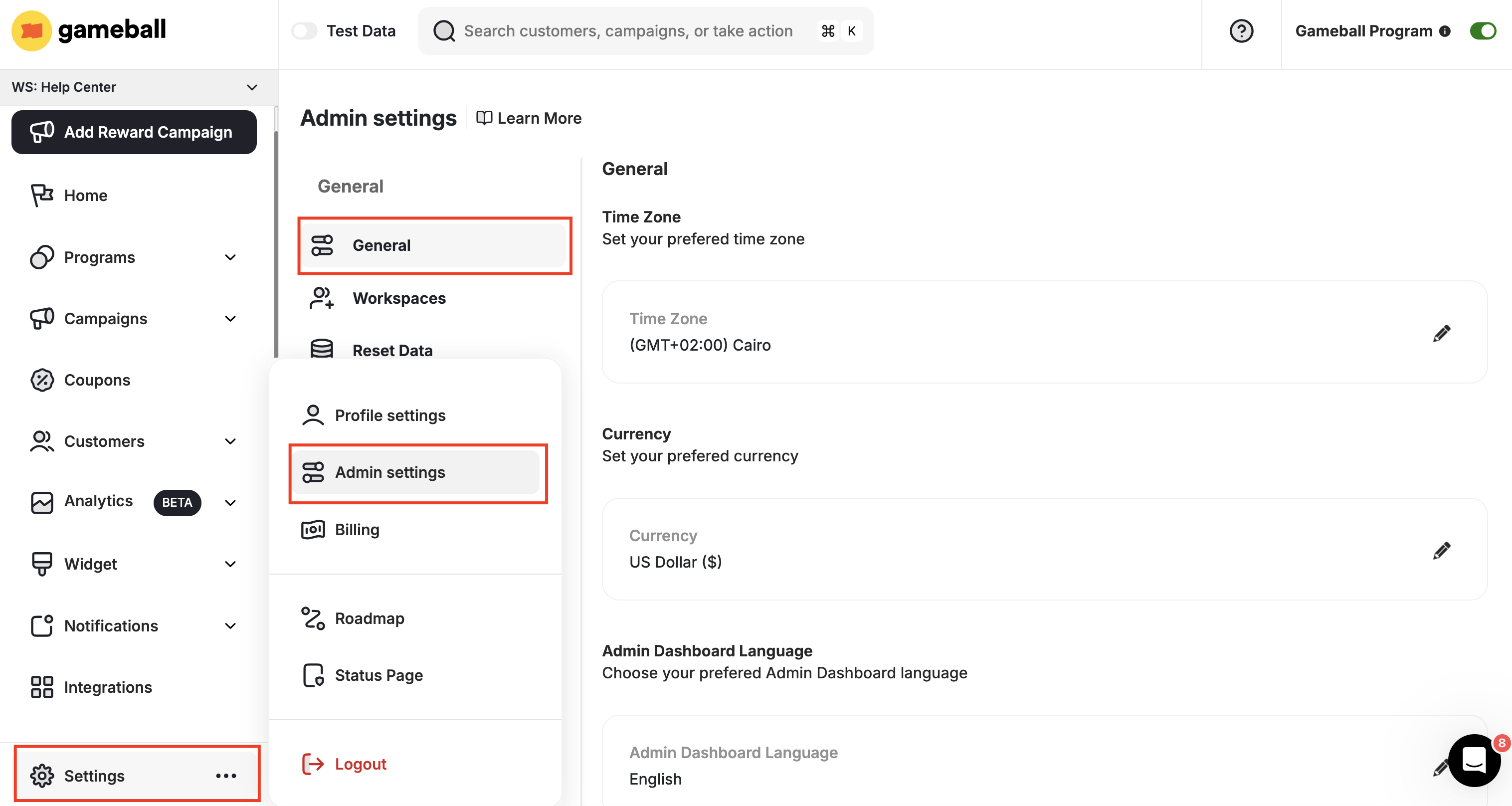 Scroll down to **Subscription Status** and choose between:
| Frequency | Description |
| ----------- | ------------------------------------------------------------------------------------------ |
| **Weekly** | Default setting. Report covers your program performance during the past week only. |
| **Monthly** | Receive the email every month. Report covers your program performance over the past month. |
Click **Save**.
***
## Related Articles
Learn how to reach a Gameball support agent through any channel.
Explore the full range of Gameball admin configuration options.
Scroll down to **Subscription Status** and choose between:
| Frequency | Description |
| ----------- | ------------------------------------------------------------------------------------------ |
| **Weekly** | Default setting. Report covers your program performance during the past week only. |
| **Monthly** | Receive the email every month. Report covers your program performance over the past month. |
Click **Save**.
***
## Related Articles
Learn how to reach a Gameball support agent through any channel.
Explore the full range of Gameball admin configuration options.