> ## Documentation Index
> Fetch the complete documentation index at: https://docs.gameball.co/llms.txt
> Use this file to discover all available pages before exploring further.
# How Do I Add Game-Like Flavor to Let Customers Win Badges Based on Product Categories?
> Add game-like flavor to your loyalty program by letting customers win badges every time they buy a product from any category.
## Plan Availability
| Platform | Plan |
| ---------------------- | -------------------- |
| Shopify | Starter, Pro, & Guru |
| Salla | Starter, Pro, & Guru |
| Non-Platform Customers | Available to All |
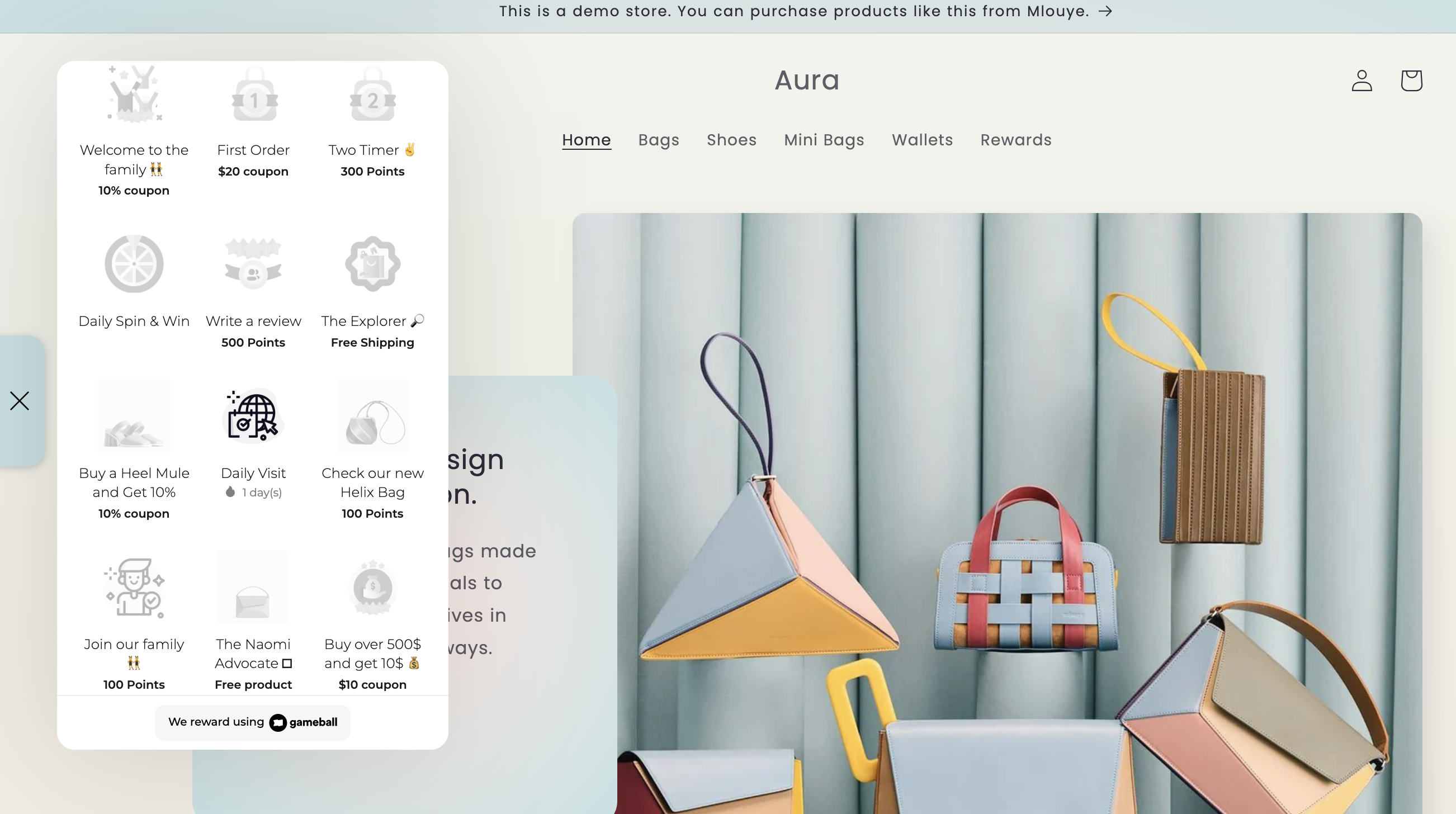
Through Gameball, you can add a game-like flavor to your customers' experience. Turn your product categories into badges collected and achieved by your customers and added to the Gameball widget.
 ***
## How Will This Work?
Every category on your Shopify store will have a badge. When your customers buy from these categories, they will earn these badges.
Here are some examples of how this looks for different store types:
Your store has different shirt categories; every category will have a badge like the ones below:
***
## How Will This Work?
Every category on your Shopify store will have a badge. When your customers buy from these categories, they will earn these badges.
Here are some examples of how this looks for different store types:
Your store has different shirt categories; every category will have a badge like the ones below:
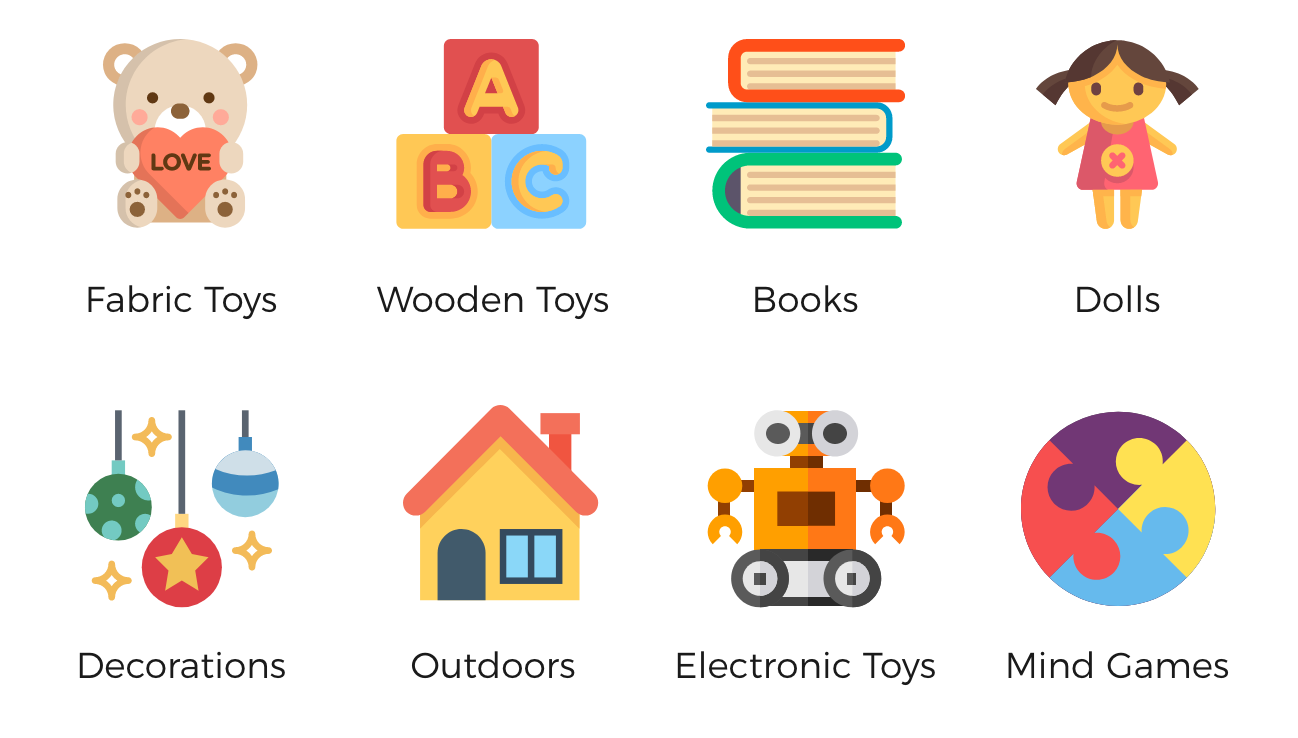
 Your store has different toys/gadget categories; every category will have a badge like the ones below:
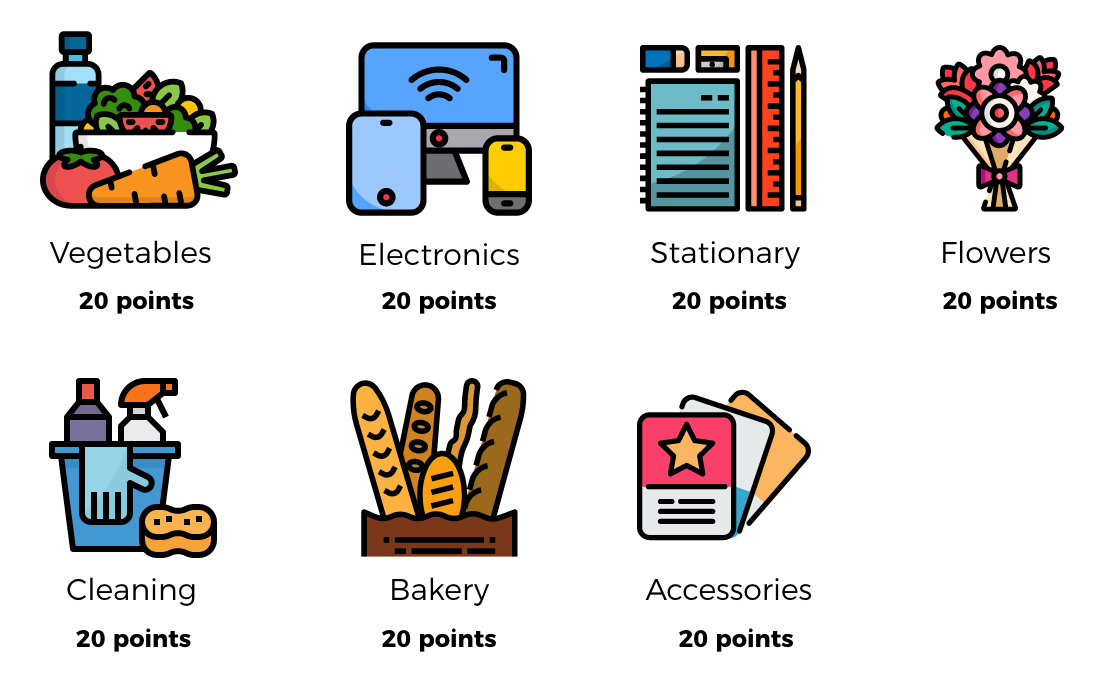
 Your online market has different categories; every category will have a badge like the ones below:
 ***
## How to Configure Badges on Gameball
Open the Gameball dashboard, click **Campaigns > Rewards** from the main menu, then click **Create Reward Campaign**.
***
## How to Configure Badges on Gameball
Open the Gameball dashboard, click **Campaigns > Rewards** from the main menu, then click **Create Reward Campaign**.
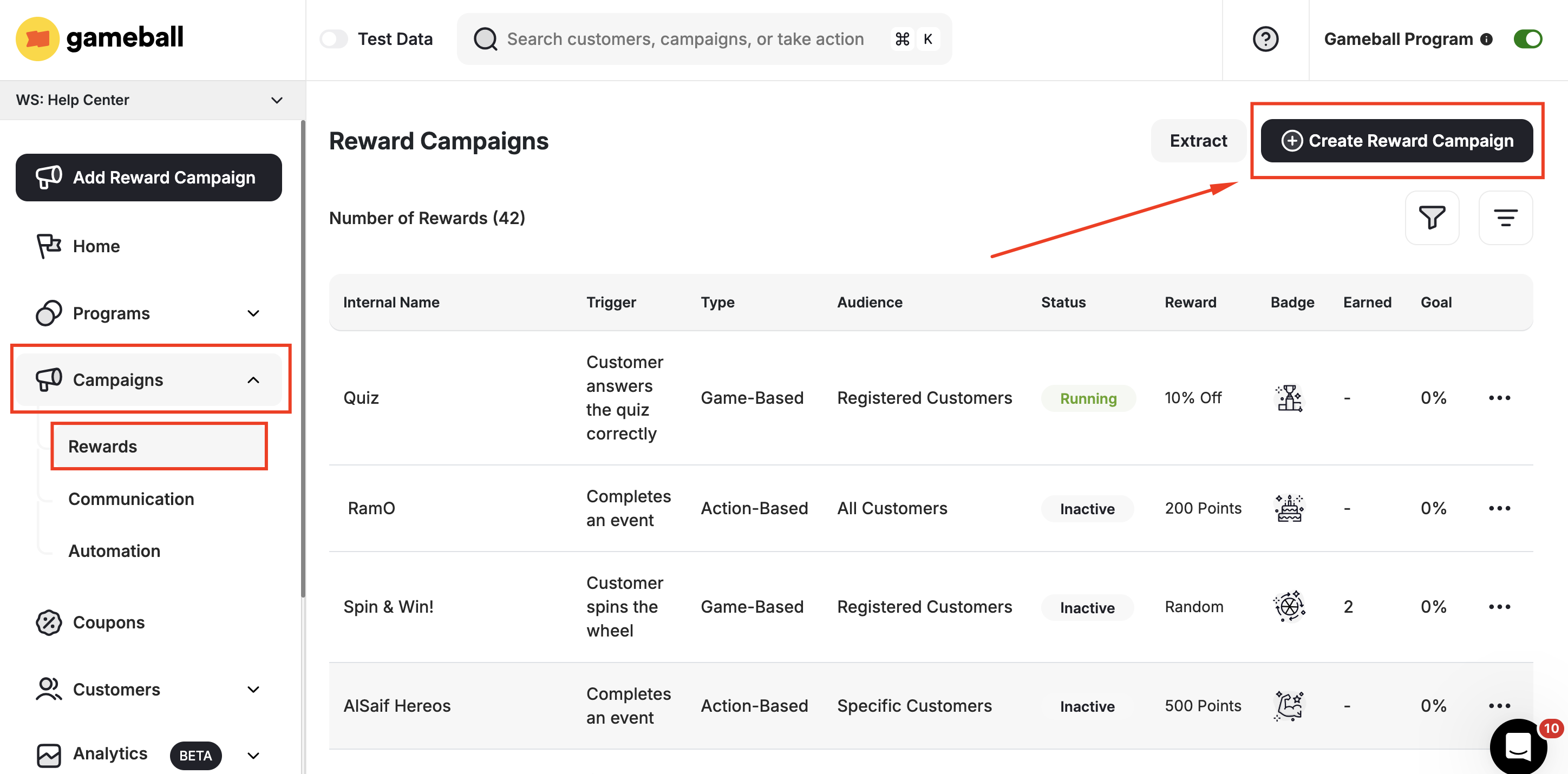 Scroll down to templates under **Grow** and choose **"Buy from a specific collection"**.
 At the second step, under **Triggers**, you will find the available metadata **"category"** and the **"Equal"** operator. Write the **exact field name** of the category on your Shopify store as shown in the screenshot below.
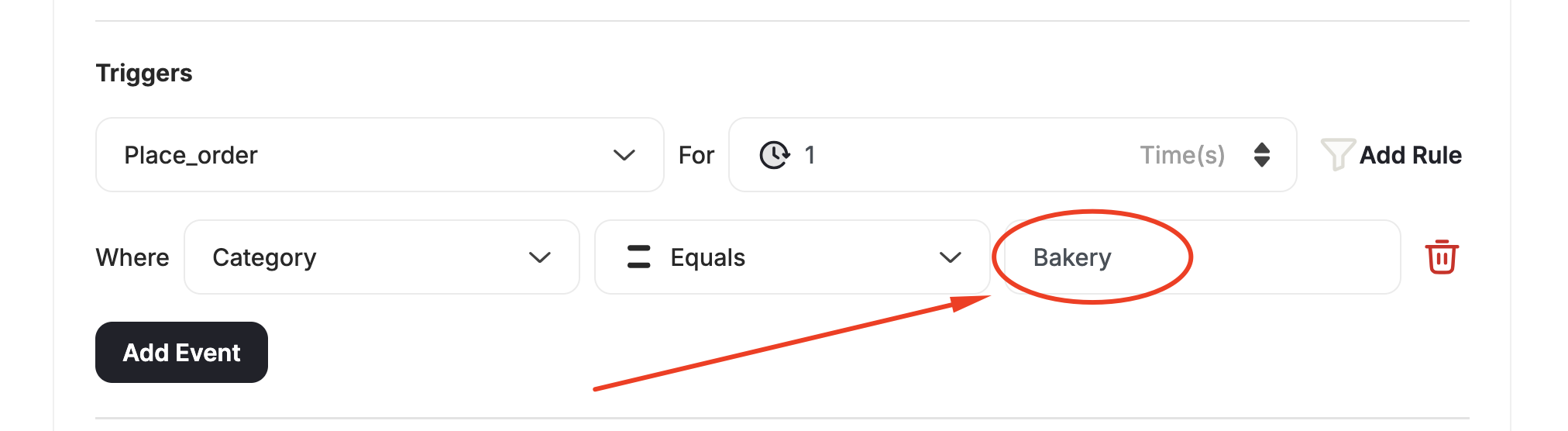 Gameball will not receive the "Place Order" event unless the order is wholly paid (Order status is **Paid**) to avoid any fraud cases.
***
## Related Articles
Set up and launch customer reward campaigns on Gameball.
Understand how the event-based rule engine drives campaign triggers.
Gameball will not receive the "Place Order" event unless the order is wholly paid (Order status is **Paid**) to avoid any fraud cases.
***
## Related Articles
Set up and launch customer reward campaigns on Gameball.
Understand how the event-based rule engine drives campaign triggers.