> ## Documentation Index
> Fetch the complete documentation index at: https://docs.gameball.co/llms.txt
> Use this file to discover all available pages before exploring further.
# How Do I Enable Customers to Spend Their Gameball Points on Shopify POS?
> Learn about how your customers can use their points through Shopify POS.
Before proceeding, ensure that you have enabled points redemption — [Learn more](/product-documentation/programs/loyalty-points-redeem/launch-and-configure-your-redeem-pointing-system). Customers will not be able to redeem their points if the points redemption feature is not activated.
You also need to make sure to upgrade your Shopify POS version to make use of this feature.
***
## Steps to Spend Points on Shopify POS
Select the item your customer is purchasing.
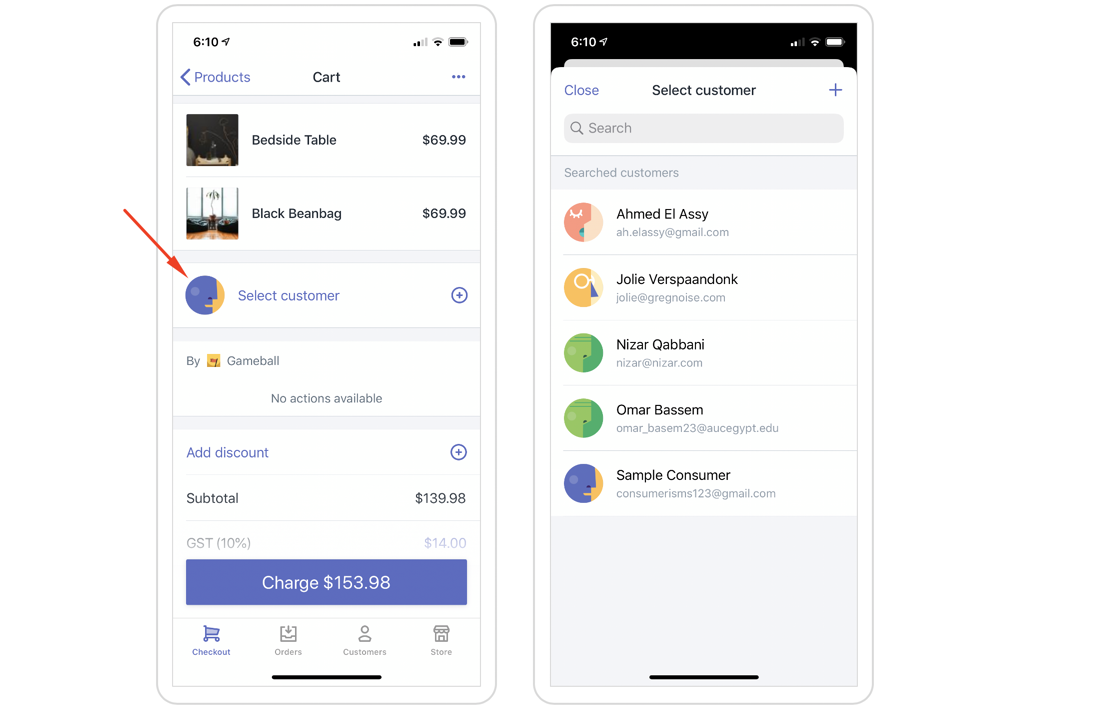
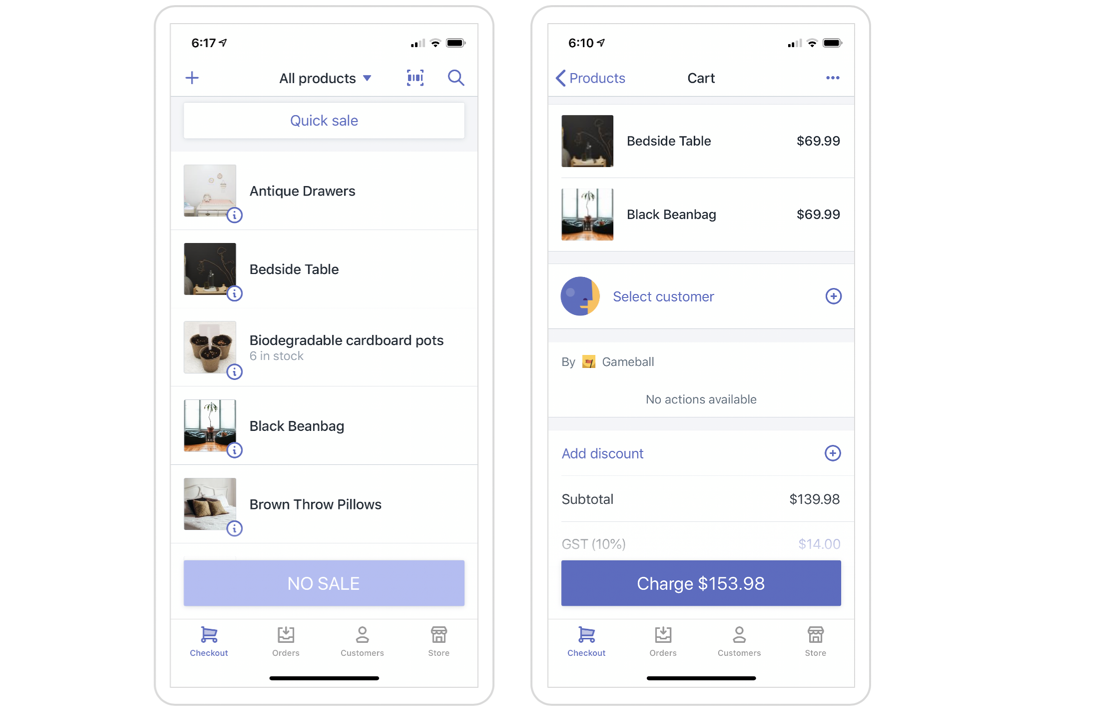 Select the customer placing the order by searching for the customer's email used before — through POS or through the online store (in case you have both channels).
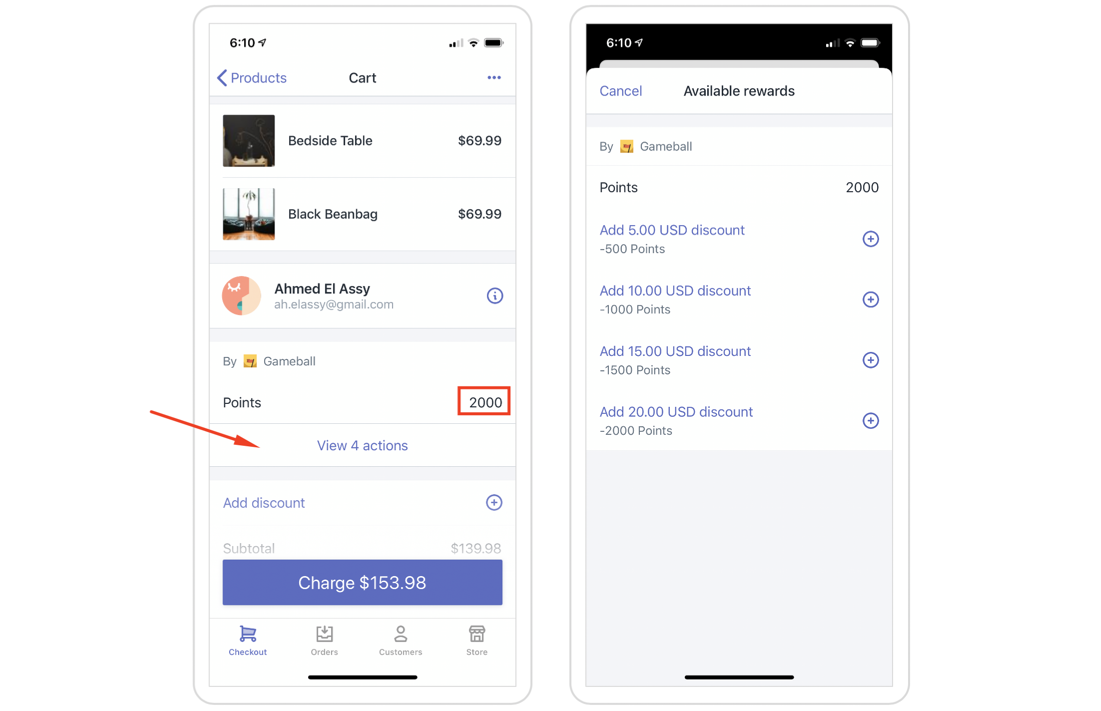
 You will find a new tab called **"Gameball."** Inside this tab, you will find the available points for this selected customer. Click on **View actions** to choose an option from the available POS rewards.
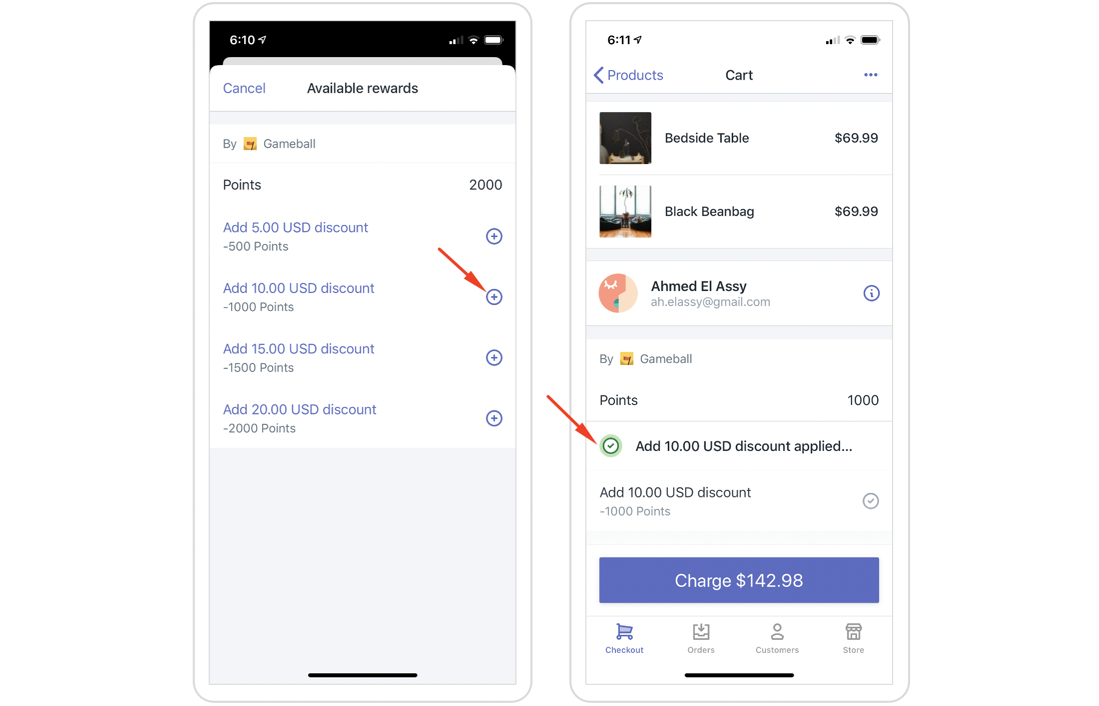
 After selecting a reward, you will see that the discount is applied to the current order.
 ***
## Related Articles
Understand how customers can get rewards through Shopify POS.
Give different rewards based on whether an order is placed online or in-store.
***
## Related Articles
Understand how customers can get rewards through Shopify POS.
Give different rewards based on whether an order is placed online or in-store.