> ## Documentation Index
> Fetch the complete documentation index at: https://docs.gameball.co/llms.txt
> Use this file to discover all available pages before exploring further.
# How Do I Enable Customers to Use Points as Discounts on Shopify?
> A quick tutorial on how your customer can exchange their points for discounts, free items, and more.
## Plan Availability
| Platform | Plan |
| -------- | --------- |
| Shopify | All Plans |
On Shopify, through the Gameball customer widget, your customers are able to convert their points to vouchers, discount codes, free items, or free shipping in exchange for these points. Gameball integrates with Shopify's native coupon engine, ensuring a seamless and automated process where unique coupon codes are generated for customers directly through the widget interface.
***
## Before You Begin
Make sure you have configured the following:
Activate the points redemption program on your Gameball dashboard.
Set the equivalent monetary value and expiry settings for wallet points.
Both value and expiry will be configured by default during the Gameball onboarding wizard. Additionally, when a customer redeems points through the Gameball widget, the application interacts with Shopify to generate unique discount codes, which are displayed instantly to the customer. Administrators can find these codes in the "Discounts" section of Shopify Admin.
***
## How Customers Redeem Their Points
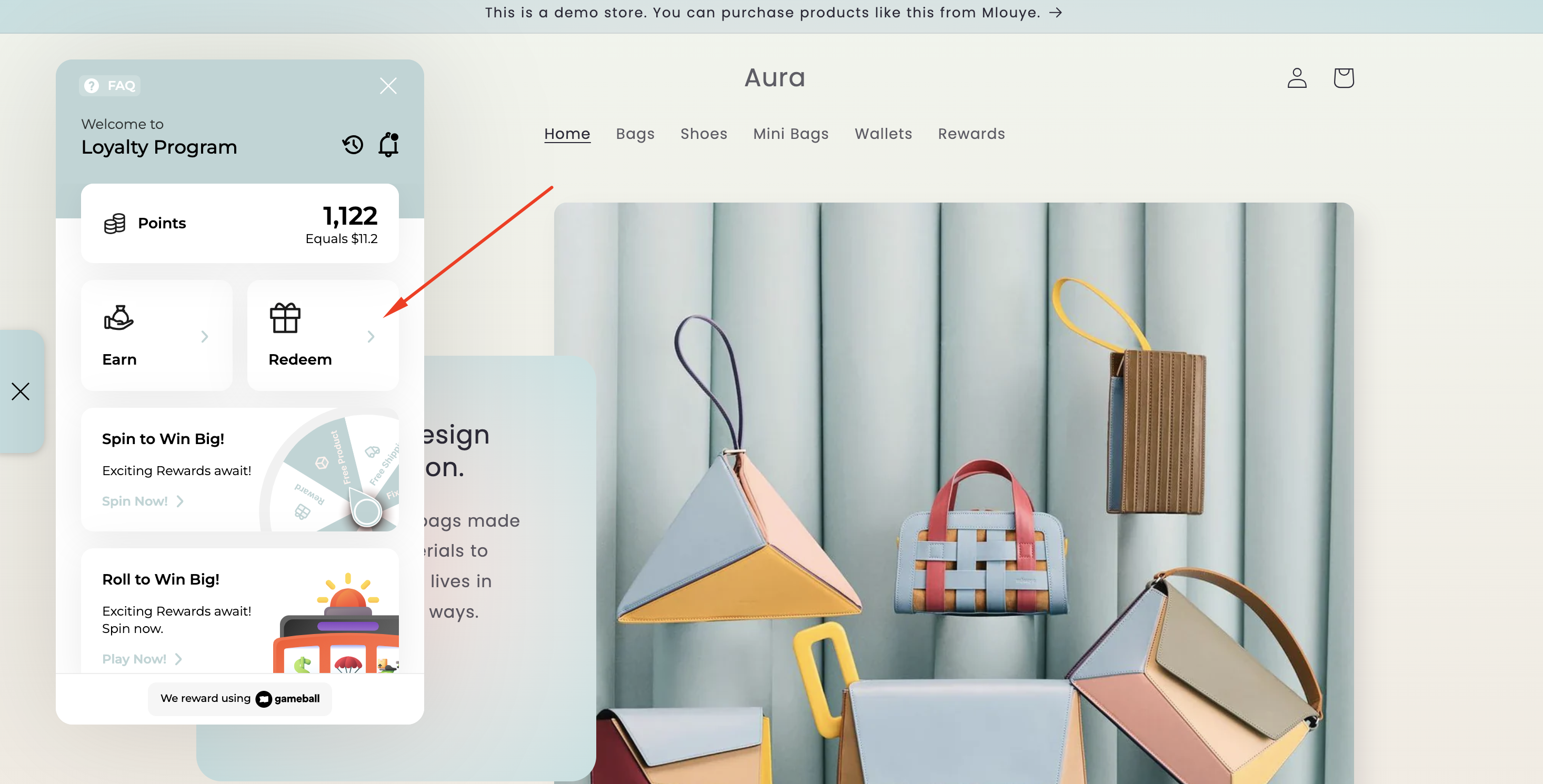
Once you enable points redemption, your customers will see a new **Redeem** tab inside the widget under their points.
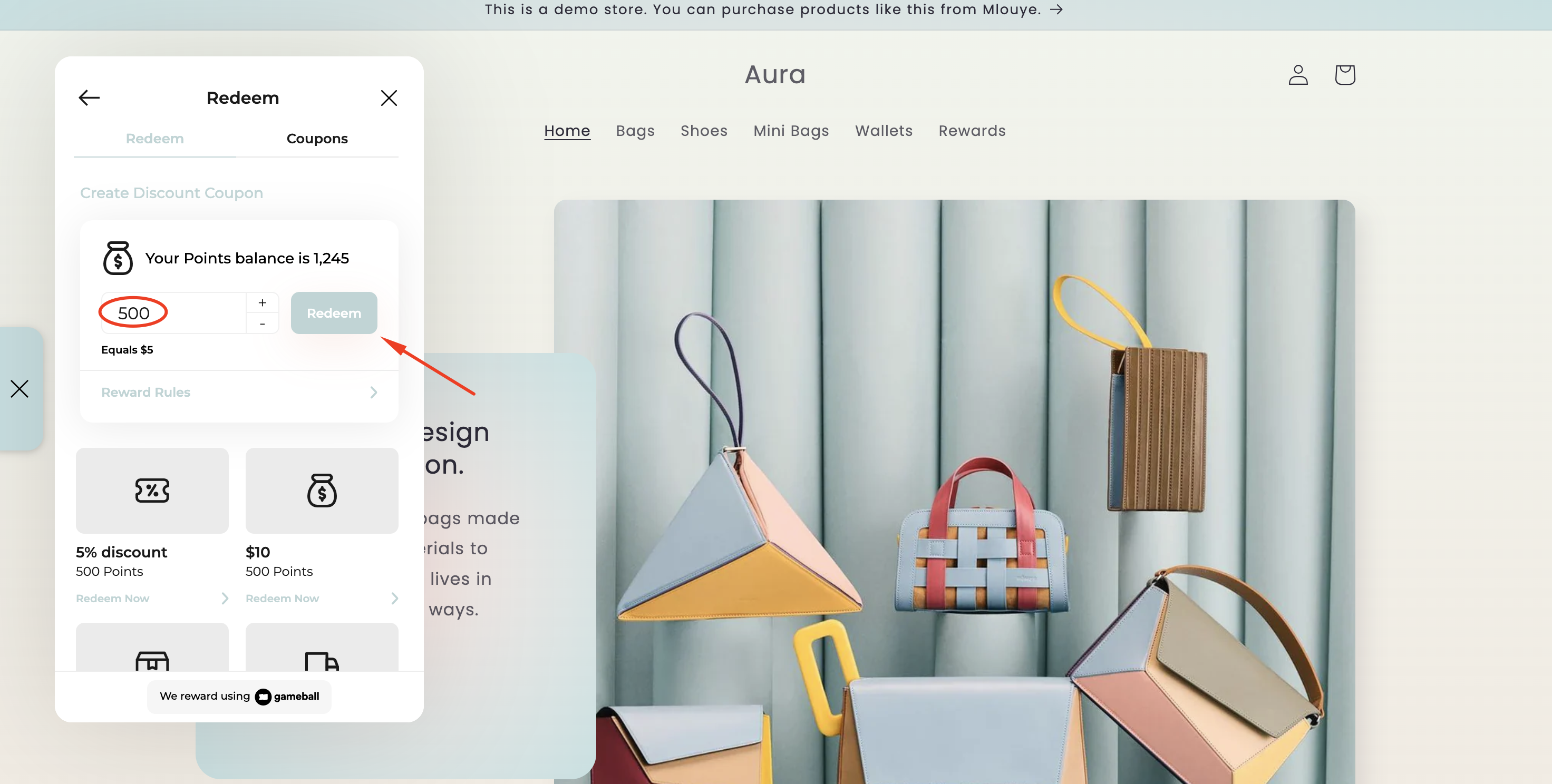
 Under **"Create Discount Coupon,"** customers should put the number of points they want to redeem, then click the **Redeem** button.
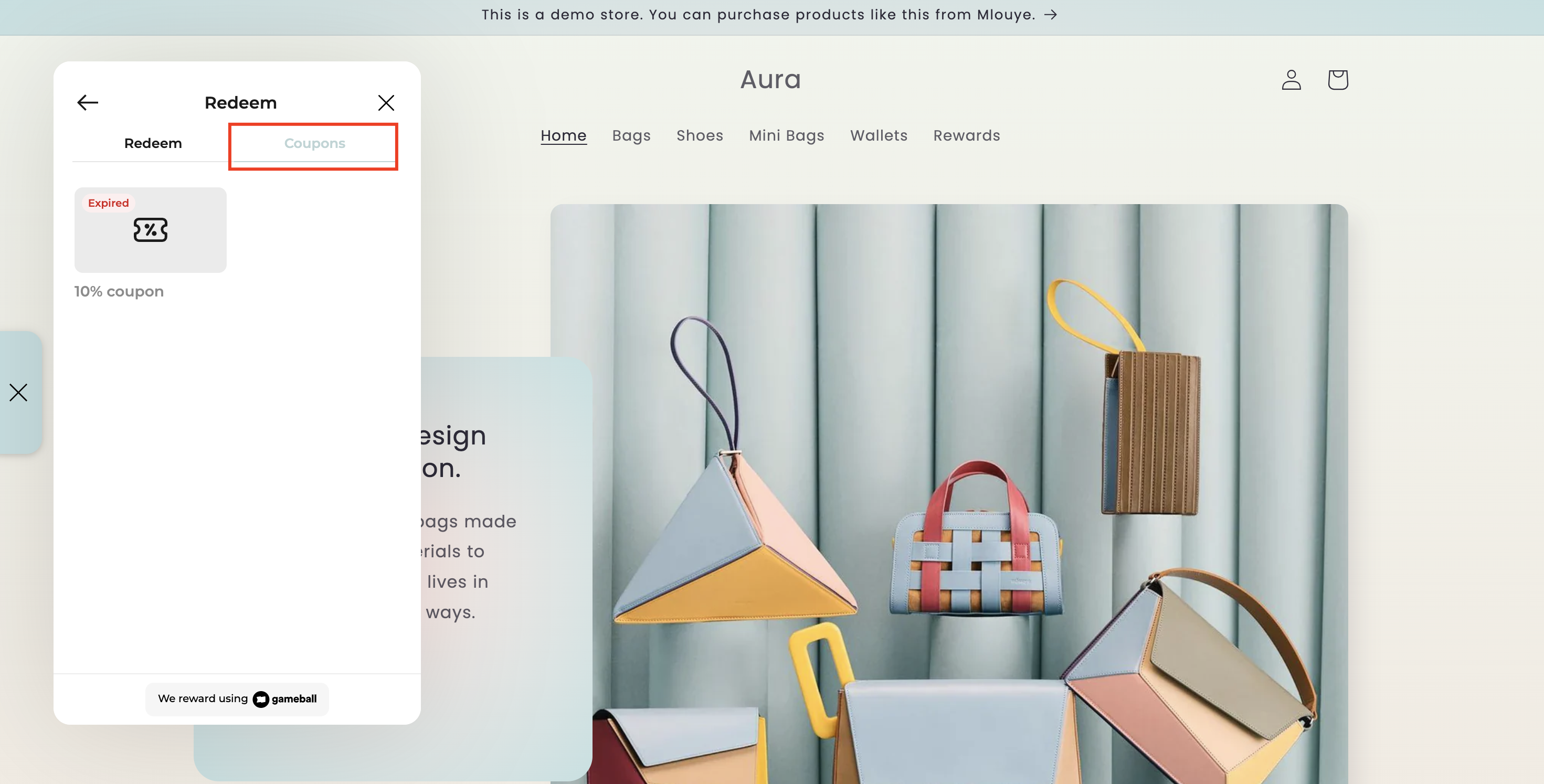
 Under the **Coupons** tab, customers can also redeem coupons that are automatically created if their points balance is equal to or more than the coupon value.
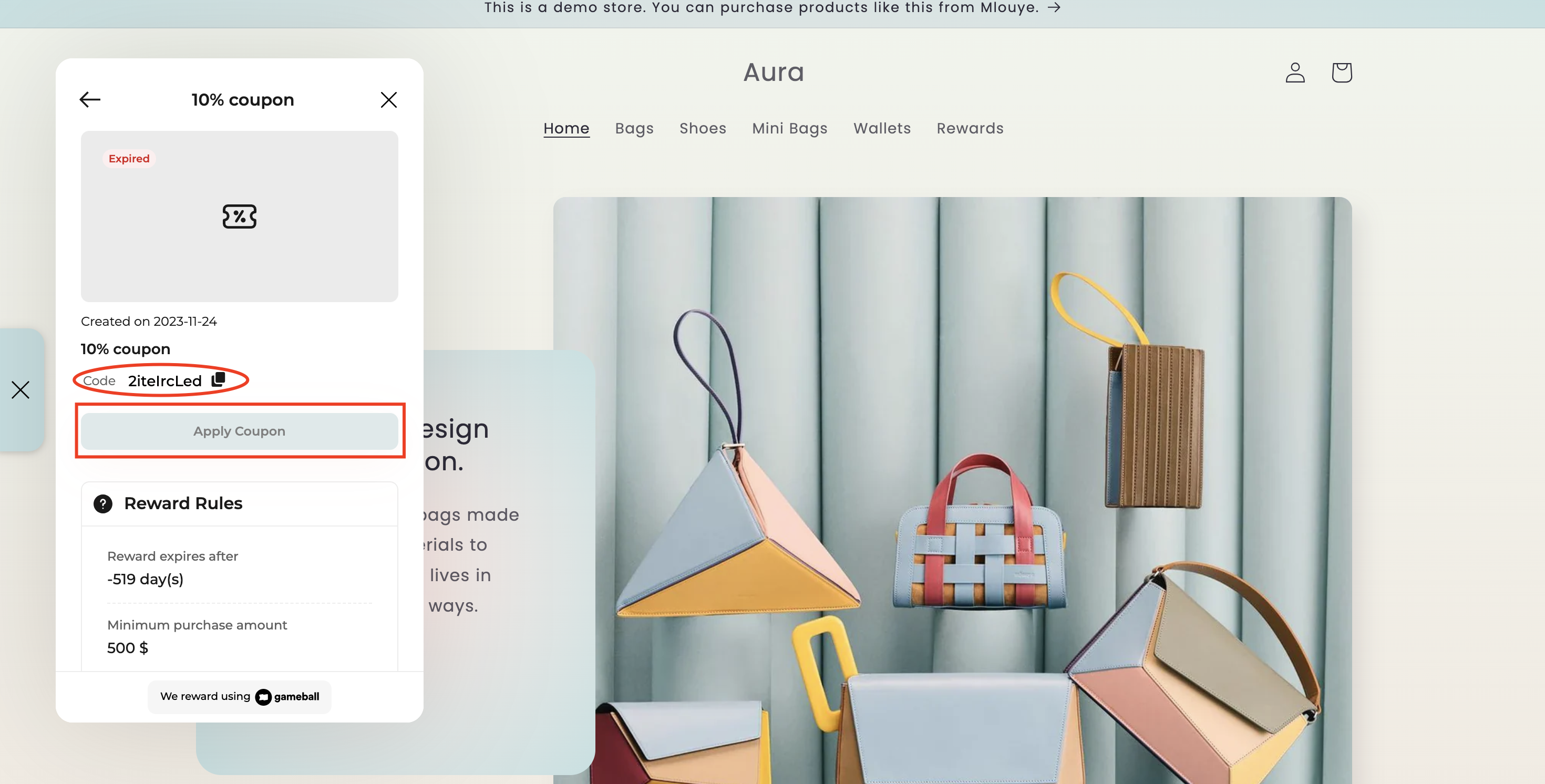
 A discount code can be used by selecting the available coupon and copying the code to paste it during the checkout process, or by clicking **Apply Coupon**.
 During Shopify checkout, customers should use the discount code in the **"Discount code"** field and click **Apply**.
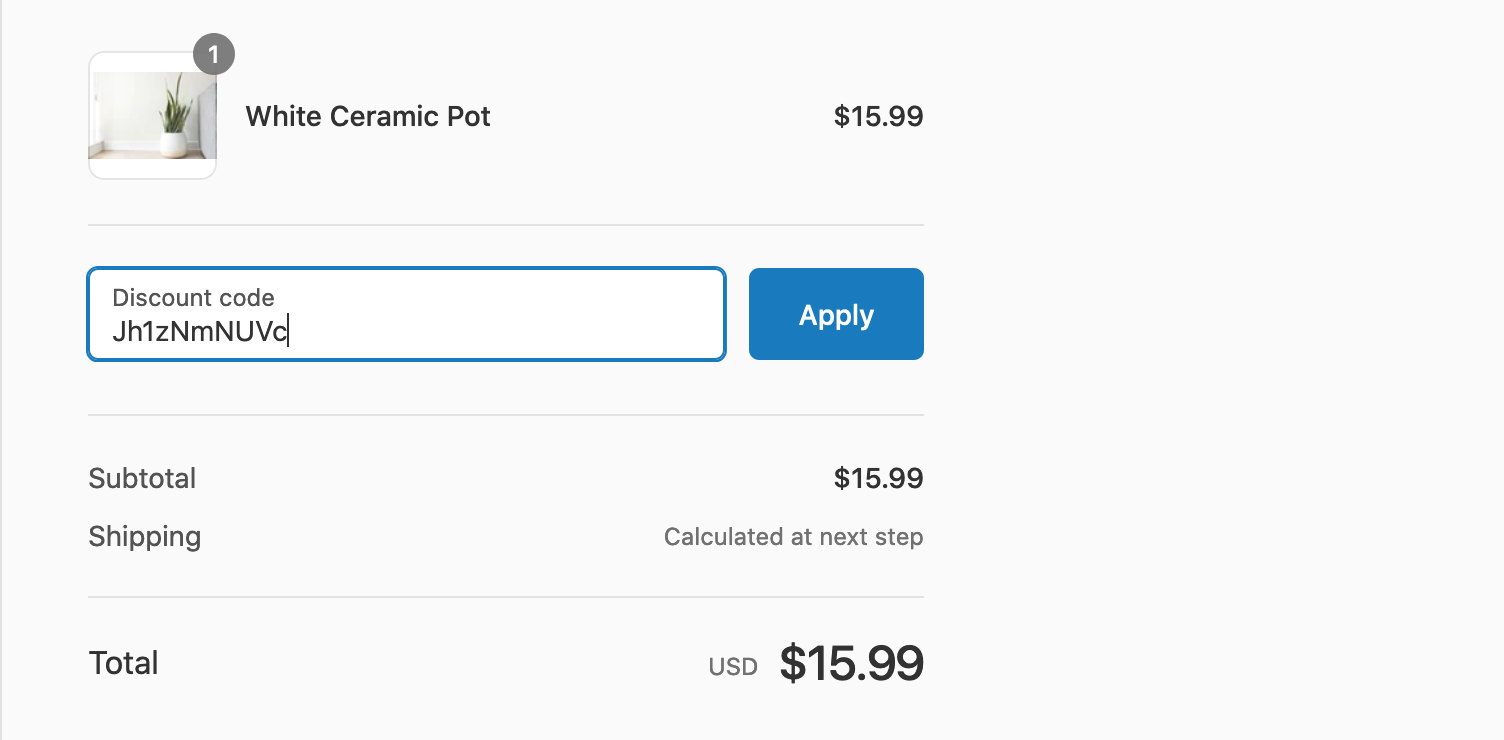 The discount will be applied to the total order.
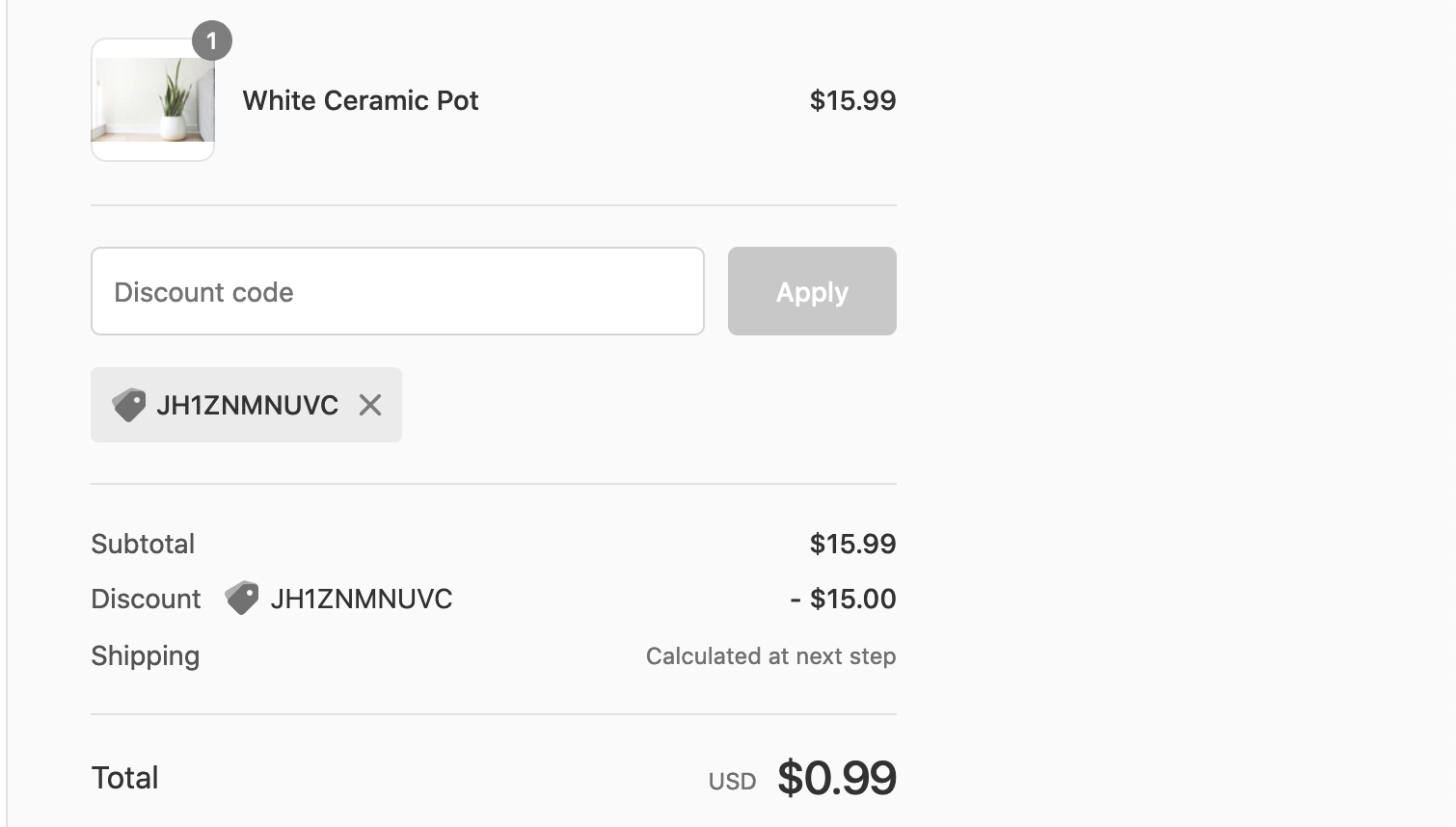 By clicking **Apply Coupon**, the customer will automatically find the coupon applied during checkout and will not need to paste the code themselves. To manage these discount codes, admins can navigate to the "Discounts" section in the Shopify Admin dashboard, where all generated coupons are stored for review and management.
***
## Related Articles
Let customers redeem their Gameball points during in-store POS transactions.
Set up the full points redemption program for your store.
By clicking **Apply Coupon**, the customer will automatically find the coupon applied during checkout and will not need to paste the code themselves. To manage these discount codes, admins can navigate to the "Discounts" section in the Shopify Admin dashboard, where all generated coupons are stored for review and management.
***
## Related Articles
Let customers redeem their Gameball points during in-store POS transactions.
Set up the full points redemption program for your store.