> ## Documentation Index
> Fetch the complete documentation index at: https://docs.gameball.co/llms.txt
> Use this file to discover all available pages before exploring further.
# What Timezone Does Gameball Use?
> All dates and times in the Gameball dashboard are shown in your account's configured timezone, with hints throughout the UI so you always know which timezone you're looking at.
Every date and time in Gameball — campaigns, logs, analytics, exports, scheduling fields — is displayed in your **account's configured timezone**, not your browser's local time and not raw UTC. All dates are also saved in account time, so what you type is what fires.
***
## Where to Set Your Timezone
Go to **Settings** and update the timezone under your account preferences. The change applies immediately across the entire dashboard.
***
## Timezone Hints in the UI
Because a correct time can still look wrong when you don't know which timezone it's in, Gameball shows a timezone hint wherever dates appear — in four forms depending on the context:
**Tables** — a hint on the date column header (e.g. `· Cairo time`), shown once per table.
**Single values & detail panels** — hover or focus the timestamp to see the full offset (e.g. `Cairo time (UTC+03:00)`).
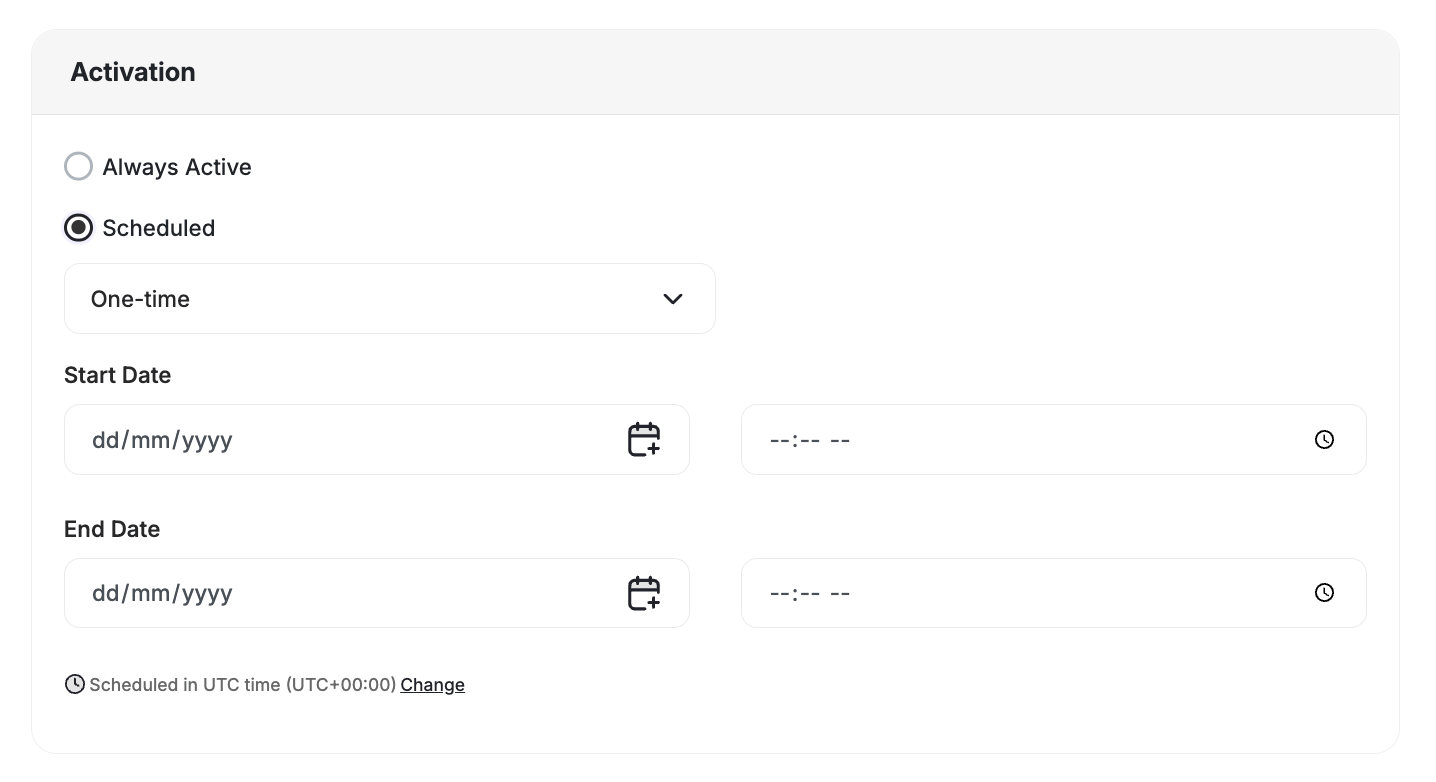
**Scheduling fields** — an always-visible line on the field tells you which timezone the scheduled time will be saved in, with a direct link to your timezone setting.
 **Full analytics views** — a line at the top of the page confirms all data on that view is in account time.
 ***
## What Changed
Previously, some screens showed raw UTC, others used the browser's local time, and some scheduling flows saved the wrong hour. Gameball now routes every date through a single timezone service — one layer that converts backend UTC to your account timezone on the way in, and back to UTC on the way out.
This fixes long-standing reconciliation gaps where Gameball timestamps didn't line up with POS systems or third-party tools, and scheduling mistakes caused by unclear timezone context.
If you spot a screen still showing the wrong time or missing a timezone hint, contact [support@gameball.co](mailto:support@gameball.co) with the page name and we'll get it fixed.
***
## Related Articles
Understand how points are reversed when an order is refunded.
Filter and search across customers, campaigns, and logs.
***
## What Changed
Previously, some screens showed raw UTC, others used the browser's local time, and some scheduling flows saved the wrong hour. Gameball now routes every date through a single timezone service — one layer that converts backend UTC to your account timezone on the way in, and back to UTC on the way out.
This fixes long-standing reconciliation gaps where Gameball timestamps didn't line up with POS systems or third-party tools, and scheduling mistakes caused by unclear timezone context.
If you spot a screen still showing the wrong time or missing a timezone hint, contact [support@gameball.co](mailto:support@gameball.co) with the page name and we'll get it fixed.
***
## Related Articles
Understand how points are reversed when an order is refunded.
Filter and search across customers, campaigns, and logs.