> ## Documentation Index
> Fetch the complete documentation index at: https://docs.gameball.co/llms.txt
> Use this file to discover all available pages before exploring further.
# What Are Manually Add or Deduct Points From Customers?
> Learn how to add or remove points to any or all of your customers through the points transaction tab.
You might face situations where you will need to manually add points as a form of compensation, for example, or you will need to deduct points that were earned by mistake. You can choose to manually add or remove these points to one customer or all your customers simultaneously.
***
## Adding and Deducting Points from All Customers
On the **Gameball Admin Dashboard**, go to the **Customers Section**, do not select any customer, and click **Add/Deduct Points**.
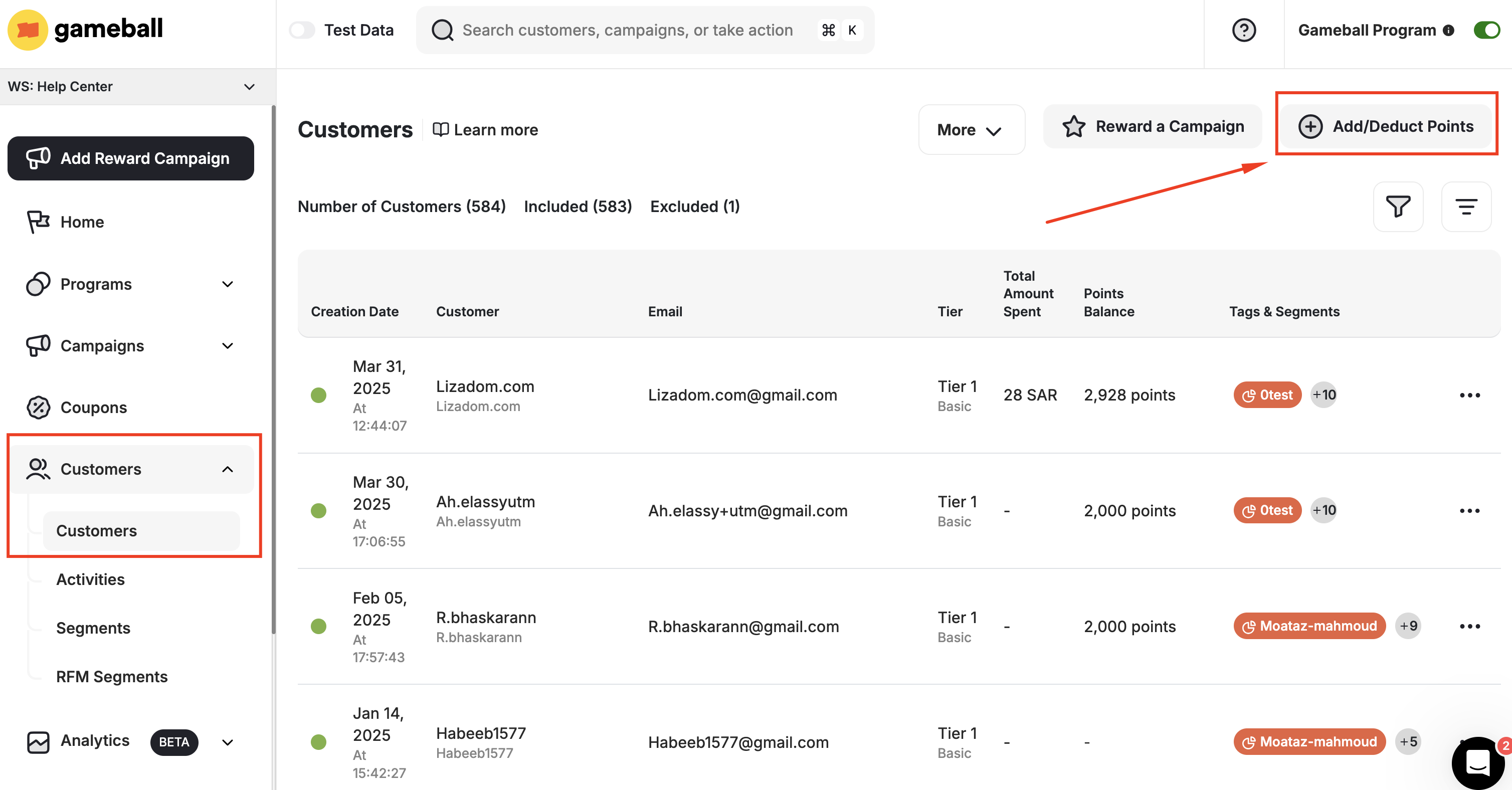 You can complete the add or deduction process using the Gameball internal system or via a CSV file.
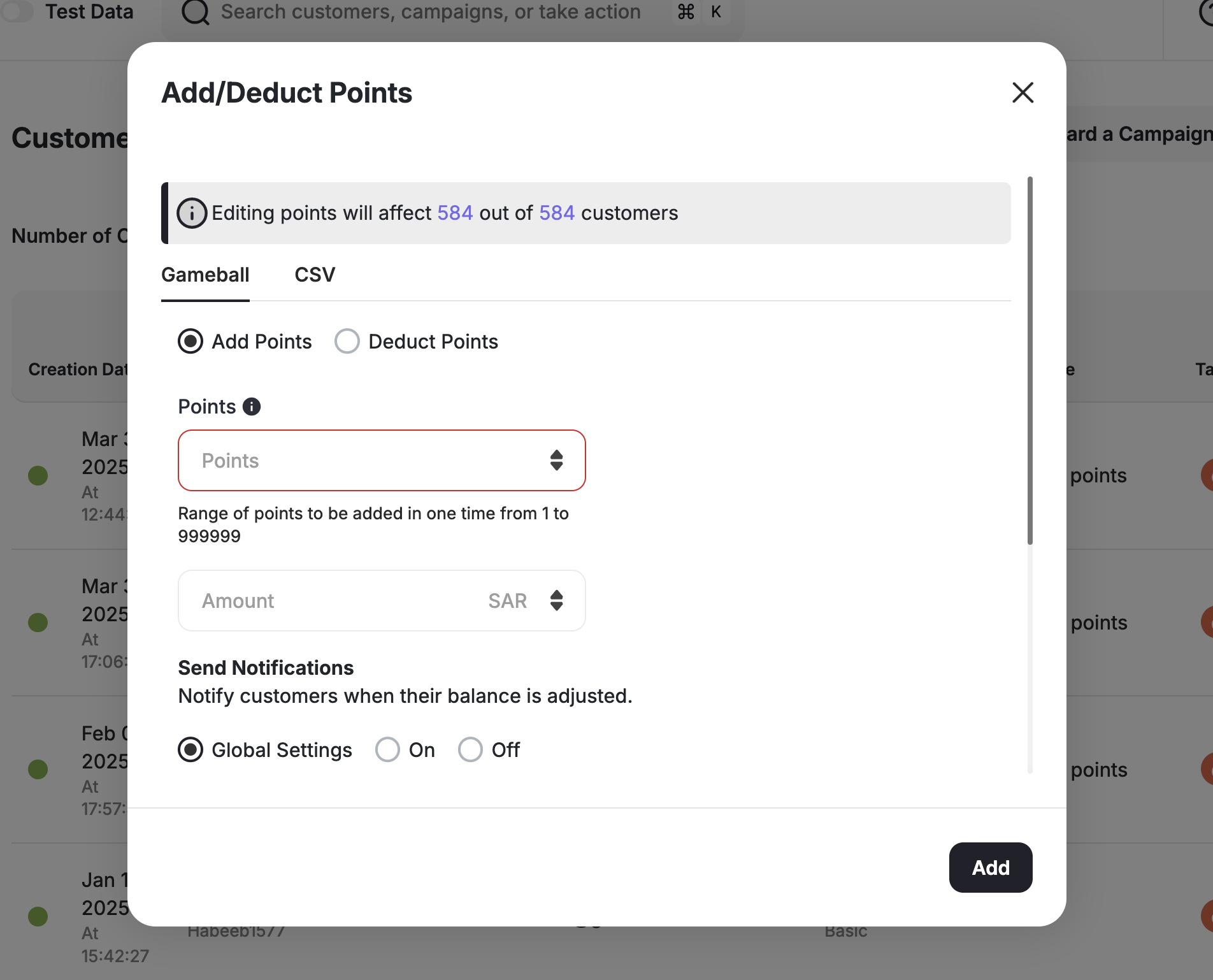 Follow these steps:
1. Choose between **Add points** and **Deduct points**.
Follow these steps:
1. Choose between **Add points** and **Deduct points**.
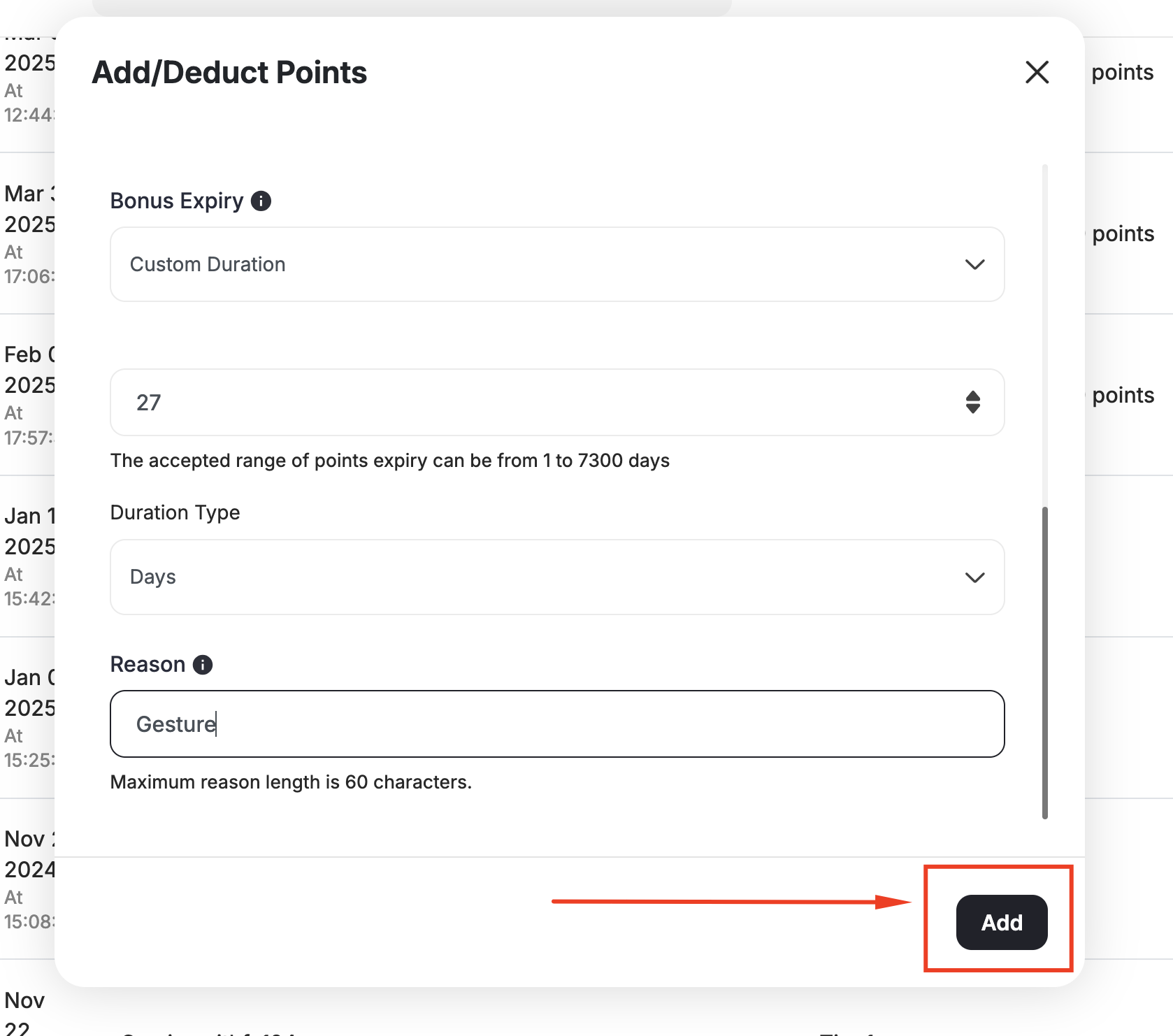
 2. Add the number of points you want to add/deduct.
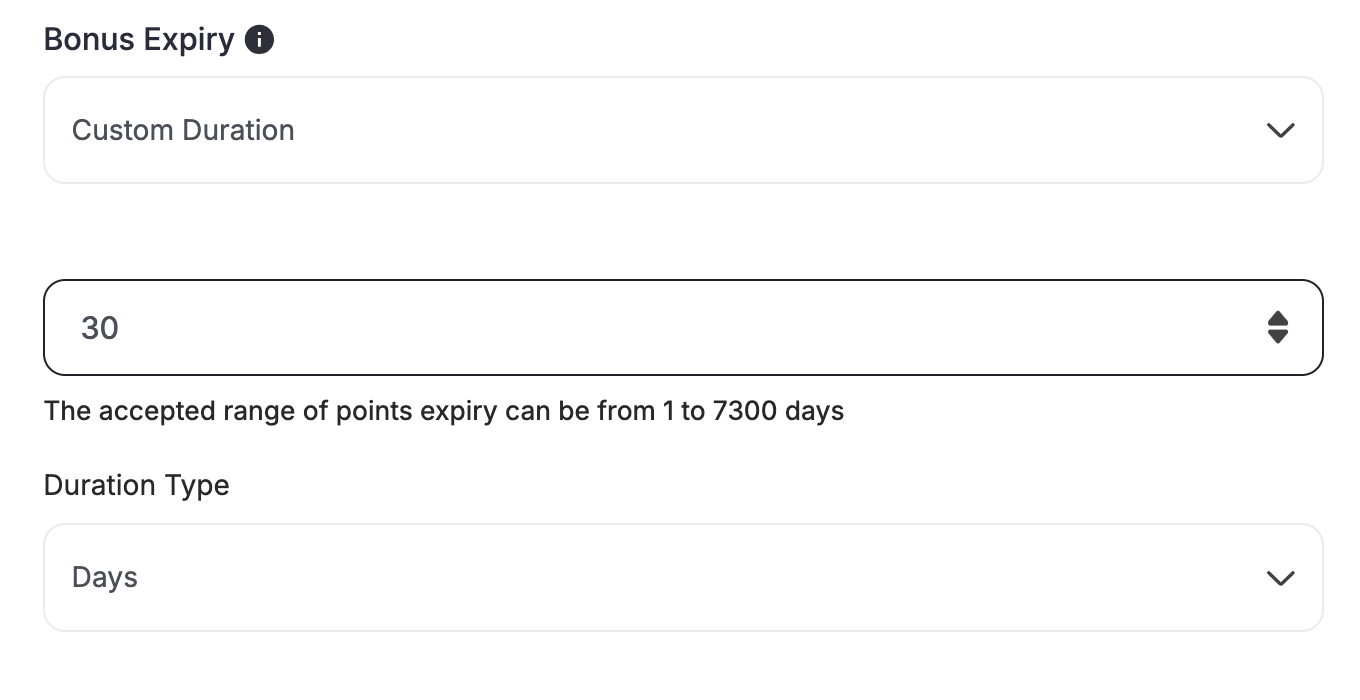
 3. If you are adding points, choose the expiry date of the added points.
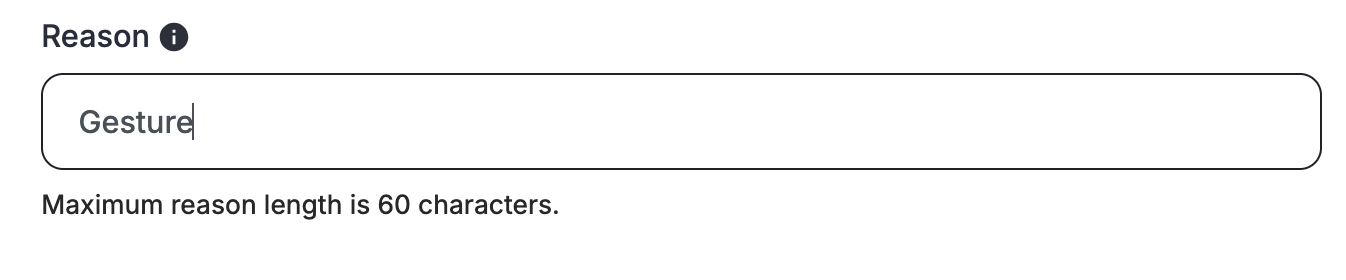
 4. State the reason why these points were added or deducted.
 5. Click **Add** or **Deduct** depending on which action you have initially chosen.
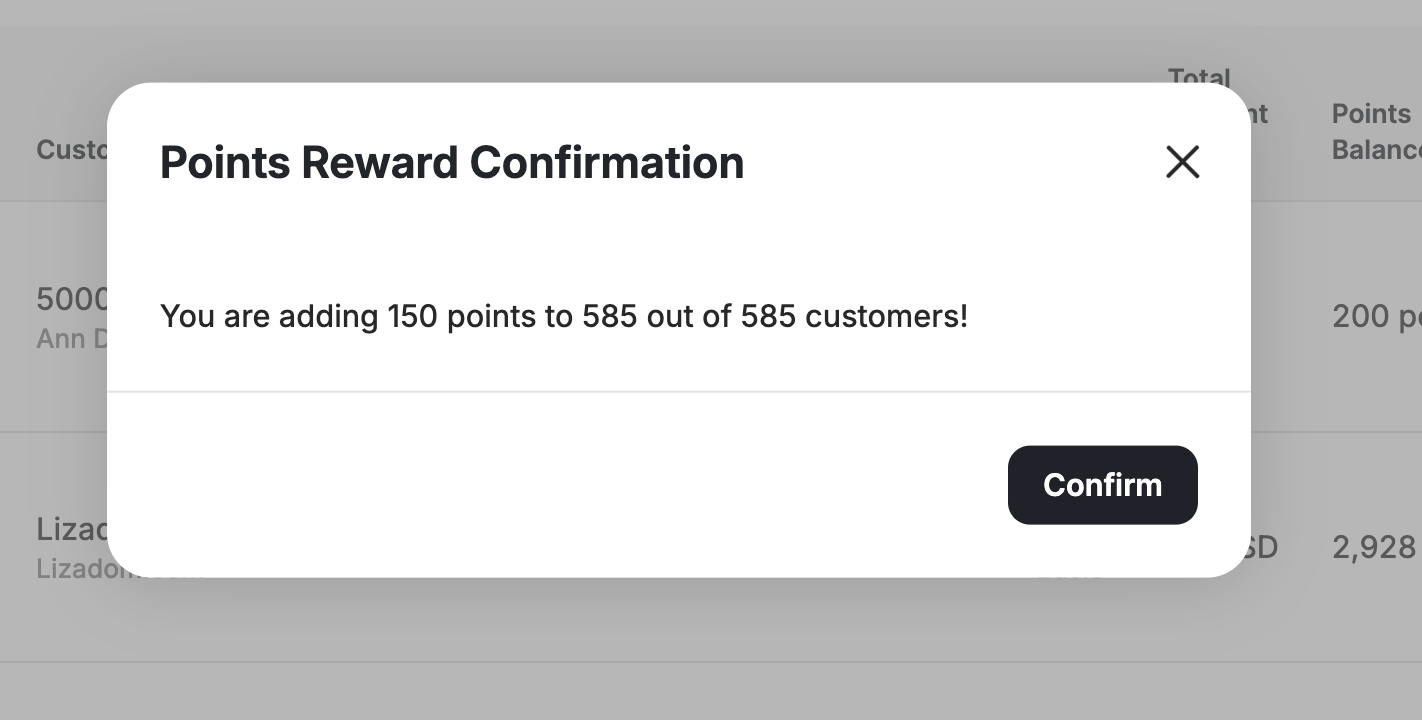
 6. Then click **Confirm**.
 1. Choose the **CSV** tab.
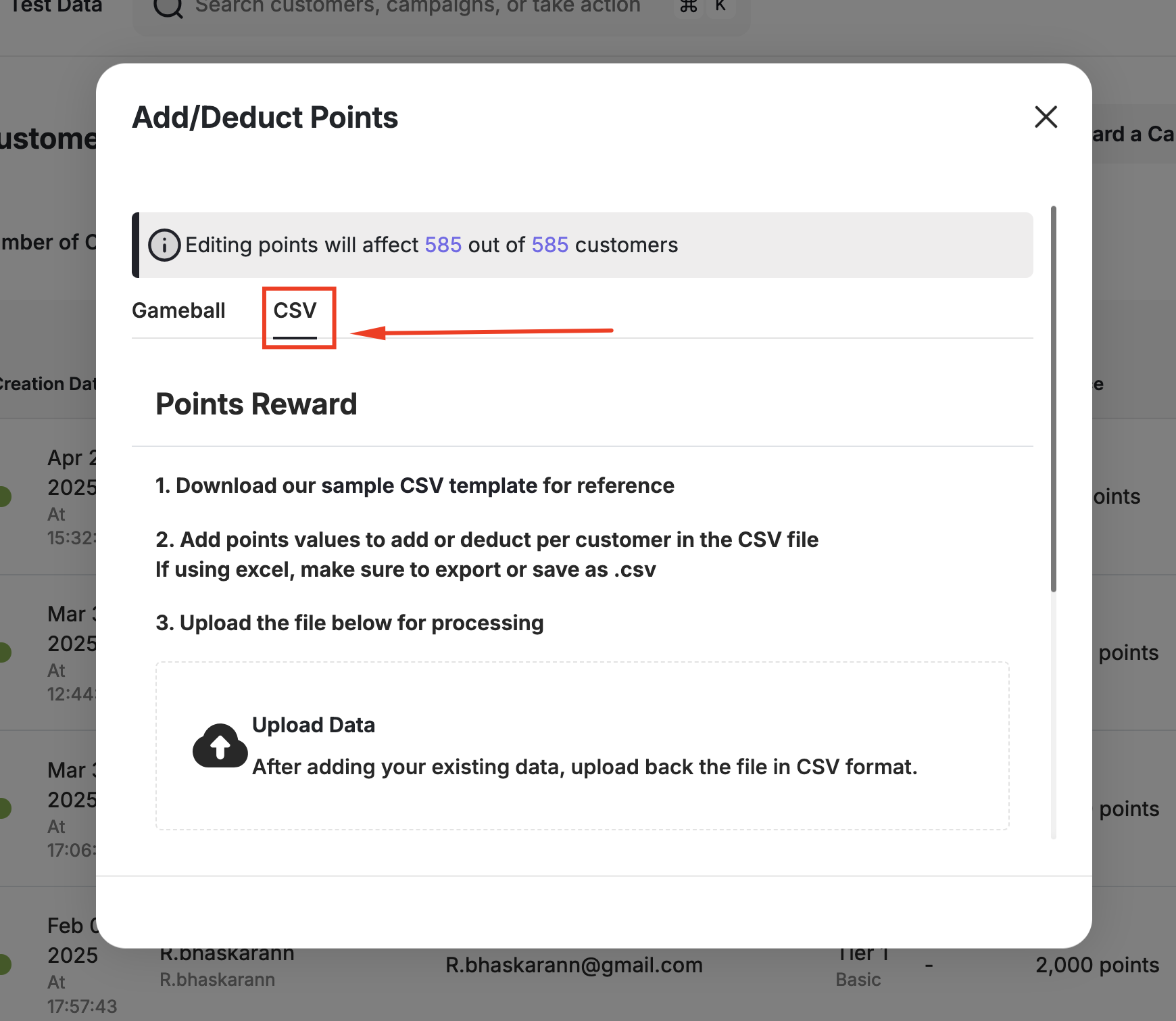 2. Download our sample CSV template for reference by clicking on the first step. The template includes two pre-filled example rows — one positive (add) and one negative (deduct) — along with instructions explaining the add/deduct convention.
3. Fill in the necessary information: customer ID, email, bonus points, reason.
2. Download our sample CSV template for reference by clicking on the first step. The template includes two pre-filled example rows — one positive (add) and one negative (deduct) — along with instructions explaining the add/deduct convention.
3. Fill in the necessary information: customer ID, email, bonus points, reason.
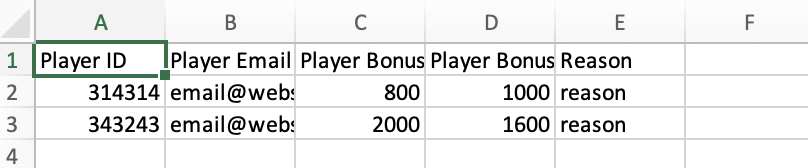 Customer bonus points can include positive or negative values depending on whether you are adding or deducting points.
4. Upload the CSV file back to Gameball.
Customer bonus points can include positive or negative values depending on whether you are adding or deducting points.
4. Upload the CSV file back to Gameball.
 5. Click **Upload**.
* A customer's ID is mandatory, and it must be unique per customer.
* Customer ID must be the same ID used in the customer web integration snippet and mobile integration customer initialization.
***
## Adding and Deducting Points from One Customer
On the **Gameball Admin Dashboard**, go to the **Customers section**, search for and choose the customer you want to adjust their points for.
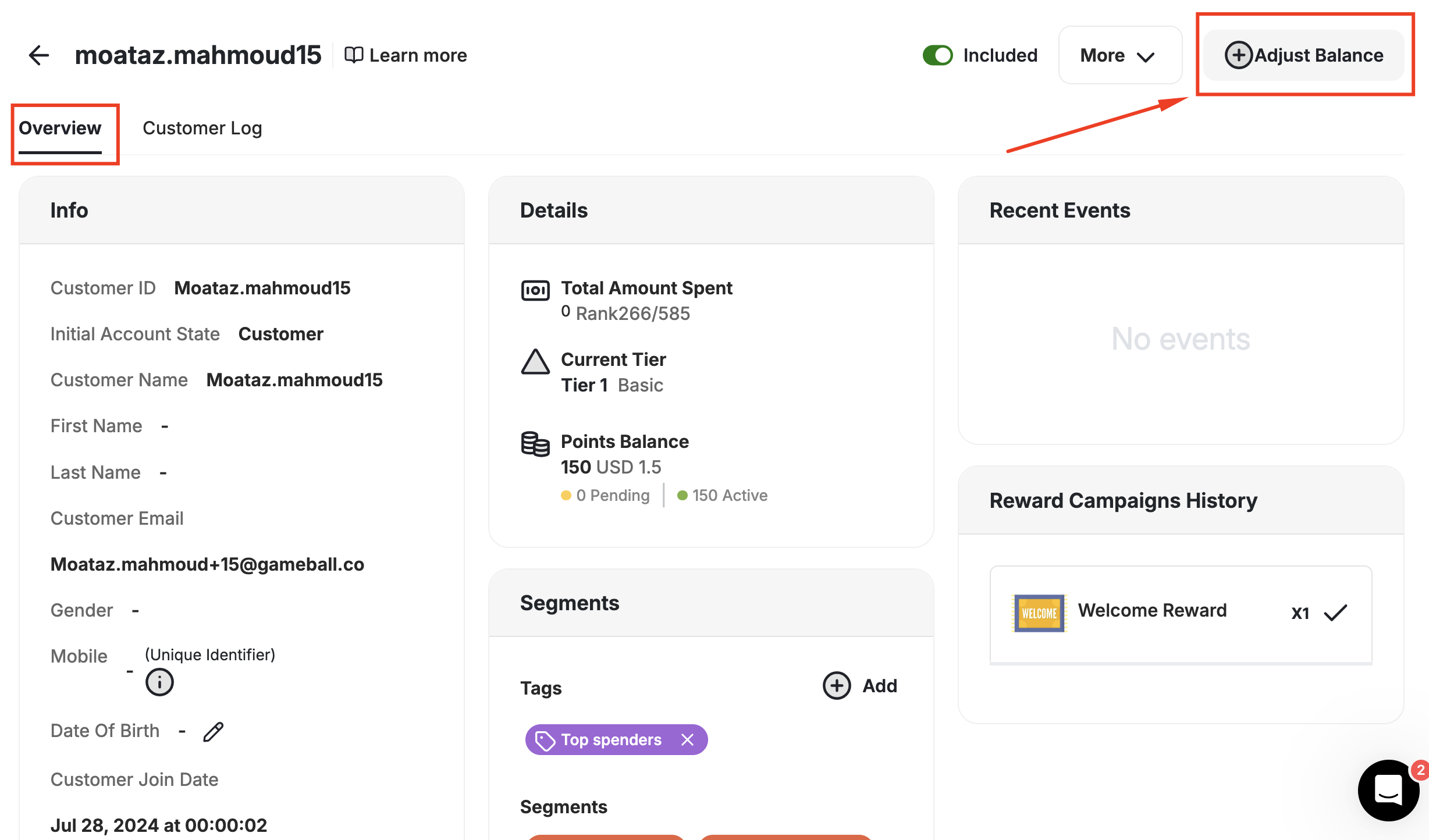
On the customer **overview page**, click **Adjust Balance**.
5. Click **Upload**.
* A customer's ID is mandatory, and it must be unique per customer.
* Customer ID must be the same ID used in the customer web integration snippet and mobile integration customer initialization.
***
## Adding and Deducting Points from One Customer
On the **Gameball Admin Dashboard**, go to the **Customers section**, search for and choose the customer you want to adjust their points for.
On the customer **overview page**, click **Adjust Balance**.
 Follow the same steps as adding or deducting points internally through Gameball for all customers.
***
## Related Articles
Review all actions and transactions on any customer's profile.
Learn how to manually assign a reward campaign to specific customers.
Follow the same steps as adding or deducting points internally through Gameball for all customers.
***
## Related Articles
Review all actions and transactions on any customer's profile.
Learn how to manually assign a reward campaign to specific customers.