> ## Documentation Index
> Fetch the complete documentation index at: https://docs.gameball.co/llms.txt
> Use this file to discover all available pages before exploring further.
# How Do I Choose a Different Name for Points and Score to Match My Brand?
> Create unique names for your score and points to be aligned with your brand theme.
Score and Points are both units often used as rewards to customers who completed different actions or reward campaigns; however, each has a different role, and they both represent different kinds of rewards. [Learn more about the difference between scores and points.](/product-documentation/guides-strategies-faqs/faqs/points-vs-score)
If the words "Score" and "Points" do not appeal to you or match your brand theme, you can set different names through the Gameball dashboard.
***
## Score
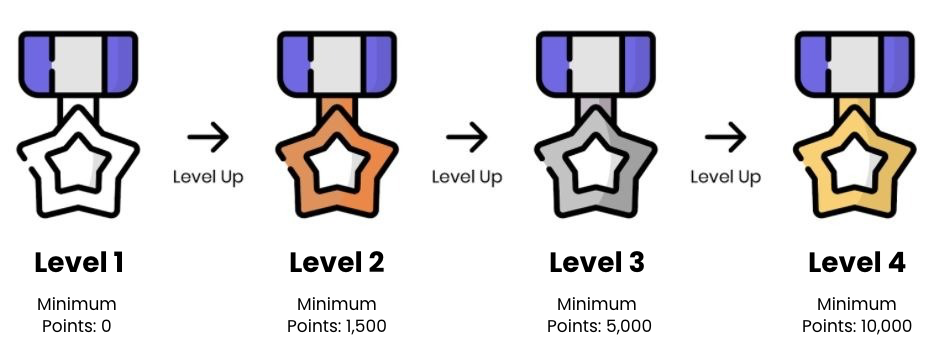
The score is the unit that represents the customer's status; it increases with the more achievements your customers complete. The score also allows your customer to tier up and helps them keep track of their progress. **Suggested names for score**:
* Gems
* Freebies
* Crystals
* Stars
To use score as the main reward system, you can do that while creating a tier-up method. [Learn more](/product-documentation/programs/vip-tiers/tier-settings/tiering-up-methods).
***
## Points
Points are your internal currency. Customers collect them with every achievement they complete, and they can be redeemed later on by the customer. **Suggested names for points**:
* Coins
* Tokens
* Miles
***
## How to Configure Point Names on Gameball
Open **Gameball Admin Dashboard**, click on **Widget Settings** **> Branding,** then go to the **Identity** tab.
 Scroll down to **Points**.
You can change both the **Points** and **Score Names**, and choose a **Points Icon** from Gameball's library.
Scroll down to **Points**.
You can change both the **Points** and **Score Names**, and choose a **Points Icon** from Gameball's library.
 Once you finish, click the **Save** button.
***
## Related Articles
Customize your Gameball Customer Widget to align with your brand identity.
Learn about the Gameball Customer Widget and its capabilities.
Customize tabs visibility and order in your Gameball widget settings.
Understand the key difference between score and points in Gameball.
Set up the correct language for your customer widget on your platform.
Once you finish, click the **Save** button.
***
## Related Articles
Customize your Gameball Customer Widget to align with your brand identity.
Learn about the Gameball Customer Widget and its capabilities.
Customize tabs visibility and order in your Gameball widget settings.
Understand the key difference between score and points in Gameball.
Set up the correct language for your customer widget on your platform.