> ## Documentation Index
> Fetch the complete documentation index at: https://docs.gameball.co/llms.txt
> Use this file to discover all available pages before exploring further.
# How Do I Send Customers Emails Celebrating Achievements?
> Send your customers email notifications with their latest achievements and drive them back to your platform.
Available for all Gameball customers except for free packages
Enable the email notifications feature to send your customers emails every time they earn cashback, points, or complete reward campaigns on your platform.
Sometimes, customers earn points or win reward campaigns while they are not on your platform — for example, if their sign-up anniversary or birthday triggers a reward on a specified day without any recent interaction from their side. This is where email notifications can be very useful. Enabling email notifications can help you drive back your customers to visit your platform.
Customers who do not want to keep receiving your emails can easily unsubscribe through a small hyperlink at the bottom of every Gameball email.
***
## Where to Find the Email Notification Section
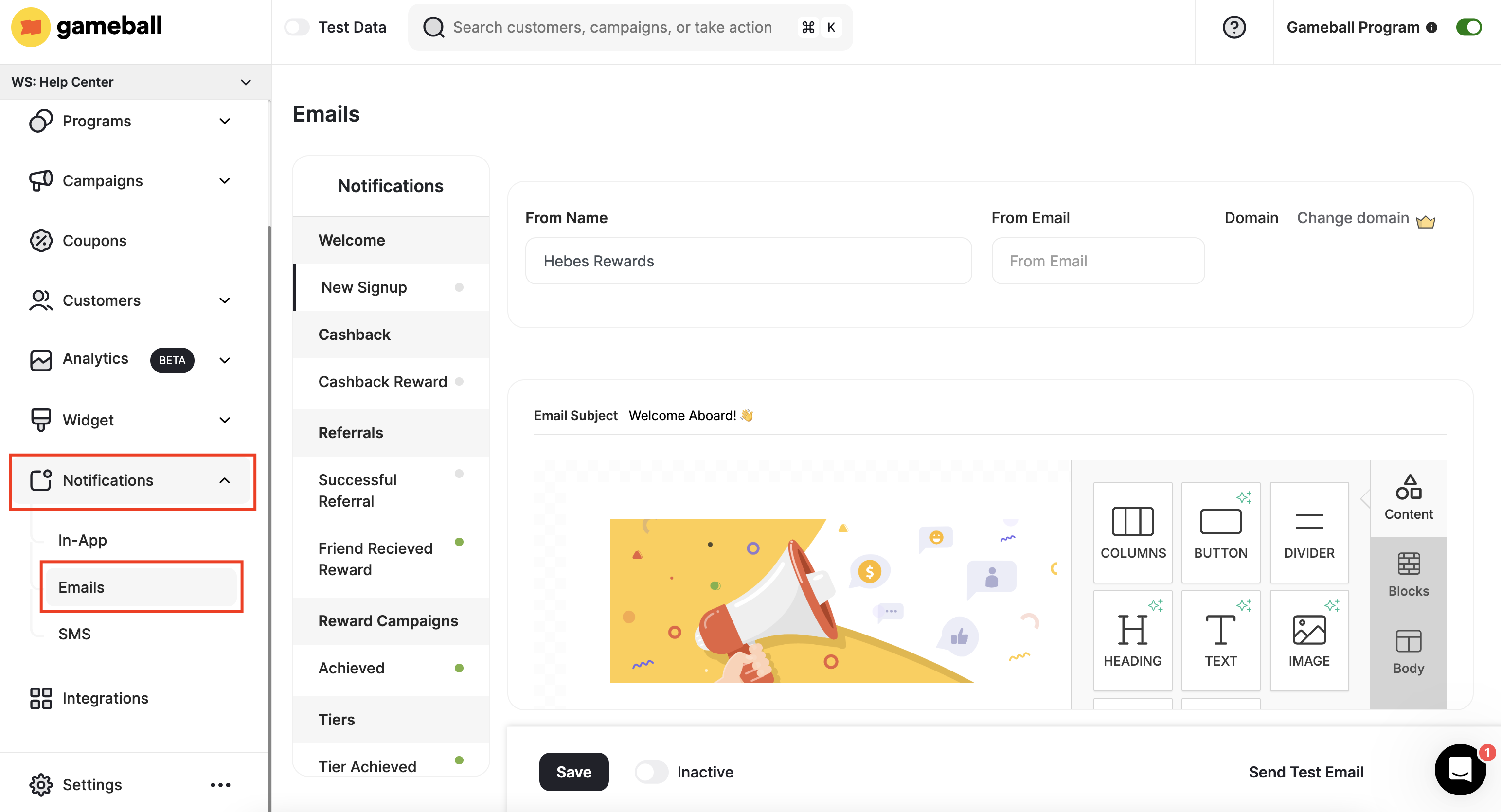
On the **Gameball Dashboard**, from the left bar, click **Notifications**, then select **Emails**.
 ***
## Types of Email Notifications
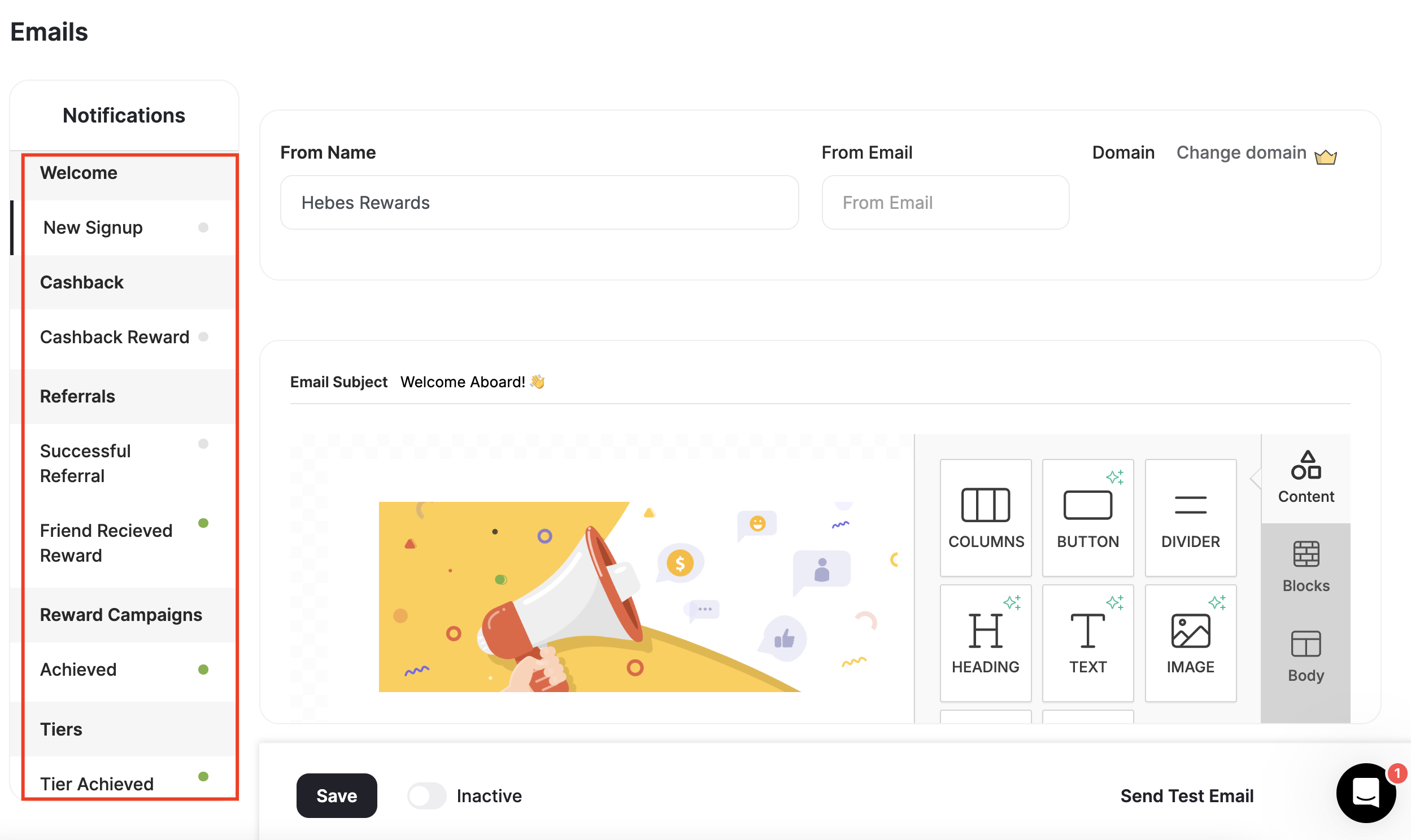
You can enable email notifications for the following types of achievements:
Welcome new customers who have just signed up to your loyalty program.
Inform your customers when they receive a cashback reward.
Inform your customer when a previous referral attempt becomes successful, or when they receive a reward for that referral.
Congratulate your customers upon achieving all the reward campaign requirements and winning it.
Congratulate and inform your customers when they reach a new tier or level.
Inform your customers upon the following transactional rewards events:
* **Coupon Earned:** Sending customers an email every time they successfully receive a coupon as a reward.
* **Points Expiry Reminder:** Reminding customers with the points about to expire 15 days before the expiry date.
* **Coupon Expiry Reminder:** Reminding customers with the coupons about to expire 15 days before the expiry date.
***
## Types of Email Notifications
You can enable email notifications for the following types of achievements:
Welcome new customers who have just signed up to your loyalty program.
Inform your customers when they receive a cashback reward.
Inform your customer when a previous referral attempt becomes successful, or when they receive a reward for that referral.
Congratulate your customers upon achieving all the reward campaign requirements and winning it.
Congratulate and inform your customers when they reach a new tier or level.
Inform your customers upon the following transactional rewards events:
* **Coupon Earned:** Sending customers an email every time they successfully receive a coupon as a reward.
* **Points Expiry Reminder:** Reminding customers with the points about to expire 15 days before the expiry date.
* **Coupon Expiry Reminder:** Reminding customers with the coupons about to expire 15 days before the expiry date.
 ***
## Email Notifications Settings
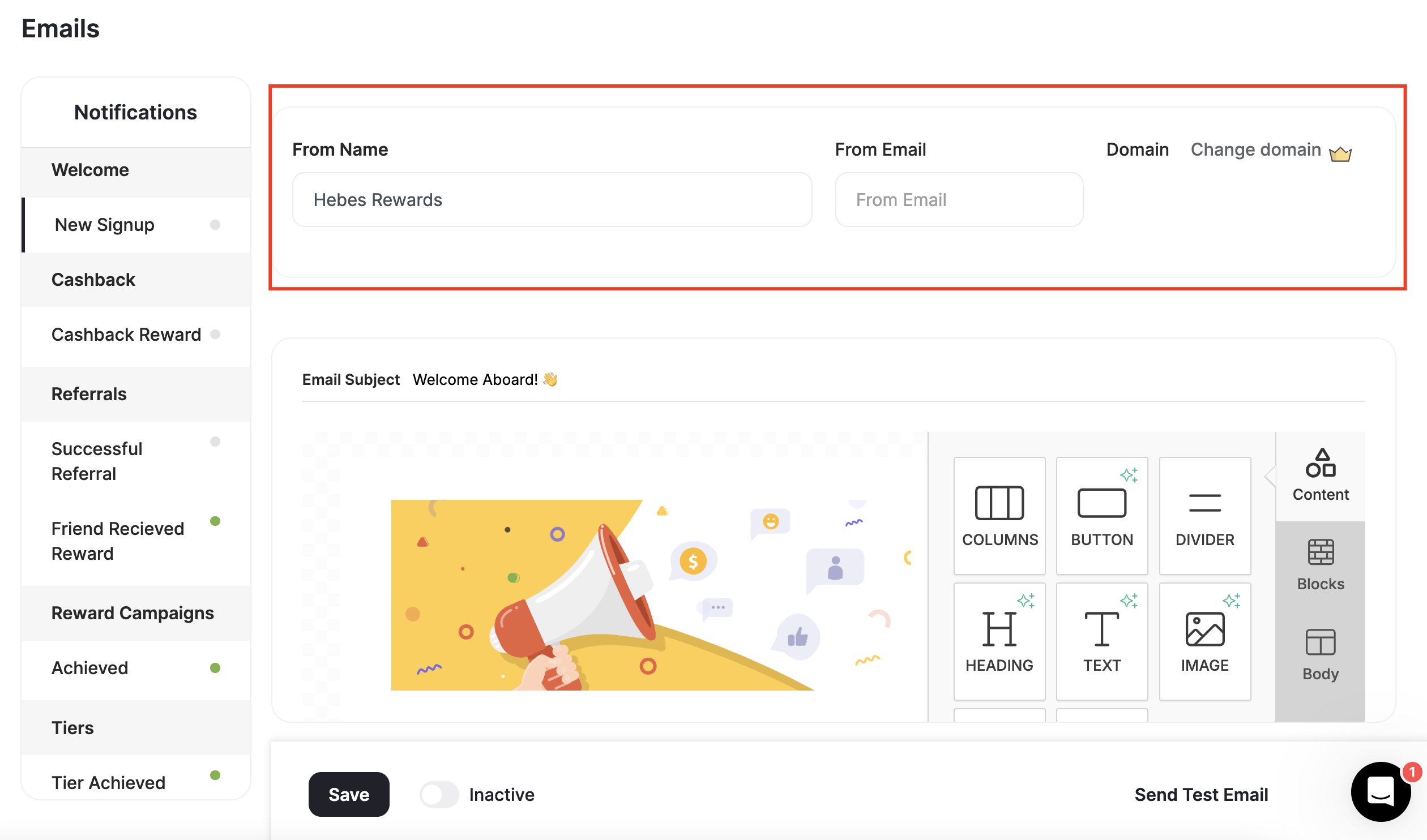
The email settings section is where you configure general settings for all your emails:
| Setting | Description |
| ---------- | --------------------------------------- |
| From Name | Your brand or business name. |
| From Email | Your customer-facing official email. |
| Domain | Available on Enterprise and Guru plans. |
***
## Email Notifications Settings
The email settings section is where you configure general settings for all your emails:
| Setting | Description |
| ---------- | --------------------------------------- |
| From Name | Your brand or business name. |
| From Email | Your customer-facing official email. |
| Domain | Available on Enterprise and Guru plans. |
 ***
## Email Notifications Components
For each email type, there is a default template that you can use, or you can customize your own email template. There are some components you need to be aware of before customizing your own emails:
* Subject
* Logo
* Banner / Image
* Title / Heading
* Body
* Variables
* Button
***
## Email Notifications Components
For each email type, there is a default template that you can use, or you can customize your own email template. There are some components you need to be aware of before customizing your own emails:
* Subject
* Logo
* Banner / Image
* Title / Heading
* Body
* Variables
* Button
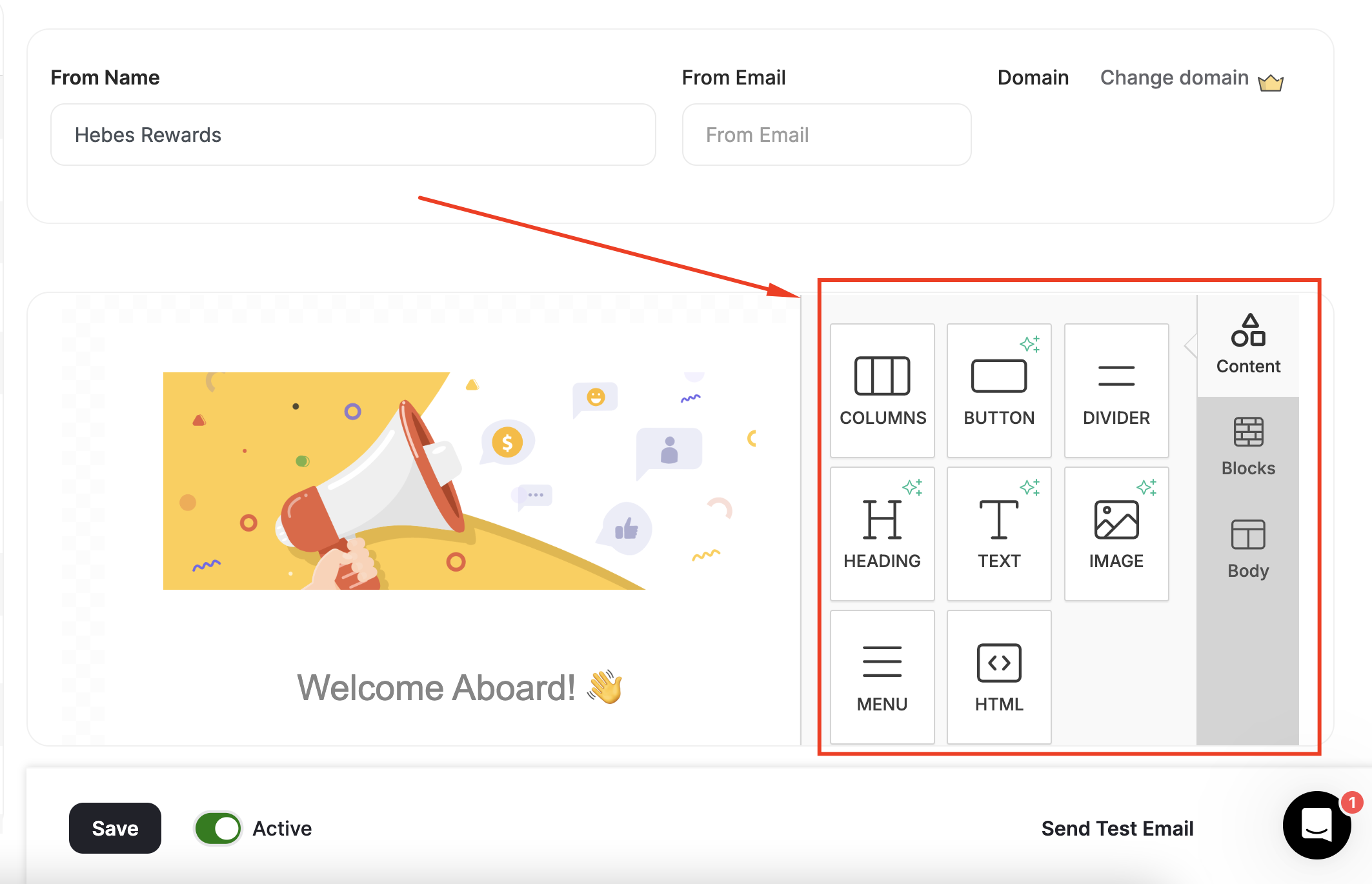
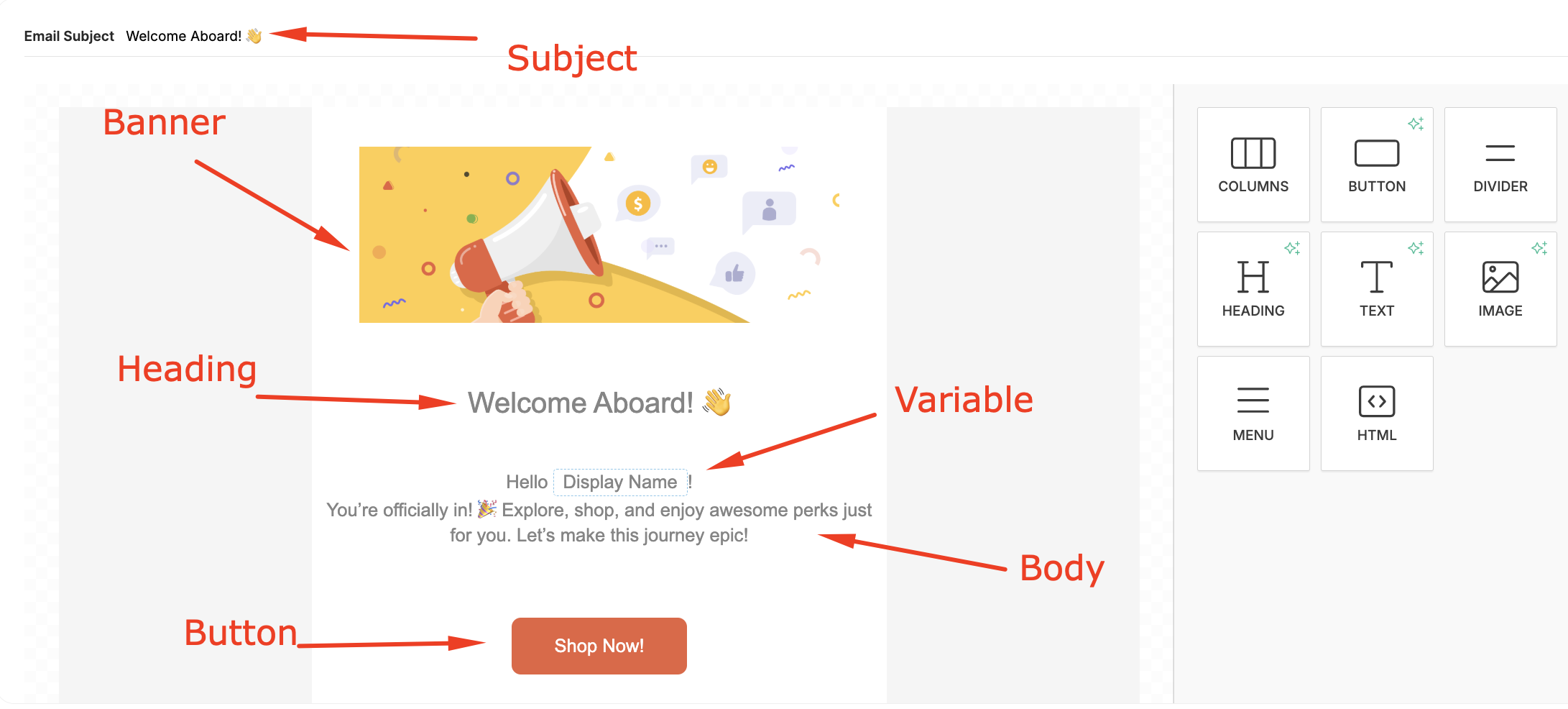 Use the **email composer toolkit** on the right to construct your email.
 ***
## Setting Up and Activating Email Notifications
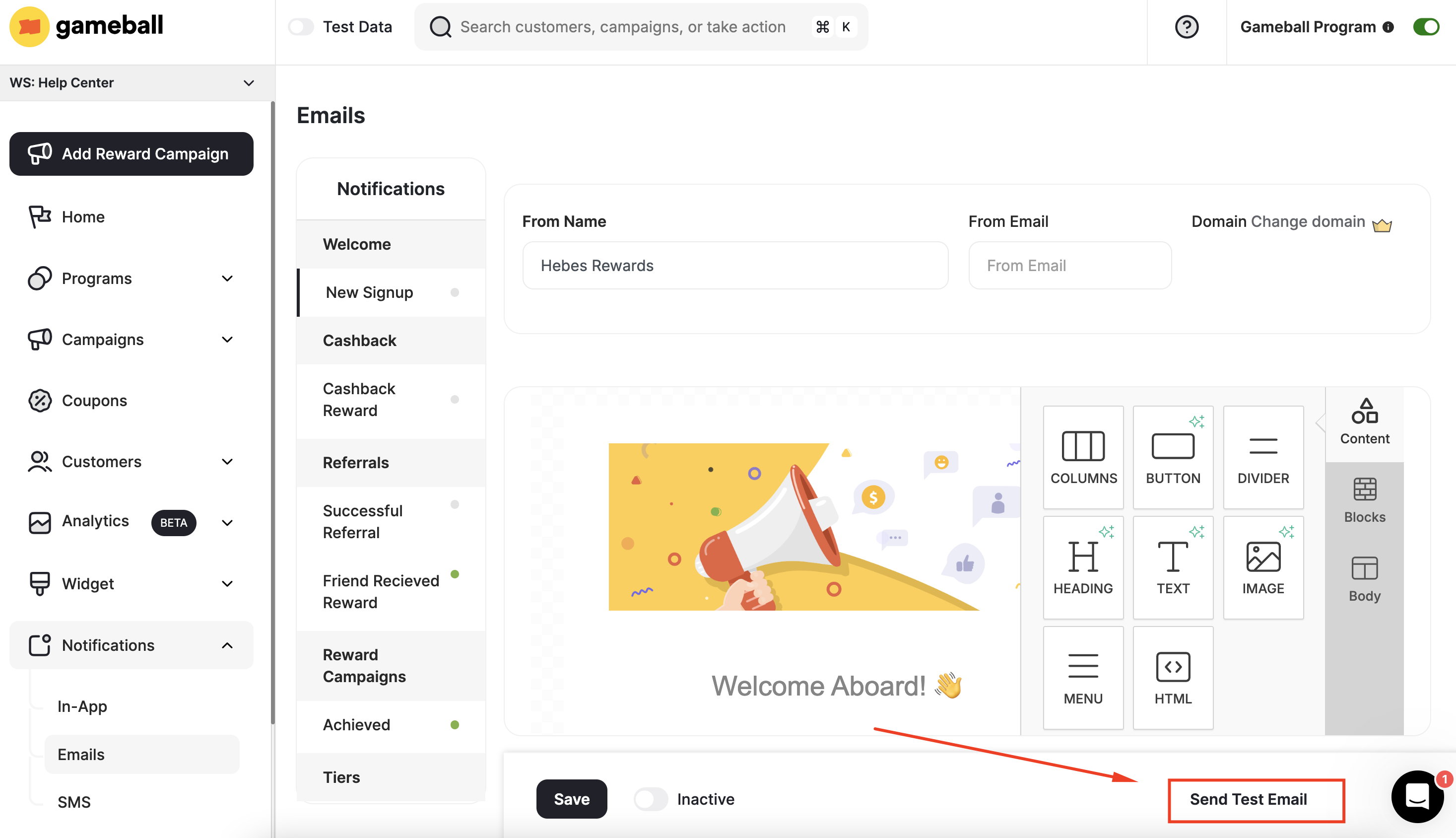
Before activating your customer email notifications, you can send a test email to yourself (the logged-in user) to preview what will be sent to your customers. Click **Send Test Email**.
***
## Setting Up and Activating Email Notifications
Before activating your customer email notifications, you can send a test email to yourself (the logged-in user) to preview what will be sent to your customers. Click **Send Test Email**.
 You have a limit of only 50 test emails per day.
To activate any of your customer email notifications, all mandatory fields must be filled first. For templates you have configured, tested, and are ready to activate, go to the tab of the same email type and switch the toggle to **Active**.
You can enable or disable the notification through the **Active Toggle**.
You have a limit of only 50 test emails per day.
To activate any of your customer email notifications, all mandatory fields must be filled first. For templates you have configured, tested, and are ready to activate, go to the tab of the same email type and switch the toggle to **Active**.
You can enable or disable the notification through the **Active Toggle**.
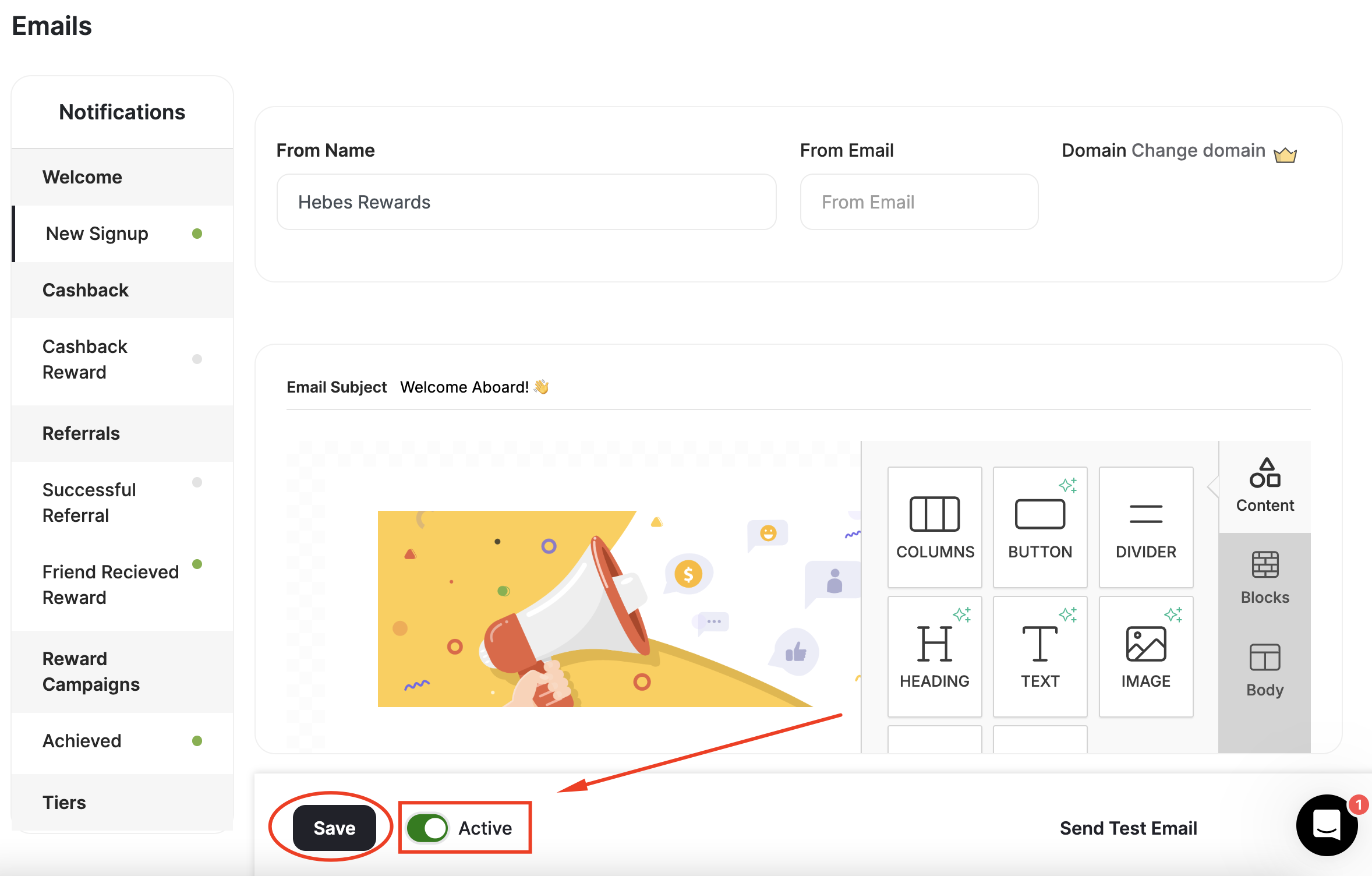 Do not forget to click on "**Save**" before you exit.
You must activate each and every email type through their designated tab; the toggle on each tab only activates the email type you are viewing.
**Communication Campaign Emails (Outbounds)** is a separate feature that allows you to send customized emails. Email campaigns have a [limit](/product-documentation/communication-campaigns/track-outbound-email-consumption) of 10,000 emails per billing cycle for PRO and Guru plans. [Learn more about Email Campaigns](/product-documentation/communication-campaigns/create-configure-email-campaigns).
***
## Common Questions
No. At Gameball, we follow international email regulations like the U.S. CAN-SPAM Act and Canada's CASL. These laws require that all promotional or automated emails include clear sender information and an unsubscribe option. This is why that section of the email footer is fixed — it is there to protect both you and your customers and to ensure that all emails sent through Gameball remain compliant.
***
## Related Articles
Use merge tags and variables to personalize every email sent to your customers.
Do not forget to click on "**Save**" before you exit.
You must activate each and every email type through their designated tab; the toggle on each tab only activates the email type you are viewing.
**Communication Campaign Emails (Outbounds)** is a separate feature that allows you to send customized emails. Email campaigns have a [limit](/product-documentation/communication-campaigns/track-outbound-email-consumption) of 10,000 emails per billing cycle for PRO and Guru plans. [Learn more about Email Campaigns](/product-documentation/communication-campaigns/create-configure-email-campaigns).
***
## Common Questions
No. At Gameball, we follow international email regulations like the U.S. CAN-SPAM Act and Canada's CASL. These laws require that all promotional or automated emails include clear sender information and an unsubscribe option. This is why that section of the email footer is fixed — it is there to protect both you and your customers and to ensure that all emails sent through Gameball remain compliant.
***
## Related Articles
Use merge tags and variables to personalize every email sent to your customers.