> ## Documentation Index
> Fetch the complete documentation index at: https://docs.gameball.co/llms.txt
> Use this file to discover all available pages before exploring further.
# How Do I Send Real-Time Notifications for Manually Adding & Deducting Points?
> Notify your customers upon adding or deducting using Gameball's real-time notifications.
Available for all Gameball customers except for free packages
When you add or deduct points from a customer, you will need to instantaneously inform your customer how many points were added or removed and what their current points balance is.
***
## How to Create Real-Time Notifications for When Points are Added or Deducted
In the **Gameball Admin Dashboard**, from the left bar, click **Notifications**. Choose between **In-App, Emails, & SMS**. Scroll to **Add/Deduct Points** and select between **Add Points** and **Deduct Points**.
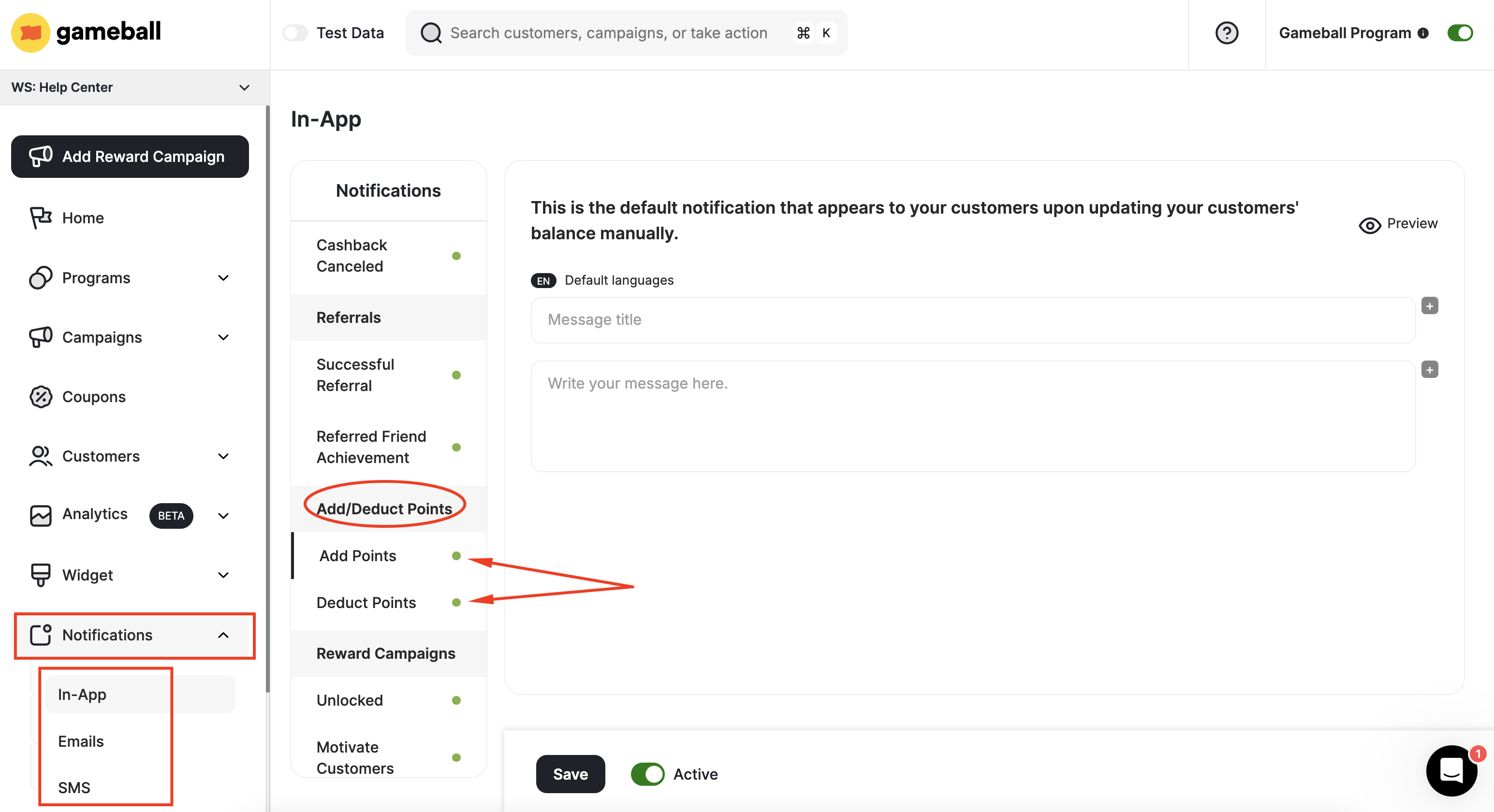 Construct a heading and a body for the notification.
Add your message script for each notification type:
Send real-time transaction notifications for any points manually added. Inform your customer how many points they have received, why they have received these points, and their current points balance.
Send a real-time notification to your customers upon manually deducting points from their account. If the points are deducted for a specific reason, inform them of how many points have been taken back and what their current points balance is.
To send more personalized, relevant, and clear notifications, add variables in between your messages by clicking the **+ icon**.
Construct a heading and a body for the notification.
Add your message script for each notification type:
Send real-time transaction notifications for any points manually added. Inform your customer how many points they have received, why they have received these points, and their current points balance.
Send a real-time notification to your customers upon manually deducting points from their account. If the points are deducted for a specific reason, inform them of how many points have been taken back and what their current points balance is.
To send more personalized, relevant, and clear notifications, add variables in between your messages by clicking the **+ icon**.
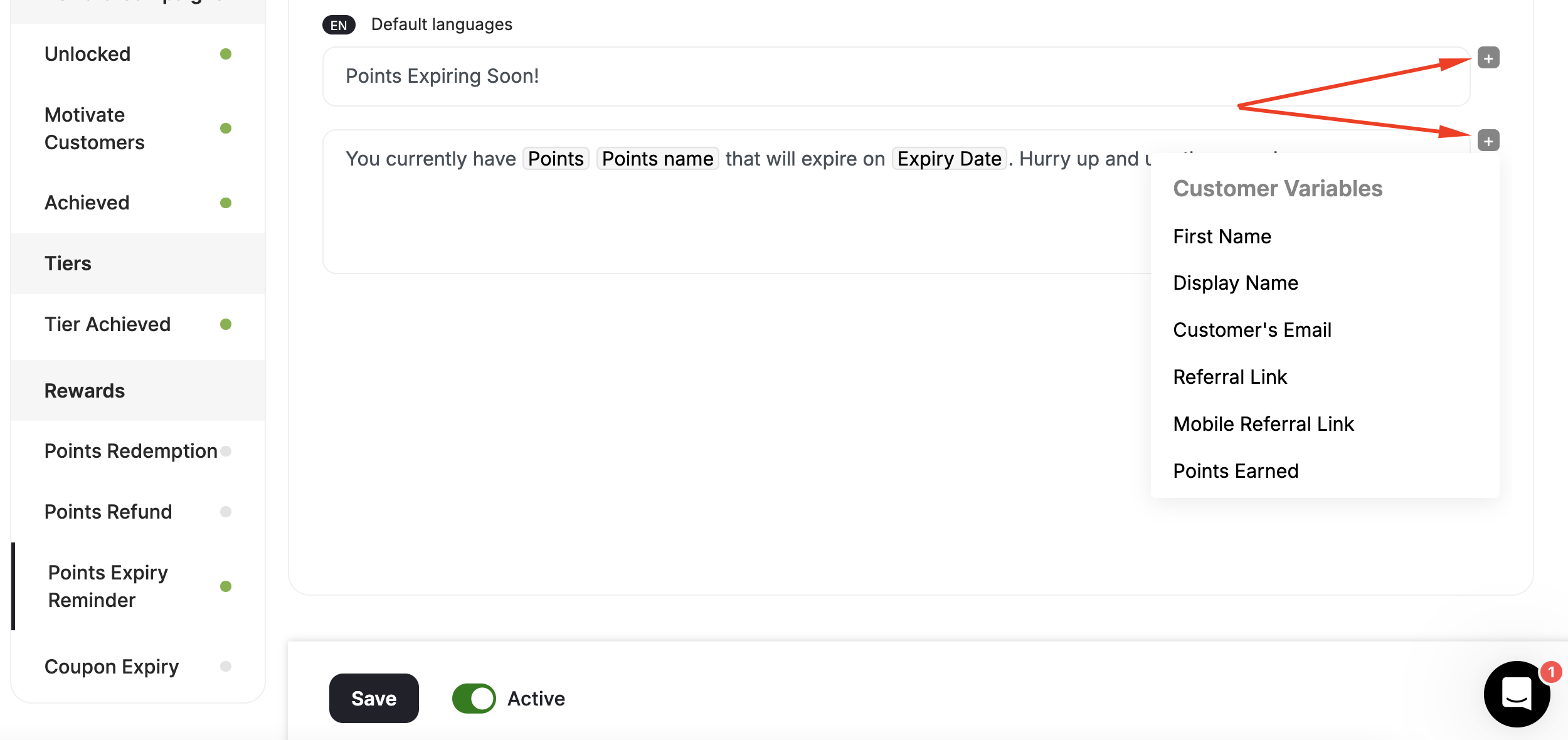 You can use variables in the scripts like the ones below:
* **Customer Variables:** First Name, Display Name, Customer's Email, Referral Link, Mobile Referral Link, Points Earned, Tier-up Progress, Points, Points Before, Tier Up total progress.
* **Transaction Variables:** Equivalent value of total points, Equivalent value of earned points, Currency, Points Name, Referral Link, Mobile Referral Link, Paid Amount, Merchant Name, Branch Name, Return Days, Available Points, Pending Points.
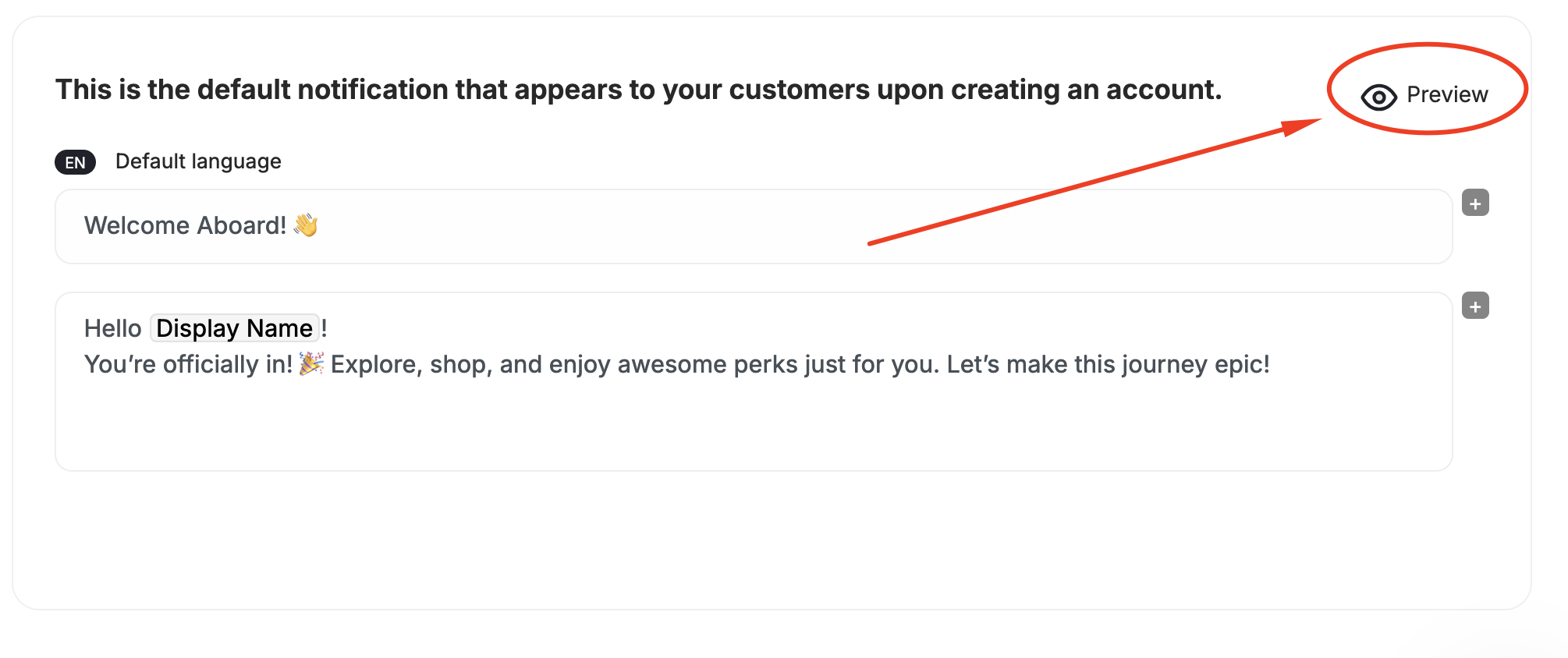
Before activating the notification, click **Preview** on the top right of the edit page to see what the notification will look like for customers.
You can use variables in the scripts like the ones below:
* **Customer Variables:** First Name, Display Name, Customer's Email, Referral Link, Mobile Referral Link, Points Earned, Tier-up Progress, Points, Points Before, Tier Up total progress.
* **Transaction Variables:** Equivalent value of total points, Equivalent value of earned points, Currency, Points Name, Referral Link, Mobile Referral Link, Paid Amount, Merchant Name, Branch Name, Return Days, Available Points, Pending Points.
Before activating the notification, click **Preview** on the top right of the edit page to see what the notification will look like for customers.
 You can edit the notification icon by choosing **Upload Icon**, then click **Upload Icon**.
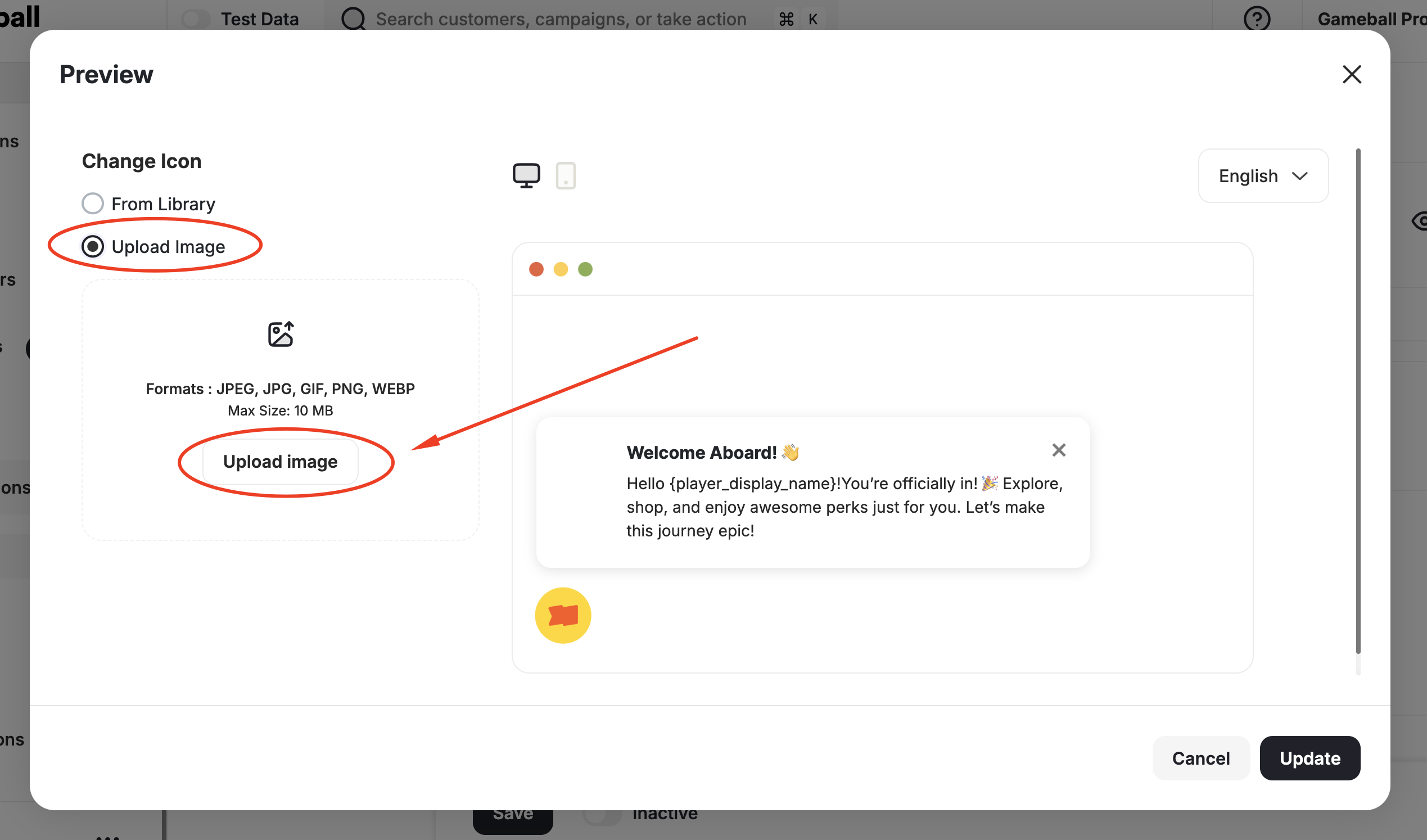
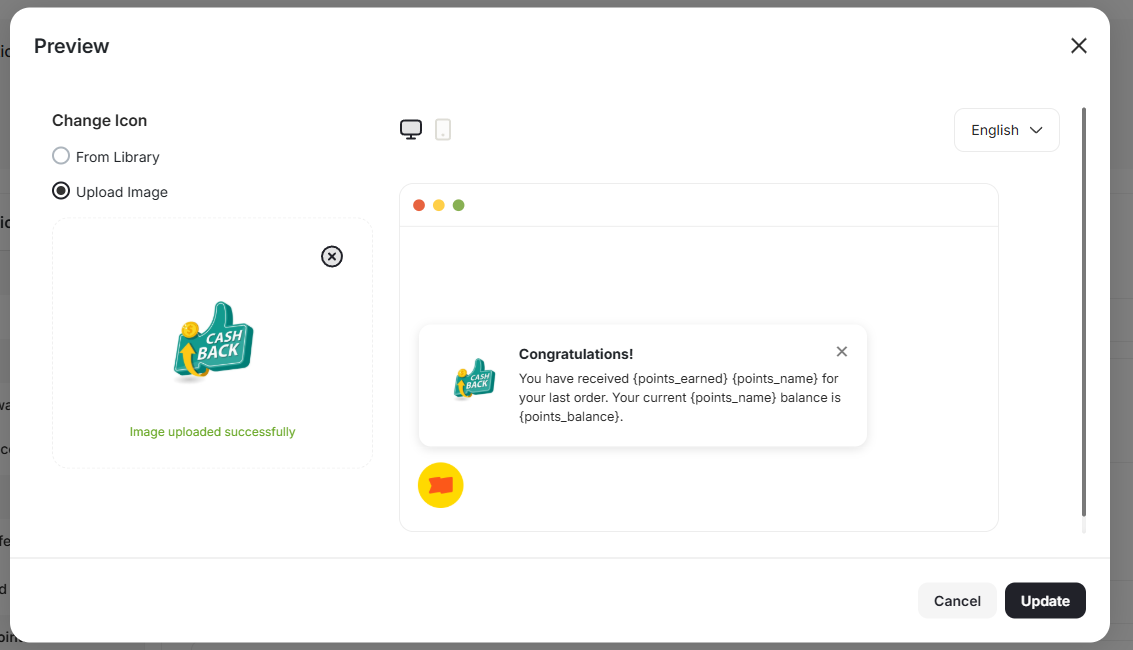 Click **Update** from the bottom right.
Enable or disable the notification through the **Active Toggle**.
Click **Update** from the bottom right.
Enable or disable the notification through the **Active Toggle**.
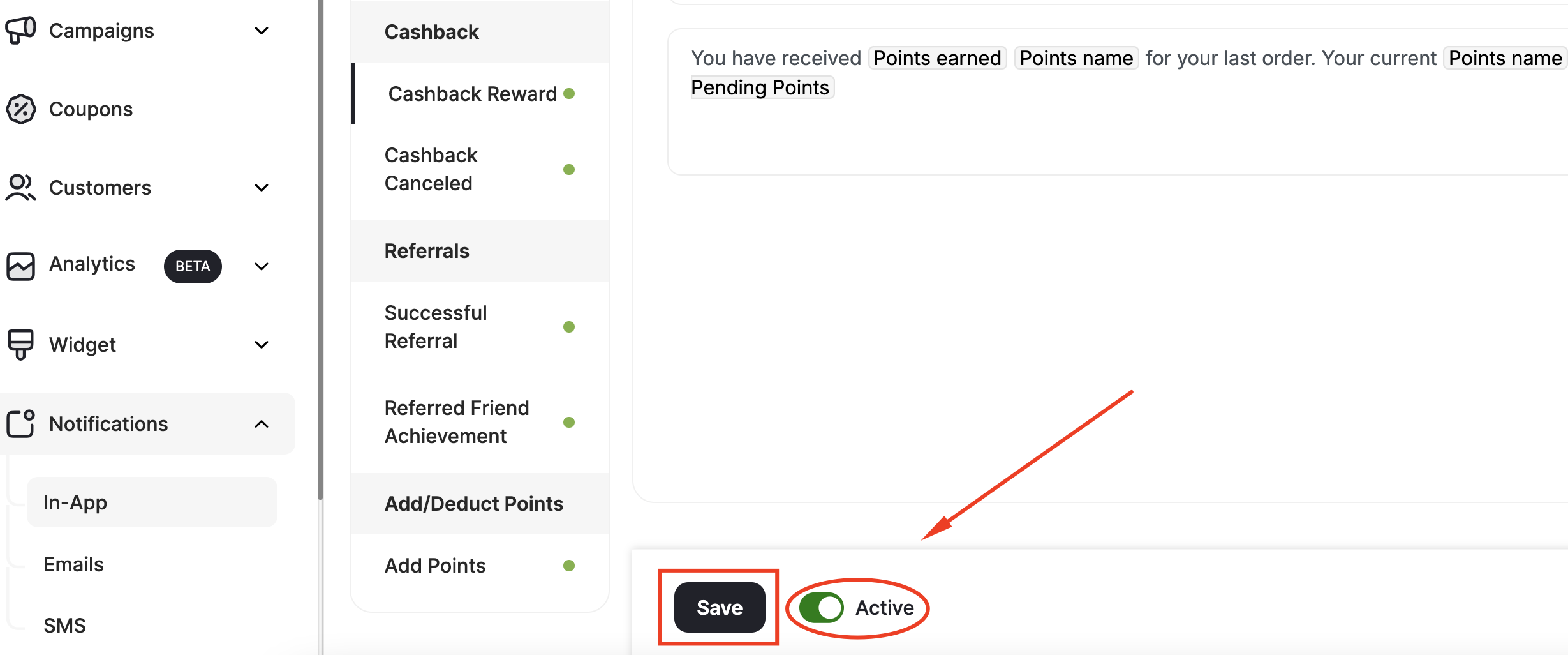 Do not forget to click on "**Save**" before you exit.
***
## Related Articles
Notify customers when they level up to a new tier in your loyalty program.
Keep customers informed of reward campaign unlocks, progress, and achievements.
Notify customers of cashback rewards earned or canceled for their transactions.
Notify customers about points redemption, refunds, and expiry events.
Send achievement emails to drive customers back to your platform.
Do not forget to click on "**Save**" before you exit.
***
## Related Articles
Notify customers when they level up to a new tier in your loyalty program.
Keep customers informed of reward campaign unlocks, progress, and achievements.
Notify customers of cashback rewards earned or canceled for their transactions.
Notify customers about points redemption, refunds, and expiry events.
Send achievement emails to drive customers back to your platform.