> ## Documentation Index
> Fetch the complete documentation index at: https://docs.gameball.co/llms.txt
> Use this file to discover all available pages before exploring further.
# How Do I Display Customer's Earn Points After Checkout?
> Displaying the number of earned points on the Thank You page to keep customers engaged and informed about their loyalty rewards.
| **Platform** | **Plan** |
| ------------ | ------------------- |
| Shopify | Starter, Pro & Guru |
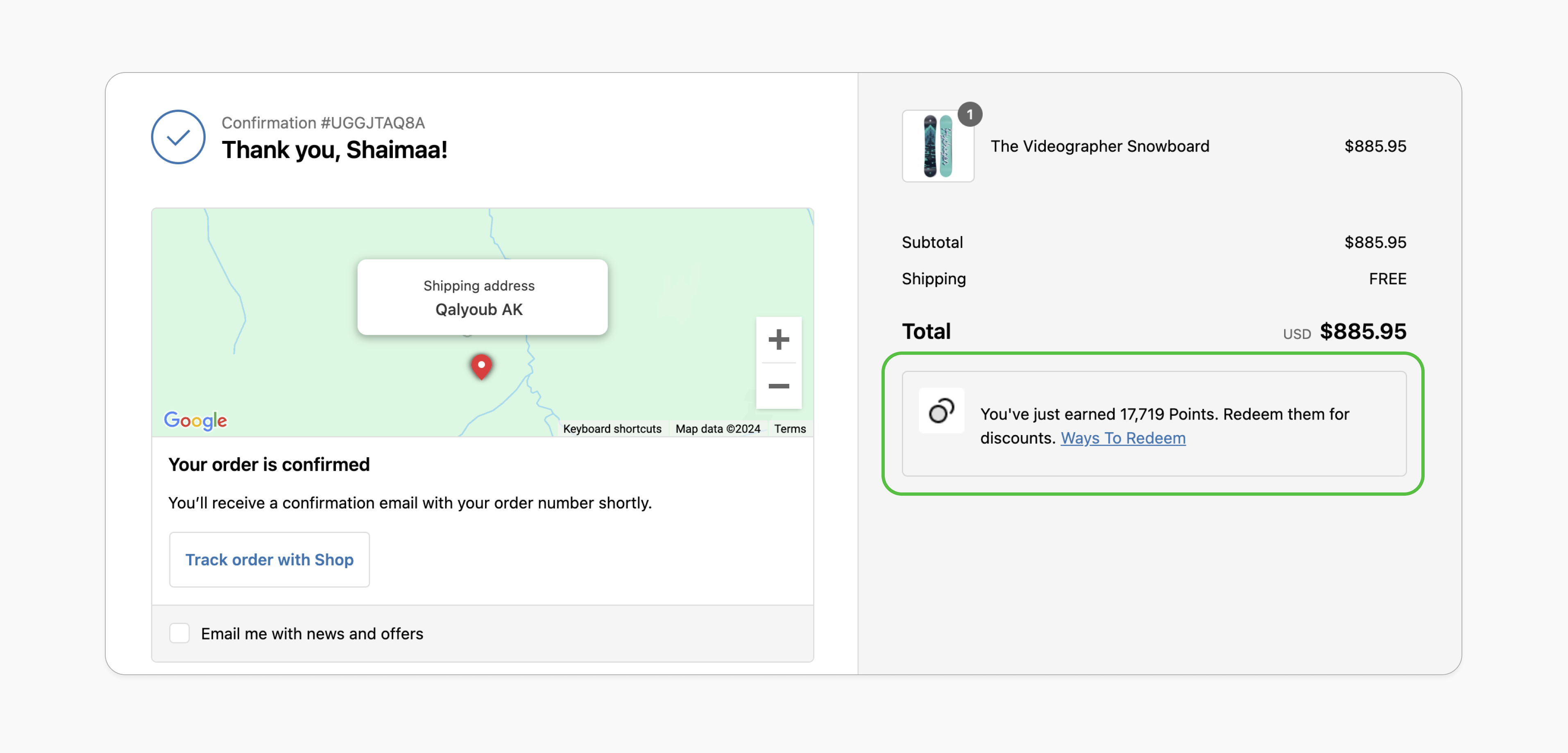 Displaying the number of earned points on the Thank You page is an important way to keep customers engaged and informed about their loyalty rewards. In addition to showing the points, this block includes a call-to-action (CTA) labeled **"Check Ways to Redeem."** This CTA opens up all available redemption options, making it easy for customers to explore how they can use their points and encouraging them to return for future purchases.
**Benefits:**
By showcasing earned points and offering clear redemption options, customers are reminded of the value of the loyalty program, strengthening their connection with the brand.
Seeing how many points they've earned motivates customers to come back and redeem their rewards, which drives repeat purchases and enhances customer retention.
***
## Prerequisites
Your Shopify theme must support app blocks. Without this, the option to add the Gameball block won't appear in the editor. [Learn more](https://help.shopify.com/en/manual/online-store/themes/theme-structure/extend/apps).
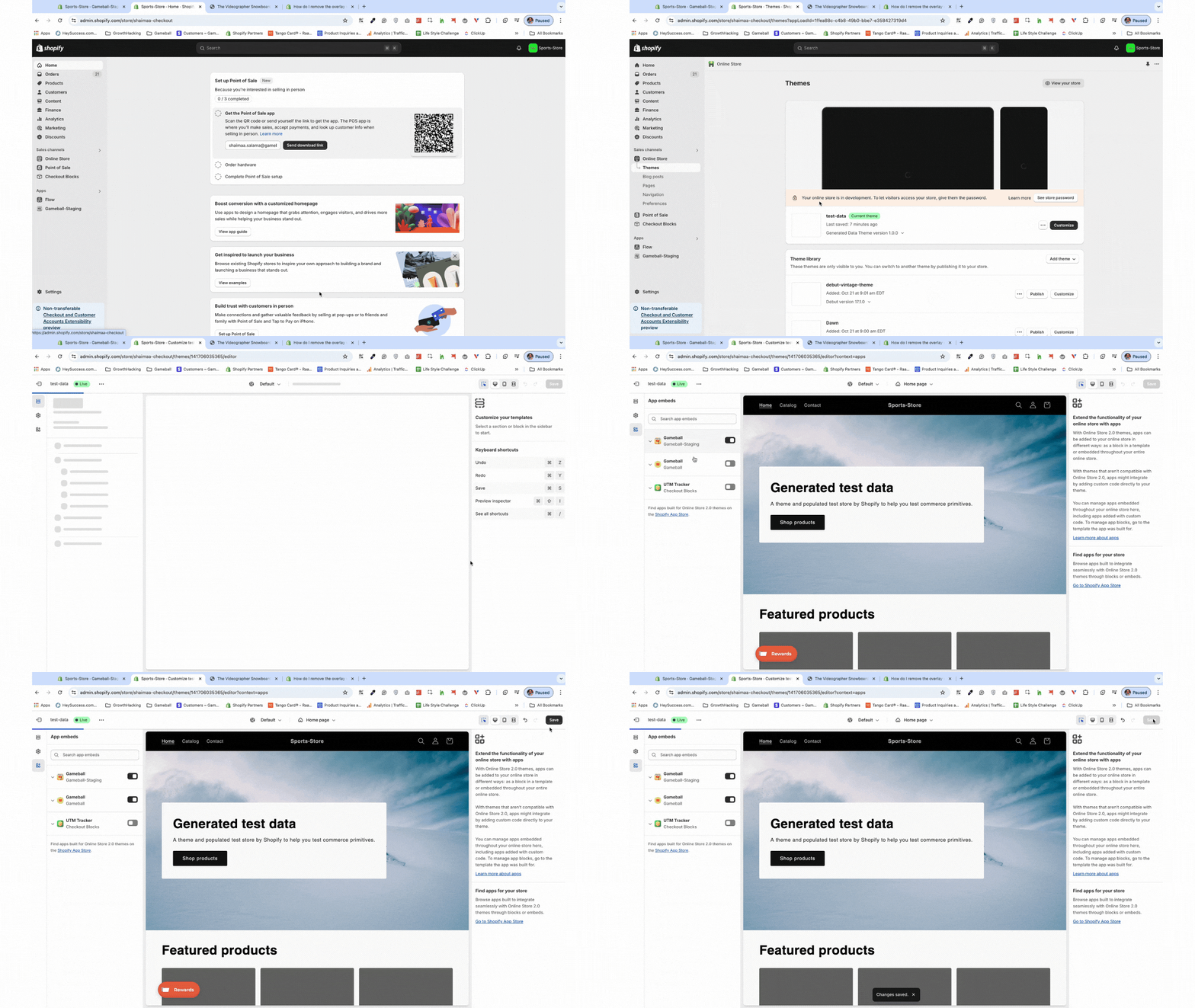
Go to the **Theme Editor** in your Shopify admin. Select **App Embeds** from the left menu, search for "Gameball," and toggle it on.
Displaying the number of earned points on the Thank You page is an important way to keep customers engaged and informed about their loyalty rewards. In addition to showing the points, this block includes a call-to-action (CTA) labeled **"Check Ways to Redeem."** This CTA opens up all available redemption options, making it easy for customers to explore how they can use their points and encouraging them to return for future purchases.
**Benefits:**
By showcasing earned points and offering clear redemption options, customers are reminded of the value of the loyalty program, strengthening their connection with the brand.
Seeing how many points they've earned motivates customers to come back and redeem their rewards, which drives repeat purchases and enhances customer retention.
***
## Prerequisites
Your Shopify theme must support app blocks. Without this, the option to add the Gameball block won't appear in the editor. [Learn more](https://help.shopify.com/en/manual/online-store/themes/theme-structure/extend/apps).
Go to the **Theme Editor** in your Shopify admin. Select **App Embeds** from the left menu, search for "Gameball," and toggle it on.
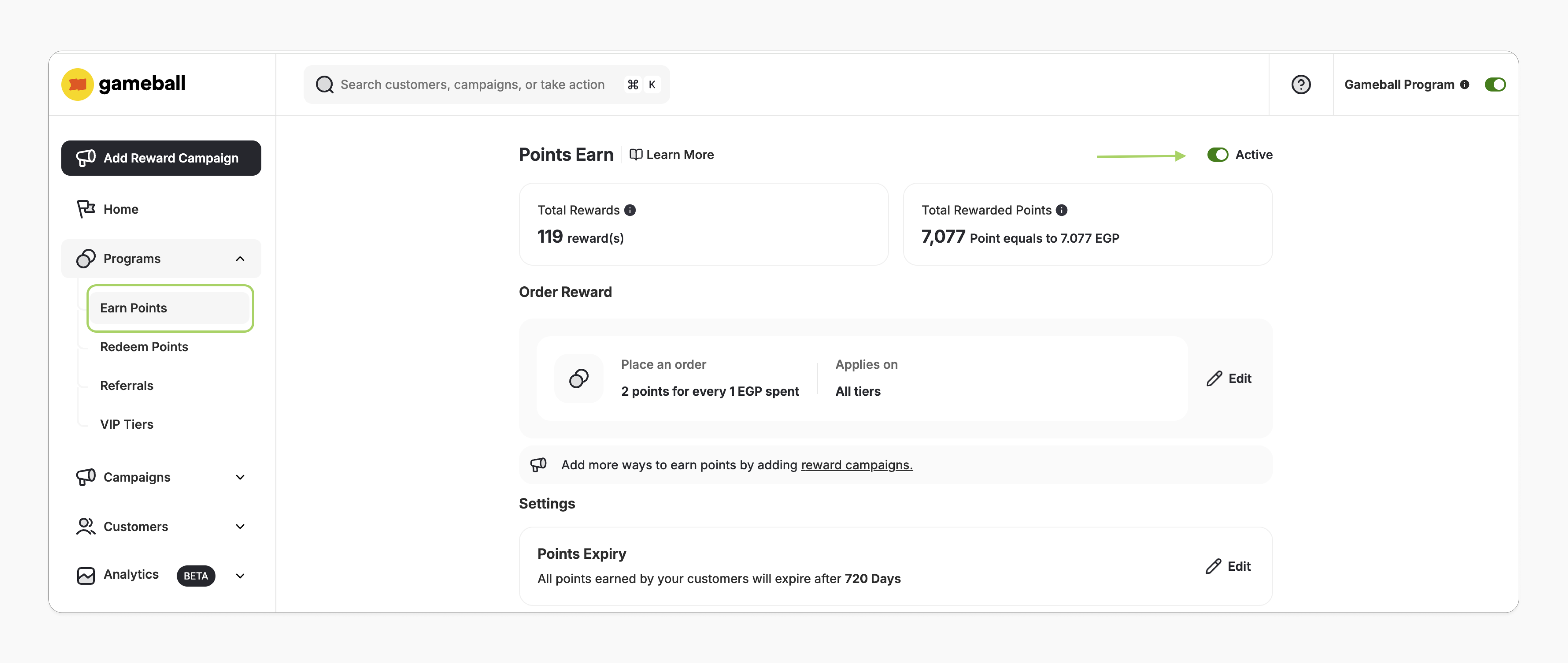
 In the Gameball dashboard, navigate to **Programs > Earn Points**, then activate the module.
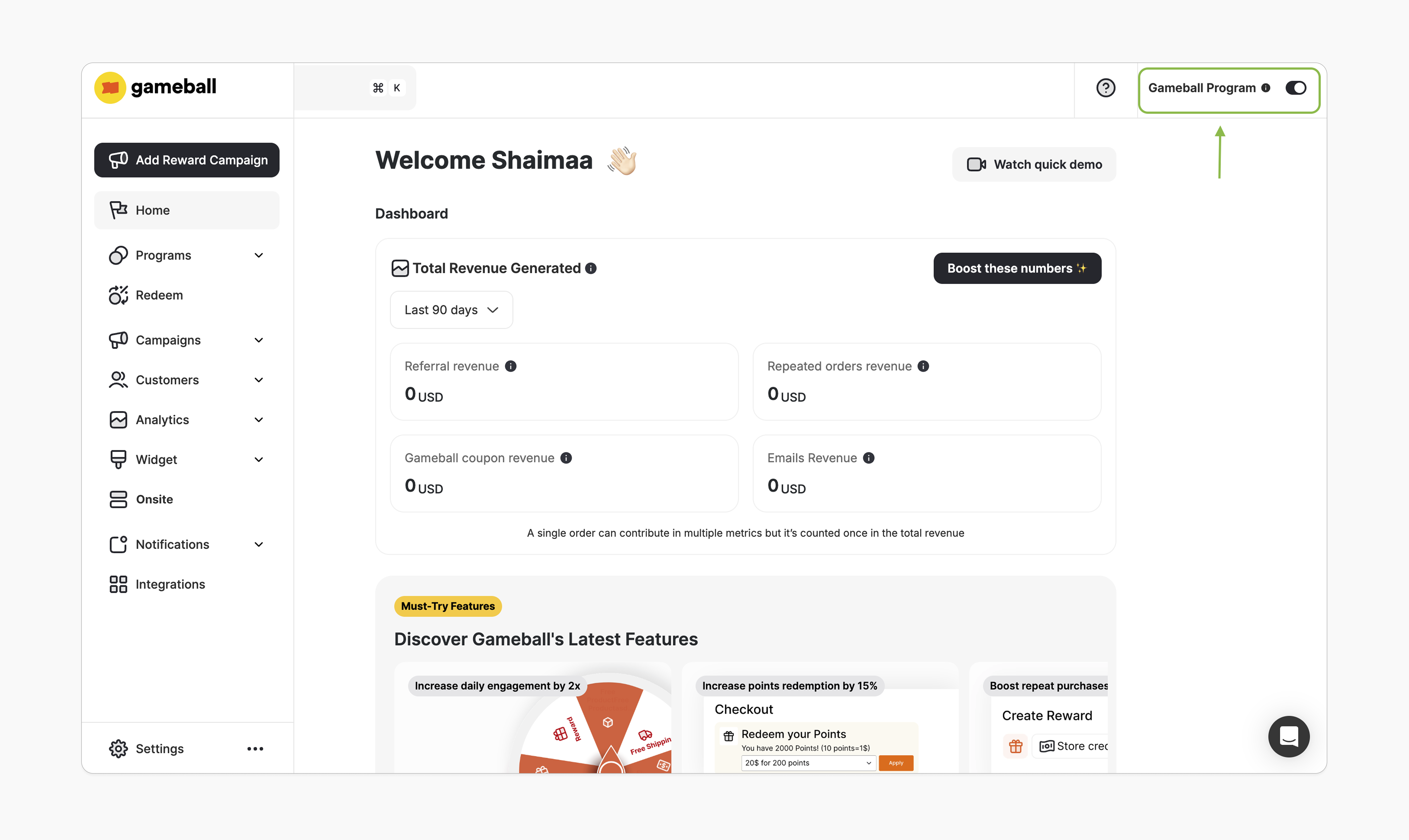
 In the Gameball dashboard, make sure the toggle at the top-right is activated. Once this is enabled, you'll be able to add the Gameball block.
 ***
## How to Install the Block
In Gameball, navigate to **Onsite**, click **Customize**.
***
## How to Install the Block
In Gameball, navigate to **Onsite**, click **Customize**.
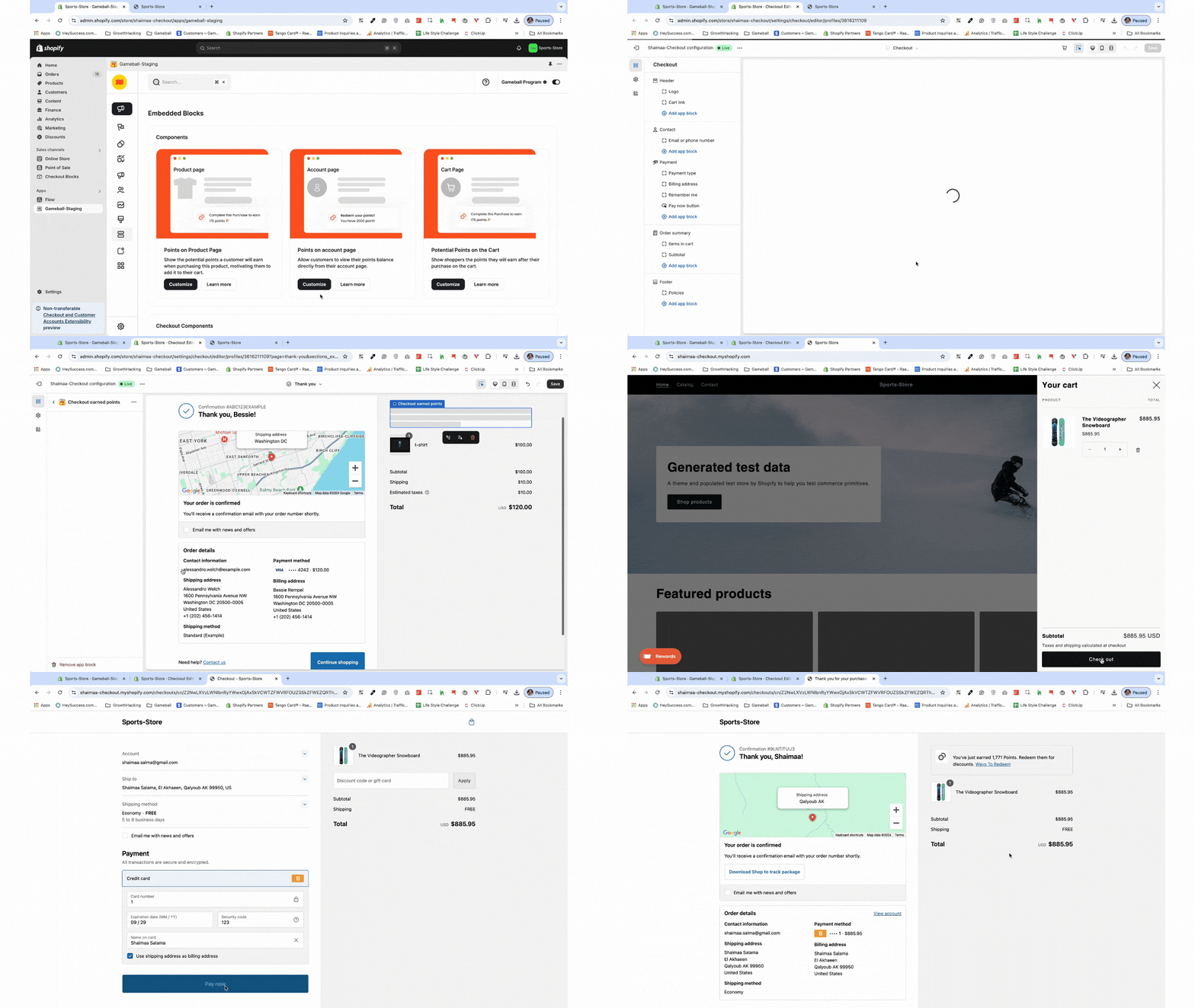
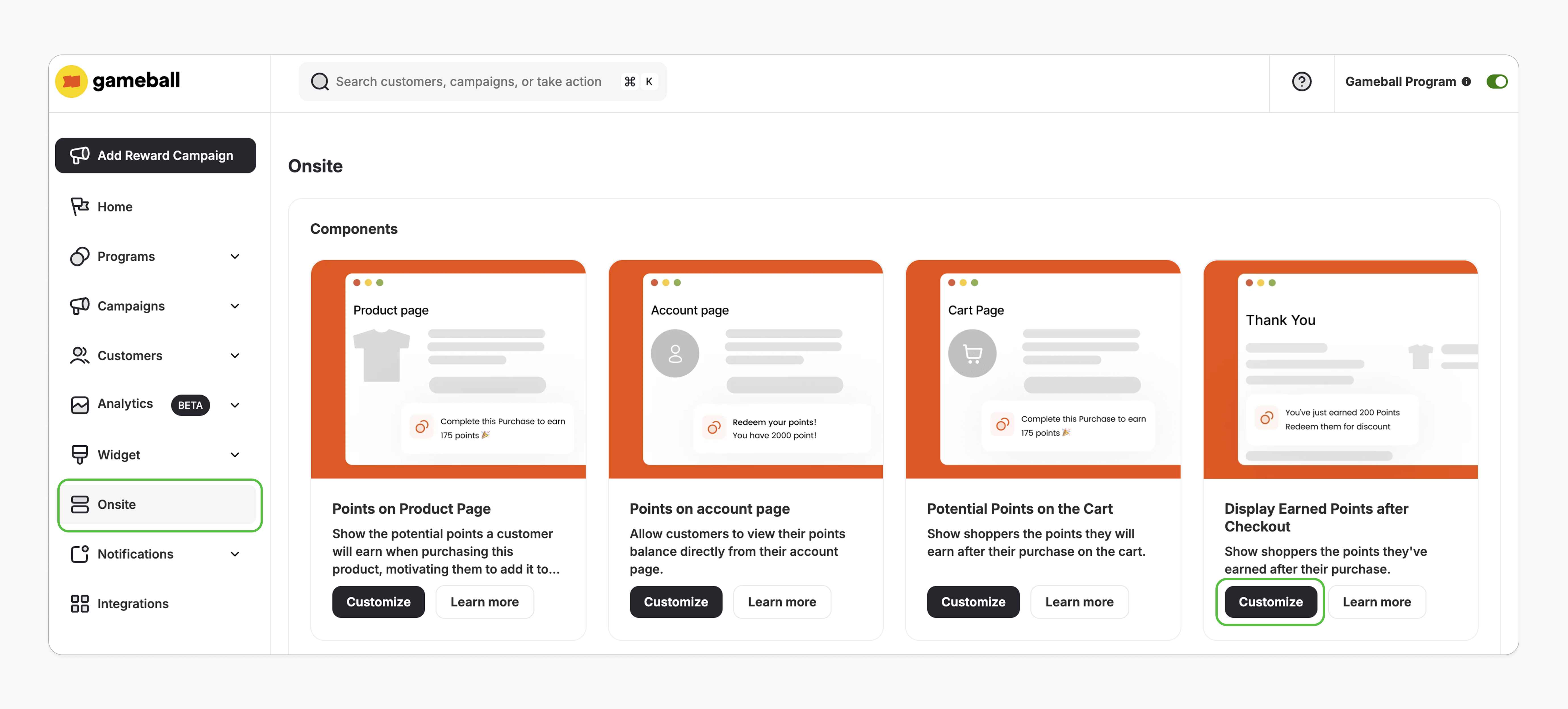 You'll be redirected to the Shopify theme editor on the thank you page. If this doesn't happen, please review the prerequisites.
In the left sidebar, under the "Order Summary," click **Add App Block > Apps**, and search for the **"Checkout earned points"** block.
Select the **"Checkout earned points"** app block and click **Save**.
You'll be redirected to the Shopify theme editor on the thank you page. If this doesn't happen, please review the prerequisites.
In the left sidebar, under the "Order Summary," click **Add App Block > Apps**, and search for the **"Checkout earned points"** block.
Select the **"Checkout earned points"** app block and click **Save**.
 ***
## Logged-In vs. Guest (Not-Logged-In) Customers
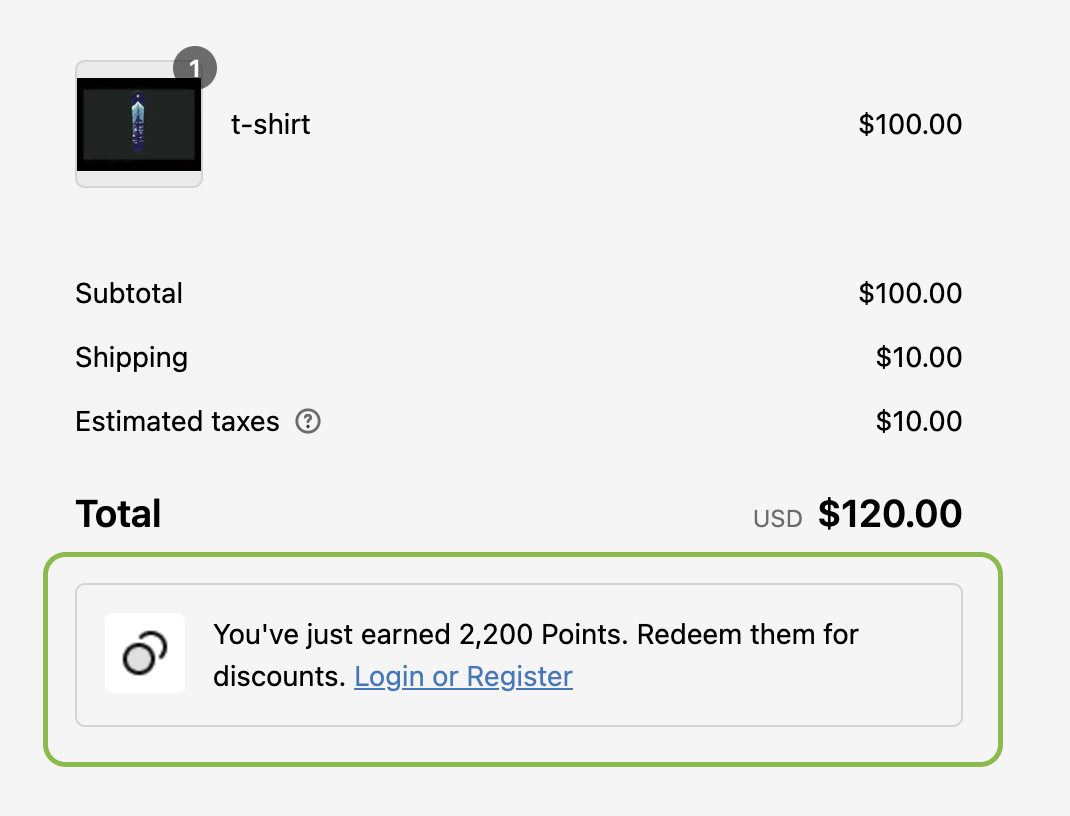
If you are not logged in, the extension will show the earned points in addition to asking you to log in or register to be able to use your points.
***
## Logged-In vs. Guest (Not-Logged-In) Customers
If you are not logged in, the extension will show the earned points in addition to asking you to log in or register to be able to use your points.
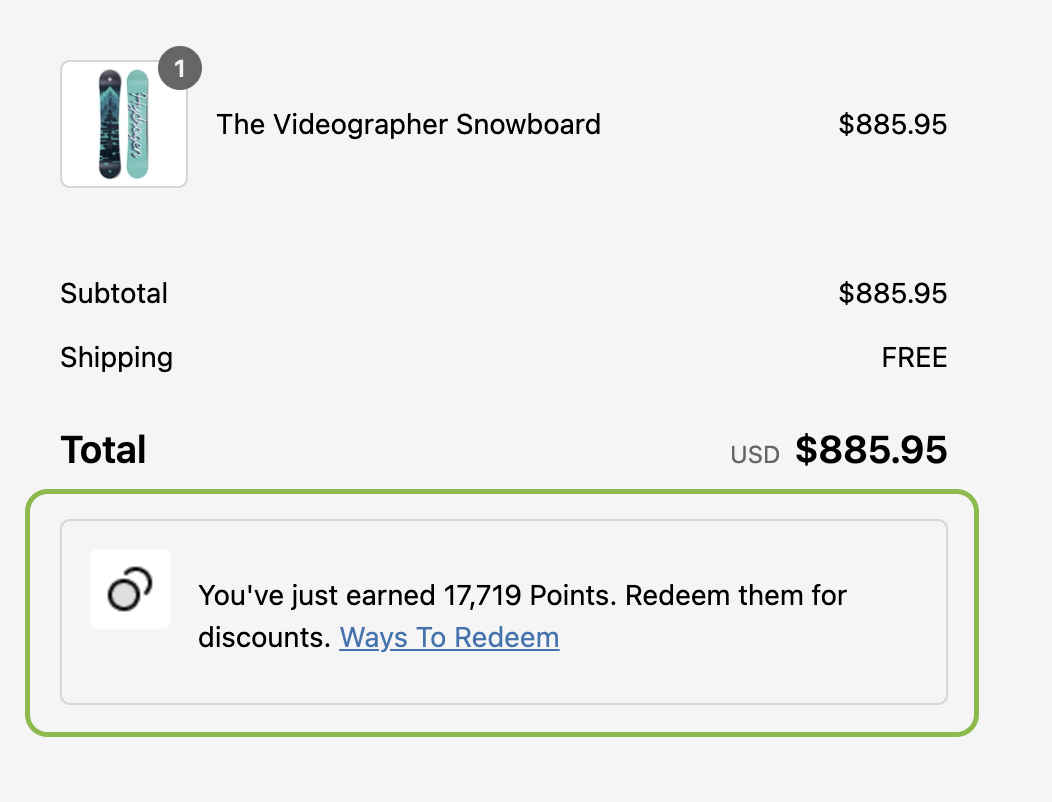
 When the logged-in customer reaches the thank you page after placing an order, the extension will be displayed, showing the number of points earned from the last order, in addition to a call-to-action that opens the widget on the redemption option to let the user redeem their points.
 ***
## Customization
The checkout extensions have no style customization options. However, you can customize its position by simply dragging and dropping it to your desired location on the checkout page.
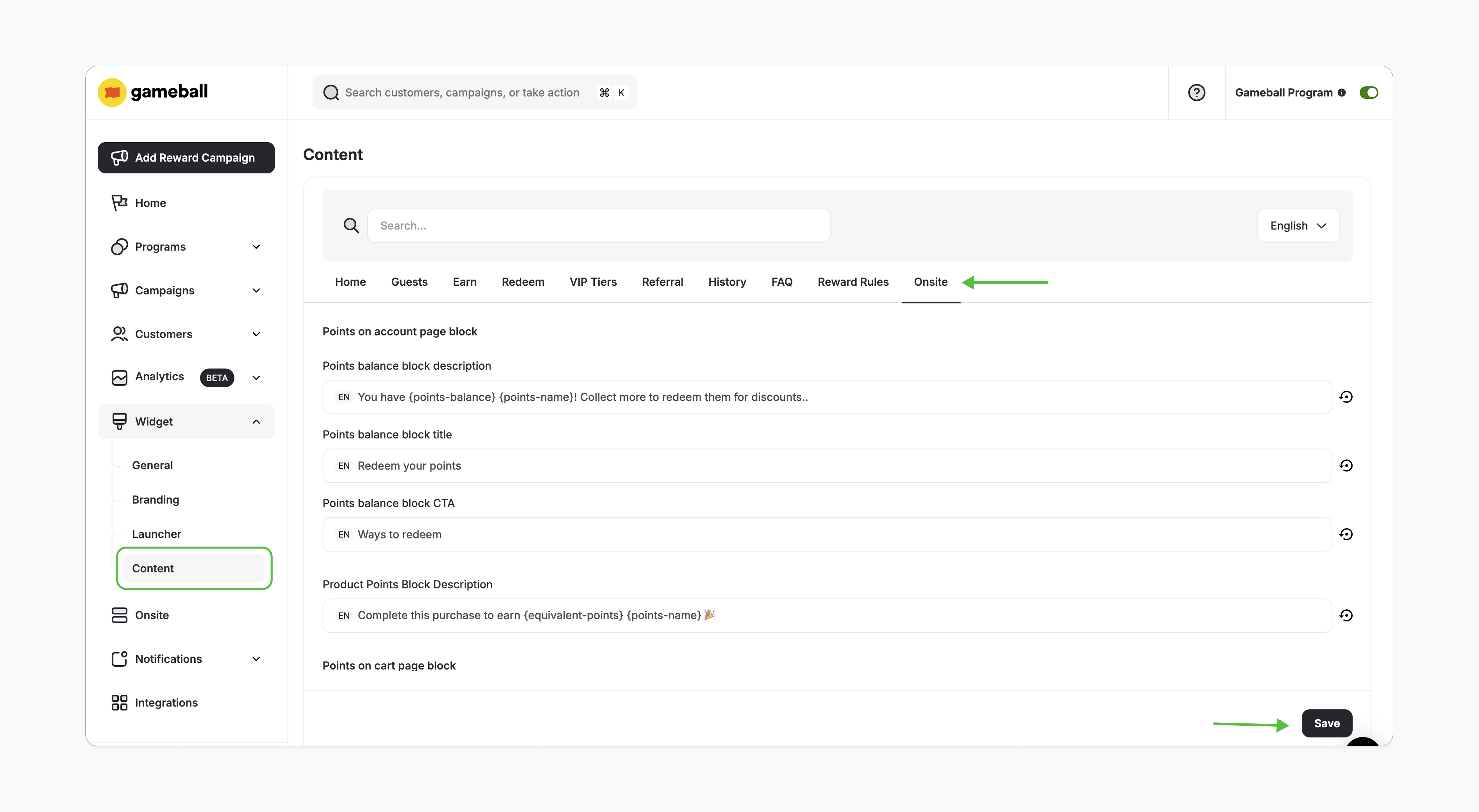
In the Gameball Dashboard, go to **Widget > Content**. Under the **Onsite** tab, edit the text and customize it for supported languages.
***
## Customization
The checkout extensions have no style customization options. However, you can customize its position by simply dragging and dropping it to your desired location on the checkout page.
In the Gameball Dashboard, go to **Widget > Content**. Under the **Onsite** tab, edit the text and customize it for supported languages.
 ***
## Important Notes
This extension will automatically hide from your store if:
* The Gameball program is deactivated.
* The loyalty points earning module is deactivated.
* The earned points are 0 points.
* The customer is excluded from the loyalty program.
* Your account is on a plan that doesn't support this feature.
***
## Frequently Asked Questions
The block will automatically hide once you're on a plan that doesn't support it.
Please review the prerequisites and ensure all conditions are met. If you still encounter an issue, contact us at [support@gameball.co](mailto:support@gameball.co).
***
## Related Articles
Display customers' points balances in their profiles.
Show potential points directly on product pages.
***
## Important Notes
This extension will automatically hide from your store if:
* The Gameball program is deactivated.
* The loyalty points earning module is deactivated.
* The earned points are 0 points.
* The customer is excluded from the loyalty program.
* Your account is on a plan that doesn't support this feature.
***
## Frequently Asked Questions
The block will automatically hide once you're on a plan that doesn't support it.
Please review the prerequisites and ensure all conditions are met. If you still encounter an issue, contact us at [support@gameball.co](mailto:support@gameball.co).
***
## Related Articles
Display customers' points balances in their profiles.
Show potential points directly on product pages.