> ## Documentation Index
> Fetch the complete documentation index at: https://docs.gameball.co/llms.txt
> Use this file to discover all available pages before exploring further.
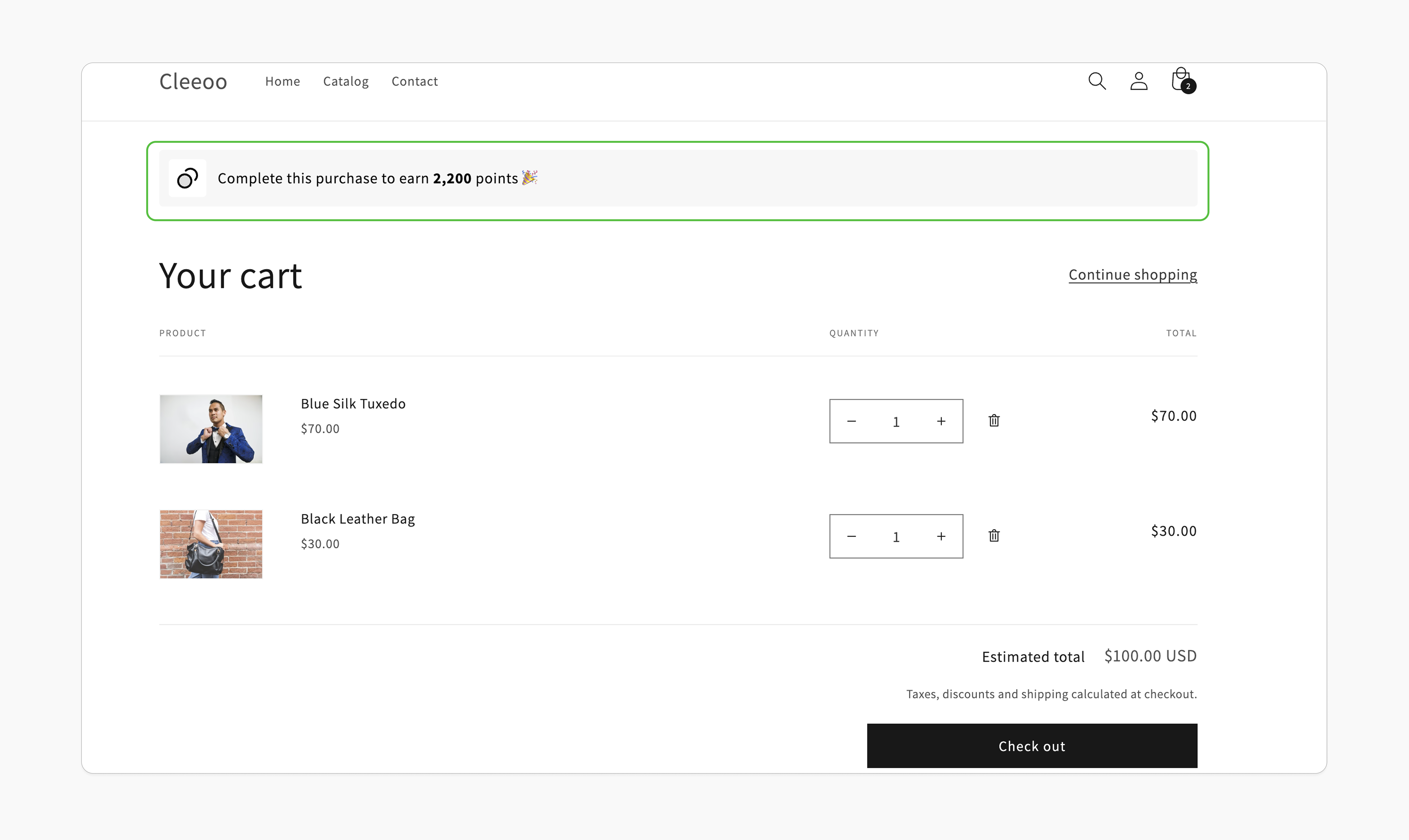
# How Do I Display Potential Points Earned in the Cart?
> Encourage your customers to complete their orders by showing the points they'll earn with each purchase—directly in their cart.
| **Platform** | **Plan** |
| ------------ | -------------------- |
| Shopify | Starter, Pro, & Guru |
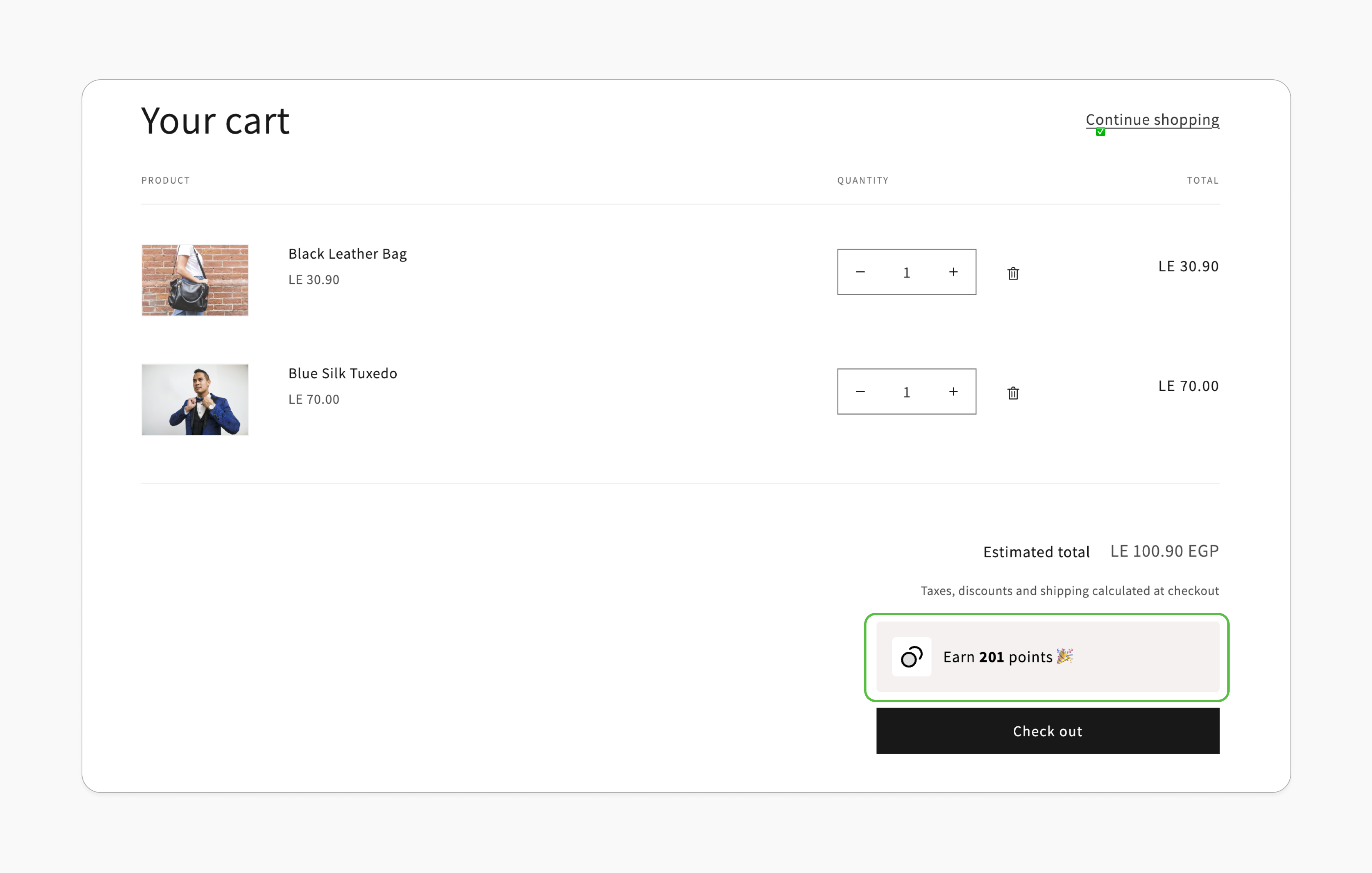 With Gameball's potential points display, customers can instantly see the rewards they'll earn for their cart items before completing their purchase. This engaging feature highlights the value of each purchase, motivating customers to check out and start earning points.
**Benefits:**
Customers are more likely to add additional items to their cart when they see the direct rewards tied to each product, leading to increased spending.
Motivate customers to complete the purchase by showing the reward they will get by completing their purchase.
***
## Prerequisites
Your theme must support app blocks. Without this, the Gameball block will not be visible in the editor. [Learn more](https://help.shopify.com/en/manual/online-store/themes/theme-structure/extend/apps).
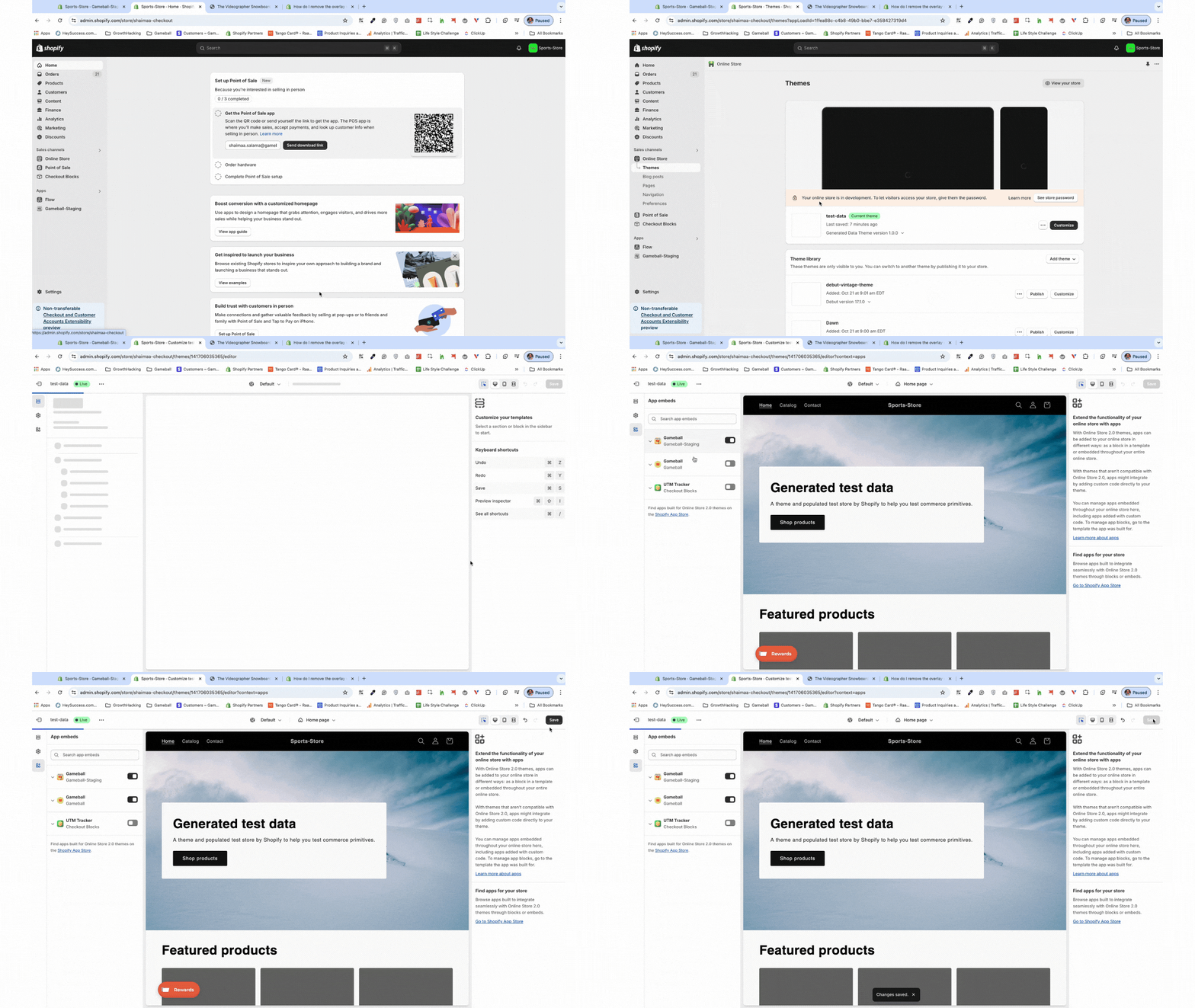
Go to the **Theme Editor** in your Shopify admin. Select **App Embeds** from the left menu, search for "Gameball," and toggle it on.
With Gameball's potential points display, customers can instantly see the rewards they'll earn for their cart items before completing their purchase. This engaging feature highlights the value of each purchase, motivating customers to check out and start earning points.
**Benefits:**
Customers are more likely to add additional items to their cart when they see the direct rewards tied to each product, leading to increased spending.
Motivate customers to complete the purchase by showing the reward they will get by completing their purchase.
***
## Prerequisites
Your theme must support app blocks. Without this, the Gameball block will not be visible in the editor. [Learn more](https://help.shopify.com/en/manual/online-store/themes/theme-structure/extend/apps).
Go to the **Theme Editor** in your Shopify admin. Select **App Embeds** from the left menu, search for "Gameball," and toggle it on.
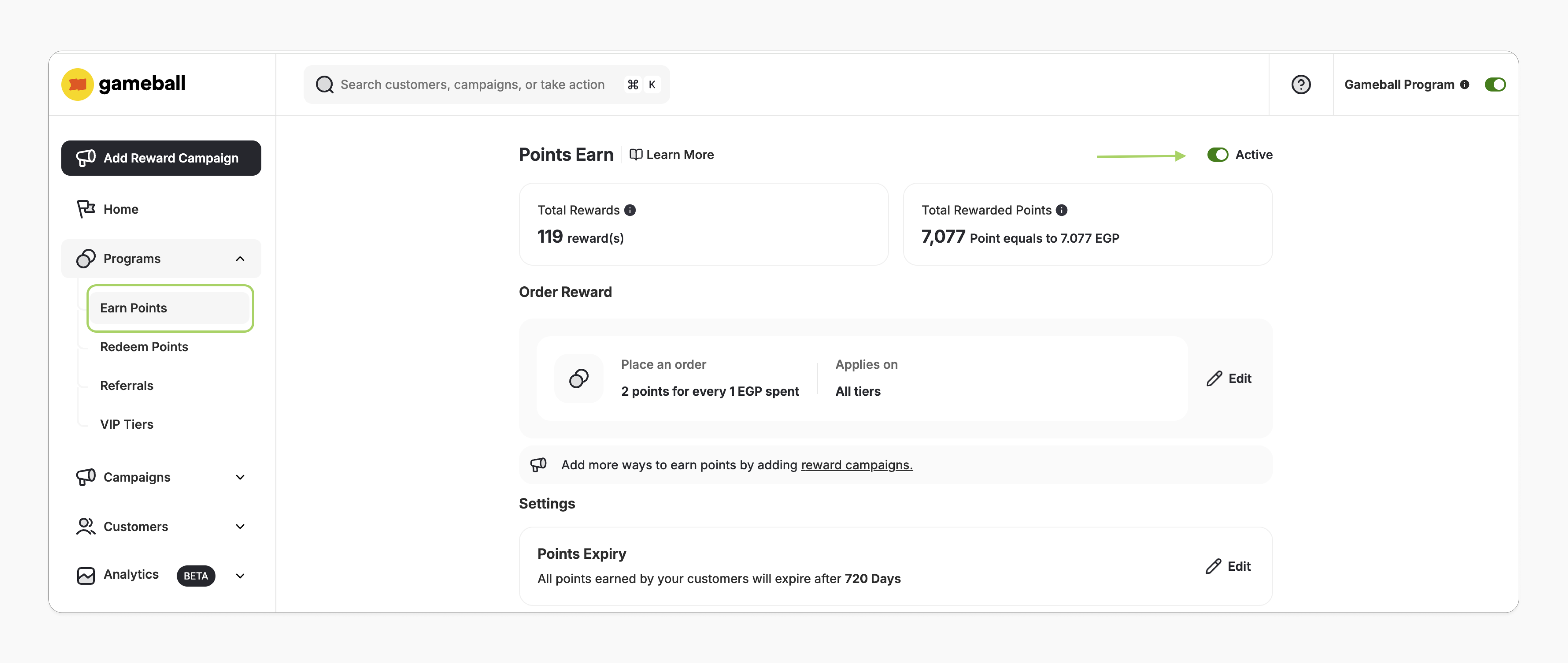
 In the Gameball dashboard, navigate to **Programs > Earn Points**, then activate the module.
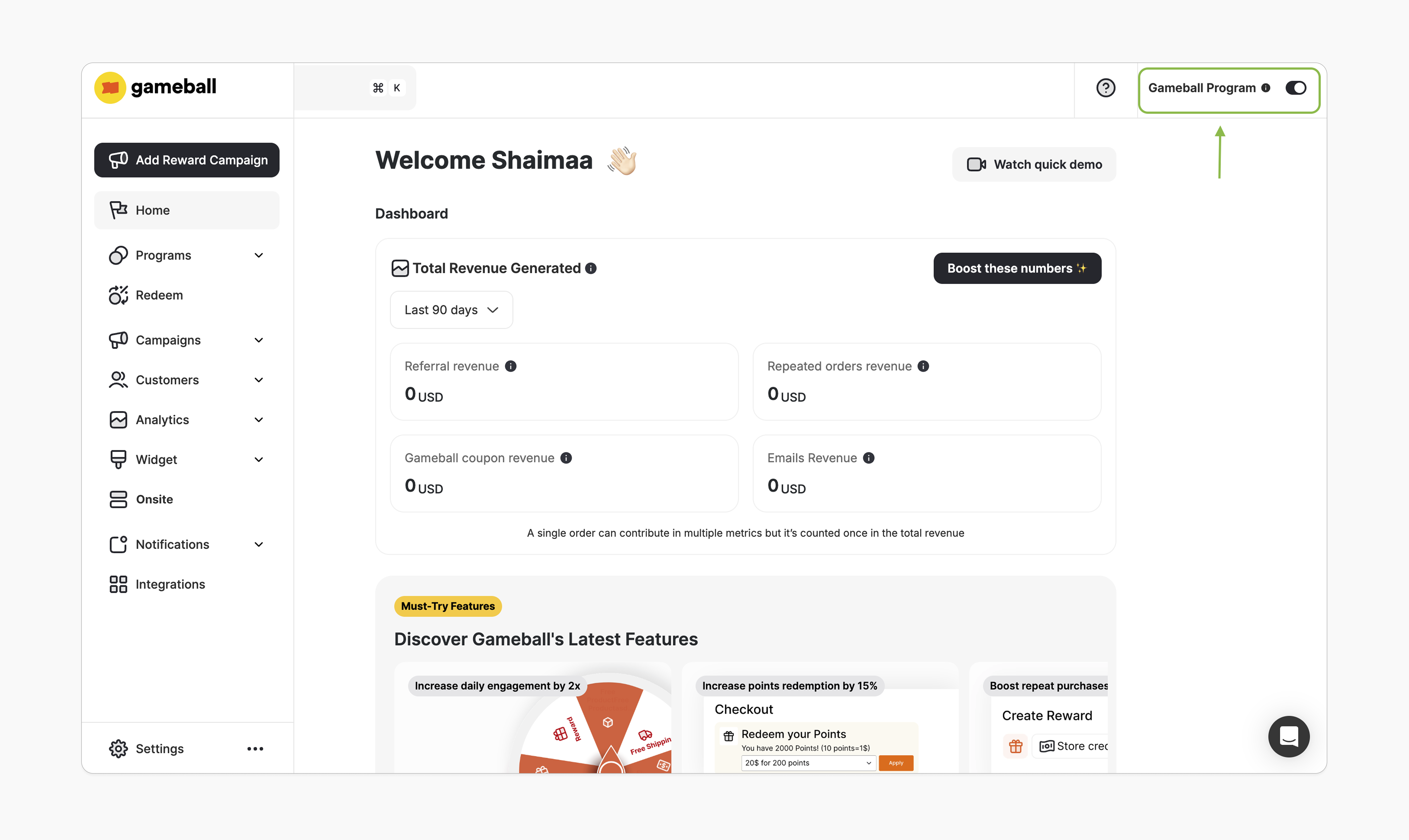
 In the Gameball dashboard, make sure the toggle at the top-right is activated. Once this is enabled, you'll be able to add the Gameball block.
 ***
## How to Install the Block
In Gameball, navigate to **Onsite**, click **Customize**.
***
## How to Install the Block
In Gameball, navigate to **Onsite**, click **Customize**.
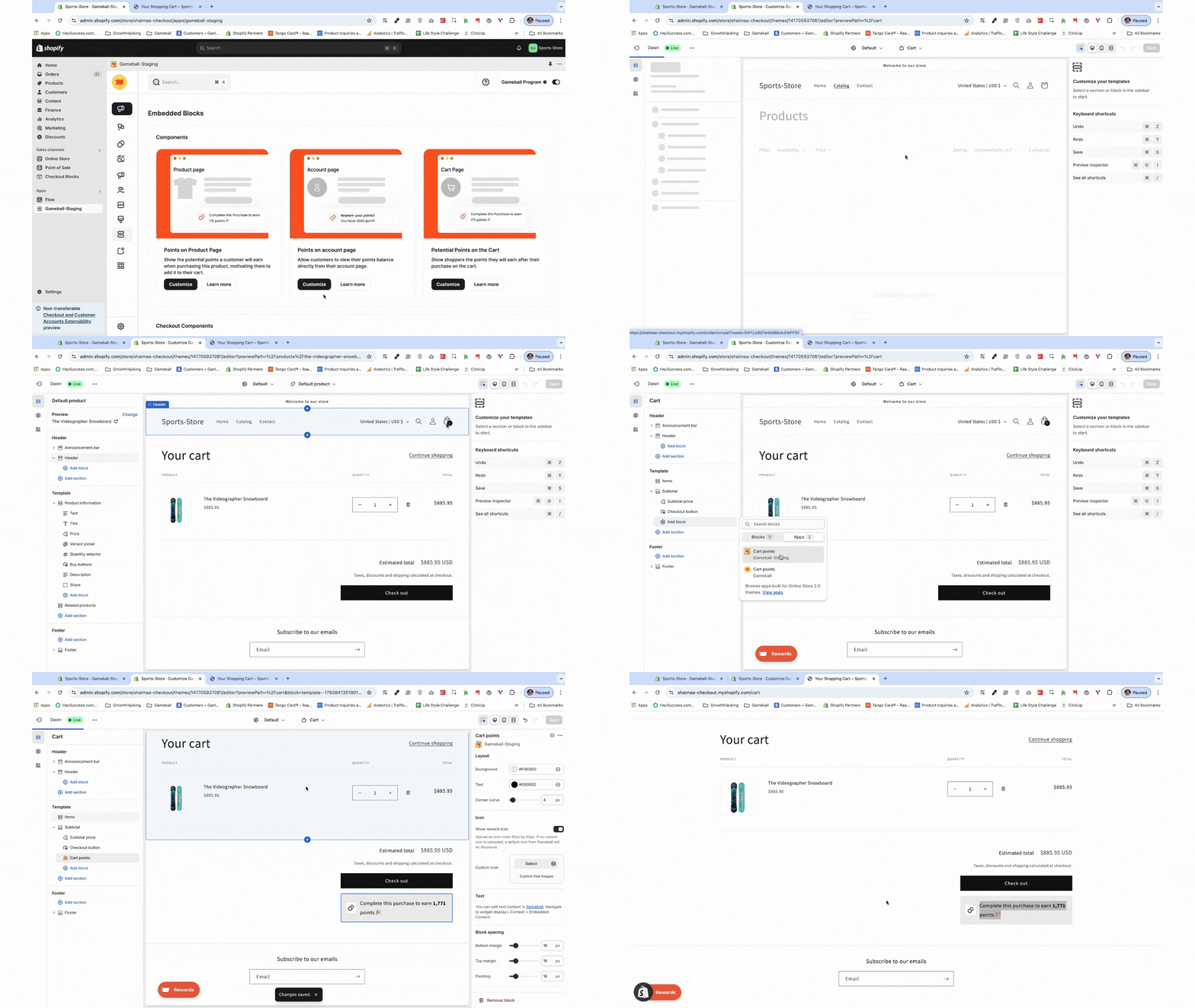
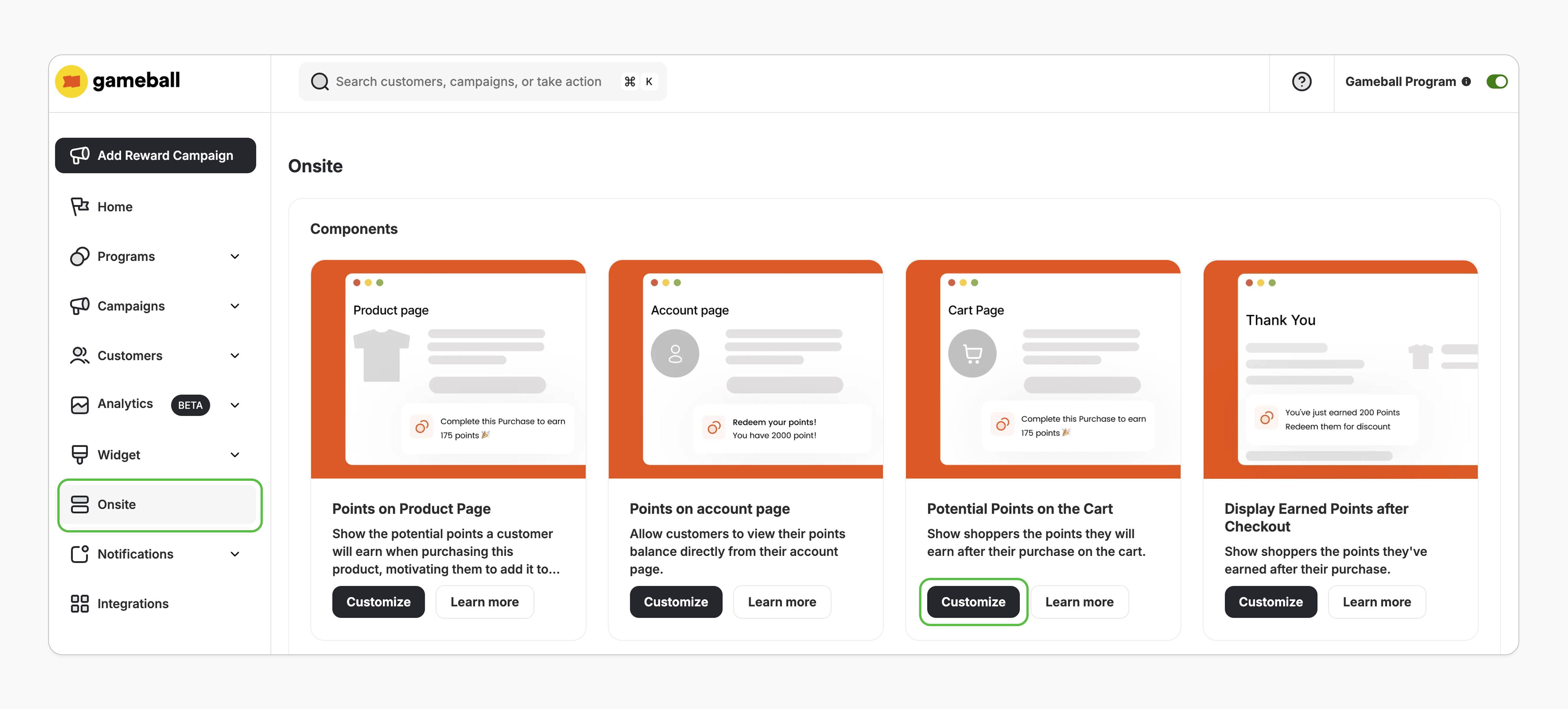 You'll be redirected to Shopify's theme editor. If not, double-check the prerequisites.
Sign in to your store through the theme editor to access the customer account template.
In the left sidebar under **Template**, select **Add section > Apps**, and search for **"Cart Points"**.
Select the **"Cart Points"** app block and click **Save**.
You'll be redirected to Shopify's theme editor. If not, double-check the prerequisites.
Sign in to your store through the theme editor to access the customer account template.
In the left sidebar under **Template**, select **Add section > Apps**, and search for **"Cart Points"**.
Select the **"Cart Points"** app block and click **Save**.
 ***
## Customization
1. In the Shopify theme editor, click on the **"Cart Points"** app block.
2. On the right sidebar, adjust the icon, text, colors, and styles as needed.
3. On the left sidebar, you can also change the block's position within the template section.
4. Click **Save**.
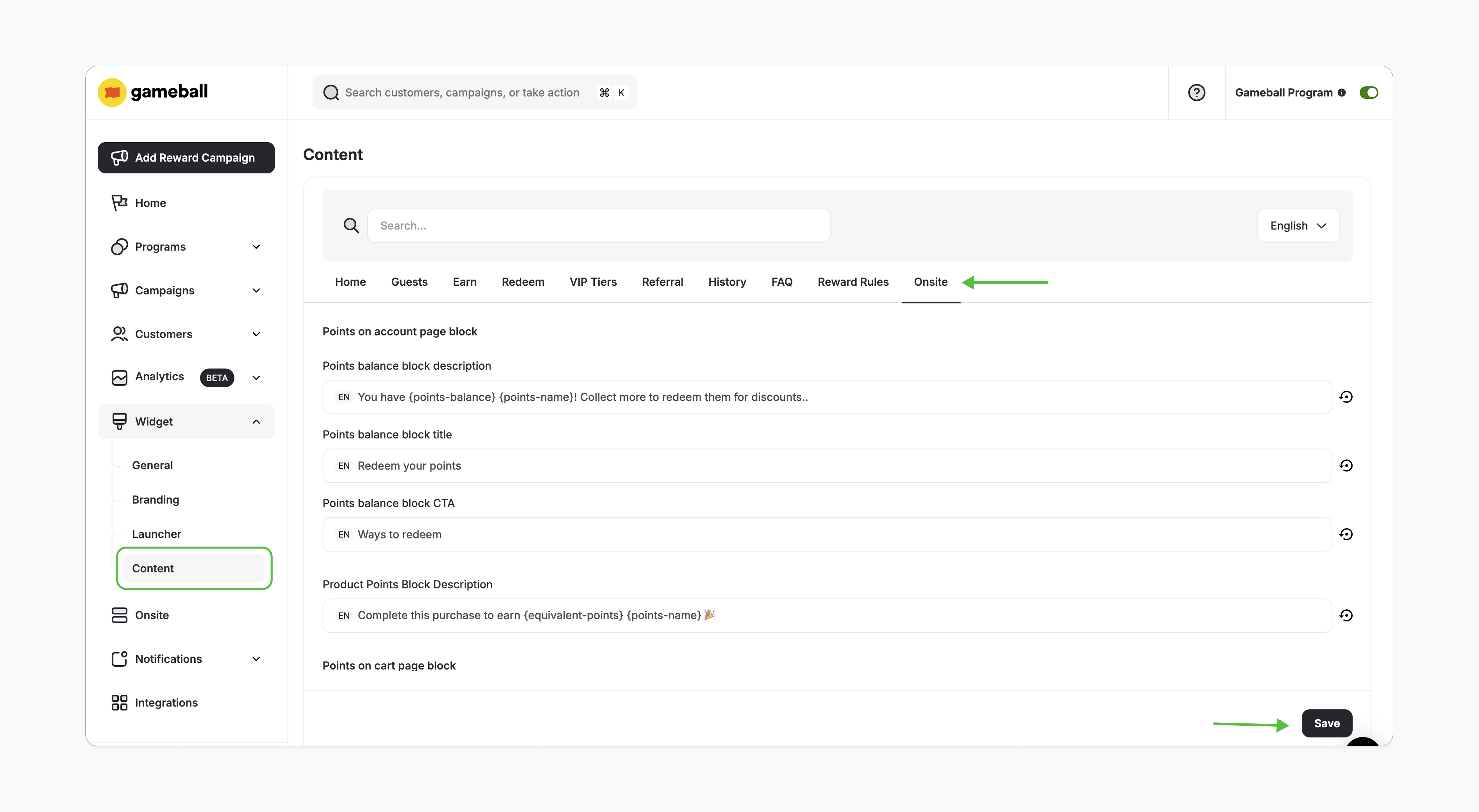
1. In the Gameball dashboard, go to **Widget > Content**.
2. In the **Onsite** tab, edit the displayed text as needed and click **Save**.
***
## Customization
1. In the Shopify theme editor, click on the **"Cart Points"** app block.
2. On the right sidebar, adjust the icon, text, colors, and styles as needed.
3. On the left sidebar, you can also change the block's position within the template section.
4. Click **Save**.
1. In the Gameball dashboard, go to **Widget > Content**.
2. In the **Onsite** tab, edit the displayed text as needed and click **Save**.
 ***
## Logged-In vs. Guest (Not-Logged-In) Customers
If the customer isn't logged in, the block will show the potential points they can earn based on default "earn points" rules, ignoring any custom order reward per tier.
***
## Logged-In vs. Guest (Not-Logged-In) Customers
If the customer isn't logged in, the block will show the potential points they can earn based on default "earn points" rules, ignoring any custom order reward per tier.
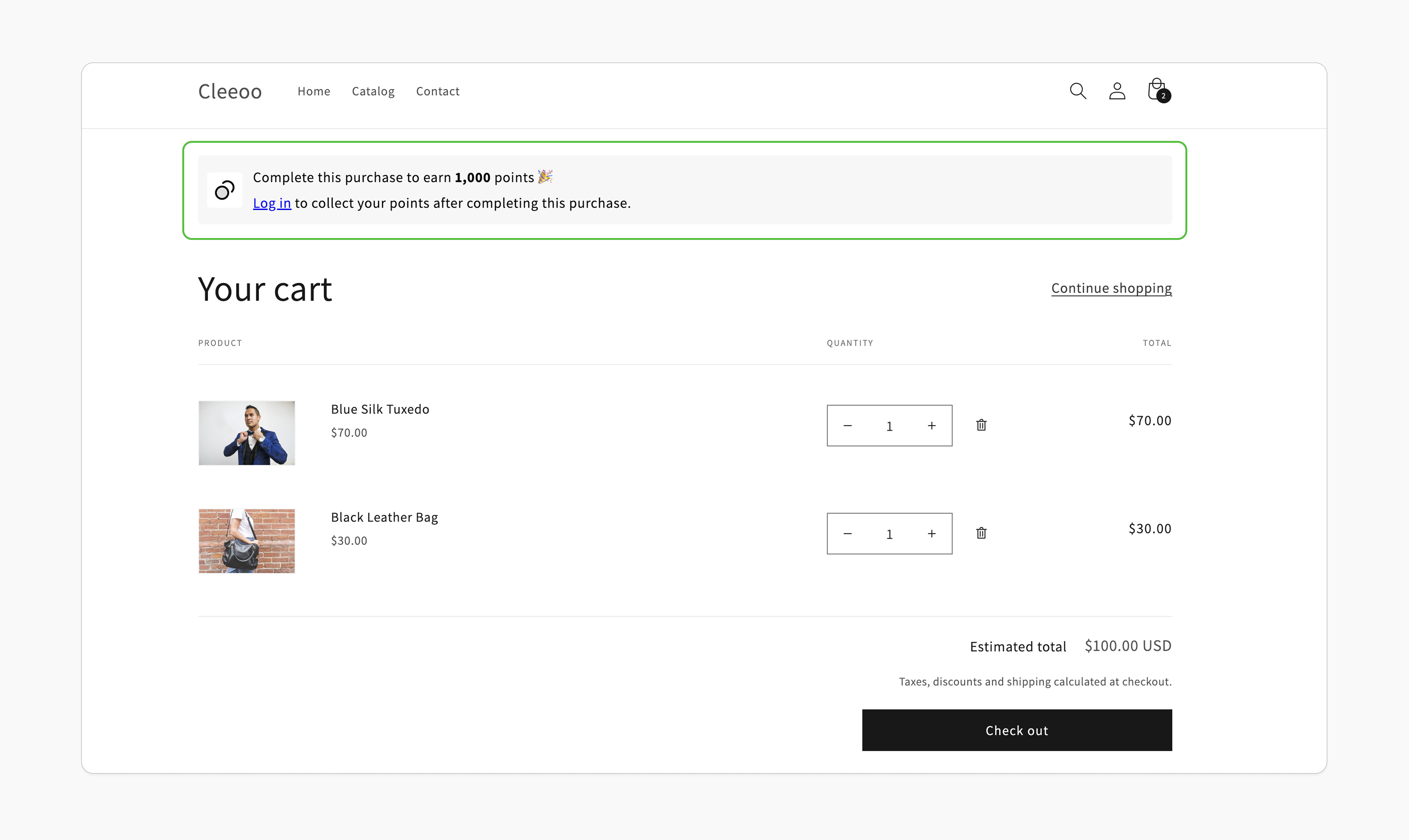 For logged-in customers, the block displays points based on any customized reward rules per collection, merchant, or level, giving a tailored view of rewards.
 ***
## Important Notes
The potential points block will automatically hide if:
* The "Earn Points" module is deactivated.
* The customer is excluded from the rewards program.
* The Gameball program is deactivated.
* The product offers 0 points.
* The product is excluded from the "Earn Points" rules.
* Your account is on a plan that doesn't support this feature.
***
## Frequently Asked Questions
Currently, this block can only be embedded on the cart page.
The points-in-cart block will automatically hide if your plan no longer supports this feature.
Please review the prerequisites and ensure all conditions are met. If you still encounter an issue, contact us at [support@gameball.co](mailto:support@gameball.co).
***
## Related Articles
Display customers' points balances in their profiles.
Show potential points directly on product pages.
***
## Important Notes
The potential points block will automatically hide if:
* The "Earn Points" module is deactivated.
* The customer is excluded from the rewards program.
* The Gameball program is deactivated.
* The product offers 0 points.
* The product is excluded from the "Earn Points" rules.
* Your account is on a plan that doesn't support this feature.
***
## Frequently Asked Questions
Currently, this block can only be embedded on the cart page.
The points-in-cart block will automatically hide if your plan no longer supports this feature.
Please review the prerequisites and ensure all conditions are met. If you still encounter an issue, contact us at [support@gameball.co](mailto:support@gameball.co).
***
## Related Articles
Display customers' points balances in their profiles.
Show potential points directly on product pages.