> ## Documentation Index
> Fetch the complete documentation index at: https://docs.gameball.co/llms.txt
> Use this file to discover all available pages before exploring further.
# How Do I Display Potential Points on Product Pages?
> Show potential loyalty points customers can earn directly on your product pages to drive engagement and higher conversion rates.
| **Platform** | **Plan** |
| ------------ | -------------------- |
| Shopify | Starter, Pro, & Guru |
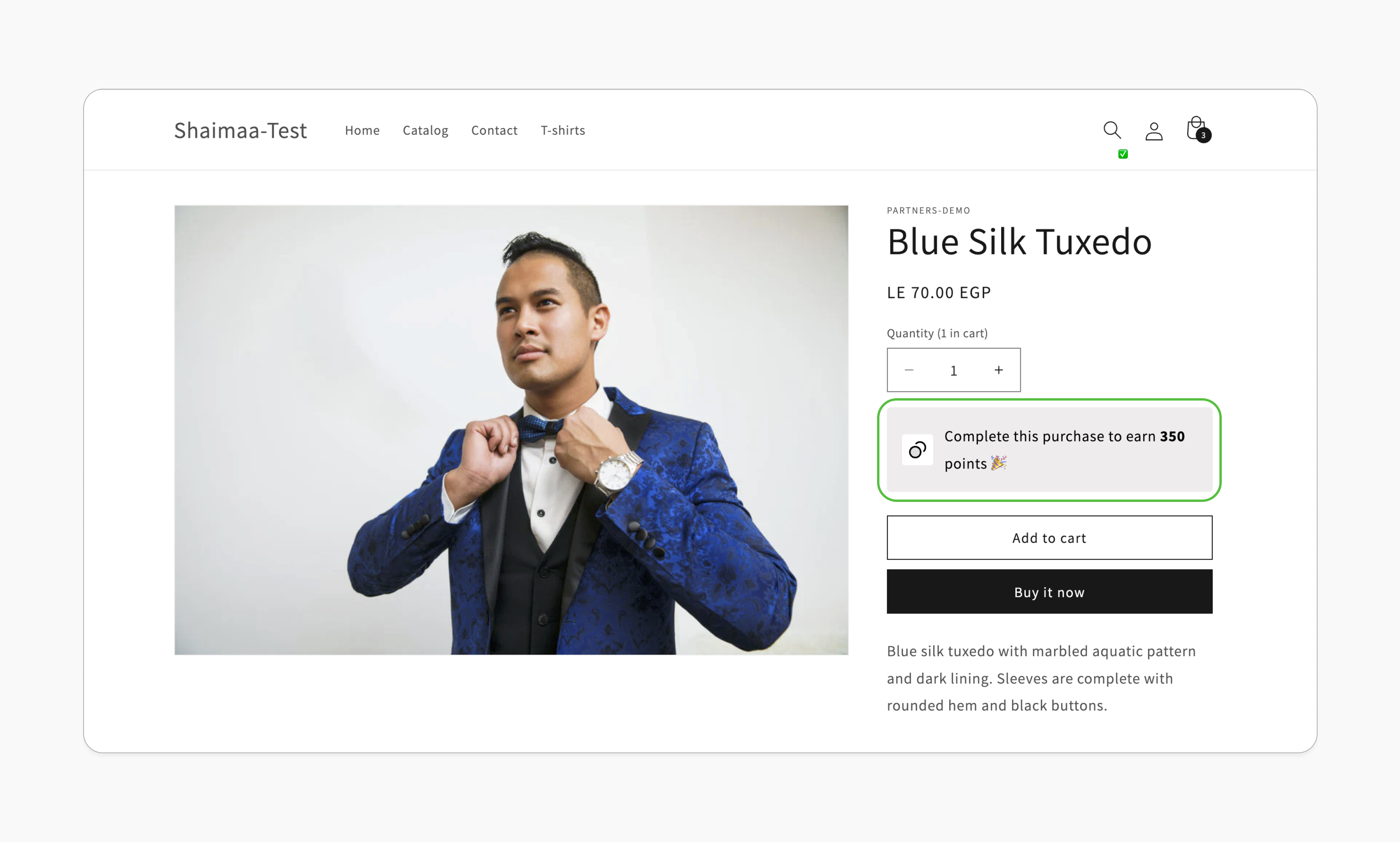 The product page plays a crucial role in the customer journey. By integrating loyalty features directly into your product pages, you increase touchpoints for engagement, which can lead to higher sales.
Gameball allows users to display potential points that can be earned directly on the product page. This feature gives customers clear visibility into the rewards they'll earn for each purchase, encouraging engagement and driving higher conversion rates by showcasing the benefits of their loyalty program upfront.
**Benefits:**
Highlighting potential points motivates customers to add items to their cart, increasing purchase likelihood.
Customers are more likely to add additional items to their cart when they see the direct rewards tied to each product, leading to increased spending.
***
## Prerequisites
Your Shopify theme must support app blocks. Without this, the option to add the Gameball block won't appear in the editor. [Learn more](https://help.shopify.com/en/manual/online-store/themes/theme-structure/extend/apps).
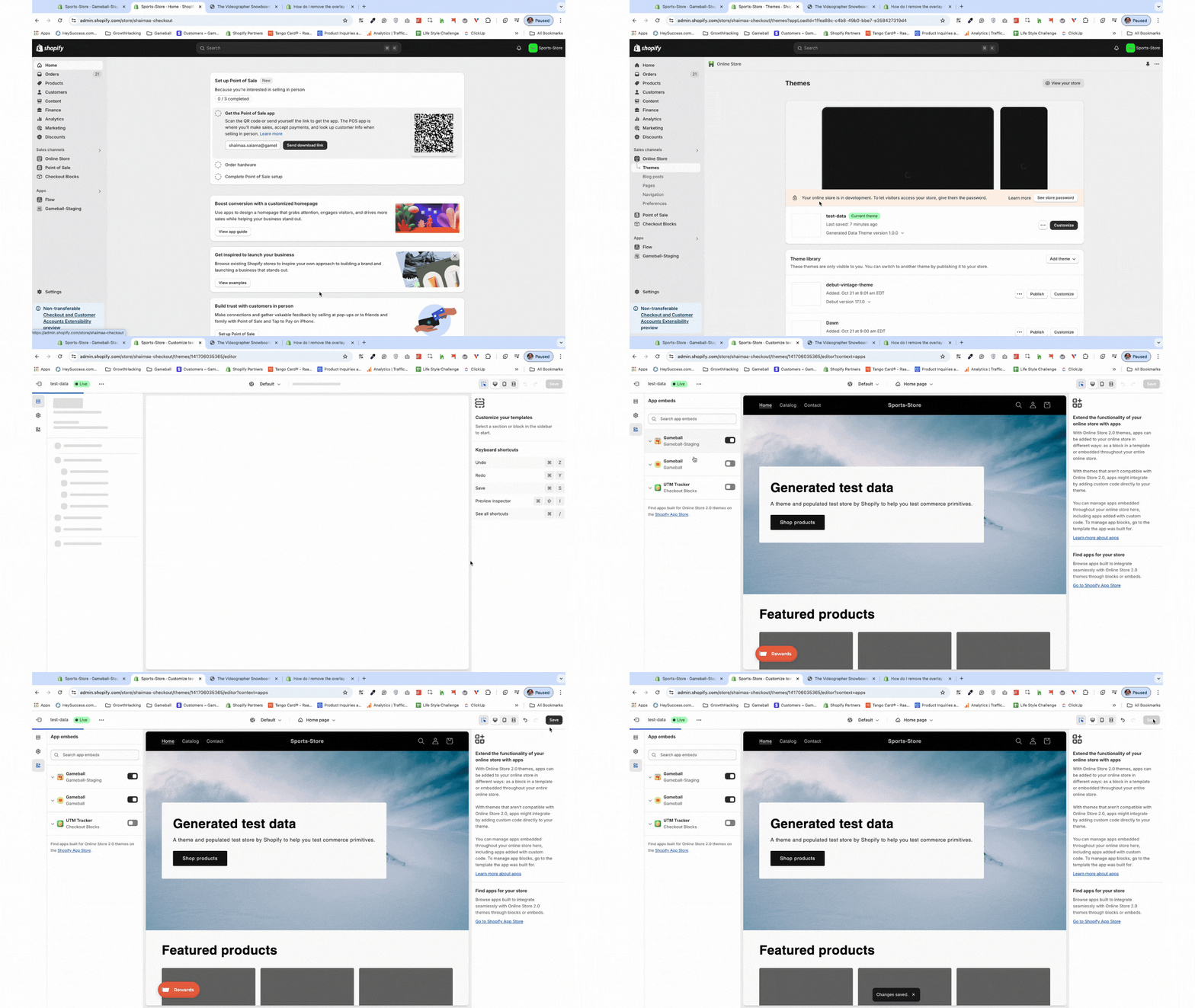
Go to the **Theme Editor** in your Shopify admin. Select **App Embeds** from the left menu, search for "Gameball," and toggle it on.
The product page plays a crucial role in the customer journey. By integrating loyalty features directly into your product pages, you increase touchpoints for engagement, which can lead to higher sales.
Gameball allows users to display potential points that can be earned directly on the product page. This feature gives customers clear visibility into the rewards they'll earn for each purchase, encouraging engagement and driving higher conversion rates by showcasing the benefits of their loyalty program upfront.
**Benefits:**
Highlighting potential points motivates customers to add items to their cart, increasing purchase likelihood.
Customers are more likely to add additional items to their cart when they see the direct rewards tied to each product, leading to increased spending.
***
## Prerequisites
Your Shopify theme must support app blocks. Without this, the option to add the Gameball block won't appear in the editor. [Learn more](https://help.shopify.com/en/manual/online-store/themes/theme-structure/extend/apps).
Go to the **Theme Editor** in your Shopify admin. Select **App Embeds** from the left menu, search for "Gameball," and toggle it on.
 In the Gameball dashboard, navigate to **Programs > Earn Points**, then activate the module.
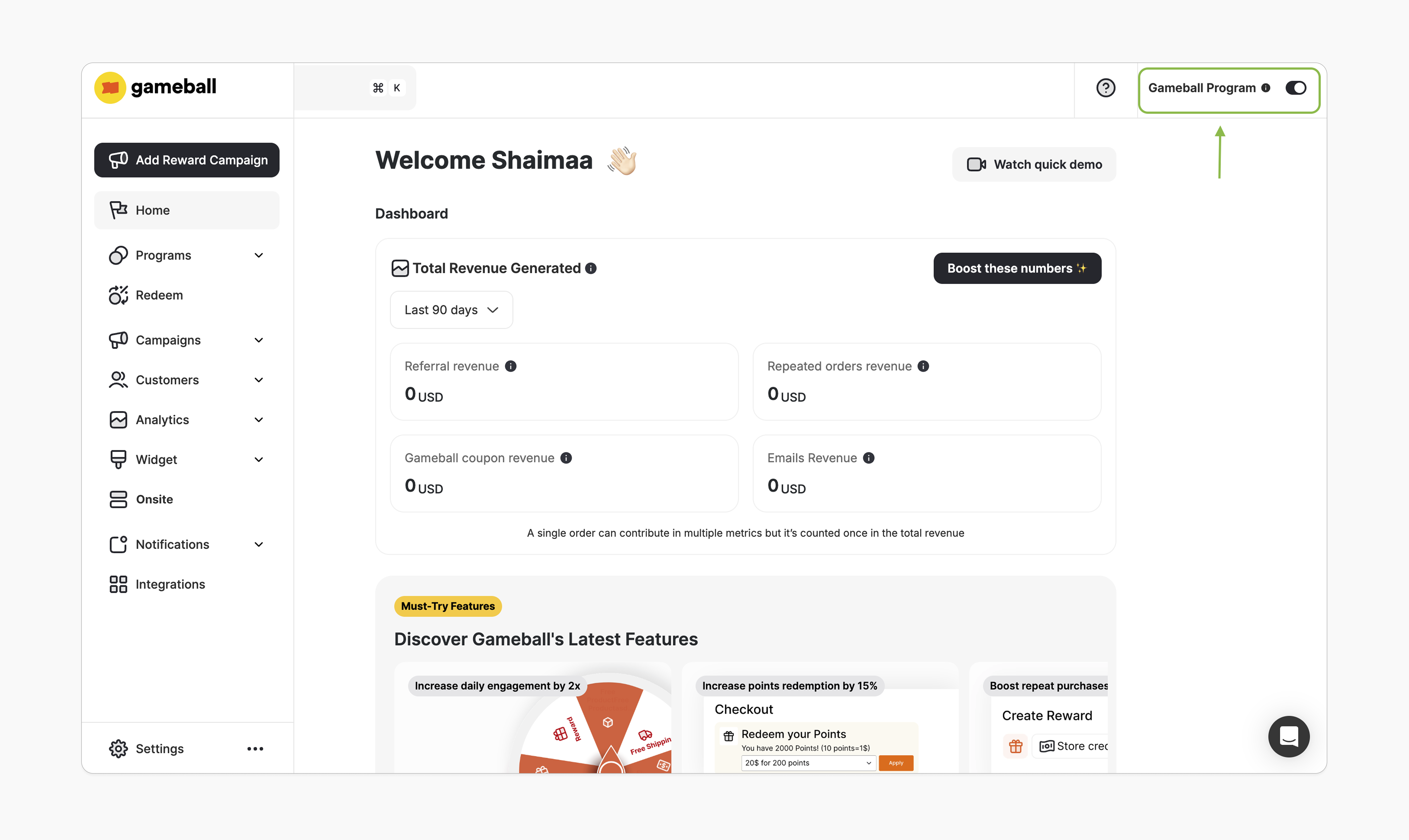
In the Gameball dashboard, ensure the top-right toggle is active. Once enabled, you will be able to add the Gameball block.
In the Gameball dashboard, navigate to **Programs > Earn Points**, then activate the module.
In the Gameball dashboard, ensure the top-right toggle is active. Once enabled, you will be able to add the Gameball block.
 ***
## How to Install the Block
In Gameball, navigate to **Onsite**, click **Customize**.
***
## How to Install the Block
In Gameball, navigate to **Onsite**, click **Customize**.
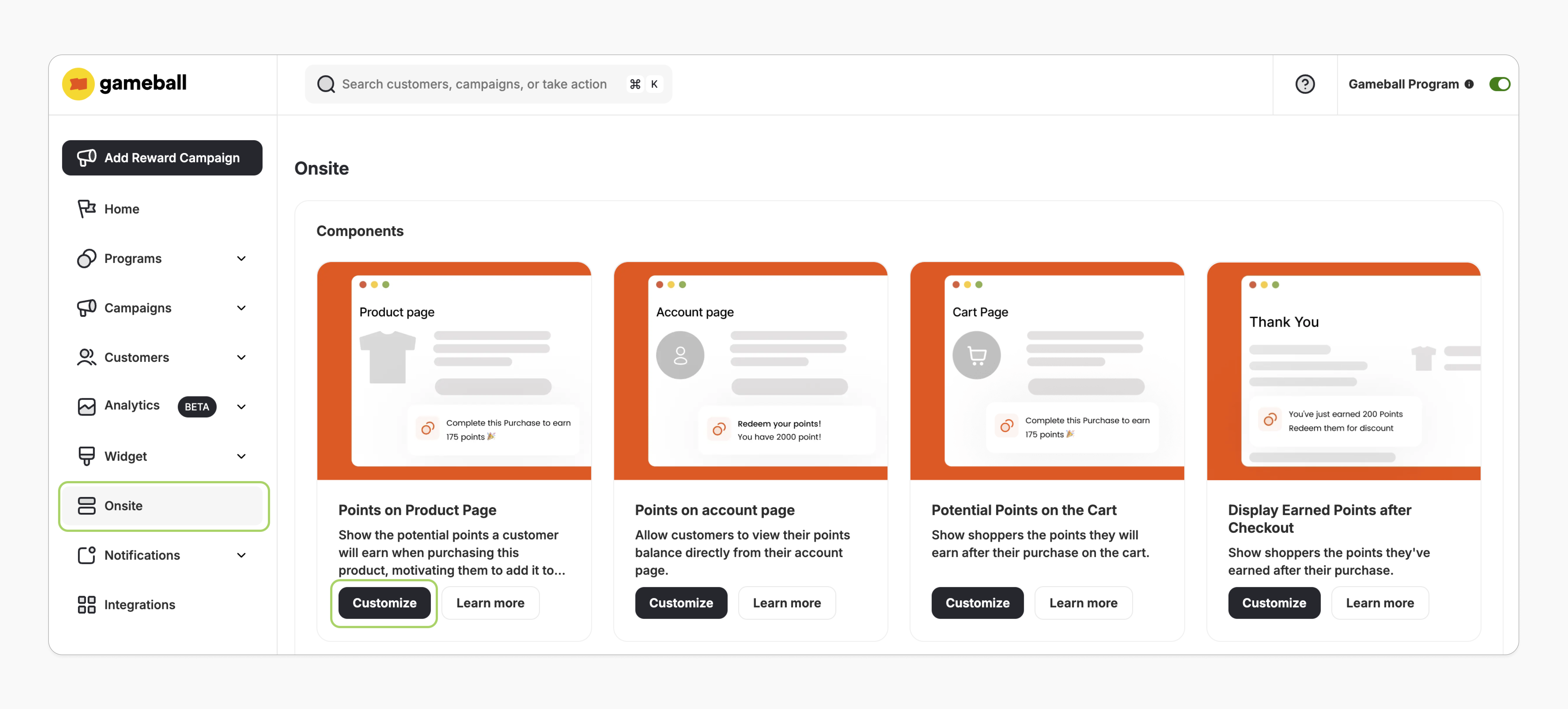 You'll be redirected to the Shopify theme editor on the product page. If this doesn't happen, please review the prerequisites.
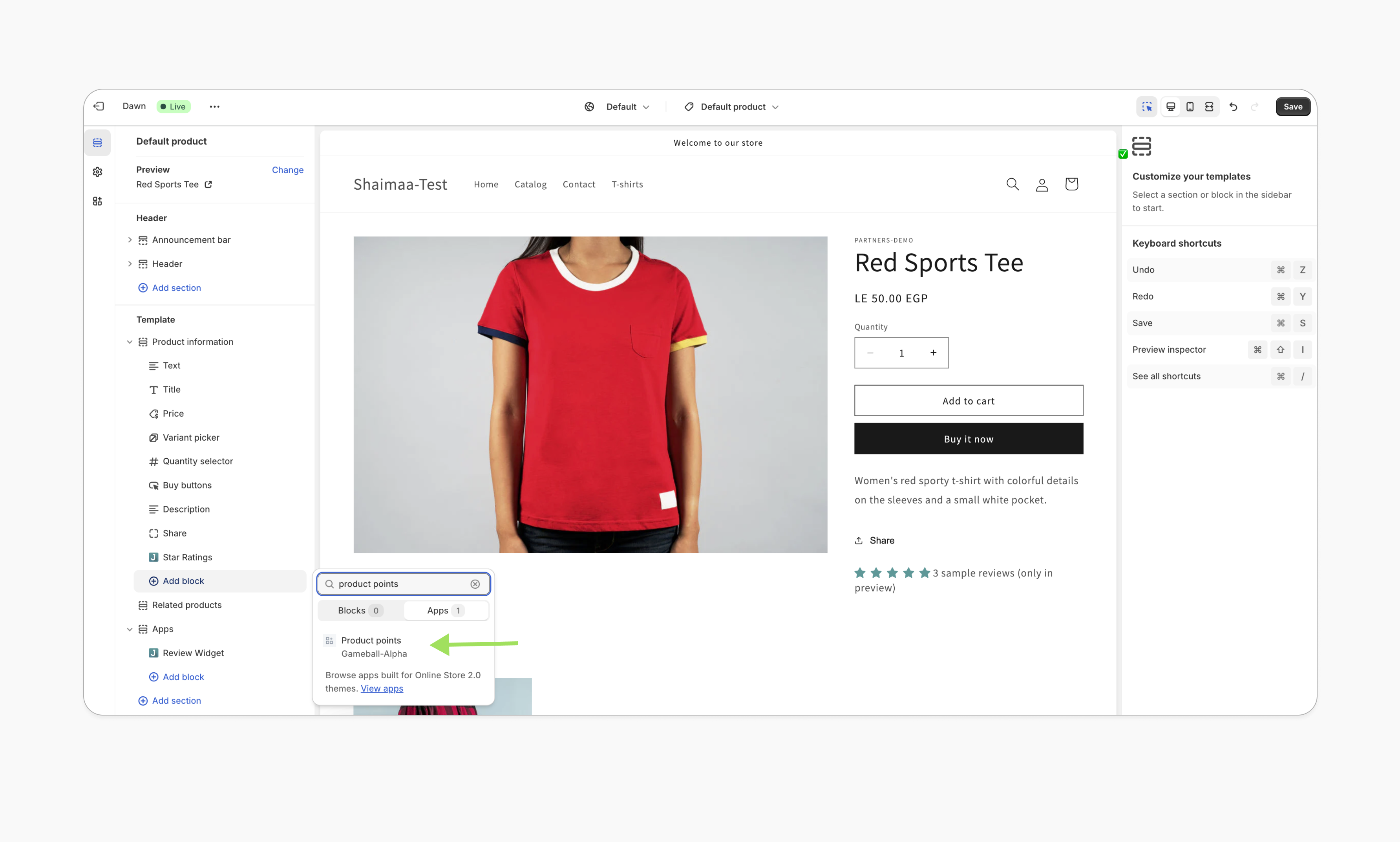
In the left sidebar, under the "Template" section, find **Product Information**. Click **Add Block > Apps**, and search for **"Product Points"**.
Select the **"Product Points"** app block and click **Save**.
You'll be redirected to the Shopify theme editor on the product page. If this doesn't happen, please review the prerequisites.
In the left sidebar, under the "Template" section, find **Product Information**. Click **Add Block > Apps**, and search for **"Product Points"**.
Select the **"Product Points"** app block and click **Save**.
 ***
## Customization
1. In the Shopify theme editor, click on the **"Product Points"** app block.
2. On the right sidebar, adjust the icon, text, colors, and styles as needed.
3. On the left sidebar, you can also change the block's position within the template section.
4. Click **Save**.
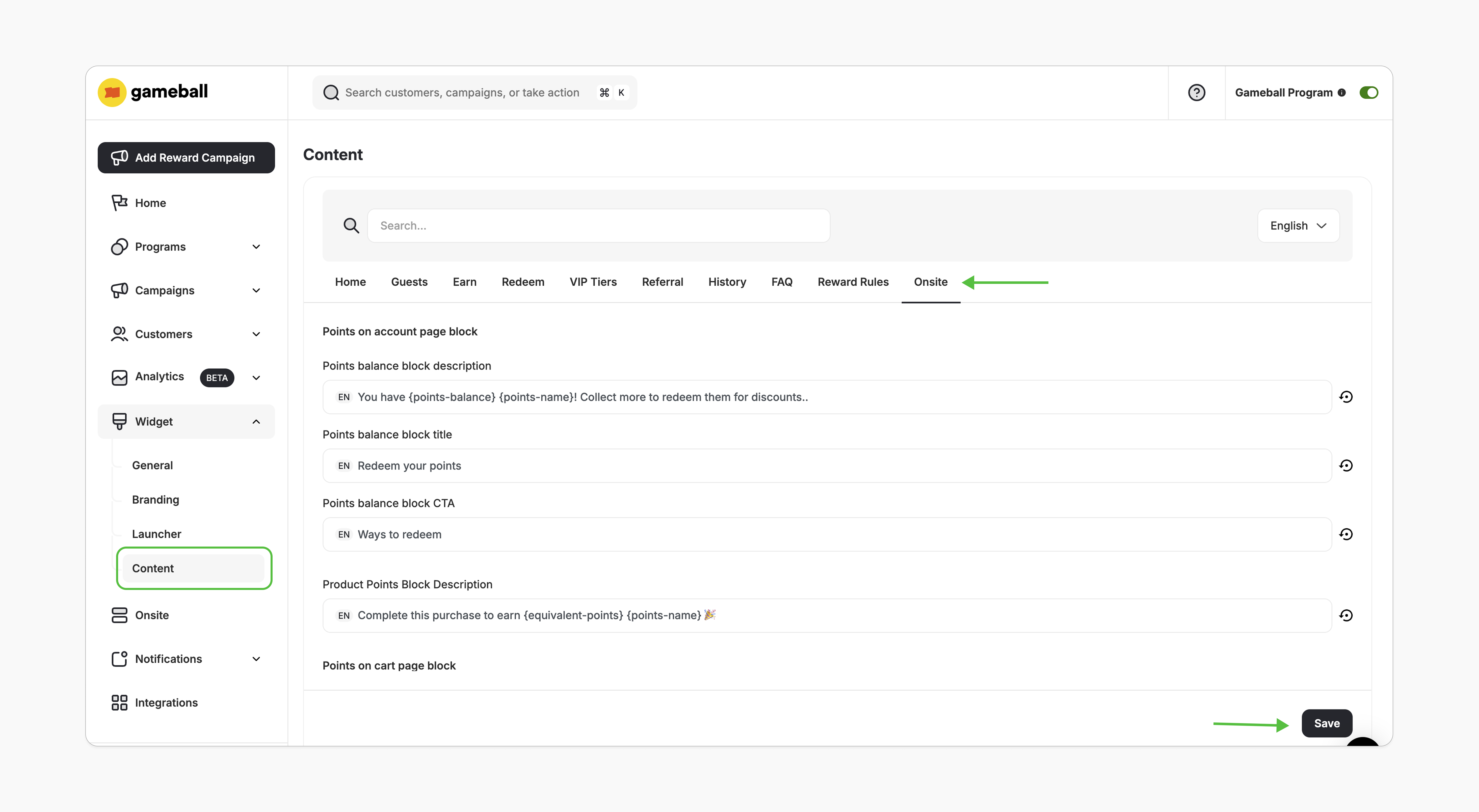
1. To customize the content and translation, go to the Gameball Dashboard.
2. Navigate to **Widget > Content**.
3. In the **Onsite** tab, edit the text as needed.
4. Click **Save**.
***
## Customization
1. In the Shopify theme editor, click on the **"Product Points"** app block.
2. On the right sidebar, adjust the icon, text, colors, and styles as needed.
3. On the left sidebar, you can also change the block's position within the template section.
4. Click **Save**.
1. To customize the content and translation, go to the Gameball Dashboard.
2. Navigate to **Widget > Content**.
3. In the **Onsite** tab, edit the text as needed.
4. Click **Save**.
 ***
## Important Notes
This extension will automatically hide from your store if:
* The Gameball program is deactivated.
* The "Earn Points" module is deactivated.
* The customer is excluded from the loyalty program.
* The product offers 0 loyalty points.
* The product is excluded from the "Earn Points" rules.
* Your account is on a plan that doesn't support this feature.
***
## Common Questions
Please review the prerequisites and ensure all conditions are met. If you still encounter an issue, contact us at [support@gameball.co](mailto:support@gameball.co).
The block will automatically hide once you're on a plan that doesn't support it.
***
## Important Notes
This extension will automatically hide from your store if:
* The Gameball program is deactivated.
* The "Earn Points" module is deactivated.
* The customer is excluded from the loyalty program.
* The product offers 0 loyalty points.
* The product is excluded from the "Earn Points" rules.
* Your account is on a plan that doesn't support this feature.
***
## Common Questions
Please review the prerequisites and ensure all conditions are met. If you still encounter an issue, contact us at [support@gameball.co](mailto:support@gameball.co).
The block will automatically hide once you're on a plan that doesn't support it.