> ## Documentation Index
> Fetch the complete documentation index at: https://docs.gameball.co/llms.txt
> Use this file to discover all available pages before exploring further.
# How Do I Display Customer Referral Link After Checkout?
> Enable your customers to easily share their referral link directly after placing an order on your store.
| **Platform** | **Plan** |
| ------------ | ------------------- |
| Shopify | Starter, Pro & Guru |
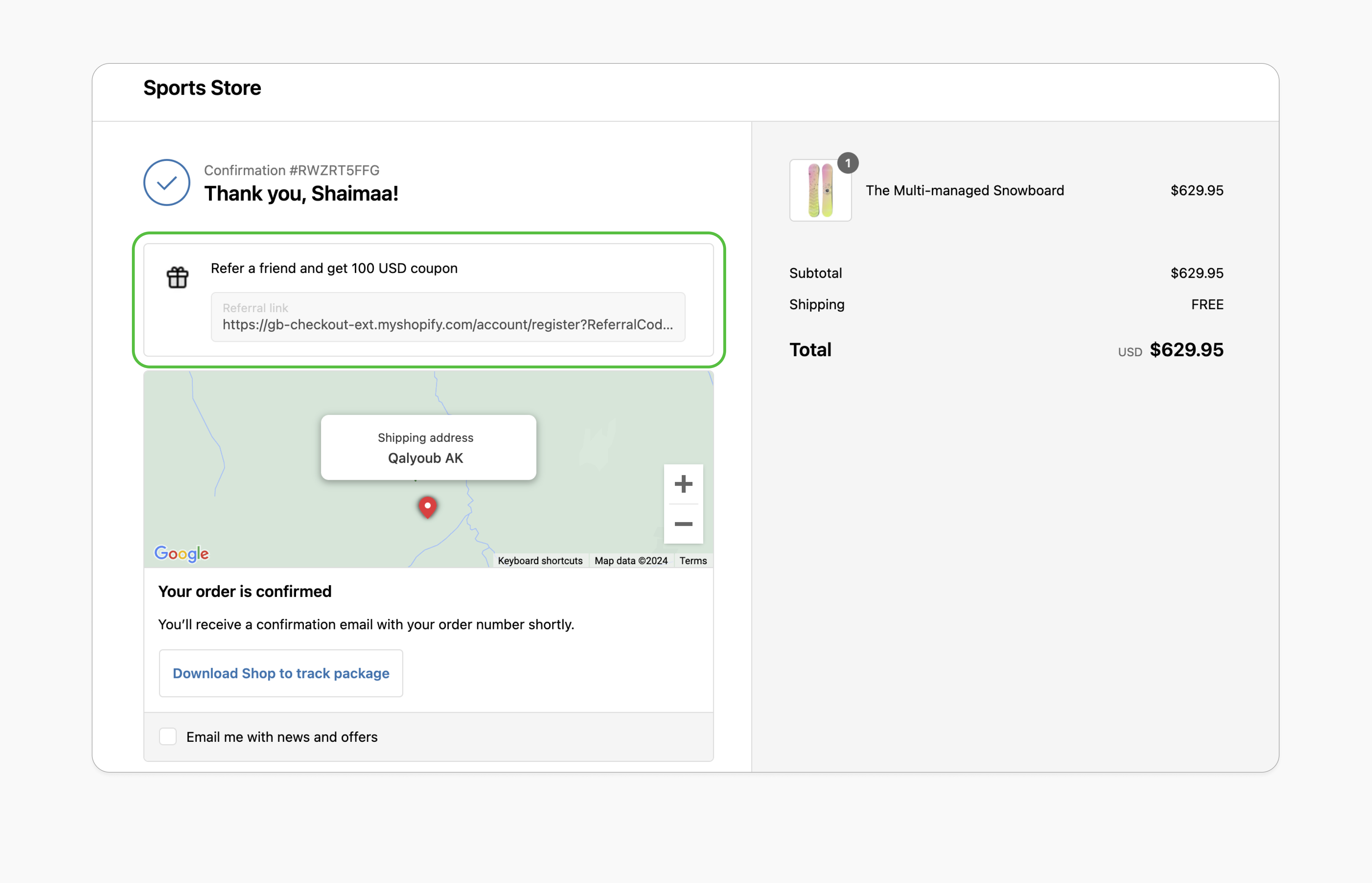 After a customer places an order, it's the perfect time to engage with them while their excitement is at its peak. By introducing your referral program at this moment, you can turn a positive purchase experience into an opportunity for organic growth.
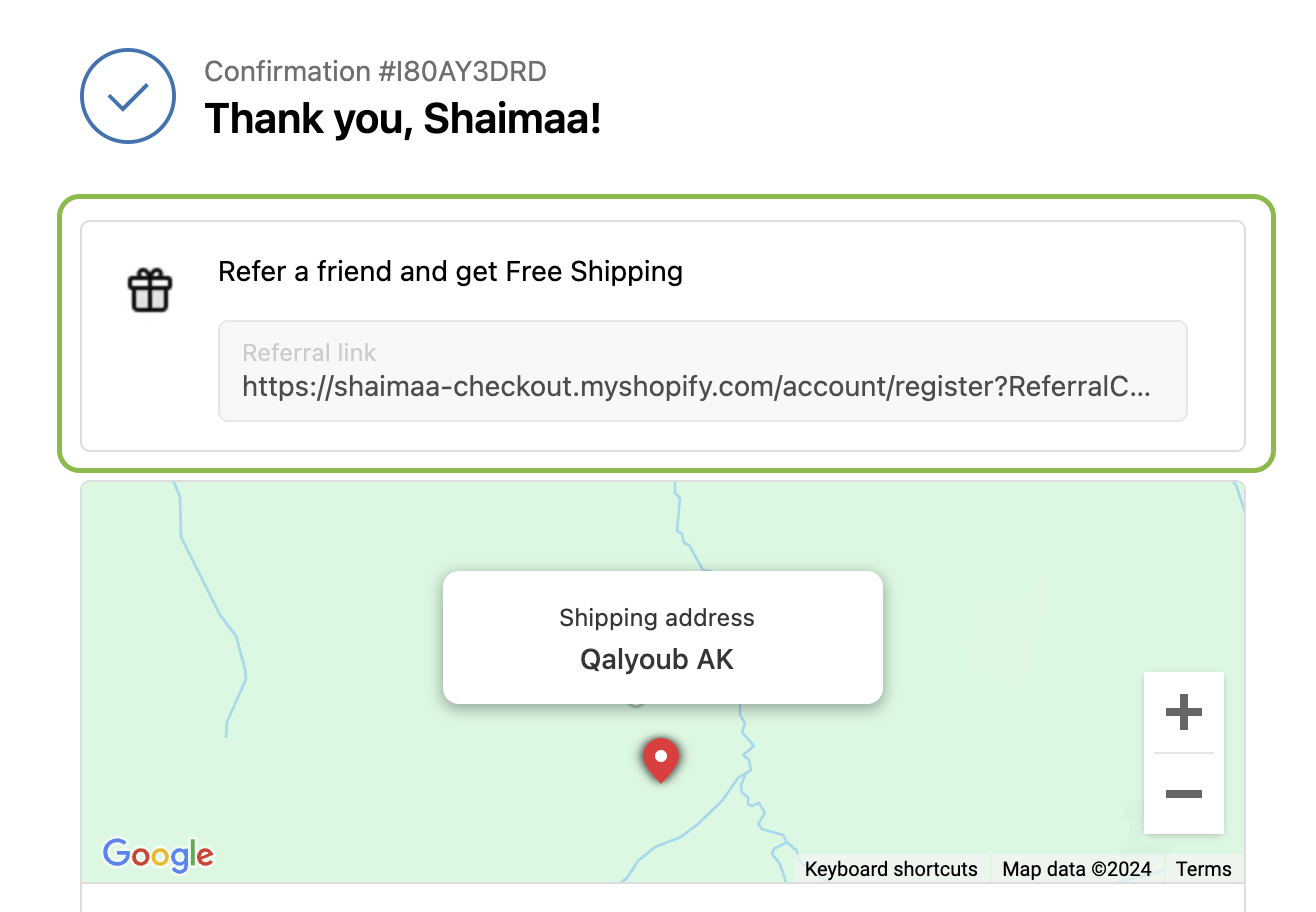
Gameball now offers a referral block that appears once an order is completed, highlighting the reward customers can earn by referring friends and providing their unique referral link.
**Benefits:**
Displaying the referral prompt right after an order is completed taps into the customer's post-purchase enthusiasm, increasing the likelihood of referrals.
Leveraging recent buyers' excitement can lead to more personal recommendations, attracting high-quality new customers through word-of-mouth.
***
## Prerequisites
Your Shopify theme must support app blocks. Without this, the option to add the Gameball block won't appear in the editor. [Learn more](https://help.shopify.com/en/manual/online-store/themes/theme-structure/extend/apps).
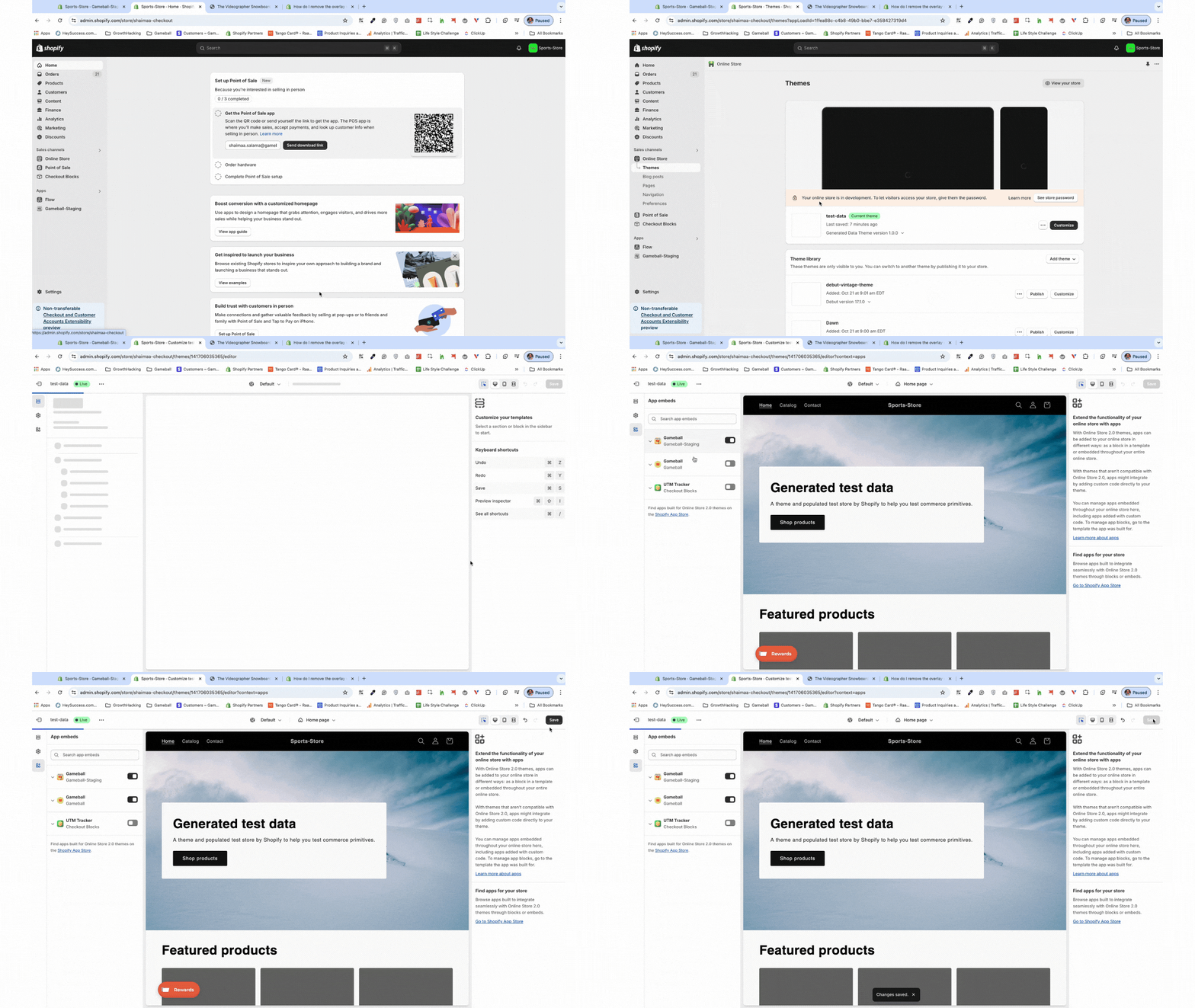
Go to the **Theme Editor** in your Shopify admin. Select **App Embeds** from the left menu, search for "Gameball," and toggle it on.
After a customer places an order, it's the perfect time to engage with them while their excitement is at its peak. By introducing your referral program at this moment, you can turn a positive purchase experience into an opportunity for organic growth.
Gameball now offers a referral block that appears once an order is completed, highlighting the reward customers can earn by referring friends and providing their unique referral link.
**Benefits:**
Displaying the referral prompt right after an order is completed taps into the customer's post-purchase enthusiasm, increasing the likelihood of referrals.
Leveraging recent buyers' excitement can lead to more personal recommendations, attracting high-quality new customers through word-of-mouth.
***
## Prerequisites
Your Shopify theme must support app blocks. Without this, the option to add the Gameball block won't appear in the editor. [Learn more](https://help.shopify.com/en/manual/online-store/themes/theme-structure/extend/apps).
Go to the **Theme Editor** in your Shopify admin. Select **App Embeds** from the left menu, search for "Gameball," and toggle it on.
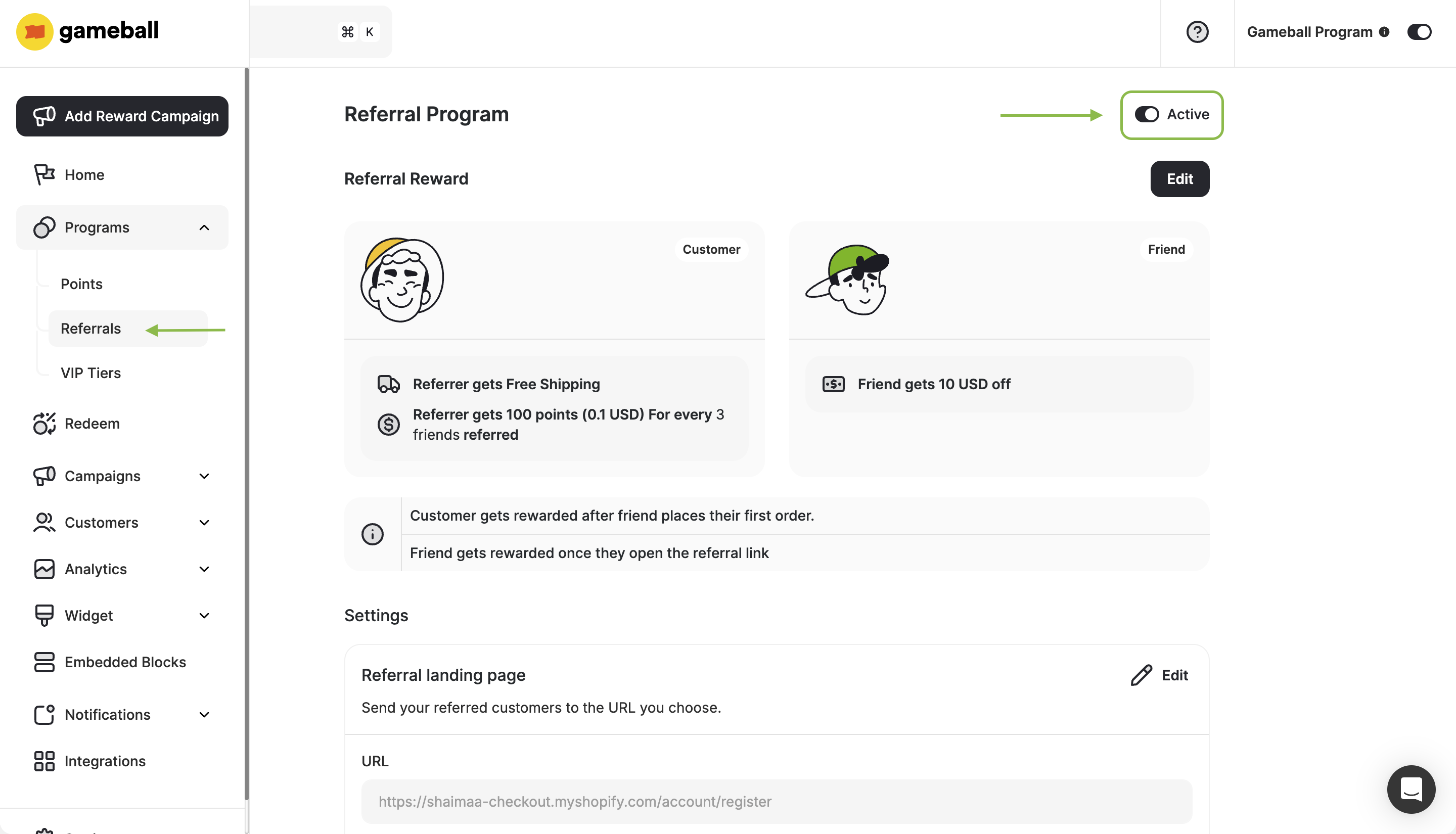
 In the Gameball dashboard, navigate to **Referrals**, then activate the module.
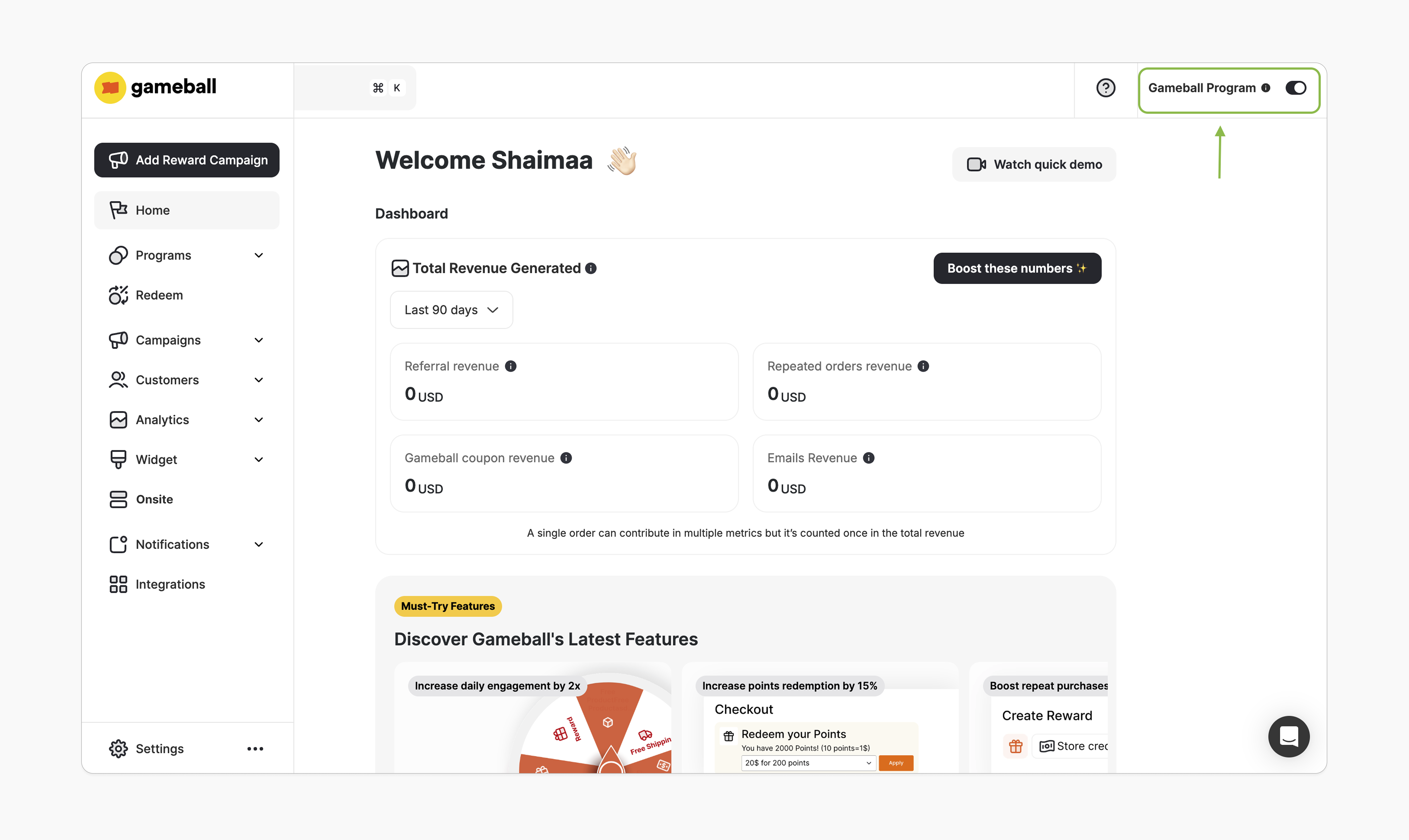
 In the Gameball dashboard, ensure the top-right toggle is active. Once enabled, you will be able to add the Gameball block.
 ***
## How to Install the Block
In Gameball, navigate to **Onsite**, click **Customize**.
***
## How to Install the Block
In Gameball, navigate to **Onsite**, click **Customize**.
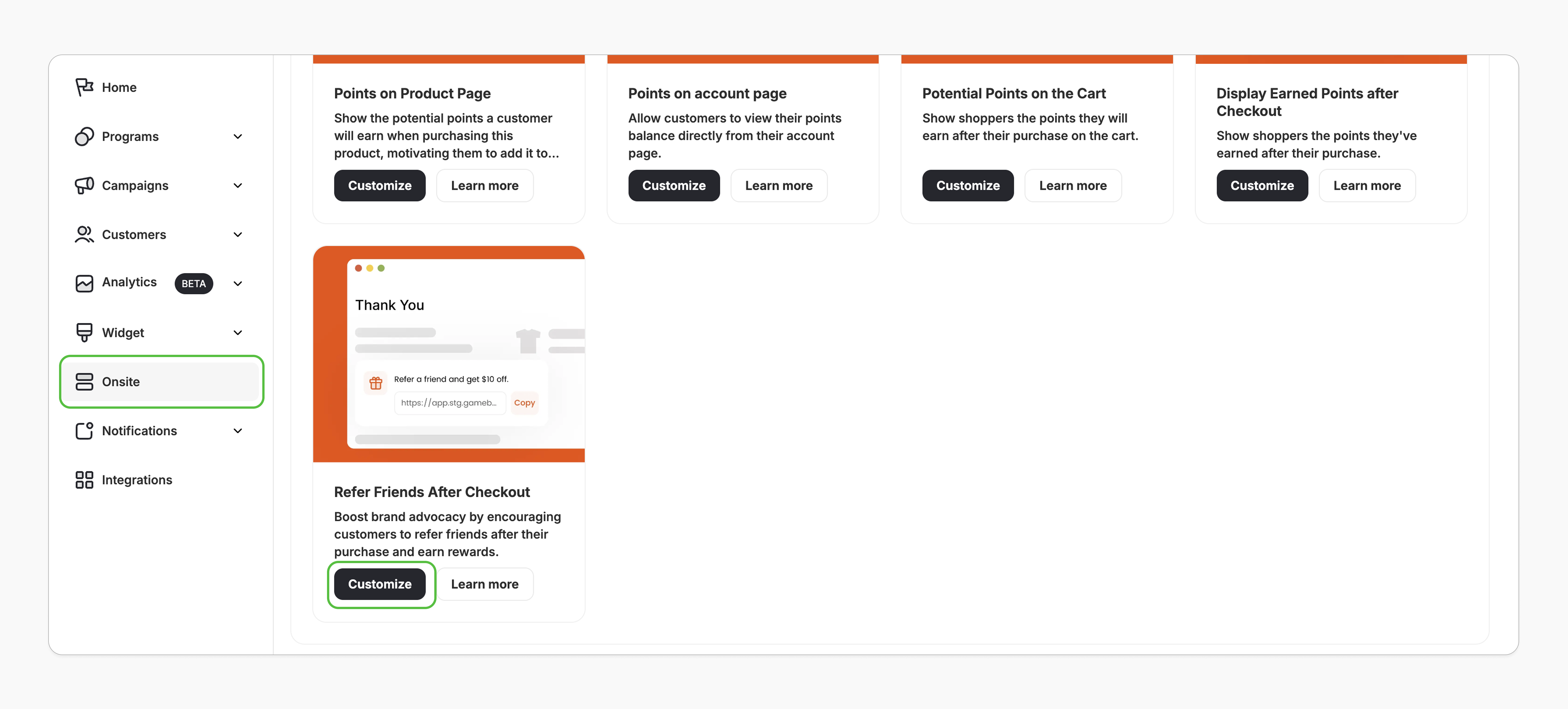 You'll be redirected to Shopify's theme editor. If not, double-check the prerequisites.
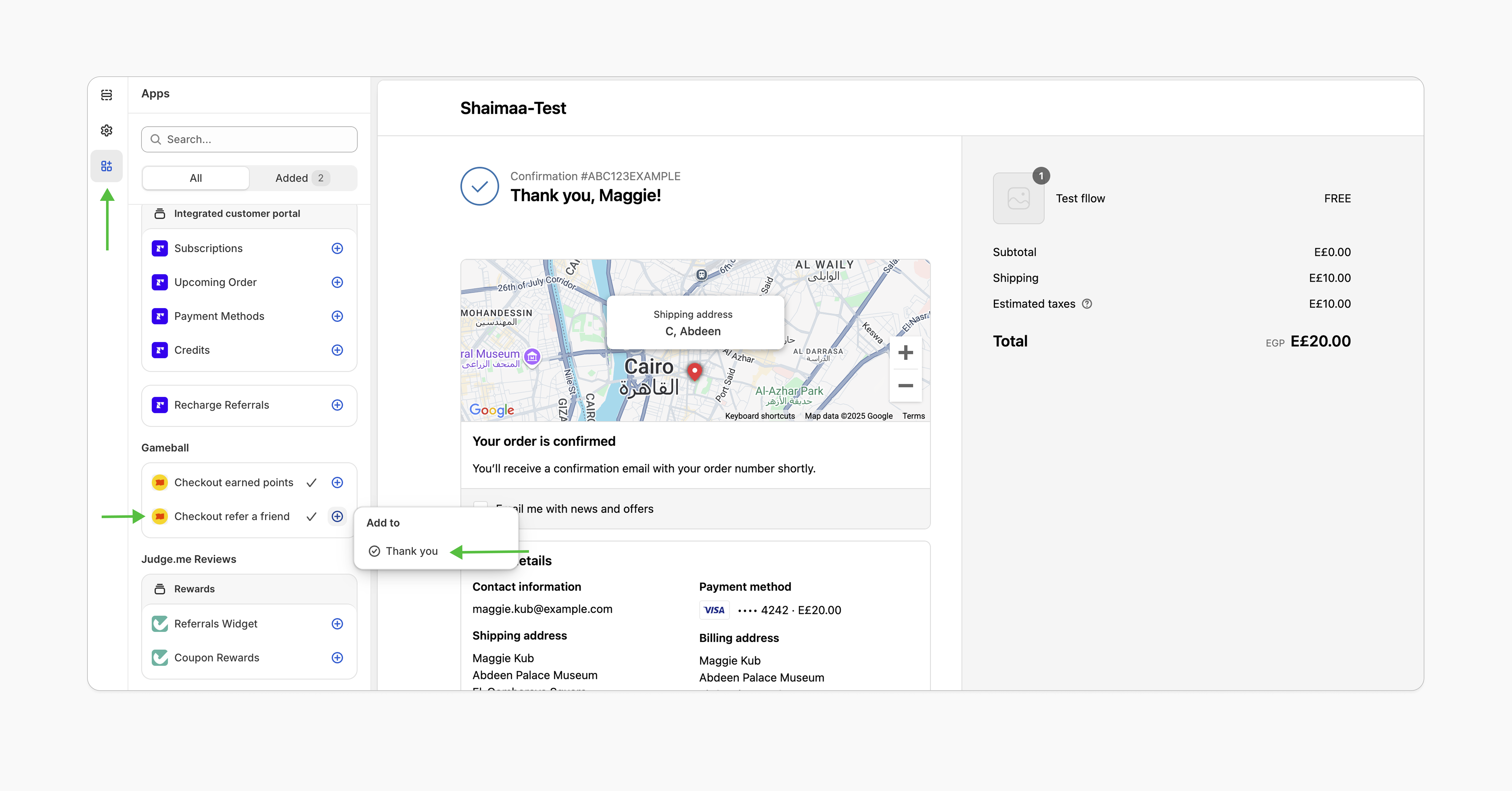
In the left sidebar under **Apps**, select **"Checkout refer a friend"** and click **Save**.
You'll be redirected to Shopify's theme editor. If not, double-check the prerequisites.
In the left sidebar under **Apps**, select **"Checkout refer a friend"** and click **Save**.
 ***
## Customization
The checkout extensions have no style customization options. However, you can customize its position by simply dragging and dropping it to your desired location on the checkout page.
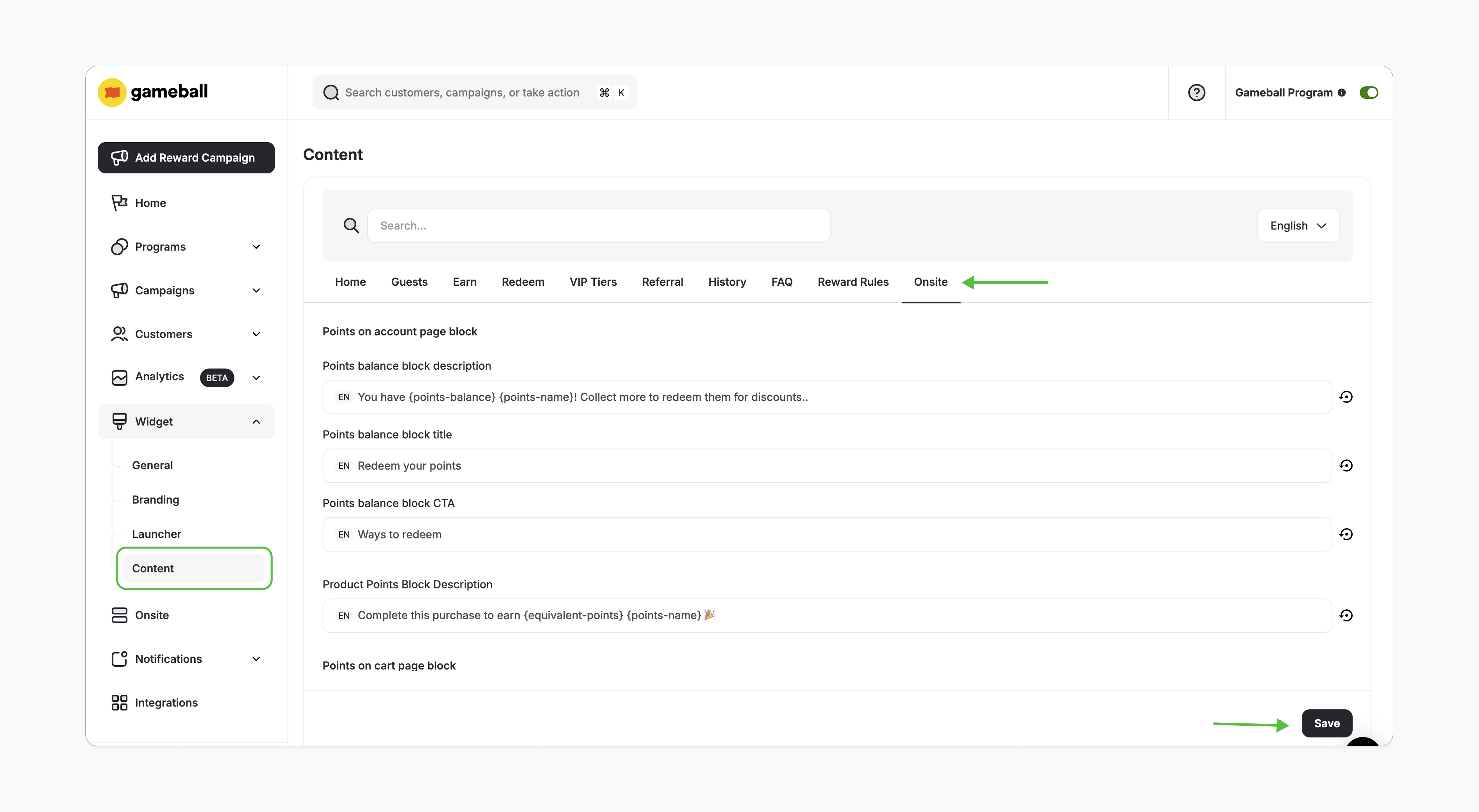
In the Gameball dashboard, go to **Widget > Content**. In the **Onsite** tab, edit the displayed text as needed and click **Save**.
***
## Customization
The checkout extensions have no style customization options. However, you can customize its position by simply dragging and dropping it to your desired location on the checkout page.
In the Gameball dashboard, go to **Widget > Content**. In the **Onsite** tab, edit the displayed text as needed and click **Save**.
 ***
## Logged-In vs. Guest (Not-Logged-In) Customers
If you are not logged in, the extension will prompt you to log in or register to be able to refer your friends and earn the referral reward.
***
## Logged-In vs. Guest (Not-Logged-In) Customers
If you are not logged in, the extension will prompt you to log in or register to be able to refer your friends and earn the referral reward.
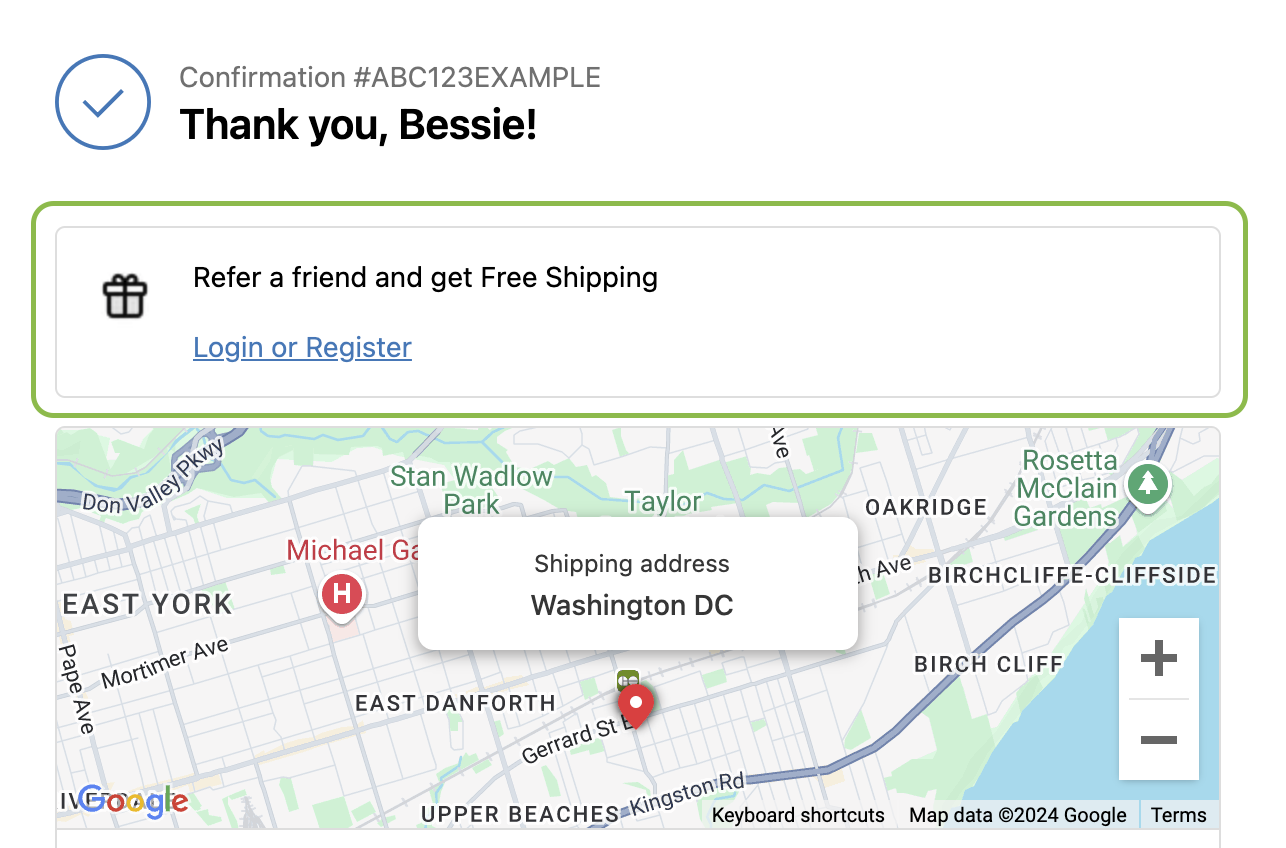 When the logged-in customer reaches the thank you page after placing an order, the extension will be displayed, allowing the customer to copy their referral link and share it with their friends.
 ***
## Important Notes
The referral link block will automatically hide if:
* The referral program is deactivated.
* The customer is excluded from the program.
* The Gameball program is deactivated.
* Your account plan doesn't support this feature.
***
## Frequently Asked Questions
Currently, the referral link block can only be embedded on the checkout confirmation page.
The referral link block will automatically hide if your plan no longer supports this feature.
***
## Related Articles
Display customers' points balances in their profiles.
Show potential points directly on product pages.
***
## Important Notes
The referral link block will automatically hide if:
* The referral program is deactivated.
* The customer is excluded from the program.
* The Gameball program is deactivated.
* Your account plan doesn't support this feature.
***
## Frequently Asked Questions
Currently, the referral link block can only be embedded on the checkout confirmation page.
The referral link block will automatically hide if your plan no longer supports this feature.
***
## Related Articles
Display customers' points balances in their profiles.
Show potential points directly on product pages.