> ## Documentation Index
> Fetch the complete documentation index at: https://docs.gameball.co/llms.txt
> Use this file to discover all available pages before exploring further.
# How Do I Embed Customers' Points in their Profile?
> Display your customers' points balances in their profiles using our no-code embed feature, enhancing engagement and reward redemptions.
| **Platform** | **Plan** |
| ------------ | -------------------- |
| Shopify | Starter, Pro, & Guru |
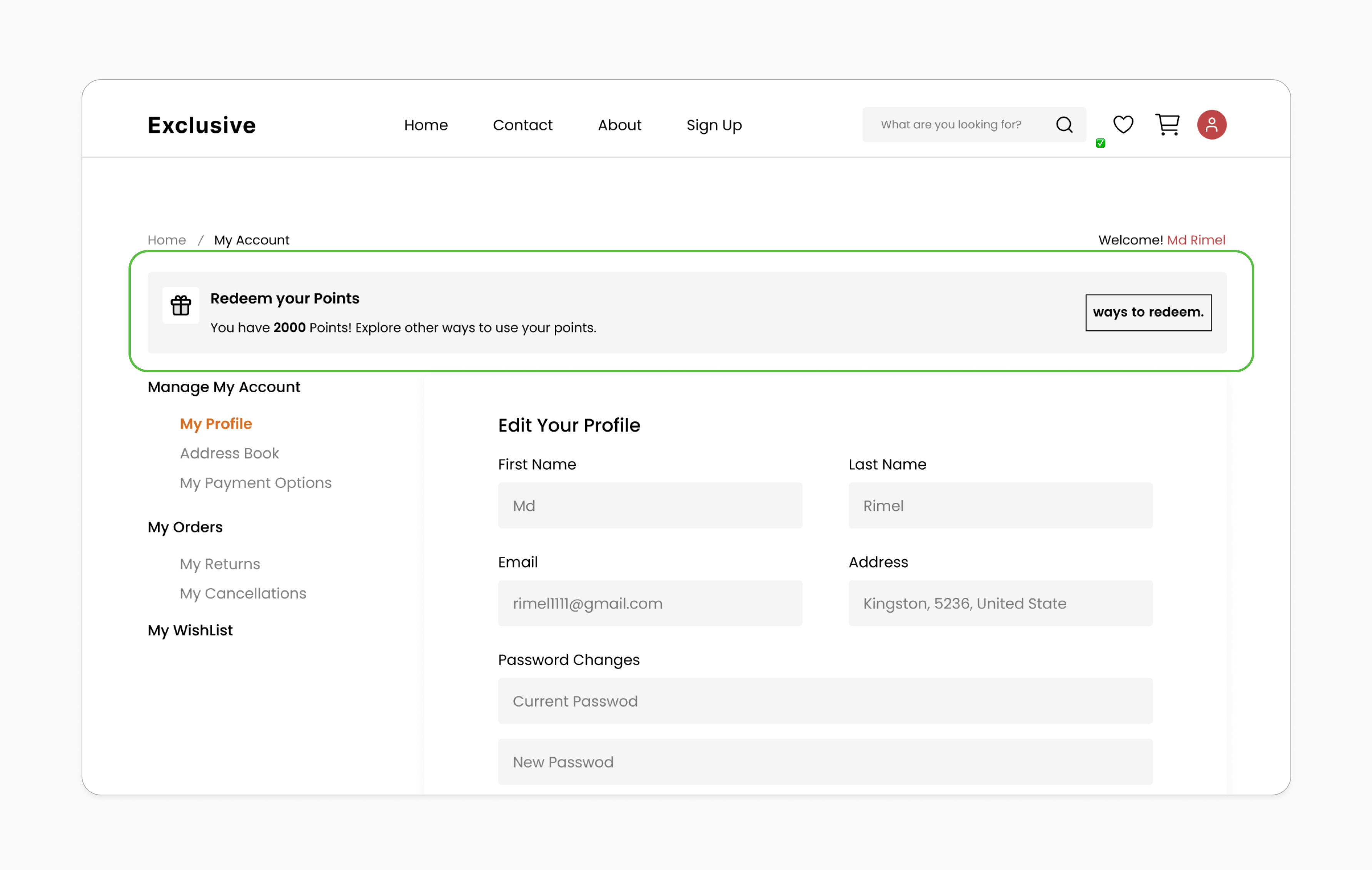 Boost your customer loyalty program and increase reward redemptions by seamlessly displaying points balances within your customers' accounts. With Gameball, you can integrate point balances directly into your store's theme without writing a single line of code, keeping your customers informed and motivated to redeem their rewards.
***
## Prerequisites
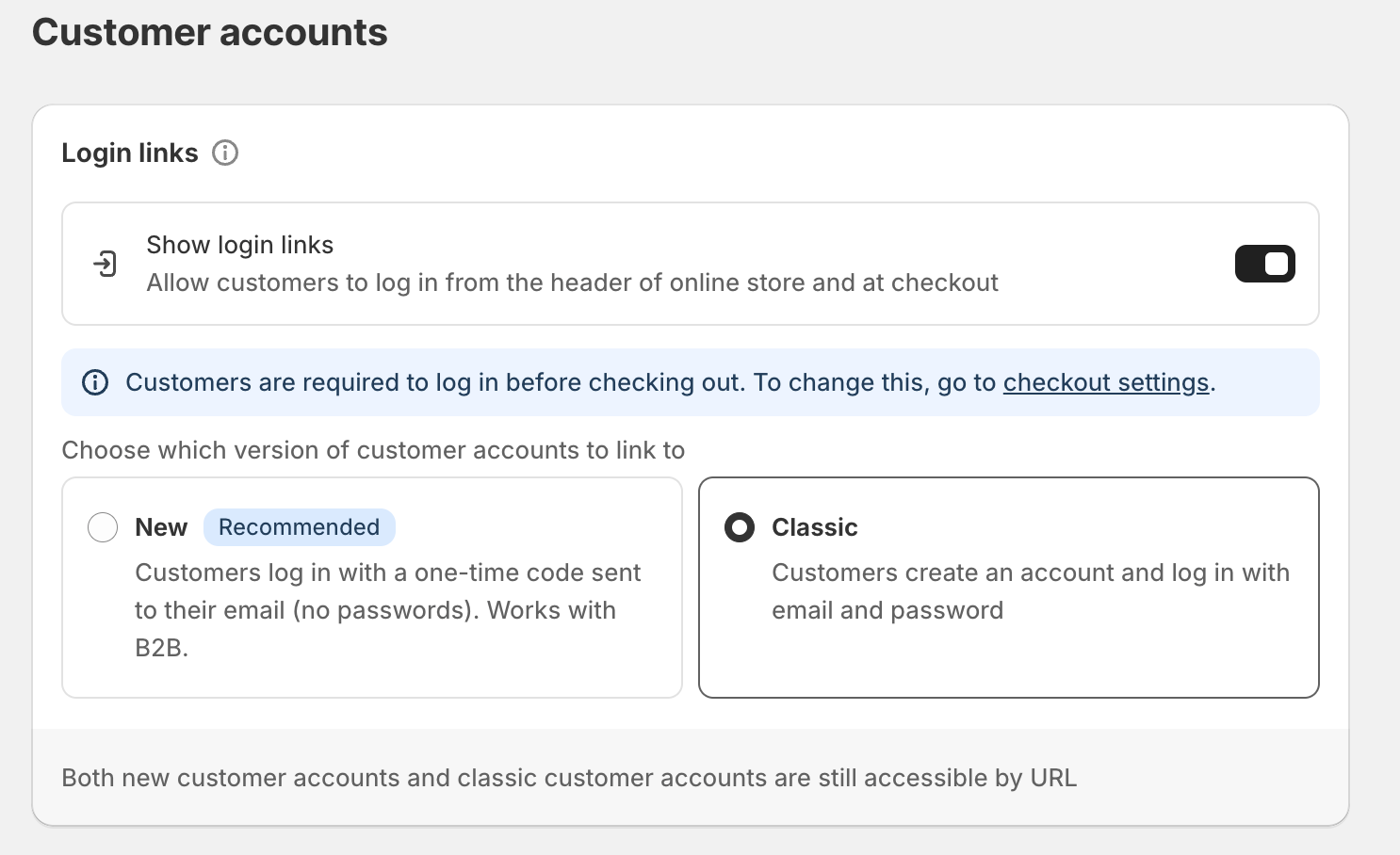
Ensure you're using Shopify's Classic customer accounts. The new customer accounts don't support third-party apps yet. However, when you are adding the "Account Balance" embedded block, it is only supported by the old account creation method (classic account). This is due to a limitation from Shopify, as they don't allow third-party apps like Gameball to edit the page with the new method.
Boost your customer loyalty program and increase reward redemptions by seamlessly displaying points balances within your customers' accounts. With Gameball, you can integrate point balances directly into your store's theme without writing a single line of code, keeping your customers informed and motivated to redeem their rewards.
***
## Prerequisites
Ensure you're using Shopify's Classic customer accounts. The new customer accounts don't support third-party apps yet. However, when you are adding the "Account Balance" embedded block, it is only supported by the old account creation method (classic account). This is due to a limitation from Shopify, as they don't allow third-party apps like Gameball to edit the page with the new method.
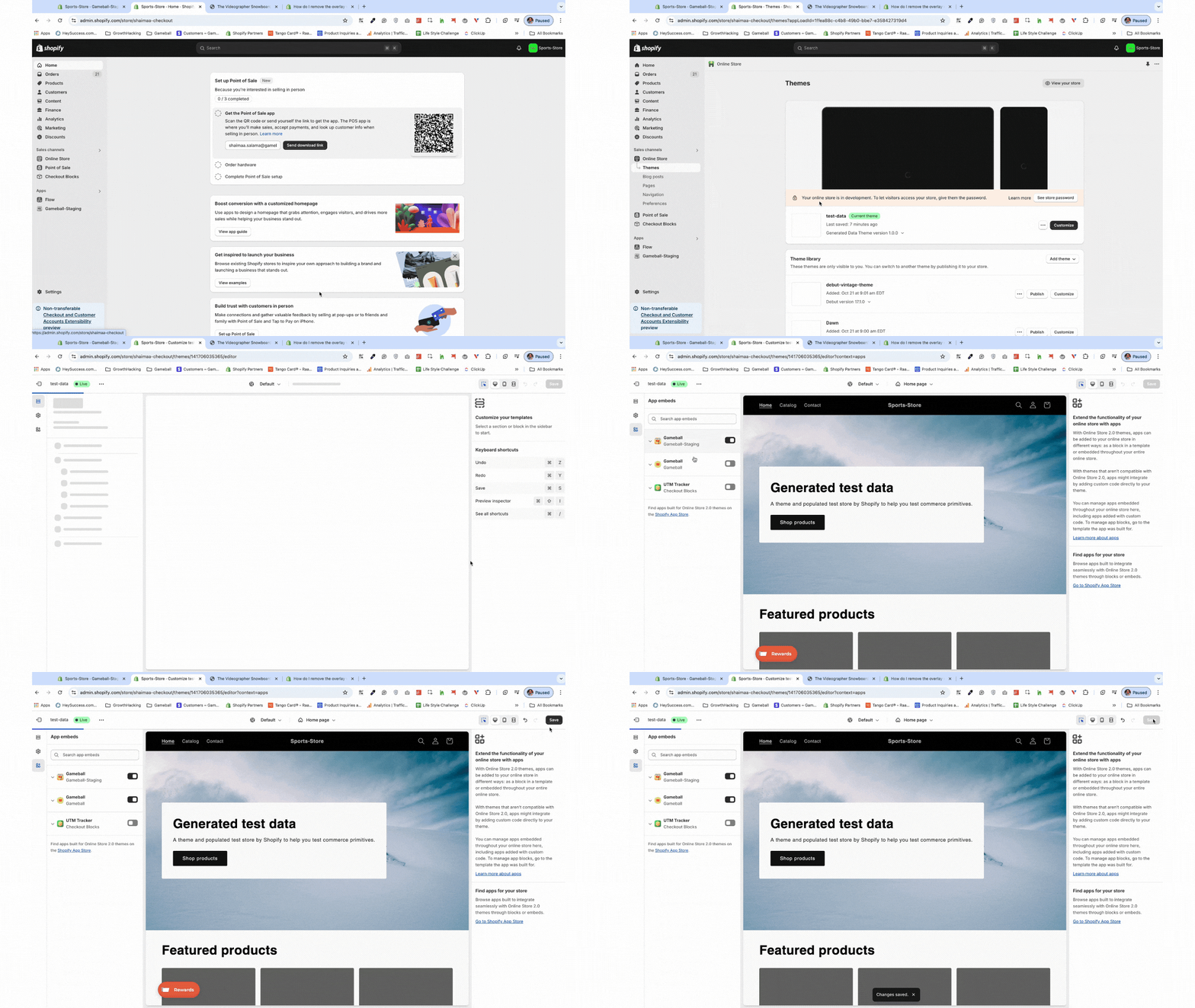
 Your theme must support app blocks. Without this, the Gameball block will not be visible in the editor. [Learn More](https://help.shopify.com/en/manual/online-store/themes/theme-structure/extend/apps).
Go to the **Theme Editor** in your Shopify admin. Select **App Embeds** from the left menu, search for "Gameball," and toggle it on.
Your theme must support app blocks. Without this, the Gameball block will not be visible in the editor. [Learn More](https://help.shopify.com/en/manual/online-store/themes/theme-structure/extend/apps).
Go to the **Theme Editor** in your Shopify admin. Select **App Embeds** from the left menu, search for "Gameball," and toggle it on.
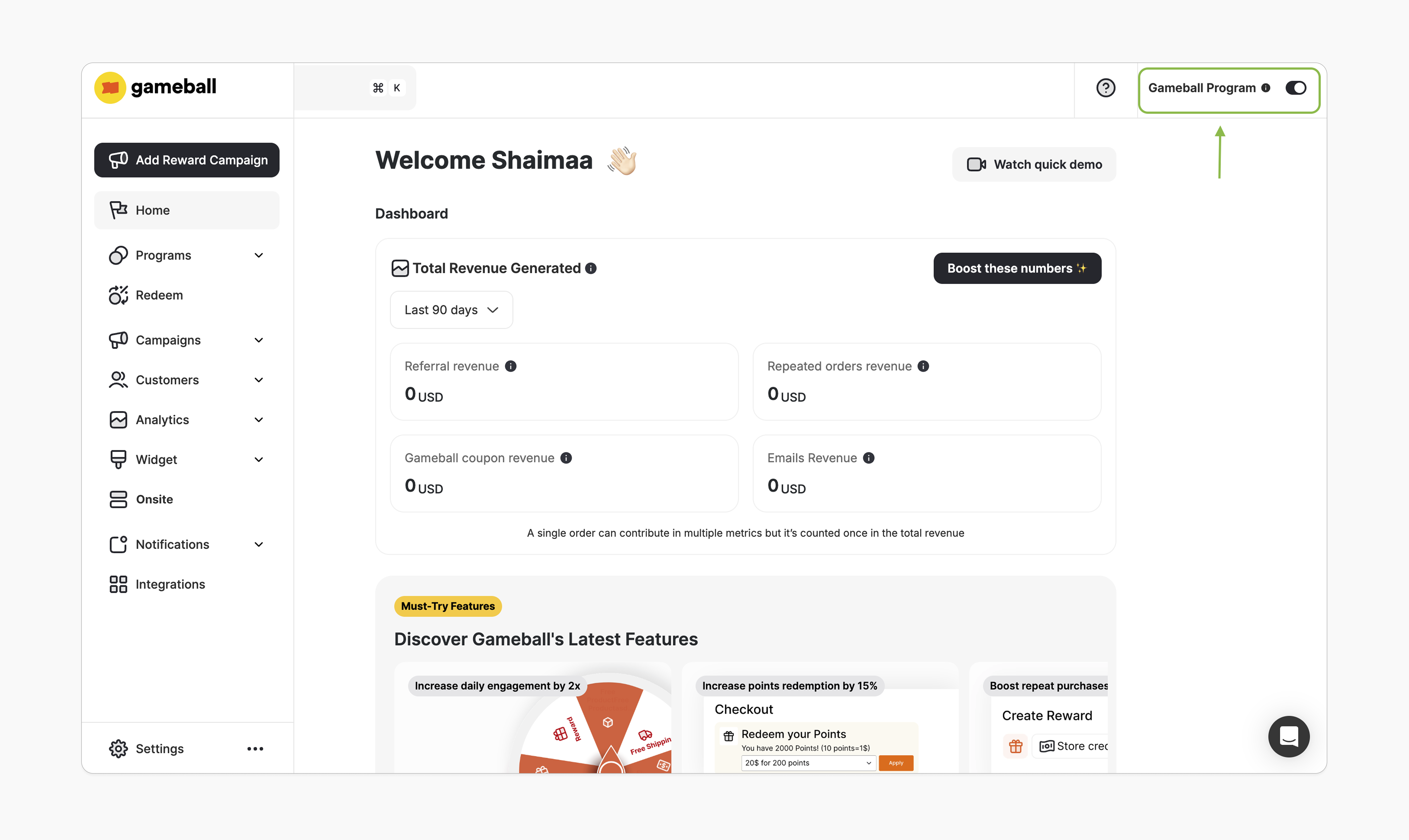
 In the Gameball dashboard, make sure the toggle at the top-right is activated. Once this is enabled, you'll be able to add the Gameball block.
 ***
## How to Install the Block
In Gameball, navigate to **Onsite**, click **Customize**.
***
## How to Install the Block
In Gameball, navigate to **Onsite**, click **Customize**.
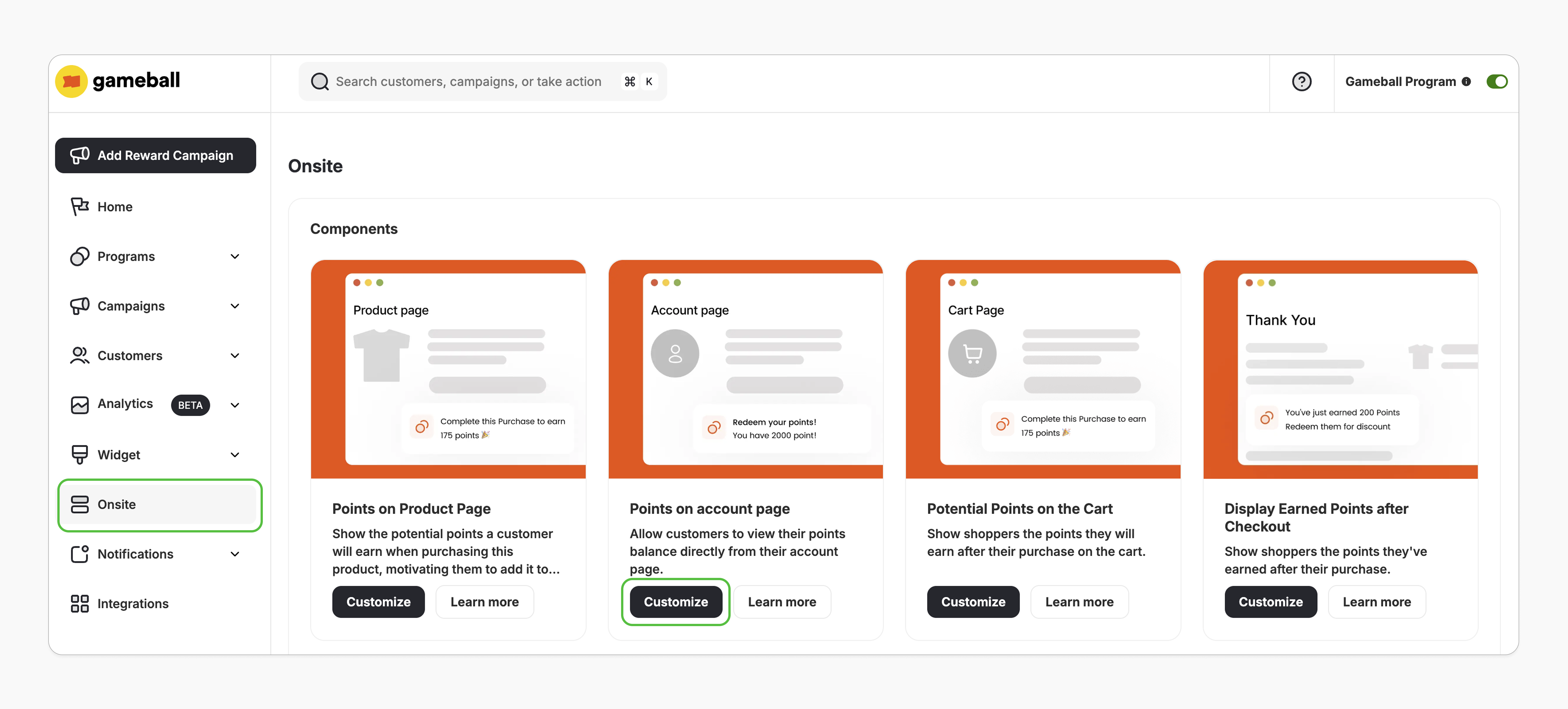 You'll be redirected to Shopify's theme editor. If not, double-check the prerequisites.
Sign in to your store through the theme editor to access the customer account template.
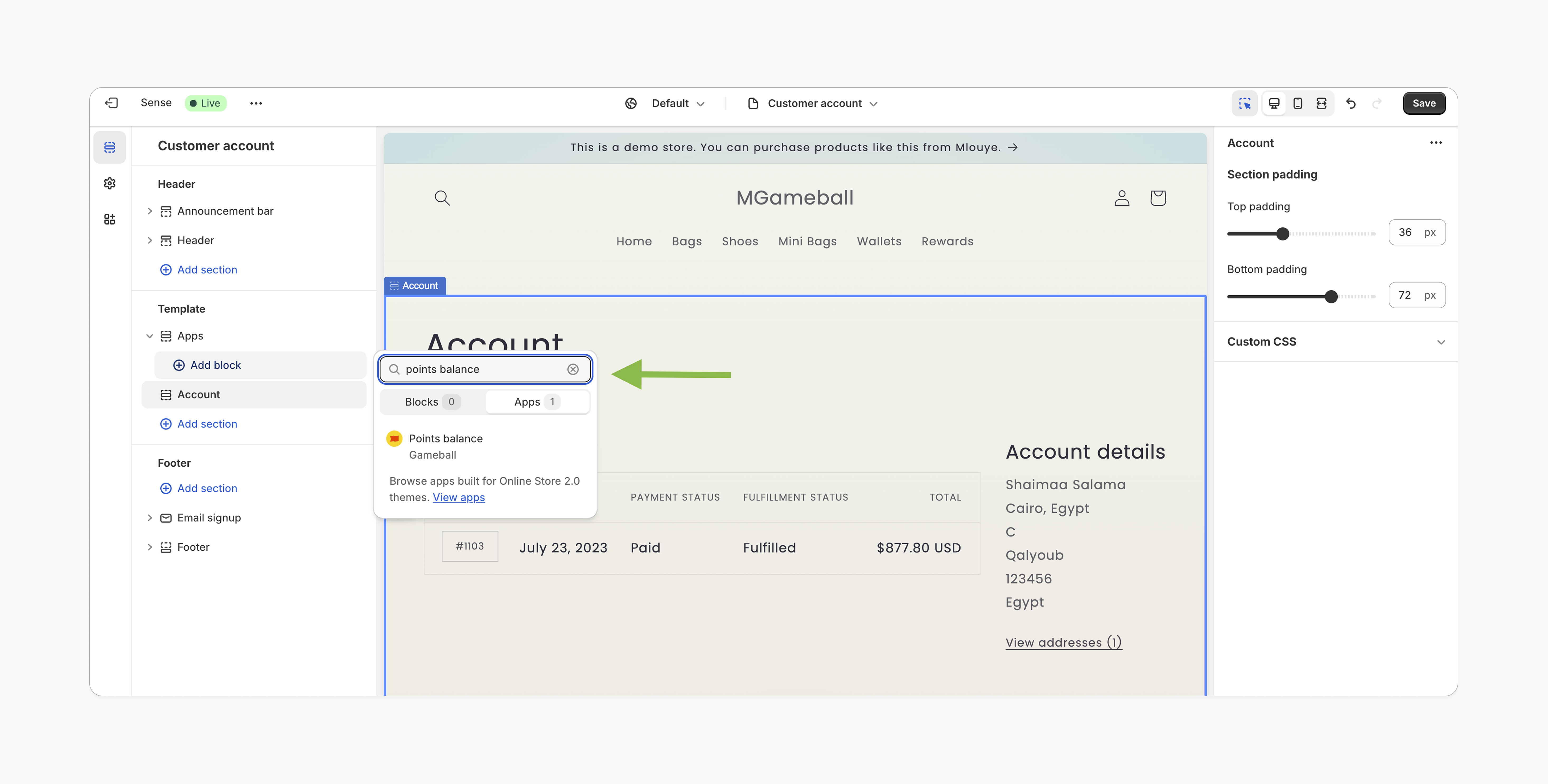
In the left sidebar under **Template**, select **Add section > Apps**, and search for **"Points Balance"**.
Select the **Points Balance** app block and click **Save**.
You'll be redirected to Shopify's theme editor. If not, double-check the prerequisites.
Sign in to your store through the theme editor to access the customer account template.
In the left sidebar under **Template**, select **Add section > Apps**, and search for **"Points Balance"**.
Select the **Points Balance** app block and click **Save**.
 ***
## Customization
1. In the Shopify theme editor, click on the **Points Balance app block**.
2. Customize the icon, text, colors, buttons, and overall style using the right-hand sidebar.
3. Adjust the block's position in the template from the left sidebar.
4. Click **Save**.
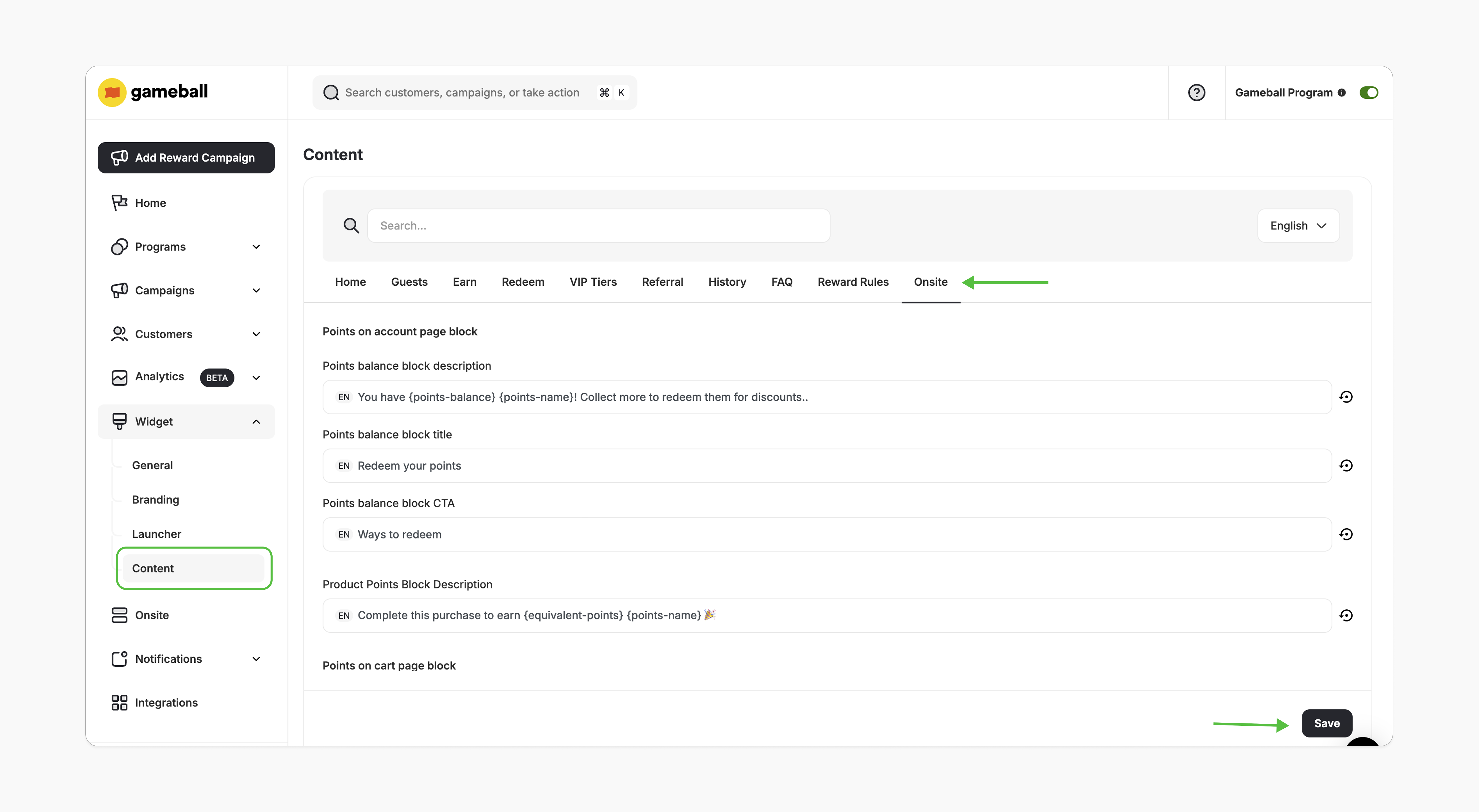
1. In the Gameball dashboard, go to **Widget > Content**.
2. In the **Onsite** tab, edit the displayed text as needed and click **Save**.
***
## Customization
1. In the Shopify theme editor, click on the **Points Balance app block**.
2. Customize the icon, text, colors, buttons, and overall style using the right-hand sidebar.
3. Adjust the block's position in the template from the left sidebar.
4. Click **Save**.
1. In the Gameball dashboard, go to **Widget > Content**.
2. In the **Onsite** tab, edit the displayed text as needed and click **Save**.
 ***
## Important Notes
The block will automatically hide from your store if:
* The Gameball program is deactivated.
* The customer is excluded from the program.
* Your account is on a plan that doesn't support this feature.
***
## Common Questions
Currently, the block can only be embedded on the customer account page.
Gameball supports the "New customer account creation" in the following way: When a user logs in using Email/OTP and Gameball identifies their Shopify account, they are created as a member in Gameball (instead of a guest). This change resolves issues such as users not receiving rewards from birthdays, social campaigns, streaks, and similar benefits.
However, if you are adding the "Account Balance" embedded block, it is only supported by the old account creation method. This is due to a limitation from Shopify, as they don't allow third-party apps like Gameball to edit the page with the new method.
If you encounter a "There is a problem loading the page" message, review the prerequisites to ensure all conditions are met. If the issue persists, contact us at [support@gameball.co](mailto:support@gameball.co).
The Points Balance block will automatically hide if your plan doesn't support this feature.
***
## Important Notes
The block will automatically hide from your store if:
* The Gameball program is deactivated.
* The customer is excluded from the program.
* Your account is on a plan that doesn't support this feature.
***
## Common Questions
Currently, the block can only be embedded on the customer account page.
Gameball supports the "New customer account creation" in the following way: When a user logs in using Email/OTP and Gameball identifies their Shopify account, they are created as a member in Gameball (instead of a guest). This change resolves issues such as users not receiving rewards from birthdays, social campaigns, streaks, and similar benefits.
However, if you are adding the "Account Balance" embedded block, it is only supported by the old account creation method. This is due to a limitation from Shopify, as they don't allow third-party apps like Gameball to edit the page with the new method.
If you encounter a "There is a problem loading the page" message, review the prerequisites to ensure all conditions are met. If the issue persists, contact us at [support@gameball.co](mailto:support@gameball.co).
The Points Balance block will automatically hide if your plan doesn't support this feature.