> ## Documentation Index
> Fetch the complete documentation index at: https://docs.gameball.co/llms.txt
> Use this file to discover all available pages before exploring further.
# What Are Collection-Based Earning Rules?
> Customize your cashback program so that each collection you have in your store offers a different cashback value to your customers.
| Platform | Plan |
| -------------------- | ---------------------- |
| Shopify | Guru |
| Salla | Guru |
| Non-platform Clients | Growth (Add-on) & Guru |
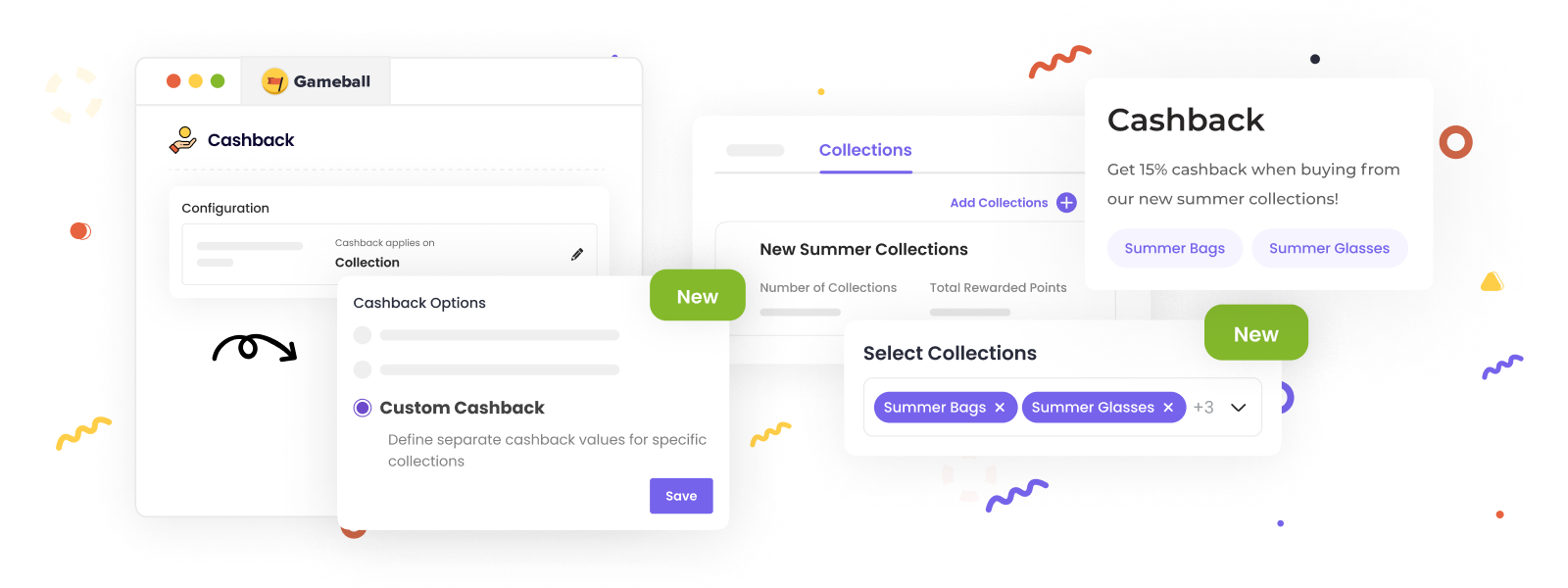
Customize your cashback system on Gameball to offer different cashback values for each collection in your store. This flexibility allows you to incentivize purchases from specific collections and enhance customer engagement.
 ## Prerequisites
* Ensure that you have activated the **Cashback** feature on your Gameball account.
* Confirm that your store collections are properly set up.
***
## Configuring Collection-Based Earning
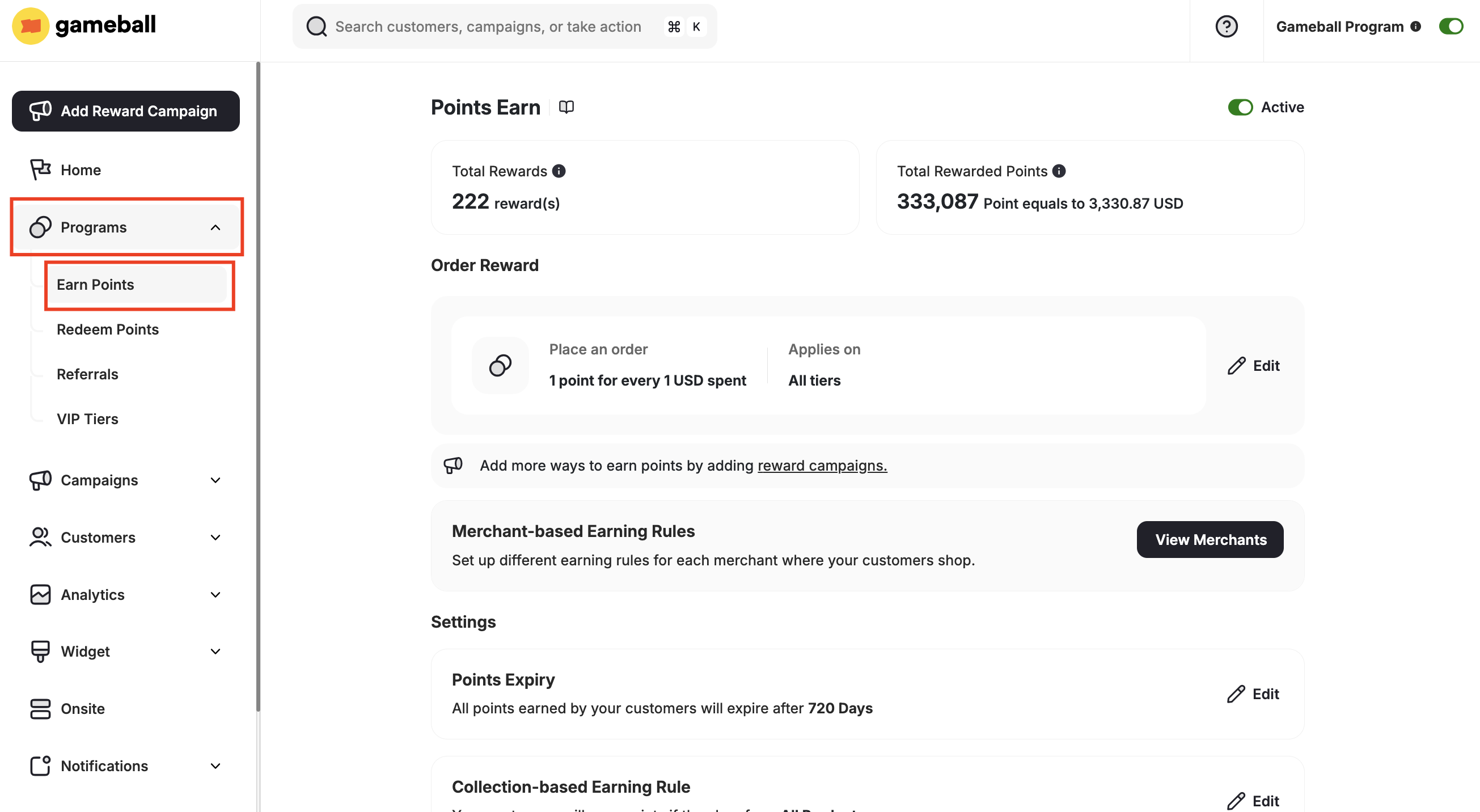
Navigate to **Earn Points** under **Programs** from your Gameball dashboard.
## Prerequisites
* Ensure that you have activated the **Cashback** feature on your Gameball account.
* Confirm that your store collections are properly set up.
***
## Configuring Collection-Based Earning
Navigate to **Earn Points** under **Programs** from your Gameball dashboard.
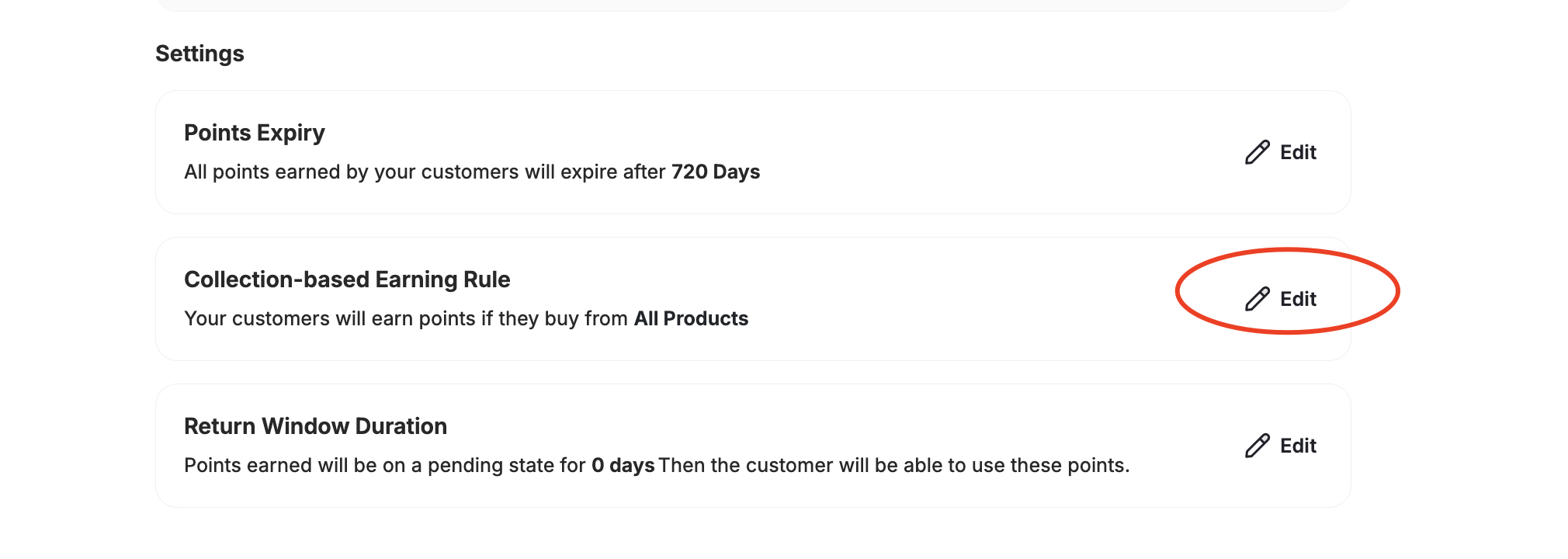
 Under **Settings**, click the **Edit Icon** beside **Collection-based Earning Rule**.
 A pop-up window will appear. Under **Cashback Options**, you will find four choices:
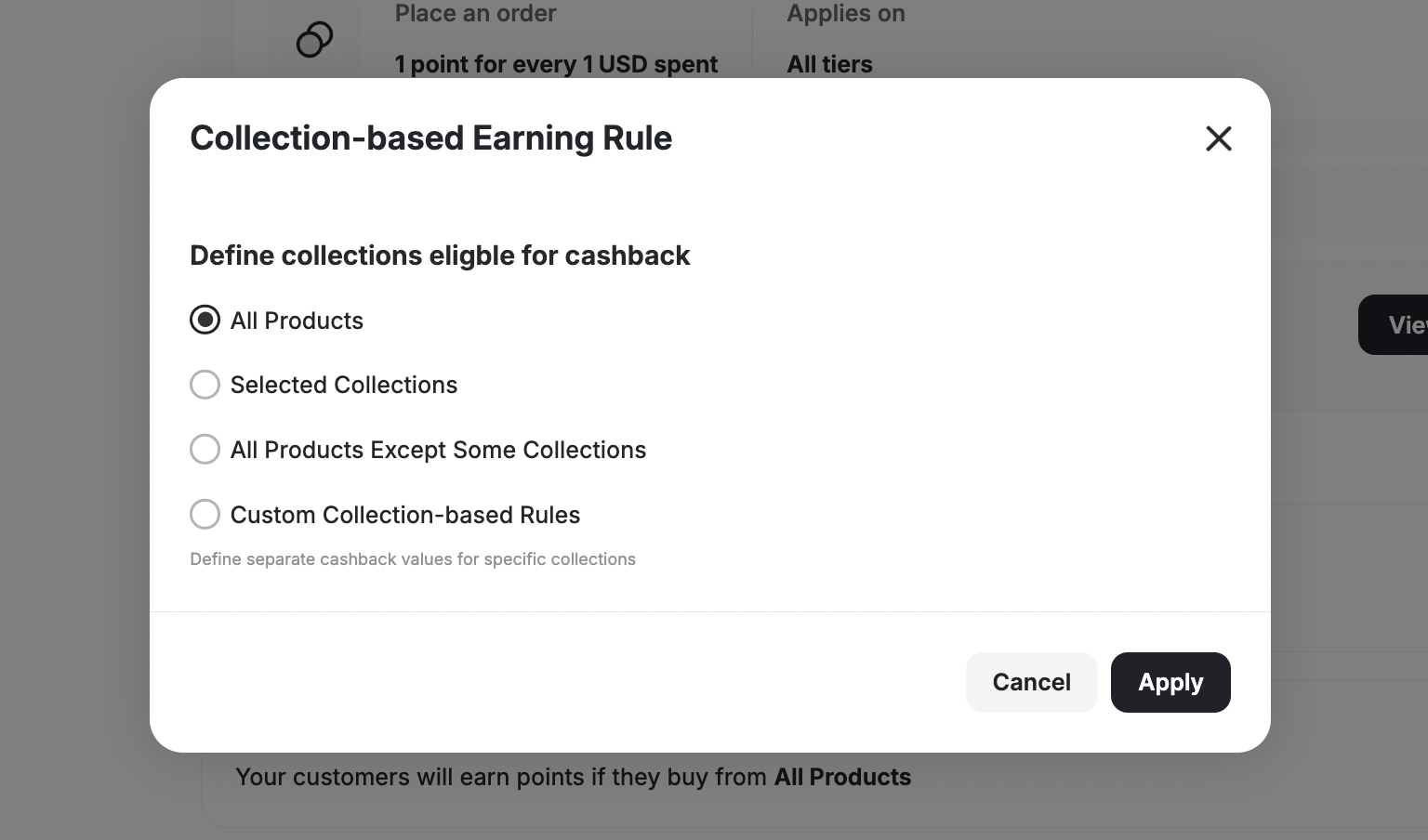 The default cashback rule applies to all products. You can add extra cashback rules for different levels.
Cashback will only apply to the selected collections. Purchases from other collections will not be eligible for cashback.
Cashback applies to all collections except the ones you exclude. Purchases from excluded collections will not earn cashback.
You can define different cashback values for different collections. After saving, further configuration is required.
After choosing your preferred cashback system, click **Save**.
The default cashback rule applies to all products. You can add extra cashback rules for different levels.
Cashback will only apply to the selected collections. Purchases from other collections will not be eligible for cashback.
Cashback applies to all collections except the ones you exclude. Purchases from excluded collections will not earn cashback.
You can define different cashback values for different collections. After saving, further configuration is required.
After choosing your preferred cashback system, click **Save**.
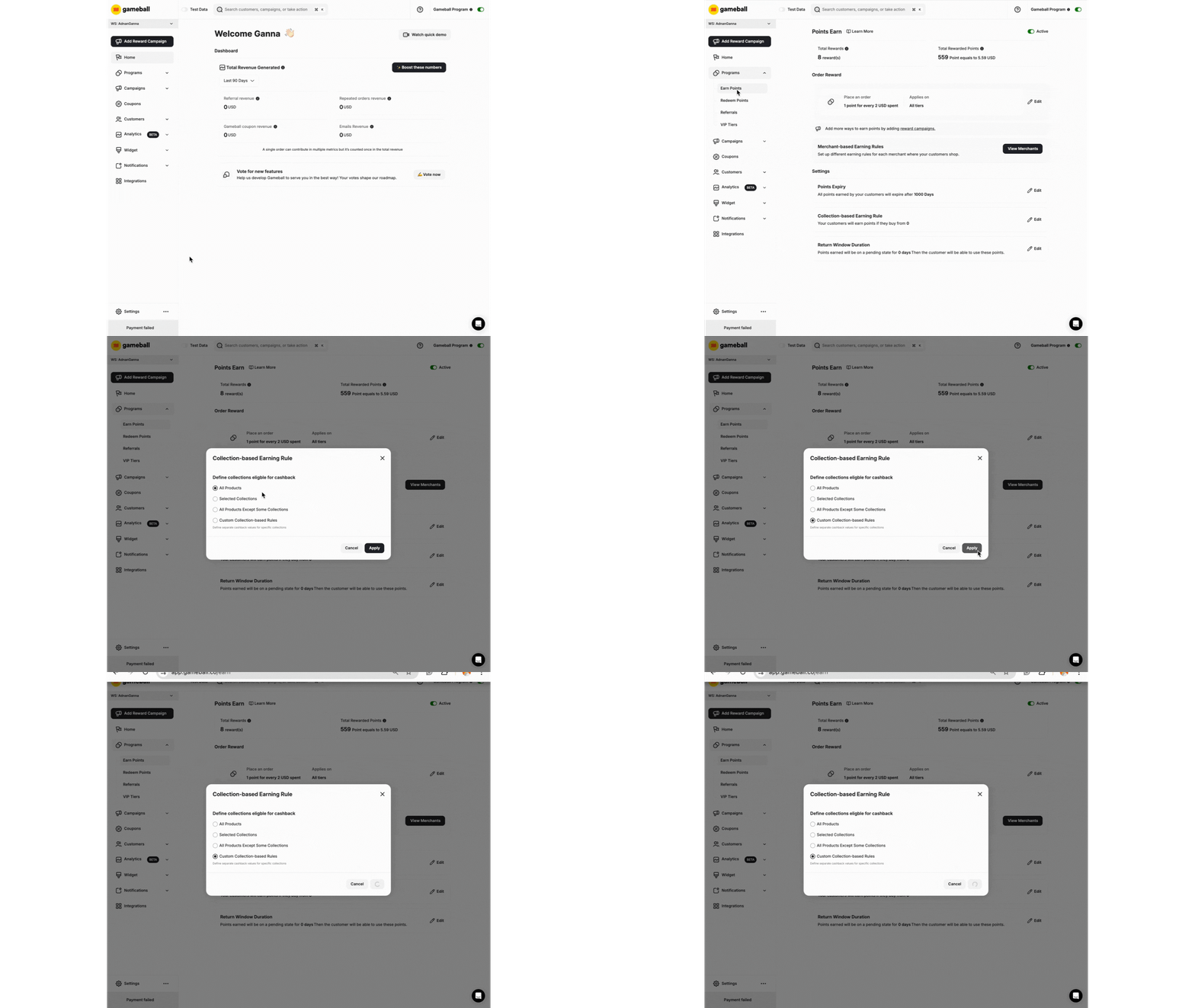 * If you select **All Products**, **Selected Collections**, or **All Products Except Some Collections**, no further configuration is needed. Just ensure your default cashback rule is correctly set.
* If you choose **Custom Cashback**, you deactivate the **Merchant** feature on the system. Cashback based on collections and crossover cashback cannot work simultaneously.
***
## Create Different Cashback Values for Different Collections
After selecting **Custom Cashback** and clicking **Save**, a new tab called **Collection Rules** will appear.
* If you select **All Products**, **Selected Collections**, or **All Products Except Some Collections**, no further configuration is needed. Just ensure your default cashback rule is correctly set.
* If you choose **Custom Cashback**, you deactivate the **Merchant** feature on the system. Cashback based on collections and crossover cashback cannot work simultaneously.
***
## Create Different Cashback Values for Different Collections
After selecting **Custom Cashback** and clicking **Save**, a new tab called **Collection Rules** will appear.
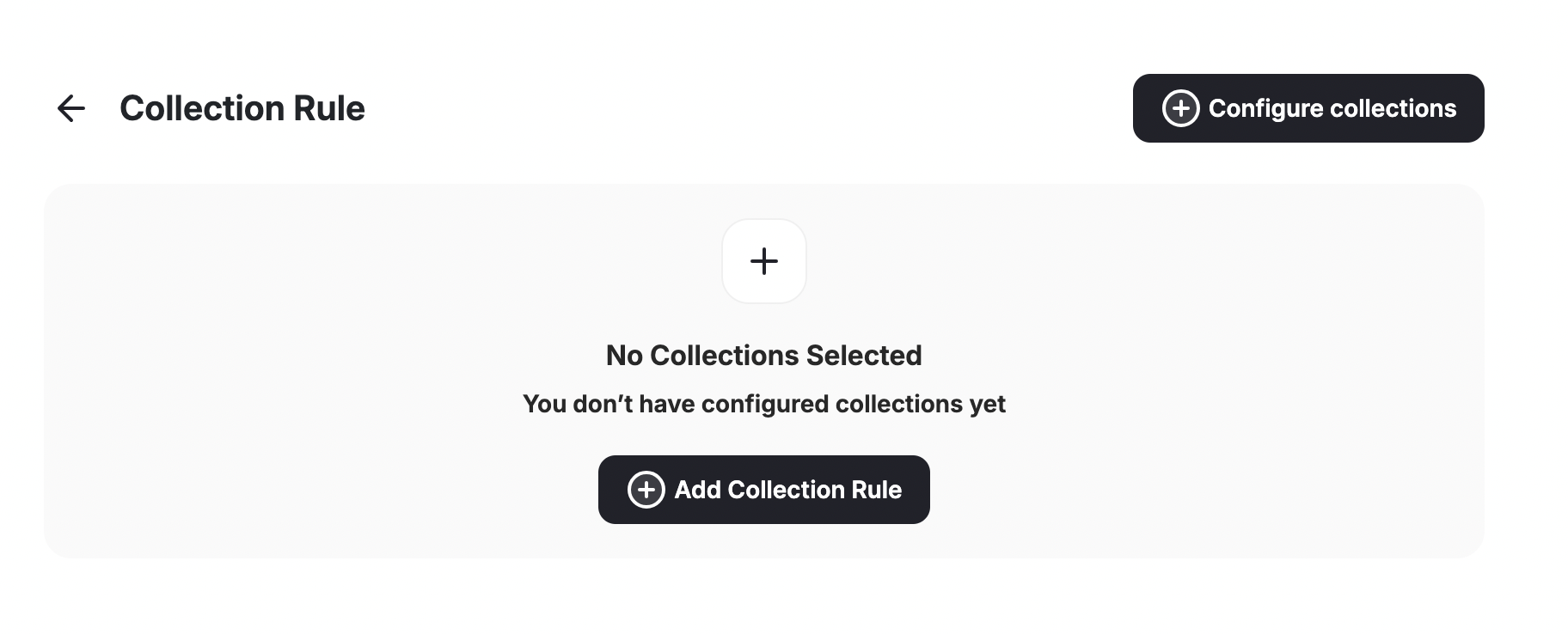
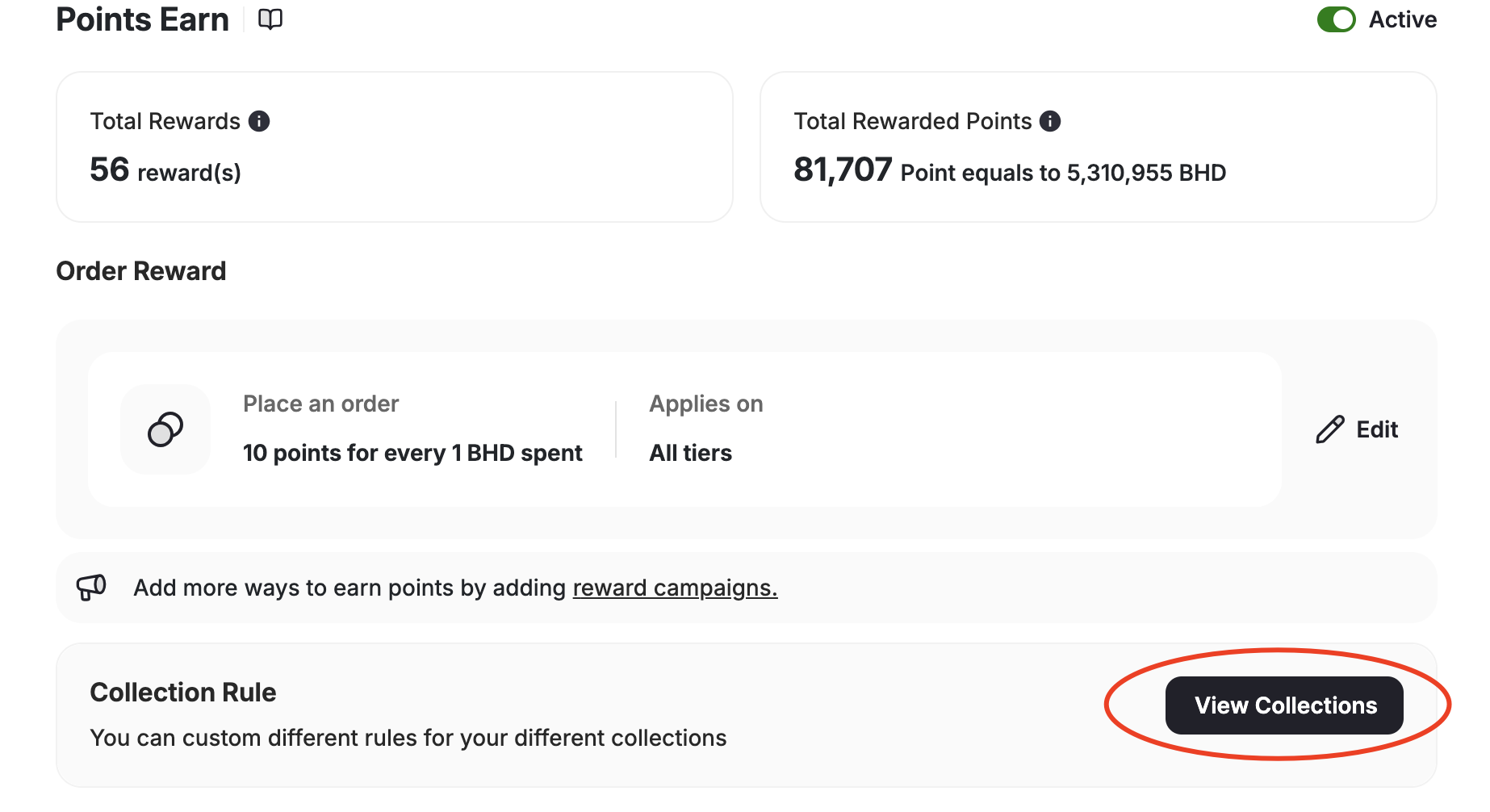 Click **View Collections**, then **Add Collection Rule**.
 Configure your cashback rule:
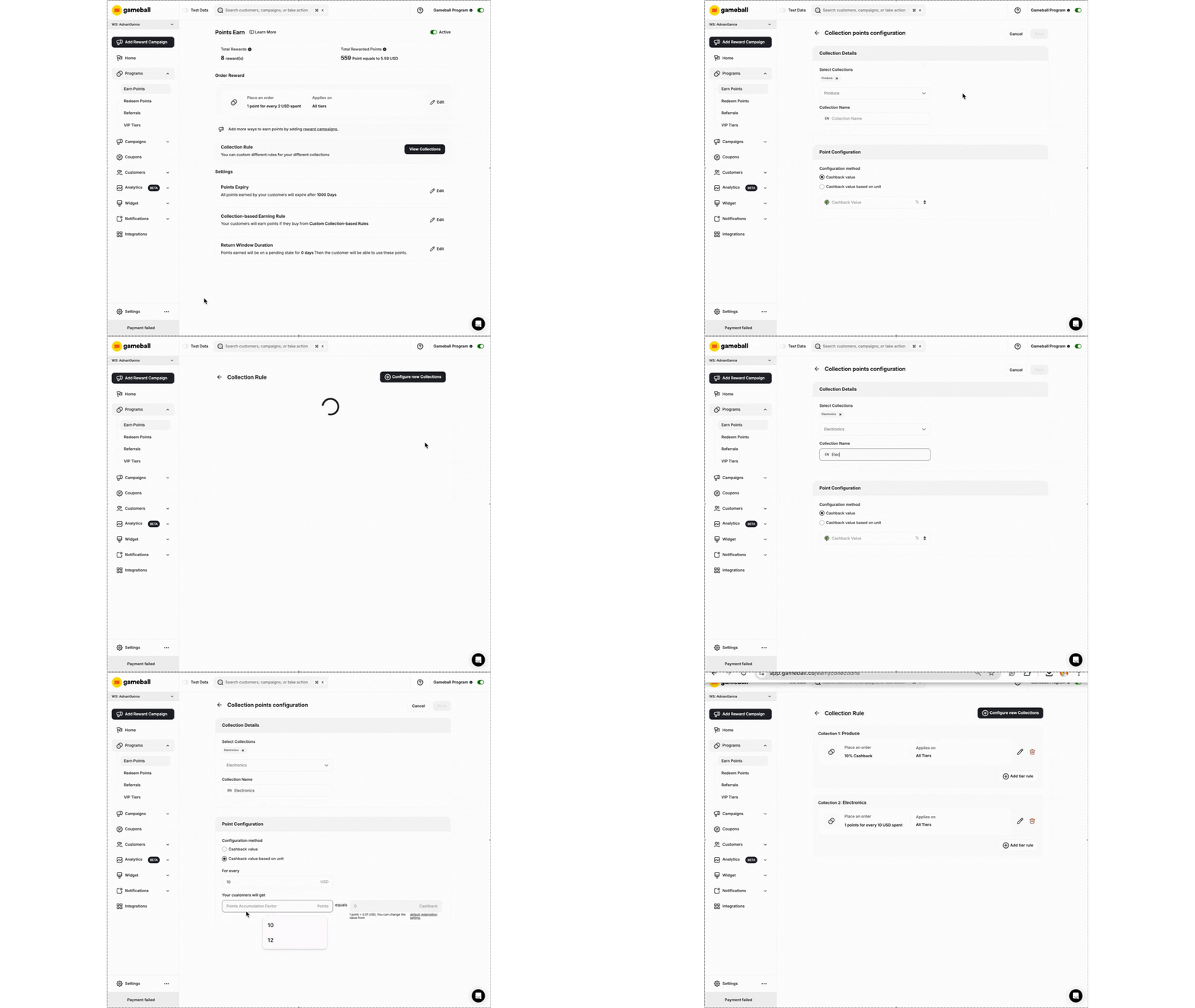 * **Select Collection/s:** Mark the collections for this rule.
* **Collection Rule Name:** Name the rule for easy identification.
* **Cashback Method:** Choose between:
State the percentage of the cashback you want to grant for orders from that collection.
State the amount of points you want to give for every dollar they spend buying from the specified collection.
Ideal if you want to offer **consistent point rewards per collection**, regardless of the product's price.
**Fixed Cashback Value** is perfect for exclusive items. For example, if you want to reward 100 points per product in the "New Arrivals" collection, regardless of whether an item costs $20 or $200.
To enable fixed cashback, you must send the following details **per item** in the Order API: Collection ID(s), Price, Discount, Taxes, and Product ID.
**Fixed Cashback Key Rules:**
* If an item belongs to multiple collections, Gameball will reward based on the **highest fixed point value**.
* If multiple different items from the same collection are purchased, the fixed points reward applies per item.
* The **fixed points reward will still respect active Points Multiplier Campaigns** (e.g., Double Points: 200 becomes 400).
Enter the cashback value.
* **Select Collection/s:** Mark the collections for this rule.
* **Collection Rule Name:** Name the rule for easy identification.
* **Cashback Method:** Choose between:
State the percentage of the cashback you want to grant for orders from that collection.
State the amount of points you want to give for every dollar they spend buying from the specified collection.
Ideal if you want to offer **consistent point rewards per collection**, regardless of the product's price.
**Fixed Cashback Value** is perfect for exclusive items. For example, if you want to reward 100 points per product in the "New Arrivals" collection, regardless of whether an item costs $20 or $200.
To enable fixed cashback, you must send the following details **per item** in the Order API: Collection ID(s), Price, Discount, Taxes, and Product ID.
**Fixed Cashback Key Rules:**
* If an item belongs to multiple collections, Gameball will reward based on the **highest fixed point value**.
* If multiple different items from the same collection are purchased, the fixed points reward applies per item.
* The **fixed points reward will still respect active Points Multiplier Campaigns** (e.g., Double Points: 200 becomes 400).
Enter the cashback value.
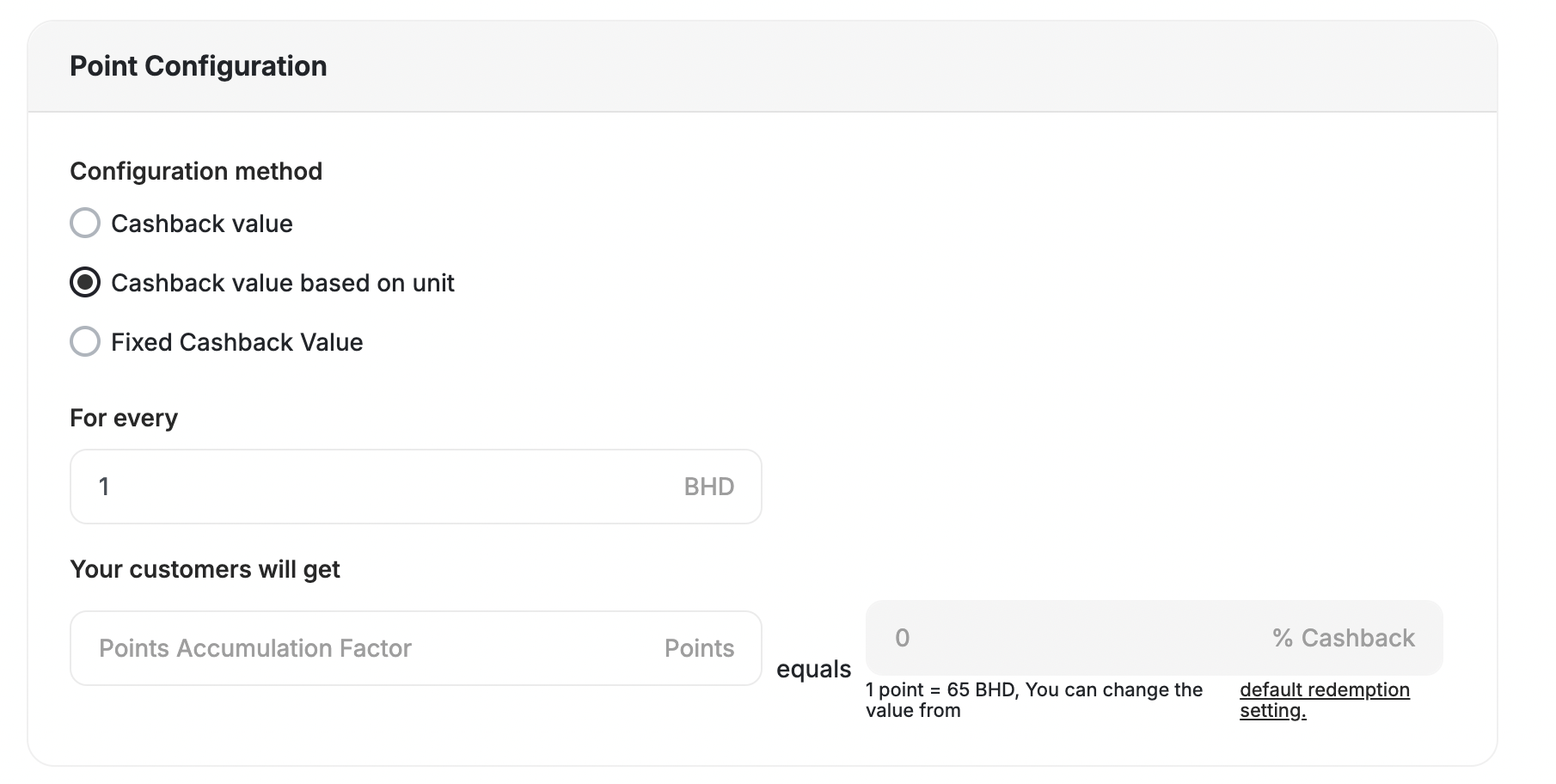 Click **Save**. Customers will now enjoy collection-specific cashback rates. The newly created rules will be visible under the **Collection Rules** tab.
* To add more rules for different collections, click **Add Collection Rule** and repeat the process.
* To edit a rule, click the **Edit Icon**.
* To delete a rule, click the **Bin Icon**.
***
## Common Questions
Yes. After creating a cashback rule for specific collections, you can modify the cashback value based on the customer's tier:
1. Under the configured cashback rule, click **Add tier rule**.
Click **Save**. Customers will now enjoy collection-specific cashback rates. The newly created rules will be visible under the **Collection Rules** tab.
* To add more rules for different collections, click **Add Collection Rule** and repeat the process.
* To edit a rule, click the **Edit Icon**.
* To delete a rule, click the **Bin Icon**.
***
## Common Questions
Yes. After creating a cashback rule for specific collections, you can modify the cashback value based on the customer's tier:
1. Under the configured cashback rule, click **Add tier rule**.
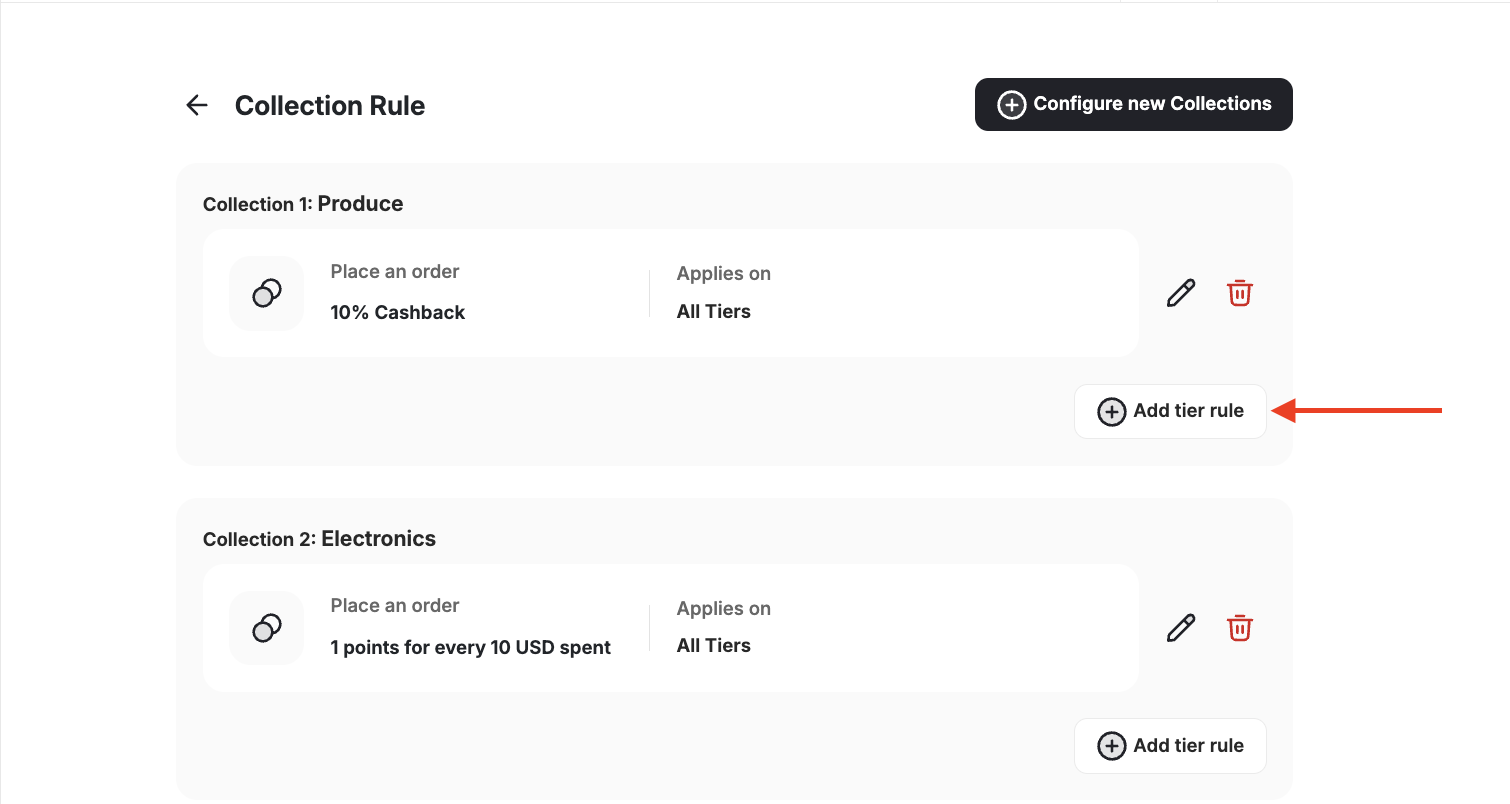 2. Select the customer **tier**.
3. Change the cashback value accordingly.
4. Click **Save**.
Gameball will reward based on the **highest cashback point value**.
The points reward applies per item.
***
## Related Articles
Configure your default cashback points rules.
2. Select the customer **tier**.
3. Change the cashback value accordingly.
4. Click **Save**.
Gameball will reward based on the **highest cashback point value**.
The points reward applies per item.
***
## Related Articles
Configure your default cashback points rules.