> ## Documentation Index
> Fetch the complete documentation index at: https://docs.gameball.co/llms.txt
> Use this file to discover all available pages before exploring further.
# How Do I Create a New Merchant for Every Brand and Store You Own?
> Learn how to unify your loyalty experience by creating a new merchant for every brand and store you own on the Gameball dashboard.
| Platform | Plan |
| -------------------- | ---- |
| Shopify | Guru |
| Salla | Guru |
| Non-platform Clients | Guru |
As a multi-brand company, you might be facing some difficulties with unifying your customer engagement under one loyalty experience. Gameball has now made that possible with its [Merchants feature](/product-documentation/programs/loyalty-points-earn/crossover-reward-program/gameball-merchants-crossover-rewards-experience).
You can easily create a crossover rewards experience where your customers can redeem and use cashback points with every purchase they make at any of your brands or stores. They can also receive a different cashback value depending on the brand.
This article tackles the first step, which is creating a new merchant for your brand or store.
***
## Prerequisites
* Ensure your subscription plan is **Guru**.
* Contact Gameball support to enable the Merchants feature.
***
## How to Create a New Merchant
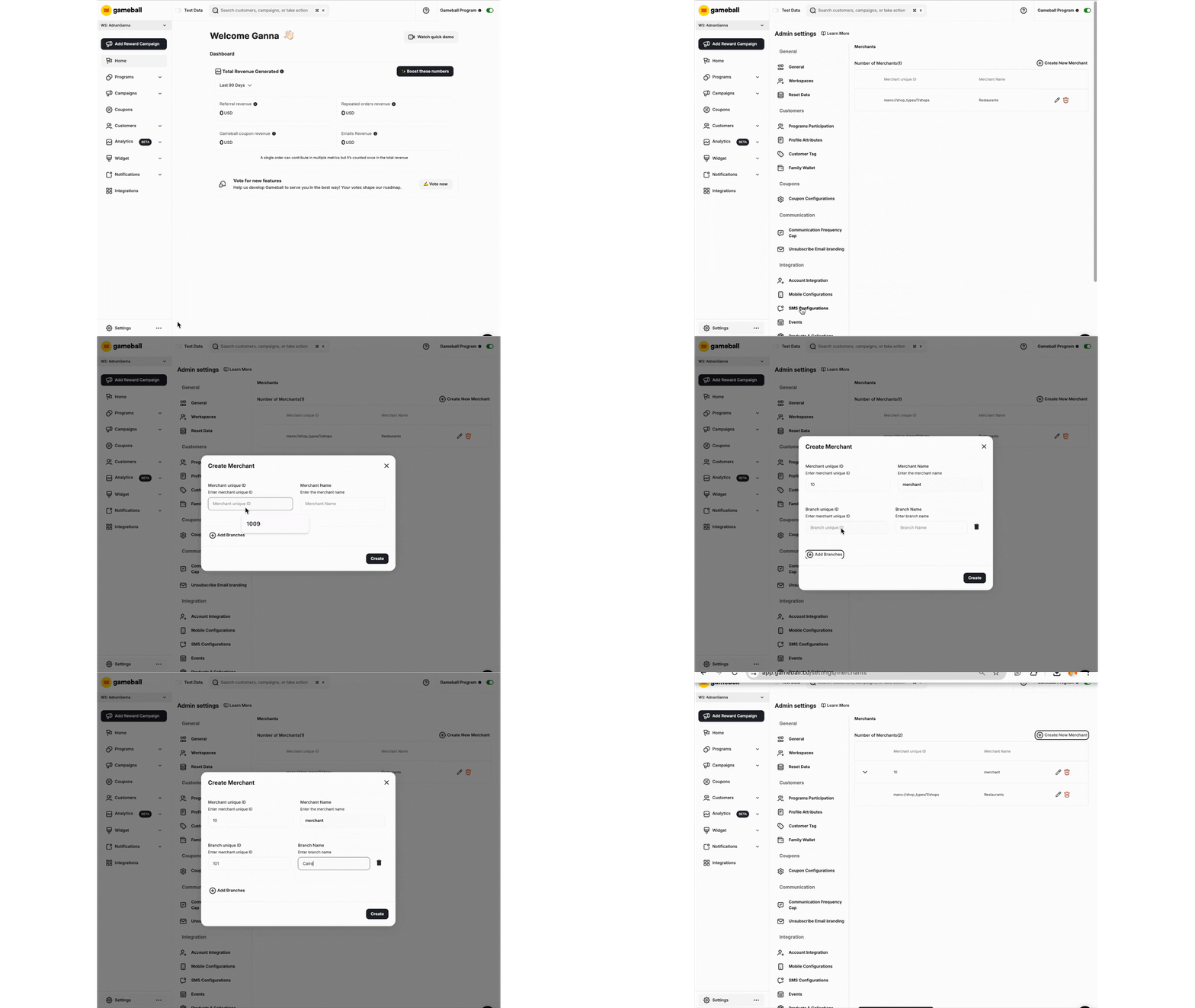
On the Gameball Admin Dashboard, go to **Admin Settings > Merchants**.
Click **Create New Merchant**.
Enter the brand ID and name under **Merchant Unique ID** and **Merchant Name**.
If you want to add different branches to the brand, click **Add Branches**. Enter the branch ID and name under **Branch Unique ID** and **Branch Name**.
Once all details are filled in, click **Create**.
 ***
## Important Notes
* Merchant ID and Branch ID must be **unique**. They are used by Gameball APIs to identify the merchant/brand and branch.
* If you have completed the integration process using Gameball APIs and a transaction is made with a brand or branch that does not exist in Gameball, the system will automatically create a new merchant name and ID to complete the transaction.
* After adding all the brands to your platform, you must configure the cashback rules for each brand.
***
## Common Questions
Yes, you can add different branches under the same merchant by clicking **Add Branches** during the merchant creation process.
Gameball will automatically create a new merchant and ID to complete the transaction if it does not exist.
***
## Related Articles
Set up different cashback values for each brand or store.
***
## Important Notes
* Merchant ID and Branch ID must be **unique**. They are used by Gameball APIs to identify the merchant/brand and branch.
* If you have completed the integration process using Gameball APIs and a transaction is made with a brand or branch that does not exist in Gameball, the system will automatically create a new merchant name and ID to complete the transaction.
* After adding all the brands to your platform, you must configure the cashback rules for each brand.
***
## Common Questions
Yes, you can add different branches under the same merchant by clicking **Add Branches** during the merchant creation process.
Gameball will automatically create a new merchant and ID to complete the transaction if it does not exist.
***
## Related Articles
Set up different cashback values for each brand or store.