> ## Documentation Index
> Fetch the complete documentation index at: https://docs.gameball.co/llms.txt
> Use this file to discover all available pages before exploring further.
# How Do I Reward Customers with Different Cashback Based on the Brand?
> Learn how to configure a different cashback rule for every different brand you have using the Merchants feature.
| Platform | Plan |
| -------------------- | ---------- |
| Shopify | Guru |
| Salla | Guru |
| Non-platform Clients | Enterprise |
***
## Prerequisites
* Make sure to create a merchant ID for each of your brands/stores on the Gameball dashboard before configuring cashback rules.
* Ensure the Merchants feature is activated on your account.
* To activate this feature on your dashboard, you must request it from our customer support team.
If you have configured different cashback rules for different collections using the **custom cashback** feature, the **merchant cashback** option will no longer be available. [Learn more about collection-based cashback rules](/product-documentation/programs/loyalty-points-earn/collection-based-earning-rules).
***
## How to Configure a Cashback Rule for Different Brands
After creating an ID for each of your brands and stores, follow these steps to configure a cashback rule for any of these recognized brands or stores:
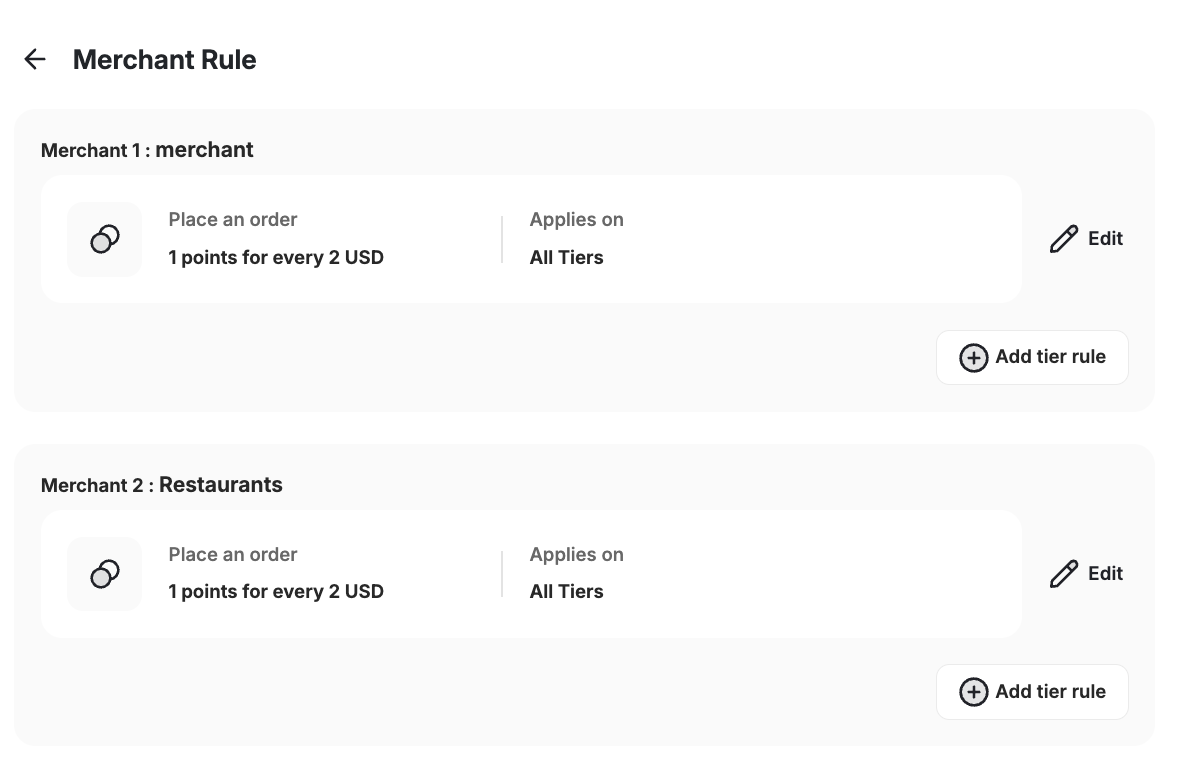
On the Gameball dashboard, go to **Programs > Earn Points > Merchants** tab.
 You will find all merchants listed. [Learn how to create a Merchant](/product-documentation/programs/loyalty-points-earn/crossover-reward-program/creating-a-new-merchant)
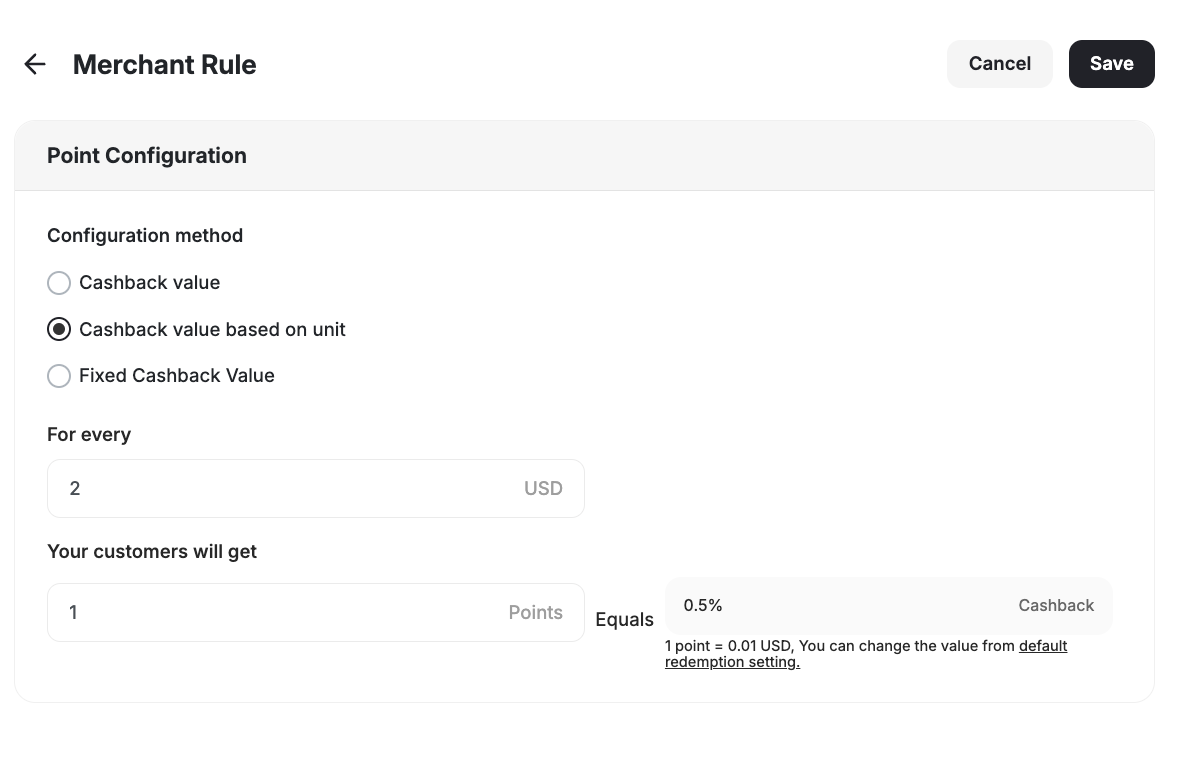
 Fill in the required information:
* **Choose Merchant:** Select the brand you want to create the new cashback rule for.
* **Configuration Method:** Choose between:
Set a cashback percentage based on the customer's paid amount. Example: If you offer 5% cashback and a customer pays $100, they will receive $5 cashback worth of points.
Set a fixed number of points per currency unit regardless of the cashback percentage. Example: If a customer pays \$100, they could receive 1000 points based on your configuration.
Set a fixed cashback value for the customer to earn based on their purchase.
Click **Save Changes**.
Fill in the required information:
* **Choose Merchant:** Select the brand you want to create the new cashback rule for.
* **Configuration Method:** Choose between:
Set a cashback percentage based on the customer's paid amount. Example: If you offer 5% cashback and a customer pays $100, they will receive $5 cashback worth of points.
Set a fixed number of points per currency unit regardless of the cashback percentage. Example: If a customer pays \$100, they could receive 1000 points based on your configuration.
Set a fixed cashback value for the customer to earn based on their purchase.
Click **Save Changes**.
 If your cashback program is active, your customers will now receive the specified cashback once they place and pay for an order from the brands you have added and configured a cashback rule for.
***
## Important Notes
* By default, every newly created merchant will fall under your default cashback rules unless a specific rule is configured.
* You can create different cashback rules based on each merchant's level.
* Merchant-specific cashback rules override the default cashback rules if the customer purchases from a recognized merchant.
**Example:** If you have different cashback rules per level under your default cashback settings, but only one general cashback rule for a specific merchant, the merchant rule will apply to the customer regardless of their level.
***
## Common Questions
No, if you use collection-based cashback rules, you cannot activate merchant-based cashback at the same time.
The default cashback rule will apply.
***
## Related Articles
Set up different cashback values for different collections.
Learn how Gameball prioritizes and applies different earning configurations.
Add merchants for each brand and store you own.
If your cashback program is active, your customers will now receive the specified cashback once they place and pay for an order from the brands you have added and configured a cashback rule for.
***
## Important Notes
* By default, every newly created merchant will fall under your default cashback rules unless a specific rule is configured.
* You can create different cashback rules based on each merchant's level.
* Merchant-specific cashback rules override the default cashback rules if the customer purchases from a recognized merchant.
**Example:** If you have different cashback rules per level under your default cashback settings, but only one general cashback rule for a specific merchant, the merchant rule will apply to the customer regardless of their level.
***
## Common Questions
No, if you use collection-based cashback rules, you cannot activate merchant-based cashback at the same time.
The default cashback rule will apply.
***
## Related Articles
Set up different cashback values for different collections.
Learn how Gameball prioritizes and applies different earning configurations.
Add merchants for each brand and store you own.