> ## Documentation Index
> Fetch the complete documentation index at: https://docs.gameball.co/llms.txt
> Use this file to discover all available pages before exploring further.
# How Do I Launch and Configure My Earn Pointing System?
> Learn how to activate and configure Gameball's Earn Pointing System to reward your customers with points based on their purchases.
| Platform | Plan |
| -------------------- | ------------------------- |
| Shopify | Free, Starter, Pro & Guru |
| Salla | Starter, Pro & Guru |
| Non-platform Clients | Growth & Enterprise |
Rewarding your customers with points is a powerful strategy to foster loyalty and encourage repeat purchases. With **Gameball's Earn Pointing System**, you can activate and fully customize how customers earn points based on their spending behavior.
***
## Step-by-Step Instructions
From the left-side menu, go to **Programs** and click **Earn Points**. You will be directed to the **Points Earn** configuration page.
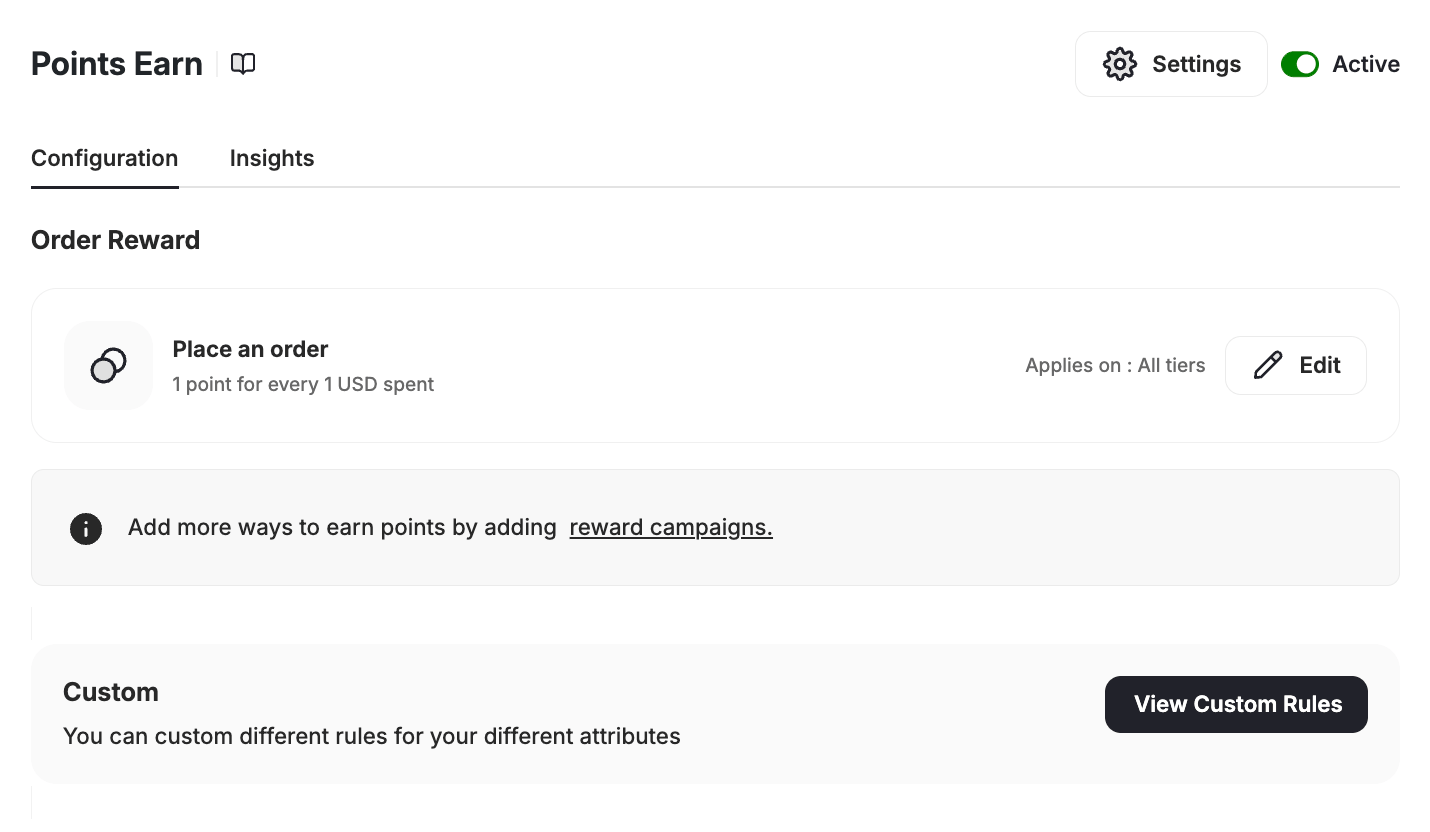 Locate the **Active** toggle at the top right of the page and switch it on to activate the system.
In the **Order Reward** section, click the **Place an order** card. A settings drawer will slide in from the right. Set:
* **Your customers will get** — the number of points per transaction
* **For every** — the currency amount that earns those points (e.g., 2 points for every 1 USD spent)
A preview shows the equivalent cashback percentage based on your current redemption value.
If you use **score** as your tiering-up method, you will see an additional field to assign the score customers will earn per amount spent. [Learn more about Score](/product-documentation/programs/vip-tiers/tier-settings/tiering-up-methods).
***
## Custom Rules
The **Custom** section lets you define different earning rules for different order attributes. Click **View Custom Rules** to configure rules based on order properties such as total price, payment method, or product category.
[Learn more about Custom Earning Rules](/product-documentation/programs/loyalty-points-earn/custom-earning-rules)
***
## Merchant Rules
Set custom earning and redemption rules per merchant or brand, based on your business needs.
[Learn more about Merchants' Rules](/product-documentation/programs/loyalty-points-earn/crossover-reward-program/gameball-merchants-crossover-rewards-experience)
***
## Settings
The **Settings** section lets you configure how points are issued and which orders qualify. Click any settings card to open a drawer and update it.
Define when earned points will expire. Click the **Points Expiry** card to open the settings drawer, then set the expiry duration and unit (days, months, or years).
Locate the **Active** toggle at the top right of the page and switch it on to activate the system.
In the **Order Reward** section, click the **Place an order** card. A settings drawer will slide in from the right. Set:
* **Your customers will get** — the number of points per transaction
* **For every** — the currency amount that earns those points (e.g., 2 points for every 1 USD spent)
A preview shows the equivalent cashback percentage based on your current redemption value.
If you use **score** as your tiering-up method, you will see an additional field to assign the score customers will earn per amount spent. [Learn more about Score](/product-documentation/programs/vip-tiers/tier-settings/tiering-up-methods).
***
## Custom Rules
The **Custom** section lets you define different earning rules for different order attributes. Click **View Custom Rules** to configure rules based on order properties such as total price, payment method, or product category.
[Learn more about Custom Earning Rules](/product-documentation/programs/loyalty-points-earn/custom-earning-rules)
***
## Merchant Rules
Set custom earning and redemption rules per merchant or brand, based on your business needs.
[Learn more about Merchants' Rules](/product-documentation/programs/loyalty-points-earn/crossover-reward-program/gameball-merchants-crossover-rewards-experience)
***
## Settings
The **Settings** section lets you configure how points are issued and which orders qualify. Click any settings card to open a drawer and update it.
Define when earned points will expire. Click the **Points Expiry** card to open the settings drawer, then set the expiry duration and unit (days, months, or years).
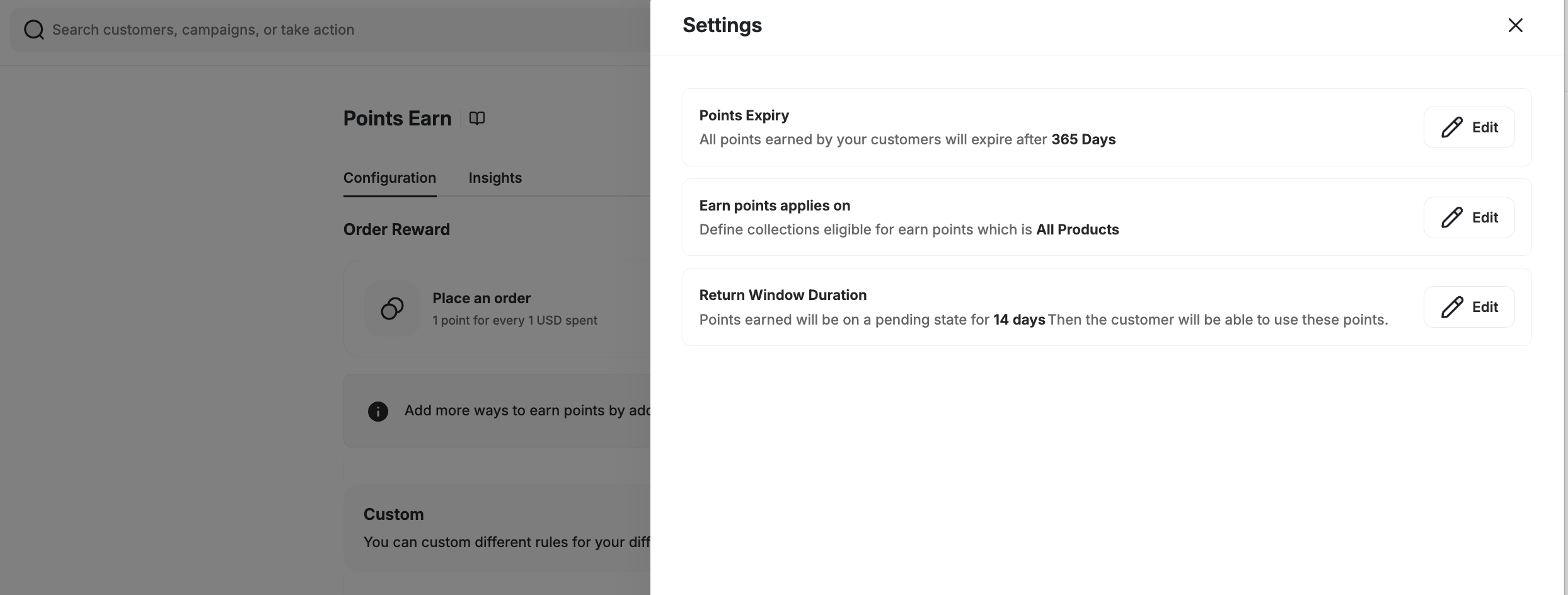 Points expiry is calculated from the exact moment points are earned. For example, with a 3-day expiry, points earned at 2:00 PM on January 1st expire at exactly 2:00 PM on January 4th (72 hours later).
**How expiry is enforced:**
* Customers **cannot redeem** expired points from the moment the expiry time passes — even before the system has processed the expiry.
* Expiry status is updated by a background job that runs **multiple times per day**. The dashboard may briefly show points as still active until the next job run, but redemption is blocked from the exact expiry moment.
Points expiry and the return window interact: if a return window is configured, the expiry countdown starts only after points become active (i.e., after the return window ends), not from when they were earned.
Define which collections or products qualify for earning points. Click **Edit** next to **Earn points applies on** to choose from:
* All Products
* Selected Collections
* All Products except some collections
Specify a time gap between when an order is placed and when points are issued. This helps manage potential product returns and ensures proper point issuance.
***
## Cashback Return Window API
You can control when cashback points become active using the `returnWindow` attribute.
**Available in:**
* **Order API:** under `cashbackConfigurations`
* **Cashback API:** under `configurations`
**Key Details:**
* `returnWindow` accepts values from 0 to 7300 days.
* Points remain pending for the set duration, then activate automatically.
* If not provided, the default duration from your Gameball settings applies.
***
## Insights and Analytics
Access in-depth analytics on how your Earn Points System is performing by clicking the **Insights** tab at the top of the page. Track total earned rewards, total rewarded points, and how reward trends evolve over time.
***
## Common Questions
Use the **Return Window Duration** setting to delay point issuance, helping avoid rewarding points for refunded purchases.
Yes, use the **Earn Points Applies On** setting to filter by collection, or use the **Custom** section to set rules based on any order attribute.
Yes, you can set a return window at the order level.
To do this, include the `returnWindow` attribute inside the `cashbackConfigurations` object when creating the order using the **Order API**. This allows you to specify a custom return window per order — for example, 7 days for Order A and 10 days for Order B.
If `returnWindow` is not set in the API request, the default duration from your Gameball settings will apply.
***
## Related Articles
Set different point values for different order types and attributes.
Set up how customers can redeem their earned points.
Points expiry is calculated from the exact moment points are earned. For example, with a 3-day expiry, points earned at 2:00 PM on January 1st expire at exactly 2:00 PM on January 4th (72 hours later).
**How expiry is enforced:**
* Customers **cannot redeem** expired points from the moment the expiry time passes — even before the system has processed the expiry.
* Expiry status is updated by a background job that runs **multiple times per day**. The dashboard may briefly show points as still active until the next job run, but redemption is blocked from the exact expiry moment.
Points expiry and the return window interact: if a return window is configured, the expiry countdown starts only after points become active (i.e., after the return window ends), not from when they were earned.
Define which collections or products qualify for earning points. Click **Edit** next to **Earn points applies on** to choose from:
* All Products
* Selected Collections
* All Products except some collections
Specify a time gap between when an order is placed and when points are issued. This helps manage potential product returns and ensures proper point issuance.
***
## Cashback Return Window API
You can control when cashback points become active using the `returnWindow` attribute.
**Available in:**
* **Order API:** under `cashbackConfigurations`
* **Cashback API:** under `configurations`
**Key Details:**
* `returnWindow` accepts values from 0 to 7300 days.
* Points remain pending for the set duration, then activate automatically.
* If not provided, the default duration from your Gameball settings applies.
***
## Insights and Analytics
Access in-depth analytics on how your Earn Points System is performing by clicking the **Insights** tab at the top of the page. Track total earned rewards, total rewarded points, and how reward trends evolve over time.
***
## Common Questions
Use the **Return Window Duration** setting to delay point issuance, helping avoid rewarding points for refunded purchases.
Yes, use the **Earn Points Applies On** setting to filter by collection, or use the **Custom** section to set rules based on any order attribute.
Yes, you can set a return window at the order level.
To do this, include the `returnWindow` attribute inside the `cashbackConfigurations` object when creating the order using the **Order API**. This allows you to specify a custom return window per order — for example, 7 days for Order A and 10 days for Order B.
If `returnWindow` is not set in the API request, the default duration from your Gameball settings will apply.
***
## Related Articles
Set different point values for different order types and attributes.
Set up how customers can redeem their earned points.