> ## Documentation Index
> Fetch the complete documentation index at: https://docs.gameball.co/llms.txt
> Use this file to discover all available pages before exploring further.
# How Do I Launch and Configure My Redeem Pointing System?
> Learn how to set ways for your customer to redeem the points that they have earned with your program.
| Platform | Plan |
| -------------------- | --------- |
| Shopify | All Plans |
| Salla | All Plans |
| Non-platform Clients | All Plans |
Offering customers multiple ways to redeem their points is crucial for enhancing gamification and their loyalty to your brand. With Gameball's versatile redemption system, you can create a seamless and rewarding experience for your customers. By setting up various redemption options, you empower your customers to choose how they want to utilize their points.
***
## Navigating to Redeem Points
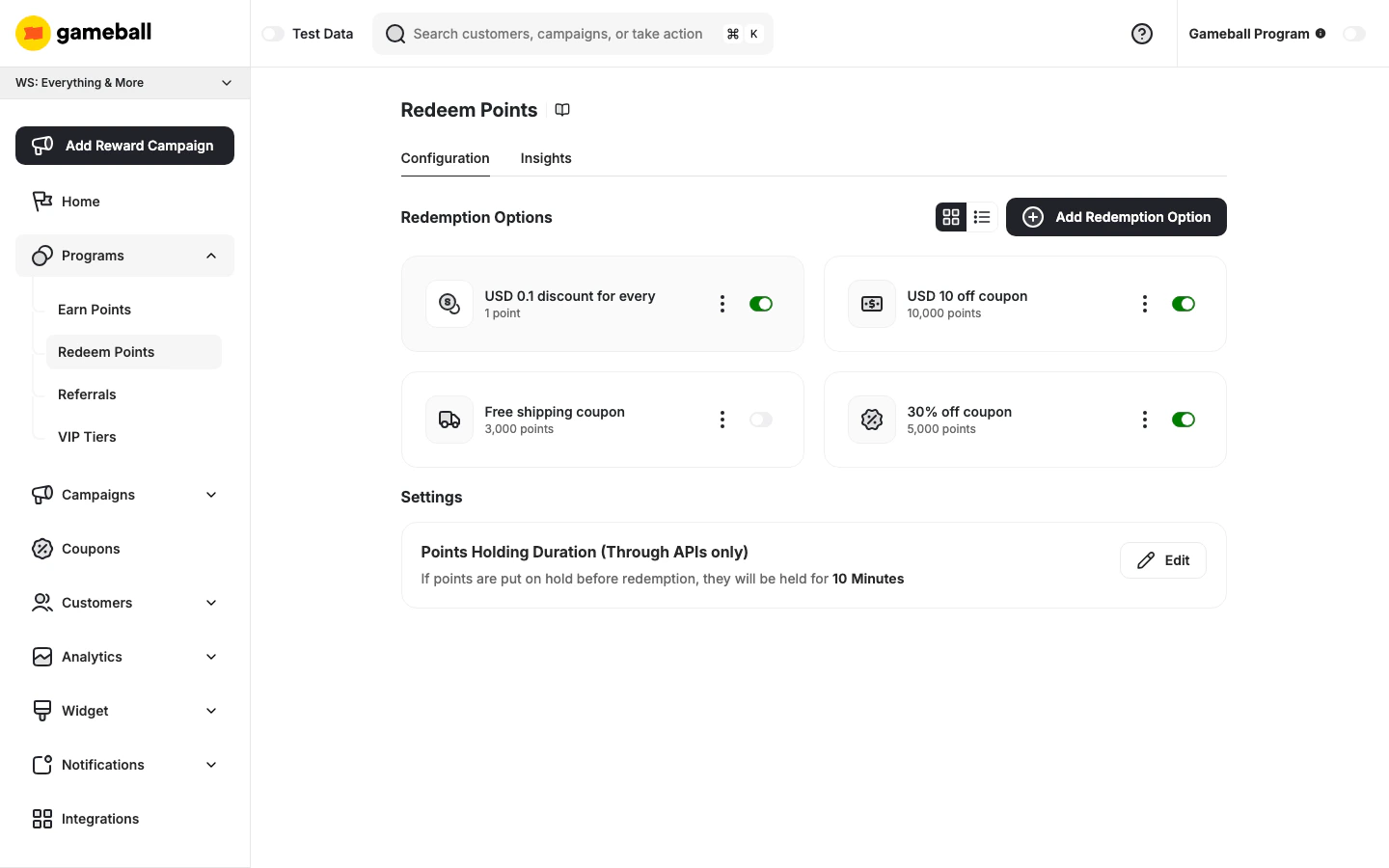
From the left-side menu, go to **Programs** and click **Redeem Points**. The page opens on the **Configuration** tab, where all your redemption options are listed.
 ***
## Default Redemption Rule
The **Redemption Options** section always includes a default dynamic rule displayed as **"USD X discount for every Y point"**. This rule defines the base conversion rate between points and currency — how much monetary value a single point is worth when customers redeem.
To edit it, click the **⋮** menu on the default rule card and select **Edit**. This opens the **Flexible Redemption Option** page where you can configure:
***
## Default Redemption Rule
The **Redemption Options** section always includes a default dynamic rule displayed as **"USD X discount for every Y point"**. This rule defines the base conversion rate between points and currency — how much monetary value a single point is worth when customers redeem.
To edit it, click the **⋮** menu on the default rule card and select **Edit**. This opens the **Flexible Redemption Option** page where you can configure:
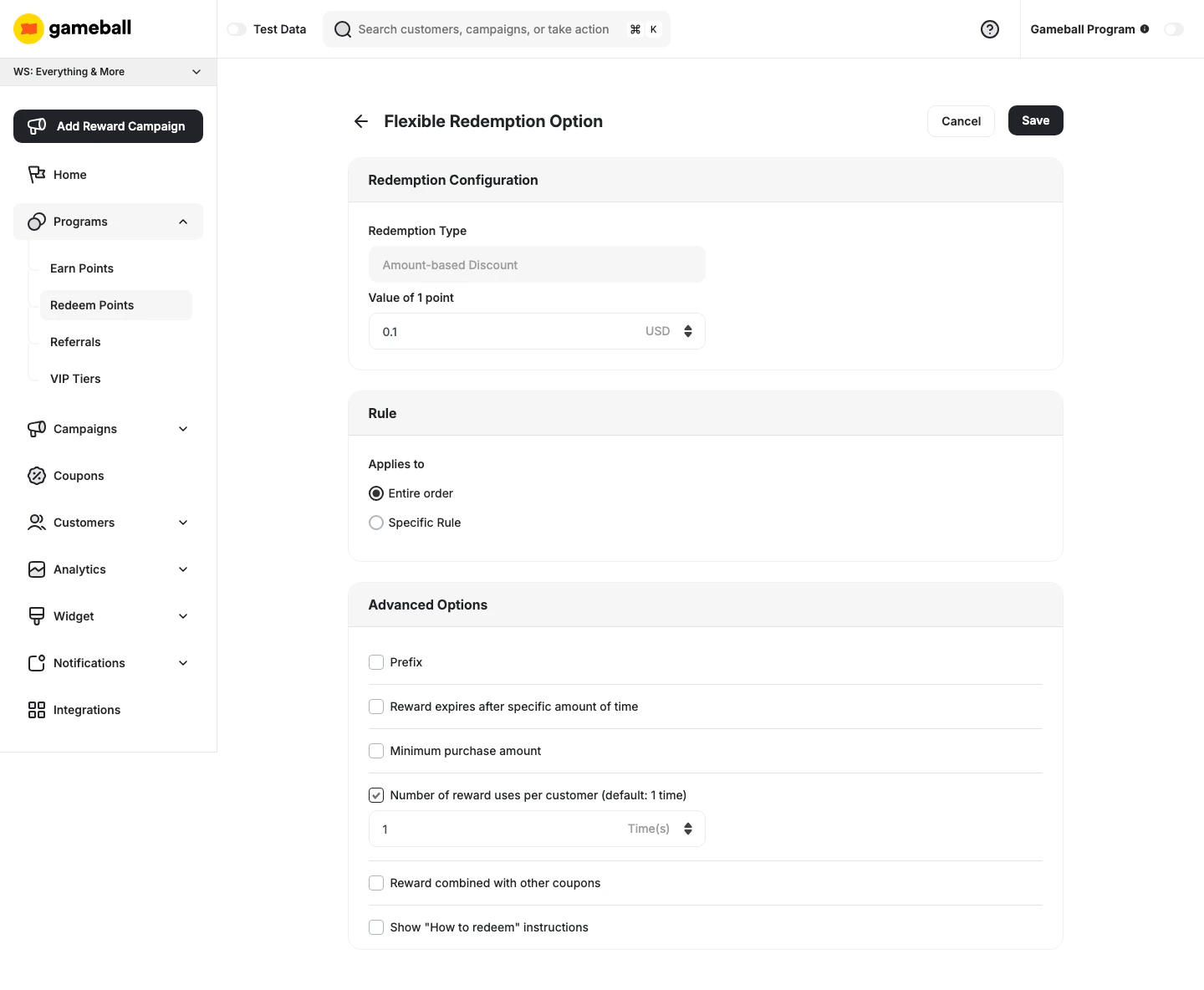 **Redemption Configuration**
* **Redemption Type** — locked as Amount-based Discount (cannot be changed)
* **Value of 1 point** — the monetary equivalent of a single point (e.g., 0.1 USD)
**Rule**
* **Applies to** — Entire order or Specific Rule
**Advanced Options** (optional) — same options as custom redemption options (prefix, expiry, minimum purchase amount, etc.)
Click **Save** to apply your changes.
The cashback percentage shown on the earn rule edit panel is calculated based on this value. Changing the **Value of 1 point** here will update that percentage automatically.
***
## Managing Redemption Options
All configured redemption options appear in the **Redemption Options** section. You can toggle between a **card view** and a **list view** using the icons at the top right of the section.
Each option displays its redemption type, the points required to redeem it, and a toggle to enable or disable it directly.
### Adding a New Redemption Option
On the **Redeem Points** page, click **Add Redemption Option**.
You will be taken to the **Custom Redemption Option** page.
**Redemption Configuration**
* **Redemption Type** — locked as Amount-based Discount (cannot be changed)
* **Value of 1 point** — the monetary equivalent of a single point (e.g., 0.1 USD)
**Rule**
* **Applies to** — Entire order or Specific Rule
**Advanced Options** (optional) — same options as custom redemption options (prefix, expiry, minimum purchase amount, etc.)
Click **Save** to apply your changes.
The cashback percentage shown on the earn rule edit panel is calculated based on this value. Changing the **Value of 1 point** here will update that percentage automatically.
***
## Managing Redemption Options
All configured redemption options appear in the **Redemption Options** section. You can toggle between a **card view** and a **list view** using the icons at the top right of the section.
Each option displays its redemption type, the points required to redeem it, and a toggle to enable or disable it directly.
### Adding a New Redemption Option
On the **Redeem Points** page, click **Add Redemption Option**.
You will be taken to the **Custom Redemption Option** page.
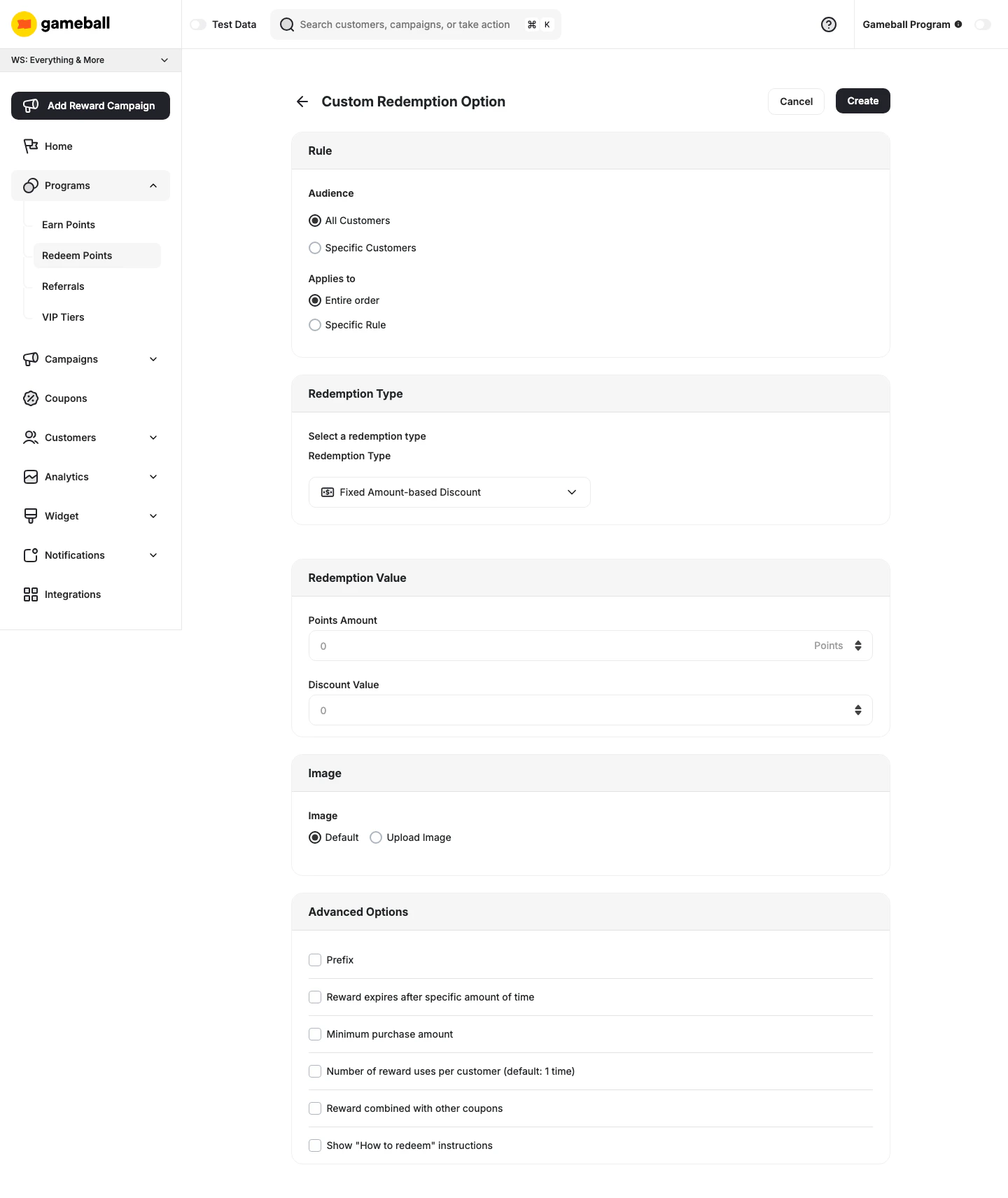 Fill in the following:
**Rule**
* **Audience** — choose whether this option applies to All Customers or Specific Customers
* **Applies to** — select Entire order or Specific Rule
**Redemption Type**
* Select a redemption type from the dropdown (e.g., Fixed Amount-based Discount, Percentage-based Discount, Free Shipping, Free Product)
**Reward Name**
* Enter the reward name in English (EN) and Arabic (AR) — up to 50 characters each
**Redemption Value**
* **Points Amount** — the number of points required to redeem this option
* **Discount Value** — the value of the discount awarded
**Image**
* Choose **Default** or **Upload Image** to set a custom icon for this redemption option
**Advanced Options** (optional)
| Option | Description |
| ------------------------------------------------ | ------------------------------------------------------------------------ |
| **Prefix** | Add a custom prefix to the generated coupon code |
| **Reward expires after specific amount of time** | Set an expiry window for the issued coupon |
| **Minimum purchase amount** | Require a minimum order value for the coupon to apply |
| **Number of reward uses per customer** | Limit how many times a customer can redeem this option (default: 1 time) |
| **Reward combined with other coupons** | Allow this coupon to be stacked with other active coupons |
| **Show "How to redeem" instructions** | Display redemption instructions to customers |
Click **Create** to save the redemption option. It will appear in your Redemption Options list.
Learn more about setting up each type:
* [Set Online Only Redemption Types](/product-documentation/rewards-campaigns/faqs/understanding-rewards-types)
* [Set POS Redemption Types](/product-documentation/guides-strategies-faqs/shopify-guides/spend-points-on-pos)
***
## Available Reward Types
1. **Percentage-Based Discount:** Customers can exchange their points for a coupon that provides a percentage discount on their next purchase.
2. **Fixed Amount Discount:** Customers can redeem their points for a coupon that offers a fixed-value discount on their purchase.
3. **Free Shipping:** Customers can use their points to get free shipping on their order.
4. **Free Product:** Customers can redeem their points to receive specific products at no cost.
5. **Percentage-Based Cashback (Non-Platform Only):** Customers can use a coupon to receive a percentage of their purchase amount back as cashback, credited to their wallet in points or store credit.
6. **Fixed Amount Cashback (Non-Platform Only):** Customers can use a coupon to receive a fixed amount of cashback, credited to their wallet in points or store credit — regardless of the total purchase amount.
7. **Percentage-Based Fees Discount (Non-Platform Only):** Customers can receive a coupon that applies a percentage discount to transaction fees.
1. **POS Fixed Amount Coupon:** Redeem points for a specific amount off at point-of-sale.
2. **POS Percentage Coupon:** Redeem points for a percentage discount at point-of-sale.
***
## Settings
### Points Holding Duration
Set the duration that holds the redemption request until your customer completes the payment process — for example, when using points as partial payment alongside another payment method.
Click **Edit** next to **Points Holding Duration (Through APIs only)** to configure:
* **Holding Duration Value** — enter a number
* **Points Holding Time** — choose the unit: Minutes, Hours, or Days
***
## Insights and Analytics
Click the **Insights** tab at the top of the page to analyze the performance of each redemption option.
| Metric | Description |
| ------------ | ----------------------------------------- |
| Issued | Number of coupons generated |
| Burned | Coupons redeemed or used |
| Expired | Coupons that expired unused |
| Burn Rate | % of issued coupons that were used |
| Expiry Rate | % of issued coupons that expired unused |
| Total Points | Total points redeemed to generate coupons |
* **Time Range Filter** allows analysis for specific date ranges (e.g., last 30 days).
* **Export Option** lets you download filtered insights in CSV/XLSX format.
* **Default Sorting** is by Total Points (descending), customizable across all columns.
***
## Related Articles
Configure how customers earn points for their purchases.
Fill in the following:
**Rule**
* **Audience** — choose whether this option applies to All Customers or Specific Customers
* **Applies to** — select Entire order or Specific Rule
**Redemption Type**
* Select a redemption type from the dropdown (e.g., Fixed Amount-based Discount, Percentage-based Discount, Free Shipping, Free Product)
**Reward Name**
* Enter the reward name in English (EN) and Arabic (AR) — up to 50 characters each
**Redemption Value**
* **Points Amount** — the number of points required to redeem this option
* **Discount Value** — the value of the discount awarded
**Image**
* Choose **Default** or **Upload Image** to set a custom icon for this redemption option
**Advanced Options** (optional)
| Option | Description |
| ------------------------------------------------ | ------------------------------------------------------------------------ |
| **Prefix** | Add a custom prefix to the generated coupon code |
| **Reward expires after specific amount of time** | Set an expiry window for the issued coupon |
| **Minimum purchase amount** | Require a minimum order value for the coupon to apply |
| **Number of reward uses per customer** | Limit how many times a customer can redeem this option (default: 1 time) |
| **Reward combined with other coupons** | Allow this coupon to be stacked with other active coupons |
| **Show "How to redeem" instructions** | Display redemption instructions to customers |
Click **Create** to save the redemption option. It will appear in your Redemption Options list.
Learn more about setting up each type:
* [Set Online Only Redemption Types](/product-documentation/rewards-campaigns/faqs/understanding-rewards-types)
* [Set POS Redemption Types](/product-documentation/guides-strategies-faqs/shopify-guides/spend-points-on-pos)
***
## Available Reward Types
1. **Percentage-Based Discount:** Customers can exchange their points for a coupon that provides a percentage discount on their next purchase.
2. **Fixed Amount Discount:** Customers can redeem their points for a coupon that offers a fixed-value discount on their purchase.
3. **Free Shipping:** Customers can use their points to get free shipping on their order.
4. **Free Product:** Customers can redeem their points to receive specific products at no cost.
5. **Percentage-Based Cashback (Non-Platform Only):** Customers can use a coupon to receive a percentage of their purchase amount back as cashback, credited to their wallet in points or store credit.
6. **Fixed Amount Cashback (Non-Platform Only):** Customers can use a coupon to receive a fixed amount of cashback, credited to their wallet in points or store credit — regardless of the total purchase amount.
7. **Percentage-Based Fees Discount (Non-Platform Only):** Customers can receive a coupon that applies a percentage discount to transaction fees.
1. **POS Fixed Amount Coupon:** Redeem points for a specific amount off at point-of-sale.
2. **POS Percentage Coupon:** Redeem points for a percentage discount at point-of-sale.
***
## Settings
### Points Holding Duration
Set the duration that holds the redemption request until your customer completes the payment process — for example, when using points as partial payment alongside another payment method.
Click **Edit** next to **Points Holding Duration (Through APIs only)** to configure:
* **Holding Duration Value** — enter a number
* **Points Holding Time** — choose the unit: Minutes, Hours, or Days
***
## Insights and Analytics
Click the **Insights** tab at the top of the page to analyze the performance of each redemption option.
| Metric | Description |
| ------------ | ----------------------------------------- |
| Issued | Number of coupons generated |
| Burned | Coupons redeemed or used |
| Expired | Coupons that expired unused |
| Burn Rate | % of issued coupons that were used |
| Expiry Rate | % of issued coupons that expired unused |
| Total Points | Total points redeemed to generate coupons |
* **Time Range Filter** allows analysis for specific date ranges (e.g., last 30 days).
* **Export Option** lets you download filtered insights in CSV/XLSX format.
* **Default Sorting** is by Total Points (descending), customizable across all columns.
***
## Related Articles
Configure how customers earn points for their purchases.