> ## Documentation Index
> Fetch the complete documentation index at: https://docs.gameball.co/llms.txt
> Use this file to discover all available pages before exploring further.
# How Do I Launch Referral Program?
> Boost your customer engagement, and increase your base with Gameball's Referral Program
| Platform | Plan |
| -------------------- | ------------------- |
| Shopify | Starter, Pro & Guru |
| Salla | Starter, Pro & Guru |
| Non-platform Clients | Growth & Enterprise |
Gameball's referral program allows you to reward both existing customers and their referred friends based on customizable conditions and actions. This article explains how to activate and configure your referral program through the Gameball dashboard.
***
## Activating Gameball's Referral Program
Log in to the **Gameball dashboard**.
From the left-side menu under **Programs**, click **Referrals**.
On the Referrals setup page, toggle the **activation switch** to enable the referral program on your platform.
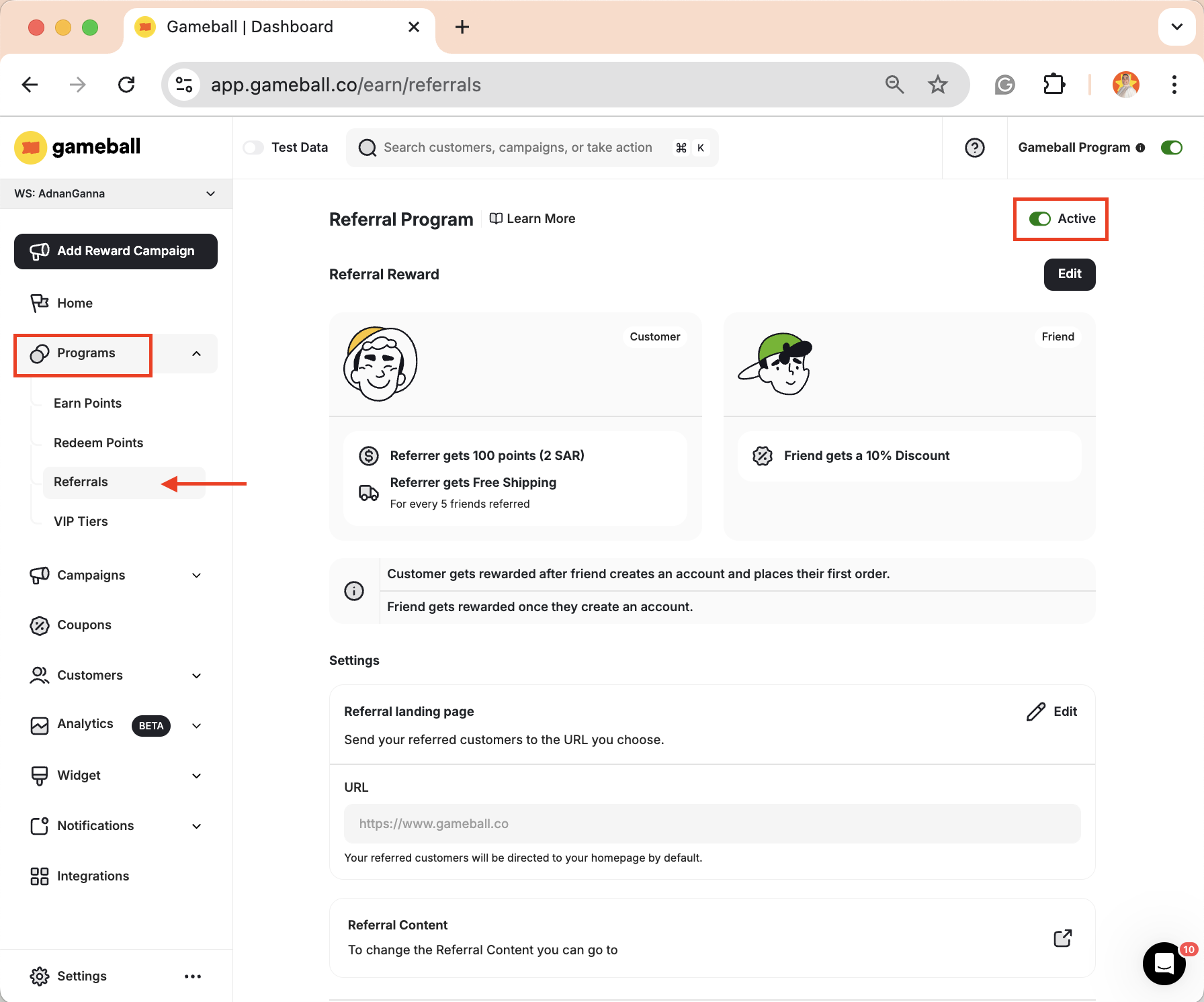 Now that the referral program is active, follow the steps below to configure it.
***
## Referral Program Configuration
### 1. Referral Reward
Gameball allows you to decide who gets rewarded in your referral program. You can choose to reward:
* **Both the customer and their friend**
* **Only the customer**
Now that the referral program is active, follow the steps below to configure it.
***
## Referral Program Configuration
### 1. Referral Reward
Gameball allows you to decide who gets rewarded in your referral program. You can choose to reward:
* **Both the customer and their friend**
* **Only the customer**
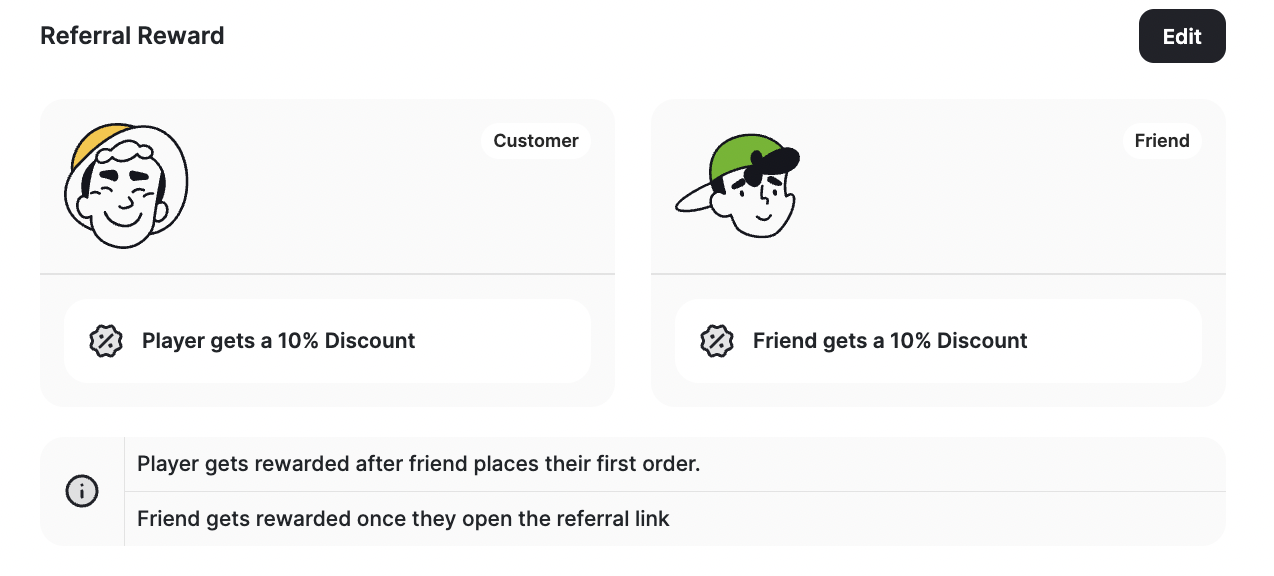 To configure the referral reward:
Click **Edit** in the **Referral Reward** section.
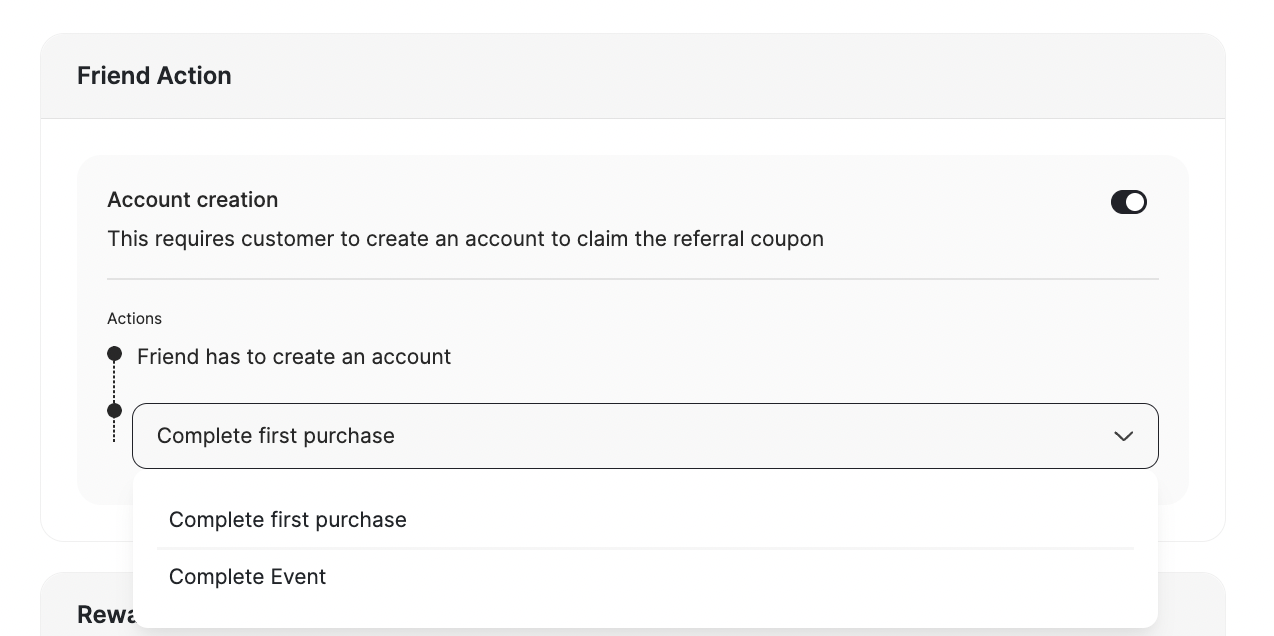
Under **Friend's Action**, choose what qualifies a referral as successful:
* The friend completes their first purchase (account creation not required).
* The friend creates an account and completes a specific action, such as:
* Completing their first purchase
* Triggering a custom event that you have configured
To configure the referral reward:
Click **Edit** in the **Referral Reward** section.
Under **Friend's Action**, choose what qualifies a referral as successful:
* The friend completes their first purchase (account creation not required).
* The friend creates an account and completes a specific action, such as:
* Completing their first purchase
* Triggering a custom event that you have configured
 #### Set Up the Rewards
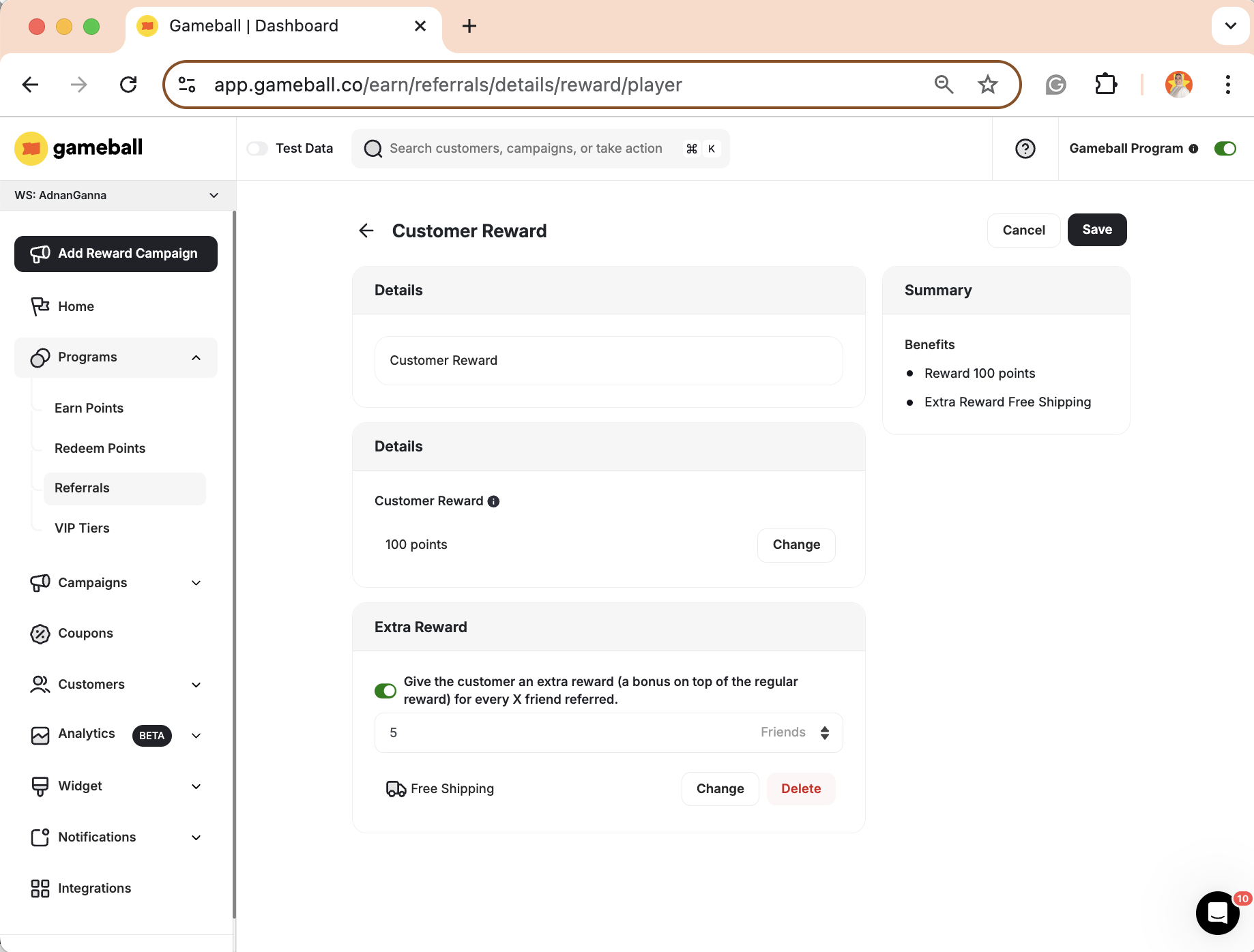
1. Click **Change** under **Customer Reward**.
2. Choose the type of reward from the **Rewards** section. [Learn more about Rewards Types](/product-documentation/rewards-campaigns/faqs/understanding-rewards-types).
3. \[Optional] Add an **extra reward** for every X successful referrals. For example, reward the customer with 100 extra points for every 5 successful referrals.
#### Set Up the Rewards
1. Click **Change** under **Customer Reward**.
2. Choose the type of reward from the **Rewards** section. [Learn more about Rewards Types](/product-documentation/rewards-campaigns/faqs/understanding-rewards-types).
3. \[Optional] Add an **extra reward** for every X successful referrals. For example, reward the customer with 100 extra points for every 5 successful referrals.
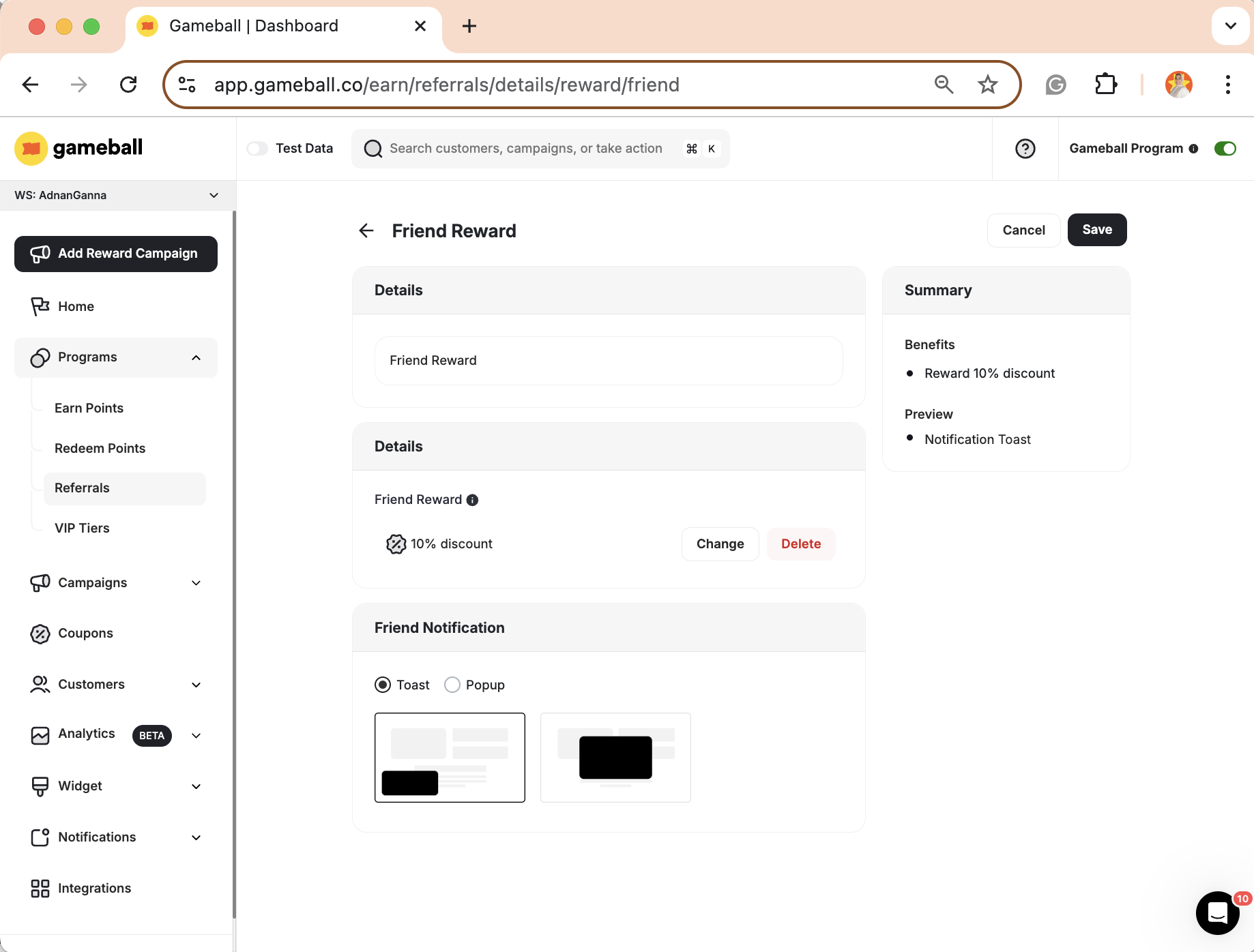
 1. Click **Change** under **Friend Reward**.
2. Choose the type of reward from the **Rewards** section.
3. Select the **notification style** you want to use.
1. Click **Change** under **Friend Reward**.
2. Choose the type of reward from the **Rewards** section.
3. Select the **notification style** you want to use.
 ***
### 2. Settings
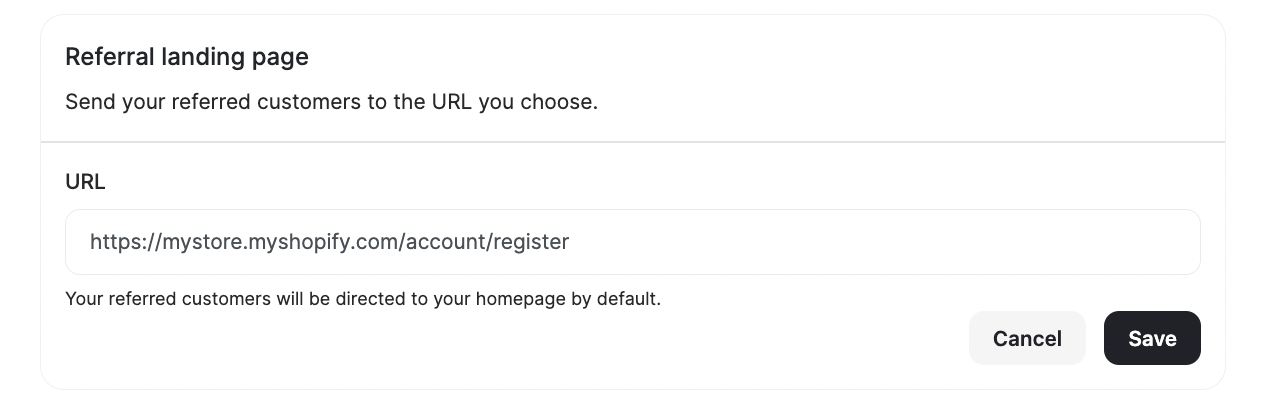
Choose the page you want referred friends to be directed to:
1. Enter your desired **URL** (by default, it redirects to your homepage).
2. Press **Save**.
***
### 2. Settings
Choose the page you want referred friends to be directed to:
1. Enter your desired **URL** (by default, it redirects to your homepage).
2. Press **Save**.
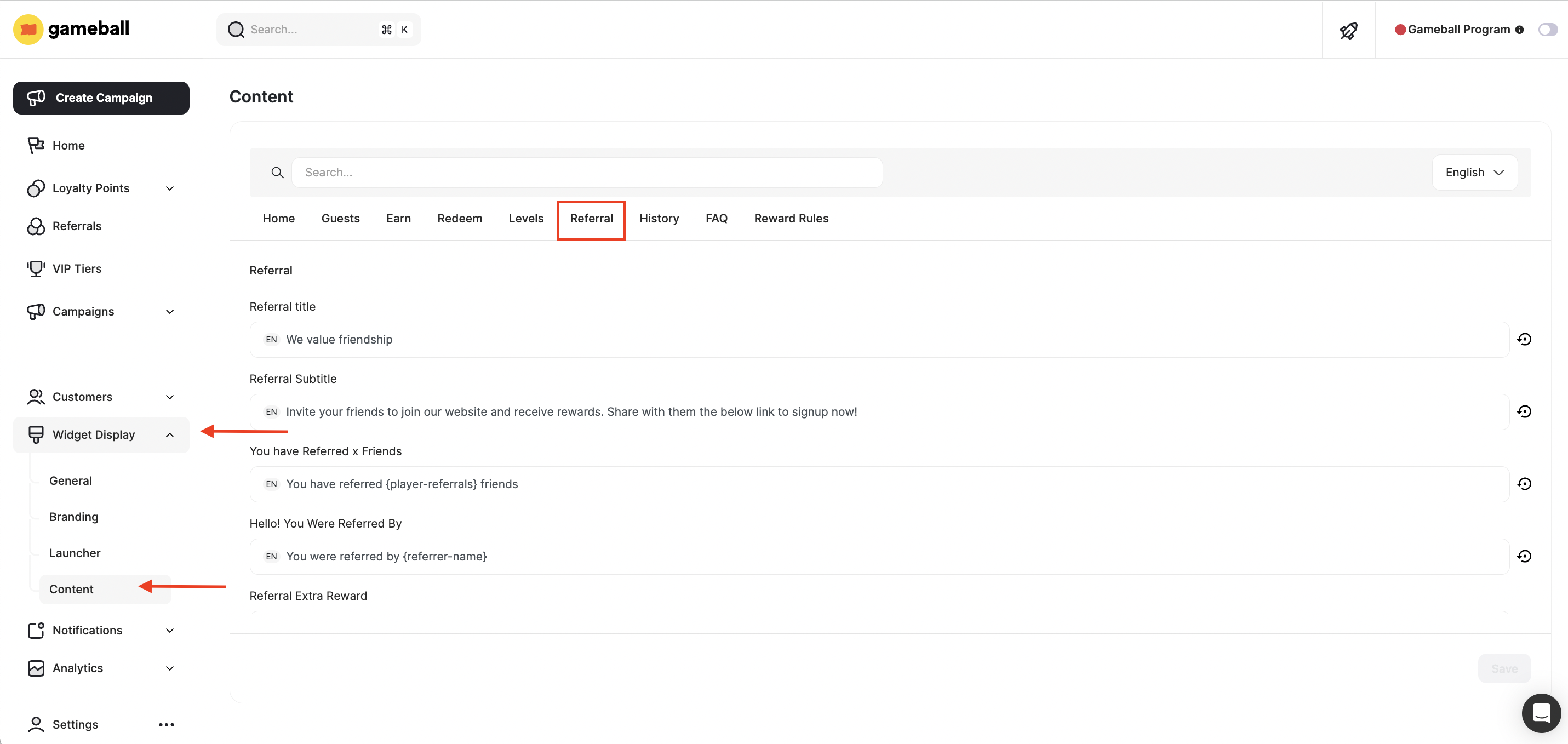
 To customize the content of the referral module displayed on the widget:
* Click the **redirection link** in the **Referral Content** section
To customize the content of the referral module displayed on the widget:
* Click the **redirection link** in the **Referral Content** section
 **Or**
* From the left-side menu, go to **Widget Display > Content**, then select the **Referral** tab
**Or**
* From the left-side menu, go to **Widget Display > Content**, then select the **Referral** tab
 ***
## Multi-Step Rewards \[Add-on]
Multi-step rewards allow you to incentivize both your customers and their friends at different stages of the referral journey.
For example, you can reward a customer when their friend:
* Creates an account
* Completes an order
***
## Multi-Step Rewards \[Add-on]
Multi-step rewards allow you to incentivize both your customers and their friends at different stages of the referral journey.
For example, you can reward a customer when their friend:
* Creates an account
* Completes an order
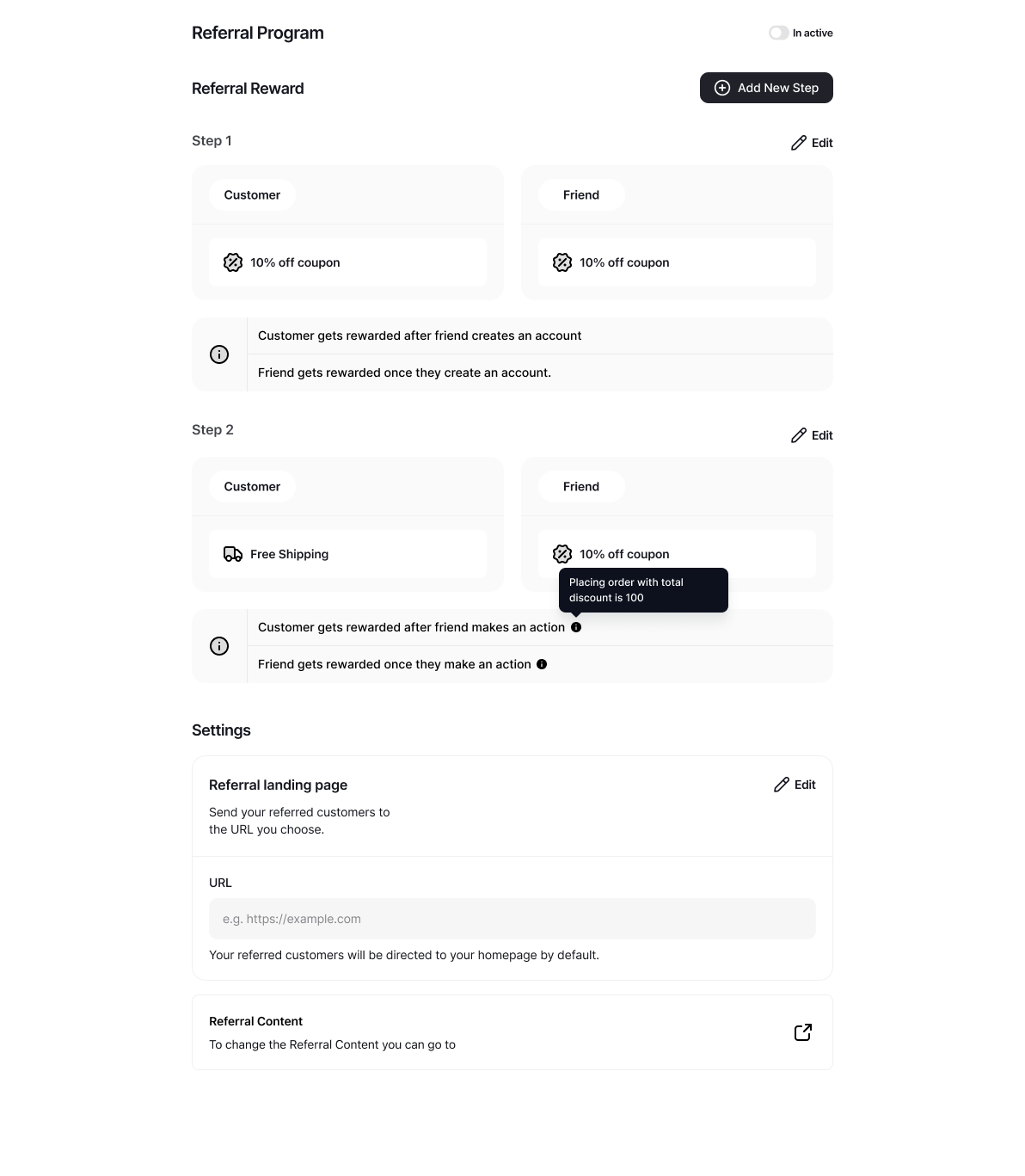 To configure multi-step rewards:
Click **Add New Step**.
Set the **friend's action** for this step.
Choose the **rewards** for both the customer and the friend.
To configure multi-step rewards:
Click **Add New Step**.
Set the **friend's action** for this step.
Choose the **rewards** for both the customer and the friend.
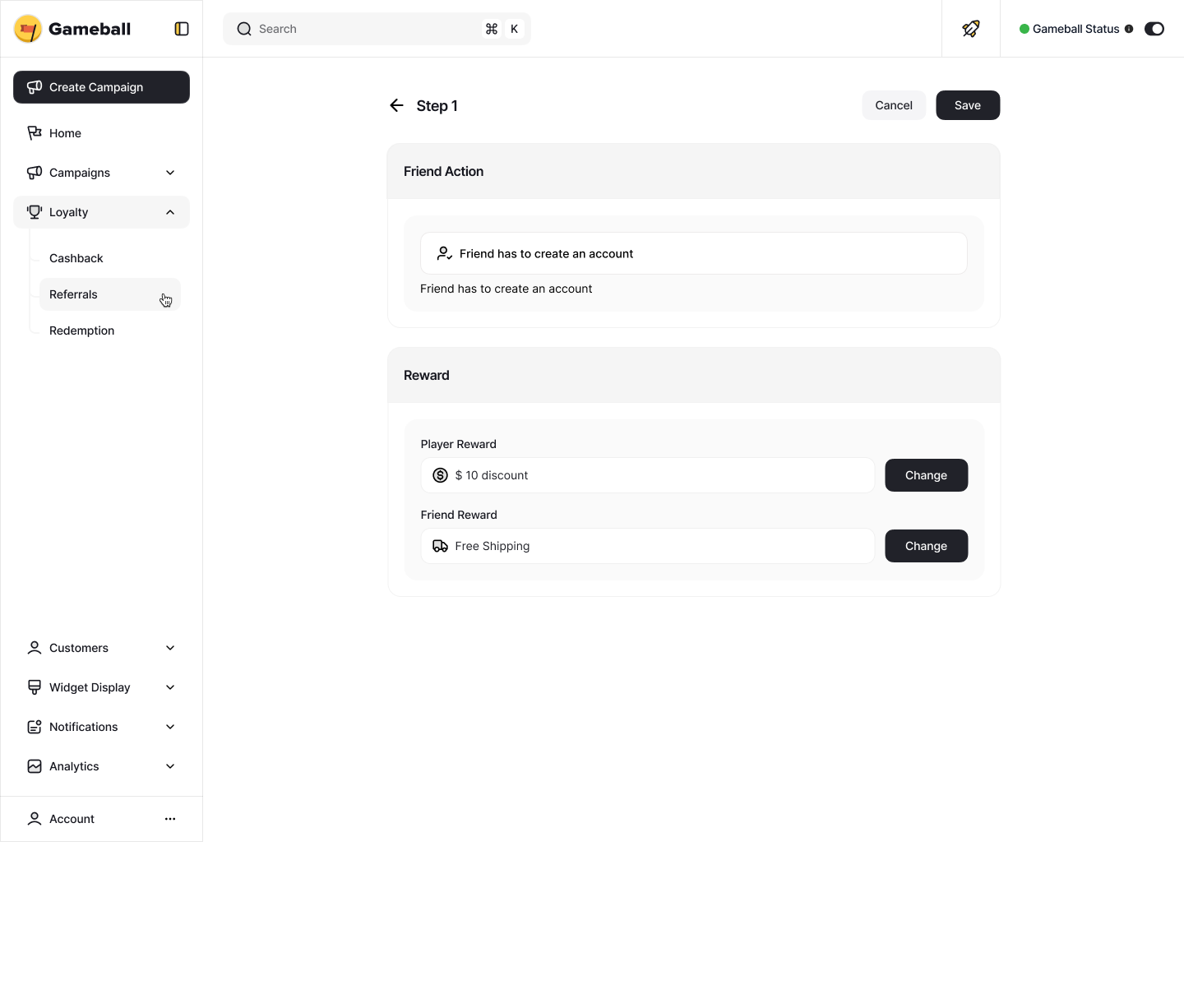 You can now configure multi-step referral flows to mark an event as **"Happens One Time"**, without needing to define additional metadata or complex custom rules.
***
## Common Questions
You can use Branch.io and Adjust to generate and track referral links for your customers.
**Branch.io** and **Adjust** are tools used to create dynamic referral links, **primarily for clients with mobile apps** who want to redirect users to their app. Both platforms offer free plans, but these come with limits based on the number of Monthly Active Users (MAUs) or attributions.
* [Read about how to integrate **Branch.io** with Gameball](https://developer.gameball.co/branch.io-integration)
* [Read about how to integrate **Adjust** with Gameball](https://developer.gameball.co/adjust-integration)
For web-only clients (those without a mobile app), there is no need to use Branch or Adjust.
The referral process can be completed without using a deep link generator like Branch or Adjust. In such cases, you will need to provide your own referral link. Gameball will simply append the referral code to it.
Deep link generators are only responsible for generating the link that appears in the referral widget. If you're not using one, the referral link will follow this format:
* `{referralLink}?GbReferral={referralCode}`
You will then need to handle the referral logic manually, including capturing the referral code and passing it in the *create customer* request.
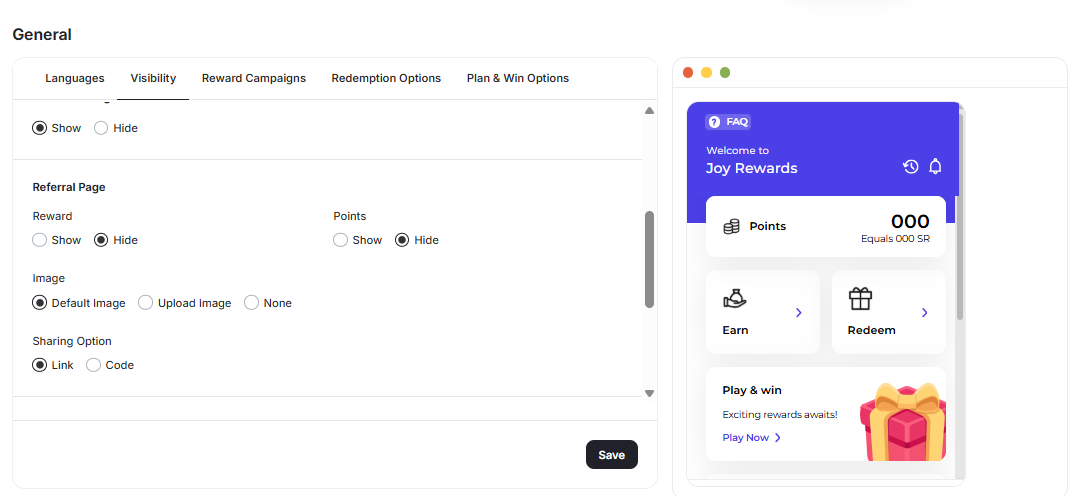
You can choose to display a customer's **referral code** instead of the full referral link, making it easier for customers to copy, share, and use referrals during sign-up especially in offline or manual flows.
From the dashboard, navigate to **Widget > General > Visibility > Referral Page**.
You can choose whether referral experiences display the full referral link or only the customer's unique referral code.
You can now configure multi-step referral flows to mark an event as **"Happens One Time"**, without needing to define additional metadata or complex custom rules.
***
## Common Questions
You can use Branch.io and Adjust to generate and track referral links for your customers.
**Branch.io** and **Adjust** are tools used to create dynamic referral links, **primarily for clients with mobile apps** who want to redirect users to their app. Both platforms offer free plans, but these come with limits based on the number of Monthly Active Users (MAUs) or attributions.
* [Read about how to integrate **Branch.io** with Gameball](https://developer.gameball.co/branch.io-integration)
* [Read about how to integrate **Adjust** with Gameball](https://developer.gameball.co/adjust-integration)
For web-only clients (those without a mobile app), there is no need to use Branch or Adjust.
The referral process can be completed without using a deep link generator like Branch or Adjust. In such cases, you will need to provide your own referral link. Gameball will simply append the referral code to it.
Deep link generators are only responsible for generating the link that appears in the referral widget. If you're not using one, the referral link will follow this format:
* `{referralLink}?GbReferral={referralCode}`
You will then need to handle the referral logic manually, including capturing the referral code and passing it in the *create customer* request.
You can choose to display a customer's **referral code** instead of the full referral link, making it easier for customers to copy, share, and use referrals during sign-up especially in offline or manual flows.
From the dashboard, navigate to **Widget > General > Visibility > Referral Page**.
You can choose whether referral experiences display the full referral link or only the customer's unique referral code.
 This is supported across both web and mobile, ensuring a unified experience wherever customers engage.
***
## Related Articles
See how customers experience referrals on the Gameball widget.
Generate and track deep referral links with Branch.io.
Generate and track deep referral links with Adjust.
This is supported across both web and mobile, ensuring a unified experience wherever customers engage.
***
## Related Articles
See how customers experience referrals on the Gameball widget.
Generate and track deep referral links with Branch.io.
Generate and track deep referral links with Adjust.