> ## Documentation Index
> Fetch the complete documentation index at: https://docs.gameball.co/llms.txt
> Use this file to discover all available pages before exploring further.
# How Do I Configure Gameball VIP Tiers?
> Create VIP tiers for your customers to gamify your user experience based on their engagement on your platform.
## Plan Availability
| Tiering-Up Method | Available |
| ----------------- | --------- |
| Amount Spent | Yes |
| Tiering-Up Method | Available |
| ----------------- | --------- |
| Amount Spent | Yes |
| Points | Yes |
| Tiering-Up Method | Available |
| ----------------- | --------- |
| Amount Spent | Yes |
| Points | Yes |
| Orders Completed | Yes |
| Friends Referred | Yes |
| Score | Yes |
Gamify your user experience and reward your customers for their engagement on your platform. With our VIP Tiers feature, you can create tiers and tier up your customers, turning their interaction with your platform into an exciting game.
***
## Configuring VIP Tiers
Log in to **Gameball's Dashboard**, head to the **Programs** section from the left side menu, then click **VIP Tiers.** View your current tiers to make any necessary adjustments.
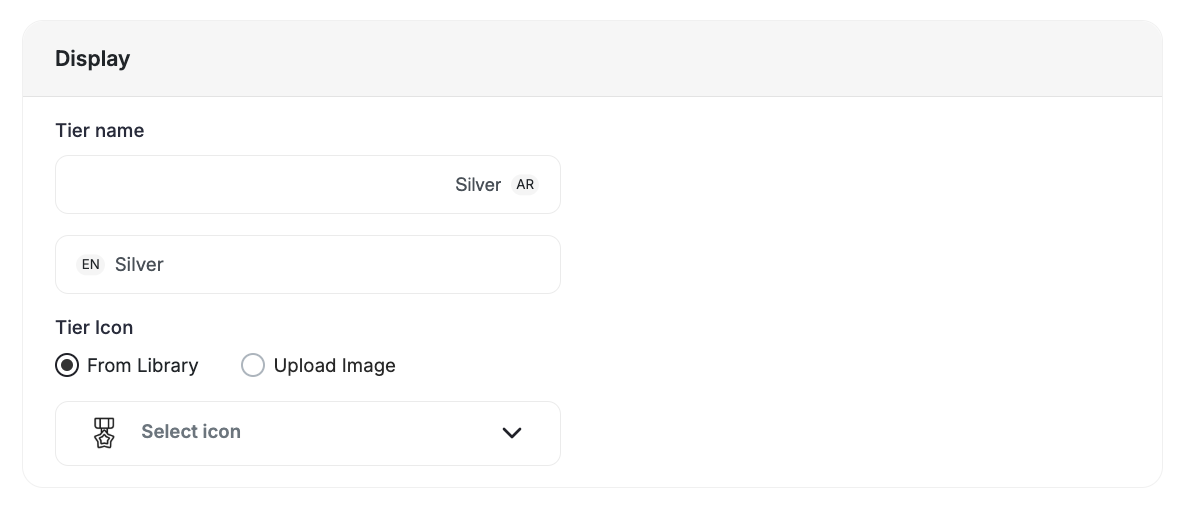
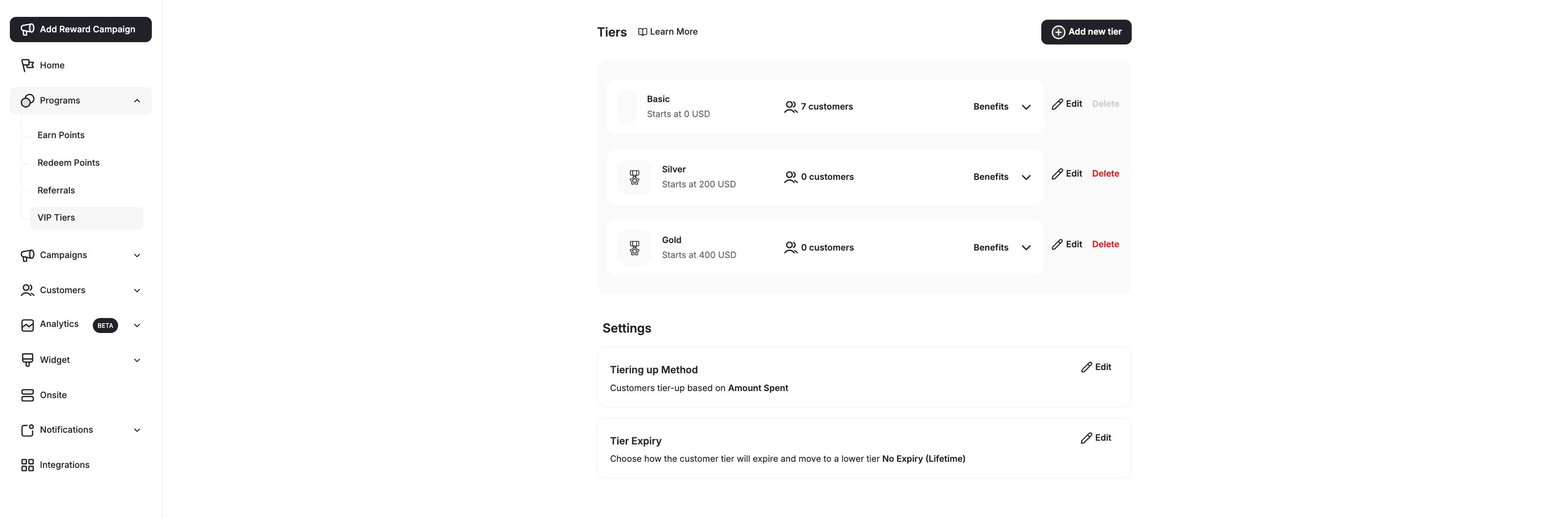 Click on **Add New Tier**. In the Add New Tier page, you have three sections to fill in:
* **Tier Name** — Enter the name that will appear to your customers in the customer widget. You can choose something like bronze, silver, gold, or something that matches the theme of your platform.
* **Tier Icon** — Select or upload an image that will appear in the customer widget. Pick an icon that matches your tier name and your platform theme.
* Choose an Icon from our library
* **OR** Upload an image from your device
Click on **Add New Tier**. In the Add New Tier page, you have three sections to fill in:
* **Tier Name** — Enter the name that will appear to your customers in the customer widget. You can choose something like bronze, silver, gold, or something that matches the theme of your platform.
* **Tier Icon** — Select or upload an image that will appear in the customer widget. Pick an icon that matches your tier name and your platform theme.
* Choose an Icon from our library
* **OR** Upload an image from your device
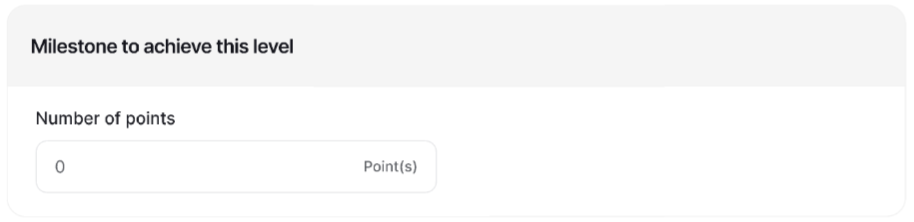
 Enter the value that you want your customers to achieve so they can enter this tier based on your tiering-up method.
[Learn more about Tiering-up methods.](/product-documentation/programs/vip-tiers/tier-settings/tiering-up-methods)
Enter the value that you want your customers to achieve so they can enter this tier based on your tiering-up method.
[Learn more about Tiering-up methods.](/product-documentation/programs/vip-tiers/tier-settings/tiering-up-methods)
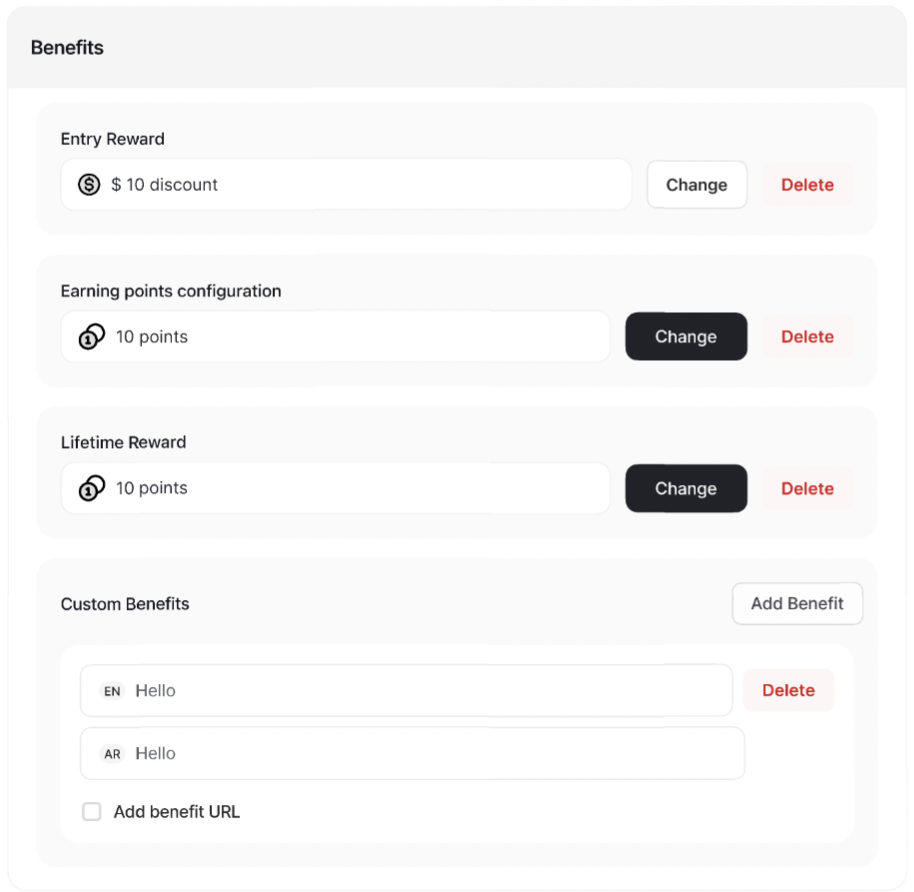
 * **Entry and Lifetime Rewards** — Reward your customers for reaching new tiers with points, free products, discounts, and exclusive offers to incentivize continued engagement.
* **Earning Points Configuration** — Customize the earning points system per tier. For example, customers on tier 2 could get 10 points for every dollar they spend instead of the default setup. [Learn more about the default Earn Points system.](/product-documentation/programs/loyalty-points-earn/launch-and-configure-your-earn-pointing-system)
* **Custom Benefits** — Go beyond traditional rewards and offer custom benefits to customers on specific tiers. Whether it's access to VIP products or exclusive events, unleash your creativity to enhance the customer experience. [Learn more about Tier Benefits.](/product-documentation/programs/vip-tiers/tier-settings/customizing-benefits-for-different-tiers)
* **Entry and Lifetime Rewards** — Reward your customers for reaching new tiers with points, free products, discounts, and exclusive offers to incentivize continued engagement.
* **Earning Points Configuration** — Customize the earning points system per tier. For example, customers on tier 2 could get 10 points for every dollar they spend instead of the default setup. [Learn more about the default Earn Points system.](/product-documentation/programs/loyalty-points-earn/launch-and-configure-your-earn-pointing-system)
* **Custom Benefits** — Go beyond traditional rewards and offer custom benefits to customers on specific tiers. Whether it's access to VIP products or exclusive events, unleash your creativity to enhance the customer experience. [Learn more about Tier Benefits.](/product-documentation/programs/vip-tiers/tier-settings/customizing-benefits-for-different-tiers)
 **Return Window Duration for Tier Entry Reward Points** — Prevent temporary reward abuse by locking tier-entry points until the return window expires. This ensures customers cannot instantly redeem tier-upgrade rewards and then refund their qualifying orders. [Learn more](/product-documentation/programs/vip-tiers/tier-settings/customizing-benefits-for-different-tiers).
After creating your tiers, configure the global VIP Tier settings:
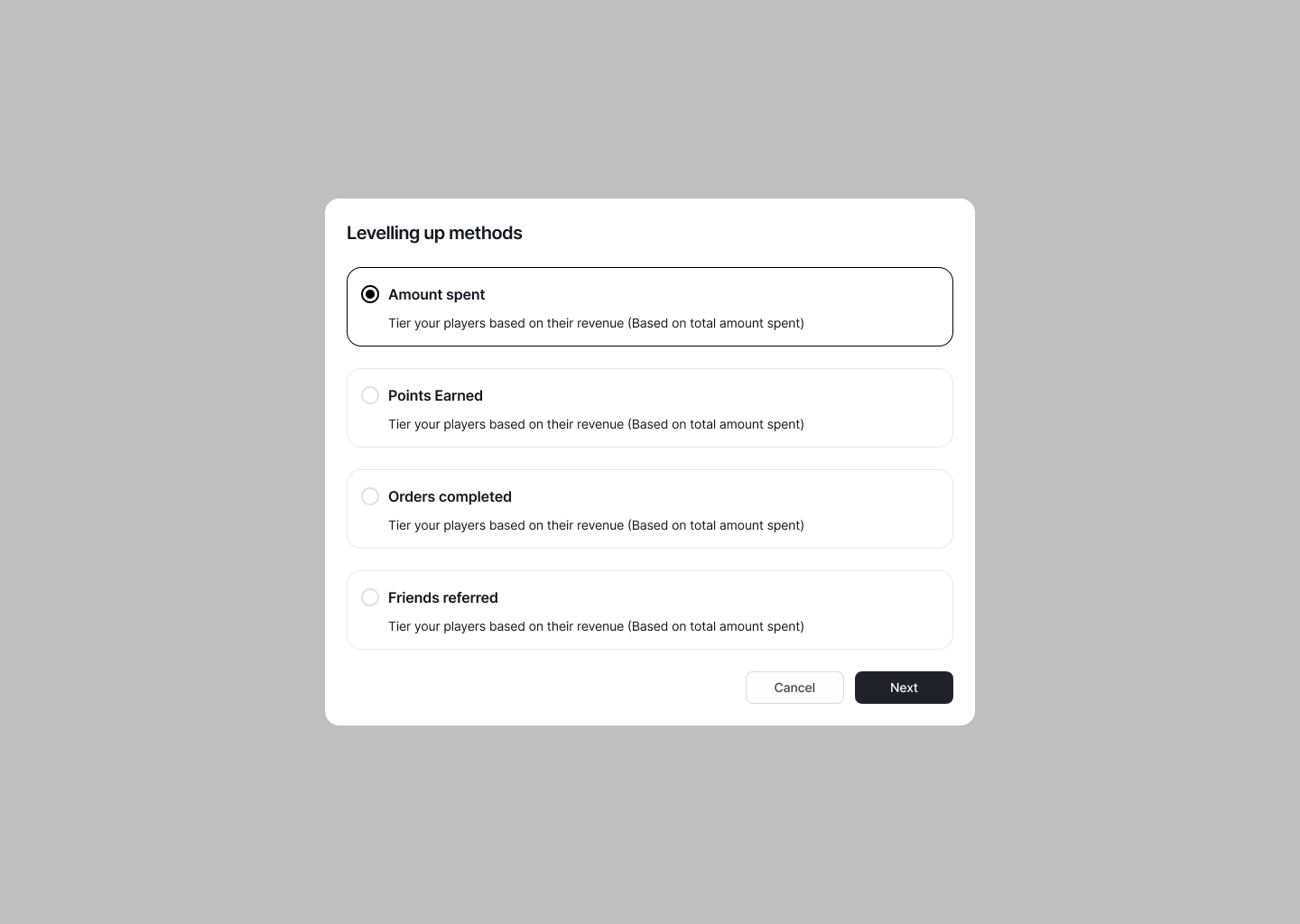
Choose how customers advance through tiers:
* Amount Spent
* Points Earned
* Orders Completed
* Friends Referred
* Score
[Learn more](/product-documentation/programs/vip-tiers/tier-settings/tiering-up-methods)
Set an expiry date to keep progression dynamic. Choose from no expiry or based on the last 3, 6, 12, or 24 months.
[Learn more](/product-documentation/programs/vip-tiers/tier-settings/understanding-tier-expiry)
Choose whether refunded orders contribute to customers' tier advancement, ensuring your loyalty logic stays aligned with your business rules.
Control when the tiering program goes live. Set it to **Active** or **Inactive** and configure a **Start Date** for when tier evaluation begins.
**Return Window Duration for Tier Entry Reward Points** — Prevent temporary reward abuse by locking tier-entry points until the return window expires. This ensures customers cannot instantly redeem tier-upgrade rewards and then refund their qualifying orders. [Learn more](/product-documentation/programs/vip-tiers/tier-settings/customizing-benefits-for-different-tiers).
After creating your tiers, configure the global VIP Tier settings:
Choose how customers advance through tiers:
* Amount Spent
* Points Earned
* Orders Completed
* Friends Referred
* Score
[Learn more](/product-documentation/programs/vip-tiers/tier-settings/tiering-up-methods)
Set an expiry date to keep progression dynamic. Choose from no expiry or based on the last 3, 6, 12, or 24 months.
[Learn more](/product-documentation/programs/vip-tiers/tier-settings/understanding-tier-expiry)
Choose whether refunded orders contribute to customers' tier advancement, ensuring your loyalty logic stays aligned with your business rules.
Control when the tiering program goes live. Set it to **Active** or **Inactive** and configure a **Start Date** for when tier evaluation begins.
 ***
## Refunded Orders Behavior
When **Refunded Orders** setting is enabled:
| Scenario | Behavior |
| -------- | ---------------------------------------------------------------------------------- |
| Enabled | Refunded orders **do not** count toward tier progress; earned progress is deducted |
| Disabled | Refunded orders remain included (default) |
Tier progress in both the **dashboard** and **widget** automatically reflects the updated calculation. Progress reductions from refunds are shown in real time.
If a refund lowers a customer's total spending below their current tier threshold, they will be downgraded accordingly. If downgraded, any entry reward given as points will be removed, while coupon rewards will remain. Customers can reclaim entry rewards each time they requalify. The system tracks tier changes, reward adjustments, and refund impacts while maintaining logs for auditing and fraud detection.
***
## Program Activation and Start Date
The tiering program includes an **Active / Inactive** toggle in the VIP Tier settings. If you are new to Gameball, the program is set to **Inactive** by default, giving you time to fully configure your tiers, benefits, and rules before going live.
When you activate the program, you are required to set a **Start Date**. Tier evaluation begins from this date — orders and events that occurred before it do not count toward customers' tier progression.
| Setting | Behavior |
| -------------- | --------------------------------------------------------------------------------------------------------- |
| **Inactive** | Tiers are hidden from customers in the widget. No tier progress is tracked. |
| **Active** | Tiers are visible in the widget. Tier progress is tracked from the configured start date onward. |
| **Start Date** | Only orders and events on or after this date contribute to tier advancement. Earlier activity is ignored. |
Activation and any changes to the start date are logged in the **Audit Trail** for tracking and accountability.
Use the inactive state to configure everything in advance — tiers, milestones, and benefits — then set a start date and activate when you're ready to launch. Customers will only see tiers once the program is active.
***
## Related Articles
Understand the different methods for advancing customers through your VIP tiers.
Configure entry rewards, lifetime rewards, and custom benefits for each tier.
***
## Refunded Orders Behavior
When **Refunded Orders** setting is enabled:
| Scenario | Behavior |
| -------- | ---------------------------------------------------------------------------------- |
| Enabled | Refunded orders **do not** count toward tier progress; earned progress is deducted |
| Disabled | Refunded orders remain included (default) |
Tier progress in both the **dashboard** and **widget** automatically reflects the updated calculation. Progress reductions from refunds are shown in real time.
If a refund lowers a customer's total spending below their current tier threshold, they will be downgraded accordingly. If downgraded, any entry reward given as points will be removed, while coupon rewards will remain. Customers can reclaim entry rewards each time they requalify. The system tracks tier changes, reward adjustments, and refund impacts while maintaining logs for auditing and fraud detection.
***
## Program Activation and Start Date
The tiering program includes an **Active / Inactive** toggle in the VIP Tier settings. If you are new to Gameball, the program is set to **Inactive** by default, giving you time to fully configure your tiers, benefits, and rules before going live.
When you activate the program, you are required to set a **Start Date**. Tier evaluation begins from this date — orders and events that occurred before it do not count toward customers' tier progression.
| Setting | Behavior |
| -------------- | --------------------------------------------------------------------------------------------------------- |
| **Inactive** | Tiers are hidden from customers in the widget. No tier progress is tracked. |
| **Active** | Tiers are visible in the widget. Tier progress is tracked from the configured start date onward. |
| **Start Date** | Only orders and events on or after this date contribute to tier advancement. Earlier activity is ignored. |
Activation and any changes to the start date are logged in the **Audit Trail** for tracking and accountability.
Use the inactive state to configure everything in advance — tiers, milestones, and benefits — then set a start date and activate when you're ready to launch. Customers will only see tiers once the program is active.
***
## Related Articles
Understand the different methods for advancing customers through your VIP tiers.
Configure entry rewards, lifetime rewards, and custom benefits for each tier.