> ## Documentation Index
> Fetch the complete documentation index at: https://docs.gameball.co/llms.txt
> Use this file to discover all available pages before exploring further.
# How Does Tier Expiry Work in Gameball?
> Explore how Gameball manages tier expiry in various scenarios.
## Plan Availability
| Plan | Available |
| ---------- | --------- |
| Pro & Guru | Yes |
| Plan | Available |
| --------------------- | --------- |
| Growth (as an Add-On) | Yes |
| Enterprise | Yes |
Tier expiry is a crucial aspect of Gameball's loyalty program, influencing how customers maintain their status and access privileges. By adjusting the expiry system, you can encourage continuous engagement and ensure customers strive to maintain their tiers.
***
## Available Options
Customers retain their tier indefinitely once achieved, enjoying associated benefits until they progress to a higher tier.
Gameball evaluates customer activity over the past 3 months. Customers who meet tier requirements remain, and customers who do not meet the current level of activity will be enrolled in lower tiers that correspond to their activity.
Gameball evaluates customer activity over the past 6 months. Customers who meet tier requirements remain, and customers who do not meet the current level of activity will be enrolled in lower tiers that correspond to their activity in the past 6 months.
Similar to the 6-month/3-month system, but with a year-long evaluation period.
Evaluate customer activity over the past 2 years to determine tier status.
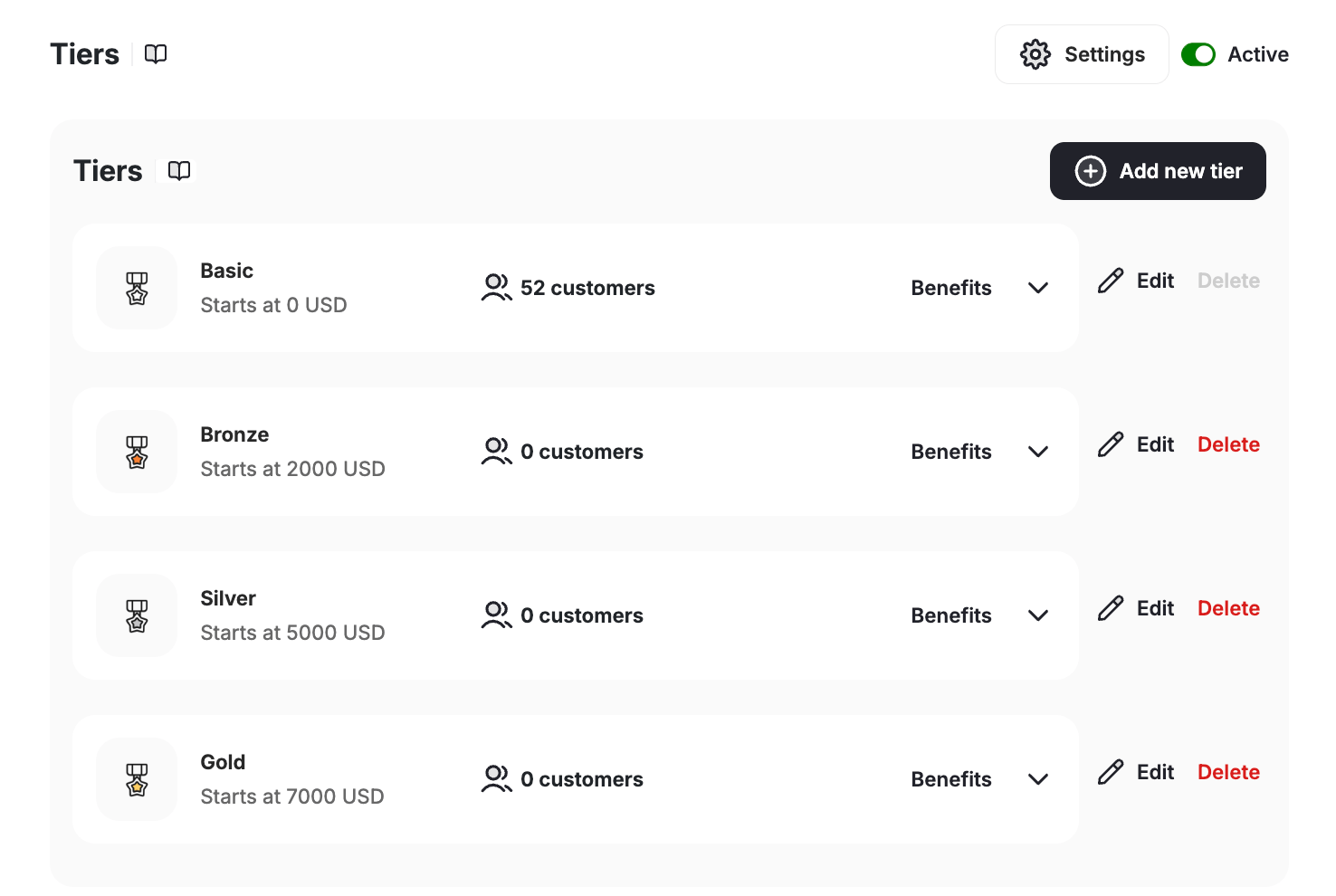
Tiering up is instant while tiering down is re-evaluated every given period (3, 6, 12, 24 months).
 ***
## Configuring Tier Expiry
Login to **Gameball's Dashboard** and click on **Programs**, then **VIP Tiers** from the left side menu.
In the **Settings** section, click the **Tier Expiry** card. A settings drawer will slide in from the right with your current saved values pre-filled.
***
## Configuring Tier Expiry
Login to **Gameball's Dashboard** and click on **Programs**, then **VIP Tiers** from the left side menu.
In the **Settings** section, click the **Tier Expiry** card. A settings drawer will slide in from the right with your current saved values pre-filled.
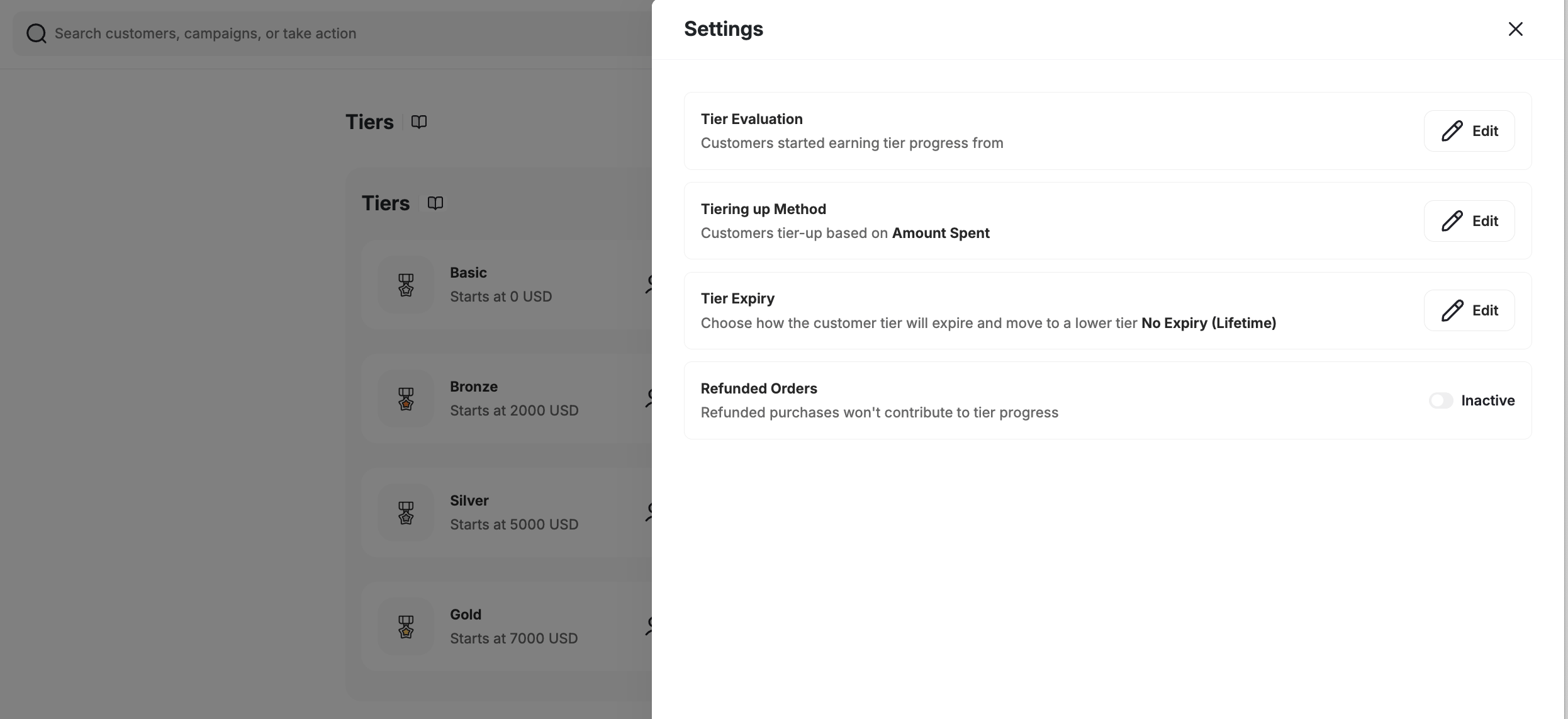 Select the expiry option that fits your program, then click **Save**.
***
## Impact of Changes
| Change Type | Behavior |
| ---------------------------- | ------------------------------------------------------------------------------------------------------------------------------------------------------------------------------------------------------------------------------- |
| Switching Expiry Systems | Customers are reassessed based on the new expiry system. Their activity within the specified timeframe determines tier status. |
| Changing Tiering Methods | Gameball recalculates customer tiers based on the new method, considering both current activity and historical data. |
| Adjusting Achievement Ranges | Altering tier requirements affects customer placements. Expiry dates remain unchanged, continuing from the last update. |
| Adding or Removing Tiers | Customers may move to higher or lower tiers without affecting expiry dates. Gameball maintains the existing countdown from the last system update. |
| Manual Tier Assignments | When manually assigning a tier, the expiry date resets for that customer, initiating a new countdown from the assignment date. |
| Plan Changes | Downgrading from Pro or Guru plans shifts the system to lifetime expiry. Customers are relocated based on their historical activity up to the downgrade date. Upgrading or switching plans maintains the current expiry system. |
***
## How to View Tier Evaluation Dates
A **"Tier Evaluation Date"** field appears under the **Tier Information** section on each **customer's profile**.
Select the expiry option that fits your program, then click **Save**.
***
## Impact of Changes
| Change Type | Behavior |
| ---------------------------- | ------------------------------------------------------------------------------------------------------------------------------------------------------------------------------------------------------------------------------- |
| Switching Expiry Systems | Customers are reassessed based on the new expiry system. Their activity within the specified timeframe determines tier status. |
| Changing Tiering Methods | Gameball recalculates customer tiers based on the new method, considering both current activity and historical data. |
| Adjusting Achievement Ranges | Altering tier requirements affects customer placements. Expiry dates remain unchanged, continuing from the last update. |
| Adding or Removing Tiers | Customers may move to higher or lower tiers without affecting expiry dates. Gameball maintains the existing countdown from the last system update. |
| Manual Tier Assignments | When manually assigning a tier, the expiry date resets for that customer, initiating a new countdown from the assignment date. |
| Plan Changes | Downgrading from Pro or Guru plans shifts the system to lifetime expiry. Customers are relocated based on their historical activity up to the downgrade date. Upgrading or switching plans maintains the current expiry system. |
***
## How to View Tier Evaluation Dates
A **"Tier Evaluation Date"** field appears under the **Tier Information** section on each **customer's profile**.
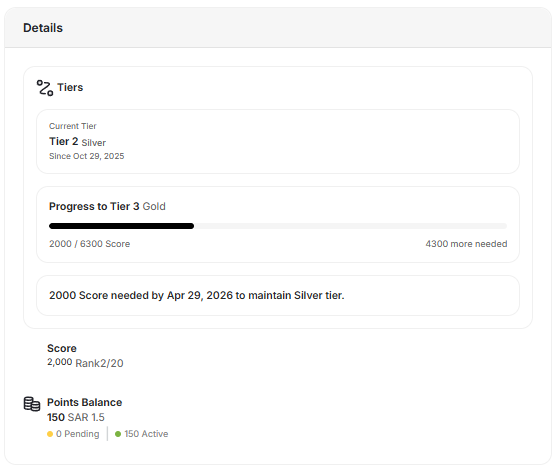 Displays when the customer's current tier will reset or be re-evaluated.
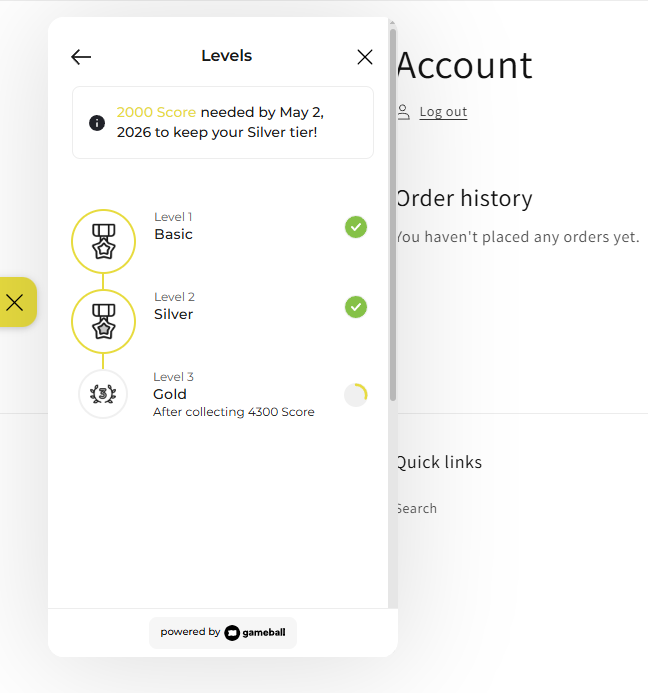
Customers can now see a clear message like:
* "Your tier will reset on: Jan 1, 2026"
* A countdown (e.g., "7 days left till evaluation") appears one week before the reset date.
* Fully supports **LTR and RTL languages**.
Displays when the customer's current tier will reset or be re-evaluated.
Customers can now see a clear message like:
* "Your tier will reset on: Jan 1, 2026"
* A countdown (e.g., "7 days left till evaluation") appears one week before the reset date.
* Fully supports **LTR and RTL languages**.
 Evaluation dates recalculate automatically when tier settings change (e.g., from 12 months to 6 months).
***
## Related Articles
Understand the different methods for advancing customers through tiers.
Configure entry rewards, lifetime rewards, and custom benefits for each tier.
Evaluation dates recalculate automatically when tier settings change (e.g., from 12 months to 6 months).
***
## Related Articles
Understand the different methods for advancing customers through tiers.
Configure entry rewards, lifetime rewards, and custom benefits for each tier.